Manage AI
Zoho Analytics is an agentic analytics platform. AI agents understand your business context and take on the work, from preparing data and writing SQL to building dashboards and recommending what to do next, while you stay in control of every step.
Manage AI is where you set up and govern this AI for your organization.
Note: Manage AI was previously called GenAI Configuration.
Overview
Manage AI is where you configure and manage two broad types of AI capabilities.
- Agents: They take on tasks from your natural language requests. You work with them in the Ask Zia chat and right where you do the work, such as Query Tables and Code Studio. Zoho Analytics has seven agents, each built for a specific kind of work. To learn more, refer to Agents and AI features.
- AI features: They bring AI insights into your existing reports and dashboards. Zia Insights explains what changed in your metrics and suggests what to do next.
For each agent and AI feature, you choose whether it's available, which AI vendor powers it, and who in your organization can use it. You also decide how much data is shared with AI vendors and track the credits your organization uses.
Each agent and AI feature uses an AI vendor, such as OpenAI or Zoho LLM, to process requests. Depending on how an AI vendor is connected, its usage is deducted from your credits or billed to your own account with the AI vendor. To learn more, refer to AI credits page.
Manage AI has four tabs:
| Tab | What you can do |
|---|---|
| Agents & Features | Enable or disable agents and AI features, select the AI vendor for each, and control who can use them. |
| Optimization | Share workspace metadata to improve the accuracy and relevance of AI responses. |
| AI Vendors | Connect and manage AI vendors, select how each AI vendor is authenticated, and view its usage. |
| Credit Usage | Track how many credits are used by each AI vendor and capability, and see when your credits reset. |
Who can access Manage AI
Only the Account Admin can access and manage Manage AI.
Who can use the agents and AI features is a separate setting. The Account Admin controls it in the Access Control section of the Agents & Features tab. To learn more, refer to Control who can use agents and AI features.
Note: The agents and AI features available to you depend on your Zoho Analytics plan. To learn more, refer to Plan availability.
Key terms
| Term | Meaning |
|---|---|
| Add-on credits | Extra credits that you can buy on a paid plan. Add-on credits renew and are billed every month. They aren't available on the Free plan. |
| Agent | An AI capability that completes a task from your natural language request, such as writing a SQL query or creating a dashboard. |
| AI credits | A one-time credit that you receive on a paid plan. The number of credits depends on your plan. AI credits expire 180 days after they're added, and you can use them only on a paid plan. |
| AI feature | An AI capability built into an existing Zoho Analytics feature, such as Zia Insights. |
| AI vendor | The provider of the large language model (LLM) that processes requests for an agent or AI feature. Zoho Analytics supports OpenAI and Zoho LLM. |
| Authentication mode | How Zoho Analytics connects to an AI vendor. You can select Zoho Key System (ZKS) or Bring Your Own Key (BYOK). |
| Bring Your Own Key (BYOK) | An authentication mode in which you connect the AI vendor with your own API key. Usage is billed to your account with the AI vendor and doesn't use your credits. |
| Capability | An agent, AI feature, or other AI function that uses credits. The Capabilities view on the Credit Usage tab shows the credits that each capability used. |
| Credits | The units that measure AI usage through ZKS. Zoho Analytics has three types: AI credits, Zoho LLM credits, and add-on credits. |
| Embeddings | Representations of your workspace metadata that Zoho Analytics creates when Optimization is on. They improve the accuracy and relevance of AI responses. |
| Large language model (LLM) | The type of AI model that understands requests and generates responses. |
| Metadata | Information that describes your data, such as table names, column names, data types, data models, synonyms, and descriptions. Metadata doesn't include the data in your tables. |
| Optimization | A setting that shares your workspace metadata to create embeddings. |
| Shares data | A label on an agent or AI feature. It indicates that the agent or feature sends row-level data from your tables to the AI vendor. |
| Shares metadata | A label on an agent or AI feature. It indicates that the agent or feature sends only metadata to the AI vendor, not the data in your tables. |
| Tokens | The units that AI vendors use to measure the text they process. The AI Vendors tab shows the tokens that each AI vendor used in the current month. |
| Zoho Key System (ZKS) | An authentication mode in which Zoho manages the connection, routing, and access to supported LLMs for you, so you don't need your own API key. Usage is deducted from your credits. |
| Zoho LLM | Zoho's built-in language model. No API key is needed. |
| Zoho LLM credits | Credits included with every plan, including the Free plan, that only Zoho LLM uses. Zoho LLM credits reset at the start of every billing cycle. |
Plan availability
The agents and AI features available to you depend on your Zoho Analytics plan. Agents and AI features that aren't included in your plan don't appear on the Agents & Features tab.
| Agent or AI feature | Free | Basic | Standard | Premium | Enterprise |
|---|---|---|---|---|---|
| Analysis Agent | Yes | Yes | Yes | Yes | Yes |
| SQL Agent | Yes | Yes | Yes | Yes | Yes |
| Formula Agent | Yes | Yes | Yes | Yes | Yes |
| Visualization Agent | Yes | Yes | Yes | Yes | Yes |
| Slideshow Agent | No | Yes | Yes | Yes | Yes |
| Data Prep Agent | No | No | No | Yes | Yes |
| DSML Coding Agent | No | No | No | Yes | Yes |
| Zia Insights | No | No | No | Yes | Yes |
Note:
- The Diagnostic Analysis capability of the Analysis Agent is available only on the Premium and Enterprise plans.
- On the Free plan, external AI vendors such as OpenAI are available only with your own API key (BYOK). The Visualization Agent supports only OpenAI, so on the Free plan it needs your own OpenAI API key. To learn more, refer to <<AI credits page: Credits on the Free plan>>.
- The number of AI credits and Zoho LLM credits for each plan is listed in AI credits page. For pricing details, refer to the pricing page.
Access Manage AI
- Sign in to Zoho Analytics as the Account Admin.
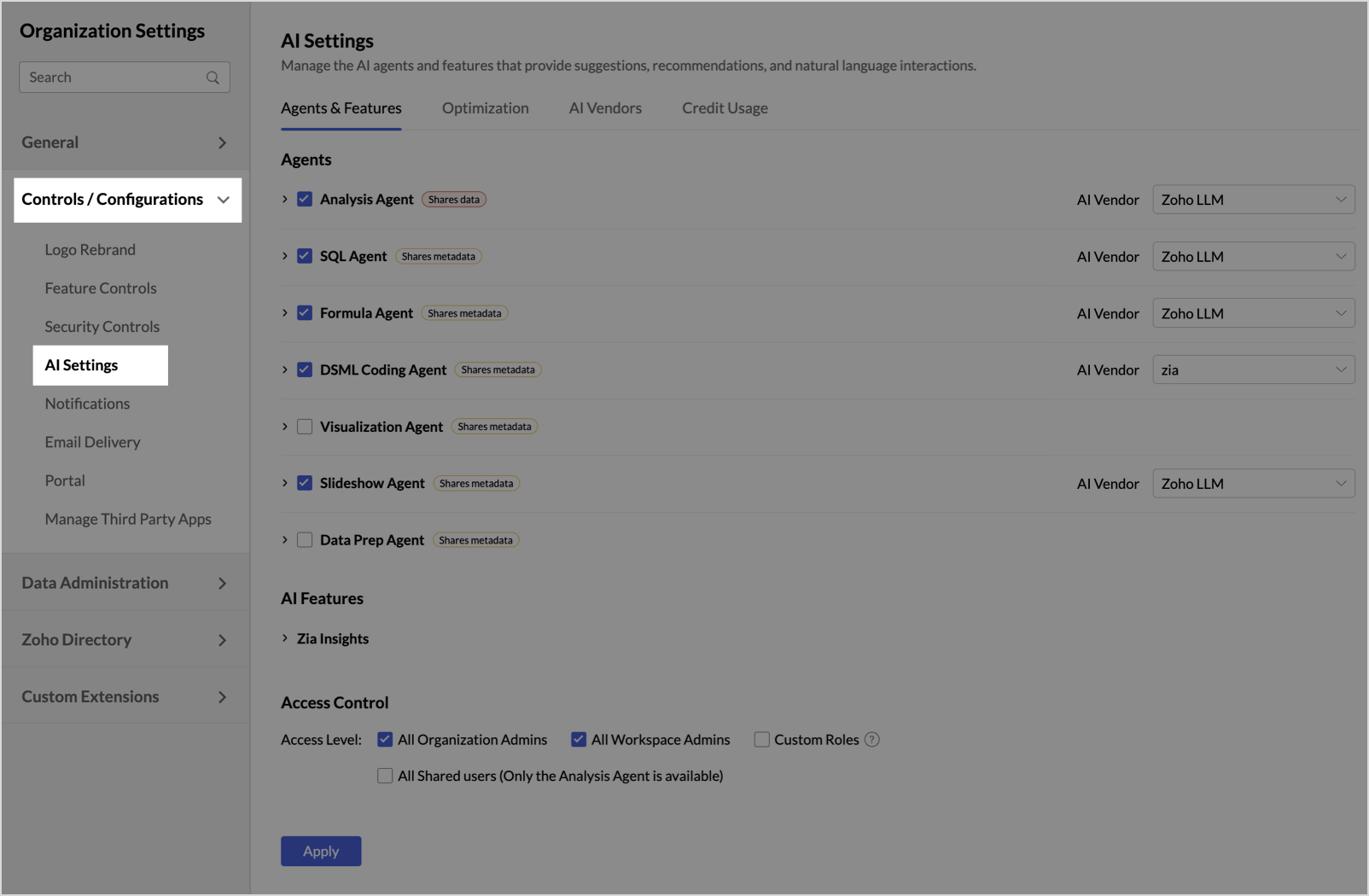
- Go to Organization Settings > Controls / Configurations > Manage AI.
The Agents & Features tab opens.
Agents and AI features
The Agents & Features tab lists the agents and AI features included in your plan. Each one shows a label for what it shares with the AI vendor and the capabilities it includes. When you enable an agent or AI feature, an AI Vendor dropdown appears next to it.
Agents
| Agent | What it does | Capabilities | Shares | Supported AI vendors |
|---|---|---|---|---|
| Analysis Agent | Describes trends and patterns in your workspace data, explains what caused changes, and creates reports from your requests. | Descriptive Analysis, Diagnostic Analysis, Report Creation, Recommendations | Data | OpenAI, Zoho LLM |
| SQL Agent | Writes, optimizes, explains, and fixes SQL queries in Query Tables, based on your data model. | Query Generation, Query Explanation, Query Optimization, Query Troubleshooting | Metadata | OpenAI, Zoho LLM |
| Formula Agent | Creates and fixes formula columns and aggregate formulas from natural language requests. | Formula Generation, Formula Troubleshooting | Metadata | OpenAI, Zoho LLM |
| DSML Coding Agent | Writes, explains, and optimizes Python code in Code Studio for data transformation and machine learning models. | Code Generation, Code Explanation, Code Optimization | Metadata | OpenAI only |
| Visualization Agent | Creates and edits reports and dashboards, including layouts and widgets, from natural language requests. | Dashboard Creation, Widget Creation, Report Creation | Metadata | OpenAI only |
| Slideshow Agent | Creates and edits slideshows from your reports, with a summary on each slide. | Slideshow Creation, Slideshow Editing | Metadata | OpenAI, Zoho LLM |
| Data Prep Agent | Cleans and transforms data, and builds scheduled pipelines from natural language requests. | Data Transformation, Pipeline Creation | Metadata | OpenAI with your own API key (BYOK) only |
AI features
| AI feature | What it does | Capabilities | Shares | Supported AI vendors |
|---|---|---|---|---|
| Zia Insights: Descriptive and Diagnostic | Summarizes trends and outliers, and explains what caused sudden changes in metrics on your reports and dashboards. | Descriptive Insights, Diagnostic Insights, Key Driver Analysis, Contribution | Metadata | OpenAI, Zoho LLM |
| Zia Insights: Recommendations | Suggests actions based on the key drivers behind a significant change in a metric. | Action Suggestions, Key Driver Insights | Data | OpenAI, Zoho LLM |
Note:
- To learn what the Shares data and Shares metadata labels mean, refer to Data handling and privacy.
- For agents that support only OpenAI, the AI Vendor dropdown is locked to OpenAI.
Manage agents and AI features
Enable or disable an agent or AI feature
To enable an agent or AI feature:
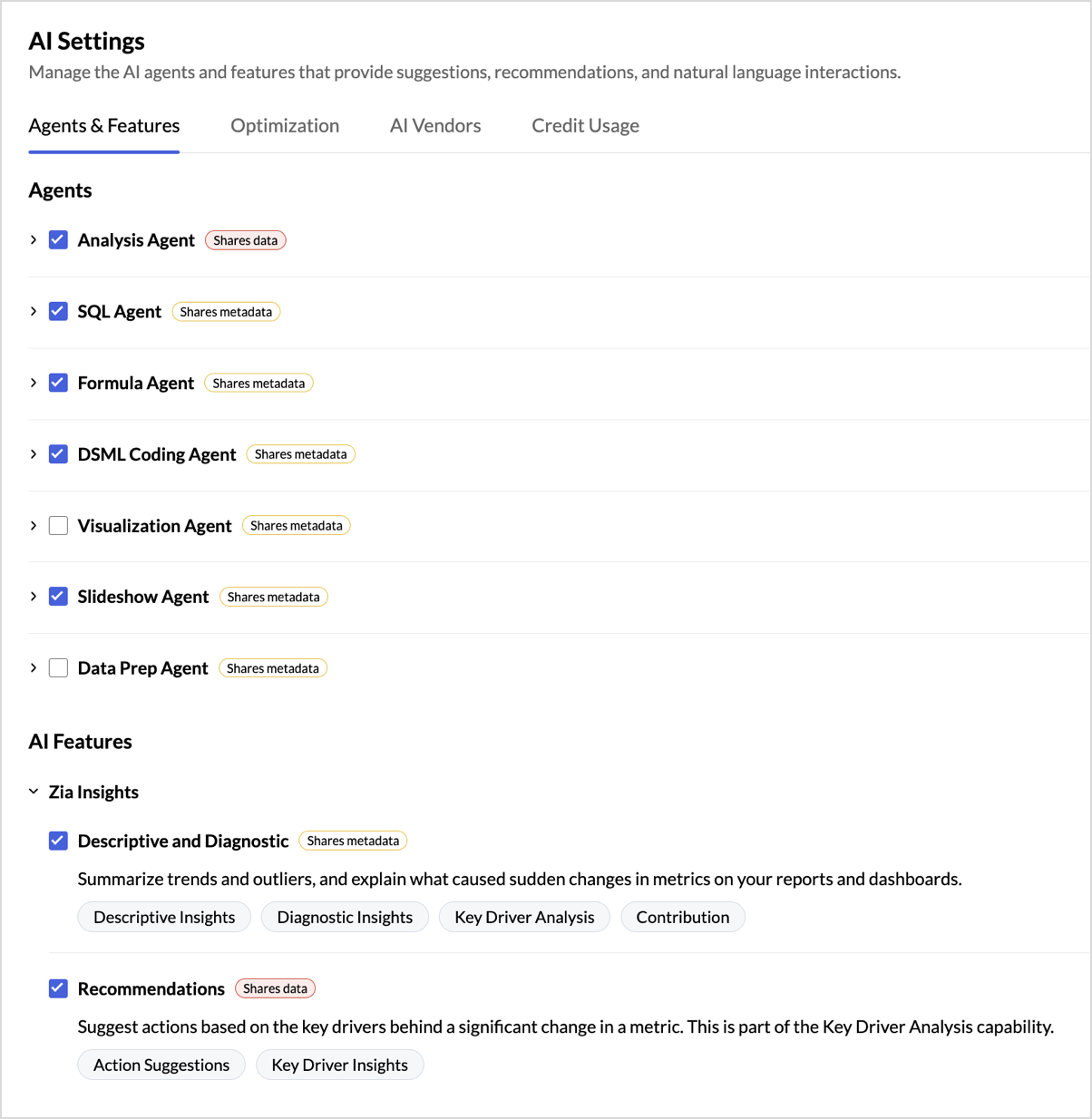
- On the Agents & Features tab, select the checkbox next to the agent or AI feature.
- Click Apply.
To disable an agent or AI feature:
- On the Agents & Features tab, clear the checkbox next to the agent or AI feature.
- Click Apply.
Note:
- To see the description and capabilities of an agent or AI feature, expand it.
- To see the Zia Insights features, expand Zia Insights.
- The AI vendor for an agent or AI feature must be enabled on the AI Vendors tab. To learn more, refer to AI vendors.
- The Data Prep Agent works only with OpenAI connected through your own API key (BYOK). Before you enable it, make sure OpenAI uses BYOK. To learn more, refer to Switch the authentication mode for OpenAI.
Select the AI vendor for an agent or AI feature
- On the Agents & Features tab, make sure that the agent or AI feature is enabled.
- From the AI Vendor dropdown next to it, select OpenAI or Zoho LLM.
- Click Apply.
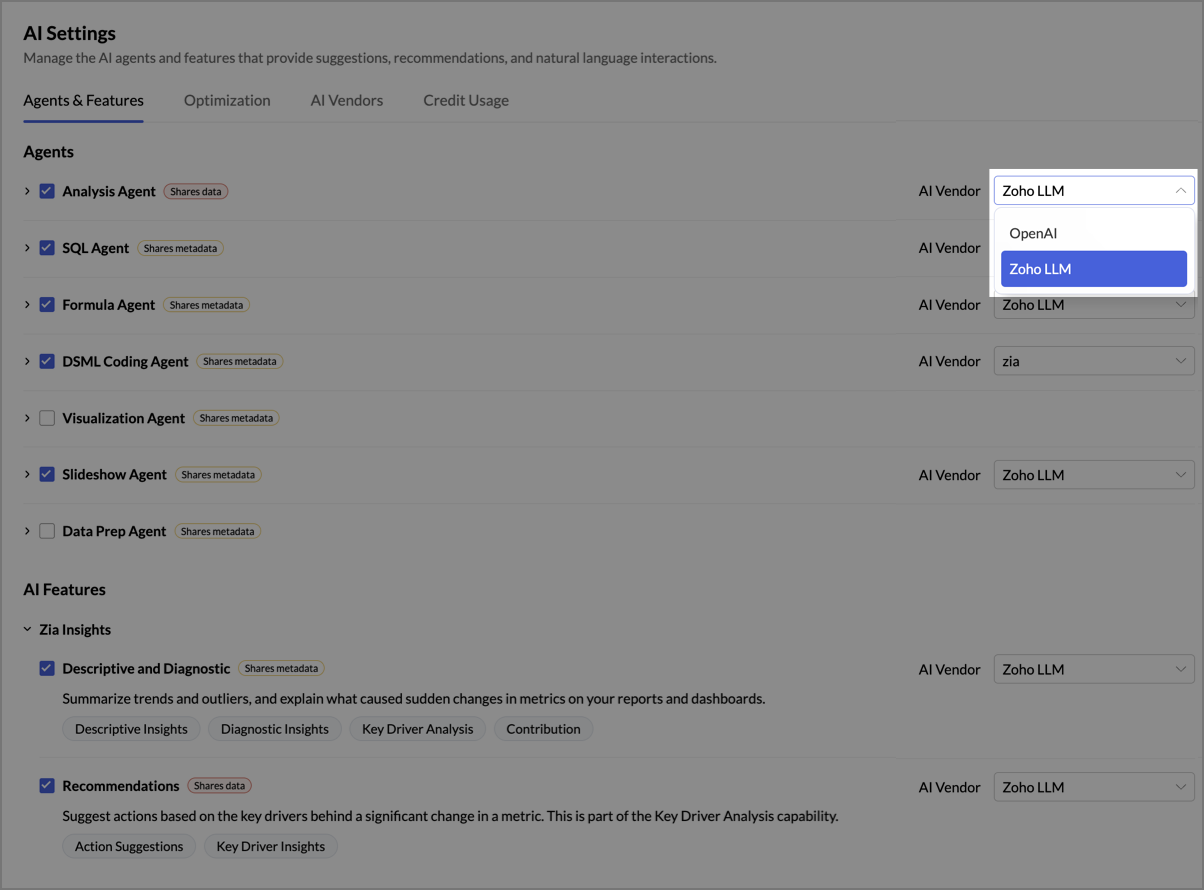
Each agent or AI feature uses one AI vendor at a time. After you change the AI vendor, the new AI vendor processes all later requests.
Note: When you have no AI credits or add-on credits left, agents and AI features that use external AI vendors such as OpenAI pause. To keep using an agent or AI feature that supports Zoho LLM, select Zoho LLM as its AI vendor. To learn more, refer to <<AI credits page: When credits run out or expire>>.
Control who can use agents and features
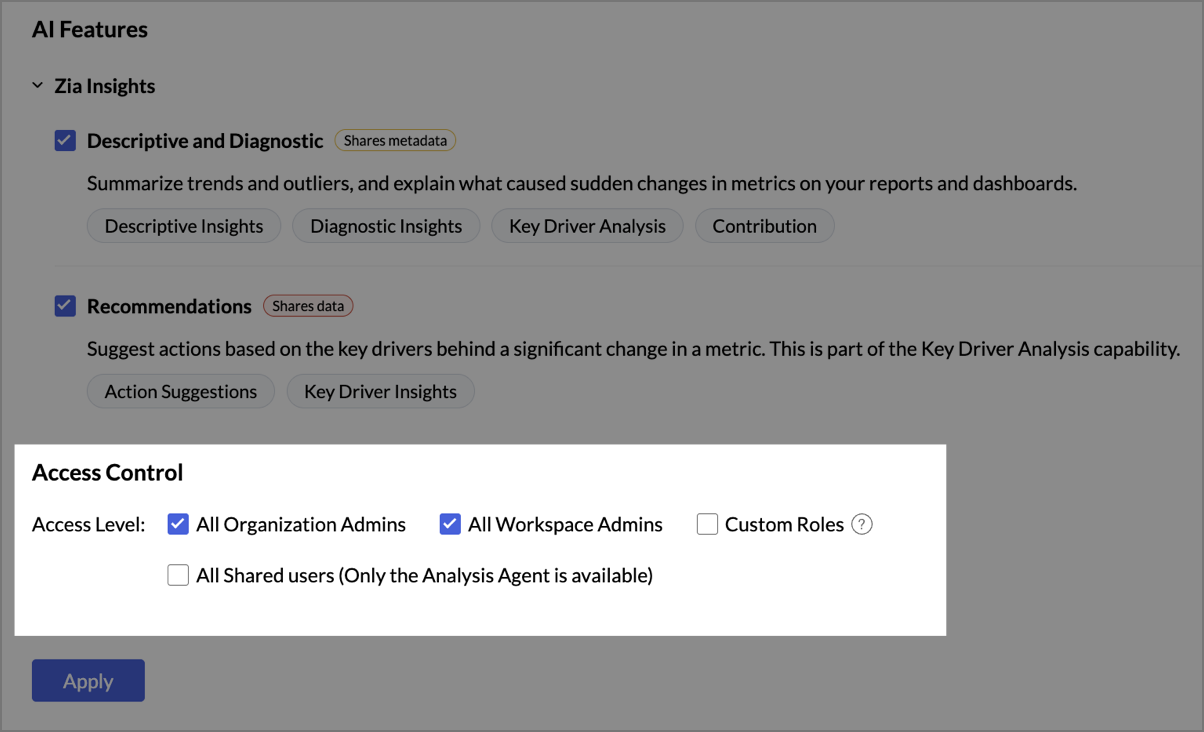
In the Access Control section of the Agents & Features tab, select the users who can use the enabled agents and AI features.
| Access level | Who can use the agents and features |
|---|---|
| All Organization Admins | All Organization Admins in your account. |
| All Workspace Admins | All Workspace Admins in your account. |
| Custom Roles | Users with custom roles. You also need to enable AI for each role in General > Manage Roles. To learn more, refer to Manage Custom Role. |
| All Shared Users | All shared users. Shared users can use only the Analysis Agent. |
- In the Access Control section, select the checkbox for each access level that you want to allow.
- Click Apply.
Note: Users with a custom role can use an agent only for tasks their role already allows. For example, if a role can create query tables but can't create slideshows, users with that role can use the SQL Agent but not the Slideshow Agent.
Optimization
Optimization improves the accuracy and relevance of AI responses. When Optimization is on, Zoho Analytics shares your workspace metadata with an AI vendor to create embeddings. Agents and AI features use these embeddings to find the metadata that is most relevant to each request.
How Optimization works
Optimization uses a technique called retrieval augmented generation (RAG):
- Zoho Analytics sends your workspace metadata to the AI vendor, which converts it into embeddings (numerical representations of text).
- The embeddings are stored securely in Zoho Analytics.
- When you send a request, Zoho Analytics finds the metadata most relevant to it and includes that metadata with the request. This helps the AI vendor understand your data structure and respond more accurately.
Metadata shared for Optimization
Optimization shares the following metadata:
- Table names
- Column names
- Data types
- Data models
- Synonyms
- Descriptions
- Report names
The data in your tables isn't shared. No personal or sensitive data is shared.
AI vendor for Optimization
The AI vendor that creates the embeddings depends on the data center of your Zoho Analytics account.
| Data center | AI vendor |
|---|---|
| US, EU, and IN | Zoho LLM |
| All other data centers | OpenAI |
Note: Optimization uses credits in the same way as agents and AI features. In data centers where Optimization uses OpenAI, it stops when you have no AI credits or add-on credits left. To learn more, refer to <<AI credits page: How credits are used>>.
Turn on Optimization
- In Manage AI, click the Optimization tab.
- Turn on Improve AI results by sharing metadata.
- Click Apply.
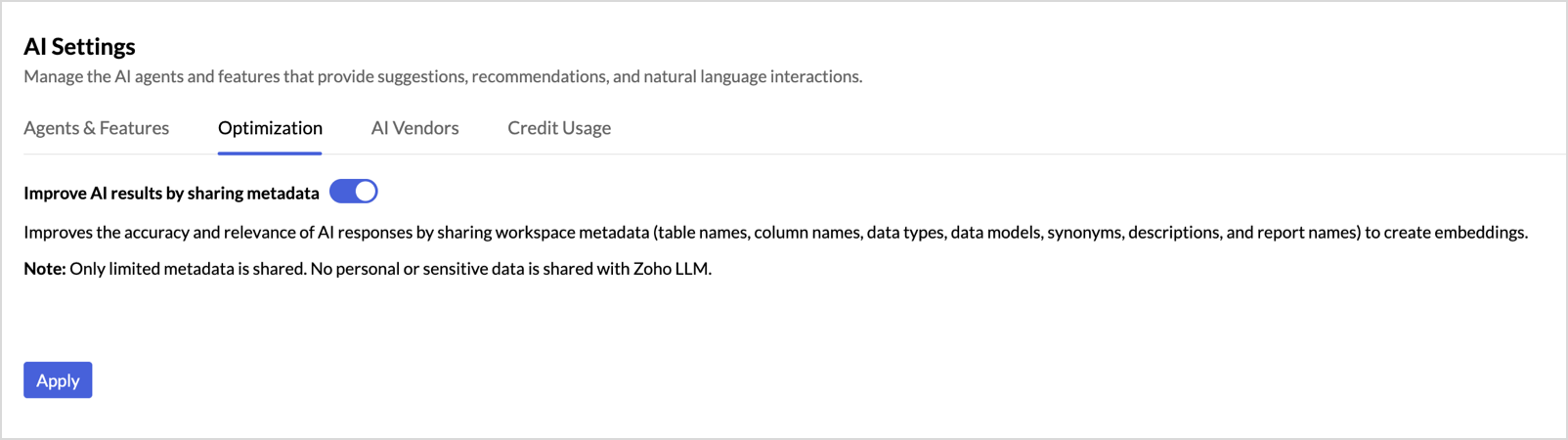
Zoho Analytics creates the embeddings in the background.
To stop sharing metadata, turn off Improve AI results by sharing metadata, and then click Apply.
AI vendors
AI vendors provide the language models that process requests for agents and AI features. Zoho Analytics supports the following AI vendors: OpenAI and Zoho LLM.
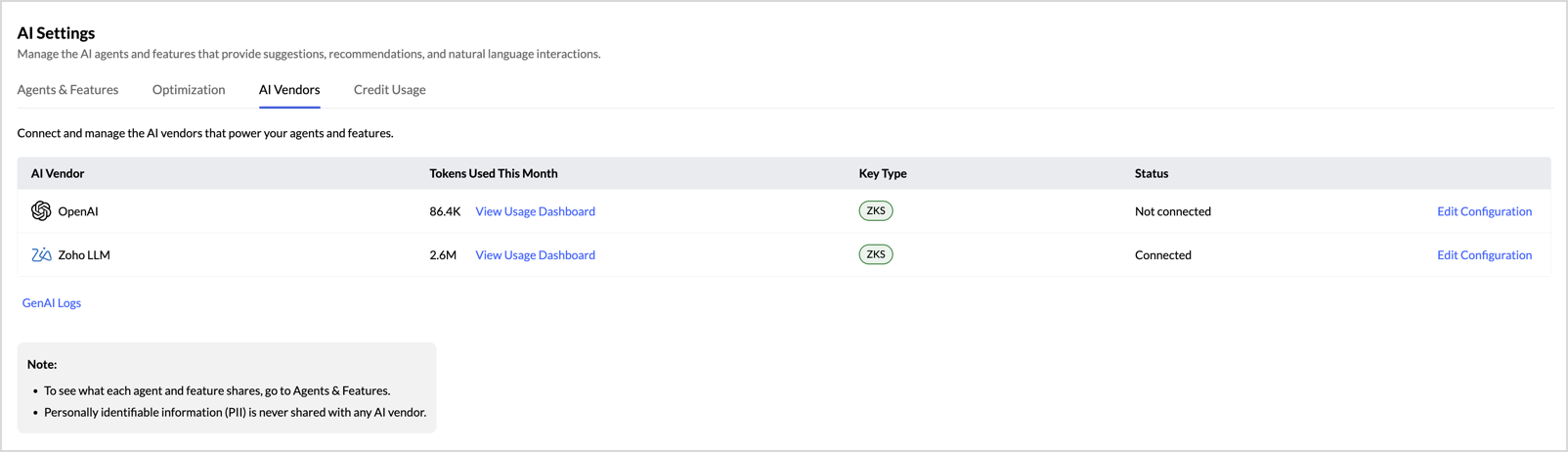
The AI Vendors tab lists each AI vendor with the following details:
| Column | Description |
|---|---|
| AI Vendor | The name of the AI vendor. |
| Tokens Used This Month | The number of tokens the AI vendor processed in the current month. |
| Key Type | The authentication mode the AI vendor uses: ZKS or BYOK. |
| Status | Whether the AI vendor is connected. |
Authentication modes
The authentication mode determines how Zoho Analytics connects to an AI vendor and how its usage is billed.
| Zoho Key System (ZKS) | Bring Your Own Key (BYOK) | |
|---|---|---|
| What it is | Zoho manages the connection, routing, and access to supported LLMs for you. | You connect the AI vendor with your own API key. |
| API key | Not needed. | Your own API key from the AI vendor. |
| Billing | Usage is deducted from your credits. | Usage is billed to your account with the AI vendor and doesn't use your credits. |
| Availability | OpenAI on paid plans, in supported data centers. Zoho LLM always uses ZKS. | OpenAI on all plans, including the Free plan, in supported data centers. |
AI vendor availability by data center
The AI vendors and authentication modes available to you depend on the data center of your Zoho Analytics account.
| US | EU | IN | AU | JP | CA | SA | UK | SG | CN | |
|---|---|---|---|---|---|---|---|---|---|---|
| Zoho LLM (ZKS) | Yes | Yes | Yes | Yes | Yes | Yes | Yes | Yes | Yes | No |
| OpenAI (ZKS) | Yes | No | Yes | Yes | Yes | Yes | No | No | Yes | No |
| OpenAI (BYOK) | Yes | Yes | Yes | Yes | Yes | Yes | Yes | Yes | Yes | No |
Note: Manage AI isn't available in the CN data center.
AI models used by agents and AI features
Each agent and AI feature uses a specific model from its AI vendor.
| Agent or AI feature | OpenAI model | Zoho LLM model |
|---|---|---|
| Analysis Agent | GPT-5.4 | Qwen 3.5 122B MoE* |
| SQL Agent | GPT-5.4 | Qwen 3.5 122B MoE* |
| Formula Agent | GPT-5.5 | Qwen 3.5 122B MoE* |
| DSML Coding Agent | GPT-5.6 Luna | Not supported |
| Visualization Agent | GPT-5.6 Luna | Not supported |
| Slideshow Agent | GPT-5.4 | Qwen 3.5 122B MoE* |
| Data Prep Agent | GPT-6 Astra | Not supported |
| Zia Insights: Descriptive and Diagnostic | GPT-5.4 | Qwen 3.5 35B MoE |
| Zia Insights: Recommendations | GPT-5.4 | Qwen 3.5 35B MoE |
*In data centers where Qwen 3.5 122B MoE isn't available, Qwen 3.5 35B MoE is used.
Connect OpenAI with your own API key
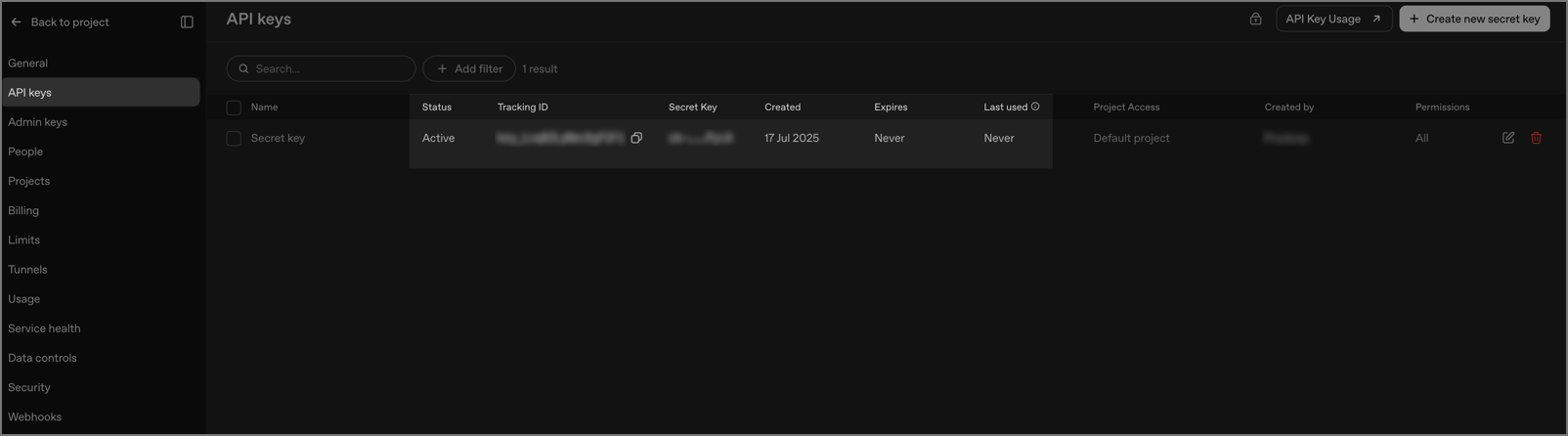
To connect OpenAI with BYOK, you need your OpenAI organization ID and secret key.
Get your OpenAI credentials
- Sign in to your OpenAI platform.
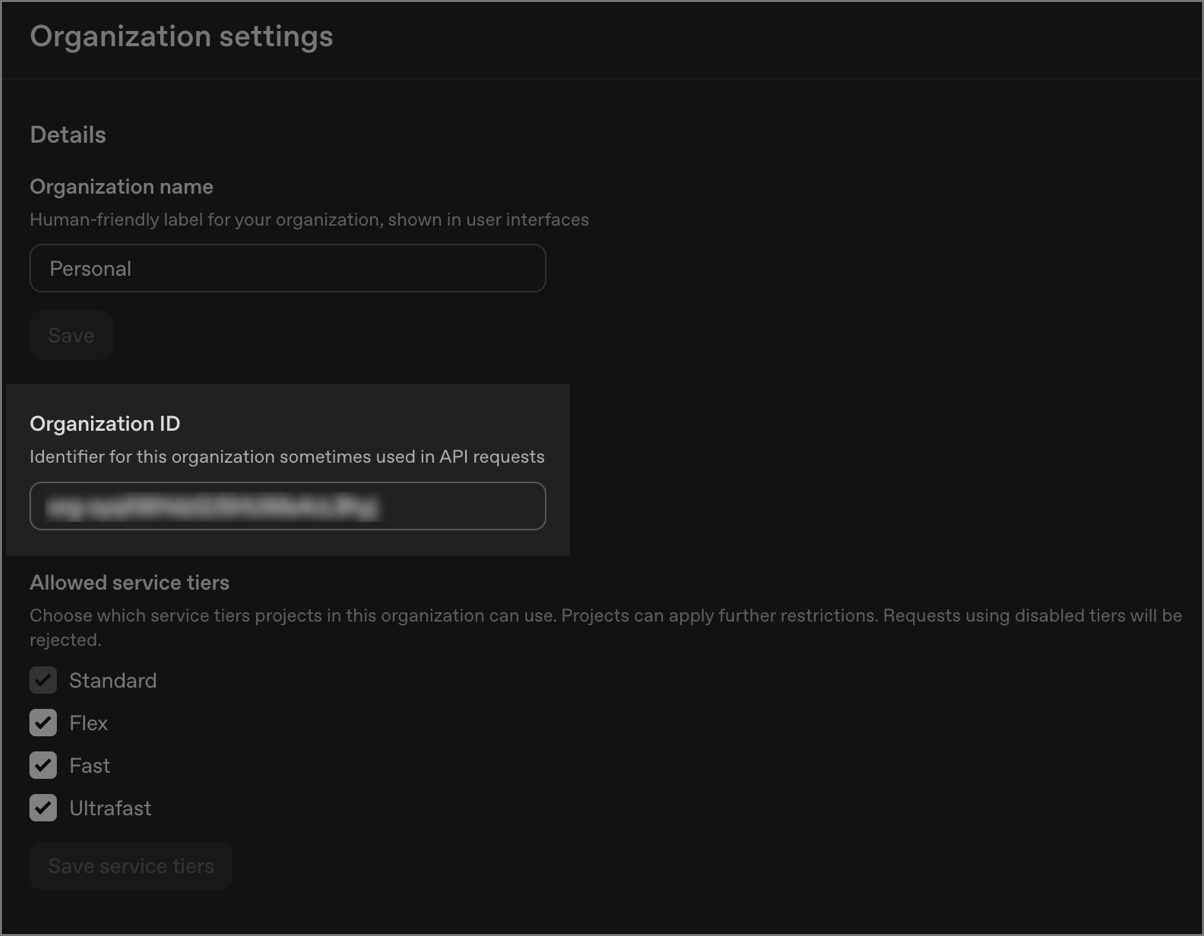
- Click the Settings icon.
On top-right corner, click Organization settings. Organization settings page opens.
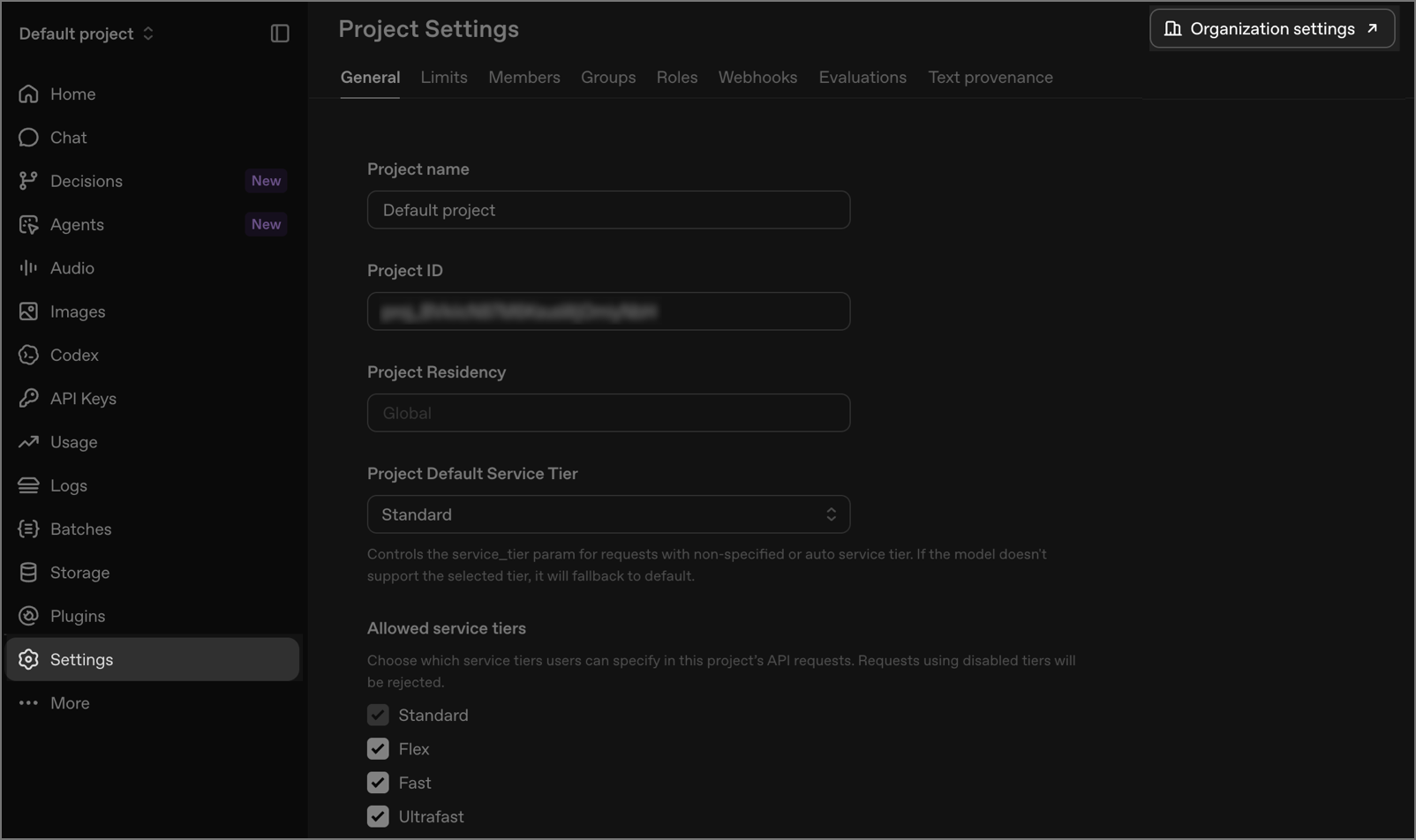
In General tab, under Organization ID, copy your Organization ID.
On the API keys page, create or copy your Secret key.
Enter your credentials in Zoho Analytics
On the AI Vendors tab, click Connect next to OpenAI. If OpenAI is already connected, click Edit Configuration.
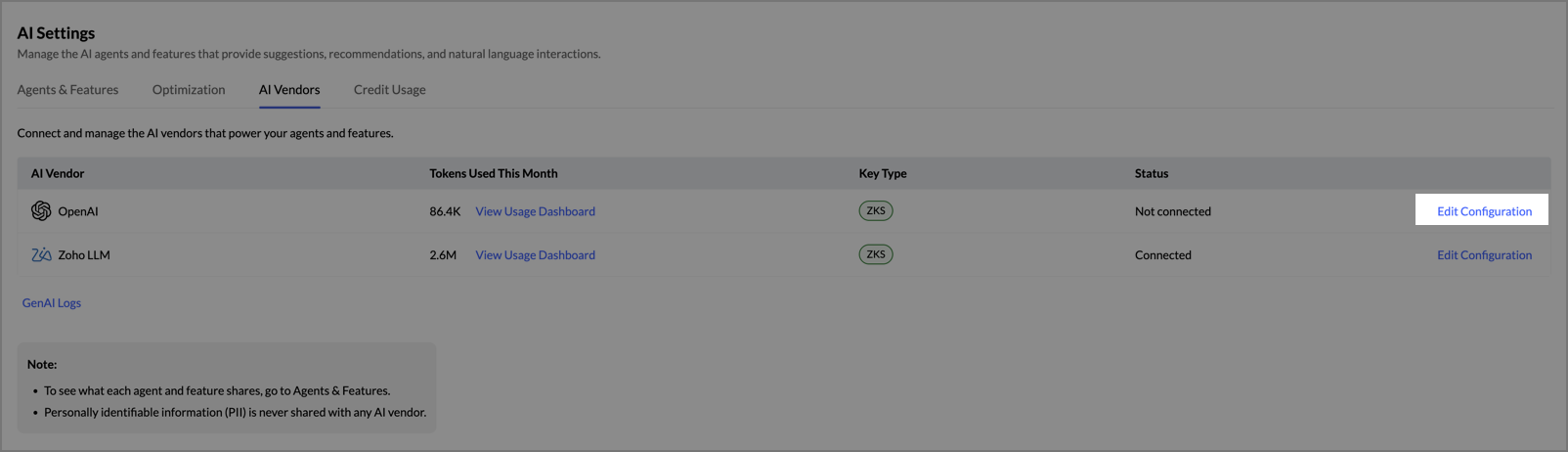
- Turn on OpenAI.
- Under Authentication Mode, select Bring Your Own Key (BYOK).
- Enter your OpenAI Org ID and Secret Key.
- Click Save.
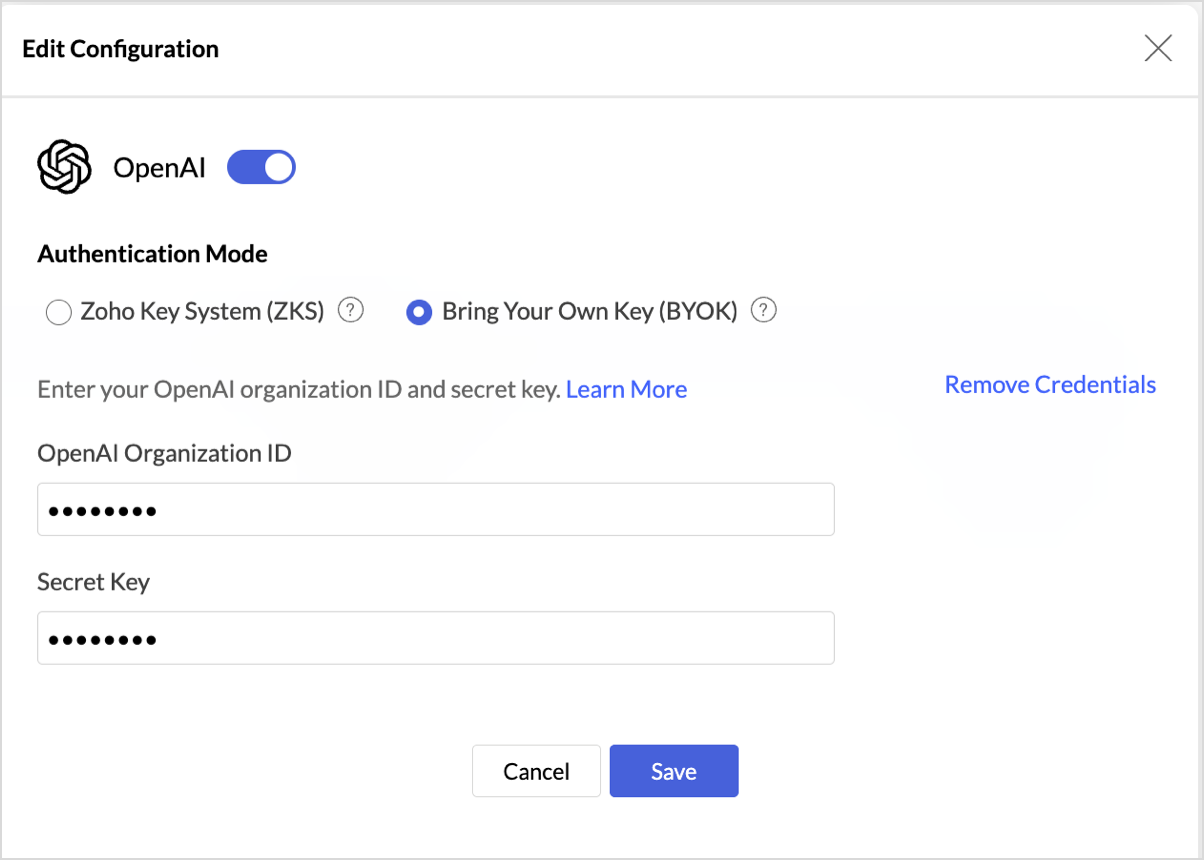
Note: On the Free plan, the Authentication Mode options don't appear. Enter your credentials directly.
Switch the authentication mode for OpenAI
- On the AI Vendors tab, click Edit Configuration next to OpenAI.
- Under Authentication Mode, select Zoho Key System (ZKS) or Bring Your Own Key (BYOK).
- If you select BYOK, enter your OpenAI Org ID and Secret Key.
- Click Save.
Note: The Data Prep Agent can't be used while OpenAI uses ZKS.
Remove your OpenAI credentials
- On the AI Vendors tab, click Edit Configuration next to OpenAI.
Click Remove Credentials.
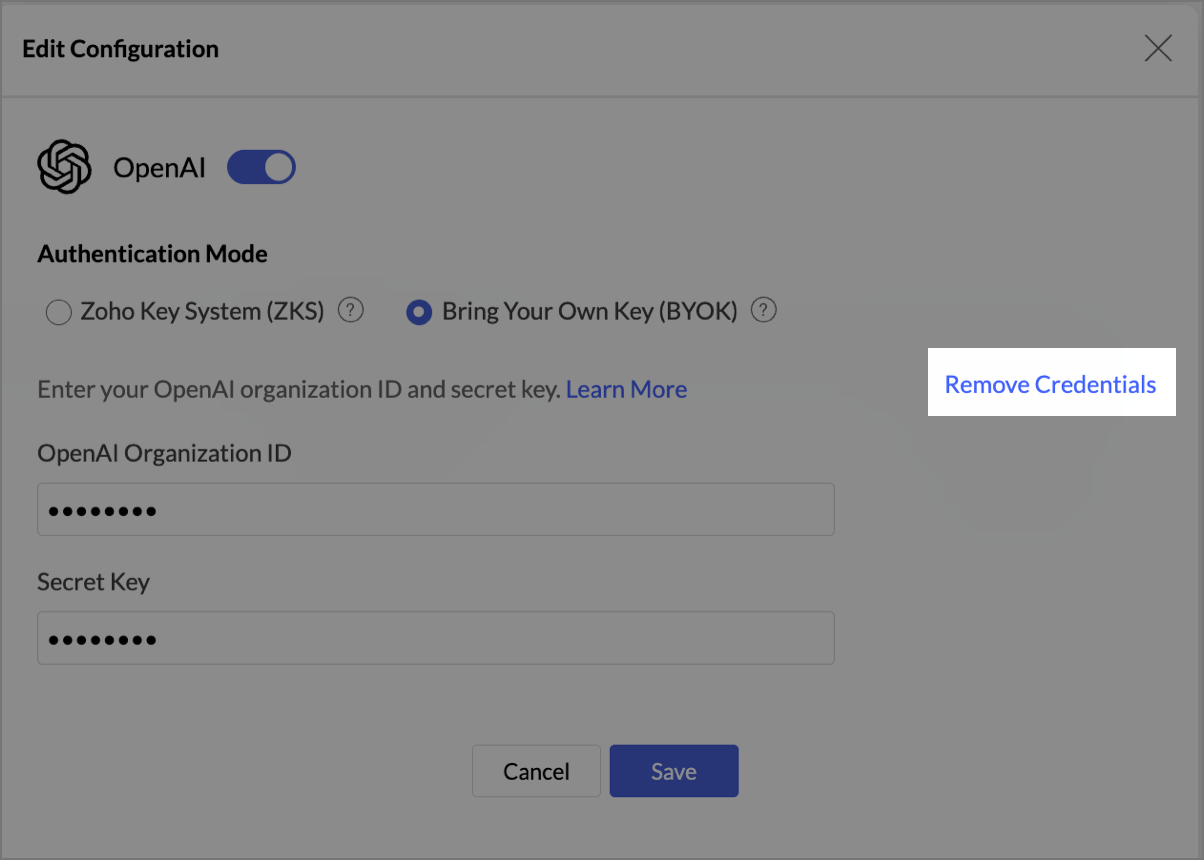
When you remove your OpenAI credentials, the agents and AI features that use OpenAI are disabled. To use them again, reconnect OpenAI and enable them.
Turn an AI vendor on or off
- On the AI Vendors tab, click Edit Configuration next to the AI vendor.
- Turn the AI vendor on or off.
- Click Save.
When you turn off an AI vendor, the agents and AI features that use it stop working until you turn it back on.
View the usage of an AI vendor
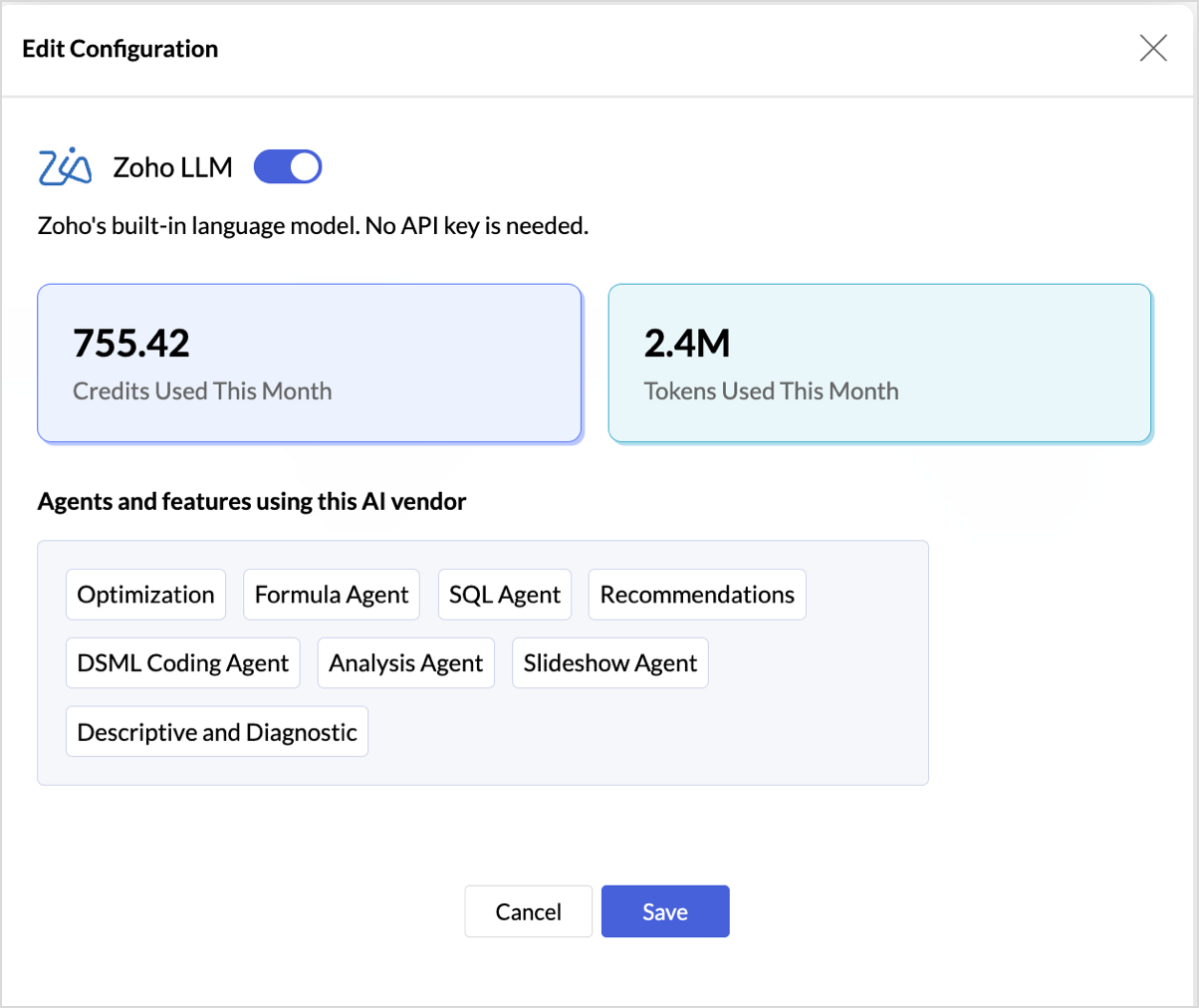
On the AI Vendors tab, click Edit Configuration next to the AI vendor. The panel shows:
- Credits Used This Month and Tokens Used This Month, when the AI vendor uses ZKS.
- Agents and features using this AI vendor, a list of the agents and AI features that currently use the AI vendor.
When GenAI Logs is turned on, the AI Vendors tab also shows a View Usage Dashboard link for each AI vendor and a GenAI Logs link below the list. To turn on GenAI Logs:
- Go to Organization Settings > Data Administration > Audit Logs.
- Turn on GenAI Logs.
Click Apply.
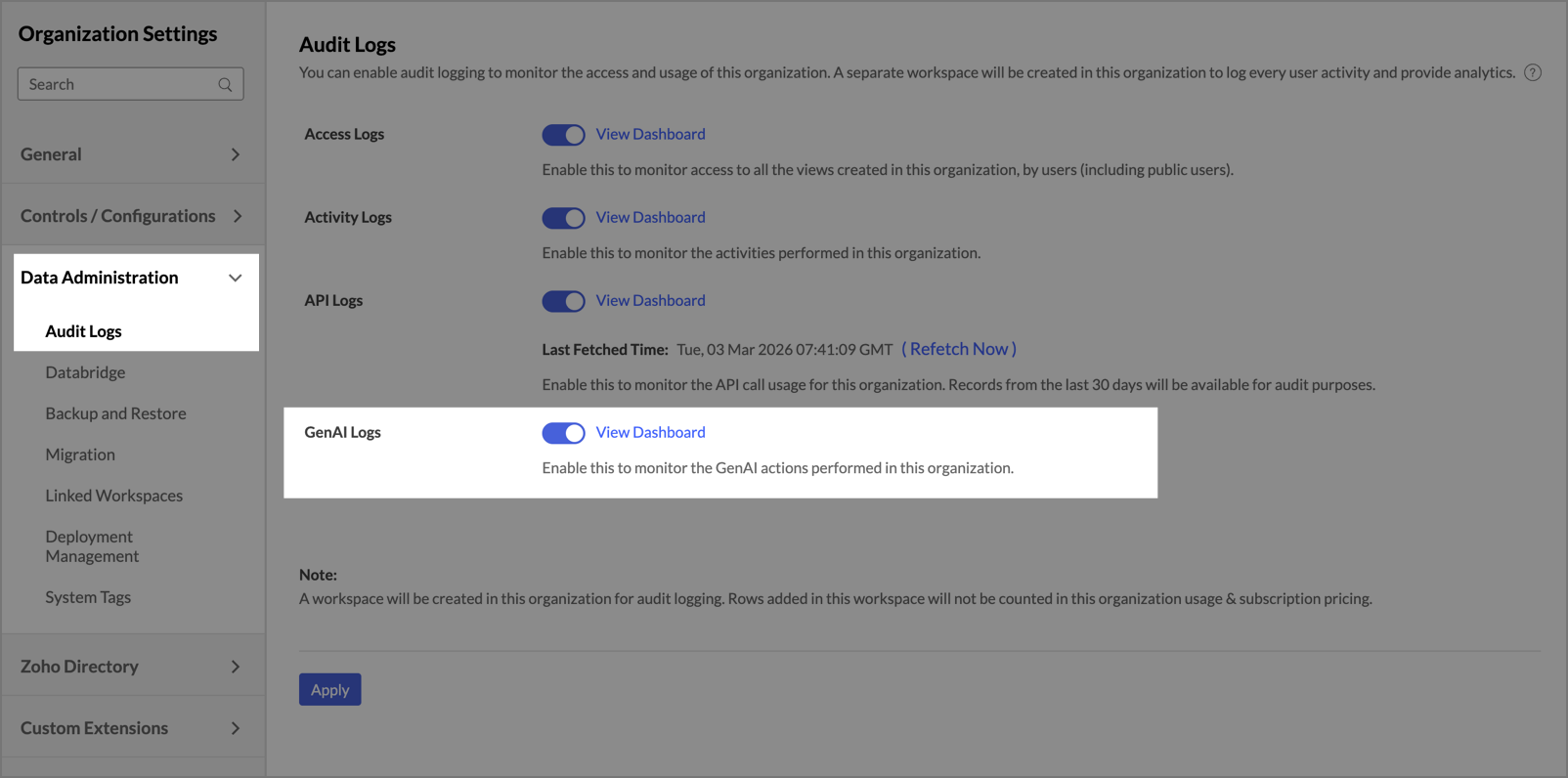
To learn more, refer to GenAI Logs.
AI credits
When an AI vendor uses ZKS, its usage is measured in credits. All AI vendors, including Zoho LLM, use your AI credits first, and then your add-on credits. When you have no AI credits or add-on credits left, Zoho LLM uses your Zoho LLM credits, and external AI vendors such as OpenAI pause.
Usage with your own API key (BYOK) doesn't use credits.
To track your credit usage, click the Credit Usage tab in Manage AI.
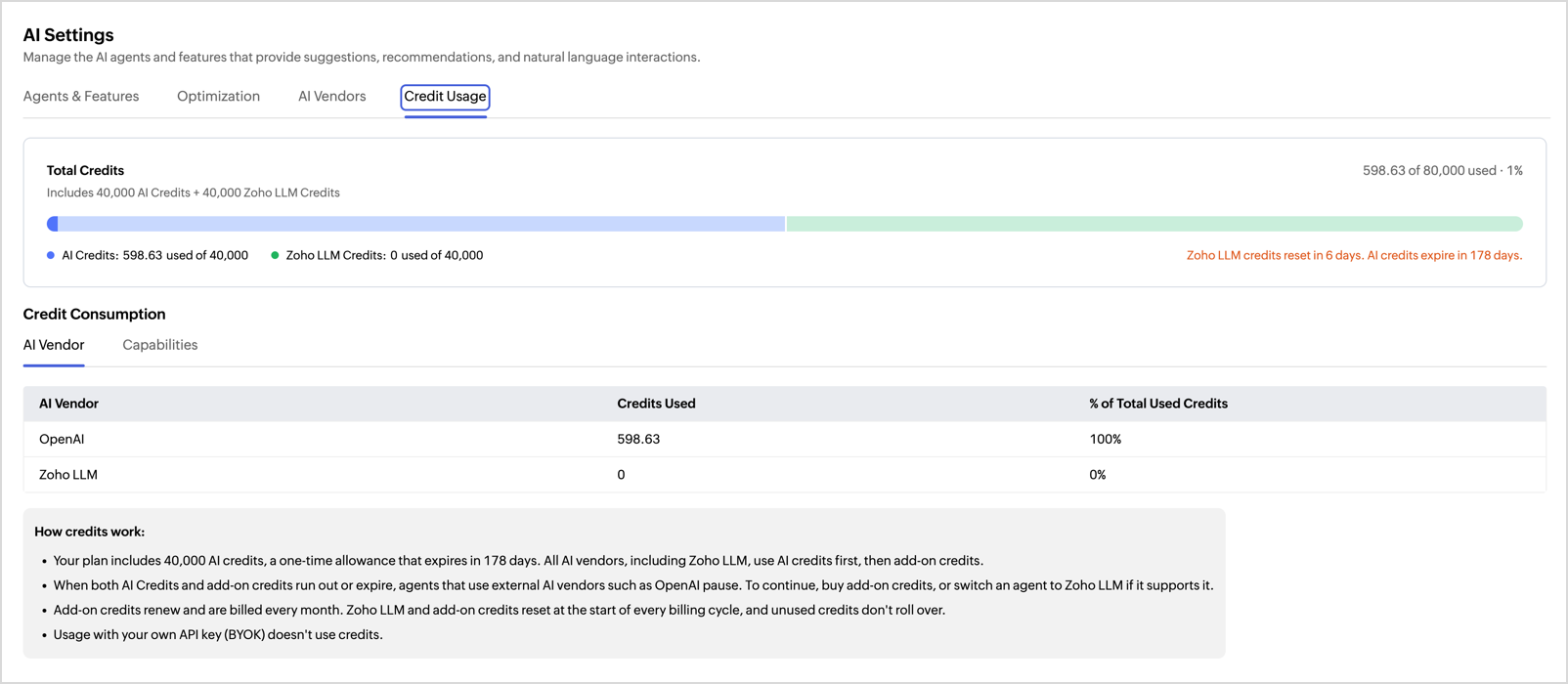
To learn how each type of credit works, what happens when credits run out or expire, and how plan changes affect your credits, refer to AI credits page.
Data handling and privacy
Agents and AI features share with the AI vendor only the information needed to process each request.
What is shared
The following table summarizes what each agent and AI feature shares with the AI vendor, and the purpose of sharing it.
| Agent or AI feature | What is shared | Purpose |
|---|---|---|
| Analysis Agent | Prompt text Field names, data types, and basic statistics (count, min, max, average) Contextual data such as filter conditions | Selects relevant fields and chooses best-fit visuals. |
| SQL Agent | Prompt text Names and data types of the tables and columns referenced | Generates context-aware SQL query suggestions. |
| Formula Agent | Prompt text Names and data types of the tables and columns referenced | Generates context-aware formula suggestions. |
| DSML Coding Agent | Prompt text Data-frame schema (column names and types) | Builds or refines Python code for data preparation or machine learning. |
| Visualization Agent | Prompt text Field names, data types, and basic statistics Contextual data such as filter conditions | Selects relevant fields and layouts for dashboards. |
| Slideshow Agent | Prompt text Metadata of the reports being converted | Converts reports into presentation slides with contextual summaries. |
| Data Prep Agent | Prompt text Metadata of the tables and columns involved | Transforms columns, generates formulas, and builds pipelines. |
| Zia Insights: Descriptive and Diagnostic | Prompt text Column names and descriptions Aggregated values (totals, averages, deltas) Selected actual data from involved tables | Identifies key drivers and produces narrative insights. |
| Zia Insights: Recommendations | Column names and descriptions Aggregated values Selected actual data from involved tables | Generates recommendations based on key driver analysis. |
When Optimization is on, your workspace metadata is also shared to create embeddings. To learn more, refer to Optimization.
Frequently asked questions
Why don't I see an agent or AI feature on the Agents & Features tab?
It isn't included in your plan. To see which agents and AI features each plan includes, refer to Plan availability.
Why can't I change the AI vendor for some agents?
Some agents support only OpenAI. For these agents, the AI Vendor dropdown is locked to OpenAI. To see the supported AI vendors for each agent, refer to Agents and AI features.
Why can't I enable the Data Prep Agent?
The Data Prep Agent works only with OpenAI connected through your own API key (BYOK). Switch the authentication mode for OpenAI to BYOK, and then enable the agent. To learn more, refer to Switch the authentication mode for OpenAI.
Why did an agent or AI feature stop working?
Its AI vendor might be turned off, or your credits might have run out or expired. To turn on the AI vendor, refer to Turn an AI vendor on or off. If your credits ran out or expired, refer to <<AI credits page: When credits run out or expire>>.
Why can't users in my organization use an agent or AI feature?
Their access level might not be selected in Access Control. For users with custom roles, AI must also be enabled for their role, and the role must allow the related task. To learn more, refer to Control who can use agents and features.
Can I use OpenAI on the Free plan?
Yes, with your own API key (BYOK). ZKS isn't available for OpenAI on the Free plan. To learn more, refer to Connect OpenAI with your own API key.
Why can't I select ZKS for OpenAI?
ZKS isn't available for OpenAI on the Free plan or in the EU, SA, and UK data centers. In these cases, connect OpenAI with your own API key (BYOK). To learn more, refer to AI vendor availability by data center.
What's the difference between ZKS and BYOK?
With ZKS, Zoho manages the connection to the AI vendor, and usage is deducted from your credits. With BYOK, you connect the AI vendor with your own API key, and usage is billed to your account with the AI vendor. To learn more, refer to Authentication modes.
Does Zoho Analytics share my data with AI vendors?
Agents and AI features share only the information needed to process each request. Depending on the agent or AI feature, this is either row-level data or only metadata. To learn more, refer to Data handling and privacy.