Jupyter Notebooks
Overview
Notebooks in Zoho Analytics lets you create and run Jupyter Notebooks within your Zoho Analytics account. You can write Python code, document your process with markdown, analyze and visualize your workspace data, publish the results back to Zoho Analytics as tables, and share reproducible computational narratives, without leaving Zoho Analytics.
With Notebooks, you can:
- Write and run Python code in an interactive Notebook editor.
- Fetch the data in your Zoho Analytics tables as DataFrames, or query it with SQL, and analyze it with Python libraries such as pandas, NumPy, Matplotlib, and seaborn.
- Publish the analyzed data back to Zoho Analytics as tables, and build reports and dashboards over it.
- Document your analysis with markdown cells alongside your code.
- Manage your Notebooks from a single page: start and stop the server, edit the server capacity and the tags, view the Notebook history, and download Notebooks.
Each new Notebook opens with a sample analysis that demonstrates loading a table, deriving metrics, and creating charts, so you can explore the workflow before building your own.
Plan availability
Notebooks is available in the Enterprise plan, which includes 500 free DSML credits. Once these credits are exhausted, you can purchase additional credits as the DSML Credits add-on from the Zoho Store. To learn more, refer to Zoho Analytics pricing.
Currently, Notebooks is available only in the US and IN data centers.
Only users with administrator roles can access Notebooks: the Account Administrator, Organization Administrators, and Workspace Administrators.
Credits are consumed and billed based on the compute duration and the server configuration usage. A 4 GB (4 CPU) compute consumes 4 credits per minute; higher server configurations consume credits proportionally. Credits are consumed only while the Notebook server is running.
Credits can be purchased from the Zoho Store as the DSML Credits add-on. The Configure Payment link in the Create New dialog opens the store.
Note: All the DSML features, including Notebooks, draw from the common pool of DSML credits. When the credits are exhausted, new Notebooks cannot be created and the server cannot be started.
Access Notebooks
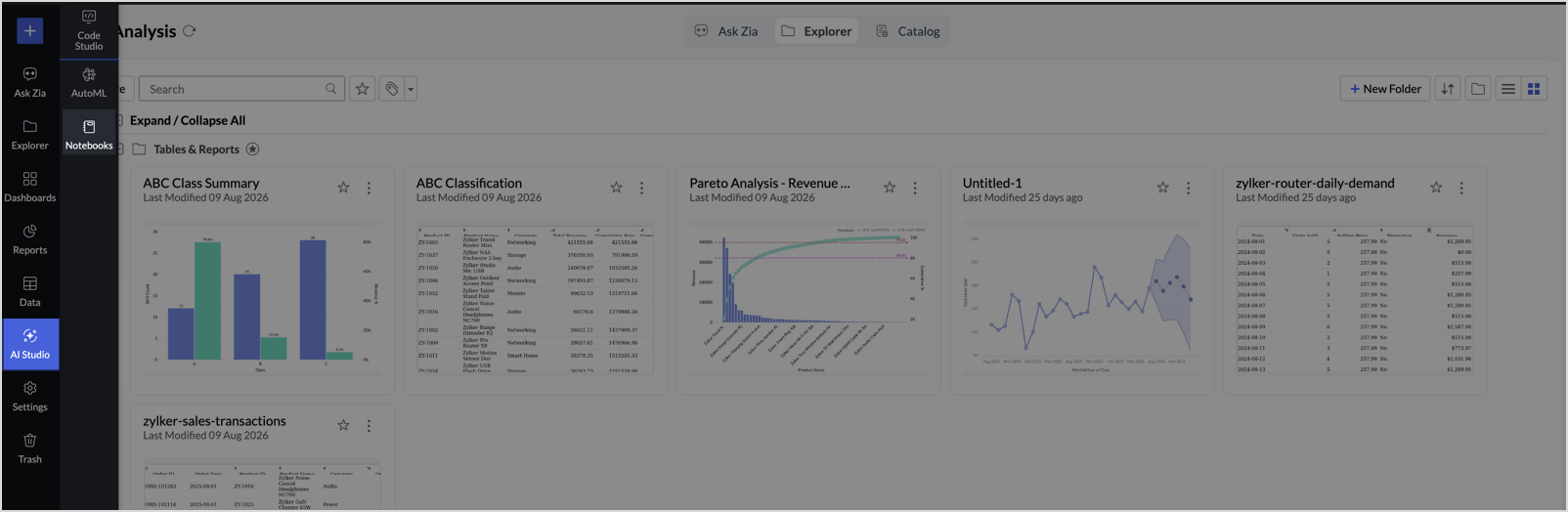
- Click AI Studio on the left side pane.
- Select Notebooks.
The Notebooks page opens, listing all the Notebooks in your account.
Create a Notebook
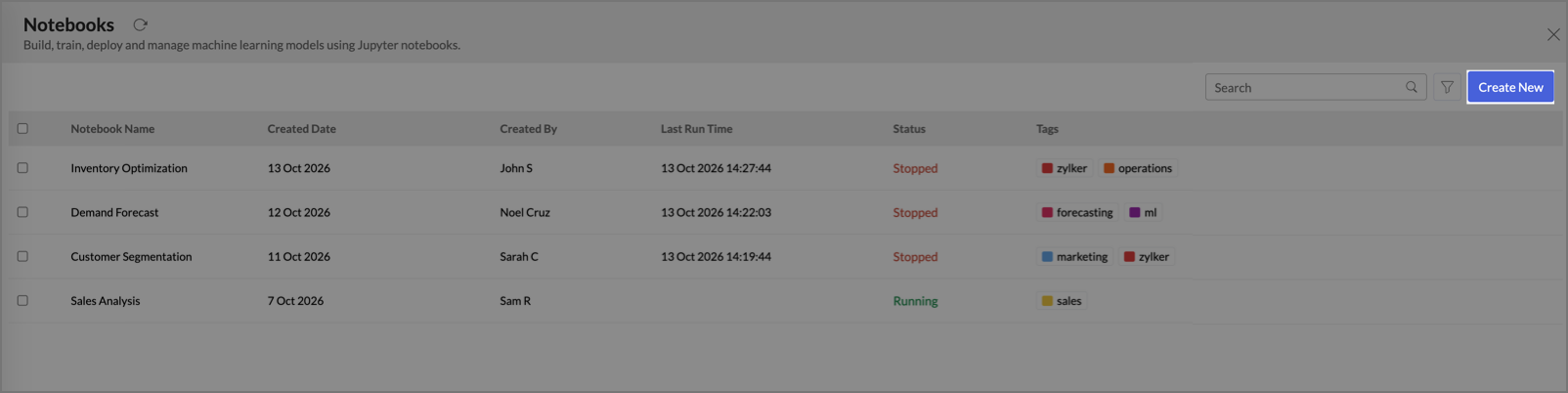
In the Notebooks page, click Create New.
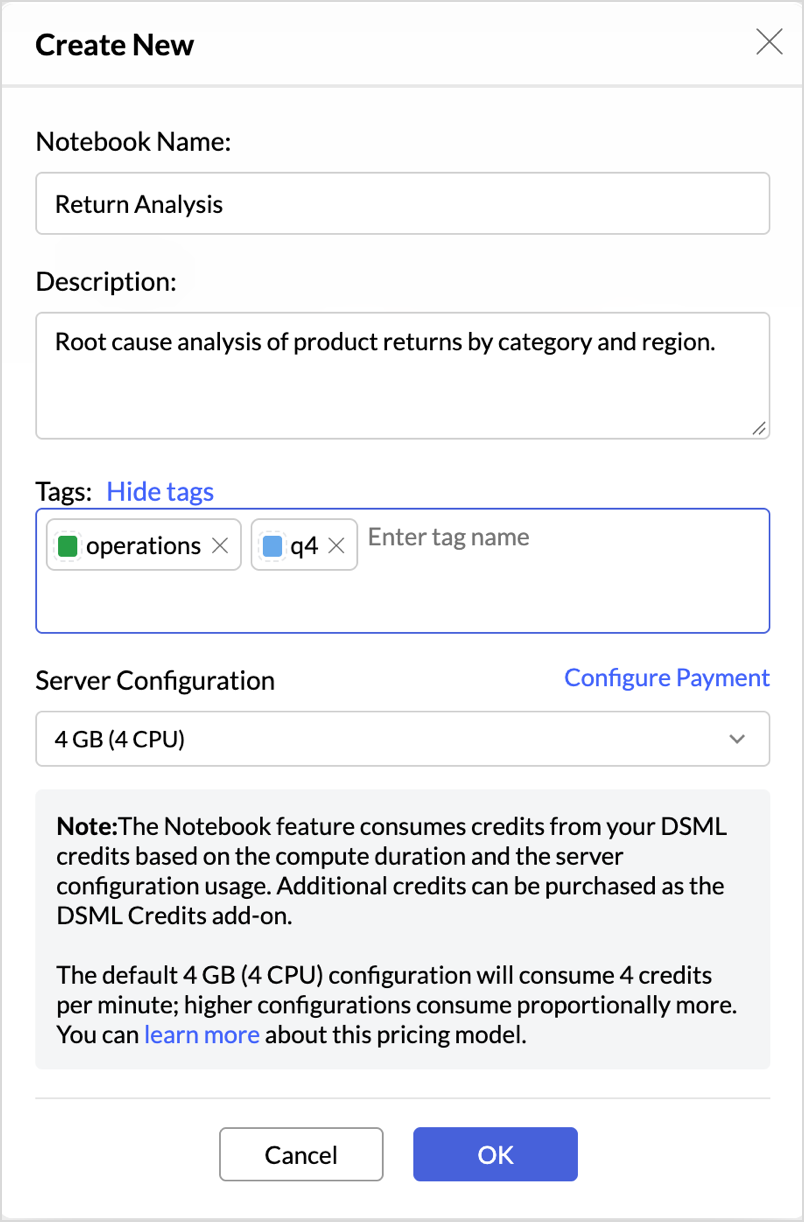
- In the Create New dialog, enter a name in the Notebook Name field.
- Enter a Description if needed.
- To add tags, click Add tags and enter the tag names.
- In the Server Configuration field, select the server capacity. The following capacities are available:
- 4 GB (4 CPU) - consumes 4 credits per minute
- 8 GB (8 CPU) - consumes 8 credits per minute
- 16 GB (8 CPU) - consumes 16 credits per minute
Click OK.
The Notebook opens in the editor with the server running, pre-populated with the sample analysis. Credits are consumed from this point until the server is stopped.
You can also create a Notebook from anywhere inside a workspace in Zoho Analytics: Click the Create icon (+) at the top left corner, and select Notebook under the Create New Code / ML Model section. The Create New dialog opens, and the same steps apply.
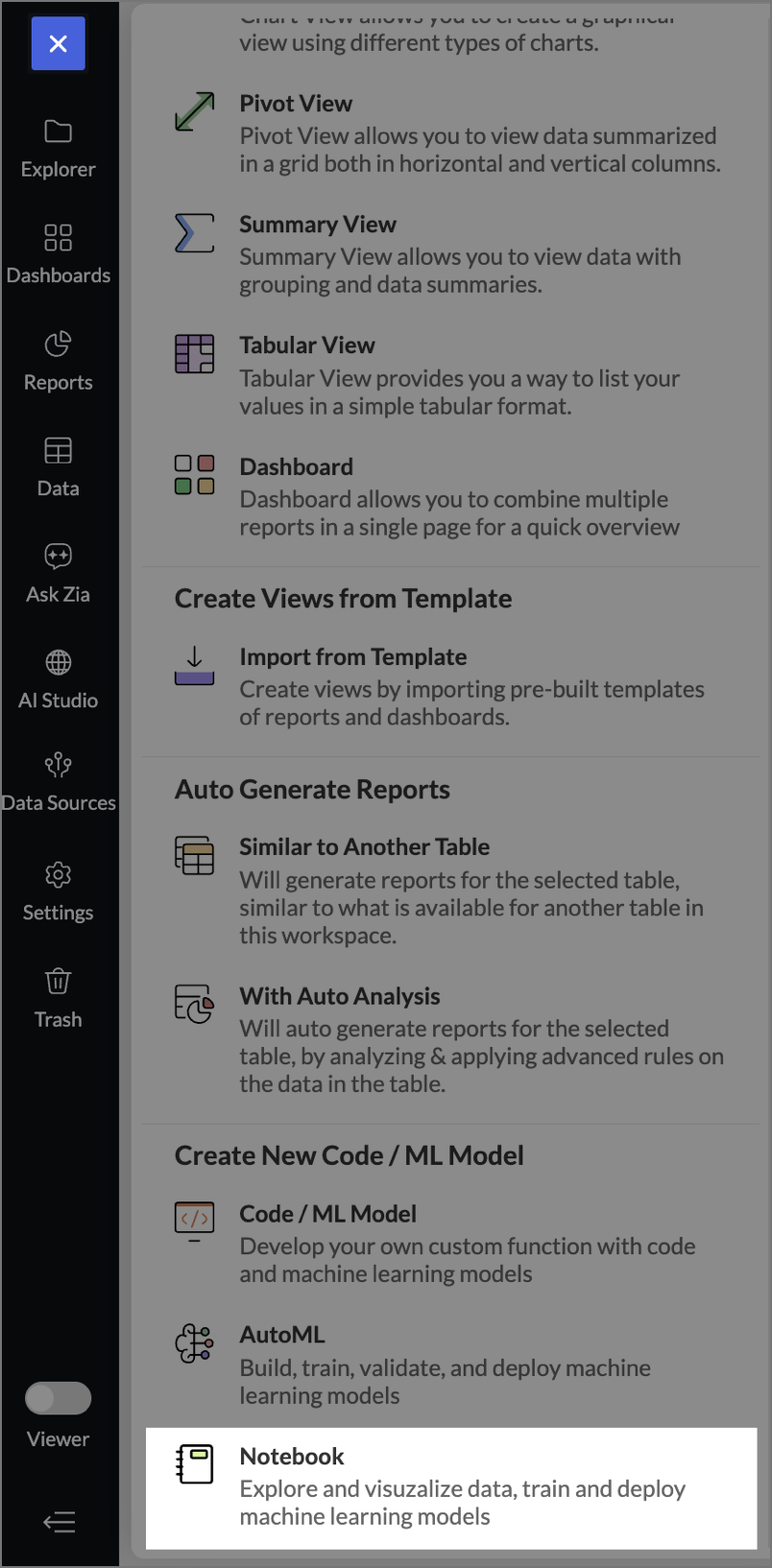
Note: The dialog displays a pricing note along with a Configure Payment link, which opens the Zoho Store.
The Notebook editor
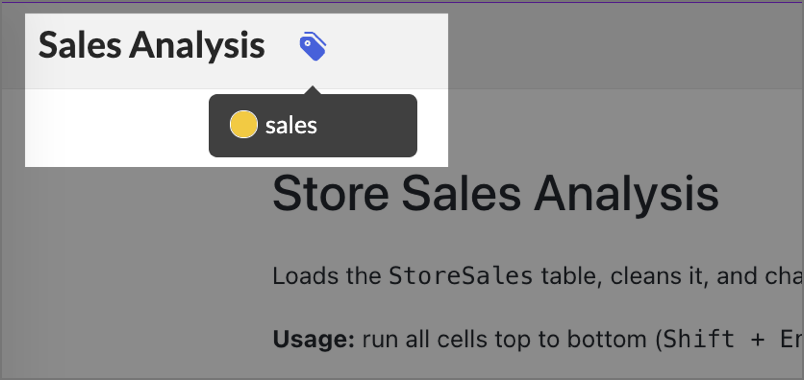
The editor opens when you create a Notebook, or when you click the Open Notebook link on a running Notebook in the Notebooks page. The Notebook name is displayed at the top, along with a tag icon for managing the Notebook's tags.
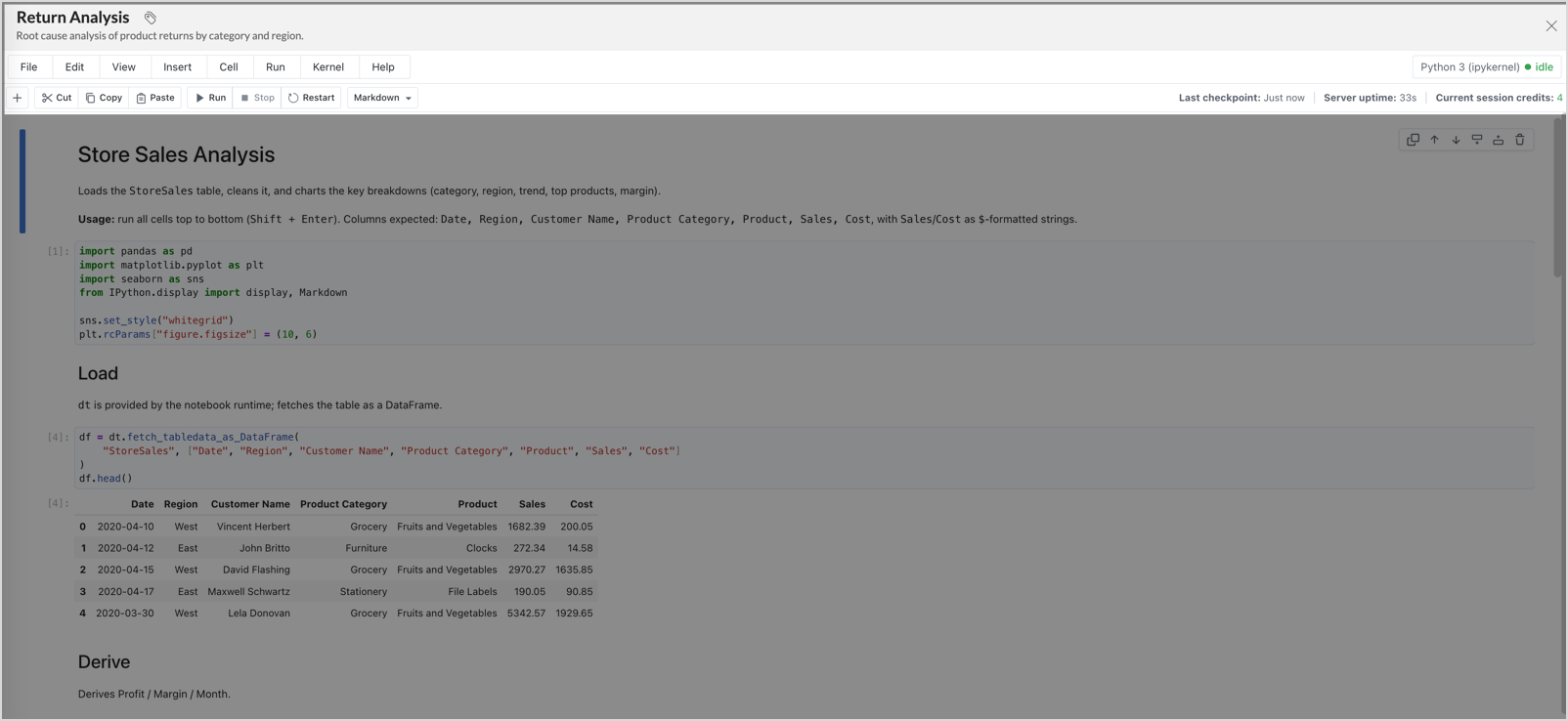
- Menu bar: The File, Edit, View, Insert, Cell, Run, Kernel, and Help menus.
- Toolbar: Add a cell (+), Cut, Copy, Paste, Run, Stop, Restart, and the cell type drop-down for switching a cell between code and markdown.
- Kernel indicator: The kernel name (Python 3 (ipykernel)) and its state, such as idle or connecting, are displayed at the top right. Code runs only when the kernel is connected.
- Last checkpoint: The time of the last autosave. The Notebook content and the cell outputs are saved with the checkpoint and persist across sessions.
- Server uptime: The duration the server has been running in the current session.
- Current session credits: The credits consumed in the current session.
- Cell actions: Hovering over a cell shows the cell actions, including Duplicate cell, move up, move down, and Delete cell.
Work with Zoho Analytics data
Notebooks can fetch the data in your Zoho Analytics tables using the dt object. The dt object is provided by the Notebook runtime; no import is required.
Fetch a table as a DataFrame
To fetch a table as a pandas DataFrame, use the fetch_tabledata_as_DataFrame method with the table name and the list of columns to fetch.
sales = dt.fetch_tabledata_as_DataFrame(
"StoreSales",
["OrderID", "Date", "Region", "Category", "Product", "Units", "UnitPrice", "Revenue", "CustomerID"]
)
sales.head()
The columns argument is required. To filter the rows, you can pass a criteria string as the third argument.
Note: Cell outputs are saved with the Notebook checkpoint and are displayed when the Notebook is opened later, even before the code is run again in a new session.
Query data with SQL
You can also query the data with SQL using the fetch_SQL_DataFrame method:
dt.fetch_SQL_DataFrame('select * from "StoreSales" limit 5')
The query returns the matching rows as a DataFrame.
Analyze and visualize the data
The fetched DataFrame can be transformed with pandas and charted with Matplotlib or seaborn, and the outputs render below the cell. For example, the following cleans the data and charts the monthly revenue:
clean = sales.dropna(subset=['Units'])
clean['Date'] = pd.to_datetime(clean['Date'])
monthly = clean.set_index('Date').resample('ME')['Revenue'].sum()
monthly.plot(kind='line', marker='o', title='Monthly revenue')
Publish data to Zoho Analytics
You can upload a pandas DataFrame to a Zoho Analytics table using the upload_tabledata_from_DataFrame method. Pass the target table name, the DataFrame, and a configuration dictionary; pass None to use the default configuration.
dt.upload_tabledata_from_DataFrame("CleanedSalesData", clean, None)
- If a table with the given name does not exist, it is created in the workspace of the table from which the data was fetched.
- The method completes silently when the upload succeeds. Refresh the workspace Explorer to see the new table.
- By default, the upload replaces the existing data in the table.
- Date columns are uploaded as date and time values.
- The column types of the uploaded table are identified automatically.
Available libraries
The runtime is Python 3.12.5, and the preinstalled libraries include pandas, NumPy, Matplotlib, and seaborn.
To install additional packages, run the %pip install command in a code cell. Packages are installed at the user level. You may need to restart the kernel to use the updated packages.
Notebooks listing page
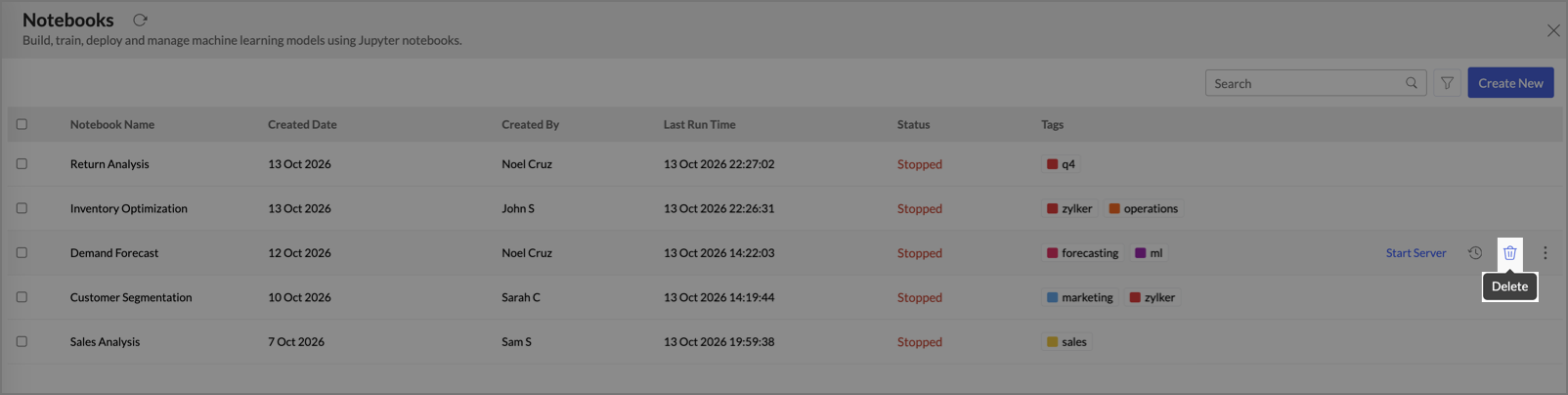
The Notebooks page opens when you click AI Studio on the left side pane and select Notebooks. The page lists all the Notebooks in your account with the following details.
| Column | Description |
|---|---|
| Notebook Name | The name of the Notebook. |
| Created Date | The date the Notebook was created. |
| Created By | The user who created the Notebook. |
| Last Run Time | The date and time the Notebook server last ran. This is updated when the server is stopped. |
| Status | The current server status of the Notebook: Running or Stopped. |
| Tags | The tags added to the Notebook. |
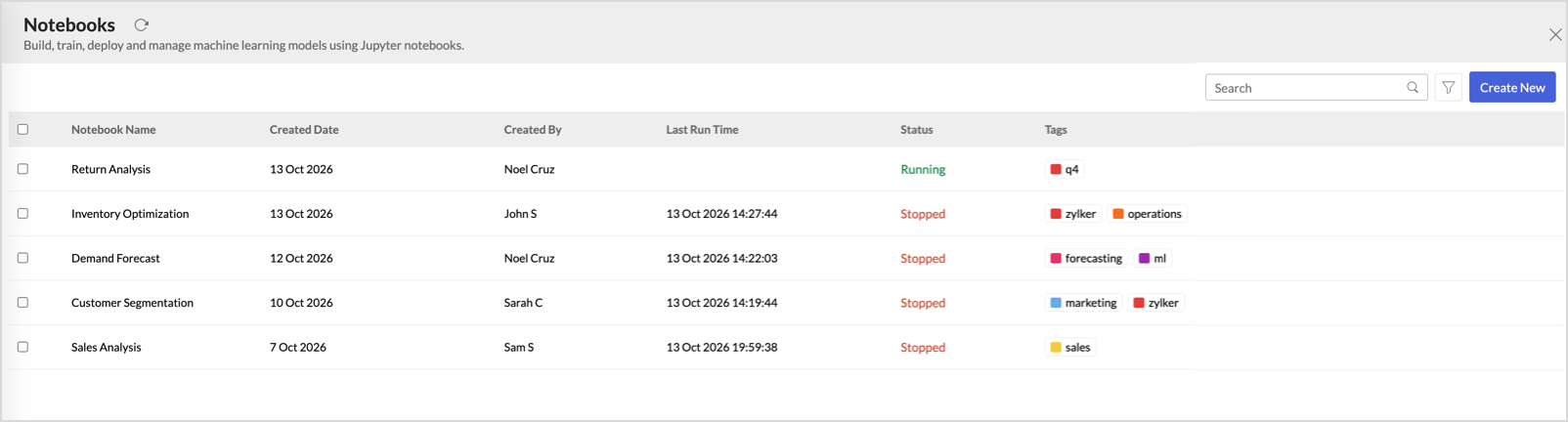
Use the Search field to find a Notebook by name. To filter the list, click the filter icon, select the criteria, and click Apply. You can filter by:
- Created By and Modified By: the users who created or modified the Notebooks.
- Created On and Modified On: Today, Yesterday, This Week, This Month, or a Custom Range.
Tags: the tags added to the Notebooks.

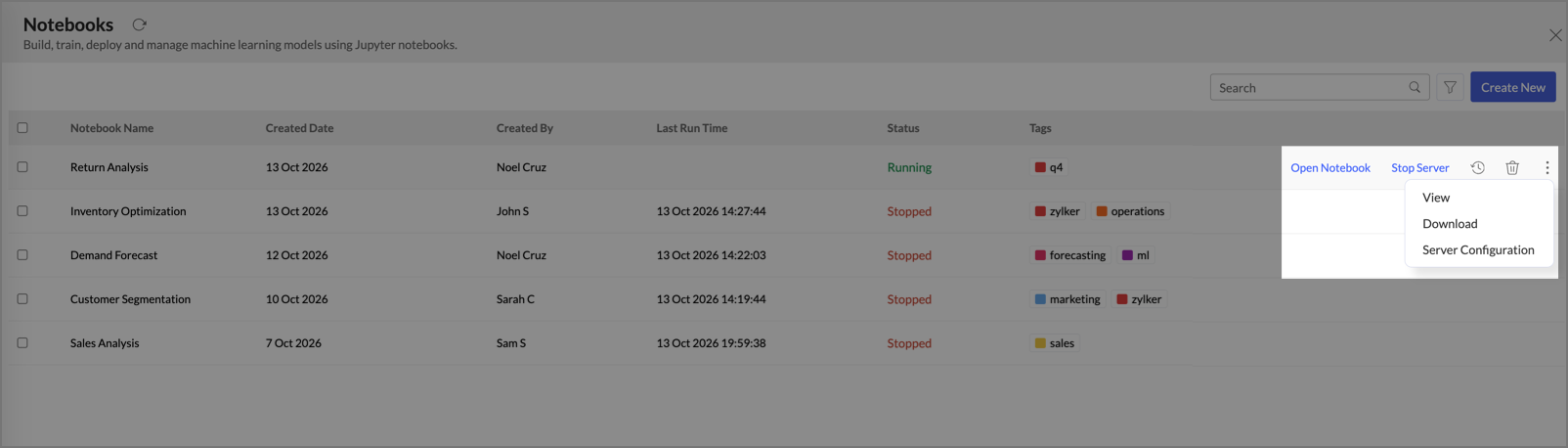
Hovering over a Notebook shows the actions available for its current status.
- A running Notebook shows the Open Notebook and Stop Server links.
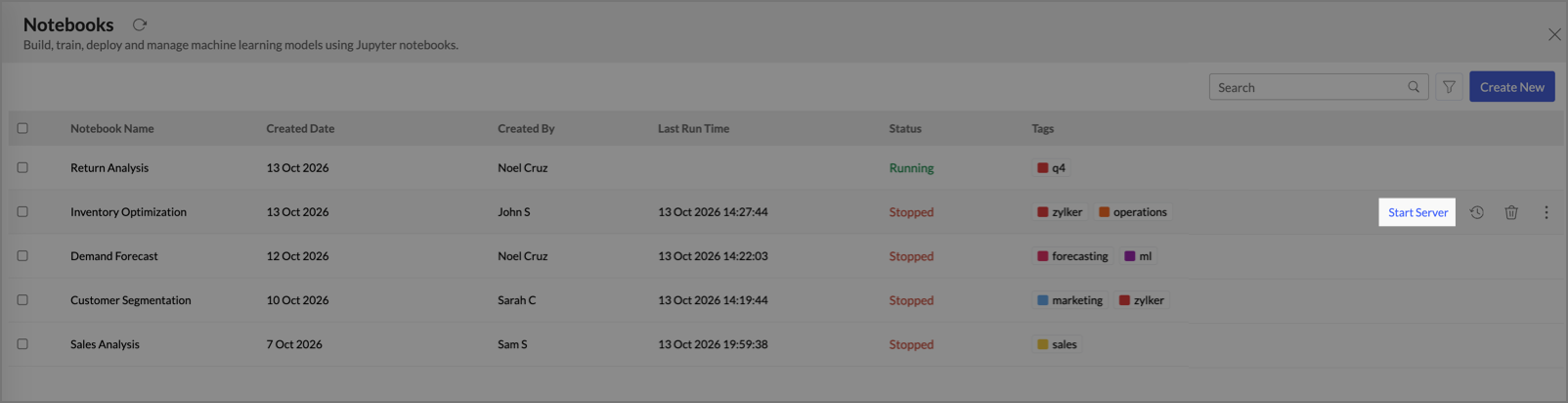
- A stopped Notebook shows the Start Server link.
- In both states, the Notebook History icon, the Delete icon, and the More options menu with the View, Download, and Server Configuration options are available.
Manage Notebooks
Start or stop the server
The Notebook server must be running to open the editor and execute code. Credits are consumed while the server runs.
To start the server,
- In the Notebooks page, hover over the Notebook.
Click the Start Server link. The status changes to Running.
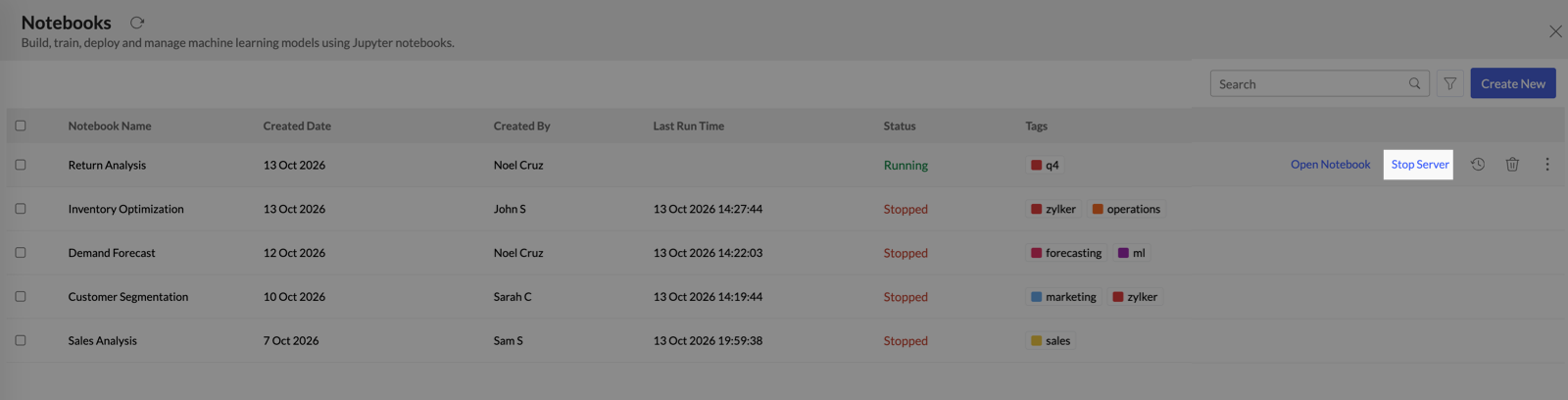
To stop the server,
- In the Notebooks page, hover over the Notebook.
- Click the Stop Server link.
In the Alert Message dialog, click Yes. The status changes to Stopped.
Note: If the DSML credits are exhausted, the server does not start, and the Alert Message dialog is displayed. Purchase the DSML Credits add-on from the Zoho Store to continue.
View a Notebook
You can view a Notebook without starting the server.
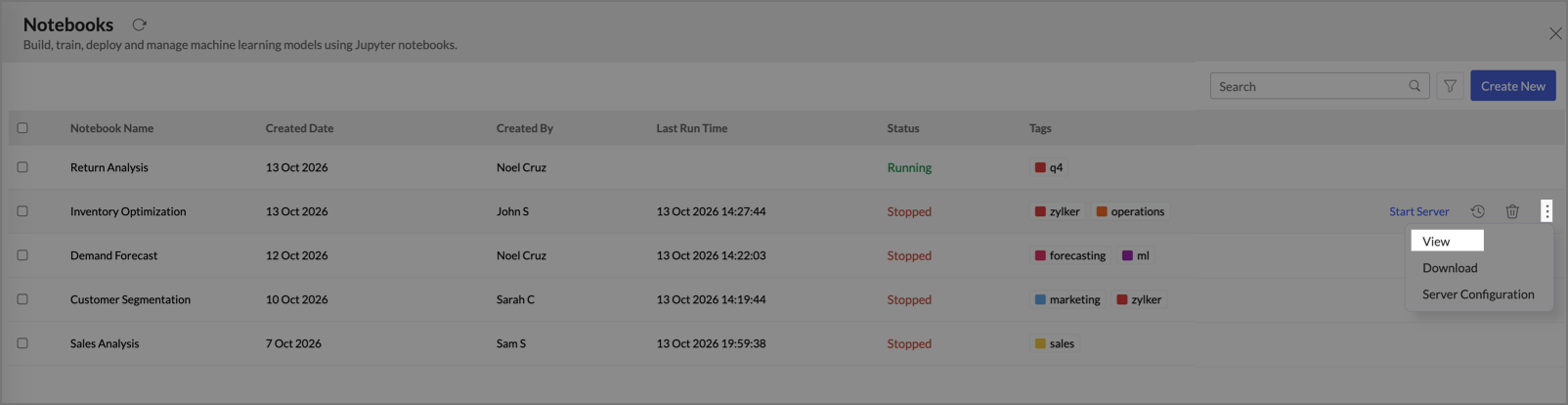
- In the Notebooks page, hover over the Notebook, click More options, and select View.
The Notebook opens in a read-only view with the saved cells and outputs. Code cannot be run in this view.
Edit the server configuration
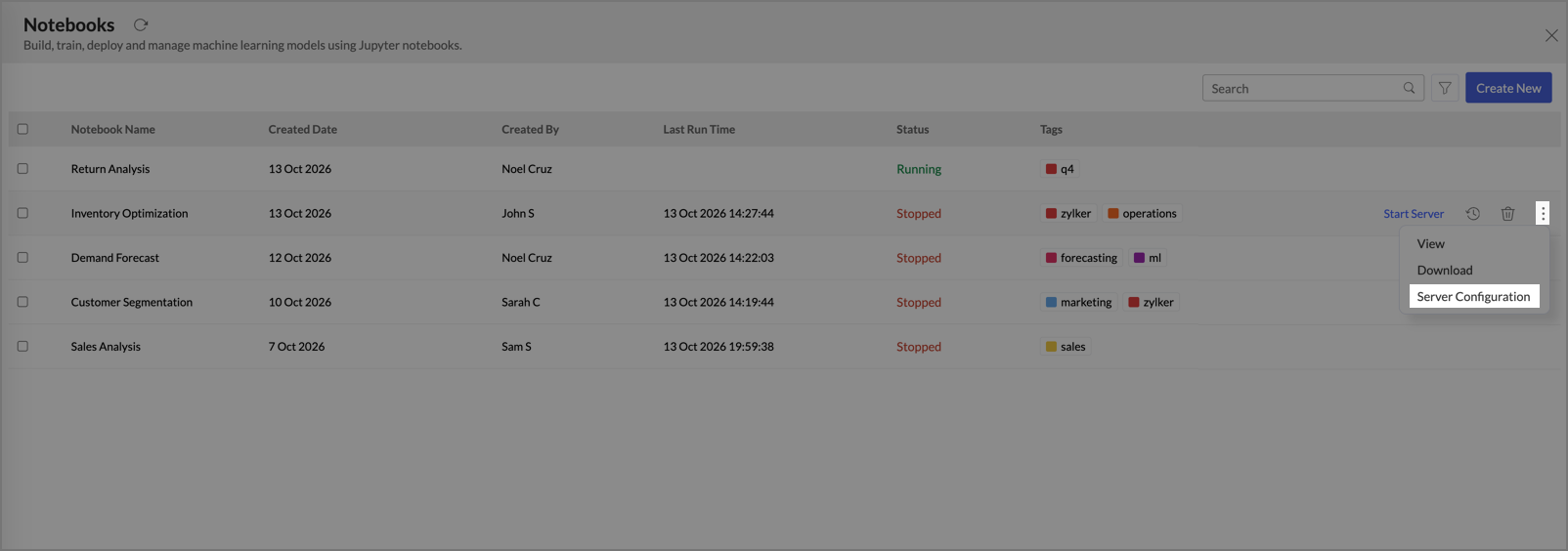
- In the Notebooks page, hover over the Notebook and click More options.
Select Server Configuration. The Server Configuration dialog opens.
In the Select Server Capacity field, select the required capacity.
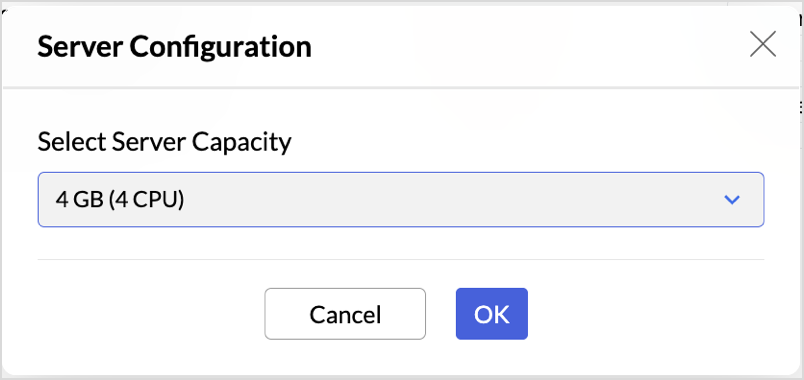
- Click OK.
Edit the tags
- In the Notebooks page, hover over the Notebook, click More options, and select View. You can also open a running Notebook with the Open Notebook link.
Click the tag icon beside the Notebook name.
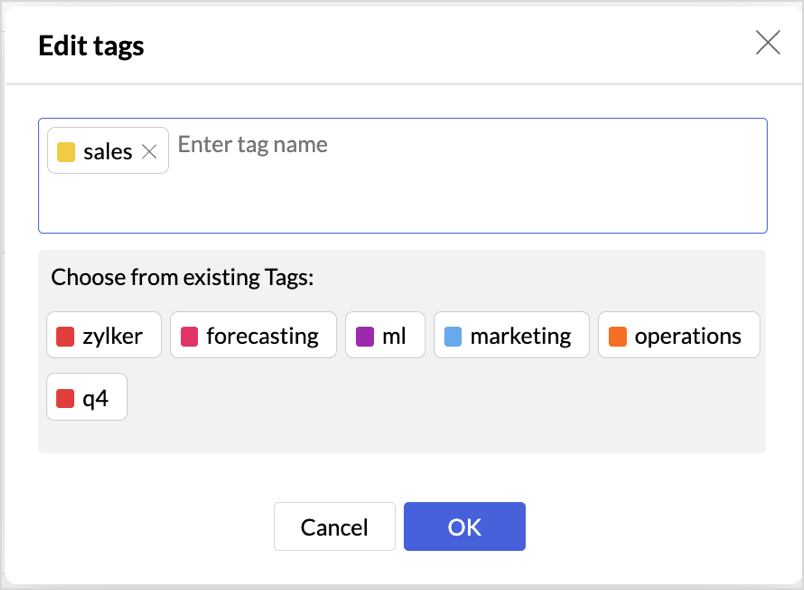
- In the Edit tags dialog, enter new tag names, or select from the existing tags. To remove a tag, click its close icon. The dialog is titled Add tags when the Notebook has no tags.
- To classify the Notebook, select a category in the System Tags field, such as Certified. System tags help you classify your Notebooks to indicate their reliability and quality.
Click OK.
View the Notebook history
- In the Notebooks page, hover over the Notebook.
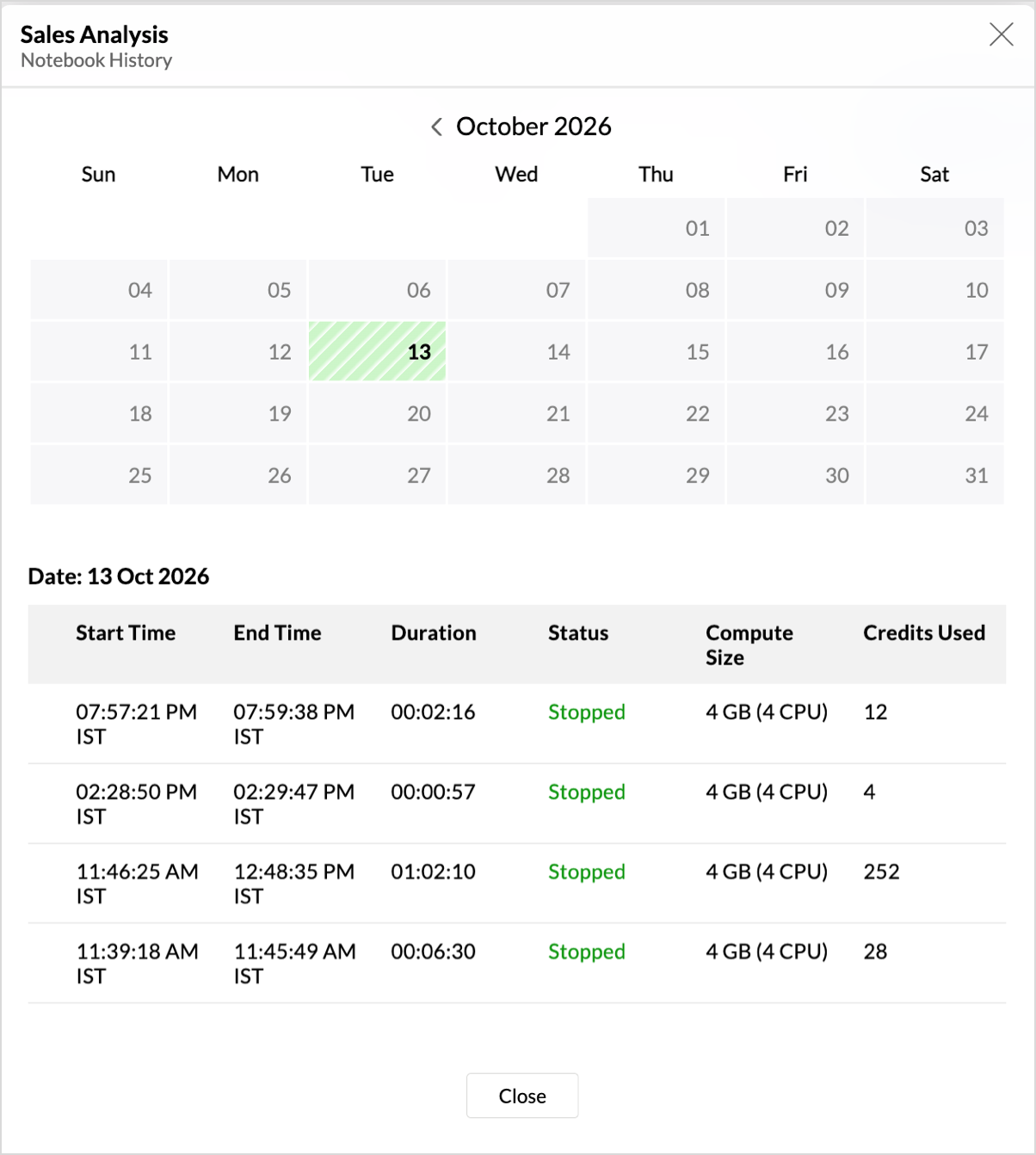
- Click the Notebook History icon. The Notebook History panel opens with a calendar, and the dates with server activity are highlighted. Hovering over a highlighted date shows the number of successful sessions on that date.
Select a highlighted date to view the server sessions of that day. Each session is listed with the start time, end time, duration, status, compute size, and the credits used.
Download a Notebook
You can download a Notebook as an .ipynb file. The server does not need to be running.
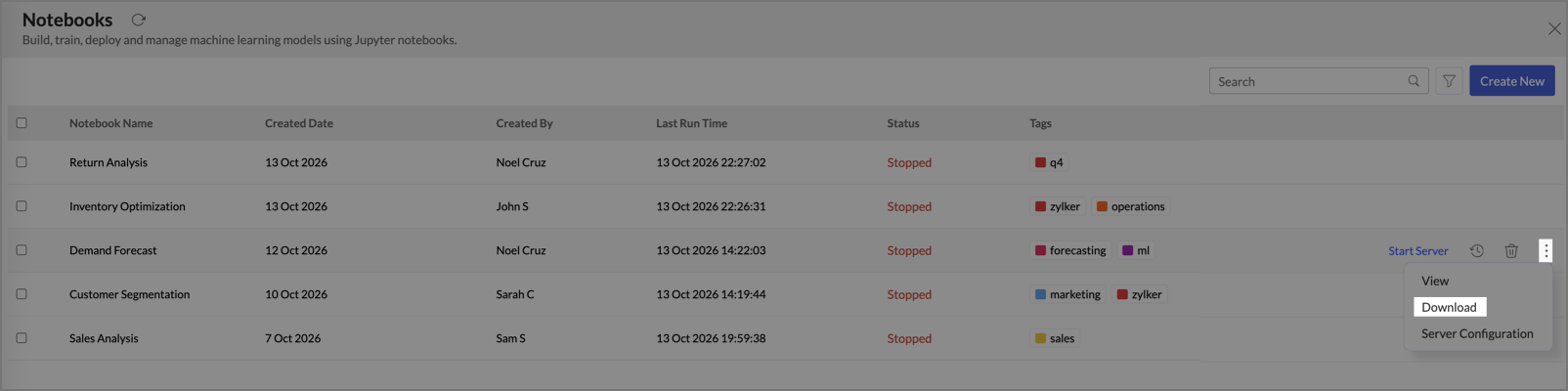
- In the Notebooks page, hover over the Notebook and click More options.
- Select Download. The Notebook is downloaded as an .ipynb file.
Note: Importing .ipynb files is not supported.
Delete a Notebook
- In the Notebooks page, hover over the Notebook.
Click the Delete icon.
- In the Alert Message dialog, click Yes.
To delete multiple Notebooks together, select them using the checkboxes and click the Delete option.