Global Search
Global Search helps you find a view anywhere in your Zoho Analytics account without opening each workspace to look for it.
Pricing plan: All plans
About Global Search
Open Global Search from the Zoho Analytics home page to search across all the workspaces you have access to, or from inside a workspace to search within that workspace.
You can search for dashboards, charts, pivot views, summary views, tabular views, query tables, tables, and slideshows. Global Search matches the view name. To find views by other details, such as the owner, a tag, or the date the view was modified, click Advanced Search Options.
Note: Global Search matches the details of a view, not the data stored in it. If you search for a value that appears in the rows of a table, the table will not be listed in the results.
Global Search and Explorer search
Zoho Analytics offers two ways to search for views.
| Global Search | Explorer search | |
|---|---|---|
| Searches | All the workspaces you have access to | The workspace that is open |
| Available from | Home page and workspace | Explorer page of a workspace |
| Narrow results by | View type, and the search options | View type |
To know more about Explorer search, refer to Viewing Workspaces.
Open Global Search
You can open Global Search from the Zoho Analytics home page or from inside a workspace.
Open from the home page
- Select an organization from the drop-down at the top of the home page.
Click the Search icon at the top right.
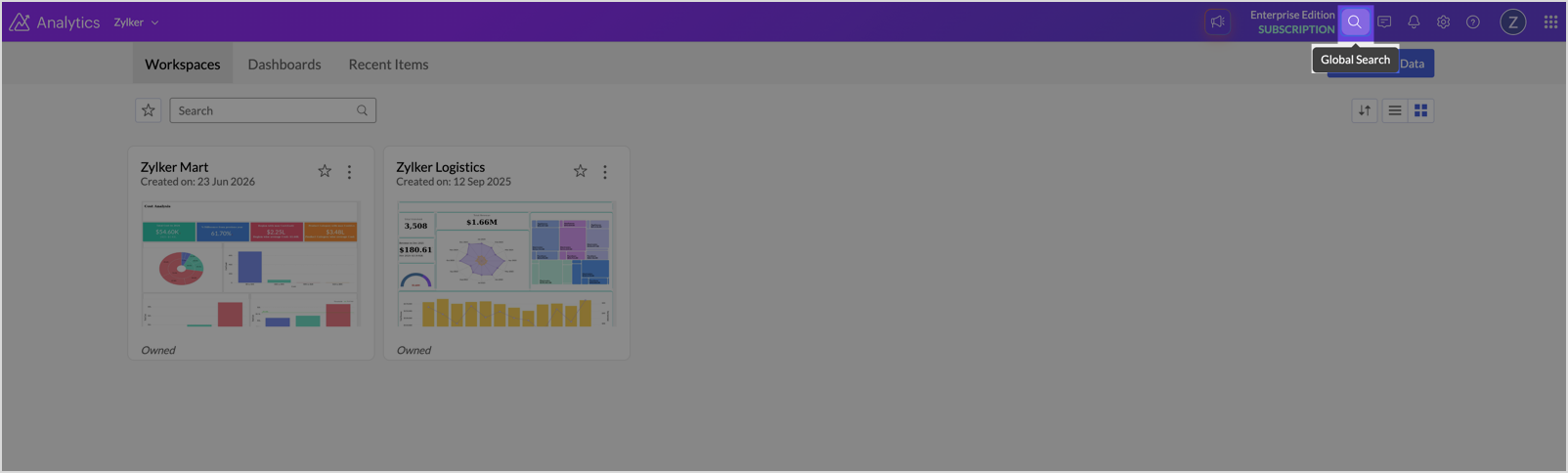
- Type the name of the view you want to find.
Note: The Search icon is not available when All Organizations is selected.
Open from a workspace
- Open the workspace.
Click the Search icon at the top right.
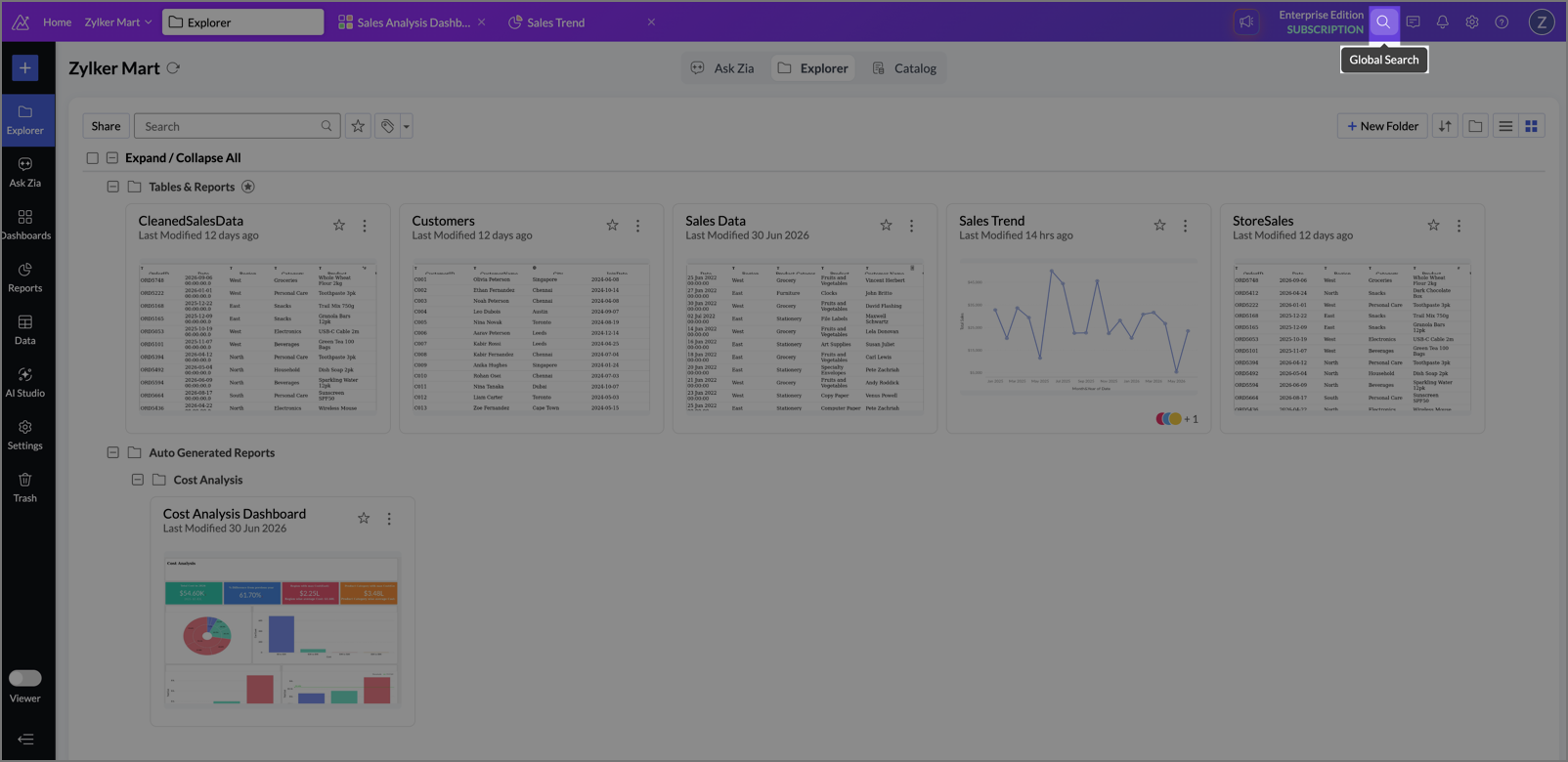
- Type the name of the view you want to find.
When you open Global Search from a workspace, the Workspace option is applied with that workspace, and the search covers only that workspace. To search across all your workspaces, click the close icon on the Workspace option.
In a workspace, you can also switch between Views and Ask Zia. Select Ask Zia to ask questions about your data and get analytical answers instead of searching for views. To know more, refer to Ask Zia.
You can also open Global Search using the keyboard shortcut Ctrl + Shift + F (Windows and Linux) or command + shift + f (Mac). Press Esc to close it.
Search for views
Type a keyword in the search box to find views whose name contains it. Results appear as you type, and matching is not case sensitive.
The keyword is applied as the Contains option. To search by any other detail, such as a description or a tag, click Advanced Search Options.
Note:Contains matches the view name only. To search within view descriptions, use the Description option.
Narrow results by view type
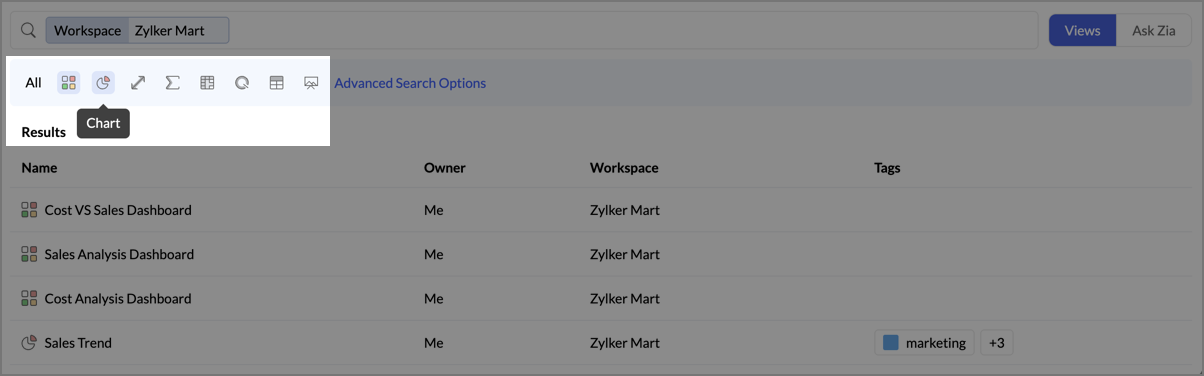
By default, Global Search returns views of every type. To list views of a single type, click the corresponding icon above the results. Hover over an icon to see the view type it represents. Click All to list every type again.
You can also select a view type without typing a keyword to list all views of that type.
Refine your search with options
Click Advanced Search Options to open the Search Options row, then click an option to add it to the search box. Type a value for the option, or select one from the suggestions.
You can combine options to narrow your results further. Each option you add is applied along with the others, so the results match all of them.
- To remove a single option, click the close icon on it.
- To clear the search box, click the close icon at the end of it.
- To close the Search Options row, click Hide.
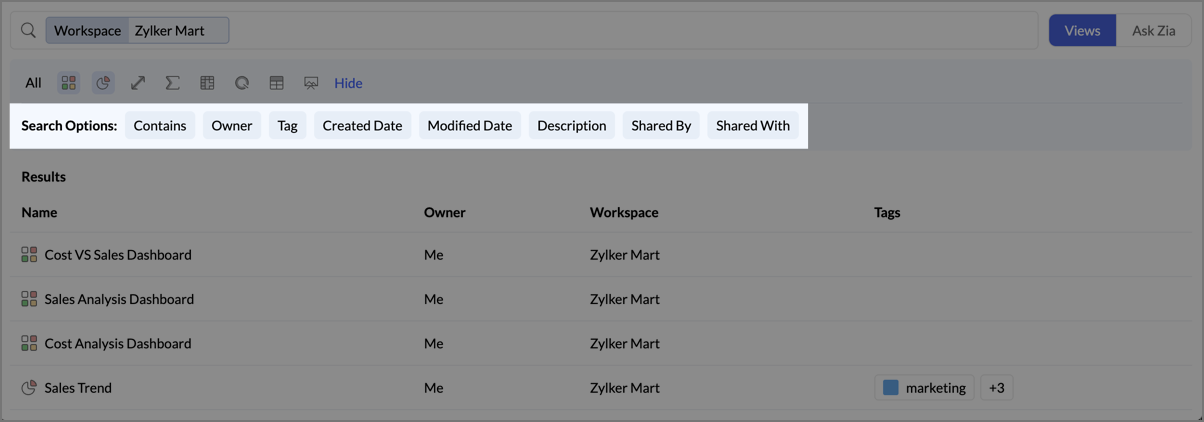
Available options
The options available to you depend on the view type you select and the options you have already applied.
| Option | Finds views by | Available for |
|---|---|---|
| Contains | A keyword in the view name | All view types |
| Workspace | The workspace the view belongs to | All view types |
| Owner | The user who owns the view | All view types |
| Tag | A tag applied to the view | All view types except slideshows |
| Created Date | The date the view was created | All view types |
| Modified Date | The date the view was last modified | All view types |
| Description | A keyword in the view description | All view types except slideshows |
| Chart Type | The chart type | Charts |
| Column Used | A column used in the view | Charts, pivot views, summary views, and tabular views |
| Column Name | A column in the table | Tables and query tables |
| Shared By | The user who shared the view | After you apply the Workspace option |
| Shared With | The user the view is shared with | After you apply the Workspace option |
Search by date
Created Date and Modified Date both offer the same choices.
- Today
- Yesterday
- Last 7 Days
- Last 30 Days
- Last 90 Days
- Specific Date
- Custom Date Range
Select one of the first five choices to apply it right away.
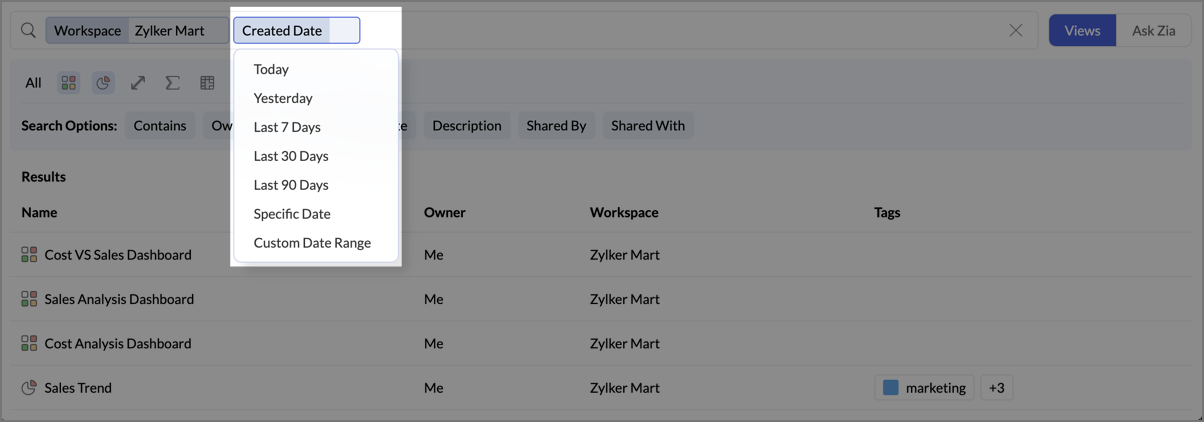
To search for views from a single date, select Specific Date, then click the date in the calendar.
To search for views from a period, select Custom Date Range, click the start date and the end date in the calendar, then click OK.
View search results
As you type, Global Search lists the matching views under Results. Each result shows the view name with its type icon, the owner, the workspace the view belongs to, and the tags applied to it.
Views you own show Me in the Owner column.
To see the full list of matching views, click View all search results. The expanded page keeps your keyword, options, and view type selection, and lists results in the same four columns.
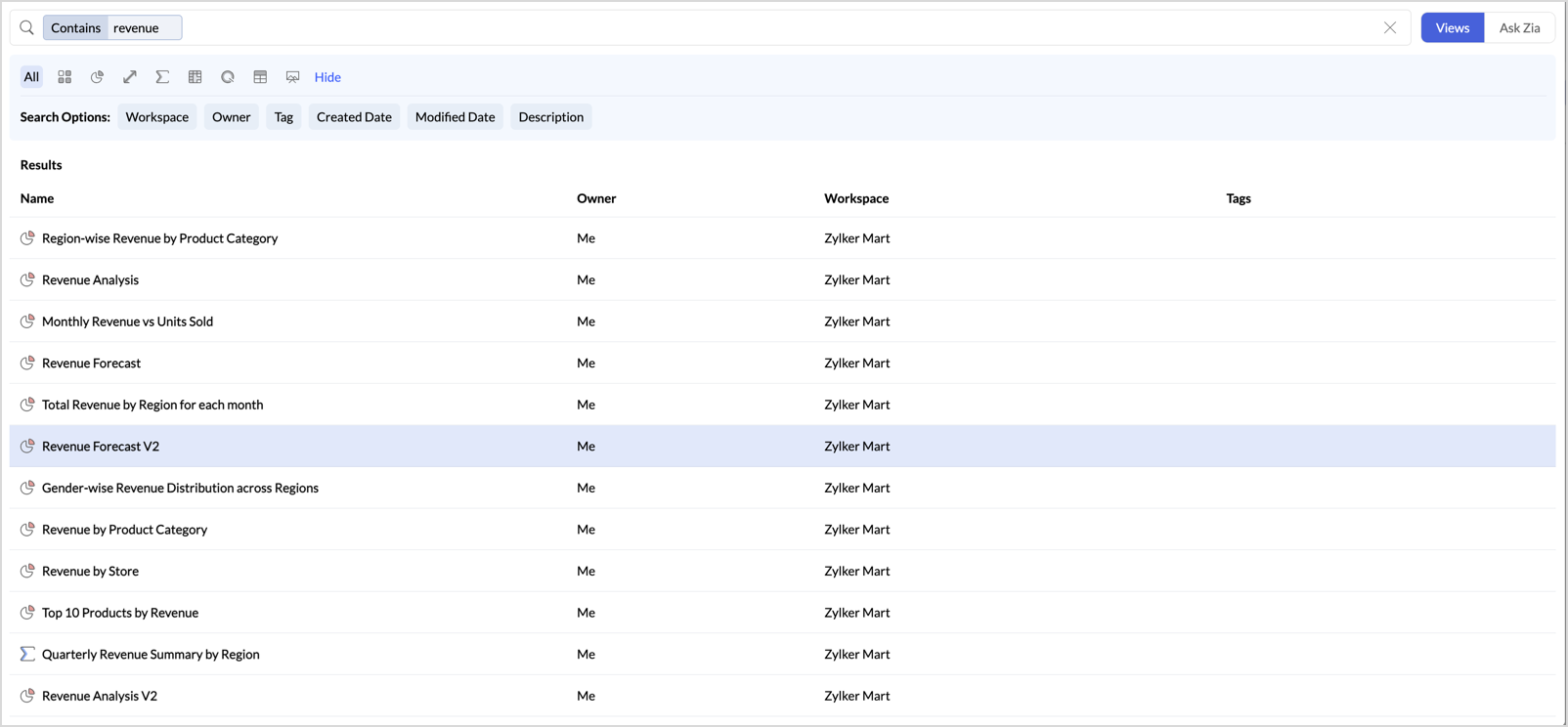
Open a view from the results
Click a view in the results to open it. Global Search closes, and the view opens in the current tab.
You can open a view from any workspace in the results, not only the workspace you are currently in.
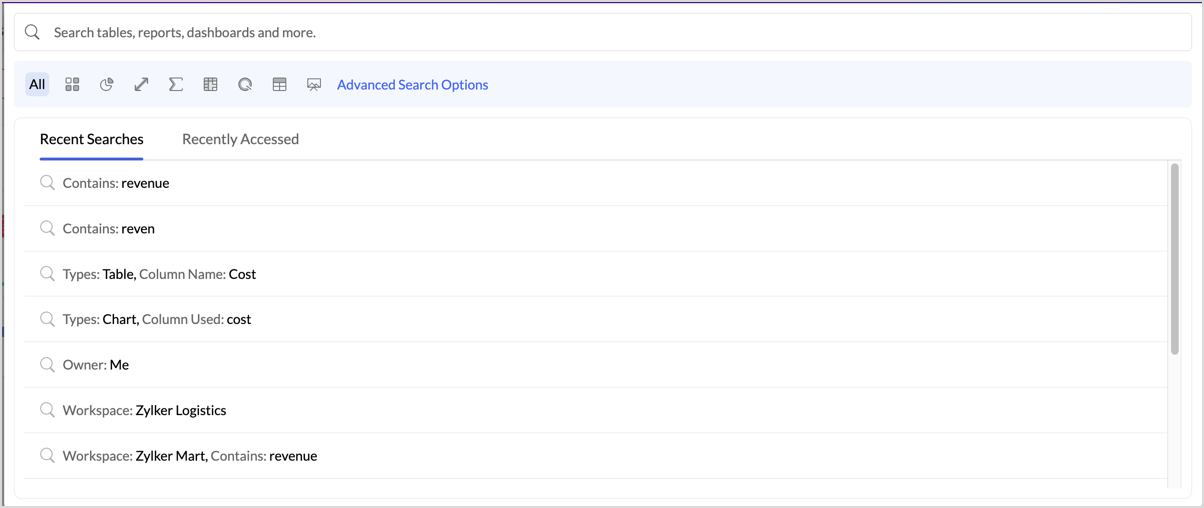
Recent searches
When you open Global Search without typing a keyword, two tabs are listed.
- Recent Searches lists the searches you ran earlier, with the options and values you used. Select a search to run it again.
- Recently Accessed lists the views you opened recently, with the workspace each view belongs to and the tags applied to it.
Recent Searches is listed only after you run your first search.
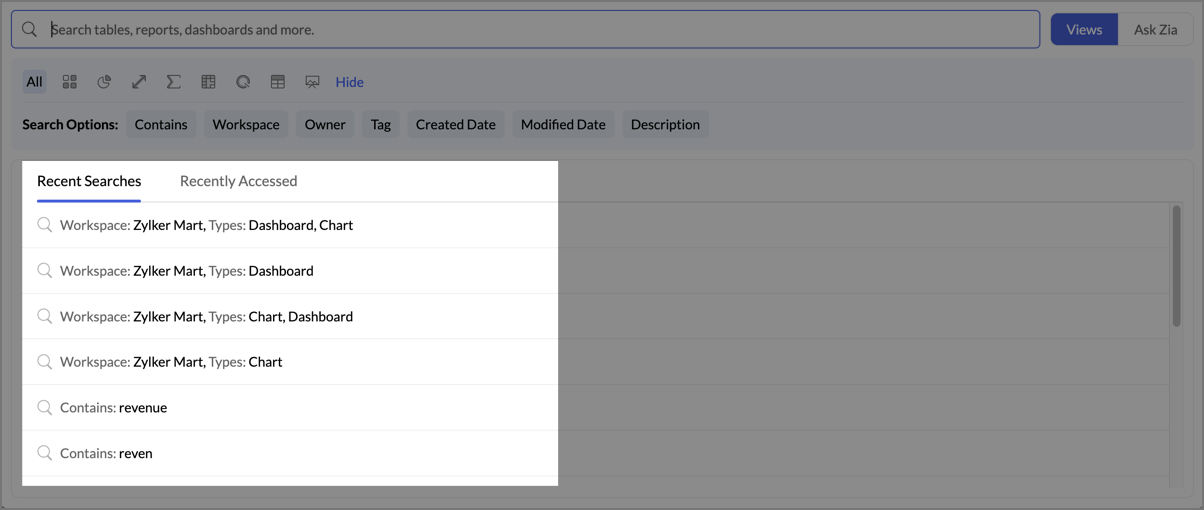
Points to note
- Global Search is available on all plans, to all users and roles. You see only the views you have access to.
- Global Search is not available in public views. Use Explorer search instead.
- Contains matches the view name only. To search within view descriptions, use the Description option.