Manage Data Sources - Databases & Datalakes
The Data Sources tab is the central hub that helps manage all the connection settings of the data sources in the workspace. It also helps keep tabs on the data sync status and notifies in the case of data sync failures. User with the Administrator Privilege can access the data sources tab and make necessary changes when needed.
- Accessing the Data Source Tab
- Edit Connection
- Sync Settings
- Audit History
- Sync History
- Manage Table Synchronization Settings
Accessing the Data Source Tab
- Access the workspace for which you manage the connection settings.
- Click the Data Sources tab on the side navigation bar.
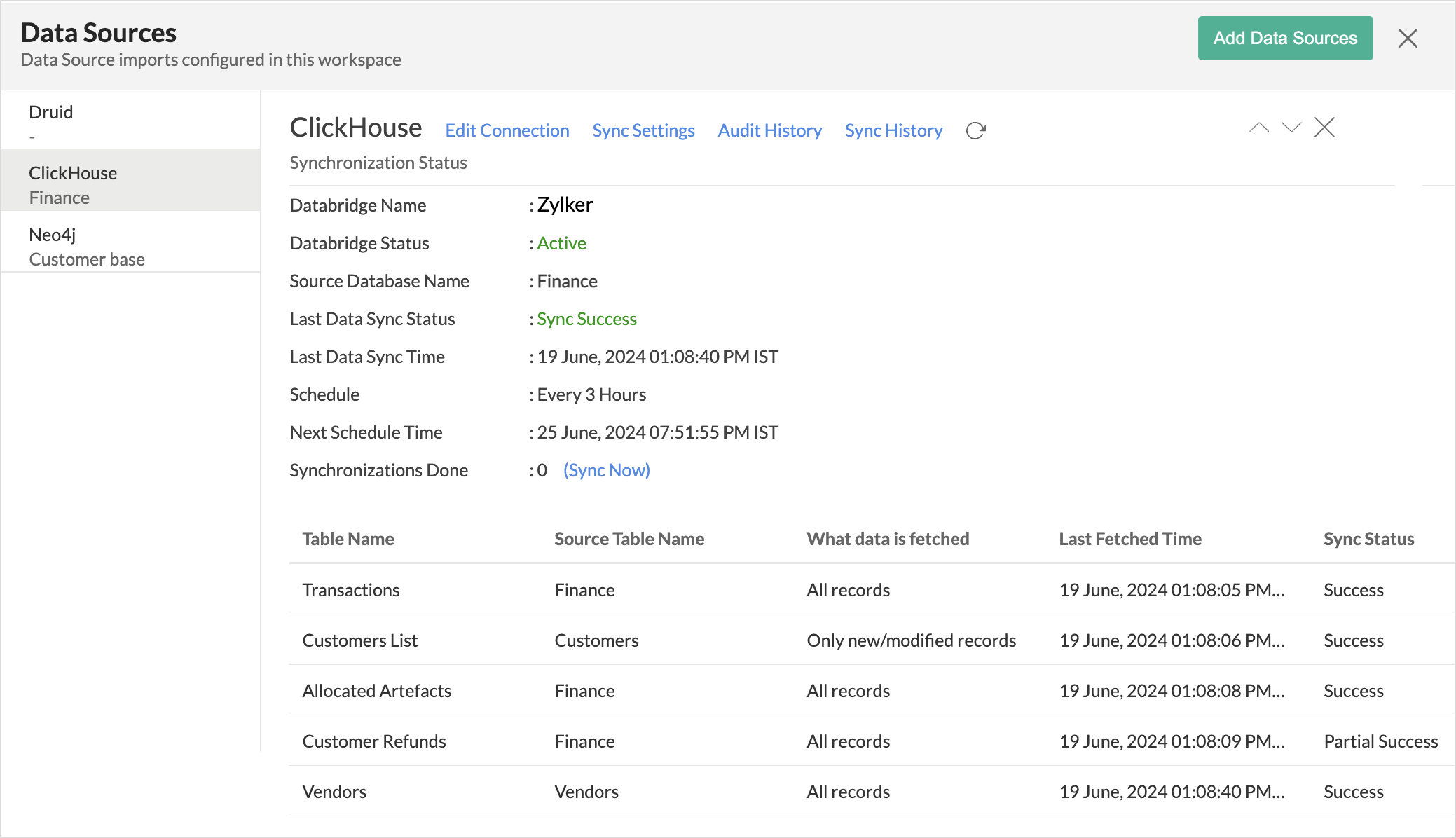
- All the data connections configured in the workspace will listed. Choose the connection you wish to modify.
Edit Connection
Enables admins to re-authenticate and update the connection details such as credentials or configuration settings without causing any interruption to the existing data flow.
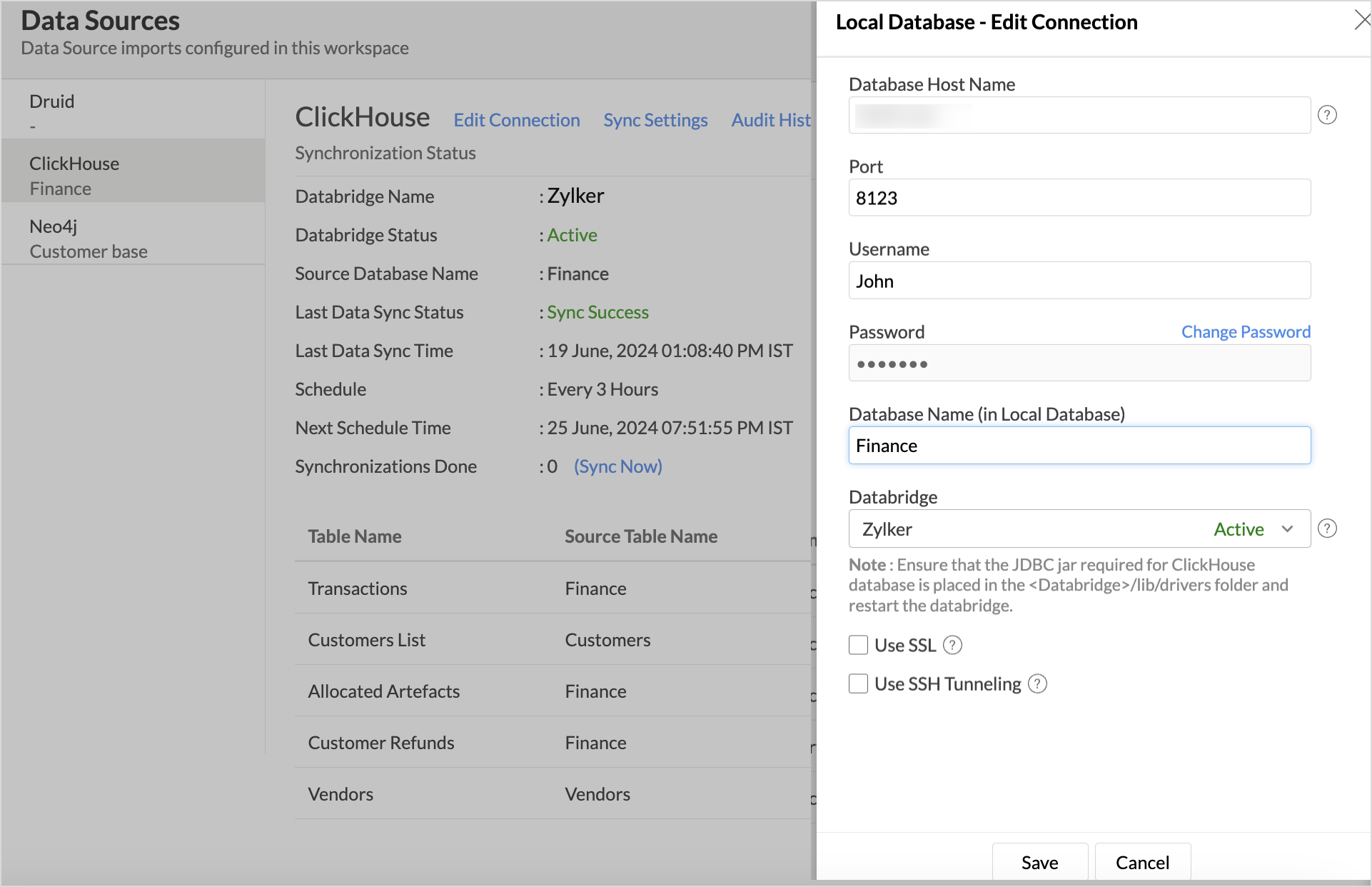
Sync Setttings
Sync settings helps modify the frequency of data synchronization (e.g., change from daily to hourly syncs) based on the current needs of your analysis. In case of a sync failure, you can specify which users should be notified. You can manage the periodic fetch settings for the tables where only the newly added records are imported.
Audit History
Audit logs are crucial for maintaining security and troubleshooting issues. They provide a comprehensive record of User and System Actions, including details of the time when the action occurred and information about the administrator who performed the action. Audit logs are maintained for each data source in the workspace.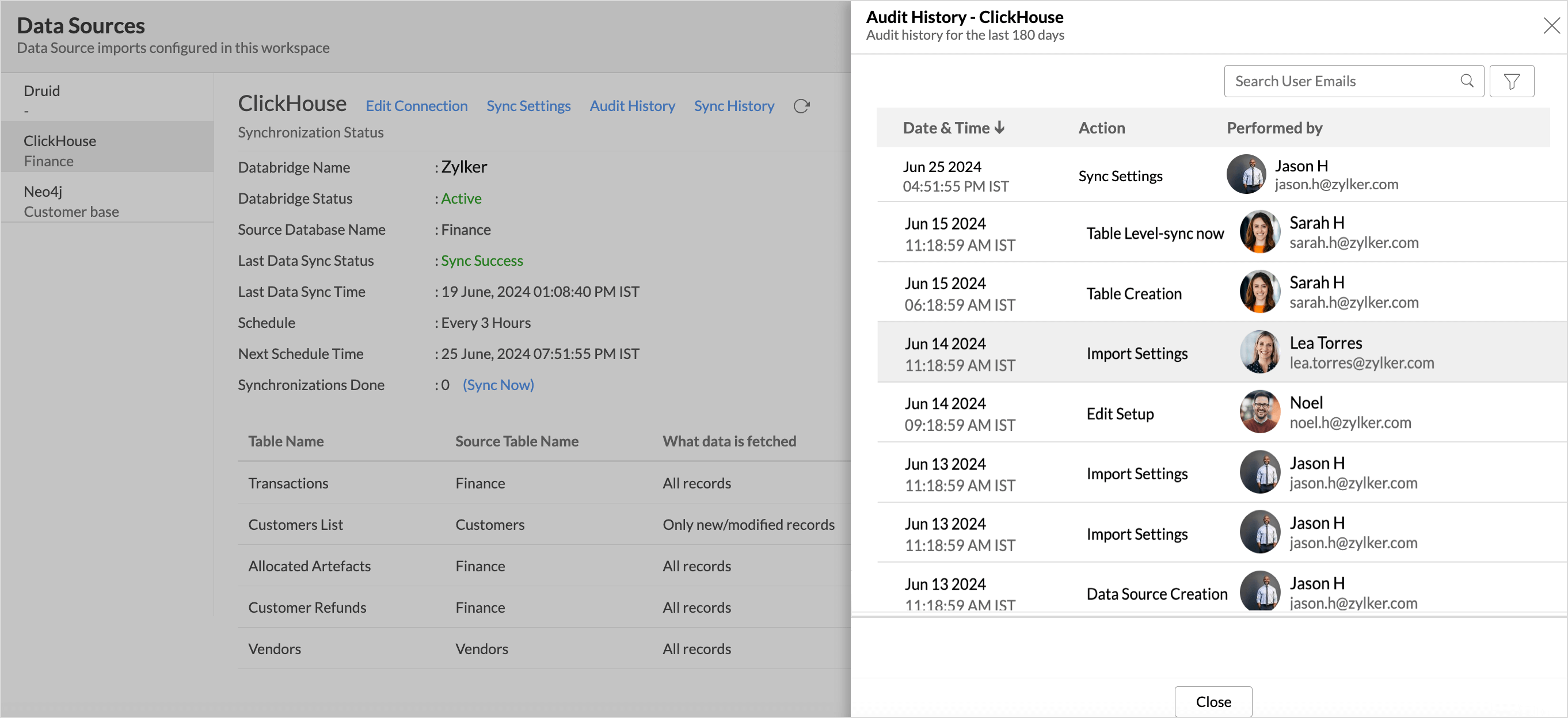
The following are the User Actions and the System Actions that are logged in Zoho Analytics
| Type | Action | Description |
| User Action | Data Source Creation | Provides the details of the admin who configured the connection with the application |
| Table Creation | Provides the details of the New Tables added to the workspace. | |
| Remove Table from Data source | Provides details of the tables that are deleted. | |
| Edit Setup | Provides the details about the Configuration changes like re-authentication, enabling or disabling SSH. | |
| Import Settings | Changes in data fetch settings | |
| Sync Settings | Changes in data synchronization settings | |
| Table-level Sync now | Provides the details of what records are fetched when the sync now option is used | |
| System Activities | Schedule Import | Fetching data at the scheduled intervals. |
Sync History
Provides a detailed record of data synchronization activities, making it easy for the administrators to track the status of each data sync. The sync operations are color-coded for immediate recognition. Successful data syncs are indicated in green, signaling that the data sync is completed without any issues. Failed data syncs are marked in red with the reasons for failure along with the necessary action to be taken.

Manage Table Synchronization Settings
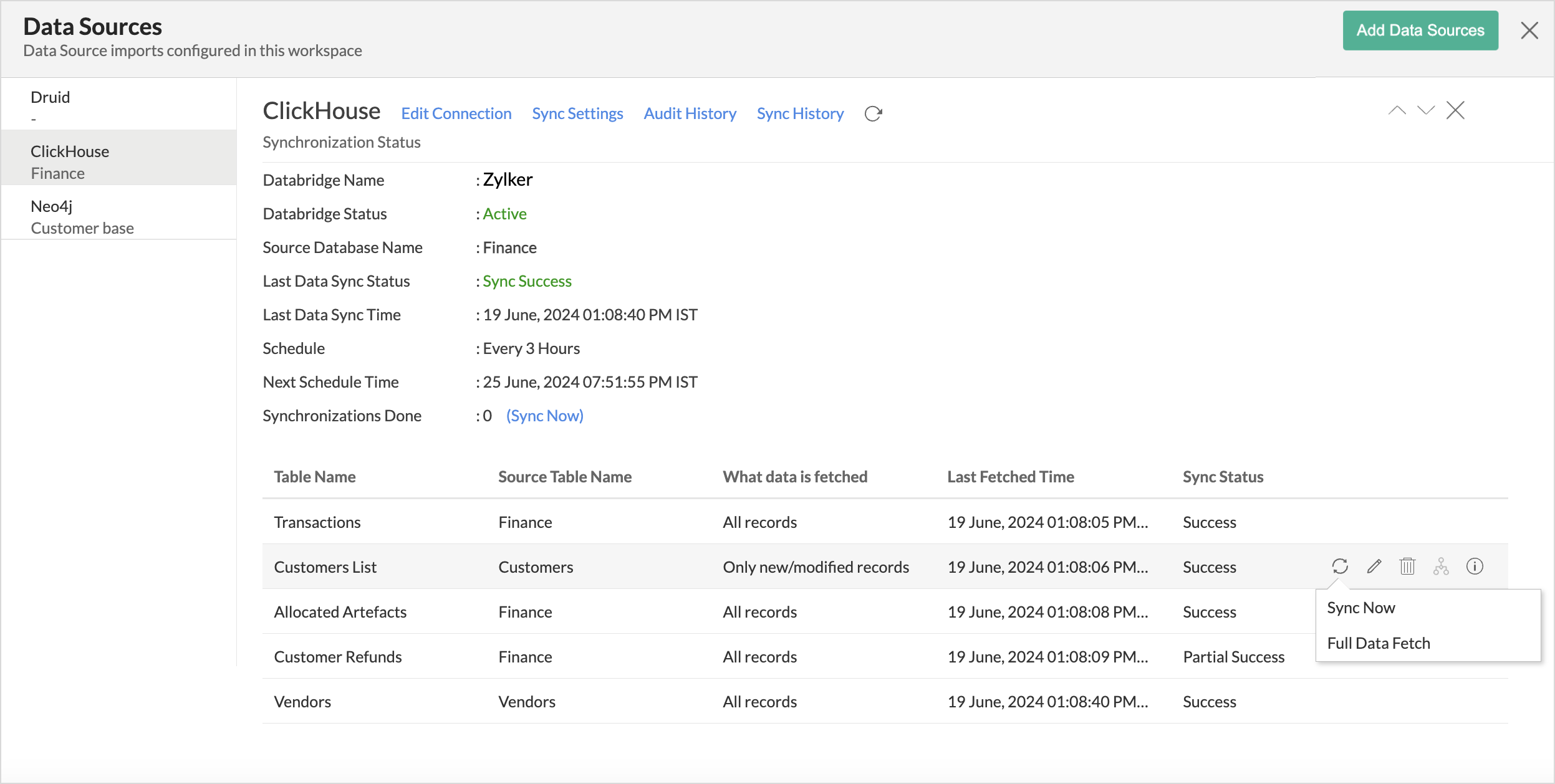
Zoho Analytics provides flexible data fetch options like full data and incremental fetch, which imports only the new records. Each table can have different data fetch configurations. All the tables imported from the database will be listed with the Table and Source Table Name, What data is fetched in each sync, Last Fetch Time, and its Sync status.
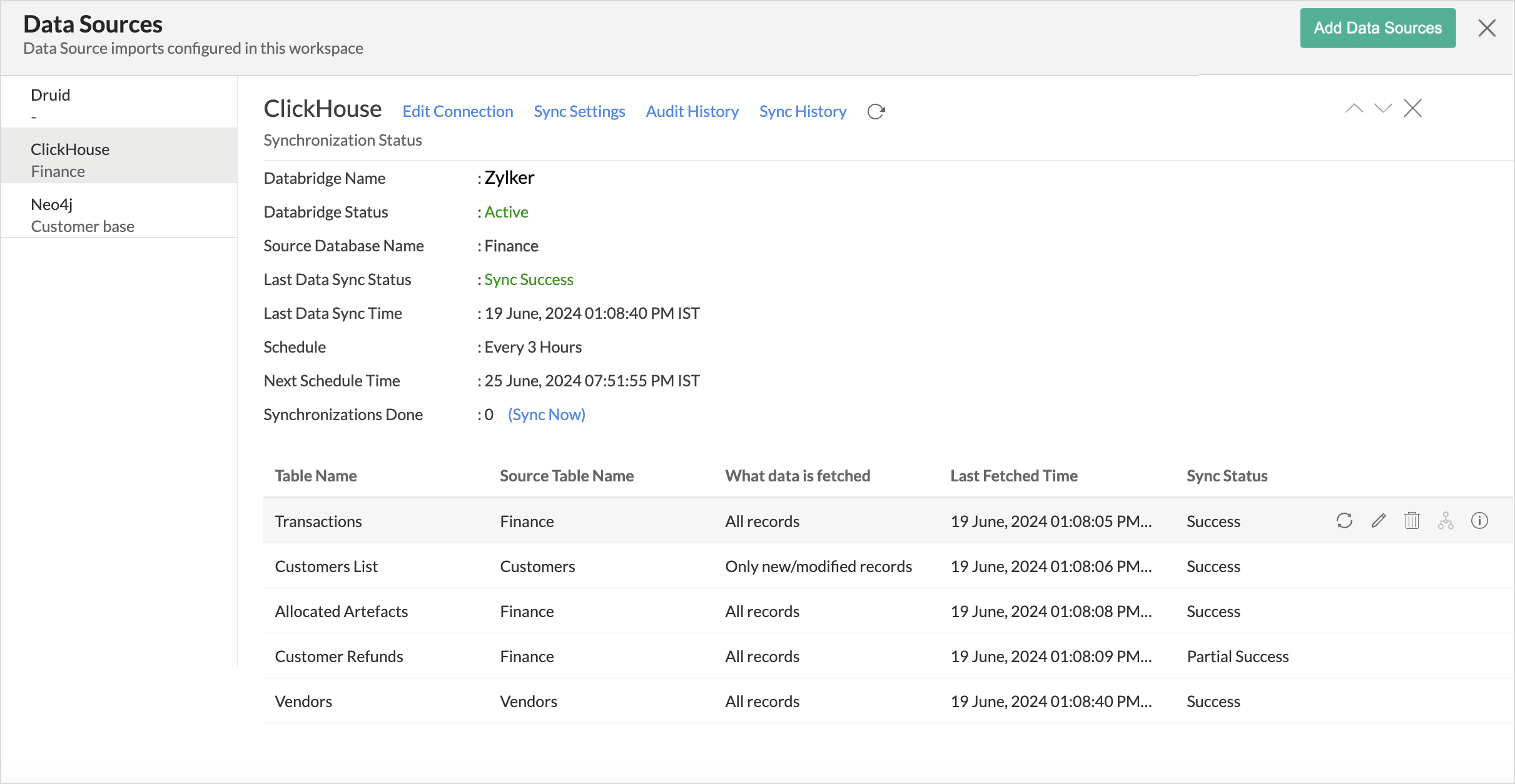
- Hover the mouse over the table for which you want to modify the settings.
- Click the Sync Now icon to include the recent changes made in the source database. The data records are imported based on the type of Data Fetch configured for that table. In the case of tables where only new records are imported, you can also choose to do a Full Data Fetch.
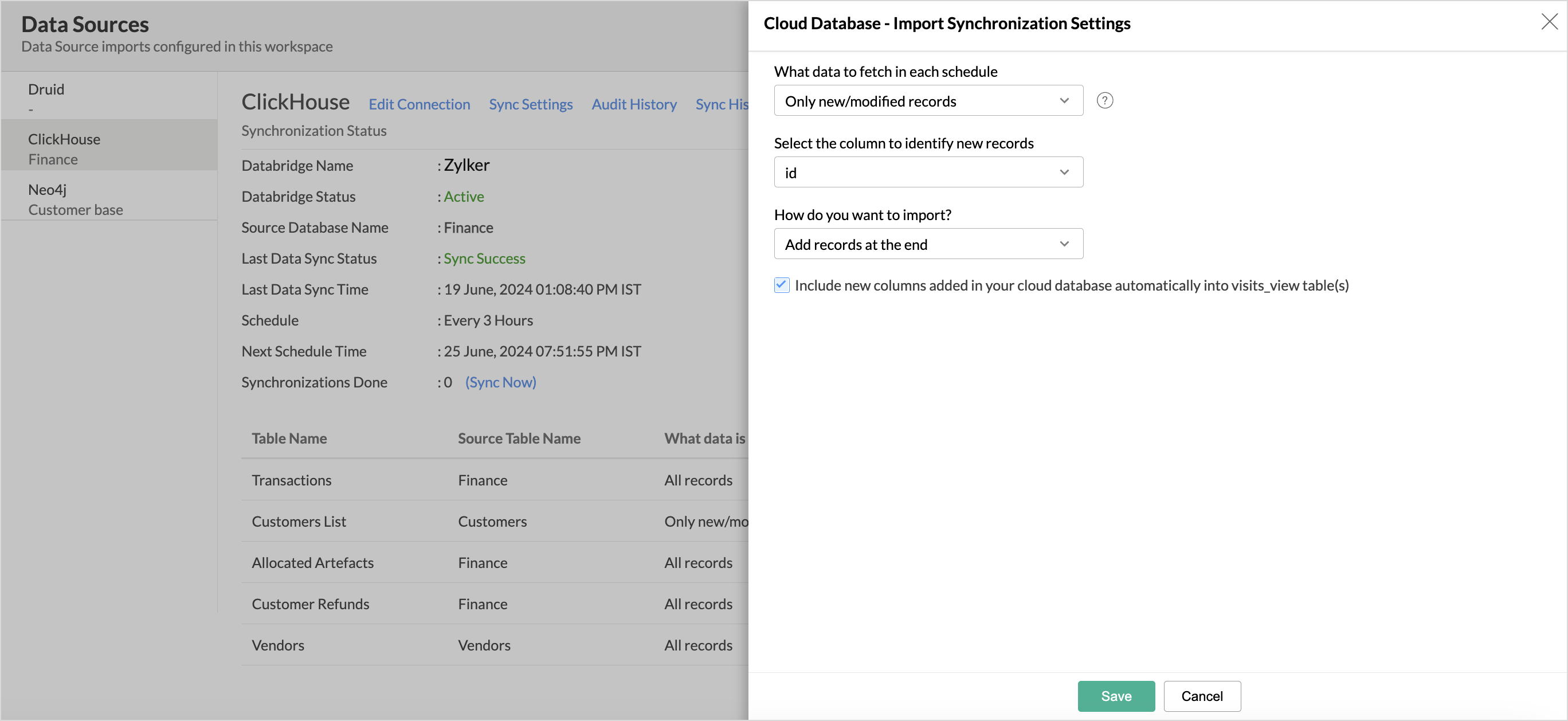
- Click the Edit icon to modify the synchronization settings of the table. You can choose whether all the data should be fetched from the source or only the new records in each data sync schedule.
- Click the Sync Now icon to include the recent changes made in the source database. The data records are imported based on the type of Data Fetch configured for that table. In the case of tables where only new records are imported, you can also choose to do a Full Data Fetch.
- Click the Delete icon to remove a table. This will terminate only the data synchronization between the source table and Zoho Analytics. The lookups and the relationships defined, and the reports created over that table, will all be retained.
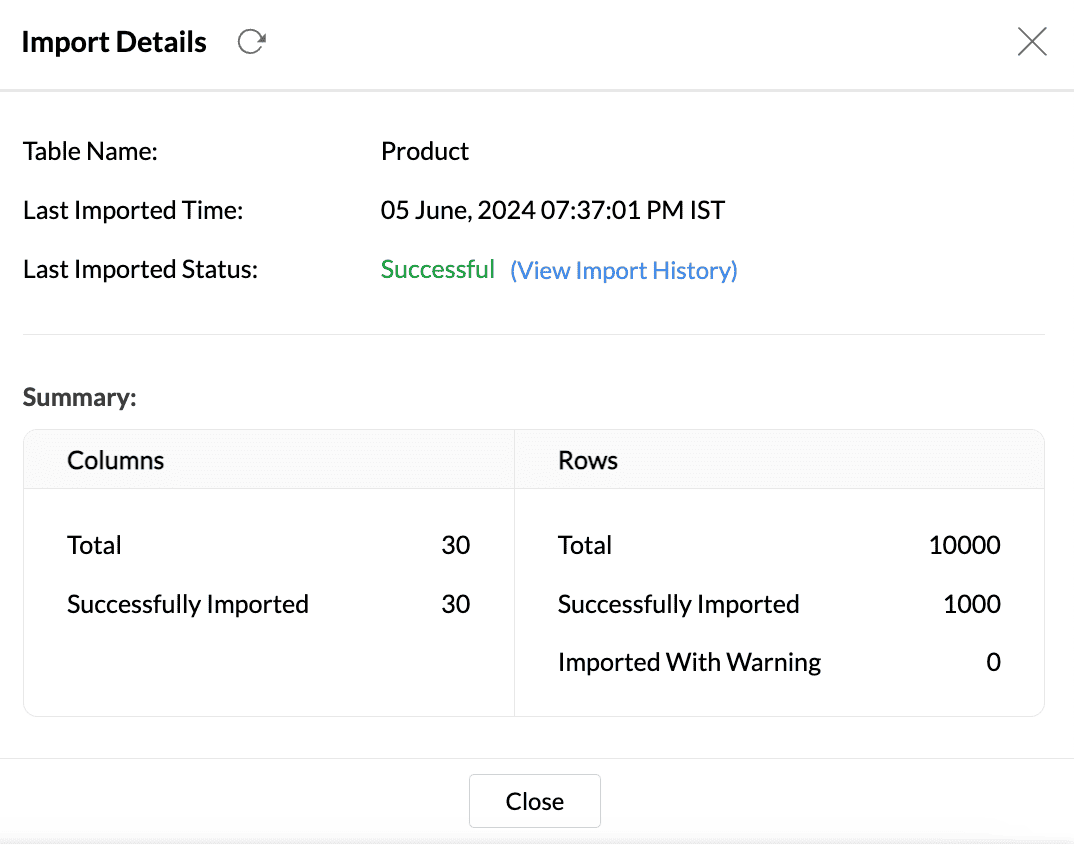
- Click the Info icon to view the Import Details. Get a Summary of the data that were successfully imported and the data that had errors while importing.
Resolving Sync Failures
Data synchronization can fail if the credential provided is invalid or expired, or if the data type mismatches. Zoho Analytics sends an email to the workspace admin and also sends an in-app notification with the reason for failure along with the necessary action to be taken to resolve the issue. Access the Data Sources tab to resolve sync failure. Refer to the Edit Setup section for more details.