HTTP Webhook
Zoho Analytics allows you to stream data from any application or tool that can send an HTTP POST request. Zoho Analytics generates a unique Push URL for the stream table, and each JSON event your application posts to it is added to the table as it arrives.
1. Before You Begin
- Availability: Available in the Premium plan and above. You can connect up to 5 streaming sources in Premium and up to 20 in Enterprise. To connect more, purchase add-ons.
- Your application can send HTTPS POST requests with the header Content-Type: application/json.
- The request body is a JSON object or a JSON array of objects.
- The JSON keys match the table column names exactly, including case.
Note: Use flat JSON. A nested object is stored in a single text column.
2. Creating the Stream Table
Follow the below steps to create the stream table:
- Click Import Your Data at the top right corner of the Home page.
- Select Streaming Data in the Category list, and click the HTTP Webhook tile.
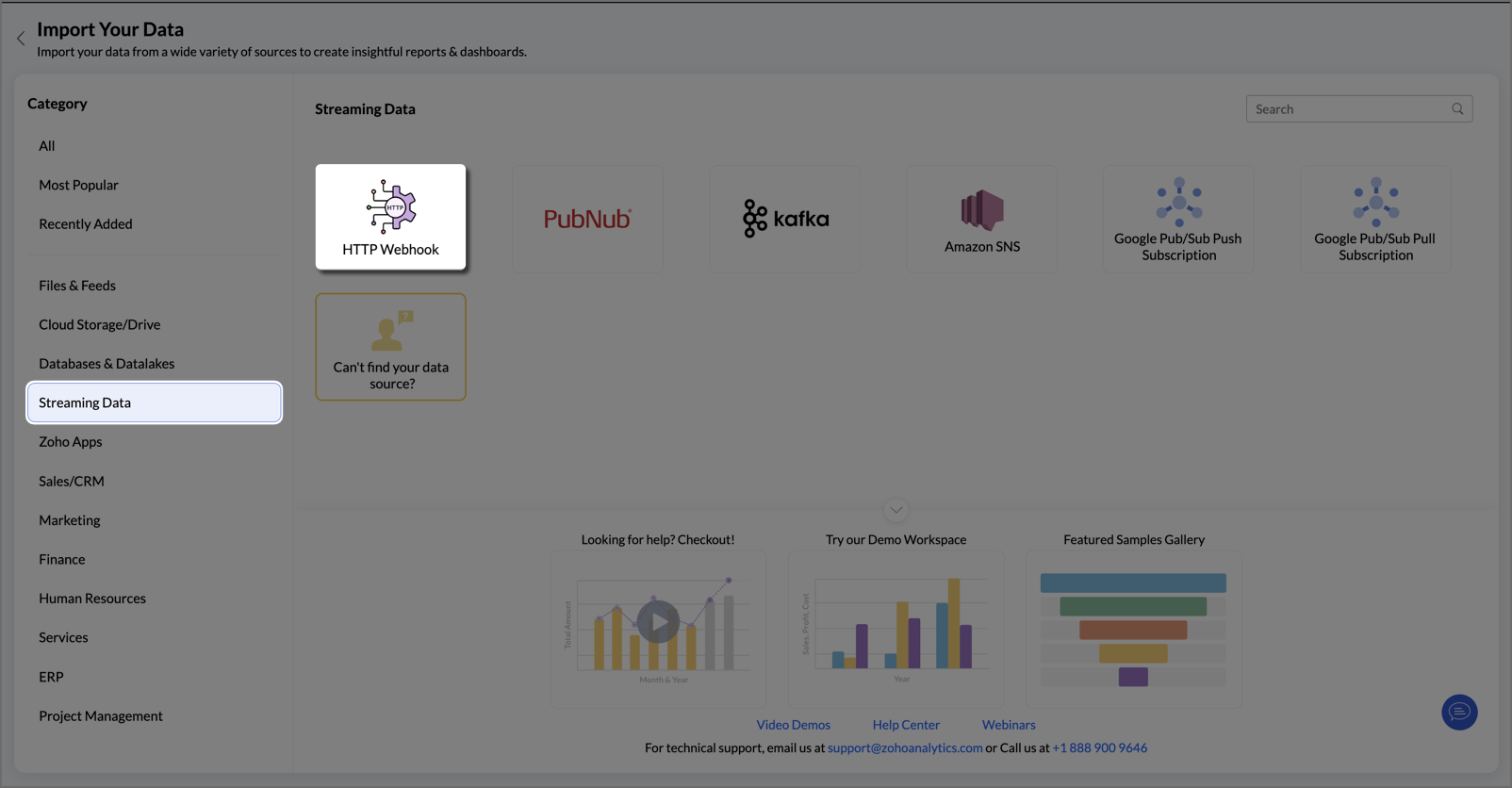
- If the Import Streaming Data into Zoho Analytics pane appears, click Proceed.
- Enter a Workspace Name, if you started from the Home page.
- Click Copy next to Post to copy the Push URL, and click Next.
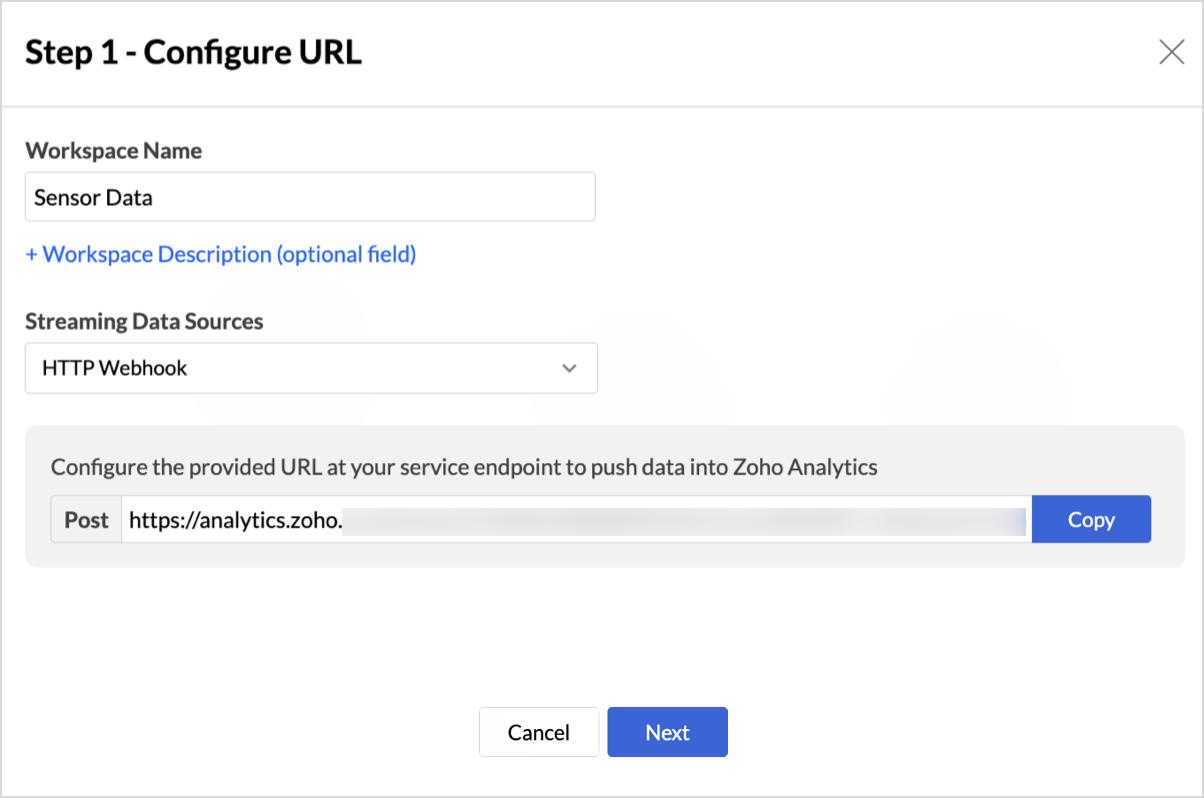
Note: The Push URL contains a secret key. Share it only with the applications that send data to this table.
3. Sending Data to the Push URL
Configure your application to send each event as a POST request to the Push URL, with the header Content-Type: application/json.
curl -X POST "<Push URL>" \
-H "Content-Type: application/json" \
-d '{"order_id":"A-1024","amount":249.50,"status":"PAID","event_time":"2026-10-14 12:00:00"}'
To send several events in one request, post a JSON array of objects.
4. Designing the Table
In Step 2 - Design Table, choose how to define the columns.
| Option | Use it when | What happens |
|---|---|---|
| Design table manually | You know the keys and data types | You add each column yourself |
| Provide sample data | You have a sample event | Columns and data types are filled from your JSON |
| Fetch data automatically from source | Your application can send events now | Zoho Analytics listens on the Push URL for up to 120 seconds and fills the columns from the events it receives |
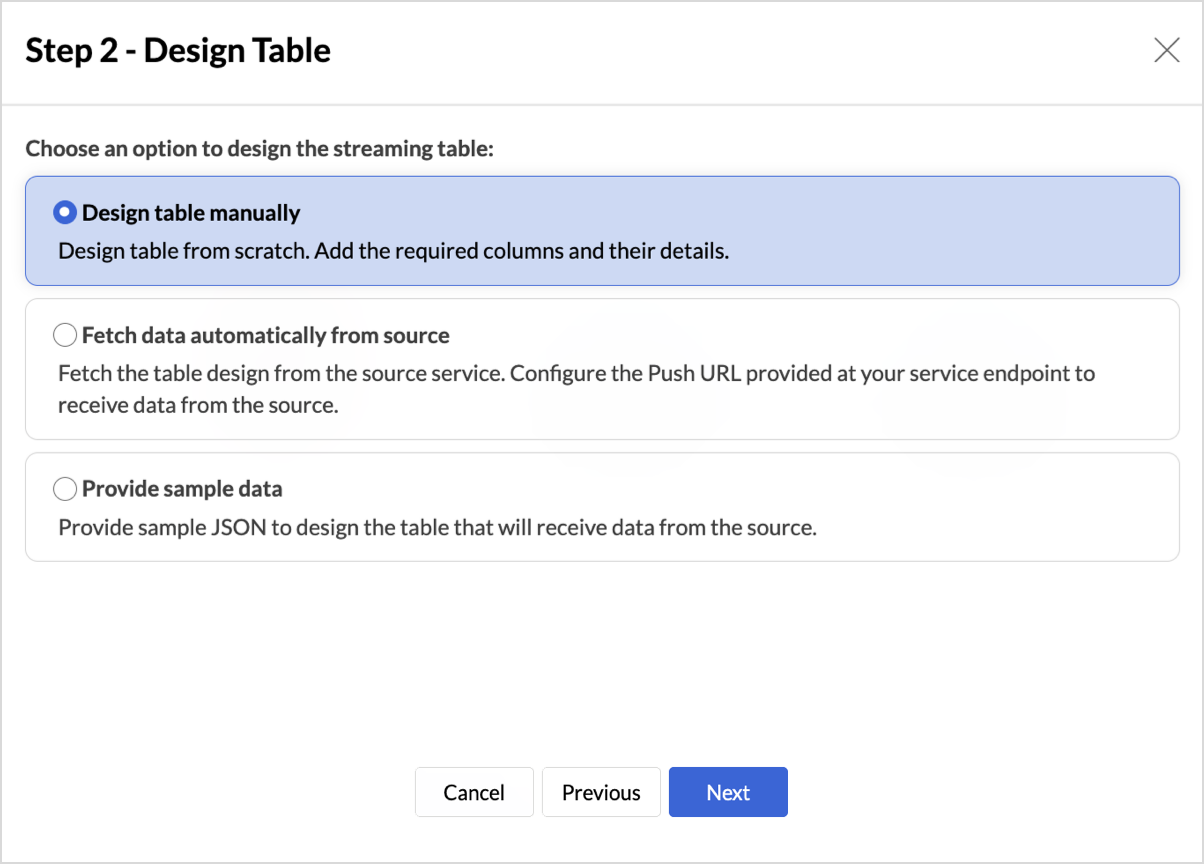
Design Table Manually
Use this option when you already know the structure of your events.
- Select Design table manually and click Next.
- In the empty grid, click + Add New Column for each JSON key, and enter its Column Name and Data Type.
Provide Sample Data
Use this option to build the table from a sample event. Zoho Analytics reads the keys and infers the data type of each column.
- Select Provide sample data
- Paste a JSON object or a JSON array of objects in the Provide sample JSON box.
- Click Next. The columns appear in Step 3 - Table Details, where you can review them.
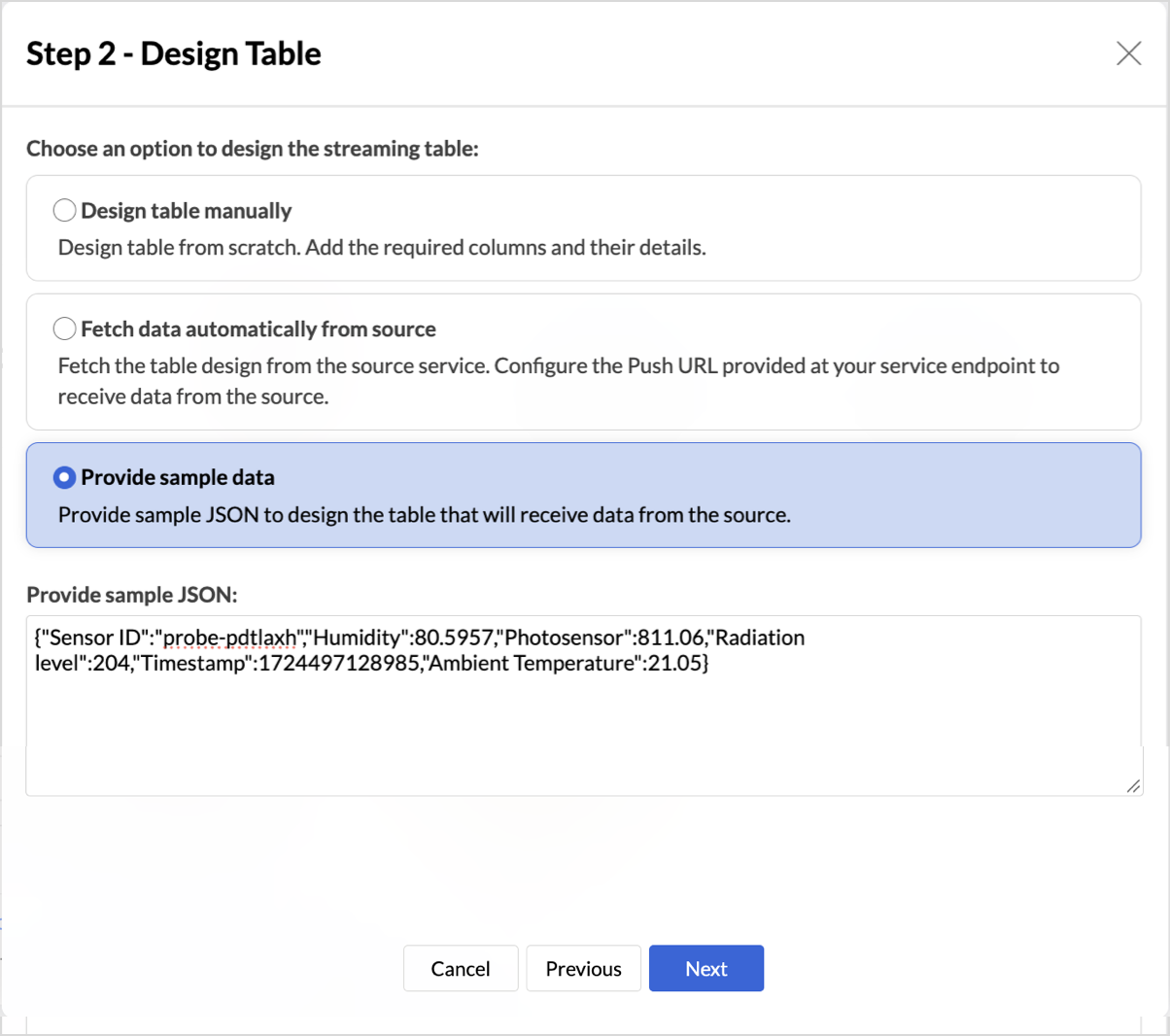
Note: If the JSON is not valid, the message Invalid JSON appears.
Fetch Data Automatically from Source
Use this option when your application can send events now. Zoho Analytics builds the table from live data.
- Select Fetch data automatically from source. The Push URL is shown.
- Send one or more events to the Push UR. Zoho Analytics listens for up to 120 seconds. To stop, click Cancel.
- When an event arrives, the columns are filled automatically.
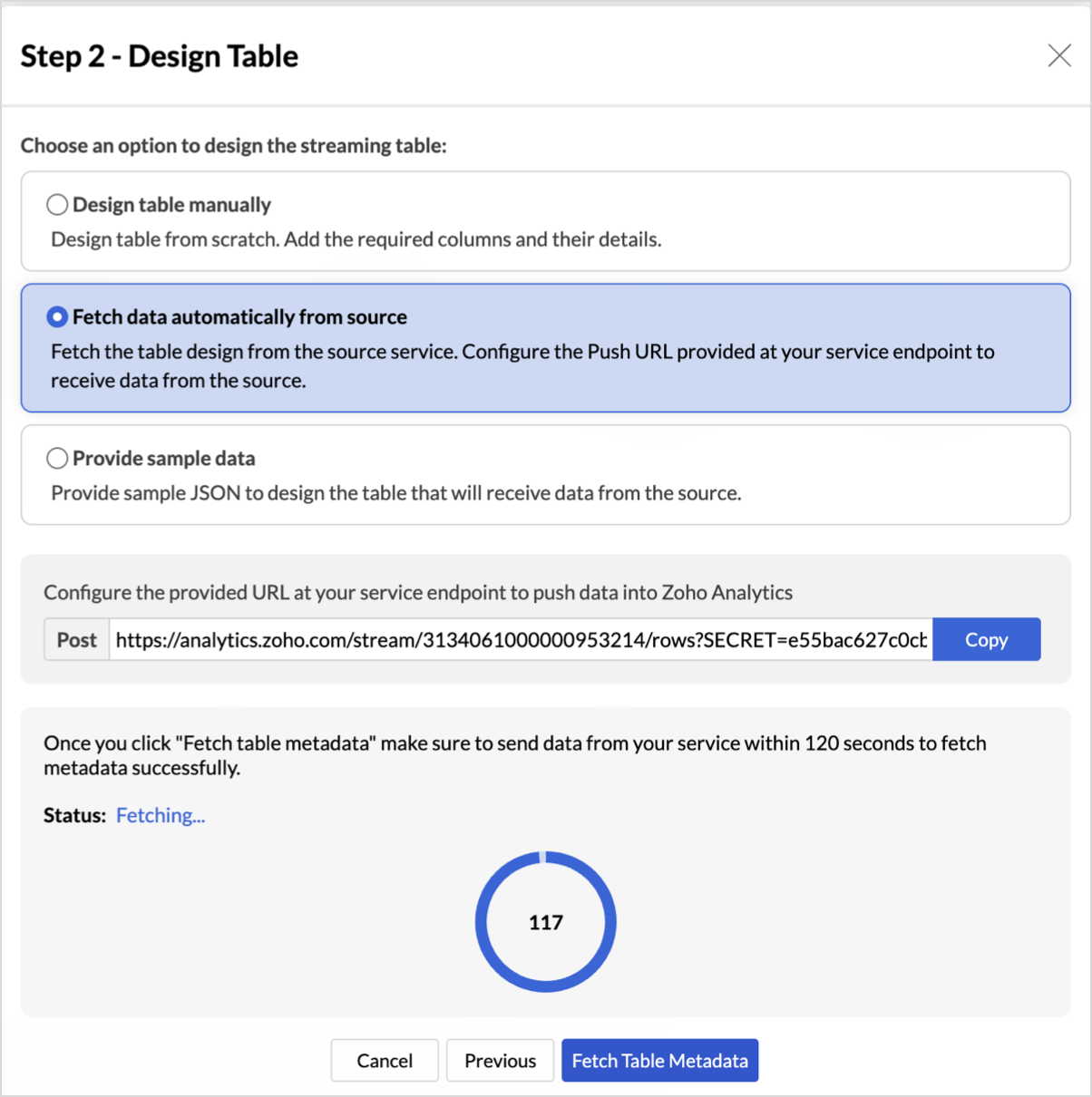
Note: If no event arrives within 120 seconds, the message No data was received for validation appears. Try again or choose another option.
Reviewing Table Details
In Step 3 - Table Details:
- Enter a unique Table Name.
- Review each column:
- Column Name: Must match the JSON key exactly.
- Data Type: How the value is stored.
- Is Mandatory?: Events missing this key are rejected.
- Default Value: Used when the key is missing.
- Is Personal Data?: The column is encrypted.
- To add a column, click + Add New Column below the grid.
- Click Next to create the table.
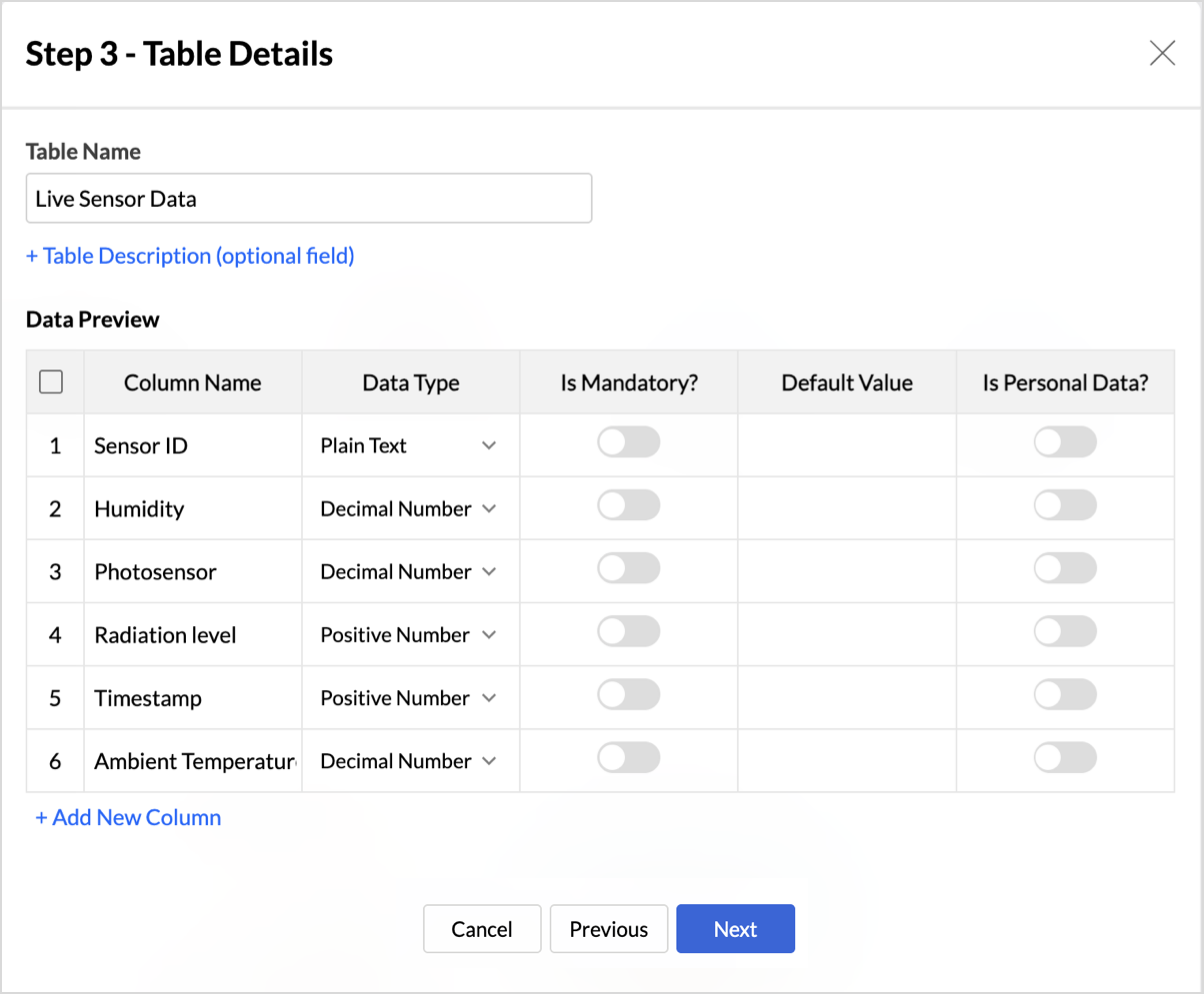
Note: Check the inferred number types. A Positive Number column rejects decimal values, so change it to Decimal Number if your values have decimals.
5. Validating and Importing Data
In Step 4 - Validate and Import Data:
- Optionally, set the retention period and turn on Enable Historical Data. See Retention and Historical Table.
- Click Validate & Import Streaming Data. Zoho Analytics listens for 120 seconds.
- Send a matching event to the Push URL within this time.
When the event matches, the status changes to Consuming Streaming Data and the import starts. If validation fails, read the Failure Reason(s), fix the issue, and click Validate Again.
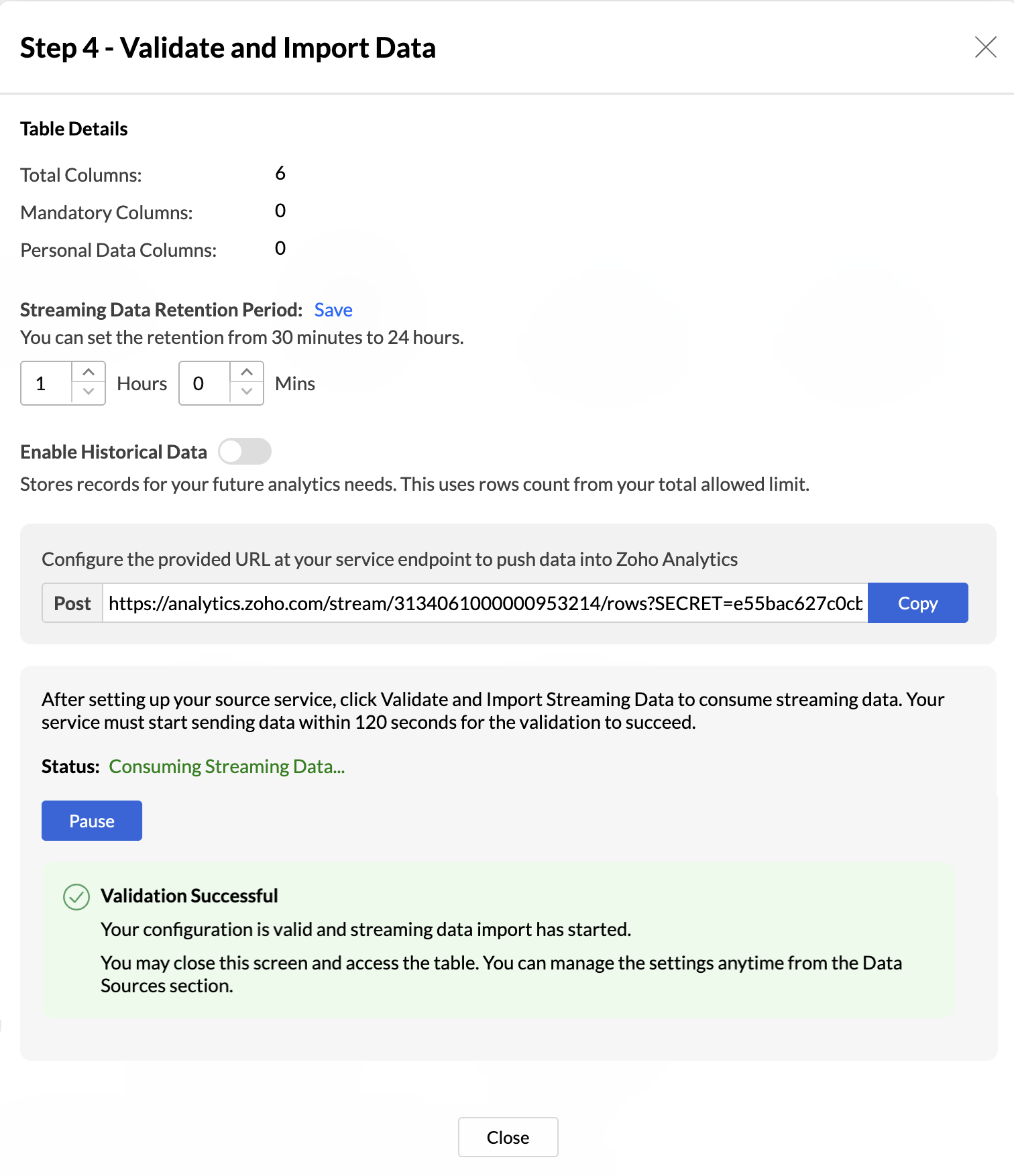
Note: If you close the wizard before validation succeeds, you can validate later from the Data Sources page.
6. Managing the Data Source
In the workspace, click Data Sources in the left navigation pane and select the HTTP Webhook source. From here, you can:
- View the Push API URL, Last Fetched Time, and Streaming Status of the table.
- Validate, Pause, or Resume the stream using the action next to its status.
- Click Regenerate Key next to the Push API URL to create a new Push URL. The old URL stops working immediately, so update your application.
- Click the edit icon on the table row to change the retention period.
- Click the error icon on the table row to read the last failure reason.
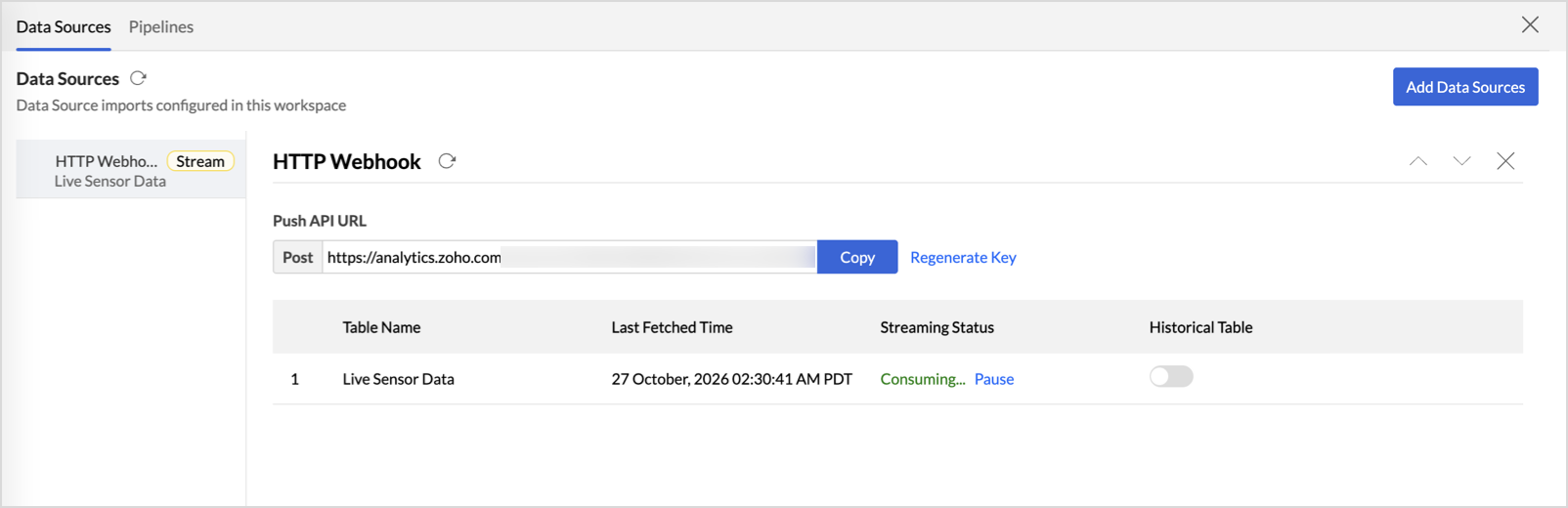
Note: An HTTP Webhook data source holds one table. To stream into another table, start a new import.
7. Retention and Historical Table
- Retention: Rows stay in the stream table for 1 hour by default. To change this, set 30 minutes to 24 hours under Streaming Data Retention Period and click Save. Older rows are removed automatically.
- Historical table: Turn on Enable Historical Data in Step 4, or the Historical Table toggle on the Data Sources page. Zoho Analytics creates {Stream table name} - Historical_Table, which keeps a copy of every incoming row.
- Turning it off: The historical table and its data stay, but new rows are not added. To delete the historical table, turn it off first.
Note: Historical table rows count toward your workspace row limit.
8. Streaming Statuses
- Yet to be validated: The table is created but not validated. Click Validate.
- Validating: Zoho Analytics is listening for 120 seconds.
- Consuming: Data is being imported. Click Pause to stop.
- Paused: The import is paused. Click Resume to restart.
- Validation Failed: No matching event arrived within 120 seconds. Click Validate.
- Failed: The stream stopped after repeated events could not be used. Fix the cause and click Resume.
9. Limits
- A stream table holds up to 1 million rows or 1 hour of data.
- An HTTP Webhook data source holds one table.
- Stream tables cannot be copied.
- Reports refresh about every 30 seconds. Dashboards must be refreshed manually.
- You can connect up to 5 streaming sources in Premium and up to 20 in Enterprise. To connect more, purchase add-ons.
10. Frequently Asked Questions
Why did validation fail with "No data was received for validation"?
No matching event arrived within 120 seconds. Check that your application uses the current Push URL and sends the Content-Type: application/json header. Then click Validate and send an event.
Why do I see "Stream data does not contain any matching column for the dataset"?
The JSON keys do not match the column names. Matching is case-sensitive. Fix the payload or the columns, then validate again.
Why did my stream move to Failed?
Many events in a row could not be used. Their keys did not match, a mandatory key was missing, or values did not fit the column types. Fix the payload and click Resume.
Does pausing a stream delete data?
No. Existing rows stay until the retention period removes them.