Workflow Orchestration
Zoho Analytics lets you go beyond single step actions. Any trigger can kick off a fully automated, end-to-end workflow that spans multiple systems and teams. With the embedded Zoho Flow builder, you can visually design, manage, and scale complete automation pipelines directly within Zoho Analytics, without writing a single line of code.
Traditional alerts notify you when something changes, but the workflows act on it. In Zoho Analytics, workflow orchestration means that any trigger can initiate a coordinated, multi-step sequence of actions across your connected tools and teams automatically, the moment your data conditions are met.
What Workflows Make Possible
- Full Pipeline, Not Just One Action: Every trigger sets off a complete, multi-step sequence spanning CRM updates, support tickets, notifications, and more, automatically and in sequence.
- Visual, No Code required: Drag, drop, and connect actions using the embedded Zoho Flow builder, right inside Analytics, without writing a line of code.
What You Can Automate
- Act on a sales drop: When a data alert detects that weekly sales fell below target, create a task in Zoho Projects and notify the sales team in Zoho Cliq.
- Respond to a failed import: When a scheduled Zoho CRM import fails, send a Cliq message to the data team with the connector name and import job ID.
- Review partial imports: When a table in a file or database import partially succeeds, create a ticket in Zoho Desk so the team can review the failed rows.
- Confirm fresh data: When a Zoho Books import completes successfully, email the finance team that their dashboards are up to date.
1. Before You Begin
Supported Plans
Workflows are available in the Premium and Enterprise plans.
Who Can Create Workflows
- Alert workflows: Workspace Administrators, Organization Administrators, Account Administrators, and users with a custom role that includes the Manage Alerts permission.
- Import workflows for Business apps: Workspace Administrators, Organization Administrators, and Account Administrators.
- Import workflows for Essential imports: Administrators, and users with the View/Edit Data Sources permission, who can access the workflow options in the Data Sources view.
Note: Custom roles are not yet supported for Business app import workflows.
Workflow Credits
Workflows consume Zoho Flow execution credits from your plan.
- Premium: 500 credits per billing cycle
- Enterprise: 1000 credits per billing cycle
Each workflow run consumes 1 credit. Alert workflows and import workflows share the same credits.
Note: When your credits are exhausted, workflows stop running until the next billing cycle or until you upgrade your plan.
2. How Workflows Work
A workflow has three parts:
- Trigger: The event that starts the workflow. Nothing runs before the trigger fires.
- Steps: The app actions, logic, and AI utilities that run after the trigger, in the order you connect them.
- Connections: Secure, authorized links to the apps your steps use.
Trigger Sources
Zoho Analytics supports two trigger sources:
- Data alerts: The workflow runs when the alert condition is met.
- Data imports: The workflow runs when an import completes with the status you select: Success, Failure, or Partial Success.
Data Passed to Your Workflow
Each trigger passes details to the workflow as dynamic variables. You can insert these variables in any later step. For example, include the connector name and import job ID in a Zoho Cliq message.
Data Alert Trigger
- Alert name
- View name
- View link
- Trigger timestamp
Data Import Trigger
- Connector or workspace name
- Import job ID
- Import status
- Trigger timestamp
3. Supported App Categories
The broad library of connectors in Zoho Flow (for more than 1,000+ apps) allows you to link multiple ecosystems within a single workflow. Here are some of the categories supported:
- CRM & Sales: Zoho CRM, Salesforce, HubSpot CRM, Pipedrive
- Customer Support: Zoho Desk, Zendesk, Freshdesk, Help Scout
- Live Chat Platforms: Zoho SalesIQ, Intercom, LiveChat, Tidio
- Email & Marketing: Zoho Campaigns, Mailchimp, HubSpot Marketing Hub, ActiveCampaign
- Project Management: Zoho Projects, Trello, Asana, ClickUp
- Finance & Billing: Zoho Books, QuickBooks Online, Stripe, Xero
- HR & Recruitment: Zoho People, Zoho Recruit, BambooHR, Workable
- Collaboration Tools: Zoho Cliq, Slack, Microsoft Teams, Google Chat
- And many more
4. Creating a Workflow from a Data Alert
You can attach a workflow to a data alert while creating or editing the alert.
Follow the below steps to create a workflow from a data alert:
- Go to Workspace Settings > Alerts.
- Click Create/Manage Alert.
- Under Actions to Perform, select Workflows, then click Edit or Configure. The Workflow Builder opens.
- Build your workflow. Refer to Building Your Workflow to learn more.
Note: In the builder, the alert trigger appears as the Subflow node.

5. Creating a Workflow from a Data Import
Zoho Analytics allows you to automate actions based on the outcome of your data imports. When an import completes, the workflow set for that import status runs automatically.
Supported Import Types
- Business apps: Imports from business applications such as Zoho CRM. The trigger applies to the whole connector, and you can create one workflow for each trigger status per connector.
- Essential imports: Imports from sources such as files, cloud drives, and databases. A single connection can hold multiple tables, each with its own import status, so the trigger applies to each table.
Note: Workflows are not supported for Live Connect, streaming, or real-time data sources.
Import Trigger Statuses
Select the import status that starts your workflow:
- Success: The workflow runs when the import completes successfully.
- Failure: The workflow runs when the import fails.
- Partial Success: The workflow runs when some rows import successfully and others fail.
Note:Partial Success is available only for Essential imports.
Creating a Workflow After Import Setup
Once the import setup is complete, the setup panel shows a Create Work Flow section below the success message.
Follow the below steps to create a workflow after import setup:
- Complete the import setup. The panel shows the message Import Initiated or Successfully setup workspace.
In the Automate actions on sync section, click Setup Workflow.
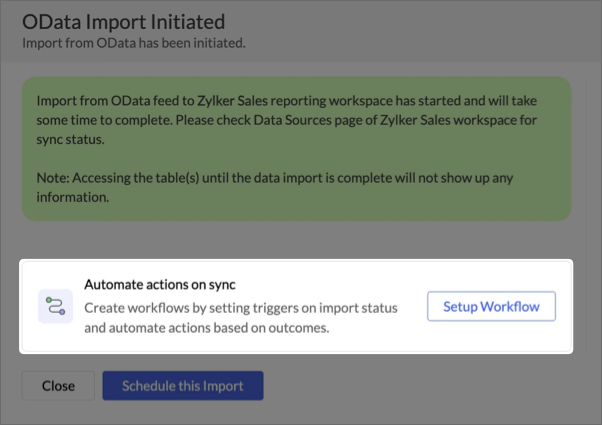
- In the Create Workflow dialog that opens, enter the Workflow Name and Description (optional).
Under Trigger status, select Success, Failure, or Partial Success.
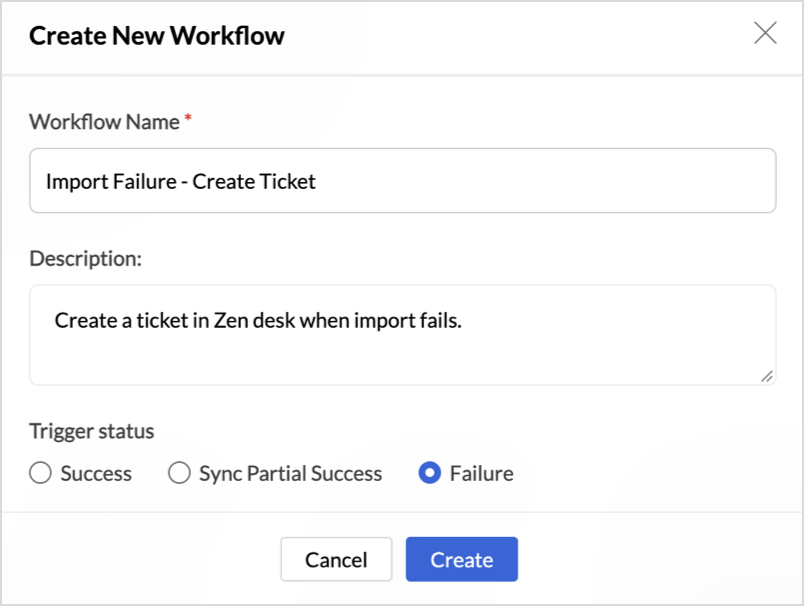
- Click Create. The Workflow Builder opens with the trigger set to the status you selected.
- Build your workflow, then click Ok. Refer to Building Your Workflow to learn more.
Note: The Create Work Flow section appears only after the import setup completes successfully.
Creating a Workflow from Data Sources
You can also create import workflows from the Data Sources view of your workspace.
Follow the below steps to create a workflow from Data Sources:
- Open the workspace and go to Data Sources.
In the Data source page, select Create Workflows. The Create Workflows dialog opens.
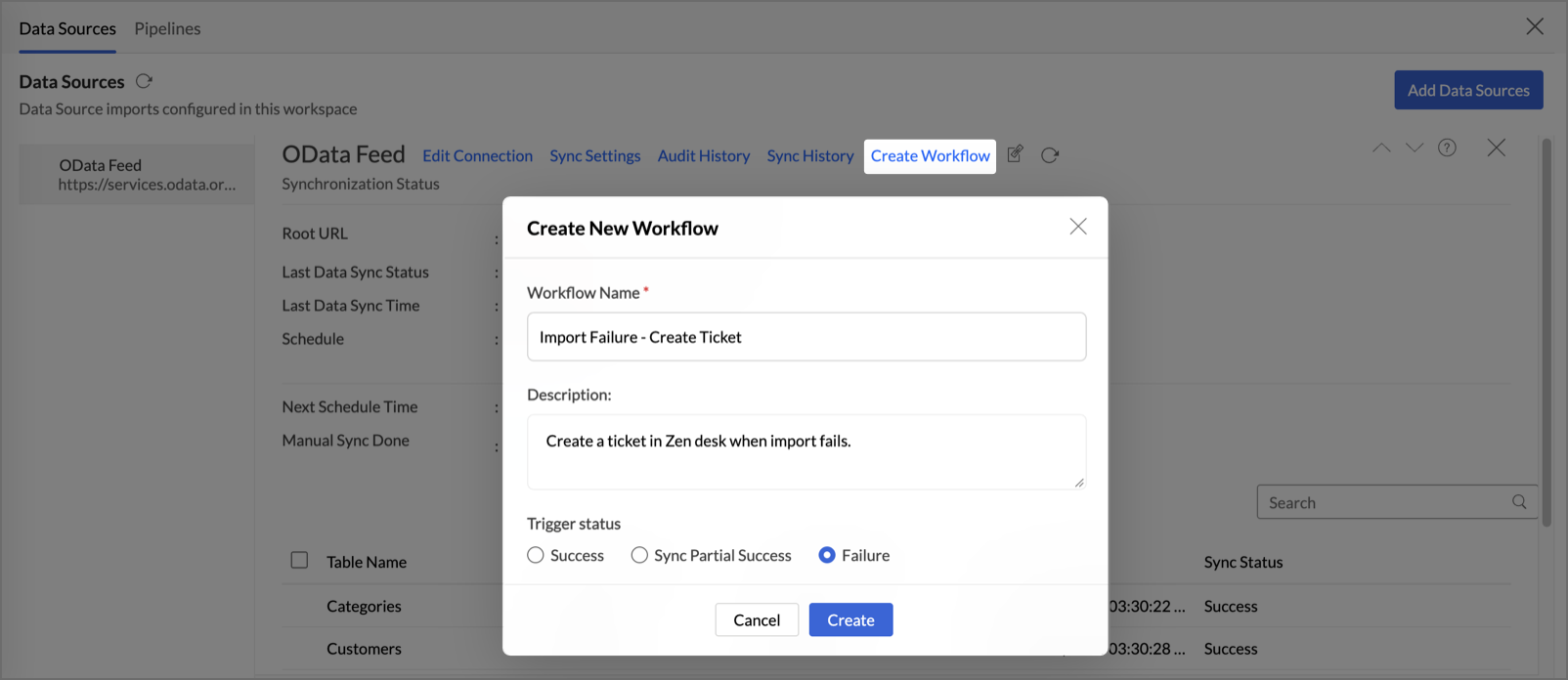
- Complete the Create Workflow dialog and build your workflow, as described in steps 3 to 6 of Creating a Workflow After Import Setup.
Note: Each connector supports one workflow per trigger status. If a workflow already exists for a status, edit it instead.
6. Building Your Workflow
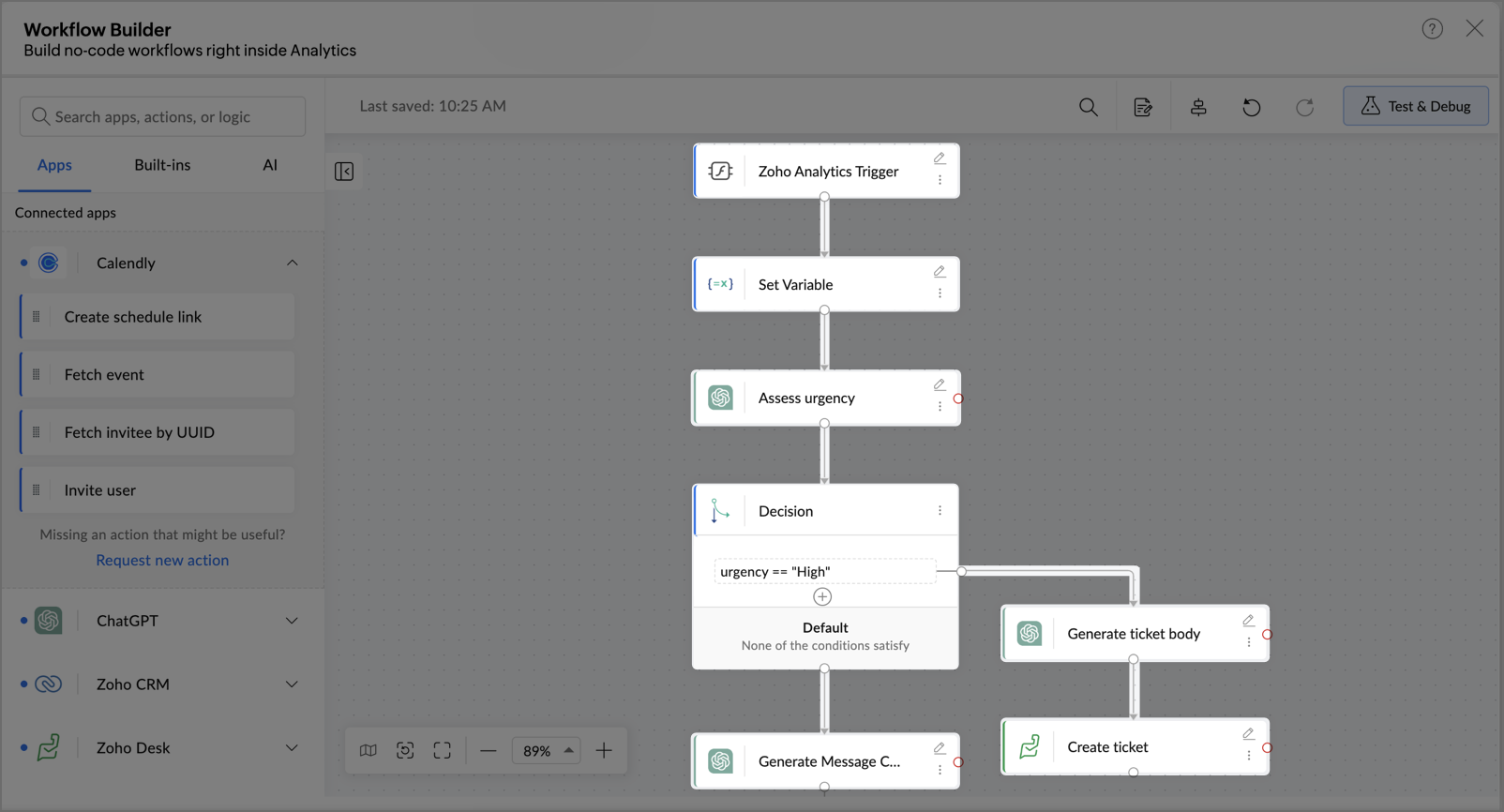
The Workflow Builder is a visual, drag-and-drop canvas inside Zoho Analytics. It works the same way for alert and import workflows. The builder has a top bar with canvas tools, a left sidebar with apps and built-in logic, and the canvas where you arrange your steps.
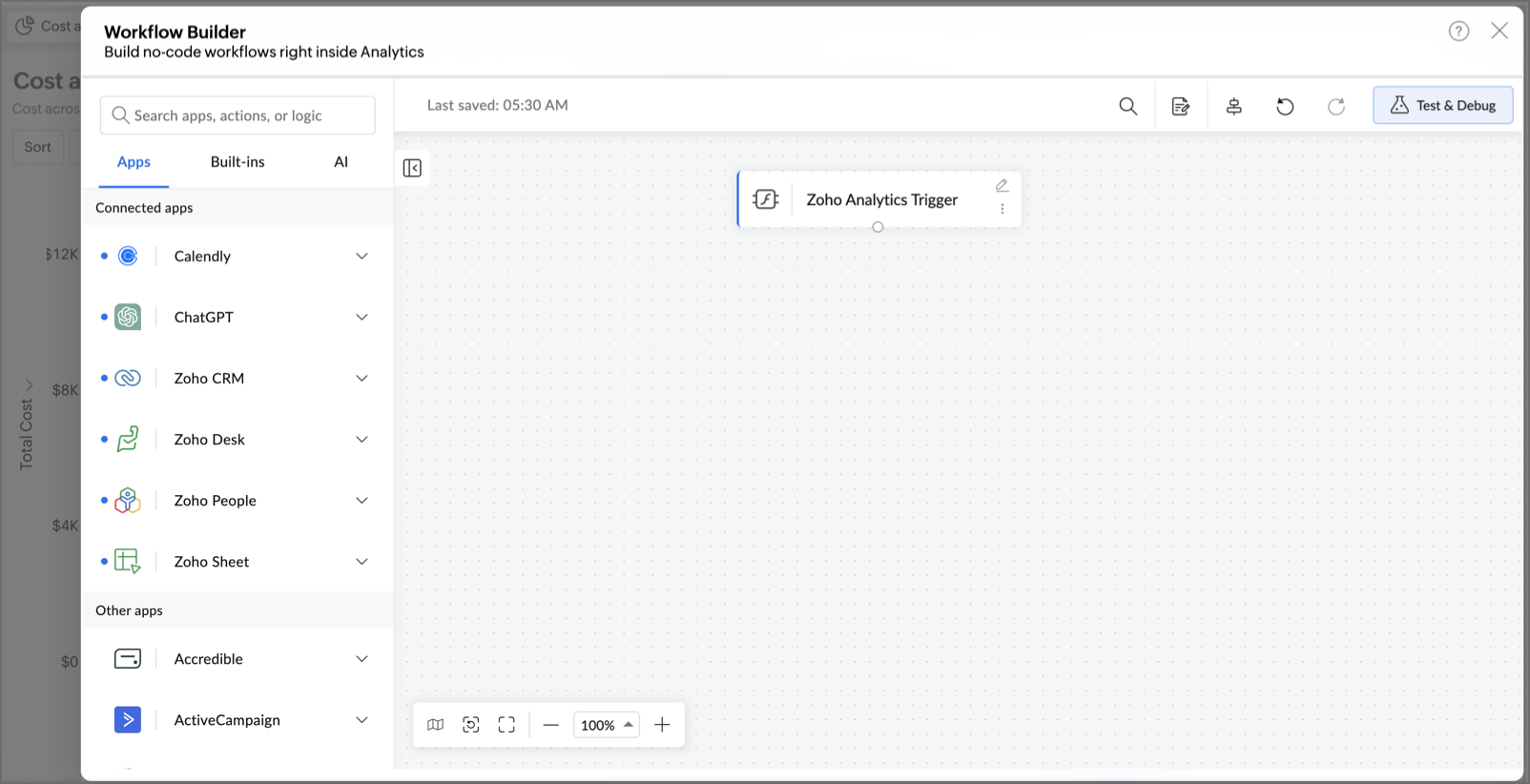
The Trigger Step
The trigger is the first node on the canvas and is set for you based on where you created the workflow.
- Data alert: The trigger appears as the Subflow node.
- Data import: The trigger is set to the Trigger status you selected.
The trigger data is available as dynamic variables in every later step. Refer to Data Passed to Your Workflow for the full list.
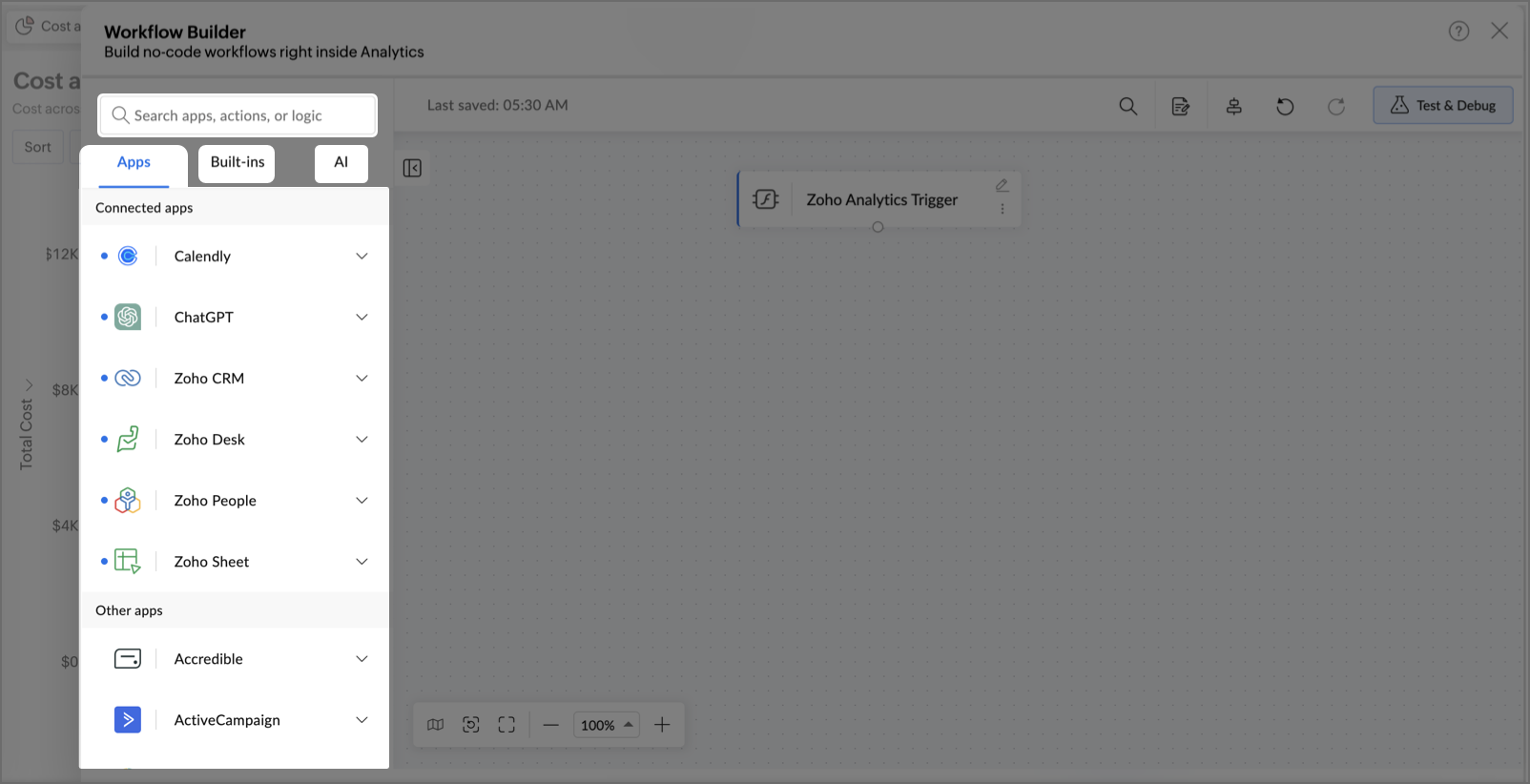
Drag and Drop Connectors
Library of connectors
- You can drag and drop connectors onto the canvas after the trigger. Each connector represents an action in an external app or service, and chain them in sequence to define the full flow.
- Workflows in Zoho Analytics support a broad library of connectors across Apps, Built-in logic, and AI utilities.
Use the Search bar on the left pane to find any app or action quickly
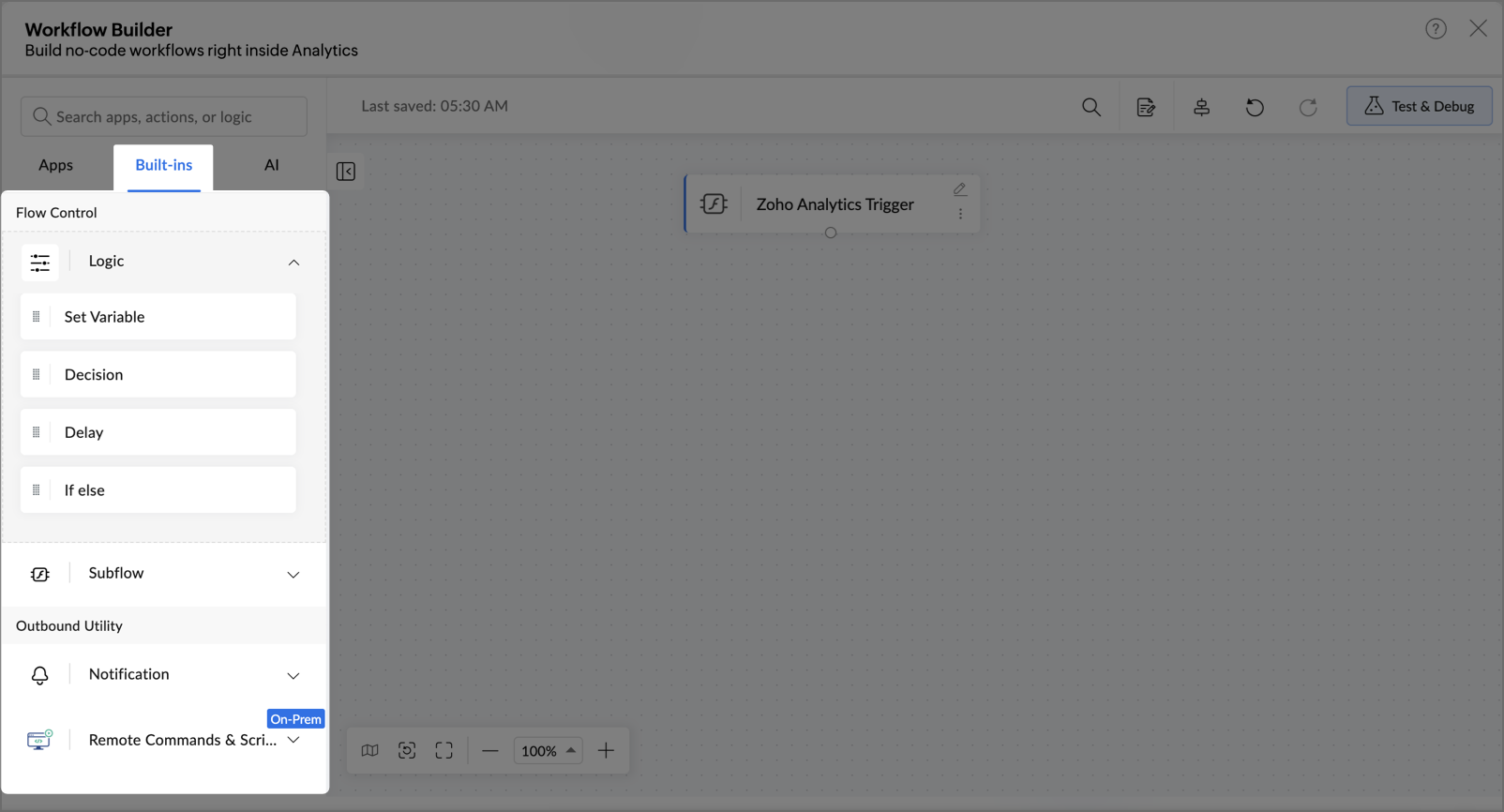
Built-in logic for smarter flows:
- You can go beyond linear sequences based on your data using Flow's built-in logic controls
- Set variables
- Add conditional branching
- Introduce delays
Define if-else paths to route actions
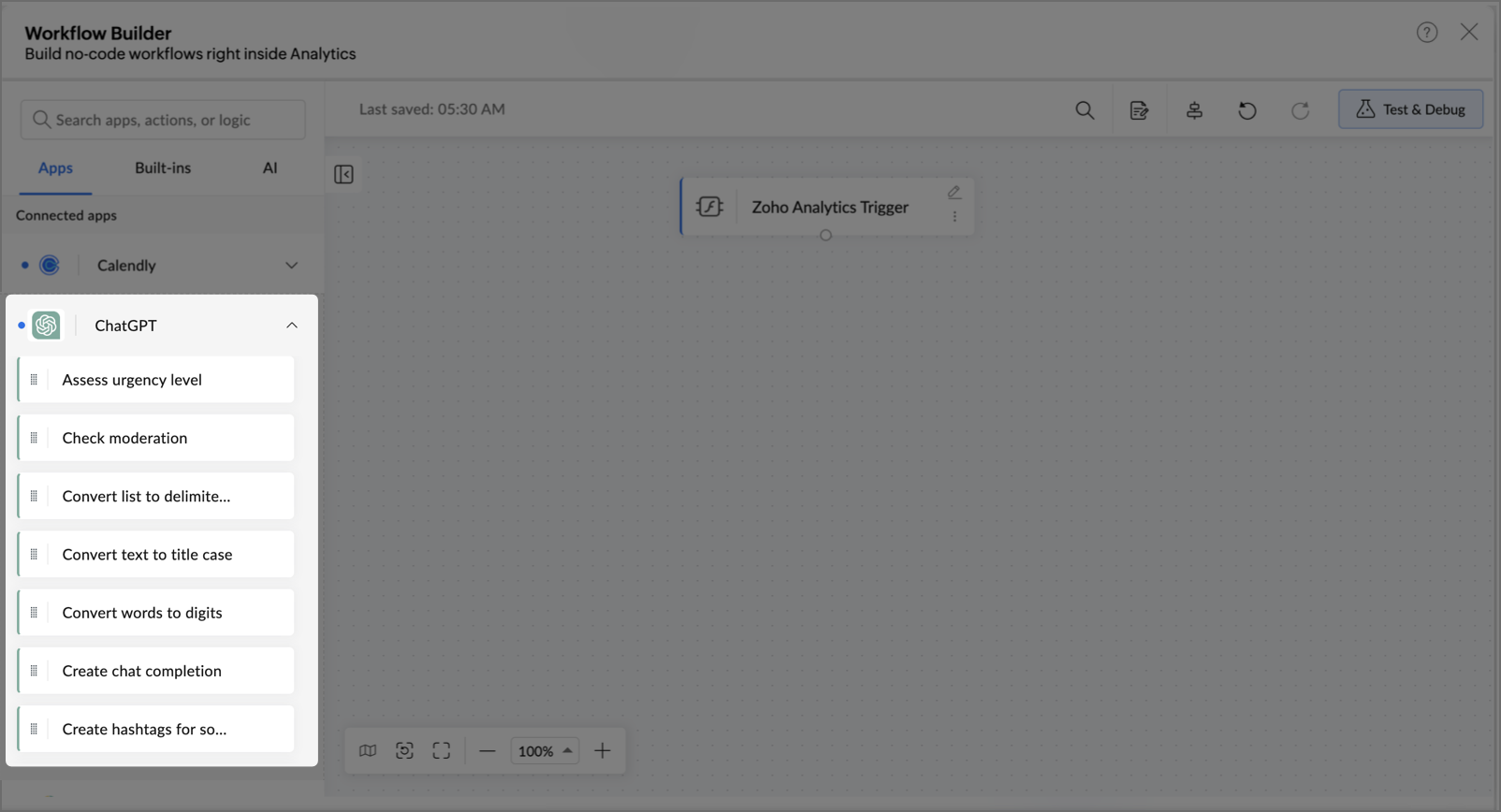
AI utilities for context-aware decisions:
- The workflow builder includes built-in AI utilities that let you embed intelligent actions at any step, so your workflow doesn't just move data, it understands and acts on it.
- You can use AI utilities to generate content, summarize text, label and classify data, verify accuracy, mask sensitive information, and more.
- Goal-Oriented Orchestration: AI utilities evaluate context at each step (classifying, deciding, generating), so the pipeline drives toward a defined outcome, not just a sequence of actions.
- Pair these with AI app connectors like OpenAI and Claude (Anthropic) to bring large language model capabilities directly into your automation pipeline.
- These AI connectors assess the trigger context and choose the right action paths like retaining a customer, resolving an issue, or closing a revenue gap autonomously.
For example, when support ticket volume spikes beyond a set limit, the workflow uses OpenAI to classify and prioritize incoming tickets by urgency, routing each one to the right team before anyone has to manually read through them.
Authorizing App Connections
- Once you add any connector onto the canvas, a new configuration dialog will open allowing you to create a secure connection between the connector and Zoho Flow.
- Authenticate each connector before it participates in a workflow.
Click the Edit icon next to any app, built-in, or AI utility to update its configuration.
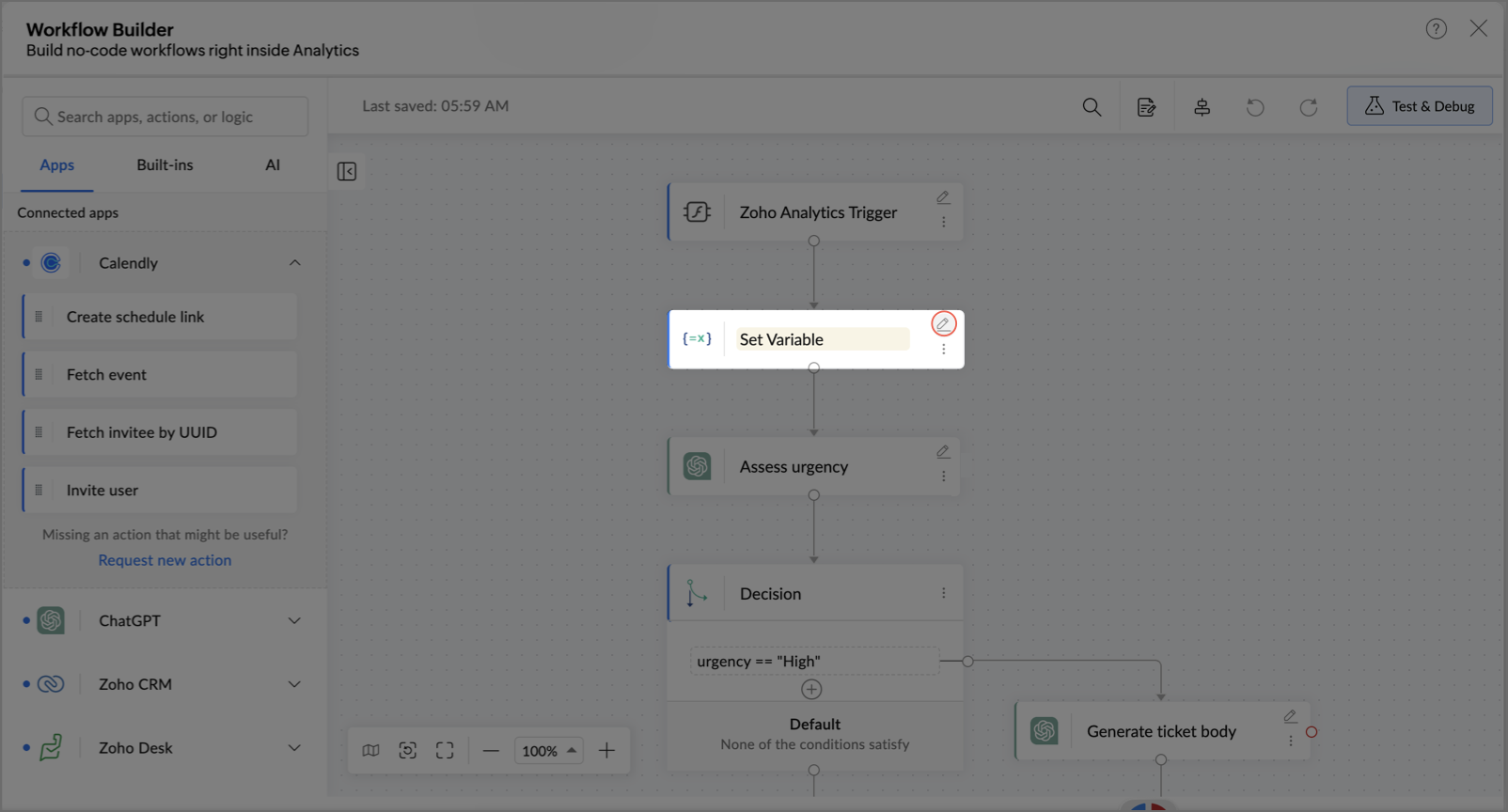
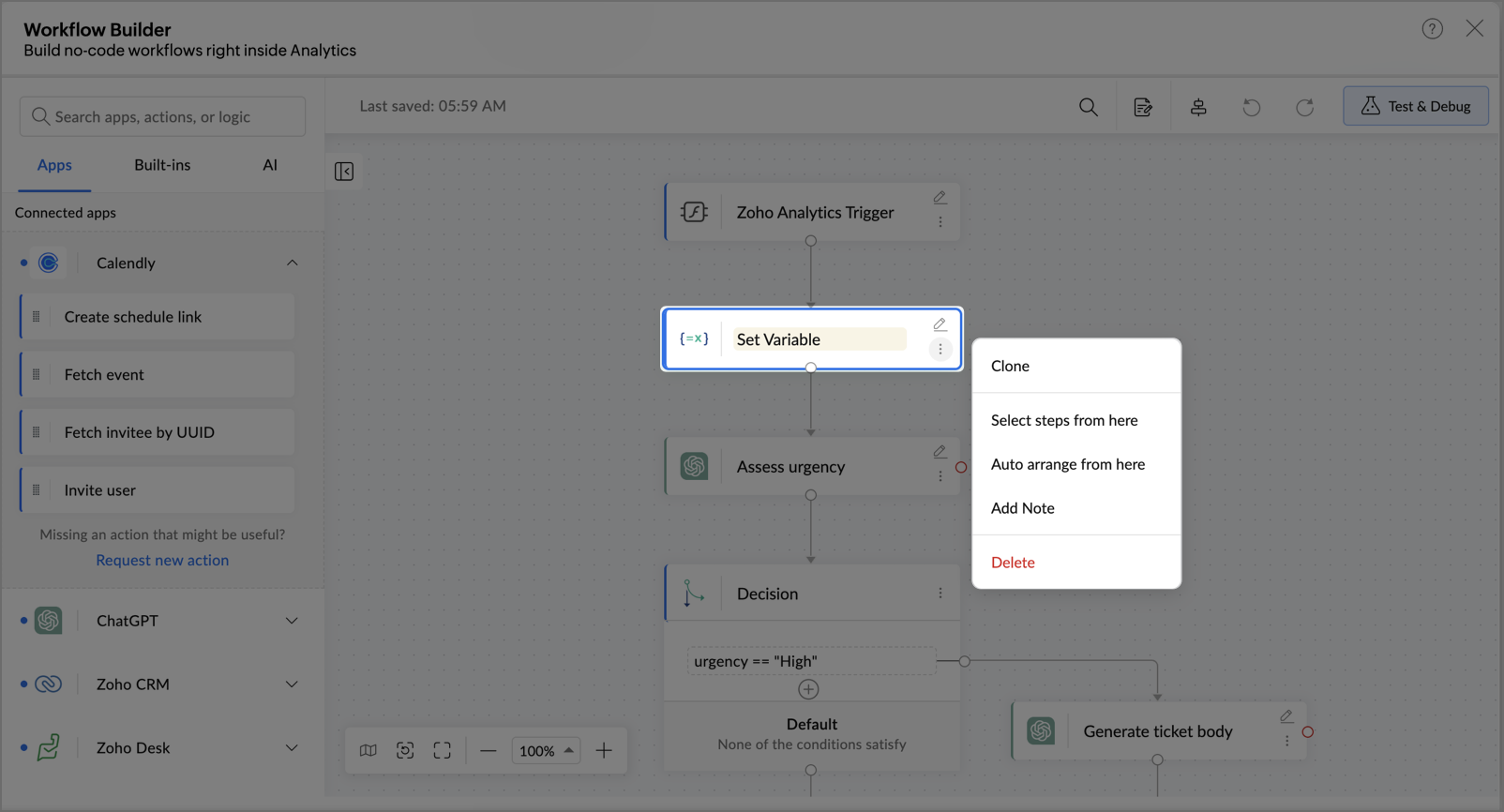
Use the More options icon to clone a step, add a note, or remove it from the canvas.
Workflow Builder Tools
The Workflow canvas includes a set of tools that help you build, refine, and validate your workflow efficiently.
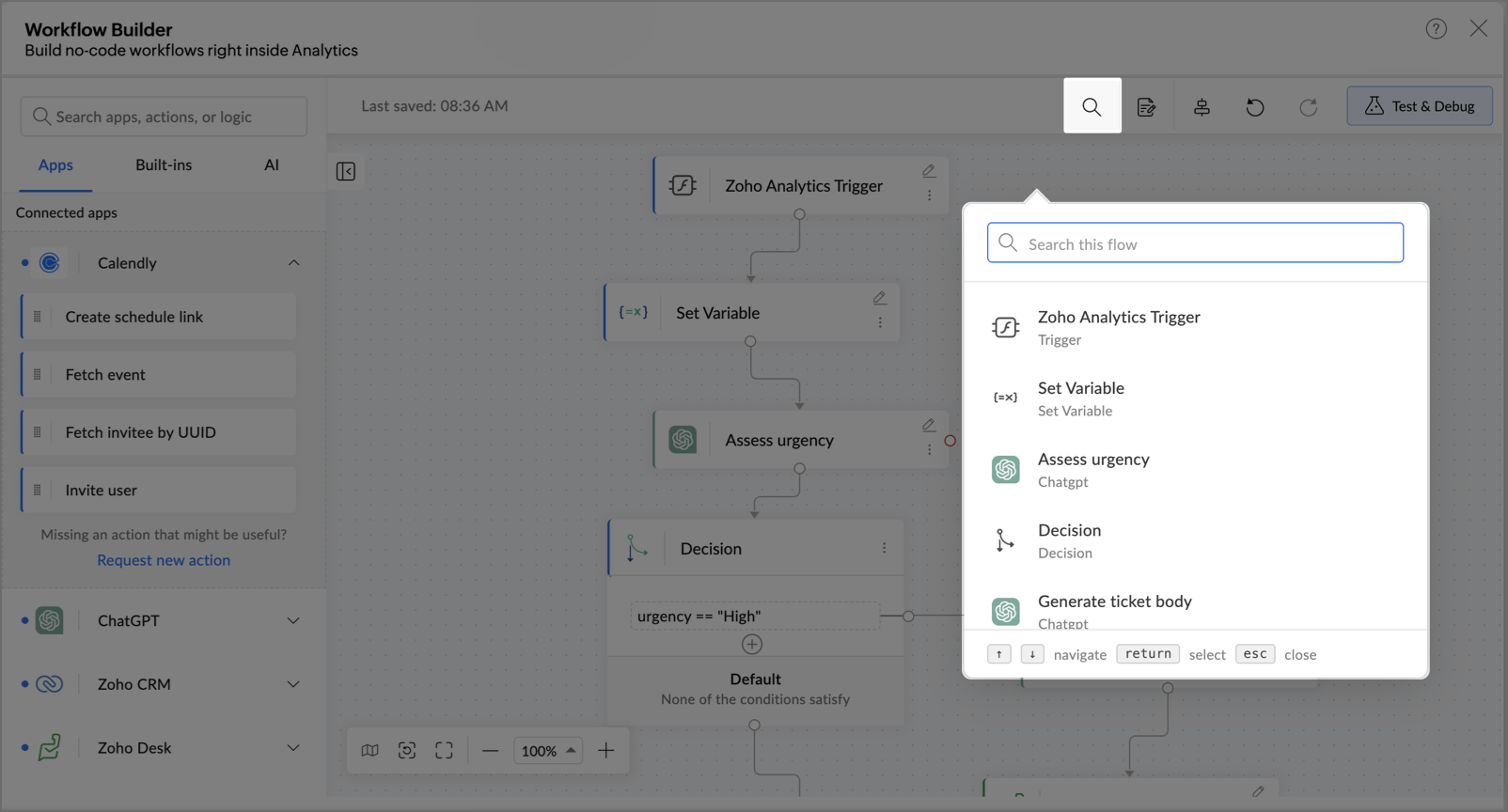
Search Apps & Actions: Find any connector or action instantly using the search bar on the canvas, no scrolling through long lists.
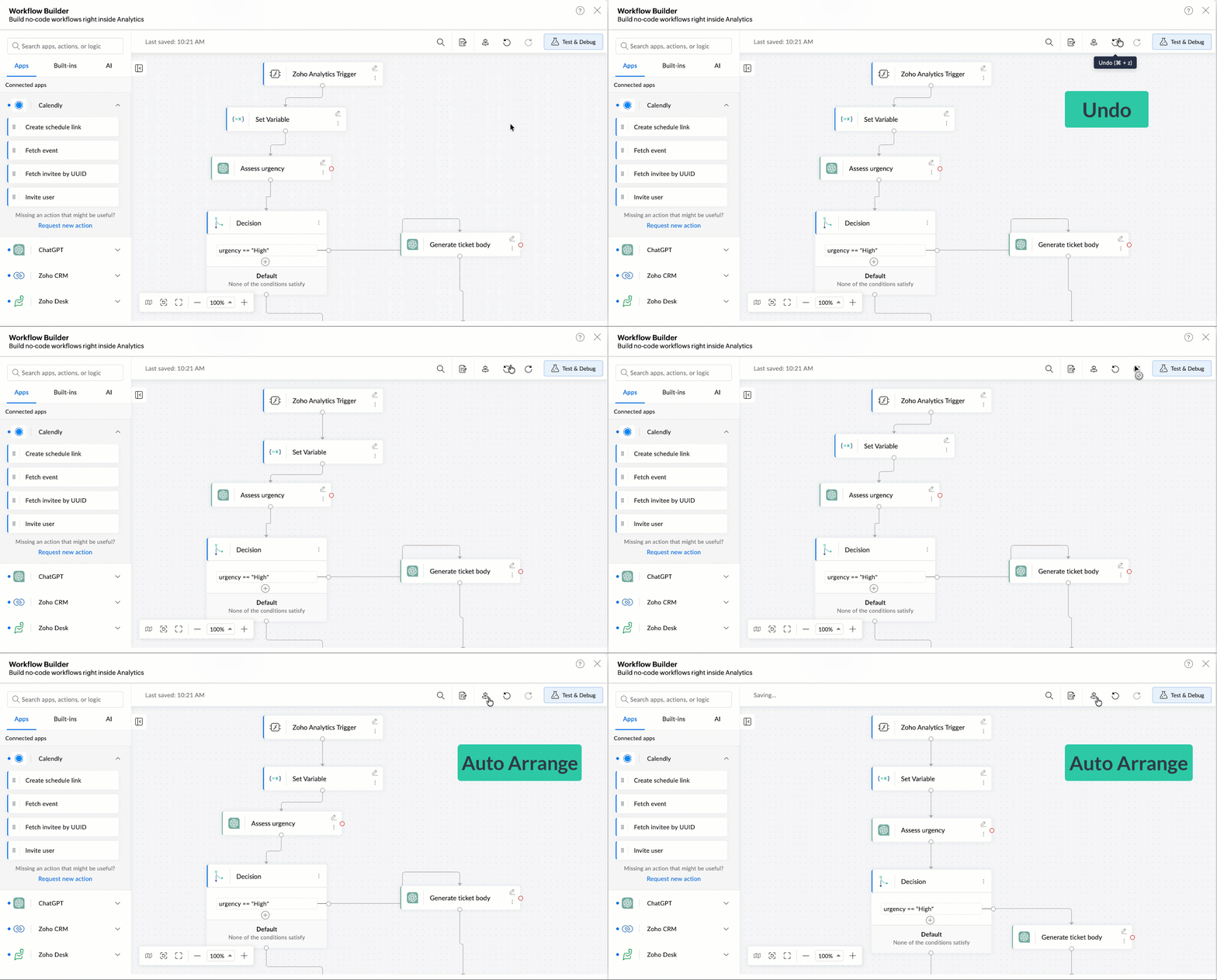
- Undo & Redo: Step backwards or forwards through your changes freely as you design and iterate.
Auto Arrange: Automatically organize nodes on the canvas for a cleaner, easier to read layout.
- Live View & Versions: Monitor the active workflow in real time and compare it against previous versions to track changes over time.
- Zoom, Fit & Map: You can zoom in for detail, zoom out for an overview, fit the flow to the canvas, or use the mini map to navigate large workflows.
Test & Debug: Run your workflow in test mode to validate each step before it goes live. Catch and fix issues before they affect production.
7. Managing and Governing Workflows
Once tested, activate the workflow directly from Zoho Analytics, no external steps needed to take it live. When a trigger fires, the entire orchestration runs on its own: every connected action executes in sequence, end to end, without any manual involvement.
Workflows are designed to be controlled, not just automated. Every pipeline comes with built-in governance capabilities to keep it reliable, observable, and auditable as it scales:
- Approvals & Human-in-the-Loop: Insert approval checkpoints at any stage so critical actions require explicit sign-off before the workflow proceeds.
- Monitoring: Track every workflow in real time. See which steps succeeded, which failed, and where bottlenecks occurred across your entire automation stack.
- Error Handling & Retries: Configure retry logic and fallback paths so workflows recover gracefully, with no silent failures and no data left incomplete.
- Audit Trail via Run History: Every execution is logged with its trigger, steps, outcome, and timestamp, giving you a complete record for compliance, debugging, and accountability.
8. Frequently Asked Questions
Why do I see a Connection Failed error?
The connection to an app used in your workflow has expired or been revoked. Re-authenticate the app from View connections in the Manage Workflows panel so the workflow can run again.
Why can't I enable my workflow?
The workflow has empty steps or missing mandatory fields, and Zoho Analytics shows an Incomplete Workflow message. Configure every step in the Workflow Builder, then enable the workflow.
Why didn't my import workflow run?
Check that the data source has an active workflow for the import status that occurred. If none exists, Zoho Analytics shows a No Active Workflow message. Open the Manage Workflows panel, confirm the Status toggle is on and the Trigger matches, and check that you have credits remaining.
What does Workflow Execution Failed mean?
The workflow was triggered but could not complete because of an error in one of its steps. Open the workflow, use Test and Debug to find the failing step, fix its configuration, and try again.
What happens when I run out of workflow credits?
Zoho Analytics shows a Credit Limit Reached message and stops running workflows. Workflows resume in the next billing cycle, or immediately after you upgrade your plan.
Are alert workflows and import workflows billed separately?
No. Both share the same Zoho Flow credits from your plan.
Can I create more than one workflow for a connector?
You can create one workflow for each trigger status per connector. For example, one workflow for Success and another for Failure.
Why isn't Partial Success available for my Business app import?
Business app imports are tracked at the connector level, so they complete as either a success or a failure. Partial Success applies only to Essential imports, where each table has its own import status.
Do import workflows apply across workspaces?
No. An import workflow applies only to the connector or workspace it was created for.
Can I create workflows for Live Connect or streaming sources?
No. Workflows are not supported for Live Connect, streaming, or real-time data sources.