SQL and Formula Agent
SQL and Formula agent simplify query generation and formula creation, helping data engineers work with data without manually writing every query or expression.
Supported Plans
The SQL and Formula Agent capabilities are available across all Zoho Analytics plans, including the Free, Basic, Standard, Premium, and Enterprise plans.
Access & Permissions
Users with administrator privileges can access the data preparation skills. The Account Admin can grant access to other org and workspace admins. Refer to the GenAI configuration article to learn more.
Supported Plans
The SQL and Formula Agent capabilities are available across all Zoho Analytics plans, including the Free, Basic, Standard, Premium, and Enterprise plans.
Ask Zia - SQL Agent
Ask Zia SQL Agent translates natural language questions into SQL queries to analyze data from connected tables and data sources. It simplifies SQL query development by providing contextual assistance, helping create accurate queries, understand complex query logic, improve query performance, and resolve errors.
- Query Generation: Helps in generating SQL queries using natural language instructions based on the use cases and tables available
- Query Explanation: Helps in understanding the SQL structure, logic and operations used in the executed queries.
- Query Optimization: Analyzes existing SQL queries in Query Tables and suggests improvements to enhance query performance and processing efficiency. It helps identify redundant operations, unnecessary joins, inefficient filtering conditions, and complex query structures. Based on the underlying data model, the agent recommends optimized SQL queries that can reduce execution time and resource consumption while maintaining the intended query results.
The SQL Agent is available in two places: the Query Table Editor and the Ask Zia portal. Both entry points support AI-assisted SQL query generation, while the available workflows differ.
From the Query Table Editor
To invoke the SQL Agent from the Query Table Editor,
- Click the Create icon in the side navigation panel.
- Choose Write SQL from the With AI tab. Alternatively, choose Query Table from the Build tab.
Generate and Execute a Query
- Describe the use case: Enter the query requirements in the prompt section. Include the intended analysis, relevant tables, and any filtering conditions.
- Select the context: Use the Context drop-down to select the tables to be considered during query generation.
- Review the generated query: The generated SQL query appears in the query generation pane. Review the query and click Accept Changes to apply it.
- Execute the query: After reviewing the SQL statement, click Execute Query to run the query and view the results.
Query Assistance Options
When a query is selected, the following options are available to help understand and improve it:
- Explain Query: Understand the query logic and how the SQL statement works.
- Optimize Query: Improve query performance by simplifying the SQL logic and removing redundant conditions where possible.
- Troubleshoot Query: Identify potential issues in the query and get guidance on resolving them.
SQL Agent - From the Ask Zia Tab
- Access the Ask Zia tab from the side navigation panel and enable Conversation mode.
- Type in Create a query or Help me with a query to invoke.
- Describe the query requirements. Include table details to get more accurate responses.
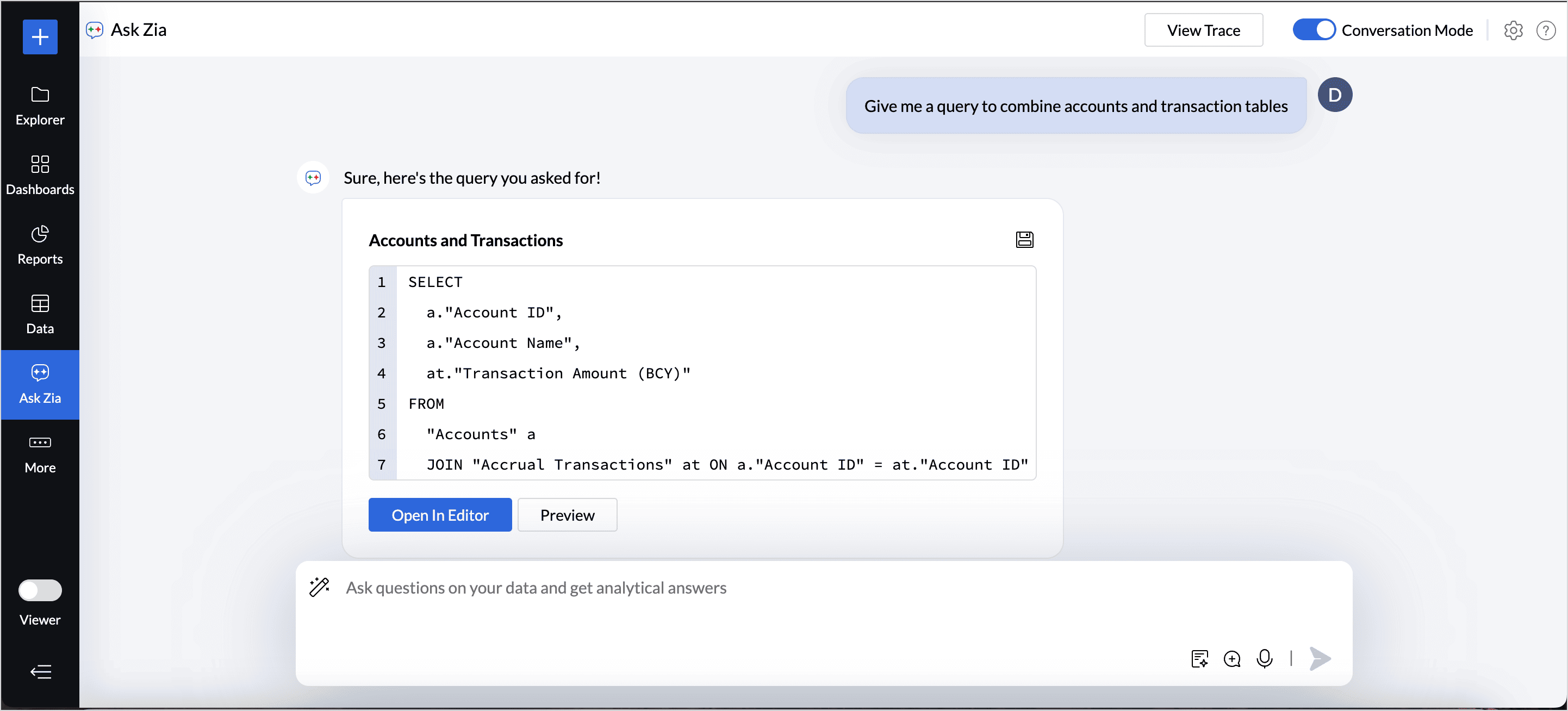
Once the query is generated, choose one of the following options:
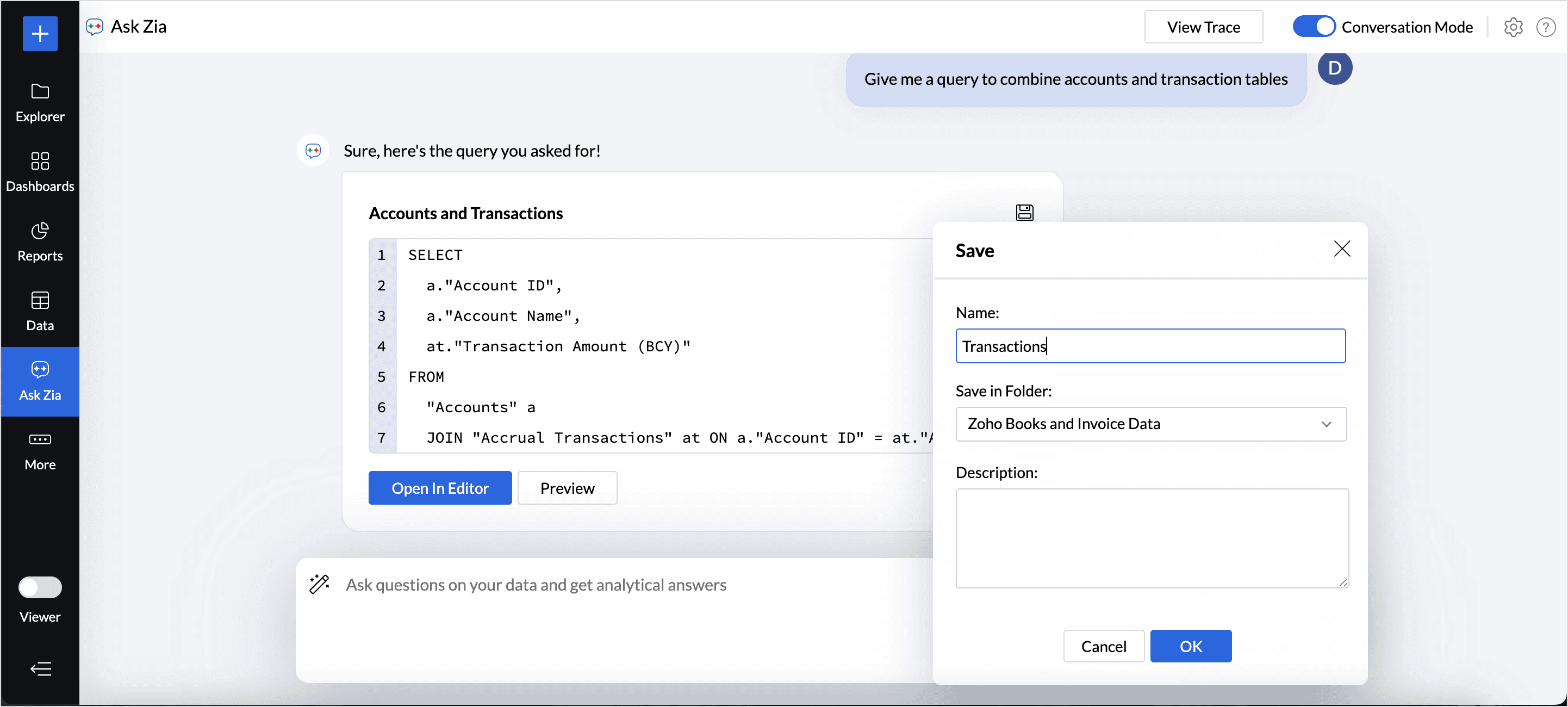
- Save: Click the Save icon to save the query as a Query Table in the workspace. Enter a name for the Query Table, select the destination folder, and click OK. The saved Query Table can then be used to create visualizations.
- Open in Editor: Open the generated SQL query in the editor to review or modify the query before executing it.
- Preview: Preview the generated query and review its results before deciding how to proceed.
Formula Agent
Finding the correct formula for analyzing data can be tedious and time consuming. With the Ask Zia - Formula suggester, you can create formulas by asking questions in simple natural language and get intelligent suggestions.
You can ask for formula suggestions in the following two methods,
From the Formula Pane
- Access the table for which you want to add formulas.
- Click the Add icon on the toolbar and choose Formula Column from the drop-down menu.
(or)
Right click on a column in the table and select Add Formula > Formula Column - The Add Formula Column pane will open.
- Click the Zia Formula Suggester drop-down icon.
- Describe the formula you want to create, like give me the formula to calculate the percentage of return on investment. Including relevant table or field details will help Zia generate a more accurate formula.
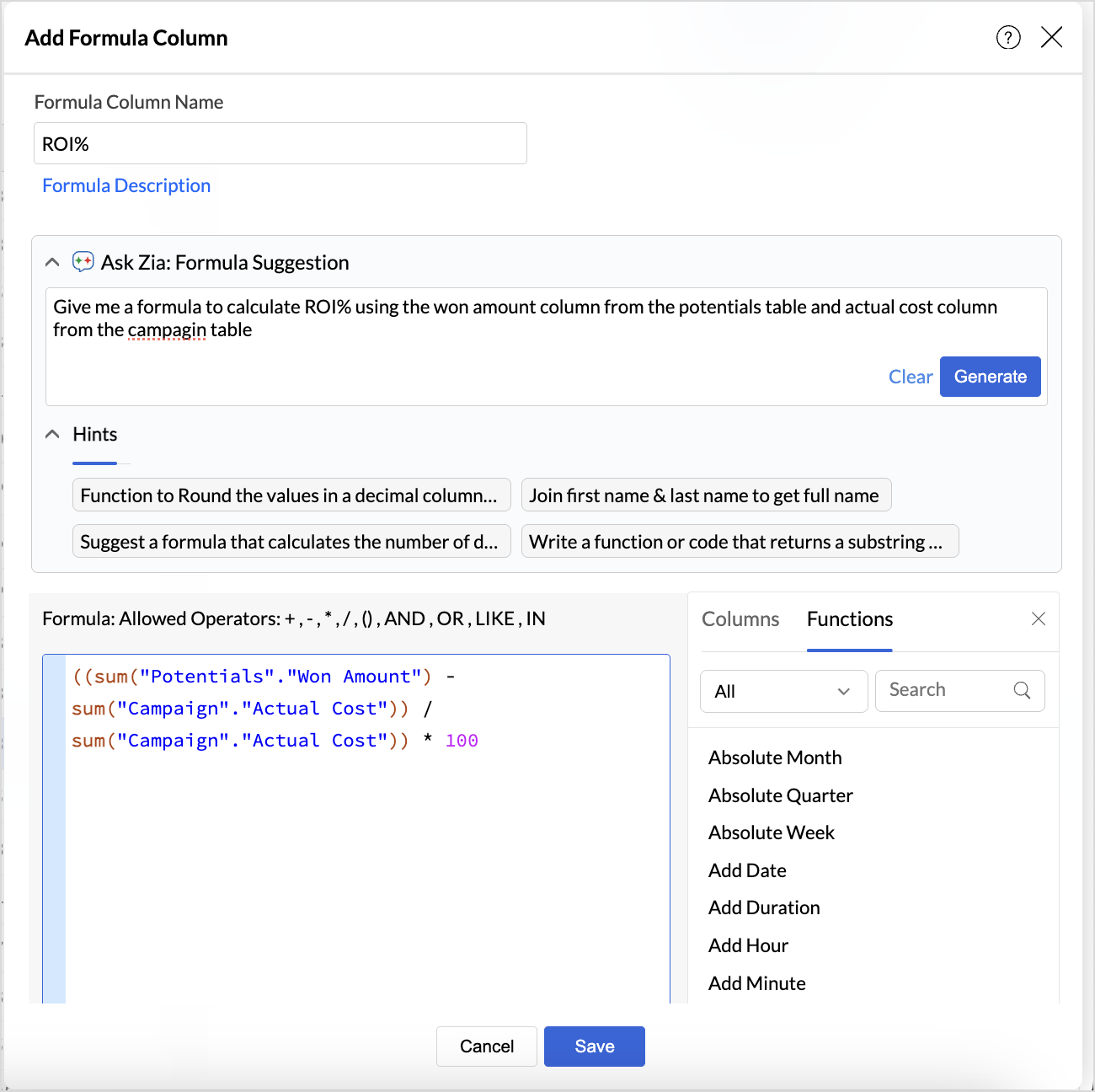
- The generated formula will be displayed in the Formula Pane. Review and edit the formula if needed.
- Click Apply to save the formula.
From the Ask Zia tab
- Access the Ask Zia tab from the side navigation panel and enable Conversation Mode.
- In the prompt section, Type in Create a formula or Help me with a formula to invoke.
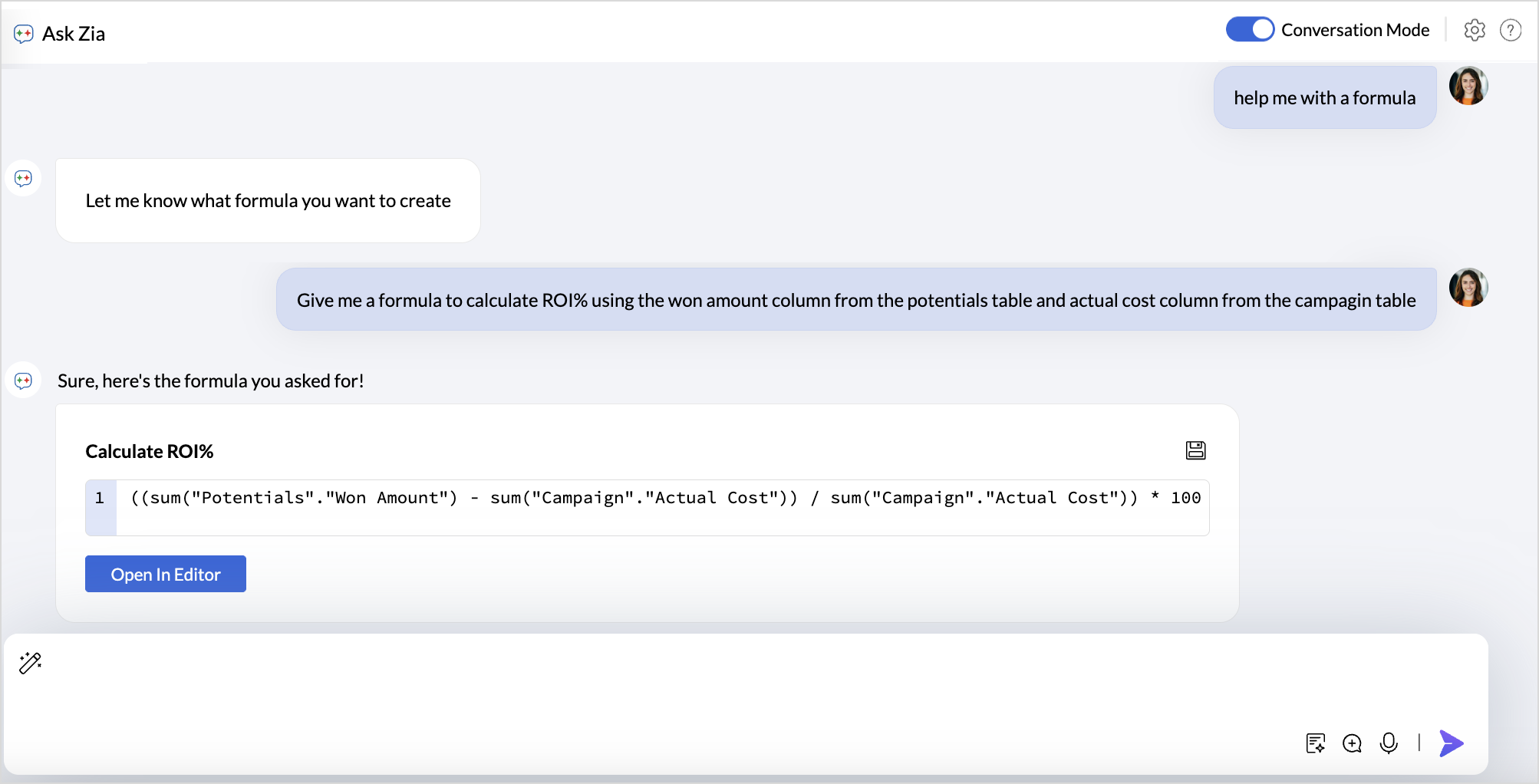
- Describe your use case. You can also include table details to get more accurate responses.
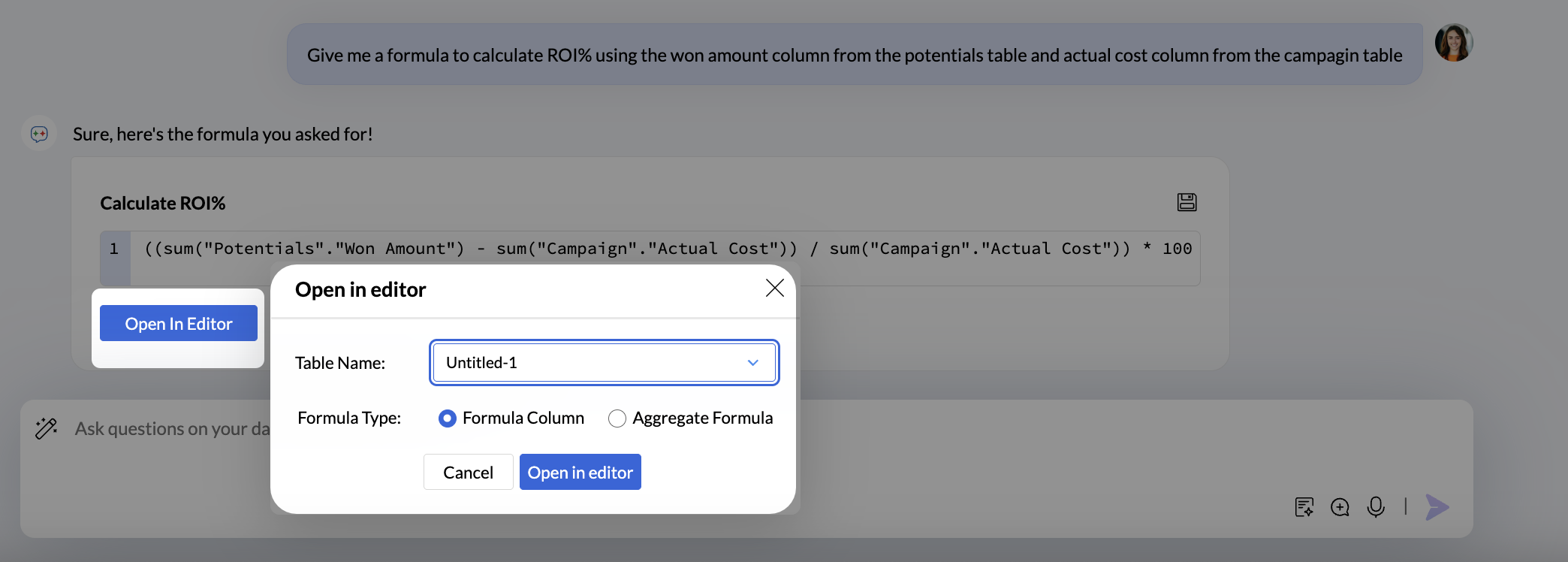
- Click the Save icon to add the formula as a formula column or as an aggregate formula.
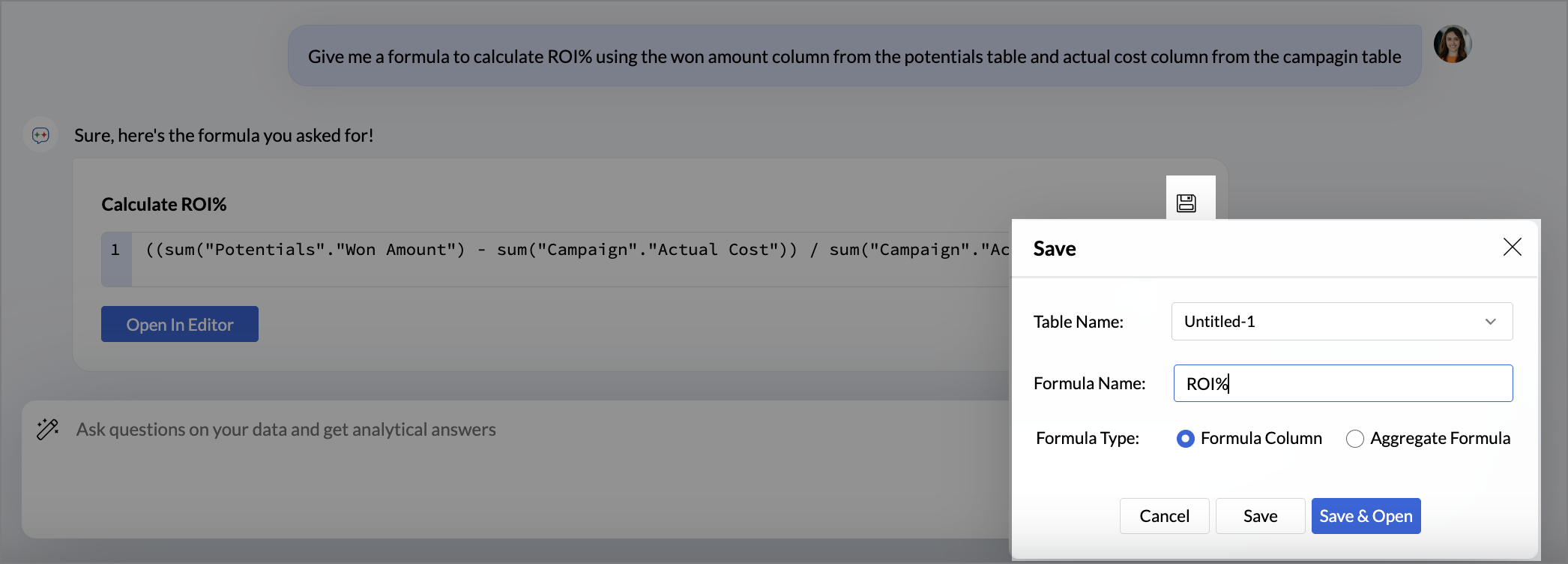
- Click the Open in editor icon to modify the formula. Choose the Table to which the formula should be added and the formula type, Formula column or Aggregate Formula.
Build and Automate Data Pipeline
With Ask Zia in Pipeline Builder, you can import data from various sources, apply transformations, and export it to different destinations. You can also schedule the pipeline using Ask-Zia.
- Access the Datapipeline builder from the side navigation panel.
- Choose the tables.
- Click the Ask Zia icon on the top right corner of the pipeline builder.
- Enter your requirement on how to build the pipeline in the command prompt.
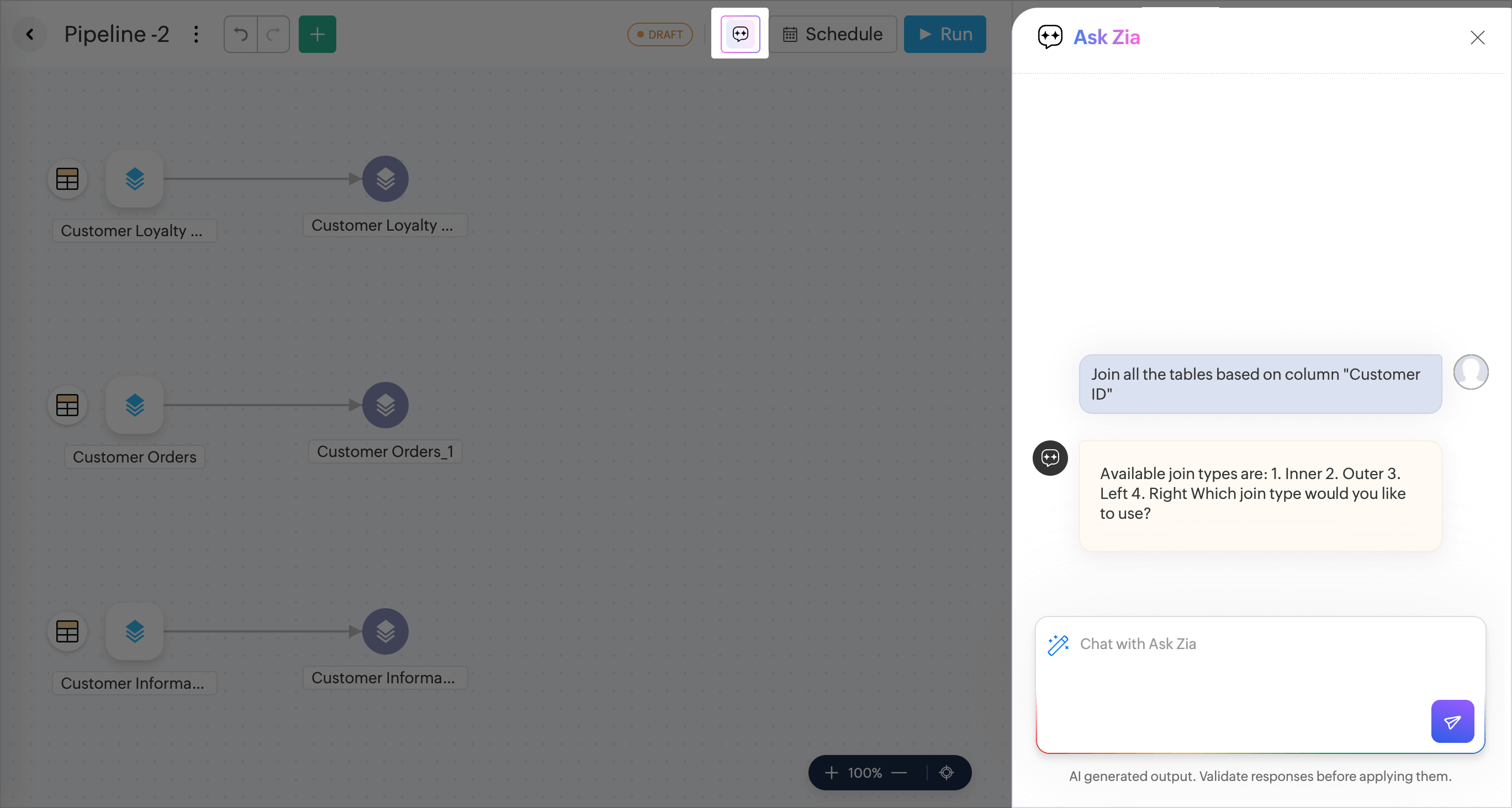
- Ask Zia will prompt for any required information needed to execute the query.
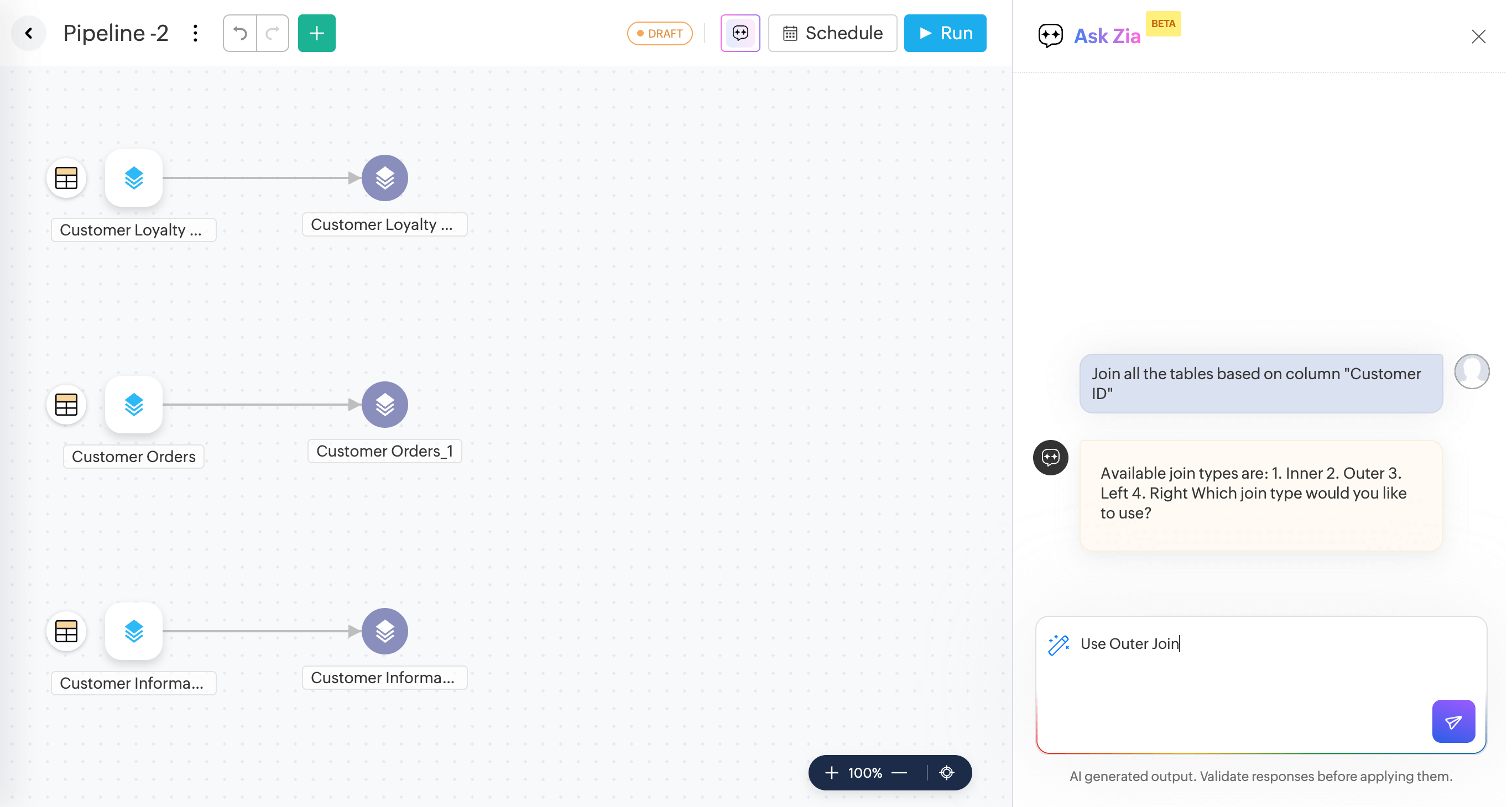
- A preview of the data will be generated. Verify the data and click Apply Transform to apply the transform to the entire data.
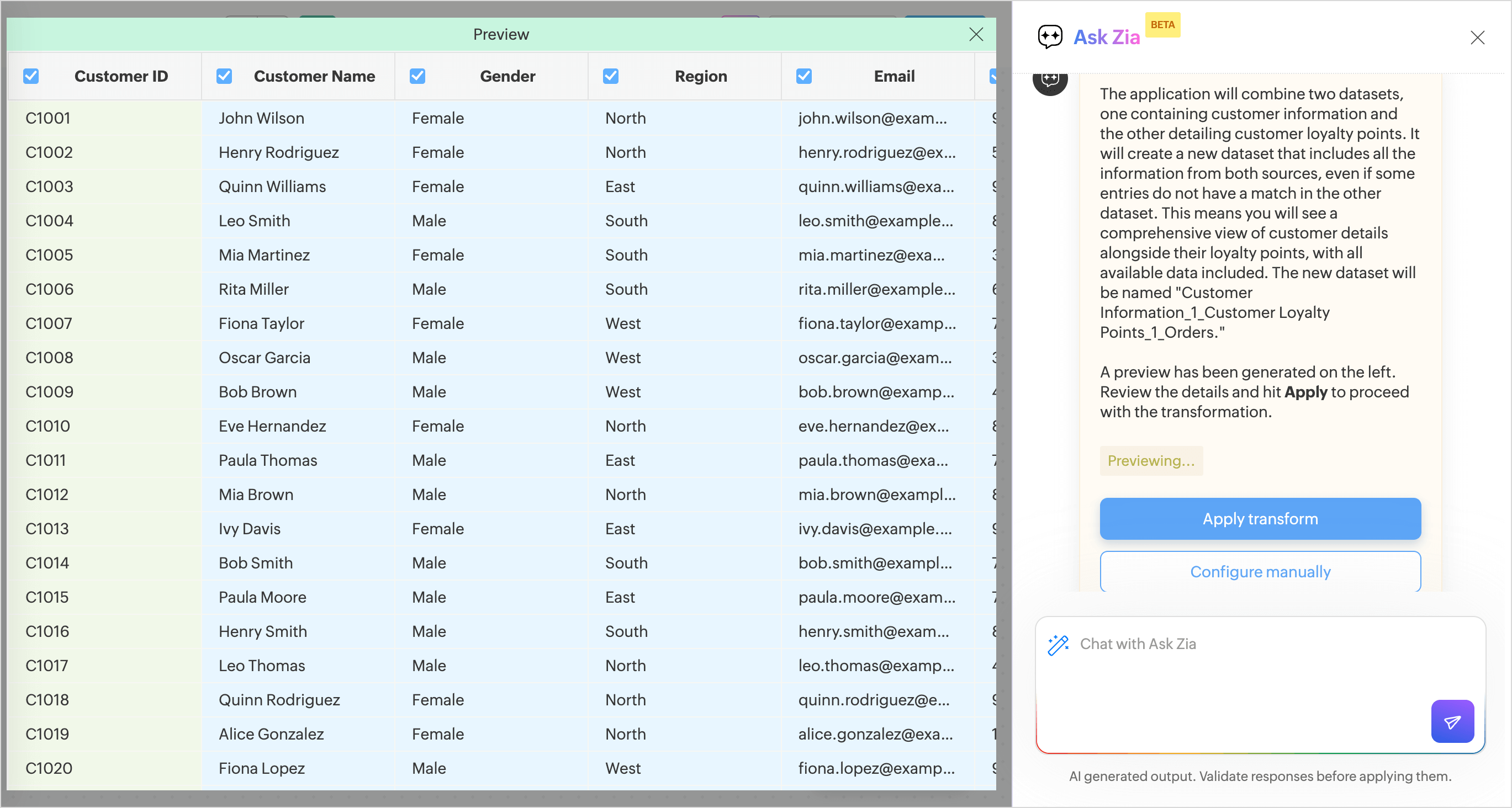
- A pipeline will be created.
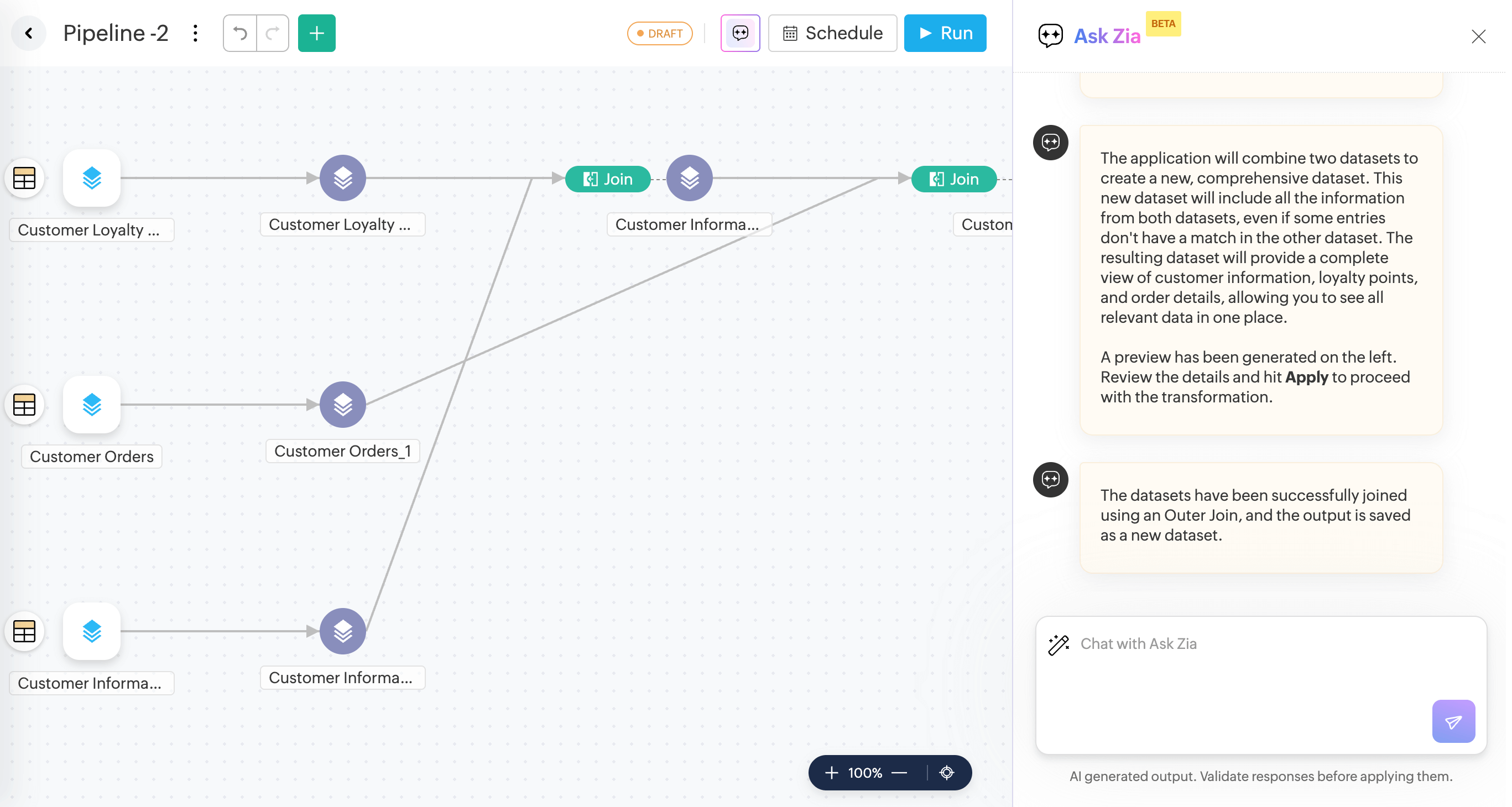
- You can also schedule data pipeline execution.
Transform by Examples
Transform by example easily helps you transform the data in any column to your needs just by providing examples of the output. Enter the required output against a few cell values in your data column as examples, and the rest of the output will be auto-generated.
- Access the pipeline builder from the side navigation pannel.
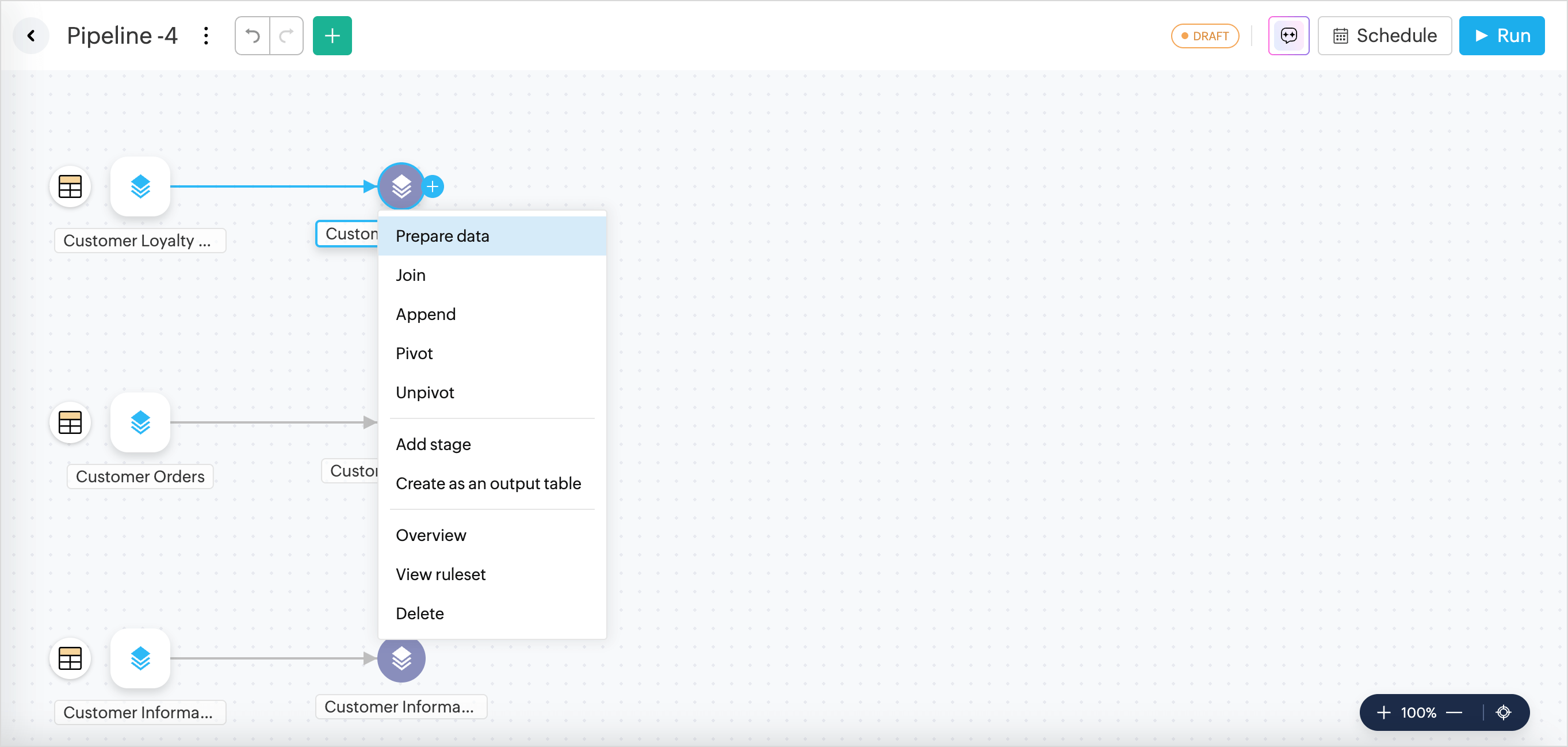
- Click More (+) > Prepare Data.
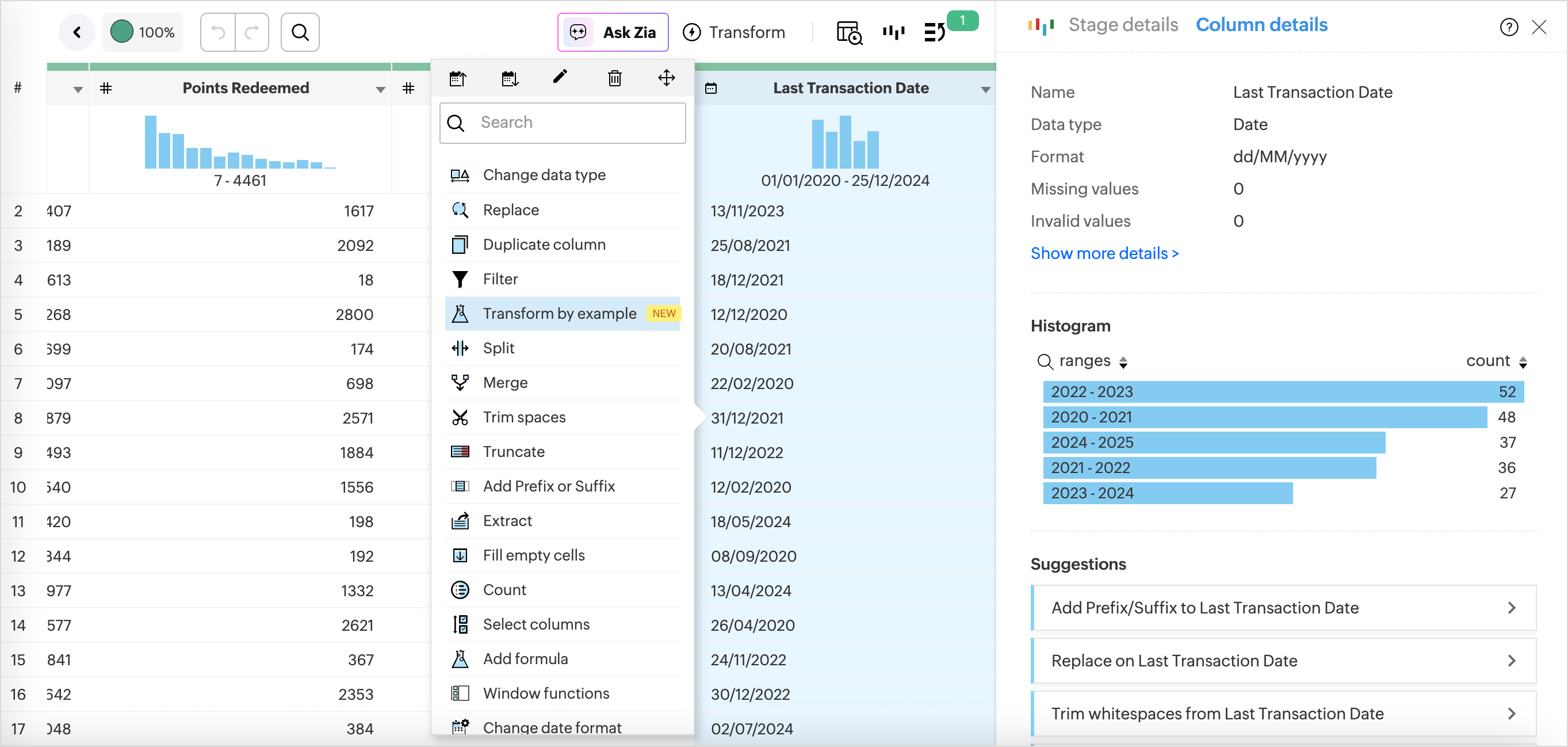
- Right-click the column you want to transform and choose Transform by Example from the drop-down menu.
- Type in the expected result in the Preview section and press Enter.
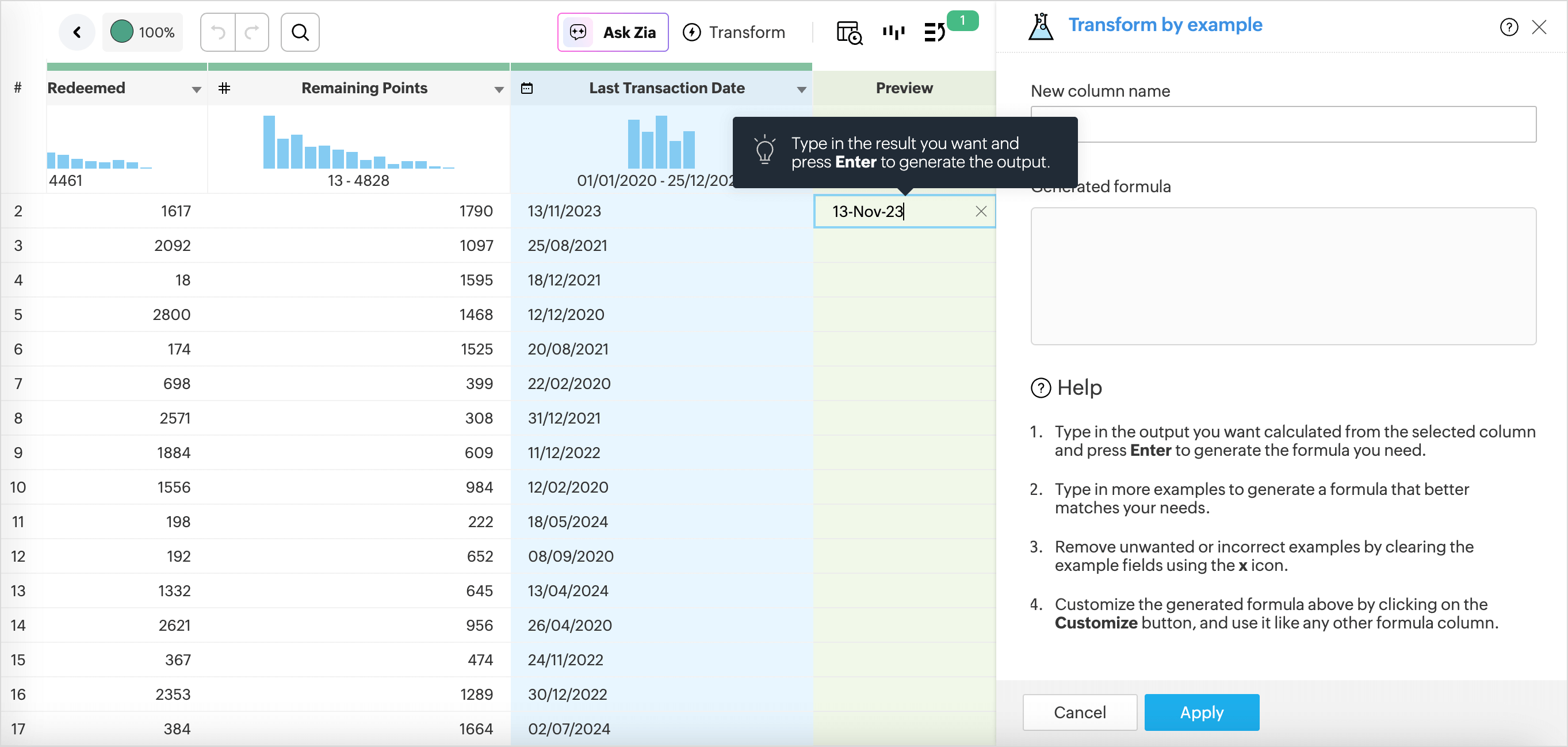
- The logic or the formula required to perform the transformationsis displayed in the Generated Formula section.
- Specify the New Column Name.
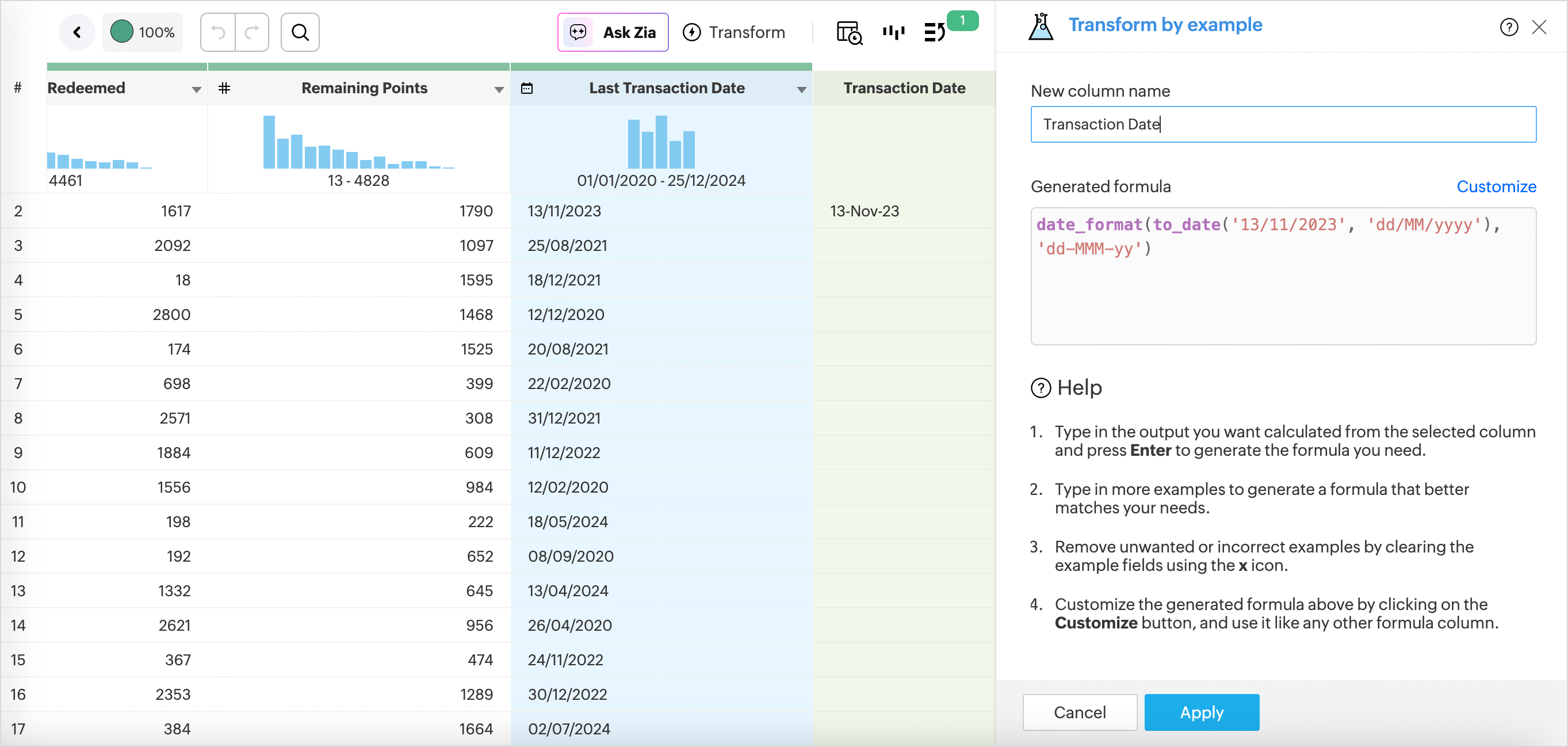
- Click Apply.
