Send Clipboard Keystrokes
Technicians are generally restricted from copying and pasting a password in the login screen during a remote access session. With the Send Clipboard Keystrokes feature available in Zoho Assist, technicians will now be allowed to copy and paste a password in the respective field during an active remote support session. How to use Send Clipboard Keystrokes?
- Navigate to assist.zoho.com.
Make sure you have enabled the Clipboard permission for the site.
- To copy and paste a password during a session, copy the password to be entered.
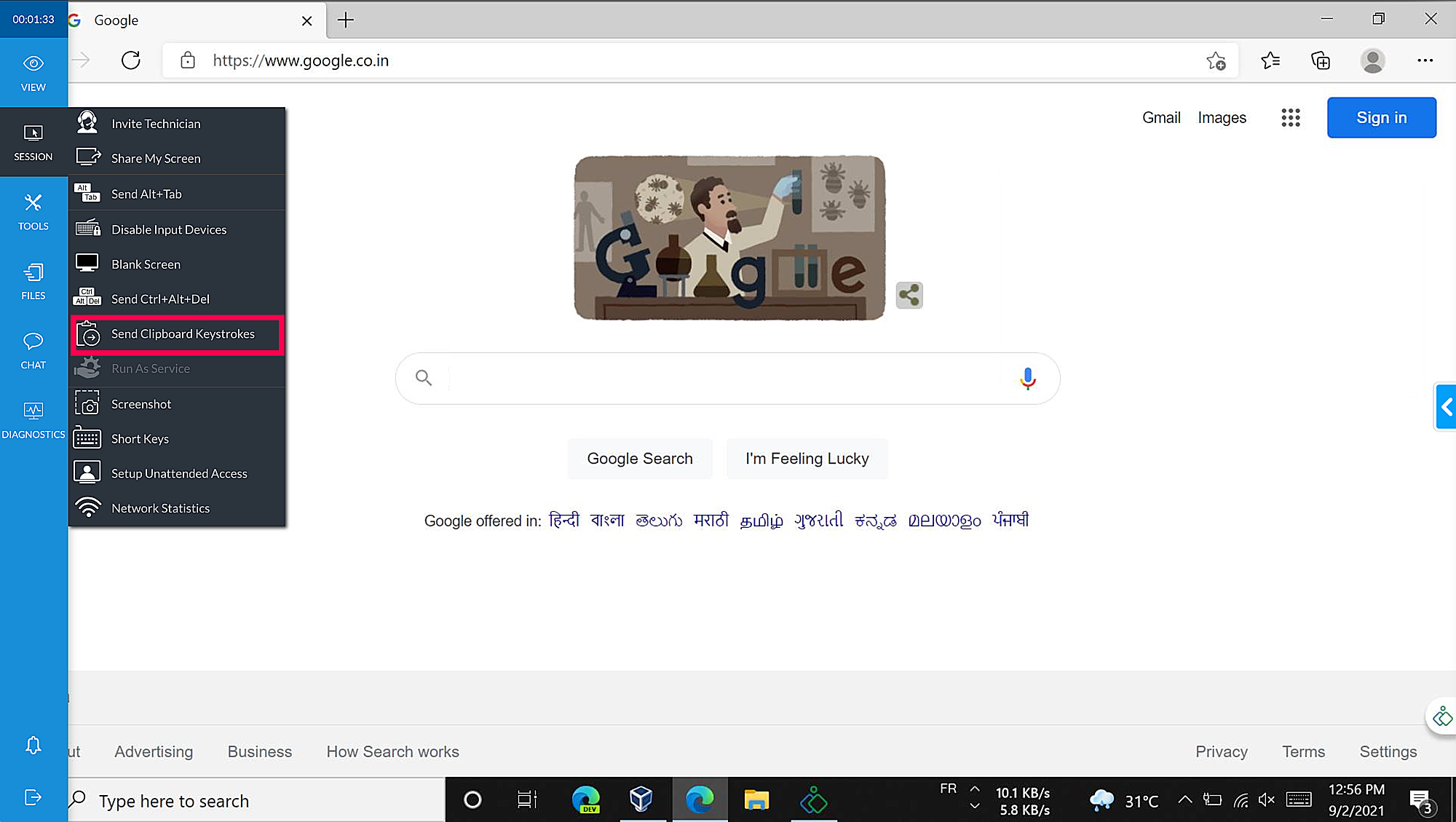
- Go to the Session menu bar available on the left panel of the screen.
Click the Send Clipboard Keystrokes option to paste the password in the selected field
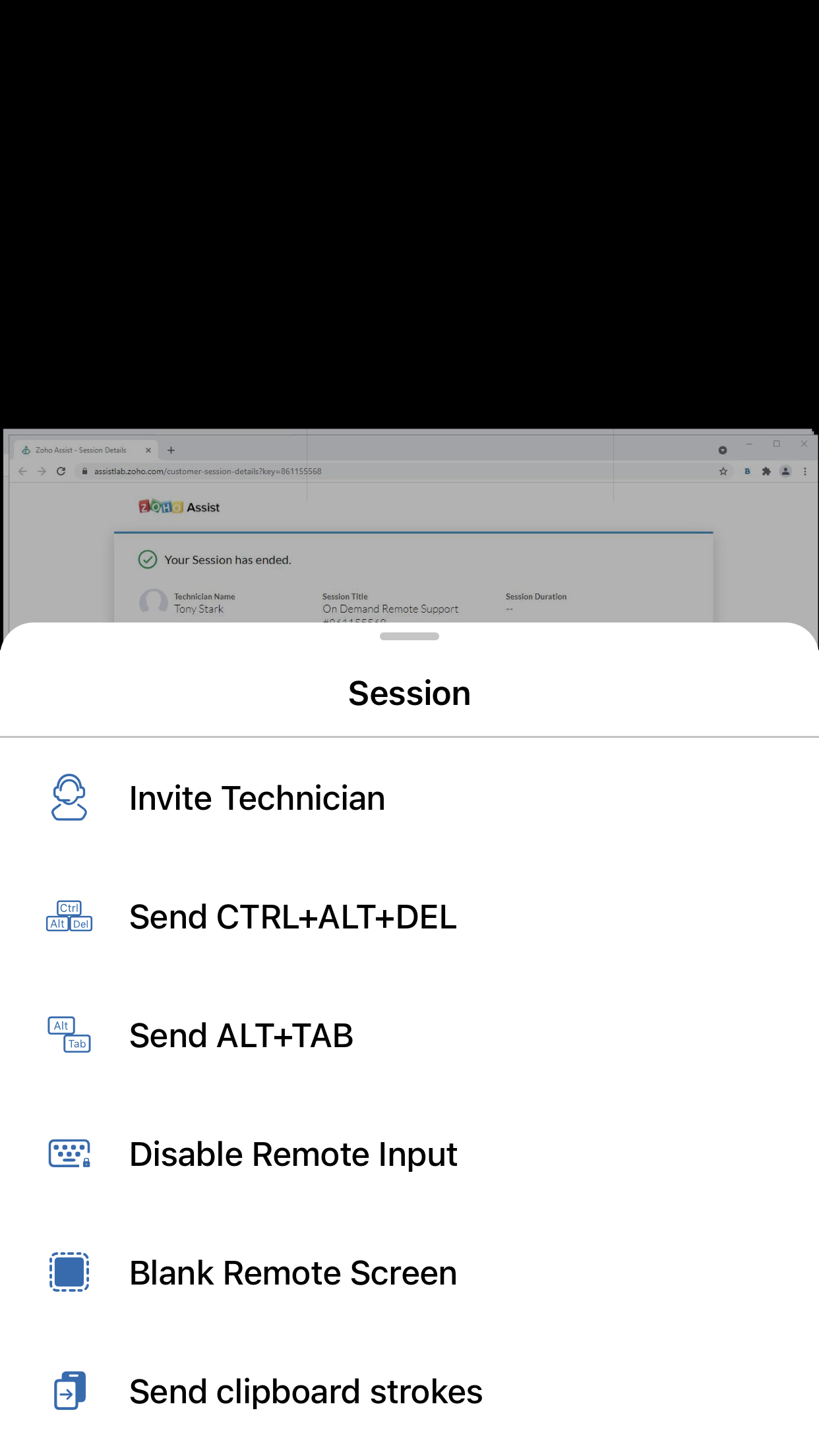
Similarly, click the Send Clipboard Keystrokes option from your mobile application to paste the password in the selected field.
Note:This feature is not compatible with Mozilla Firefox Web Browser.