

Apply Credits to Invoices

When you create a credit note for a customer, Zoho Books records the credit amount available for that customer. You can either refund this amount or apply it to the customer’s invoices to reduce the outstanding amount. If the customer has multiple invoices, you can apply the credit note fully or partially to one or more invoices.
Apply Credits to Invoices
You can apply credits from a credit note to one or more outstanding invoices for the same customer. You can apply credits to invoices in two ways:
Apply Credits from the Credit Note Details Page
To apply credits to invoices from the Credit Note Details page:
- Go to Sales on the left sidebar and select Credit Notes.
- Select the credit note you want to apply to invoices.
- Click Apply to Invoice at the top. In the popup, the credit notes created across all locations for the same customer will be listed.
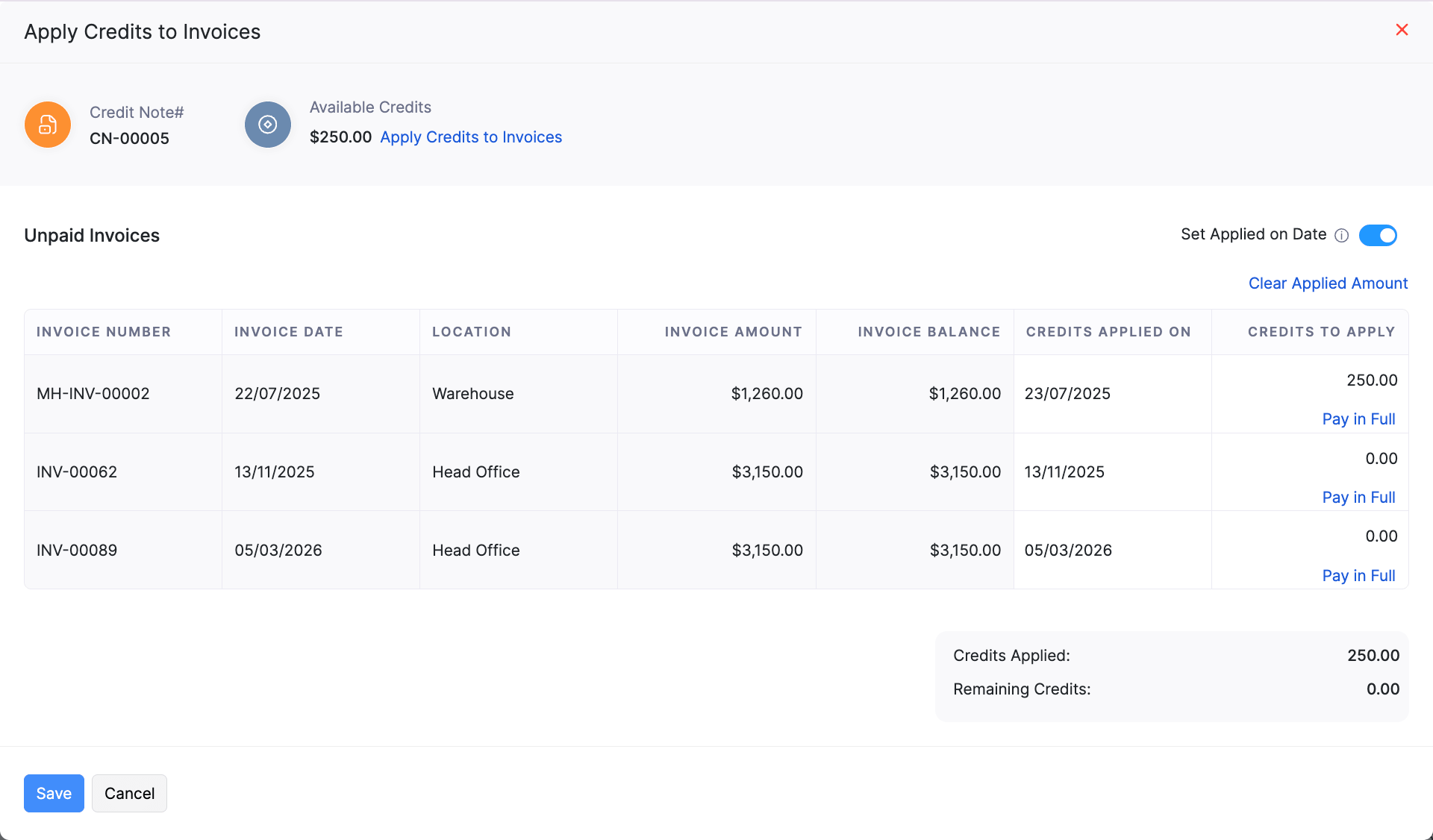
- Enter the CREDITS TO APPLY to each invoice.
- Click Save.
Note: If the credit note has remaining credits after you apply it to invoices, its status remains Open. If you apply all available credits, the status changes to Closed.
Apply Credits from the Invoice Details Page
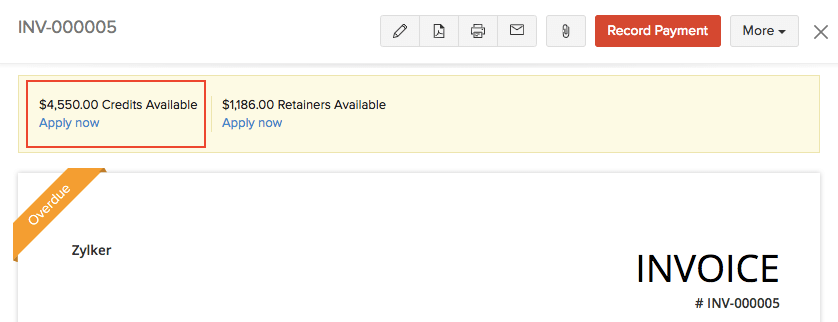
If a customer has an outstanding invoice and an open credit note, Zoho Books shows the available credits in the Invoice Details page. You can apply the credit directly to the invoice.
To apply credits to invoices from the Invoice Details page:
- Go to Sales on the left sidebar and select Invoices.
- Select the invoice for which you want to apply available credits.
- Click the arrow next to Credits Available.
- Enter the CREDITS TO APPLY to the invoice.
- Click Apply Credits.
View Credits Applied to Invoices
You can view the list of invoices to which credits from a credit note have been applied.
To do this:
- Go to Sales on the left sidebar and select Credit Notes.
- Select the credit note for which you want to view the applied credits.
- Click the Credit Applied Invoices tab.
You can view the list of invoices to which the credit note has been applied.
Insight: To remove applied credits, hover over the invoice in the Credit Applied Invoices tab and click the Remove icon. The credited amount becomes available again, and you can apply it to other invoices.
 Yes
Yes