

Manage Reports

You can manage the reports in Zoho Books by configuring PDF layouts during export, scheduling reports to auto-send them at specific frequencies, configuring role-based access to reports, and sharing reports with other users.
Configure Layouts for Report PDFs
You can customize the layout of your reports to match your business requirements when printing or exporting them as PDFs.
To configure report layout:
- Go to Reports on the left side bar.
- Click the More icon in the top-right corner of the Reports Center page, and select Configure Report Layout.
- In the Configure Report Layout for Export and Print popup, you can customize the following fields.
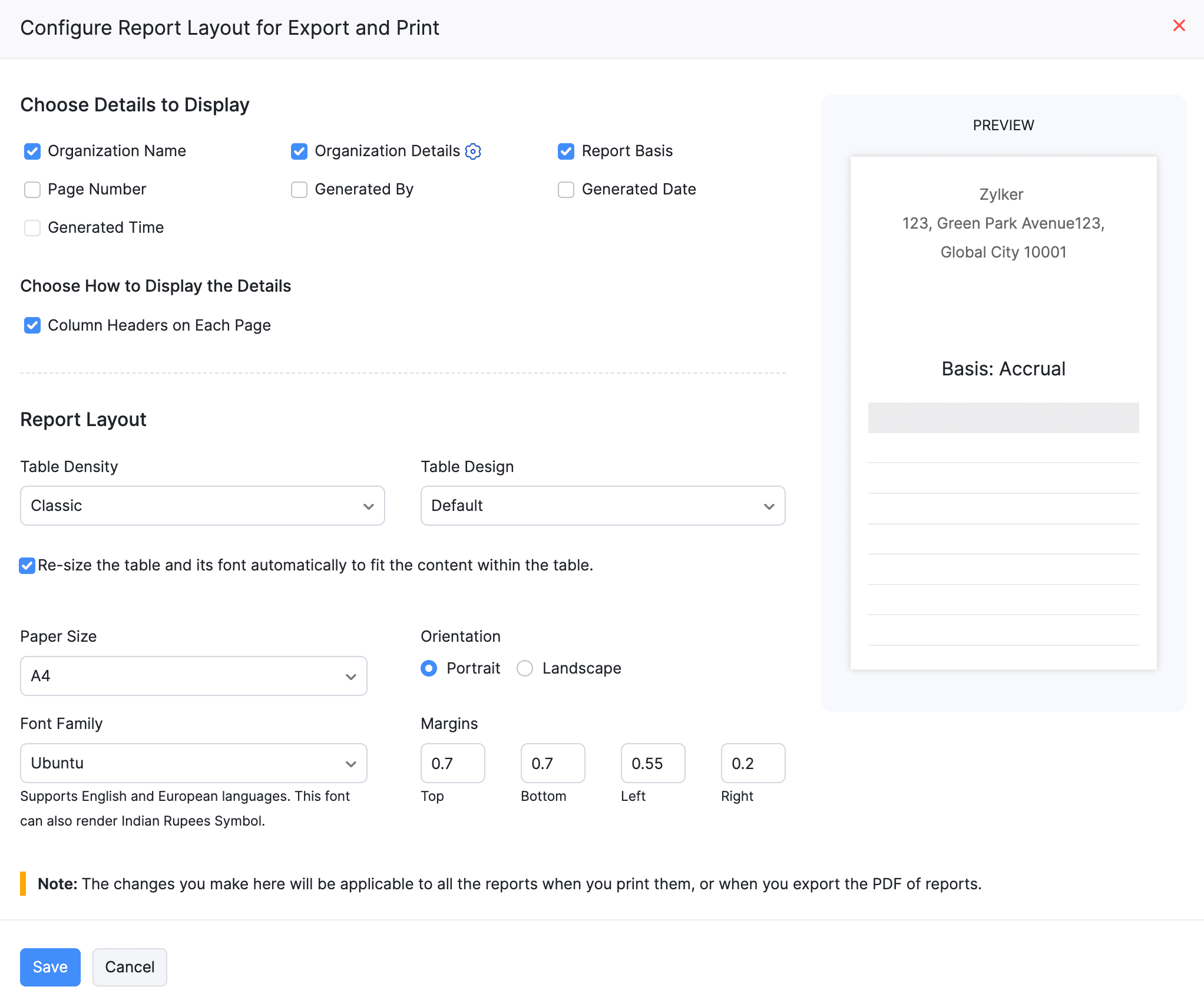
| Field | Description |
|---|---|
| Organization Name | Enable this option to display your organization’s name on the report. |
| Organization Details | Enable this option to display your organization’s details on the report. Click the Gear icon next to the field, then click Insert Placeholders to add other details. |
| Report Basis | Select the method of accounting to be displayed on your report: Cash Basis or Accrual Basis. |
| Page Number | Enable this option to auto-generate page numbers in the footer section of your reports. |
| Generated By | Enable this option to display the name of the user who generated the report. If the report is scheduled, this may display as the system. |
| Generated Date | Enable this option to display the date on which the report was generated. |
| Generated Time | Enable this option to display the time when the report was generated. |
| Table Density | Select the spacing between rows in the report. Options include Classic, Compact, and Super Compact. |
| Table Design | Select the way the report data is arranged in tables. Options include Bordered, Alternative Rows, and Alternative Columns. |
| Paper Size | Select the paper size for printing or exporting the report, such as A4 or Letter. |
| Orientation | Select the page orientation for the report: Portrait or Landscape. |
| Font Family | Select the font to be used for the report content. |
| Margins | Set the margin values for the top, bottom, left, and right sides of the report. |
- Click Save.
Note: The Generated Time will be not be enabled if you have not chosen to display the Generated Date.
Note:Custom table designs, such as bordered, alternate rows, or alternate columns, do not apply to the Business Overview and Tax Reports. These reports retain the default table design.
Customize Organization Details During Report Export
You can also modify the organization details for a specific report when you export it. Any changes made during the export will apply only to that particular export and will not change your default report layout.
To customize the organization details while exporting a report:
- Go to Reports on the left side bar.
- Select the report you want to export.
- On the report page, click the Export dropdown and select the file format in which you want to export the report.
- In the Export popup, click the Customize the details in the export file option.
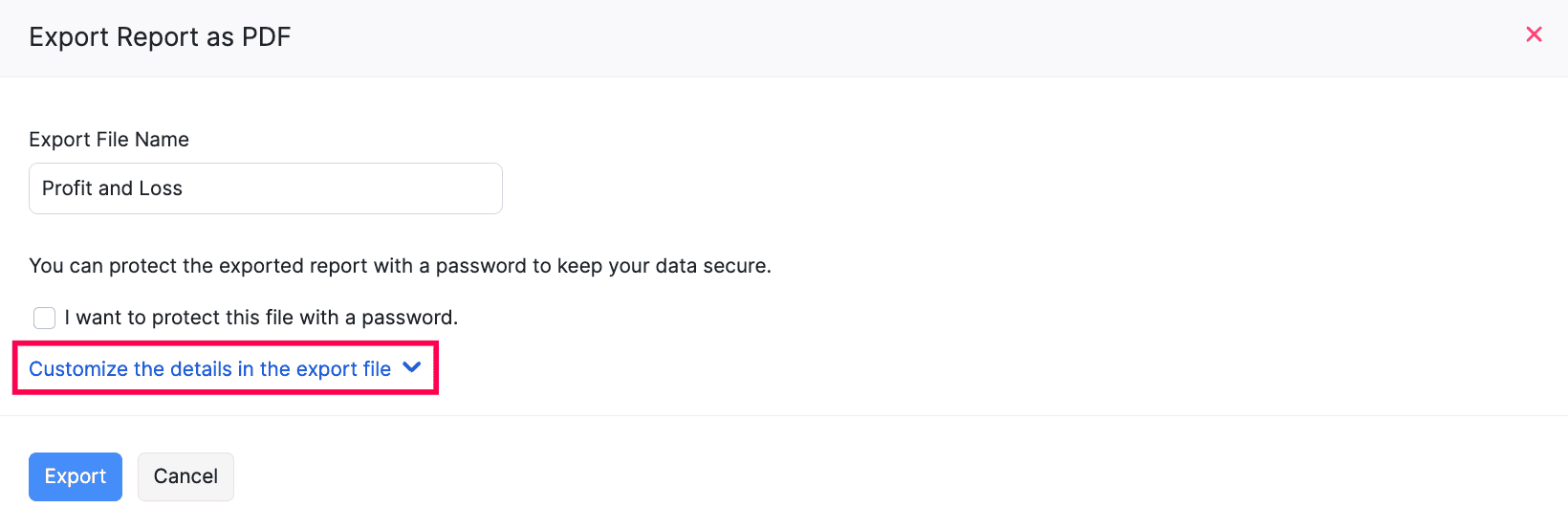
- The organization details configured in your default report layout will be displayed. Modify the organization details as required for this export.
- Click Export.
Note: The Generated Time will be not be enabled if you have not chosen to display the Generated Date.
Insight: Configuring the layouts will be applicable to all the reports when you print them, or when you export the PDF. However, the configuration can be changed if you wish to make an exception when you want to print or export an individual report just for that instance. These configurations for the individual report will only be applicable for that instance and will not be reflected when you try to print or export the PDFs of the other reports.
Customize Reports
You can customize a report by applying filters and selecting columns to display, and view the customizations in the report instantly.
Note: This feature is available only for certain plans of Zoho Books. Visit the pricing page to check if it’s available in your current plan. Furthermore, the Custom Reports feature is available only in Profit and Loss, Balance Sheet, Cash Flow Statement, and Invoice Details reports.
To customize a report:
- Go to Reports and select the report you want to customize.
- Click Customize Report.
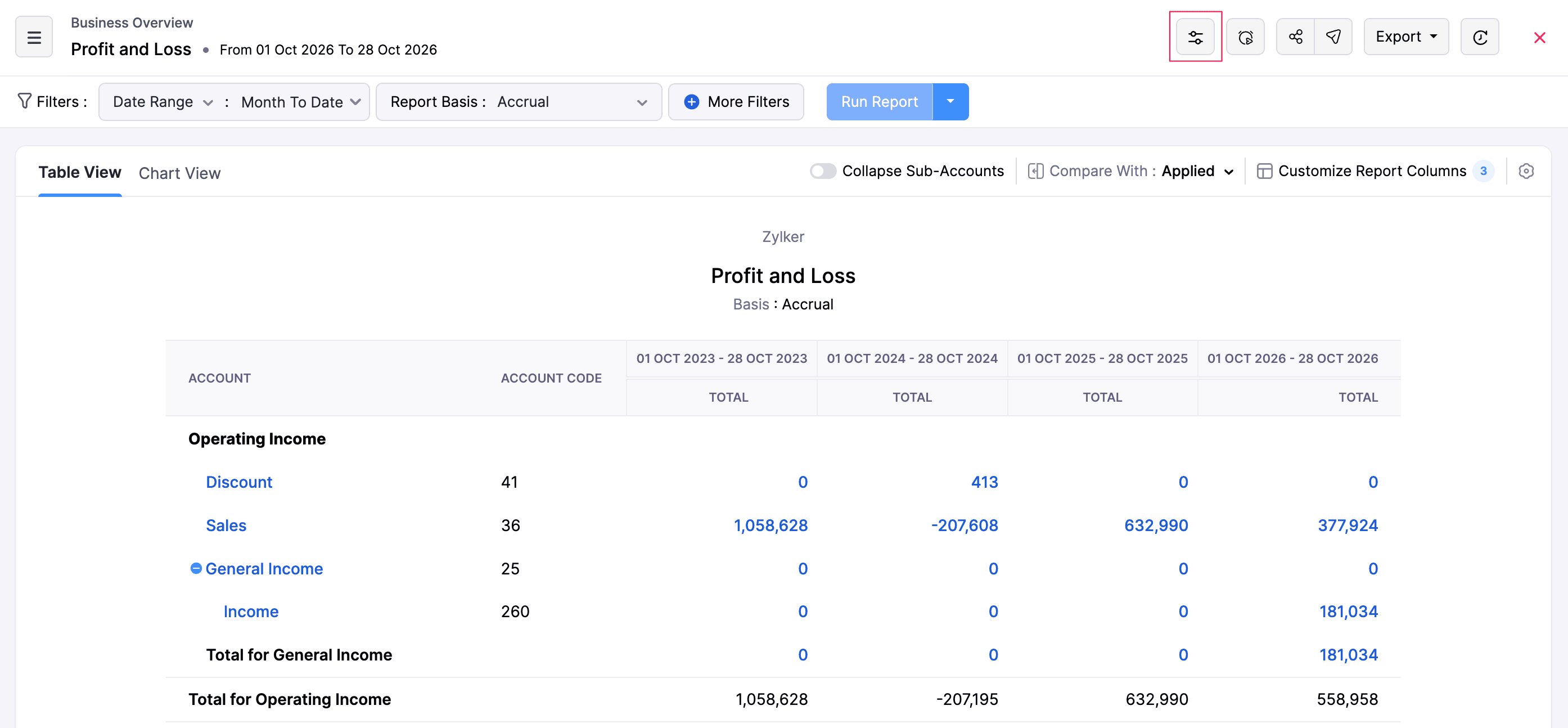
You will be redirected to the General section.
1. General
In the General section, you can customize your report based on the following filters:
| Filters | Description |
|---|---|
| Date Range | Generate the report for a specific week, month, quarter, or year or set a custom duration of your own. |
| Report Basis | Select the method of accounting to be displayed in your report: Accrual: Amount generated when the transactions are created. Cash: Amount generated when the organization actually receives the cash. |
| Filter Accounts | Filter accounts that you’d like to include. This can be: 1. All accounts 2. Accounts with transactions 3. Accounts without zero balance |
| Compare With | Compare the report with previous periods, months, quarters, or years. To compare your report with the previous years or previous periods, select your preferred date range. To compare your report with the previous months, select month-wise ranges like Jan 1 to Jan 31 as your custom date range. To compare your report with the previous quarters, select quarter-wise ranges based on your organization’s fiscal year. For example, if your fiscal year is January to December, select date ranges like Jan 1 - Mar 31, Apr 1 - Jun 30, etc., as your custom date range. |
| Advanced Filters | Filter your report by projects, locations, and reporting tags. You can also enable Include Child Options for the Reporting Tag filter to automatically include all child options associated with the selected parent option in the report. |
Note: If you have specified a custom date range in your custom report and you schedule it, the scheduled report will be generated using the data available between the custom date range. For example, let’s say you schedule a custom report to be generated on a weekly basis and the custom date range is between 7 July 2021 to 7 August 2021. After 7 August 2021, every weekly report generated will use the date from 7 July 2021 to 7 August 2021.
- After configuring the above filters, click Next to go to the Show/Hide Columns section.
2. Show/Hide Columns
In this section, you can customize the columns of your report. Here’s how:
- Go to the Show/Hide Columns section.
- In the Available Columns section, hover your cursor over the column you want to add and click the + icon next to it.
- In the Selected Columns section, you can view the existing columns of your report.
- Once you customize the columns, click Run Report to view the customizations in the report.
- To further customize the report and save them as a new custom report, click Save as Custom Report.
Learn how to save your customizations as a new custom report in this help document.
View Reports as Charts
With the Chart view in reports, you can visualize your data as a chart instead of viewing it in a plain table format.
Note: You can view only specific reports in Chart view. These include Profit and Loss, Sales by Customer, Sales by Item, Sales by Sales Person, Invoice Details, Sales Order Details, Delivery Challan Details, Quote Details, Receivable Summary, Receivable Details, Payments Received, Credit Note Details, Bills Details, Vendor Credits Details, Purchase Order Details, Purchase Orders by Vendor, Purchases by Vendor, Purchases by Item, Expenses by Customer, Expenses by Project, and Billable Expense Details.
To view your reports as charts:
- Go to Reports in the left sidebar and select the report you want to view in chart view.
- Navigate to Chart View.
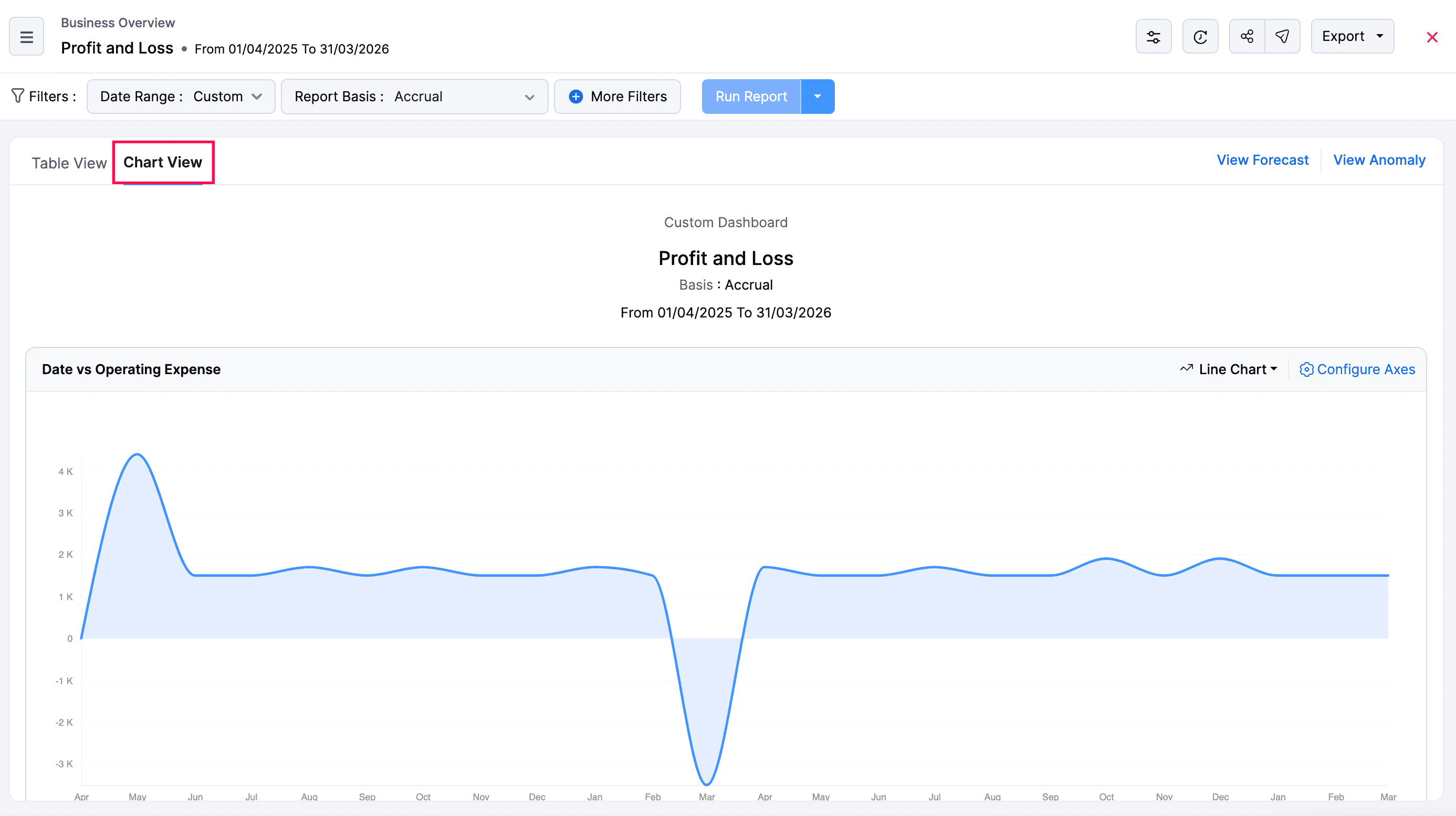
- You can either click Line Chart or use the dropdown next to it to select a different chart type.
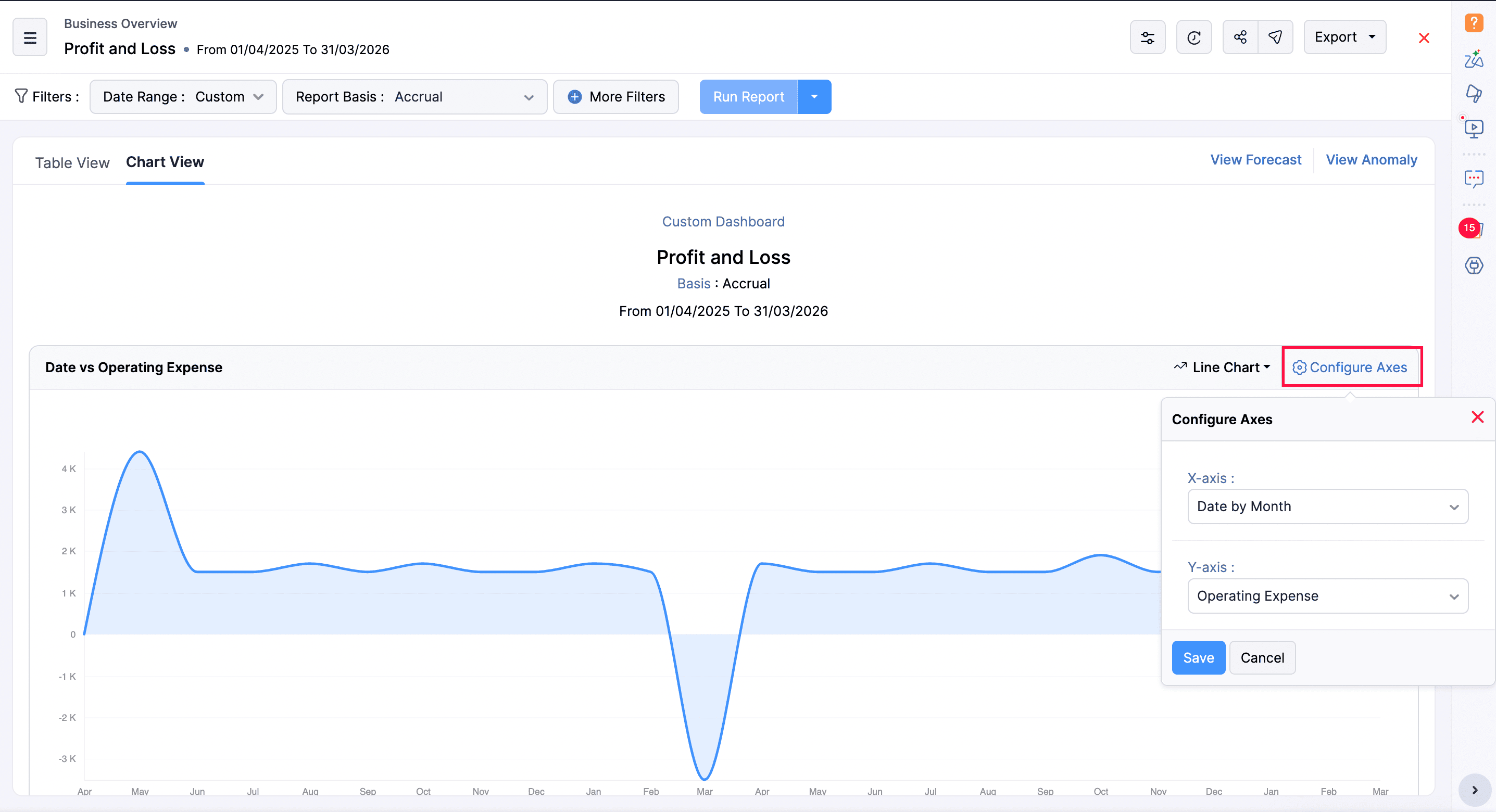
- To configure the X and Y-axis in your report:
- Click Configure Axes.
- Select the data you want to display on the X-axis and Y-axis.
- Click Save.
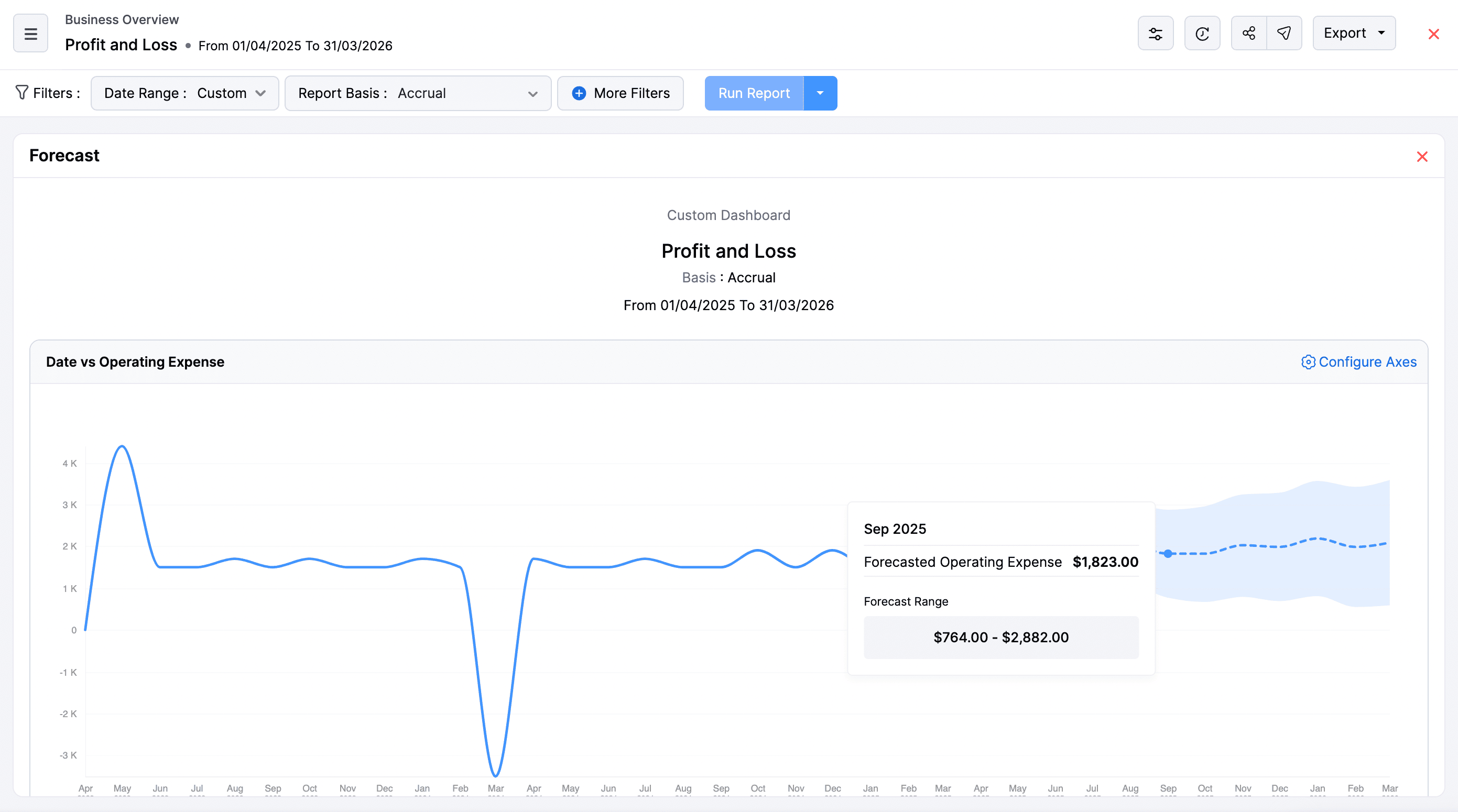
- Click View Forecast to generate a chart that projects future trends based on your report’s historical data.
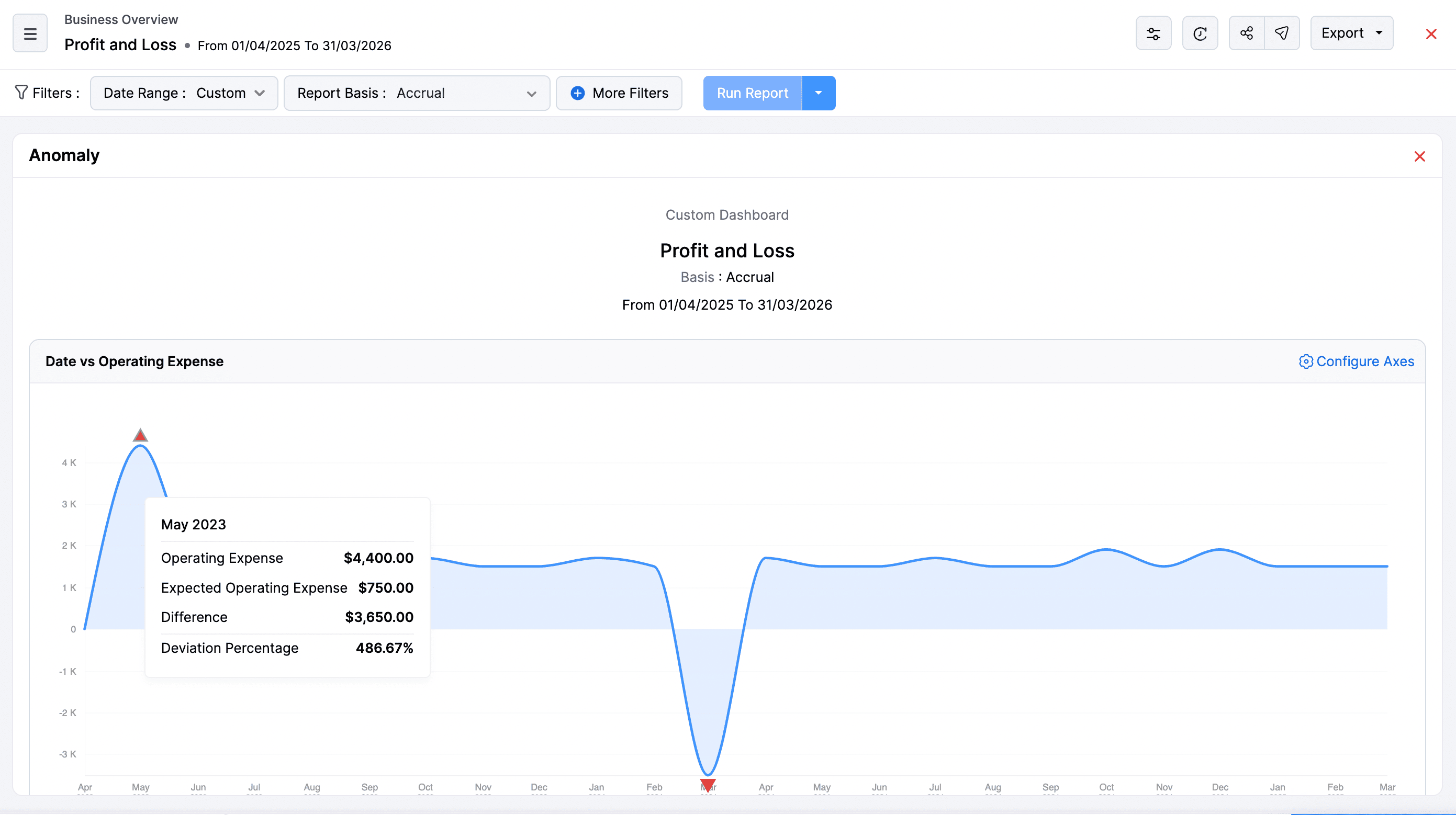
- You can go back to the previous page and click View Anomaly to identify unusual patterns or unexpected results in your report data. They help you spot errors, risks, or opportunities that require attention.
Schedule Reports
You can schedule your reports to be sent to your email address or other users in the organisation. These reports will be sent in different time intervals at a specific time chosen by you.
Zoho Books allows you to schedule a report to be generated on a weekly, monthly, quarterly or yearly basis as per your preference. The generated report will then be sent to the email addresses of your choice.
Note: The Schedule Report option is available only in certain reports. If you want the Schedule Report option in a report that does not have it, kindly reach out to us at support@zohobooks.com.
Prerequisite: Only the admins and the users who have permission to schedule reports can schedule reports.
To schedule a report:
- Go to Reports and select the report which you wish to be generated based on a schedule.
- Click the Schedule Report option at the top next to the Print icon.
- Select the criteria based on which you wish to schedule the report.
- Click Save.
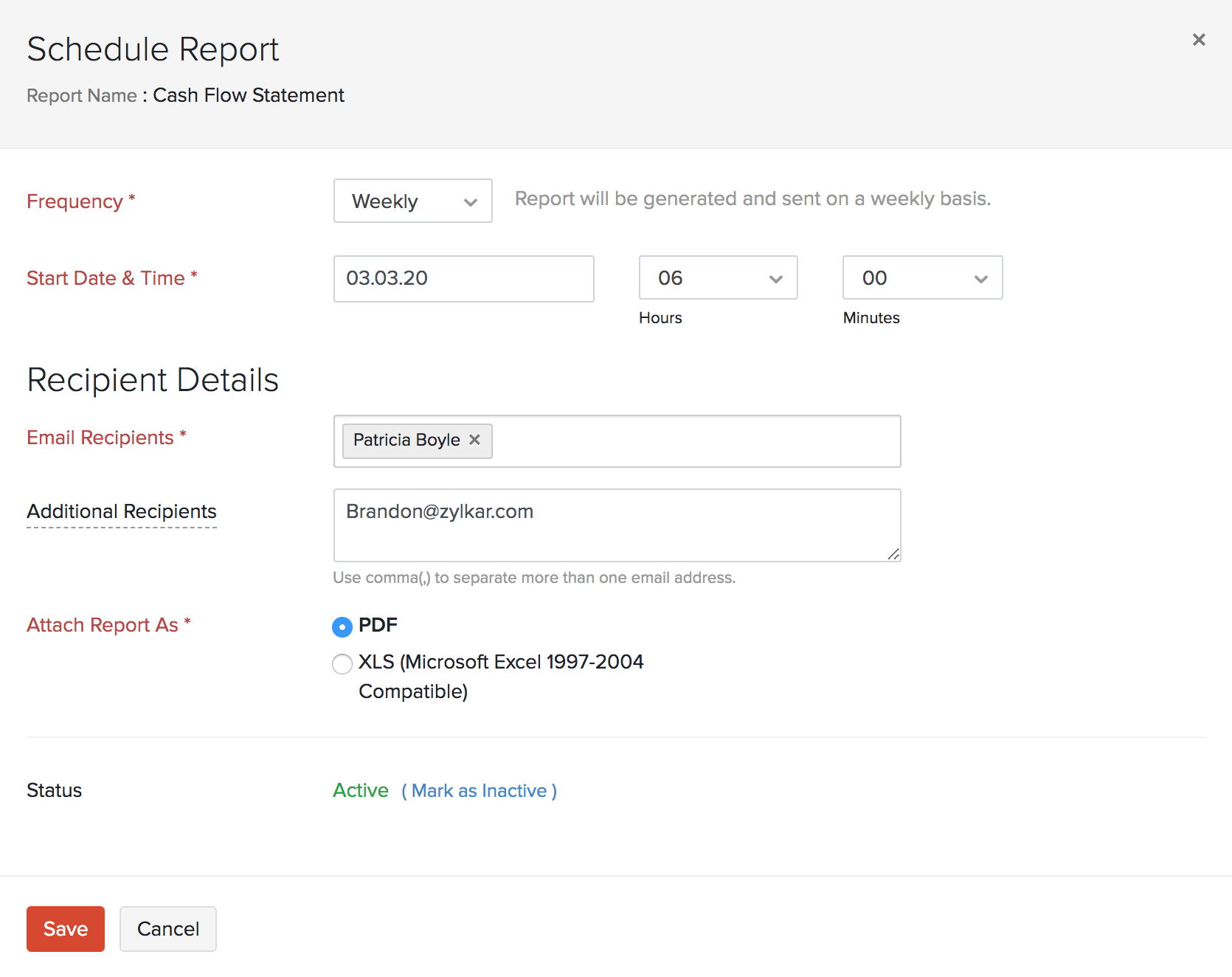
The report will be automatically sent to your email at the specified time and interval.
View Scheduled Reports
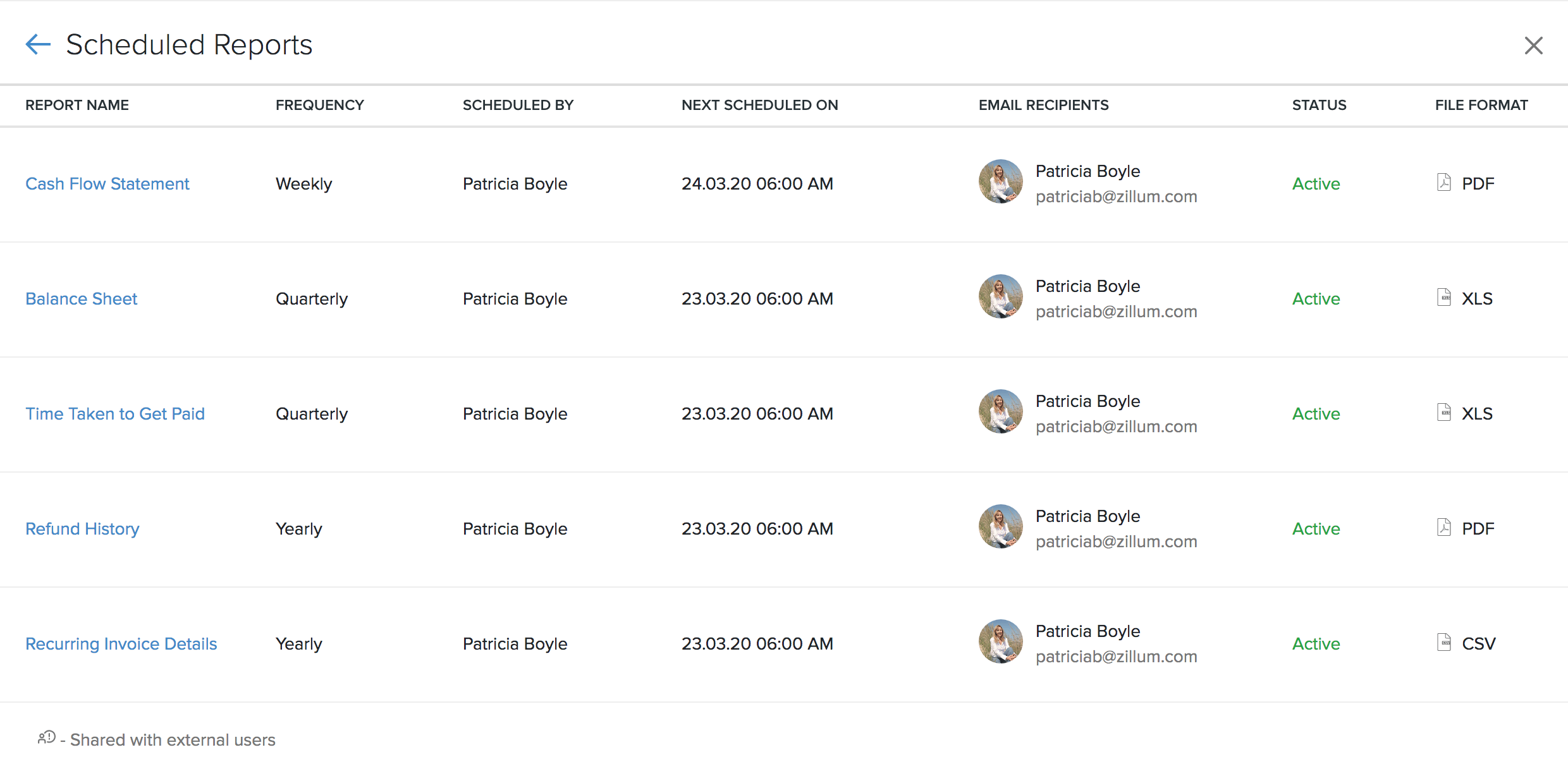
Zoho Books lists all the reports you’ve scheduled, for your reference. You can keep track and view the details of them in our dedicated Scheduled Reports page.
It details the frequency of your scheduled report, the user who scheduled the report, the email recipients, the status of your report, the date when your next report is due and the file format chosen.
Prerequisite: Only the admins and the users who have full access to all the reports can view scheduled reports.
To view your scheduled reports:
- Go to Reports
- Click Scheduled Reports in the top right corner.
Deactivate Scheduled Reports
You can disable a scheduled report by performing the steps mentioned below:
- Go to Reports.
- Click the scheduled report, which you wish to disable (For eg: Sales by Customer).
- Click the Report has been scheduled button in the top right corner of the page.

- In the pop-up window that follows (Report Scheduler), click Mark as Inactive to make the report inactive.
- Click Save for the changes to take effect.
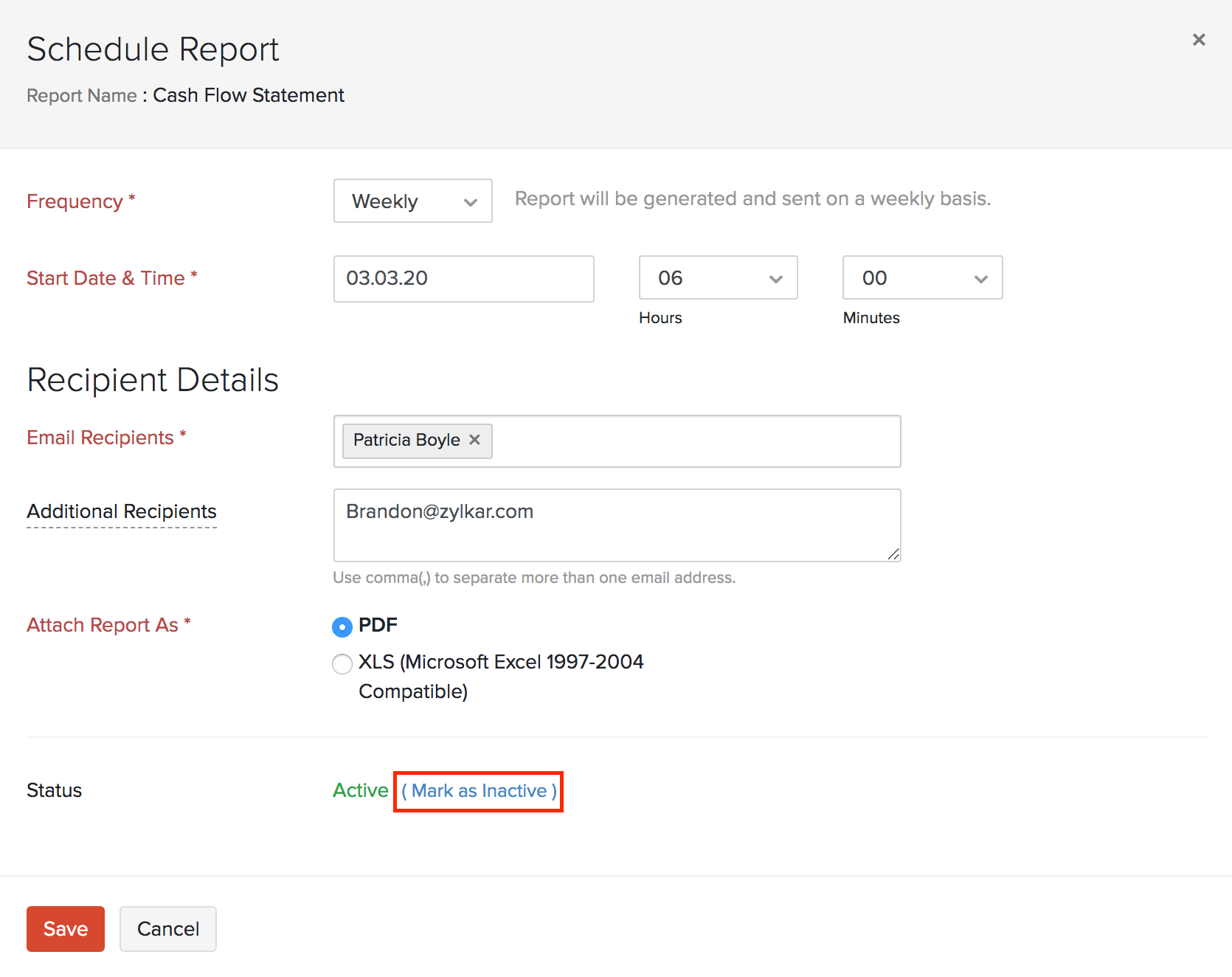
Insight: If you wish to re-enable a scheduled report, kindly click the Active option against Status.
Receive Weekly Summary Reports
Zoho Books can send a Weekly Summary Report to the admin if the option is enabled. The report contains a summary of income and expenditure, cash flow, transaction overview, active projects, alerts, and new feature updates.
To enable this:
- Navigate to Settings on the top right corner of the page.
- Select General under Preferences.
- Mark the box near the Send Weekly Summary report option.
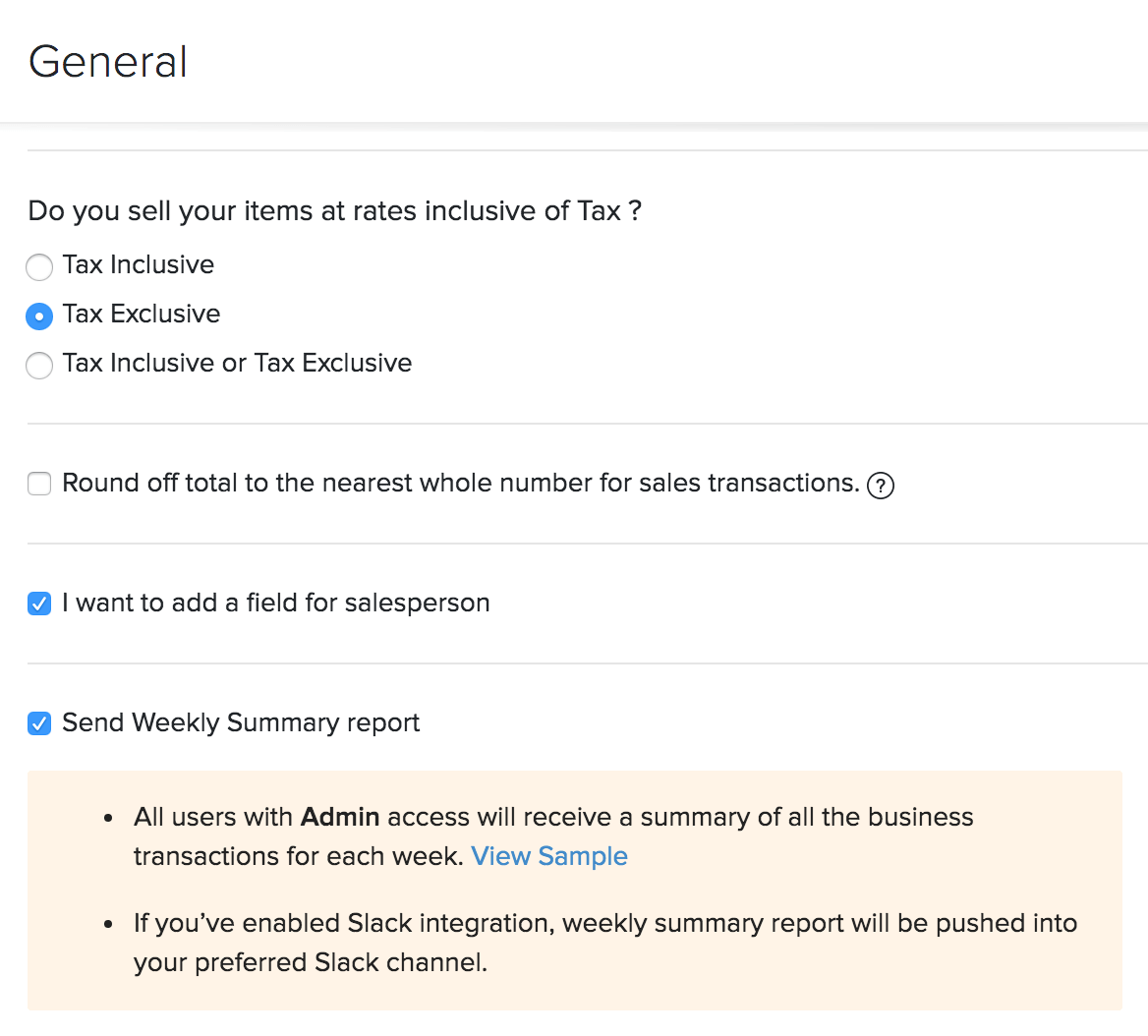
The reports will be sent to the admins of the organisation every Sunday.
Configure Role Based Access to Reports
The predefined roles in Zoho Books cannot be edited. However, you can create custom roles and configure the permissions the users with that role will have for reports.
Prerequisite: Only admins can configure roles in Zoho Books.
To configure the report permissions of a role:
- Go to Settings on the top right corner of the page.
- Select Roles under Users and Roles.
- Create a new custom role or edit a custom role that you had already created.
- Scroll down to the bottom of the Edit Role page. You will find the Reports permissions at the end of the page.
- If you want to give this role full access to all the reports in Zoho Books, check the Enable full access for all reports option.
Note: If you want users with this role to view the list of scheduled reports and configure layouts for report PDFs, you will have to enable full access for all reports.
- If you want to give this role limited access to some of the reports in Zoho Books, you can click a report group and mark the permissions the role can have for each report. Later, when new reports are introduced, you will have to edit the role and provide access to the new reports.
- Scroll down and click Save after you’ve configured the report permissions.
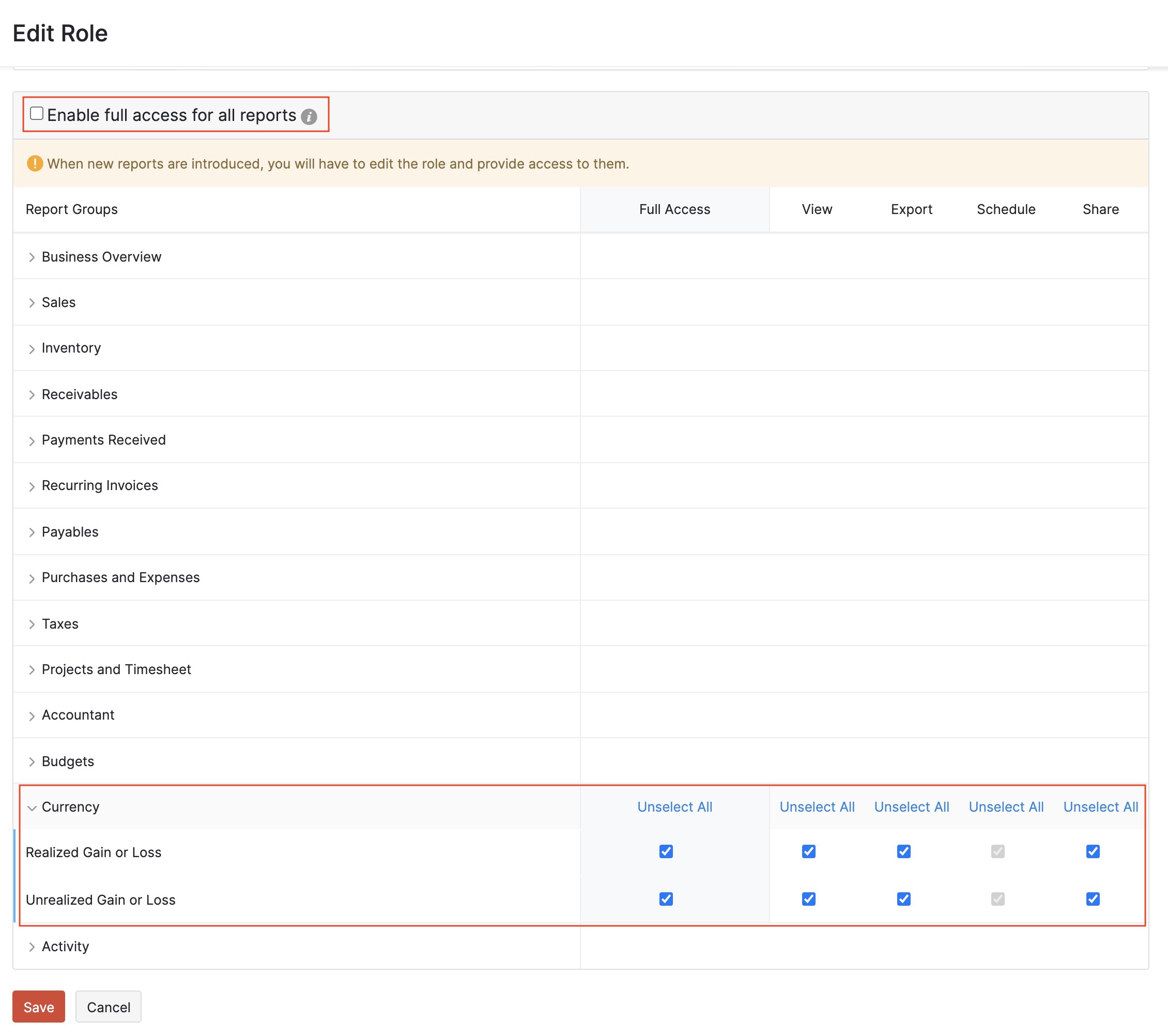
Once you configure the role, all the users with this role will have access only to the reports you’ve permitted for their role.
Share Report With Another User
In Zoho Books, admins have access to all the reports. Based on the permissions granted for a role, a user’s access to reports might be limited. In such cases, when the user needs access to a report, you can share the report with them.
Scenario: John is the Sales lead in his organisation, however he doesn’t have access to the reports module. So, he approaches the admin of his Zoho Books organisation to give him access to the Sales by Customer report. Now, using the Share Report option, the admin shares the report with John so that he can view, export, and schedule the report.
Prerequisite: Only Admins and the users with the Share permission in their role can share the report with other users.
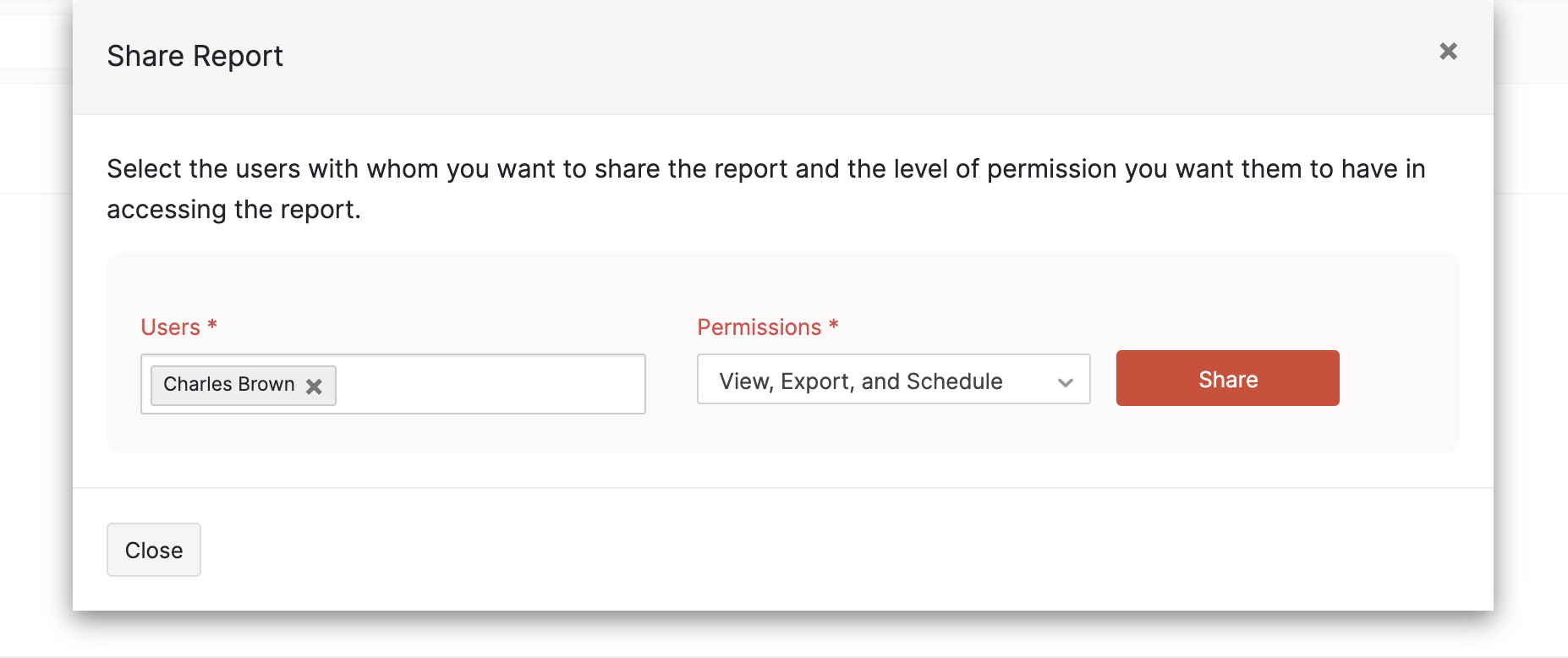
To share a report with another user:
- Go to Reports in the left sidebar.
- Select the report you want to share with another user.
- Click the Share icon at the top right corner.
- Select the user with whom you want to share the report and the level of access they can have.
- Click Share.
Modify User’s Level of Access to a Report
After you have given access to a report, if you want to change the level of access a user has to a report, you can modify it.
To modify the level of access to a report:
- Go to Reports in the left sidebar.
- Select the report for which you want to modify the sharing permissions.
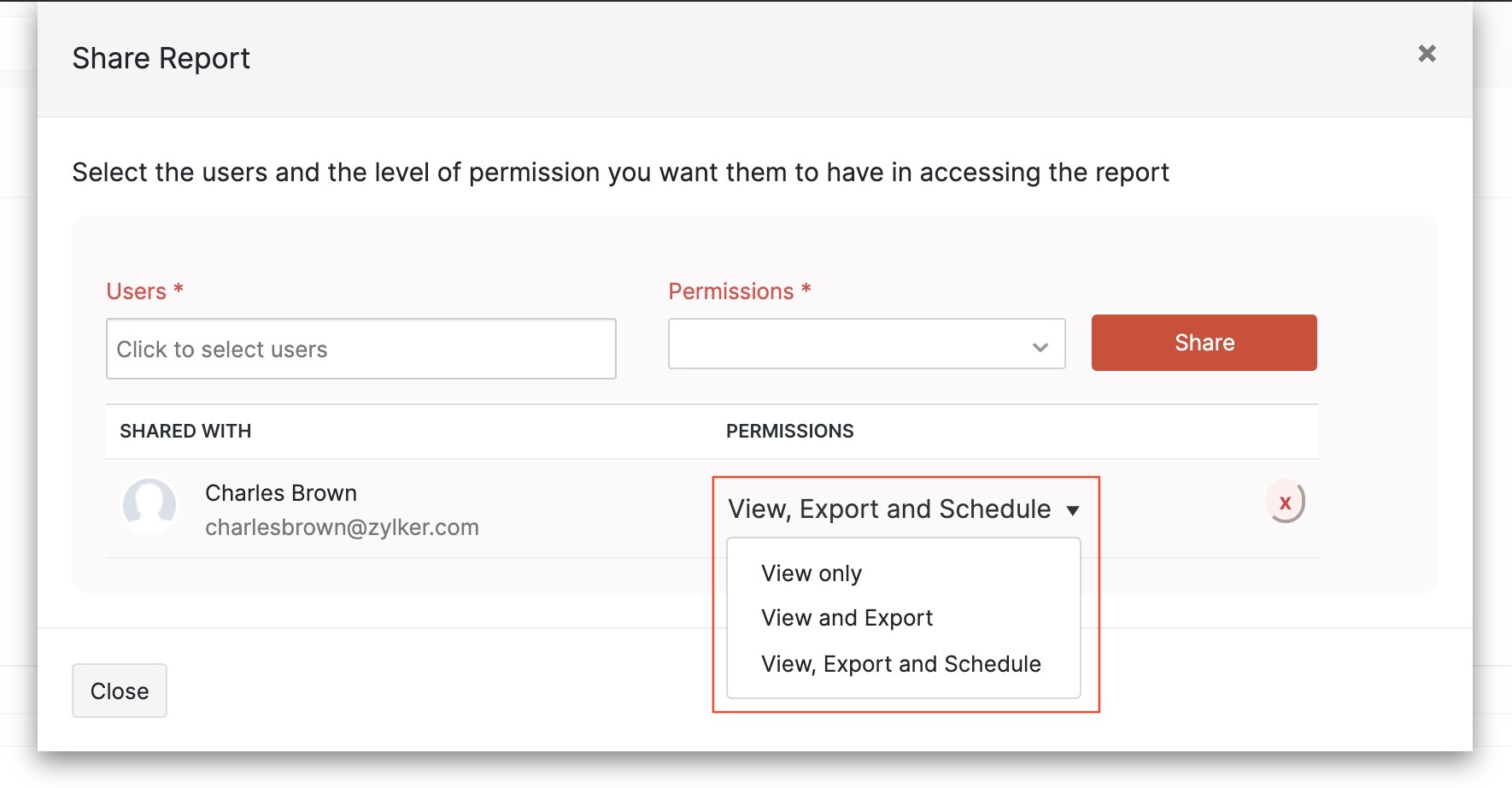
- Click the Share icon at the top right corner. The users who have access to the report will be listed in the popup.
- Click the dropdown in the Permissions column and change the level of access the user has to the report. The permissions will be updated immediately.
Remove User’s Access to a Report
You can remove a user’s access to the report if they no longer need to have access to the report. To remove access:
- Go to Reports in the left sidebar.
- Select the report for which you want to remove a user’s access.
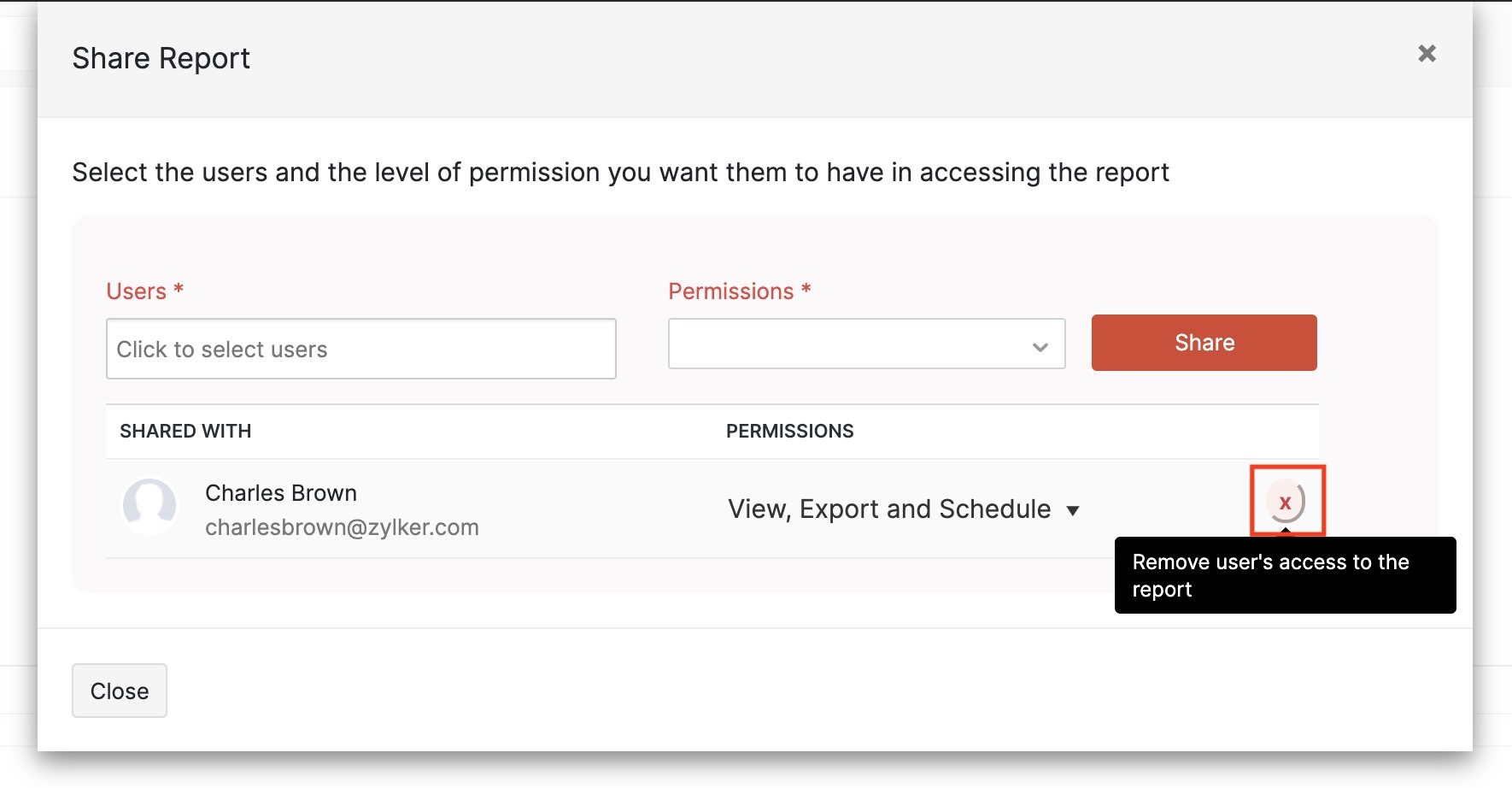
- Click the Share icon at the top right corner. The users who have access to the report will be listed in the popup.
- Click the Remove icon next to the user’s name and level of permissions. The user’s access to the report will be removed immediately.
 Yes
Yes