

Integrate Zoho Billing with Zoho CRM

When you integrate Zoho Billing with Zoho CRM, you can view and manage customer and accounting information in one place. This integration improves collaboration between sales and finance teams in your business, allowing them to track deals, create quotes, and invoices without switching between applications.
Benefits of the Integration
- Capture all customer information in one place, so you can work on the same information at hand in both the apps.
- View customer’s key accounting metrics like sales information and outstanding receivables directly from Zoho CRM.
- Sync transactions between both apps.
- Automate workflows, like creating an invoice when a deal is won.
Set up the Integration
- You must be the Super Admin of your Zoho CRM organisation to set up the integration. Other admins in Zoho CRM cannot set up the integration between Zoho Billing and Zoho CRM.
- If multi-currency is enabled in Zoho CRM, ensure that the base currency in Zoho CRM matches the one set in Zoho Billing.
- Your organization name, email address, and your country.
- All your users’ details.
To set up the CRM integration from Zoho Billing:
Go to Settings.
Select Zoho Apps under Integrations & Marketplace.
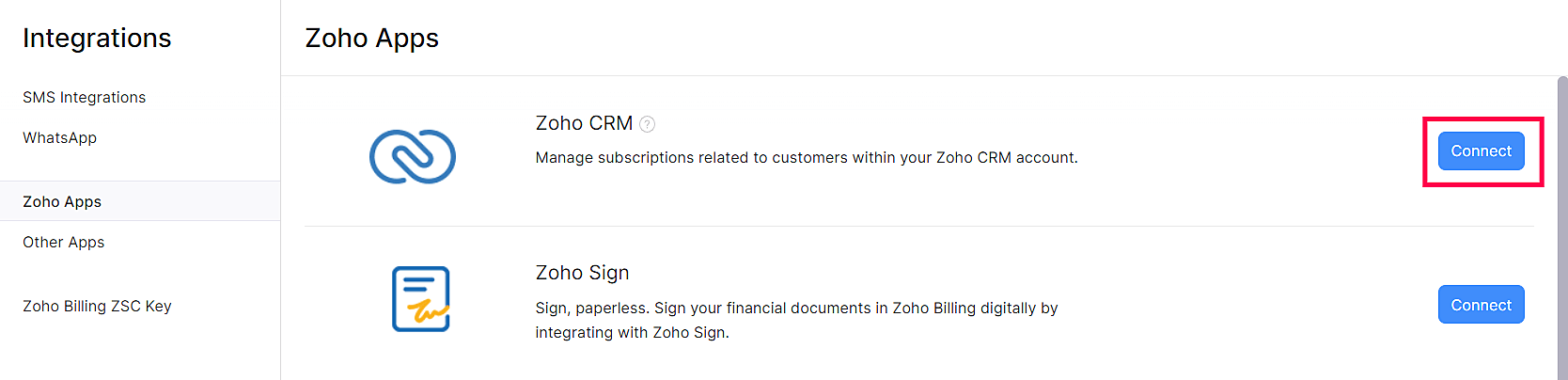
In the Zoho Apps page, click Connect next to Zoho CRM.
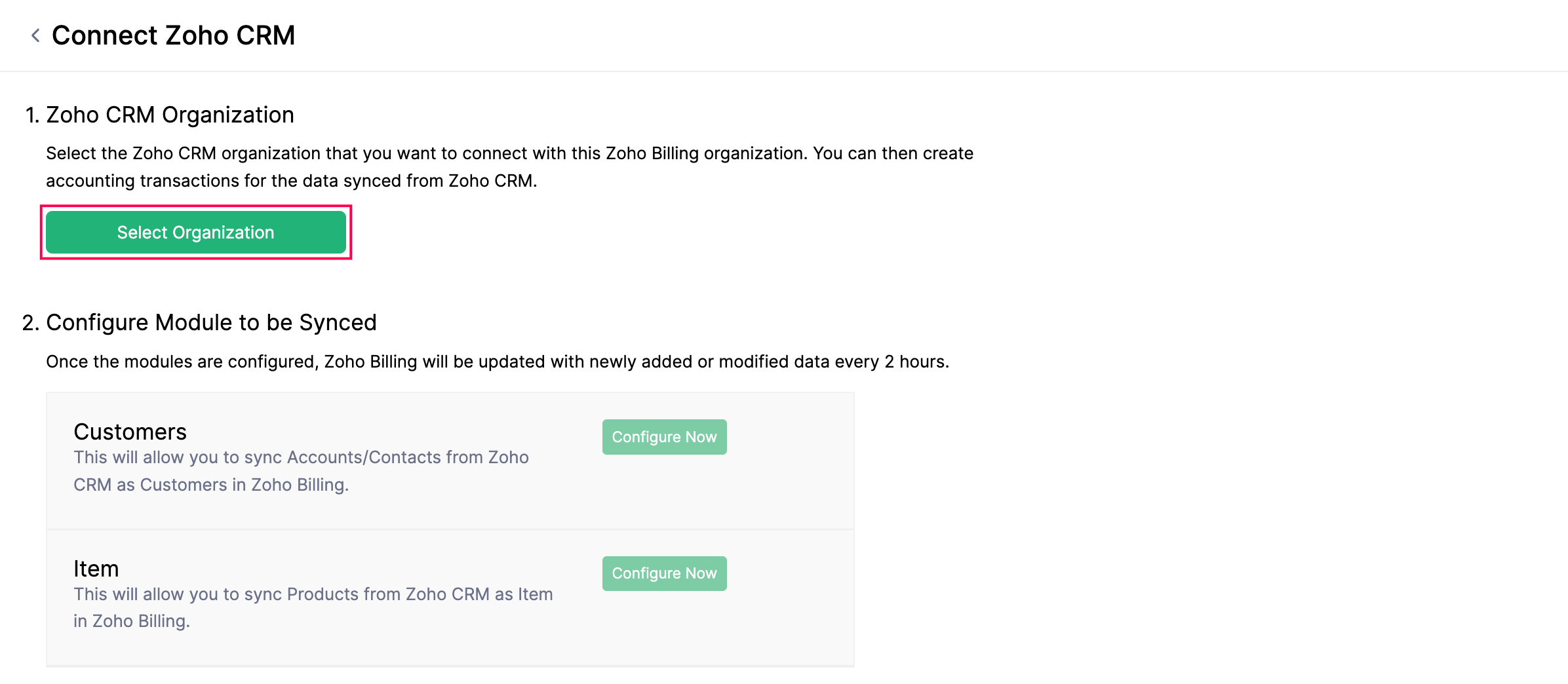
In the Connect to Zoho CRM page, click Select Organization in the Zoho CRM Organization section.
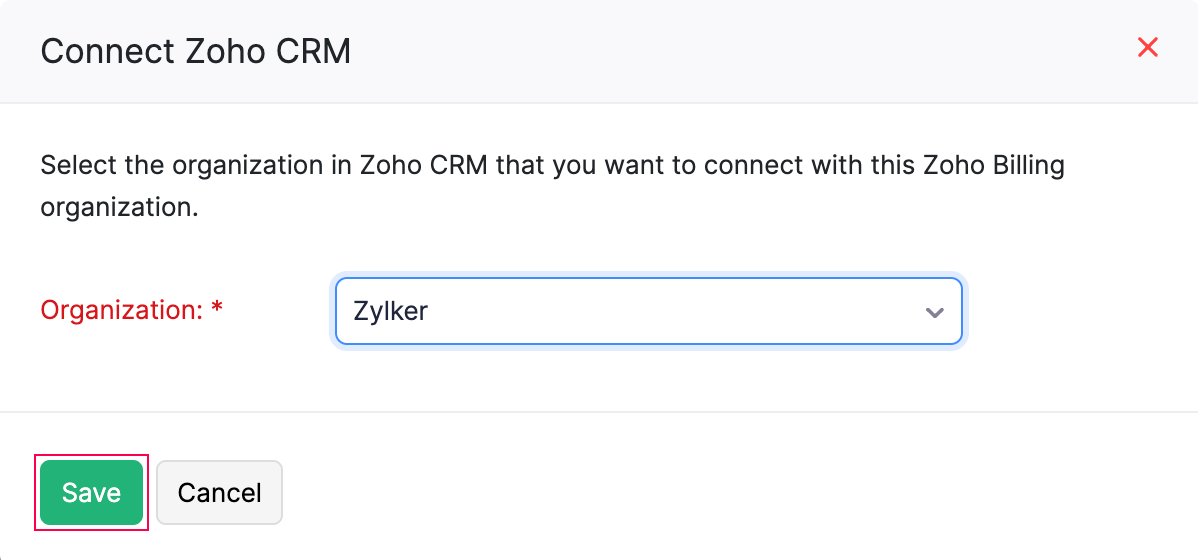
In the Connect Zoho CRM pop-up, select the required Organization, and click Save.
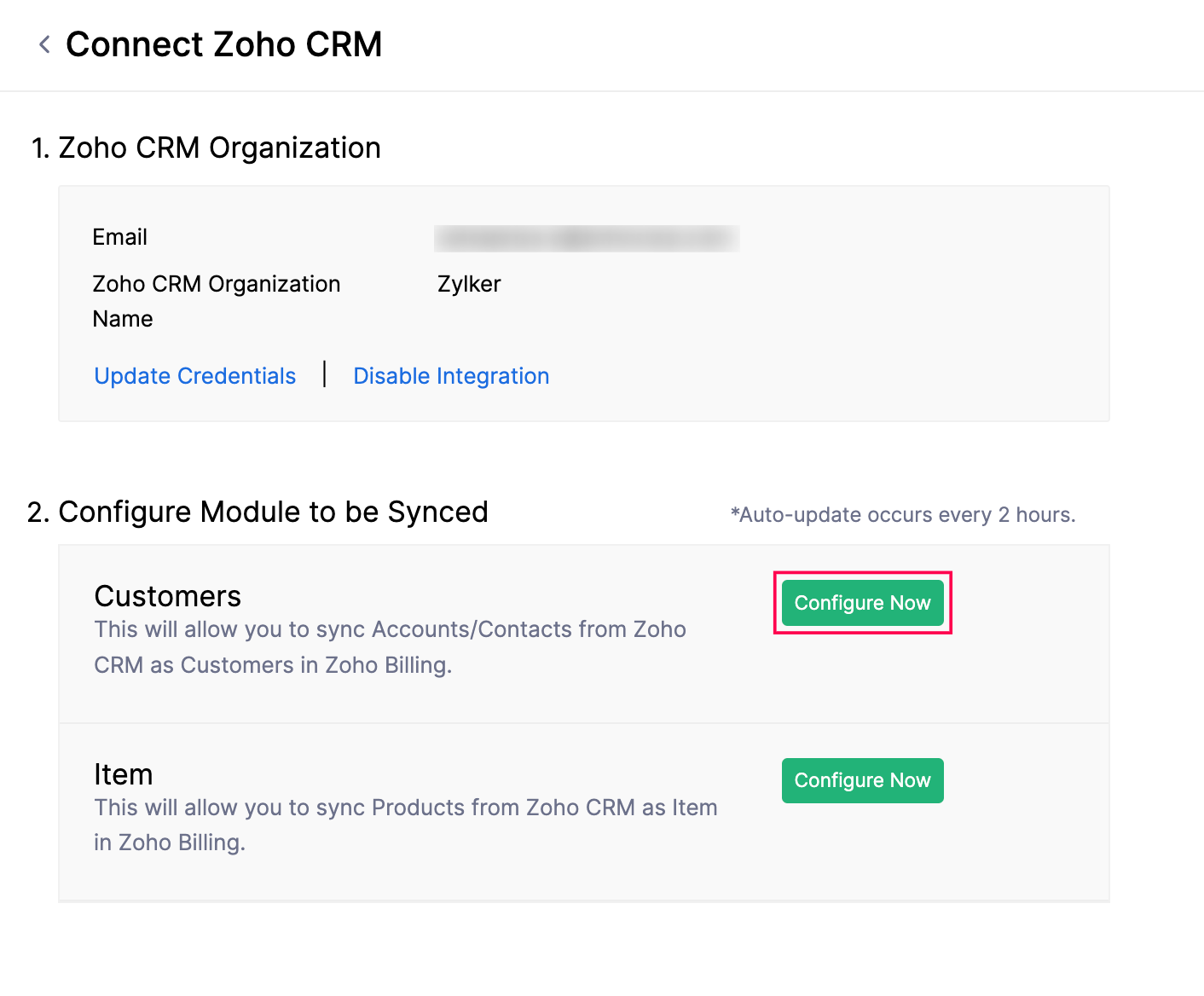
A two-way sync will be set up, which means that data will be fetched from Zoho CRM into Zoho Billing and vice-versa.
Configure the Modules to be Synced
Once you set up the integration, you can configure the modules to sync between Zoho Billing and Zoho CRM. To do this:
- Go to Settings.
- Select Zoho Apps under Integrations & Marketplace.
- In the Zoho Apps page, click Show Details next to Zoho CRM.
- In the Configure Module to be Synced section, click Configure Now next to the required module you want to sync from Zoho CRM into Zoho Billing.
You can sync data for the following modules from Zoho CRM into Zoho Billing:
Sync Customers
To sync customer data from Zoho CRM into Zoho Billing:
Go to Settings.
Select Zoho Apps under Integrations & Marketplace.
In the Zoho Apps page, click Show Details next to Zoho CRM.
In the Configure Module to be Synced section, click Configure Now next to Customers.
In the next page, configure the following preferences:
- Select Module in Zoho CRM: Select the module you want to sync between Zoho CRM and Zoho Billing.
- Accounts: The Accounts in Zoho CRM will be fetched as Customers in Zoho Billing with the Customer Type set as Business.
- Contacts: The Contacts in Zoho CRM will be fetched as Customers in Zoho Billing with the Customer Type set as Individual.
- Accounts & their Contacts: The Accounts and associated Contacts in Zoho CRM will be fetched as Customers and Contact Persons in Zoho Billing. Check Include contacts that are not associated to any accounts in Zoho CRM to sync contacts that are not associated with an account in Zoho CRM. These contacts will be fetched as Customers in Zoho Billing with the Customer Type set as Individual.
- If you change the module after the initial sync, check Delete the Customers fetched using prior settings to remove the customers that were fetched using the earlier setting. This will not apply to customers for whom transactions have already been created in Zoho Billing.
- Select the extent of sync: Choose how you want to sync records between both the apps.
- Fetch from CRM: The records in Zoho CRM will only be fetched into Zoho Billing. No Zoho Billing records will be fetched into Zoho CRM. However, any records already pushed to Zoho CRM will remain unaffected.
- Sync both ways: The records will be synced from Zoho CRM to Zoho Billing and vice-versa, in which Zoho CRM records will be fetched first.
- Select Module in Zoho CRM: Select the module you want to sync between Zoho CRM and Zoho Billing.
Insight: If you choose two-way sync, a Customer with Customer Type set as Business in Zoho Billing will sync with the Accounts module in Zoho CRM, and a Customer with Customer Type set as Individual in Zoho Billing will sync with the Contacts module in Zoho CRM.
- Choose how to handle duplicate customers: When you sync records between Zoho CRM and Zoho Billing, there might be a record in Zoho CRM that is already present in Zoho Billing. To resolve this, duplicate records are identified by comparing Account Name in Zoho CRM and Customer Display Name in Zoho Billing. Choose how you want to handle duplicate records during the sync:
- Clone: The duplicate record will be cloned, and will be available along with the existing record.
- Overwrite: The duplicate record will replace the existing record in Zoho Billing.
- Skip: The duplicate record will not be synced, and the existing record will remain unchanged.
- Select the view to be synced: To sync specific records from Zoho CRM, you can create a view in Zoho CRM and sync only that view into Zoho Billing. The views you can select depend on the module you chose:
- Accounts: Select an Accounts view. Only the accounts in this view will be fetched as customers in Zoho Billing.
- Contacts: Select a Contacts view. Only the contacts in this view will be fetched as customers in Zoho Billing.
- Accounts & their Contacts: Select an Accounts view. All the contacts associated with the accounts in this view will be fetched by default. If you want to sync only specific contacts, click click here to select a view and select a Contacts view.
- Map Fields: Match the fields in Zoho Billing with the corresponding fields in Zoho CRM. Some fields are mapped automatically, while you must map the remaining fields manually. The fields available for mapping depend on the module you selected:
- Customers: Map the Customers fields in Zoho Billing with the Accounts or Contacts fields in Zoho CRM. The Display Name field in Zoho Billing will be shown in all transactions, such as invoices and quotes. If you sync Accounts or Accounts & their Contacts, the Display Name field is always mapped with the Account Name field in Zoho CRM. If you sync Contacts, the Display Name field is mapped with the contact’s Salutation, First Name, and Last Name in Zoho CRM by default. You can change this to Account Name, if required. The contact’s Last Name and Email fields are mapped by default and cannot be changed.
- Contact Persons: If you selected Accounts & their Contacts, a second table will be displayed where you can map the Contact Persons fields in Zoho Billing with the Contacts fields in Zoho CRM. The Last Name and Email fields are mapped by default. To mark a contact as the primary contact person of the customer in Zoho Billing, map the Is Primary Contact field with a checkbox field in Zoho CRM.
- Custom Fields: The custom fields you’ve created for customers in Zoho Billing will be listed along with the default fields, and you can map them with the standard or custom fields of the Accounts and Contacts modules in Zoho CRM. If certain fields from Zoho CRM can’t be mapped to the default Zoho Billing fields, create custom fields in Zoho Billing. These fields will appear during the mapping process.
- Click Save and Sync to start the sync process, or click Save and Sync Later if you want to save the preferences now and sync the records later.
The customers will be synced in a while, based on chosen preferences. To check the status of the sync, click Check Status under the Customers section.
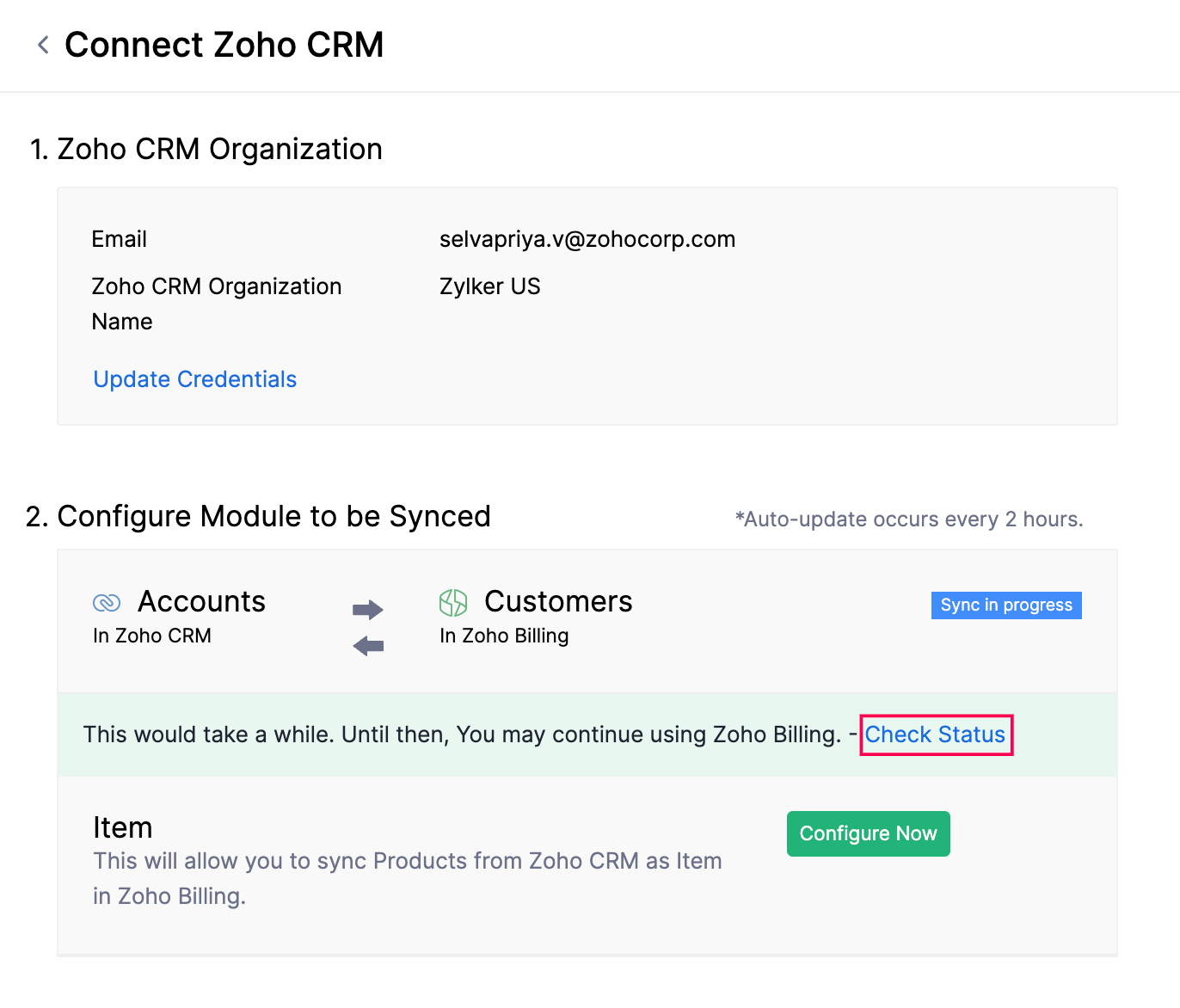
Sync Items
You can sync the Items in Zoho Billing with the Products in Zoho CRM, similar to customers. To sync items:
- Go to Settings.
- Select Zoho Apps under Integrations & Marketplace.
- In the Zoho Apps page, click Show Details next to Zoho CRM.
- In the Configure Module to be Synced section, click Configure Now next to Items.
- In the next page, configure the following preferences:
- Select the extent of sync: Choose how information flows between the two apps.
- Fetch from CRM: The products in Zoho CRM will only be fetched as Items into Zoho Billing. No Zoho Billing records will be fetched into Zoho CRM. However, any records already pushed to Zoho CRM will remain unaffected.
- Sync both ways: The Items from Zoho Billing will be synced as Products into Zoho CRM, and vice-versa, in which records from Zoho Billing will be fetched first.
- Choose how to handle duplicate items: When you sync data between Zoho CRM and Zoho Billing, there might be a record in Zoho CRM that is already present in Zoho Billing. To resolve this, select the field based on which duplicate items will be identified, such as Name. Then, choose how you want to handle the duplicate records during the sync:
- Clone: The duplicate record will be cloned, and will be available along with the existing record.
- Overwrite: The duplicate record will replace the existing record in Zoho Billing.
- Skip: The duplicate record will not be synced, and the existing record will remain unchanged.
- Select the extent of sync: Choose how information flows between the two apps.
Insight: If you selected Sync both ways in the previous step, Zoho Billing items will be pushed to Zoho CRM first, which may result in duplicate records in Zoho CRM. For one-way sync, duplicate records will appear in Zoho Billing.
- Select the view to be synced: To sync specific records from Zoho CRM into Zoho Billing, you can create a view in Zoho CRM, add products, and sync the view. During the sync, click the click here to select a view option and select the required view in the Select a view dropdown.
- Map Fields: Match the fields in Zoho Billing with the corresponding fields in Zoho CRM. You can also create custom fields in Zoho Billing to match the fields in Zoho CRM, if required.
Insight: If you want to classify the products in Zoho CRM as goods or services, create a custom field with Goods and Services. Then, map this custom field for the Product Type field in Zoho Billing.
- Click Save and Sync to start the sync process, or click Save and Sync Later if you want to save the preferences now and sync the records later.
The items will be synced in a while, based on chosen preferences. To check the status of the sync, click Check Status under the Items section.
Sync Options
Once you’ve configured the integration, any new account, contact, or product you add in Zoho CRM will sync into Zoho Billing every two hours after the initial sync. If you choose to sync transaction modules, they will sync instantly. To do this:
- Go to Settings.
- Select Zoho Apps under Integrations & Marketplace.
- In the Zoho Apps page, click Show Details next to Zoho CRM.
- In the Configure Module to be Synced section, select the preferred sync option. They include:
- Instant Sync: If you’ve added new records and want to update them immediately in the other app, click Instant Sync.
Insight: To update changes for a specific customer synced from Zoho CRM instead of a full sync, select the required customer in Zoho Billing, click the More dropdown in the Details page, and select Re-sync Contact from Zoho CRM.
- Show Sync History: You can view a detailed sync history, including the number of records added, updated, or deleted, along with the date and time of sync in Zoho Billing. It also displays if a sync has failed, along with the failure reason.
- Pause/Resume Sync: If you want to temporarily stop syncing records between Zoho Billing and Zoho CRM, click Pause Sync. To start syncing records between the apps again, click Resume Sync.
- Edit: You can modify the sync preferences, if required. The updated preferences will apply to the next automatic or manual sync.
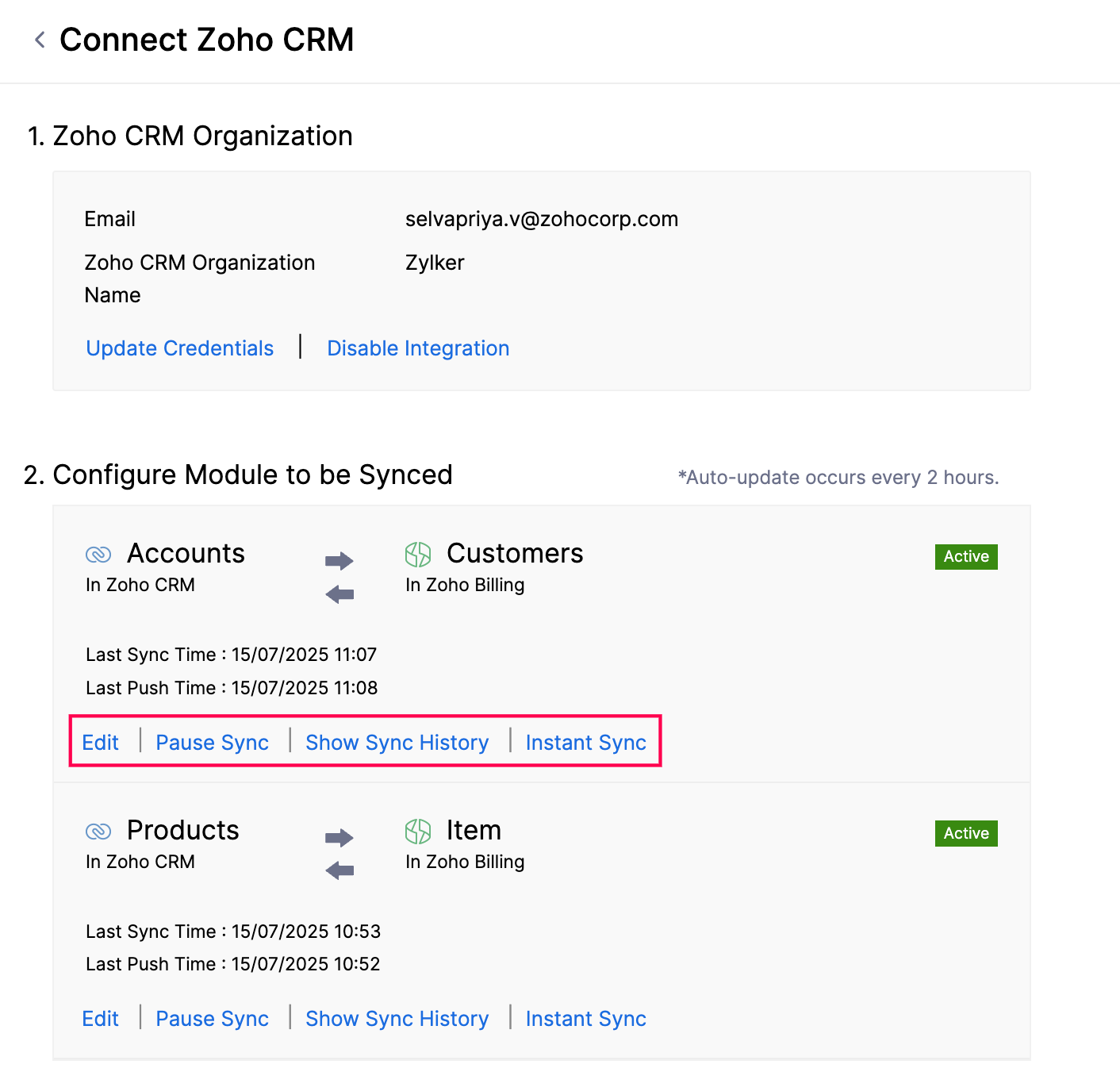
The Configure Module to be Synced section also displays the status of each module along with the Last Sync and Last Push Time.
Note: If you’ve created a record in Zoho Billing, synced it to Zoho CRM, and then deleted the record in Zoho CRM, the respective record will not be deleted in Zoho Billing. Refer this FAQ.
Working With the Integration in Zoho Billing
Once you set up the integration, you can perform the following actions in Zoho Billing:
Access Zoho CRM Customers
Depending on how you choose to sync records, the accounts and contacts from Zoho CRM will be available as Customers in Zoho Billing.
Filter by CRM Customers
You can view all the accounts and contacts synced from Zoho CRM into Zoho Billing as Customers. Here’s how:
- Go to Sales on the left sidebar and select Customers.
- Click the All Customers filter at the top of the page and select CRM from the dropdown.
The respective CRM accounts and contacts will be displayed.
Search CRM Customers
The customers fetched from Zoho CRM will be available in Zoho Billing, and you can create transactions for them. However, you can also create transactions for customers not yet imported. Here’s how:
Select a transaction you want to create (for example, Invoices).
Click + New in the top right corner of the page.
In the New Invoice page, click the Advanced Customer Search icon in the Customer Name field.
In the Advanced Customer Search pop-up, the list of customers from Zoho Billing and Zoho CRM will be displayed. Select Zoho CRM at the top of the pop-up.
Enter the Account Name and click Search.
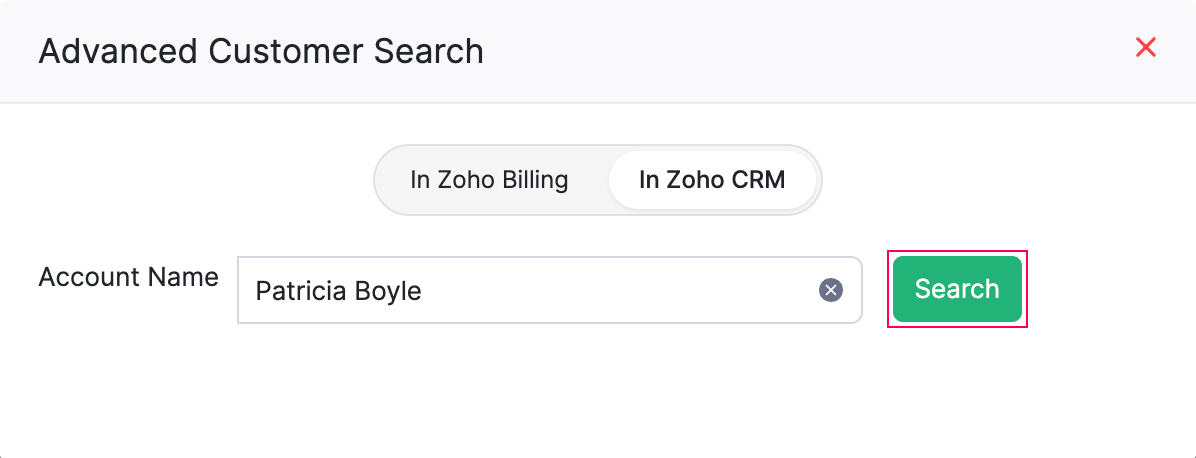
A list of contacts and accounts associated with the entered account name will be displayed. Select the required contact or account from the list.
Once done, the selected account or contact will be fetched as a customer in Zoho Billing. Now, you can create sales transactions for them.
When you select a customer synced from Zoho CRM while creating a transaction, click CRM Info next to the customer’s details to view their information from Zoho CRM.
Associate Potentials With Transactions
- Ensure that the Zoho Billing modules are enabled in your Zoho CRM organisation. To associate potentials with subscriptions, the Invoices module must be enabled in Zoho CRM.
- Verify that the potential is associated with the correct account or contact in Zoho CRM.
Once you integrate Zoho Billing with Zoho CRM, you can associate the potentials in Zoho CRM with the transactions you create in Zoho Billing for the customers synced from Zoho CRM. This helps your sales team track the transactions created for each potential directly from Zoho CRM.
Insight: Potentials cannot be associated with quotes in Zoho Billing.
To associate a potential with a subscription:
- Go to Sales on the left sidebar and select Subscriptions.
- Click + New in the top right corner of the page.
- To associate a potential with an existing subscription, select the required subscription, and click Edit at the top of the subscription’s Details page.
- Select a customer that has been synced from Zoho CRM in the Customer Name field.
- Click the Associate Potential field.
- In the Potentials pop-up, select the potential you want to associate with the subscription.
- Fill in the other details and click Save.
The potential will be associated with the subscription. To view this transaction in Zoho CRM, open the potential and scroll down to the Zoho Billing section.
Dissociate a Potential
To remove a potential from a transaction:
- Go to the required transaction, and click Edit at the top of the transaction’s Details page.
- Remove the potential from the Associate Potential field.
- Click Save.
Working with the Integration in Zoho CRM
When you integrate Zoho Billing with Zoho CRM, you can sync records between both apps and easily manage them from Zoho CRM. You can view and create quotes, invoices, and subscriptions for your Zoho Billing customers directly from the Zoho Finance module in Zoho CRM. Let’s take a look at the actions you can perform in Zoho CRM.
Set up User Profiles in Zoho CRM
All Zoho CRM users are assigned a specific profile, such as Marketing, Sales, Support, etc., which controls what actions they can perform on records in Zoho CRM. An admin can create or modify profiles to grant or remove permissions and assign them to users.
Insight: Once a profile is permitted or denied a permission, it applies to all users associated with the profile. Learn more about profiles in Zoho CRM.
You can also set permissions for actions like creating and sending sales transactions in Zoho Billing. This allows admins to assign permissions based on user’s roles and responsibilities.
For example, if you want a salesperson to create quotes and not send them to their prospects (or customers), you can remove the Send Email permission from the role assigned to the salesperson.
To configure these permissions:
- Log into your Zoho CRM organisation.
- Go to Setup, and select Profiles under Security Control.
- Click on the profile you want to allow or deny permissions.
- Scroll down to the Zoho Finance Permissions section.
Here, you can enable or disable access to transaction modules, such as Quotes, Invoices, and Subscriptions, for the respective profile. You can also configure individual permissions like View, Create & Edit, and Send Email for each transaction.
For example, if a profile doesn’t have the Send Email permission for Quotes, users associated with that profile won’t be able to send quotes to customers in Zoho Billing.
Similarly, you can also restrict a profile from viewing the financial summary of Zoho CRM accounts and contacts (records synced from Zoho Billing into Zoho CRM). Here’s how:
- Log in to your Zoho CRM organisation.
- Go to Setup, and select Profiles under Security Control.
- Click on the profile you want to allow or deny permissions.
- Scroll down to the Zoho Finance Permissions section, and slide the toggle near Receivables and Payables Summary.
The users associated with the profile won’t be able to view the summary. Only the users associated with a profile that has this option enabled can view the financial summary of each account or contact in their respective Details page.
Create Transactions in Zoho CRM
Warning: Zoho CRM has its own modules for Quotes and Invoices. Transactions created in those modules will not sync with transactions created in the Zoho Finance module. So, two separate sets of transactions will be created for your accounts and contacts in Zoho CRM.
Once integrated, you can create transactions, such as quotes, invoices, and subscriptions, for customers in Zoho Billing directly from Zoho CRM. Once created, they’ll sync instantly with Zoho Billing.
You can create a transaction in Zoho CRM in two ways:
From the Dedicated Module of That Transaction
To create a transaction:
- Log into the Zoho CRM organisation that is integrated with Zoho Billing.
- Go to the Zoho Finance module, and choose the transaction you want to create from the dropdown (for example, Invoices).
- Click Create Invoice in the top right corner.
- In the Create Invoice page, fill in the required details.
- Click Save and Send to send it to your customer, or click Save and send it later.
The invoice will be created.
From the Accounts or Contacts Module
To create a transaction:
- Click the module for which you want to create a transaction (for example, Accounts).
- Select the required account.
- In the Overview tab, scroll down to the respective transaction you want to create (for example, Invoices), and click New.
- In the Create Invoice page, fill in the required details.
- Click Save and Send to send it to your customer, or click Save and send it later.
The invoice will be created.
Create Quotes
The Create Quote page in Zoho CRM is similar to the one in Zoho Billing. The quote form is fetched from Zoho Billing, and fields like Quote Number and Customer Notes are automatically generated based on your Zoho Billing settings. Fill in the required details and save the quote.
Once done, click the Convert dropdown in the top right corner of the quote’s Details page, and select if you want to convert it to an Invoice. Similar to Zoho Billing, you can also perform actions like send email, print, mark as sent, and more. Once the quote is accepted, you can mark it as Accepted. If not, mark it as Declined.
Create Invoices
The Create Invoice page in Zoho CRM is similar to the one in Zoho Billing. The invoice form is fetched from Zoho Billing, and fields like Invoice Number and Customer Notes are automatically generated based on your Zoho Billing settings. Fill in the required details and save the invoice.
Similar to Zoho Billing, you can also perform actions like send email, print, mark as sent, and more.
Manage Subscriptions in Zoho CRM
Once you integrate Zoho Billing with Zoho CRM, the subscriptions of your customers in Zoho Billing are available in Zoho CRM. Your sales team can view the existing subscriptions of an account or contact and create new subscriptions for them without switching to Zoho Billing.
Prerequisite: The profile of the Zoho CRM user must have the View and Create & Edit permissions for Subscriptions in the Zoho Finance Permissions section. Learn how to set up user profiles in Zoho CRM.
View Subscriptions
To view the subscriptions of a customer in Zoho CRM:
- Log in to the Zoho CRM organisation that is integrated with Zoho Billing.
- Go to the module for which you want to view the subscriptions (for example, Accounts).
- Select the required account.
- In the Overview tab, scroll down to the Zoho Billing section.
The subscriptions created for the account in Zoho Billing will be listed along with their details, such as the plan and status. Click a subscription to view its complete details. You can also view all the subscriptions in your organisation by going to the Zoho Billing module and selecting Subscriptions from the dropdown.
Create Subscriptions
The Create Zoho Billing page in Zoho CRM is similar to the one in Zoho Billing. The subscription form is fetched from Zoho Billing, and the plans and addons configured in your Zoho Billing organisation are available for selection.
To create a subscription:
- Log in to the Zoho CRM organisation that is integrated with Zoho Billing.
- Go to the module for which you want to create a subscription (for example, Accounts).
- Select the required account.
- In the Overview tab, scroll down to the Subscriptions section, and click New.
- In the Create Zoho Billing page, select the required plan and fill in the other details.
- Click Save.
The subscription will be created in Zoho Billing and synced with Zoho CRM instantly. You can manage the subscription’s lifecycle, such as upgrading, downgrading, or cancelling it, from Zoho Billing.
Insight: You can create only offline subscriptions from Zoho CRM. Online subscriptions, where payments are collected through the customer’s card, cannot be created from Zoho CRM. To create an online subscription, create it from Zoho Billing.
Generate Reports
You can create customised reports in Zoho CRM for the transactions recorded in Zoho Billing. Here’s how:
- Go to Reports.
- In the next page, click Create Report in the top right corner.
- In the Create New Report pop-up, select the required module in the Zoho Finance section of the dropdown, and click Continue.
You can create custom reports or edit the predefined reports to include data from both Zoho Billing (including custom fields) and Zoho CRM. Learn how to create a report in Zoho CRM.
Collaboration Between Sales and Finance teams
When you integrate Zoho Billing with Zoho CRM, it allows your sales and finance teams to share data between the apps at the transaction level. The sales team can view comments related to a specific invoice or quote in Zoho CRM. Similarly, the finance team can see notes, events, and calls related to that transaction in Zoho Billing.
View Comments in Zoho Billing
Let’s consider an example where a sales transaction is created in Zoho CRM, and notes are added to it. Your finance team can view these details in Zoho Billing. Here’s how:
- Log into the Zoho Billing organisation integrated with Zoho CRM.
- Navigate to the transaction where you want to view comments.
- Click the Zoho CRM icon in the top right corner of the transaction’s Details page.
- In the CRM Details pane, click Notes.
You can view the comments added for the respective transaction.
View Comments in Zoho CRM
Let’s consider an example where the finance team has commented on a transaction to communicate with the sales team. To view the comments:
- Log in to the Zoho CRM organisation integrated with Zoho Billing.
- Go to Zoho Finance at the top of the page.
- Navigate to the transaction where you want to view comments.
- In the transaction’s Details page, navigate to the Timeline tab.
You can view the comments added to the transaction in the History section.
Disable Integration
If you do not want to sync records between Zoho Billing and Zoho CRM, you can disable it temporarily.
Warning: If you’ve enabled syncing of transaction modules, disabling the integration will delete any custom reports, comments, and attachments associated with transactions in the Zoho Finance module of Zoho CRM. However, your existing transactions in Zoho Billing will remain unaffected.
To disable the integration:
Go to Settings.
Select Zoho Apps under Integrations & Marketplace.
In the Zoho Apps page, click Show Details next to Zoho CRM.
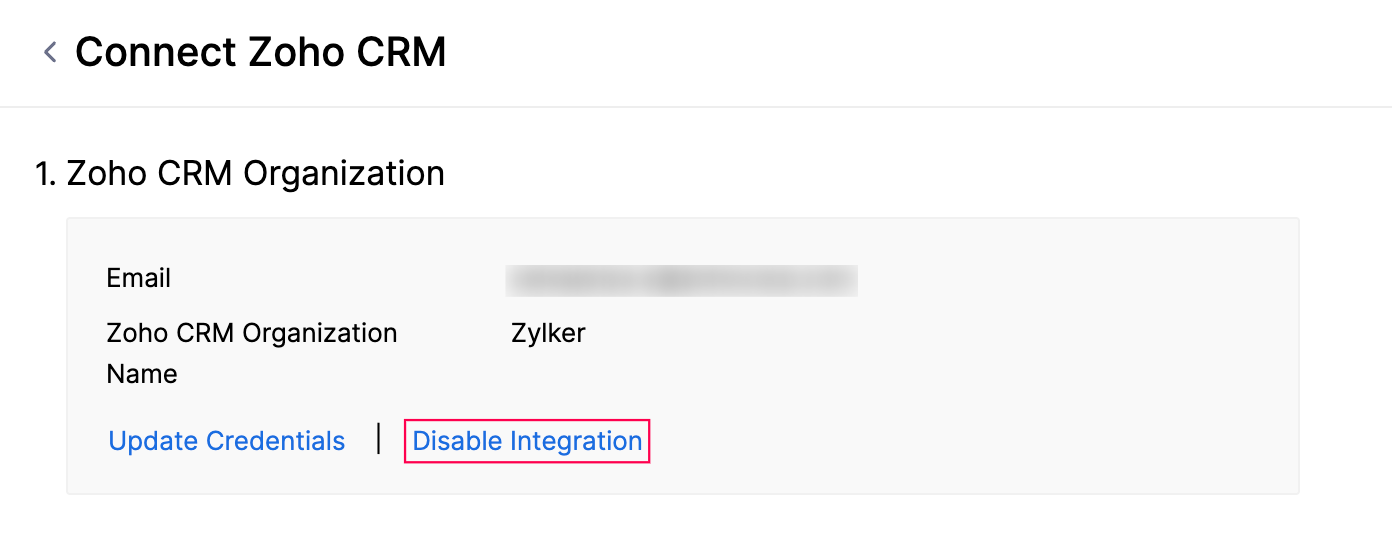
Click Disable Integration in the Zoho CRM Organization section.
In the pop-up that appears, click Confirm.
The integration between Zoho CRM and Zoho Billing will be temporarily disabled. To re-enable the integration:
- Go to Settings.
- Select Zoho Apps under Integrations & Marketplace.
- In the Zoho Apps page, click Show Details next to Zoho CRM.
- Click Enable Integration in the Zoho CRM Organization section.
- In the pop-up that appears, click Confirm.
- In the Connect Zoho CRM pop-up, check the Organization you want to sync, and click Save.
The integration will be enabled again, and data will be synced from Zoho CRM into Zoho Billing.
Delete Integration
If you’ve disabled the integration between Zoho Billing and Zoho CRM and no longer want to sync records, you can delete the integration. Once deleted, the mapping between the records will be permanently removed. This action cannot be undone. If you’ve integrated your Zoho Billing organization with other Zoho Finance apps, the integration will be removed from those apps as well.
Prerequisite: You can delete the integration only if it is disabled.
To delete the integration:
Go to Settings.
Select Zoho Apps under Integrations and Marketplace.
Click Show Details next to Zoho CRM.
Click Delete Integration in the Zoho CRM Organization section.
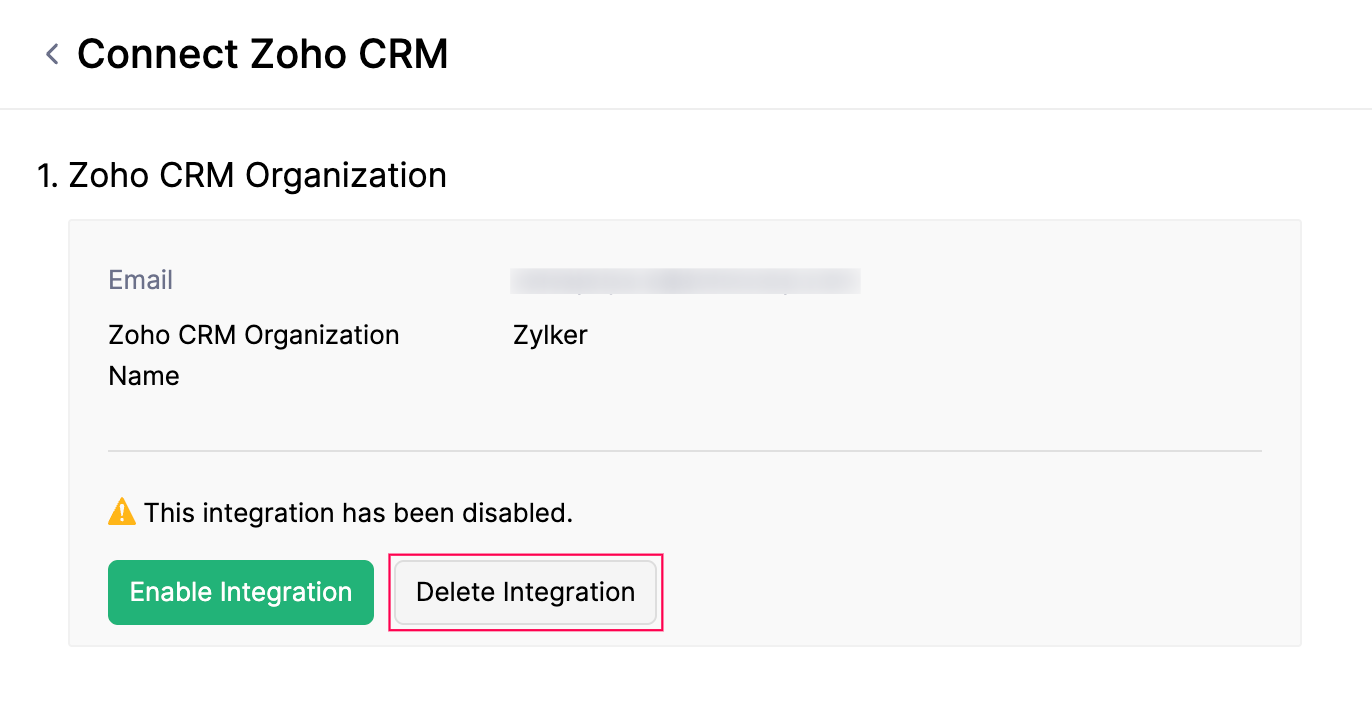
In the pop-up, select if you want to convert all synced Zoho CRM records to Zoho Billing records, or convert only the records with transactions and delete the remaining records.
Click Delete to confirm.
The integration will be deleted. You’ll also receive an in-app notification when the deletion is complete.
 Yes
Yes