## Documentation Index
Access the complete documentation index at:
https://www.zoho.com/books/developer/llms.txt
Use this file to discover all available documentation pages before proceeding.
# Salesperson Extension Using React
In this help document, we’ll explain the steps to install and configure React and build the settings widget required for the Salesperson extension using React. You’ll have to add the code for the UI components required for the extension in the settings widget.
You can follow the steps in this help document or refer to our git project on the [Salesperson extension using React](https://github.com/zoho/zohofinance-SalespersonWidget-React/tree/main).
**Prerequisite:** You need to download and install Node.js and Node Package Manager (npm) in your device. You can install Node.js from the [Node.js website](https://nodejs.org/).
### Folders for React and Settings Widget
You have to create separate folders for [React](/books/developer/extensions/salesperson-extension-using-react.html#react) and the [settings widget](/books/developer/extensions/salesperson-extension-using-react.html#settings-widget).
#### React
To create a folder for React:
1. Install React globally in your device. Enter the following command in your terminal or command prompt.
```js
npx create-react-app salesperson-react-app
```
This command will automatically create the folder. In this case, salesperson-react-app. You can enter a folder name of your choice.
#### Settings Widget
To create the settings widget:
1\. Install the [Zoho Extension Toolkit (ZET)](/books/developer/widgets/framework-and-hosting.html) globally by entering the following command in your terminal or command prompt.
```js
npx install -g zoho-extension-toolkit
```
2\. Enter the command:
```js
zet init
```
3\. Select **Zoho Books** from the list of options.
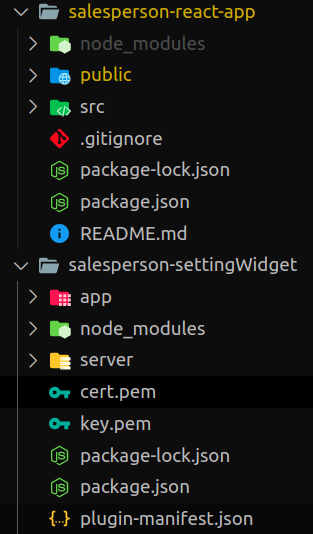
After creating the React project and the settings widget, your project’s structure should look similar to the project structure shown in the image below.
### Configure React
Now that you’ve installed React, created a React project, and the settings widget, you have to configure React so that the SDK methods for the widget can function properly. Here’s how:
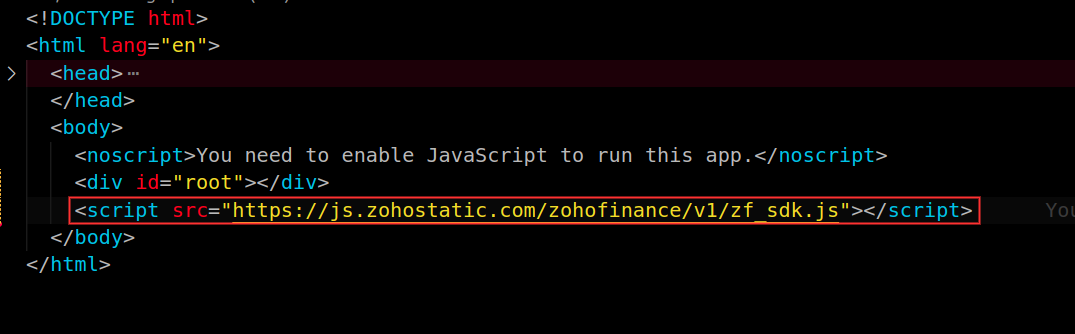
1\. Go to your React project _folder > public > index.html_. Paste the following code in the body tag of the index.html file. You can find this code by navigating to your _widget folder > app > widget’s html file_.
```js
```
Refer to the image below to know where to paste the code.
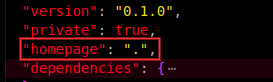
2\. Go to your React _project folder > src > package.json_. Add the line **homepage: “.”** to the file. The **homepage** field is a configuration that helps React applications work correctly when deployed to sub-directories or specific hosting environments.
Refer to the image below to know where to paste the code.
### Build UI
To build the UI required for the Salesperson extension, you have to install Bootstrap, react-router-dom, and react-select on your device. To do this, enter the following commands in your terminal or command prompt.
**Bootstrap**
```js
npm i bootstrap
```
**react-router-dom**
```js
npm i react-router-dom
```
**react-select**
```js
npm i react-select
```
Create the following folders and files in the **src** folder as shown in the image below.
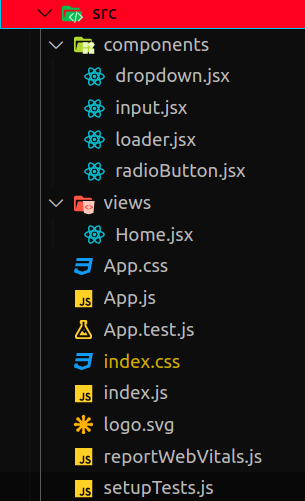
In the subsequent sections, we’ll explain the need for each file or folder and what code you have to paste into each file.
#### index.js
In the index.js file, you invoke a call to ReactDOM.render() and initialize ZFAPPS. Invoking ReactDOM.render() inside the index.js file initializes the rendering of your React components and brings your application’s user interface to life by injecting it into the HTML document.
**Insight:** ZFAPPS is the name of the [Zoho Extension Toolkit (ZET)](/books/developer/widgets/framework-and-hosting.html) framework used by the Zoho Finance apps.
Paste the following code in the index.js file:
```js
import React from 'react';
import ReactDOM from 'react-dom/client';
import './index.css';
import App from './App';
import reportWebVitals from './reportWebVitals';
import 'bootstrap/dist/css/bootstrap.css';
window.onload = function() {
const root = ReactDOM.createRoot(document.getElementById('root'));
window.ZFAPPS.extension.init().then((Zapp) => {
window.Zapp = Zapp;
window.ZFAPPS.invoke('RESIZE', { height: '550px', width: '600px' }).then(() => {
root.render()// This will not loaded more than ones .
});
});
}
reportWebVitals();
```
#### App.js
In the App.js file, you initialize the connection name, org-variable placeholder name, and the initial setup for salesperson widget like the account through which the salesperson gets, the expense account details, etc.
Also, the App.js file is used to route the view of **Home.jsx**. The App.js file:
1\. Handle the routing of the application.
2\. Specify which content or component should be displayed based on the current route or user interaction.
When a certain route is matched, the App.js file is responsible for rendering the content of the Home.jsx file.
Paste the following code in the app.js file:
```js
import React, { PureComponent } from 'react';
import { HashRouter as Router, Routes, Route } from 'react-router-dom';
import Home from './views/Home';
import { Loader } from './components/loader';
class App extends PureComponent {
state = {
connection_link_name: 'salesperson_commission_books',
isLoading: false,
orgVariablePlaceholder: 'vl__u76nt_data_store',
status: 'sent',
type: 'Percentage',
specification_type: 'SubTotal'
};
async componentDidMount() {
this.setState(state => ({ ...state, isLoading: true }))
let { organization } = await window.ZFAPPS.get("organization");
let domainURL = organization.api_root_endpoint;
this.setState(state => ({ ...state, organization, domainURL }))
// GET Paid Through Account
try {
let getPaidThroughAccount = await window.ZFAPPS.request({
url: `${domainURL}/autocomplete/paidthroughaccountslist`,
method: 'GET',
url_query: [
{
key: 'organization_id',
value: organization.organization_id,
},
],
connection_link_name: this.state.connection_link_name,
});
let { data: { body } } = getPaidThroughAccount;
let { results } = JSON.parse(body);
this.setState(state => ({ ...state, paidThroughArray: results }));
} catch (err) {
console.error(err);
}
// GET Expense Account
let getExpenseAccount = {
url: `${domainURL}/autocomplete/expenseaccountslist`,
method: 'GET',
url_query: [
{
key: 'organization_id',
value: organization.organization_id,
},
],
connection_link_name: this.state.connection_link_name,
};
try {
let { data: { body } } = await window.ZFAPPS.request(getExpenseAccount);
let { results } = JSON.parse(body);
this.setState(state => ({ ...state, expenseArray: results }));
} catch (err) {
console.error(err);
}
try {
// GET Global Field Values
let getOrgVariable = {
url: `${domainURL}/settings/orgvariables/${this.state.orgVariablePlaceholder}`,
method: 'GET',
url_query: [
{
key: 'organization_id',
value: organization.organization_id,
},
],
connection_link_name: this.state.connection_link_name,
}
let { data: { body }, } = await window.ZFAPPS.request(getOrgVariable)
let { orgvariable: { value } } = JSON.parse(body);
if (value !== "") {
value = JSON.parse(value);
let { status, expense_account, paid_through_account, type, commission, specification_type } = value
this.setState(state => ({
...state, status,
expense_account,
paid_through_account,
type,
commission,
specification_type,
}))
}
}
catch (e) {
console.error(e);
}
this.setState({ isLoading: false })
}
render() {
return (
<>
{this.state.isLoading ?
:
} />
}
);
}
}
export default App;
```
#### Components Folder
The components folder is the centralized location for all reusable and shareable UI elements. For the Salesperson extension, the following components are required:
* [Dropdown component (dropdown.jsx)](/books/developer/extensions/salesperson-extension-using-react.html#dropdown.jsx)
* [Input component (input.jsx)](/books/developer/extensions/salesperson-extension-using-react.html#input.jsx)
* [Loader component (loader.jsx)](/books/developer/extensions/salesperson-extension-using-react.html#loader.jsx)
* [Radio button component (radioButton.jsx)](/books/developer/extensions/salesperson-extension-using-react.html#radioButton.jsx)
#### dropdown.jsx
Paste the following code in the dropdown.jsx file:
```js
import Select from 'react-select';
const DropDown = (props) => {
let customStyles = {
control: (provided,state) => {
return {
...provided,
width:"100%",
border: "1px solid #DEE1EE ",
'box-shadow': "none",
"cursor": "pointer",
"&:hover":{
borderColor: state.isFocused ? " #408dfb" : "#408dfb"
},
};
},
placeholder: (provided) => {
return { ...provided, "margin-left": "5px", "color": "#666666", cursor: 'pointer' };
},
menuList: (provided) => {
return { ...provided, 'max-height': '180px' }
},
dropdownIndicator: (provided, state) => {
return {
...provided,
color: state.isFocused ? '#616E86 !important' : '#616E86',
cursor: 'pointer',
}
},
};
return (
);
}
export default DropDown;
```
#### input.jsx
Paste the following code in the input.jsx file:
```js
const Input = (props) => {
return (
);
}
export default Input;
```
#### loader.jsx
Paste the following code in the loader.jsx file:
```js
const Loader = () => (
);
export { Loader};
```
#### radioButton.jsx
Paste the following code in the readioButton.jsx file:
```js
const RadioButton = (props) => {
return (
);
}
export default RadioButton;
```
#### home.jsx
The home.jsx is present inside the **views** folder. This file contains the overall UI for the Salesperson extension. The code to store data in the global fields after an user installs the extension is available in this file.
Paste the following code in the home.jsx file:
```js
import React, { Component, Fragment } from 'react';
import RadioButton from '../components/radioButton';
import Input from '../components/input';
import DropDown from '../components/dropdown';
class Home extends Component {
state = {
status: 'sent',
type: 'Percentage',
specification_type: 'SubTotal'
}
constructor(props) {
super(props);
this.props_option = this.props?.defaultOptions;
}
async componentDidMount() {
let { status, expense_account, paid_through_account, type, commission, specification_type } = this.props_option
await this.setState(state => ({
...state, status,
type,
commission,
expense_account,
specification_type,
paid_through_account
}))
this.eventListenerSetup = false;
// ON PRE SAVE CHECK
window.Zapp.instance.on("ON_SETTINGS_WIDGET_PRE_SAVE", async () => {
this.eventListenerSetup = true;
if (this.state.commission !== "" && this.state.commission !== undefined) {
if (this.state.status === 'paid') {
let isError = await checkAccount("paid")
if (isError) {
return {
"prevent_save": true
};
}
else {
await updateOrgVariable();
}
}
else {
let isError = await checkAccount("sent")
if (isError) {
return {
"prevent_save": true
};
}
else {
await updateOrgVariable();
}
}
}
})
//
let checkAccount = async (status) => {
if (this.state.expense_account === undefined) {
await this.showErrorNotification("Please select the Expense Account")
return true
}
if (status !== "paid" && this.state.paid_through_account === undefined) {
await this.showErrorNotification("Please select the Paid Through Account")
return true
}
}
// UPDATE Global Fields
let updateOrgVariable = async () => {
let data = { "value": { ...this.state } }
window.ZFAPPS.request({
url: `${this.props_option.domainURL}/settings/orgvariables/${this.props_option.orgVariablePlaceholder}`,
method: 'PUT',
url_query: [
{
key: 'organization_id',
value: this.props_option.organization.organization_id,
},
],
body: {
mode: 'formdata',
formdata: [
{
key: 'JSONString',
value: JSON.stringify(data),
},
],
},
connection_link_name: this.props_option.connection_link_name,
})
};
}
async delay()
{
return new Promise(resolve=>setTimeout(resolve,500));
}
// Error Notification
async showErrorNotification(msg){
await window.ZFAPPS.invoke("SHOW_NOTIFICATION", { type: "error", message: msg });
}
//PaidThroughSelectionChange
paidThroughSelectChange = (data) => {
this.setState(state => ({ ...state, paid_through_account: data }), () => {
});
}
//ExpenseSelectionChange
expenseSelectChange = (data) => {
this.setState(state => ({ ...state, expense_account: data }), () => {
});
}
render() {
return (
When do you wish to create the expenses Sales Person Commissions ?
);
}
}
export default Home;
```
#### index.css
Paste the following code in the index.css file:
```js
body {
overflow: hidden !important;
height: 100%;
width: 100%;
padding: 0;
margin: 0;
background: #FAFAFA;
font-family: 'Inter';
font-weight: 400;
color: #444;
-webkit-font-smoothing: antialiased;
-moz-osx-font-smoothing: grayscale;
}
::-webkit-scrollbar {
width: 4px;
height: 8px !important;
}
::-webkit-scrollbar-track {
background: #f1f1f1;
}
::-webkit-scrollbar-thumb {
background: #d0d2d7;
}
::-webkit-scrollbar-thumb:hover {
background: #888;
}
* {
box-sizing: border-box;
}
#app {
height: 100%;
}
/* Styles for input component */
.text
{
display: block !important;
width: 100% !important;
padding: 5px 8px !important;
font-size: 13px !important;
line-height: 1.6 !important;
color: #495057 !important;
background-color: #fff !important;
background-clip: padding-box !important;
border: 1px solid #ced4da !important;
border-radius: 6px !important;
transition: border-color .15s ease-in-out,box-shadow .15s ease-in-out !important;
height: 34px !important;
}
.text:focus {
color: #495057 !important;
background-color: #fff !important;
border-color: #408dfb !important;
outline: 0 !important;
box-shadow: 0 0 0 3px rgba(64,141,251,0.16) !important;
}
/* Styles for Input component ends*/
/* Styles for RadioButton component */
input[type=radio]:checked {
background-color: #408dfb;
border-color: #408dfb;
}
input[type=radio] {
cursor: pointer;
width: 14px;
height: 14px;
vertical-align: top;
background-color: #fff;
background-repeat: no-repeat;
background-position: center;
background-size: contain;
border: 1px solid #00000040;
-webkit-appearance: none;
-moz-appearance: none;
appearance: none;
}
input[type=radio]:hover:enabled {
border-color: #408dfb;
outline: 0;
box-shadow: 0 0 0 3px rgba(64,141,251,.16);
}
input[type=radio]:focus {
outline: 0 !important;
box-shadow: 0 0 0 3px rgba(64,141,251,0.16) !important;
}
.form-check-label {
margin-left: 4px !important;
margin-bottom: 0;
cursor: pointer !important;
}
/* Styles for RadioButton component ends*/
/* Styles for Loading component */
.loading {
text-align: center;
}
.load-circle1,
.load-circle2,
.load-circle3,
.load-circle4,
.load-circle5 {
width: 8px;
height: 8px;
background: grey;
display: inline-block;
border-radius: 20px;
animation: loader 1.5s infinite;
margin-right: 3px;
}
@keyframes loader {
from {
opacity: 1;
scale: 1;
}
to {
opacity: 0.25;
scale: 0.3;
}
}
.load-circle2 {
animation-delay: 0.25s;
}
.load-circle3 {
animation-delay: 0.5s;
}
.load-circle4 {
animation-delay: 0.75s;
}
.load-circle5 {
animation-delay: 1s;
}
/* Styles for Loading component ends*/
/* Styles for views Route */
.sideheading{
font-weight: 400;
font-size: 13px;
}
.sideheading:after {
content: '*';
color: red;
}
.heading{
font-size: 16px;
font-weight: 600;
}
.flex-row{
display: flex;
flex-direction: row;
gap: 30px !important;
}
.container{
margin-bottom: 10px;
margin-top: 10px;
margin-left: 0px !important;
}
/* Styles for Home views ends*/
```
### Build Project
Now that you’ve made the necessary configurations for the React project, you’ll have to build it. To build the project, run the **npm run build** command in your terminal or command prompt. This will create an optimized build for the project in the build folder.
### Paste the Build Folder Into the Widget Folder
After building the React project, you have to copy the **build** folder and paste it into the widget folder. To automate this process, you can create a file (say **updateWidget.js**) in the React folder, where you can implement the logic for copying and pasting.
### Update the plugin-manifest.json File
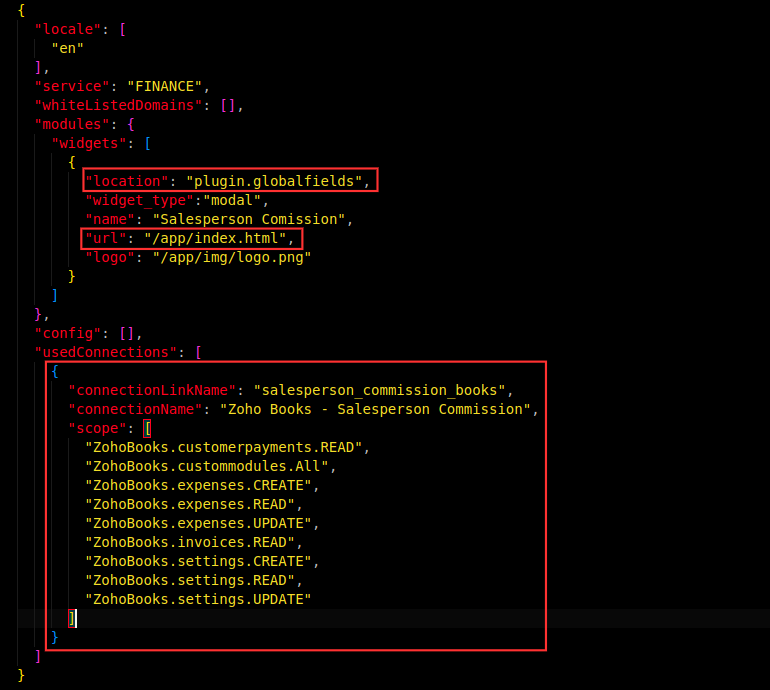
The widget creation process happens during the extension’s installation. By default, the widget’s location will be the widgets pane in the right sidebar of the invoice creation page. To change its location, set the location attribute to **plugin.globalfield** and change the url to **/app/index.html**.
Additionally, you have to include the widget’s scope in the **usedConnection** array. To find the widget’s scope, go to the connection created for the extension in the Zoho Books Developer Portal and copy the JSON code. You have to paste this code inside the usedConnection array.
Refer to the image below to know where to paste the code.
### Validate Widget
The next step is to validate the widget to ensure if it adheres to the guidelines specified in the plugin-manifest.json file. To do this, enter the command **zet validate** in the terminal or command prompt.
### Pack Widget
To upload the widget in Zoho Books Developer Portal, you’ll have to pack it. Not all the files of your project directory are required while packing. Enter the command zet pack in your terminal or command prompt to pack the essential files and folders. After the command is executed, a ZIP file will be created.
### Upload Widget
To upload your widget into Zoho Books Developer Portal:
* Go to **Configure** at the top.
* Click **Global Fields** in the left sidebar.
* Click **Upload Widget** in the top right corner of the page.
* In the pop-up that appears:
* Enter the **Name** and **Description** for the widget.
* Click **Attach From Desktop** next to _Upload ZIP_ and upload the ZIP file generated by entering the **zet pack** command.
With this, you’ve built the settings widget for the extension using React.