## Documentation Index
Access the complete documentation index at:
https://www.zoho.com/books/developer/llms.txt
Use this file to discover all available documentation pages before proceeding.
# Salesperson Extension Using Vanilla JS
In this help document, we’ll explain the steps to build the settings widget required for the Salesperson extension using Vanilla JS. You’ll have to add the code for the UI components required for the extension in the settings widget.
You can follow the steps in this help document or refer to our git project on the [Salesperson extension using Vanill JS](https://github.com/zoho/zohofinance-SalespersonWidget-JS/tree/main).
**Prerequisite:** You need to download and install Node.js and Node Package Manager (npm) in your device. You can install Node.js from the [Node.js website](https://nodejs.org/).
# Create Settings Widget
To create the settings widget:
1\. Install the [Zoho Extension Toolkit (ZET)](/books/developer/widgets/framework-and-hosting.html) globally by entering the following command in your terminal or command prompt.
```js
npx install -g zoho-extension-toolkit
```
2\. Enter the command:
```js
zet init
```
3\. Select **Zoho Books** from the list of options.
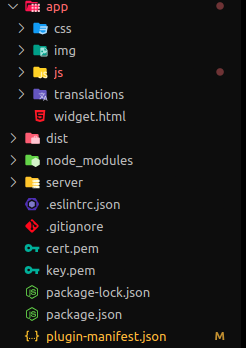
After creating the widget, your project’s structure should look similar to the project structure shown in the image below.
### Build UI
To build the UI required for the Salesperson extension, you have to install Bootstrap on your device. To do this, enter the following command in your terminal or command prompt.
```js
npm i bootstrap
```
To build the UI for the Salesperson extension, you need the following components:
* widget.html
* style.css
* extension.js
In the subsequent sections, you can find the code to be pasted into each file.
#### widget.html
Paste the following code in the widget.html file:
```js
When do you wish to create the expenses Sales Person Commissions?
Commission Type
Commission Rate
Select the paid through account for expense created
Select the expense account
Commission Specification
```
#### style.css
Paste the following code in the style.css file:
```js
.loading {
text-align: center;
position: relative;
top: 190px;
}
.load-circle1,
.load-circle2,
.load-circle3,
.load-circle4,
.load-circle5 {
width: 8px;
height: 8px;
background: grey;
display: inline-block;
border-radius: 20px;
animation: loader 1.5s infinite;
margin-right: 3px;
}
@keyframes loader {
from {
opacity: 1;
scale: 1;
}
to {
opacity: 0.25;
scale: 0.3;
}
}
.load-circle2 {
animation-delay: 0.25s;
}
.load-circle3 {
animation-delay: 0.5s;
}
.load-circle4 {
animation-delay: 0.75s;
}
.load-circle5 {
animation-delay: 1s;
}
.sideheading {
font-weight: 400;
font-size: 13px;
}
.sideheading:after {
content: '*';
color: red;
}
.heading {
font-size: 16px;
font-weight: 600;
}
.flex-row {
display: flex;
flex-direction: row;
gap: 30px !important;
}
.container {
margin-bottom: 10px;
margin-top: 10px;
margin-left: 0px !important;
}
.text {
display: block !important;
width: 50% !important;
padding: 5px 8px !important;
font-size: 13px !important;
line-height: 1.6 !important;
color: #495057 !important;
background-color: #fff !important;
background-clip: padding-box !important;
border: 1px solid #ced4da !important;
border-radius: 6px !important;
transition: border-color .15s ease-in-out, box-shadow .15s ease-in-out !important;
height: 34px !important;
margin-left: 0px !important;
margin-top: 0px !important;
}
.text:focus {
color: #495057 !important;
background-color: #fff !important;
border-color: #408dfb !important;
outline: 0 !important;
box-shadow: 0 0 0 3px rgba(64, 141, 251, 0.16) !important;
}
input[type=radio]:checked {
background-color: #408dfb;
border-color: #408dfb;
}
input[type=radio] {
cursor: pointer;
width: 14px;
height: 14px;
vertical-align: top;
background-color: #fff;
background-repeat: no-repeat;
background-position: center;
background-size: contain;
border: 1px solid #00000040;
-webkit-appearance: none;
-moz-appearance: none;
appearance: none;
}
input[type=radio]:hover:enabled {
border-color: #408dfb;
outline: 0;
box-shadow: 0 0 0 3px rgba(64, 141, 251, .16);
}
input[type=radio]:focus {
outline: 0 !important;
box-shadow: 0 0 0 3px rgba(64, 141, 251, 0.16) !important;
}
.form-check-label {
margin-left: 4px !important;
margin-bottom: 0;
cursor: pointer !important;
}
.form-select {
display: block !important;
width: 50% !important;
padding: 5px 8px !important;
font-size: 13px !important;
line-height: 1.6 !important;
color: #495057 !important;
background-color: #fff !important;
background-clip: padding-box !important;
border: 1px solid #ced4da !important;
border-radius: 6px !important;
transition: border-color .15s ease-in-out, box-shadow .15s ease-in-out !important;
height: 34px !important;
margin-left: 0px !important;
margin-top: 0px !important;
}
.form-select:focus {
color: #495057 !important;
background-color: #fff !important;
border-color: #408dfb !important;
outline: 0 !important;
box-shadow: 0 0 0 3px rgba(64, 141, 251, 0.16) !important;
}
```
#### extension.js
The extension.js file contains the overall UI for the Salesperson extension. The code to store data in the global fields is available in this file.
Paste the following code in the extension.js file:
```js
const loader = document.getElementById("loading");
const home = document.getElementById("home");
const paidThroughAccount = document.getElementById("paidAccount");
const expenseAccount = document.getElementById("expenseAccount");
const invoiceStatusSent = document.getElementById("invoice-status-sent");
const invoiceStatusPaid = document.getElementById("invoice-status-paid");
const commissionTypePercentage = document.getElementById("commission-type-percentage");
const commissionTypeAmount = document.getElementById("commission-type-amount");
const rate = document.getElementById("rate");
const specificationTypeSubtotal = document.getElementById("specification-subtotal");
const specificationTypeTotal = document.getElementById("specification-total");
const sentContainer = document.getElementById("sentContainer");
const paidContainer = document.getElementById("paidContainer");
const paidThroughContainer = document.getElementById("paidThroughContainer");
// SelectOption are added
const createSelectOption = (array, elementID) => {
for (let data of array) {
let option = document.createElement("option");
option.value = data.id;
option.text = data.text;
option.name = data.text;
elementID.appendChild(option);
}
};
let type=commissionTypePercentage.value;
let status= invoiceStatusSent.value;
let specification_type=specificationTypeSubtotal.value;
// ONCLICK FUNCTIONS
function comissionType() {
type = event.target.value;
}
function invoiceStatus() {
status = event.target.value;
if (status === "sent") {
sentContainer.classList.remove("invisible");
sentContainer.classList.remove("position-absolute");
sentContainer.appendChild(document.getElementById("data"));
paidThroughContainer.classList.remove("invisible");
paidThroughContainer.classList.remove("position-absolute");
}
else {
sentContainer.classList.add("invisible");
sentContainer.classList.add("position-absolute");
paidContainer.appendChild(document.getElementById("data"));
paidThroughContainer.classList.add("invisible");
paidThroughContainer.classList.add("position-absolute");
}
}
function specification() {
specification_type = event.target.value;
}
window.onload = () => {
ZFAPPS.extension.init().then(async (zapp) => {
ZFAPPS.invoke("RESIZE", { width: "550px", height: "600px" });
const { organization } = await ZFAPPS.get("organization");
const domainAPI = organization.api_root_endpoint;
const connection_link_name = "salesperson_commission_books"; // Replace the connection_link_name which you created in the sigma developer portal
const orgVariablePlaceholder = "vl__u76nt_data_store"; // Replace the GlobalFields placeholder which you created in the sigma developer portal
// Error Notification Function
let showErrorNotification = async (msg) => {
await ZFAPPS.invoke("SHOW_NOTIFICATION", {
type: "error",
message: msg,
});
};
// GET Paid Through Account
const getPaidThroughAccount = async () => {
try {
let get_paid_Account = await ZFAPPS.request({
url: `${domainAPI}/autocomplete/paidthroughaccountslist`,
method: "GET",
url_query: [
{
key: "organization_id",
value: organization.organization_id,
},
],
connection_link_name: connection_link_name,
});
const { data: { body } } = get_paid_Account;
const { results } = JSON.parse(body);
createSelectOption(results, paidThroughAccount);
} catch (err) {
showErrorNotification(err);
}
};
// GET Expense Account
const getExpenseAccount = async () => {
try {
const get_expense_account = {
url: `${domainAPI}/autocomplete/expenseaccountslist`,
method: "GET",
url_query: [
{
key: "organization_id",
value: organization.organization_id,
},
],
connection_link_name: connection_link_name,
};
const { data: { body } } = await ZFAPPS.request(get_expense_account);
const { results } = JSON.parse(body);
createSelectOption(results, expenseAccount);
} catch (err) {
showErrorNotification(err);
}
};
//Get the GlobalField
const getOrgVariable = async () => {
try {
const load_placeholder = {
url: `${domainAPI}/settings/orgvariables/${orgVariablePlaceholder}`,
method: "GET",
url_query: [
{
key: "organization_id",
value: organization.organization_id,
},
],
connection_link_name: connection_link_name,
};
let { data: { body }, } = await ZFAPPS.request(load_placeholder);
let { orgvariable: { value }, } = JSON.parse(body);
if(value){
value = JSON.parse(value);
let {
status,
commission,
type,
specification_type,
paid_through_account,
expense_account,
} = value;
if (status === "sent") {
invoiceStatusSent.checked = true;
}
else {
invoiceStatusPaid.checked = true;
}
if (specification_type === "SubTotal") {
specificationTypeSubtotal.checked = true;
}
else {
specificationTypeTotal.checked = true;
}
if (type === "Percentage") {
commissionTypePercentage.checked = true;
}
else {
commissionTypeAmount.checked = true;
}
if (paid_through_account !== undefined && expense_account !== undefined) {
paidThroughAccount.value = paid_through_account.id;
expenseAccount.value = expense_account.id;
}
rate.value = commission;
}
} catch (err) {
await showErrorNotification(err);
}
};
await getPaidThroughAccount();
await getExpenseAccount();
await getOrgVariable();
loader.classList.add("invisible");
home.classList.remove("invisible");
// ON PRE SAVE CHECK
zapp.instance.on("ON_SETTINGS_WIDGET_PRE_SAVE", async () => {
if (rate.value !== undefined && rate.value !== "") {
let isError = await checkAccount(status);
if (isError) {
return {
prevent_save: true,
};
} else {
await updateOrgVariable();
}
}
else {
await showErrorNotification("Commission Rate cannot be empty");
return {
prevent_save: true,
};
}
});
let checkAccount = async (status) => {
if (!expenseAccount.value) {
await showErrorNotification("Please select the Expense Account");
return true;
}
if (status !== "paid" && !paidThroughAccount.value) {
await showErrorNotification("Please select the Paid Through Account");
return true;
}
};
// UPDATE Global Fields
const updateOrgVariable = async () => {
let value = {};
let expense_account = {
id: expenseAccount.value,
text: expenseAccount.options[expenseAccount.selectedIndex].text,
};
let paid_through_account = {
id: paidThroughAccount.value,
text: paidThroughAccount.options[paidThroughAccount.selectedIndex].text,
};
let commission = rate.value;
Object.assign(value, {
status,
expense_account,
type,
commission,
specification_type,
paid_through_account,
});
let data = { value: value };
ZFAPPS.request({
url: `${domainAPI}/settings/orgvariables/${orgVariablePlaceholder}`,
method: "PUT",
url_query: [
{
key: "organization_id",
value: organization.organization_id,
},
],
body: {
mode: "formdata",
formdata: [
{
key: "JSONString",
value: JSON.stringify(data),
},
],
},
connection_link_name: connection_link_name,
});
};
});
};
```
### Update the plugin-manifest.json File
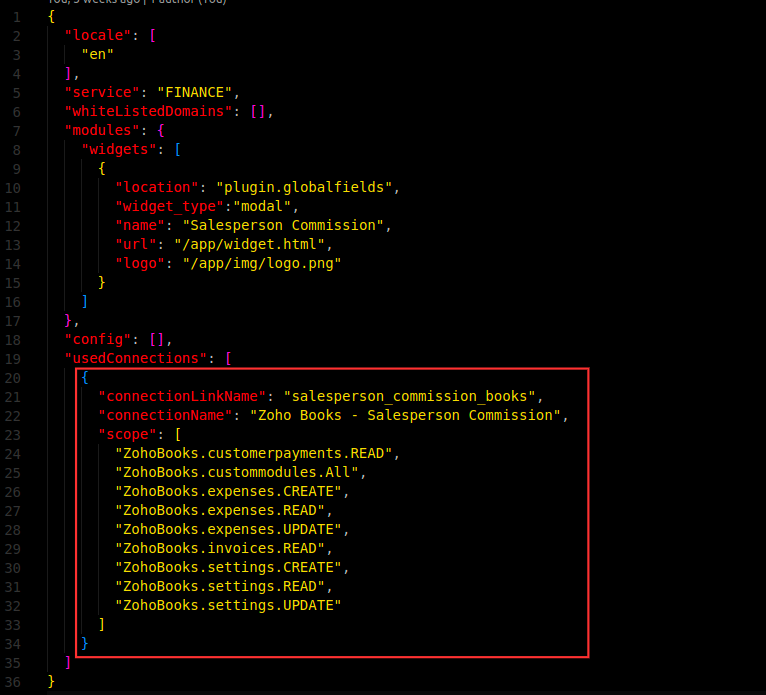
You have to include the widget’s scope in the usedConnection array. To find the widget’s scope, go to the connection created for the extension in the Zoho Books Developer Portal and copy the JSON code. You have to paste this code inside the usedConnection array.
Refer to the image below to know where to paste the code.
### Validate Widget
The next step is to validate the widget to ensure if it adheres to the guidelines specified in the plugin-manifest.json file. To do this, enter the command **zet validate** in the terminal or command prompt.
### Pack Widget
To upload the widget in Zoho Books Developer Portal, you’ll have to pack it. Not all the files of your project directory are required while packing. Enter the command **zet pack** in your terminal or command prompt to pack the essential files and folders. After the command is executed, a ZIP file will be created.
### Upload Widget
To upload your widget into Zoho Books Developer Portal:
* Go to **Configure** at the top.
* Click **Global Fields** in the left sidebar.
* Click **Upload Widget** in the top right corner of the page.
* In the pop-up that appears:
* Enter the **Name** and **Description** for the widget.
* Click **Attach From Desktop** next to _Upload ZIP_ and upload the zip file generated by entering the **zet pack** command.
With this, you’ve built the settings widget for the extension using Vanilla JS.