

Tax Reports

The Taxes section in Reports gives you a consolidated view of the taxes collected and paid across your business transactions.
Tax Summary
The Tax Summary report summarizes the taxes collected and paid across all your transactions for a selected period.
To view the Tax Summary report:
- Go to Reports on the left sidebar.
- Select the Tax Summary report under Taxes.
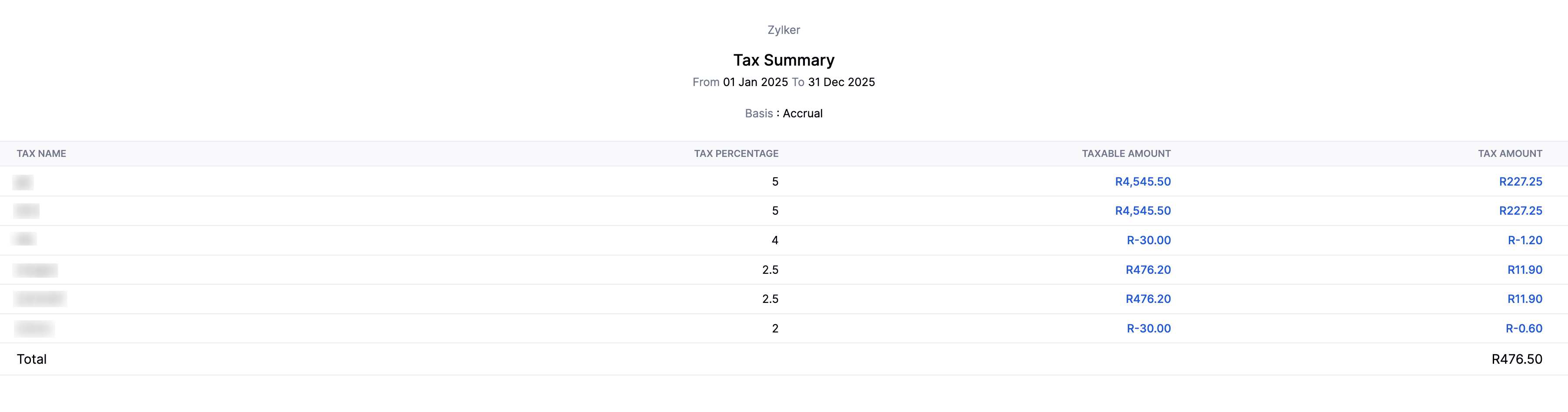
The Tax Summary report contains the following columns:
| Column | Description |
|---|---|
| Tax Name | The name of the tax applied on the transaction. |
| Tax Percentage | The rate at which the tax was applied. |
| Taxable Amount | The total transaction value on which this tax was applied. |
| Tax Amount | The total tax collected or paid for this tax type. |
Customize Report
To customize this report:
- Click the Customize icon.
You can customize the report using the General and Show/Hide Columns tabs.
General
Under General, you can customize the report based on the following filters:
| Filters | Description |
|---|---|
| Date Range | Select the time period for generating the report. |
| Report Basis | Accrual: Values are generated based on the invoice date. Cash: Values are generated when payment is received or made. |
| Group By | Group the report by a specific field. |
| Include Manual Postings to Tax Payable | Check this option to include manual journal entries posted to the Tax Payable account in the report. |
| Entities | Select the transaction types to include in the report: Sales, Purchases, or Others. |
| Advanced Filters | Apply custom filters based on report fields, locations, and more. |
- Click Run Report to apply the filters.
Show/Hide Columns
In this section, you can choose which columns to display in the report.
- In the Available Columns section, hover over the column you want to add.
- Click the + icon next to it to add it to the report.
- In the Selected Columns section, drag and drop a column to reorder it.
- Click Run Report to apply the customization and view the report.
VAT MOSS Report
The VAT MOSS Report summarizes the tax details based on the place of supply for the digital services you offer to your customers in the EU member states.
To view the VAT MOSS report:
- Go to Reports on the left sidebar.
- Select VAT MOSS Report under Taxes.
The VAT MOSS Report contains the following columns:
| Column | Description |
|---|---|
| Member State of Consumption | The EU member state of the customer who has purchased your digital services. |
| Tax Name | The name of the tax applied on the transaction. |
| Taxable Amount | The total transaction value on which this tax was applied. |
| Tax Amount | The total tax collected or paid for this tax type. |
Note: The Taxable Amount and the Tax Amount will be displayed in the respective foreign currency.
You can generate this report based on the following filters:
| Field | Description |
|---|---|
| Date Range | Select the time period for which you want to generate the report. |
| Report Basis | Accrual: Values are generated when the transactions are created. Cash: Values are generated when they receive the cash. |
- Click Run Report to apply the filters.
IOSS Report
The IOSS Report gives you a summary of the tax applied on transactions as per the IOSS scheme.
To view the IOSS Report:
- Go to Reports on the left sidebar.
- Select IOSS Report under Taxes.
The IOSS Report contains the following columns:
| Column | Description |
|---|---|
| Member State of Consumption | The country into which the goods and services are imported. |
| Tax Name | The name of the tax applied on the transaction. |
| Taxable Amount | The total transaction value on which this tax was applied. |
| Tax Amount | The total tax collected or paid for this tax type. |
Customize Report
To customize this report:
- Click the Customize icon.
You can customize the report using the General tab.
General
Under General, you can customize the report based on the following filters:
| Filters | Description |
|---|---|
| Date Range | Select the time period for generating the report. |
| Report Basis | Accrual: Values are generated based on the invoice date. Cash: Values are generated when payment is received or made. |
- Click Run Report to apply the filters.
OSS Report
The OSS Report gives you a summary of the tax applied on transactions as per the OSS scheme.
To view the OSS Report:
- Go to Reports on the left sidebar.
- Select OSS Report under Taxes.
The OSS Report contains the following columns:
| Column | Description |
|---|---|
| Member State of Consumption | The country into which the goods and services are imported. |
| Tax Name | The name of the tax applied on the transaction. |
| Taxable Amount | The total transaction value on which this tax was applied. |
| Tax Amount | The total tax collected or paid for this tax type. |
Customize Report
To customize this report:
- Click the Customize icon.
You can customize the report using the General tab.
General
Under General, you can customize the report based on the following filters:
| Filters | Description |
|---|---|
| Date Range | Select the time period for generating the report. |
| Report Basis | Accrual: Values are generated based on the invoice date. Cash: Values are generated when payment is received or made. |
- Click Run Report to apply the filters.
TDS Payables
The TDS Payables report provides a summary of the TDS deducted on bills, vendor credit notes, and vendor debit notes.
To view the TDS Payables report:
- Go to Reports on the left sidebar.
- Select TDS Payables under Taxes.

The TDS Payables report contains the following columns:
| Column | Description |
|---|---|
| TDS Name | The name of the TDS applied on the transaction. |
| TDS Percentage | The rate at which the TDS was applied. |
| Total | The total amount of the bill, vendor credit note, or vendor debit note before TDS deduction. |
| Total After TDS Deduction | The amount remaining after TDS is deducted from the original amount. |
| Tax Deducted At Source | The TDS deducted from the original amount. |
Customize Report
To customize this report:
- Click the Customize icon.
You can customize the report using the General and Show/Hide Columns tabs.
General
Under General, you can customize the report based on the following filters:
| Filters | Description |
|---|---|
| Date Range | Select the time period for generating the report. |
| Report Basis | Accrual: Values are generated based on the invoice date. Cash: Values are generated when payment is received or made. |
| Group By | The report can be grouped by either Vendor or TDS, with the default grouping set to TDS. |
- Click Run Report to apply the filters.
Show/Hide Columns
In this section, you can choose which columns to display in the report.
- In the Available Columns section, hover over the column you want to add.
- Click the + icon next to it to add it to the report.
- In the Selected Columns section, drag and drop a column to reorder it.
- Click Run Report to apply the customization and view the report.
TDS Receivables
The TDS Receivables report summarizes the total TDS deductions made on invoices, customer debit notes, and credit notes.
To view the TDS Receivables report:
- Go to Reports on the left sidebar.
- Select TDS Receivables under Taxes.

The TDS Receivables report contains the following columns:
| Column | Description |
|---|---|
| TDS Name | The name of the TDS applied on the transaction. |
| TDS Percentage | The rate at which the TDS was applied. |
| Total | The total amount of the invoice, customer debit note, or credit notes before TDS deduction. |
| Total After TDS Deduction | The amount remaining after TDS is deducted from the original amount. |
| Tax Deducted At Source | The TDS deducted from the original amount. |
Customize Report
To customize this report:
- Click the Customize icon.
You can customize the report using the General and Show/Hide Columns tabs.
General
Under General, you can customize the report based on the following filters:
| Filters | Description |
|---|---|
| Date Range | Select the time period for generating the report. |
| Report Basis | Accrual: Values are generated based on the invoice date. Cash: Values are generated when payment is received or made. |
| Group By | The report can be grouped by either Customer or TDS, with the default grouping set to TDS. |
- Click Run Report to apply the filters.
Show/Hide Columns
In this section, you can choose which columns to display in the report.
- In the Available Columns section, hover over the column you want to add.
- Click the + icon next to it to add it to the report.
- In the Selected Columns section, drag and drop a column to reorder it.
- Click Run Report to apply the customization and view the report.
Overseas Digital Tax Summary
The Overseas Digital Tax Summary report summarizes the taxes you’ve charged for supply of digital services to your overseas customers.
To view the Overseas Digital Tax Summary report:
- Go to Reports on the left sidebar.
- Select the Overseas Digital Tax Summary report under Taxes.
The Overseas Digital Tax Summary report contains the following columns:
| Column | Description |
|---|---|
| Consumption Country | The country of the customer who has purchased your digital service. |
| Tax Name | The name of the tax that is applied on the sale of digital service. |
| Currency | The currency that is used by the customer. |
| Taxable Amount | The total value of the services offered that is taxable. |
| Tax Amount | The value of tax payable on the Taxable Amount. |
Note: The Taxable Amount and the Tax Amount will be displayed in the respective foreign currencies.
You can generate this report based on the following filters:
| Filter | Description |
|---|---|
| Date Range | Select the time period for which you want to generate the report. |
| Report Basis | Accrual: Values are generated when transactions are created. Cash: Values are generated when payment is received or made. |
- Click Run Report to apply the filters.
Reverse Charge Summary
The Reverse Charge Summary report summarizes the tax details of all the purchase transactions for which you have recorded the reverse charge.
To view the Reverse Charge Summary report:
- Go to Reports on the left sidebar.
- Select the Reverse Charge Summary report under Taxes.
The Reverse Charge Summary report contains the following columns:
| Column | Description |
|---|---|
| Tax Name | The name of the tax applied on the transaction. |
| Tax Percentage | The rate at which the tax was applied. |
| Taxable Amount (Tax Payable) | The total value of the transaction that is taxable. |
| Tax Payable | The value of tax payable on the taxable amount. |
| Taxable Amount (Tax Claimable) | The total value of the transaction for which you can claim tax. |
| Tax Claimable | The tax claim’s value on the Taxable Amount (Tax Claimable). |
| Net Tax Amount | The net amount for which you have to pay tax. |
Note: You can click any highlighted amount in the report to view the purchase transactions created under a particular tax.
Customize Report
To customize this report:
- Click the Customize icon.
You can customize the report using the General and Show/Hide Columns tabs.
General
Under General, you can customize the report based on the following filters:
| Filters | Description |
|---|---|
| Date Range | Select the time period for generating the report. |
| Report Basis | Accrual: Values are generated based on the invoice date. Cash: Values are generated when payment is received or made. |
| Entities | Select the transaction types to include in the report. |
| Advanced Filters | Apply custom filters based on report fields, locations, and more. |
- Click Run Report to apply the filters.
Show/Hide Columns
In this section, you can choose which columns to display in the report.
- In the Available Columns section, hover over the column you want to add.
- Click the + icon next to it to add it to the report.
- In the Selected Columns section, drag and drop a column to reorder it.
- Click Run Report to apply the customization and view the report.
Sales Reverse Charge Summary
The Sales Reverse Charge Summary report summarizes the tax details of all the sales transactions for which you have recorded the reverse charge.
To view the Sales Reverse Charge Summary report:
- Go to Reports on the left sidebar.
- Select the Sales Reverse Charge Summary report under Taxes.
The Sales Reverse Charge Summary report contains the following columns:
| Column | Description |
|---|---|
| Tax Name | The name of the tax applied on the transaction. |
| Tax Percentage | The rate at which the tax was applied. |
| Taxable Amount | The total transaction value on which this tax was applied. |
| Tax Amount | The total tax collected or paid for this tax type. |
Note: You can click any highlighted amount in the report to view the sales transactions created under a particular tax.
Customize Report
To customize this report:
- Click the Customize icon.
You can customize the report using the General and Show/Hide Columns tabs.
General
Under General, you can customize the report based on the following filters:
| Filters | Description |
|---|---|
| Date Range | Select the time period for generating the report. |
| Report Basis | Accrual: Values are generated based on the invoice date. Cash: Values are generated when payment is received or made. |
| Entities | Select the transaction types to include in the report. |
| Advanced Filters | Apply custom filters based on report fields, locations, and more. |
- Click Run Report to apply the filters.
Show/Hide Columns
In this section, you can choose which columns to display in the report.
- In the Available Columns section, hover over the column you want to add.
- Click the + icon next to it to add it to the report.
- In the Selected Columns section, drag and drop a column to reorder it.
- Click Run Report to apply the customization and view the report.
 Yes
Yes