

Taxes

Taxes are an integral part of business transactions. Zoho Books allows you to configure and manage taxes based on your business requirements, helping you apply the appropriate taxes to your transactions and maintain accurate tax records.
Note: To configure and apply Tax Deducted at Source (TDS) to your transactions, see TDS.
Configure Tax Settings
To configure tax settings in your Zoho Books organization:
- Go to Settings.
- Select Taxes under Taxes & Compliance.
- In the Taxes pane, select Tax Settings.
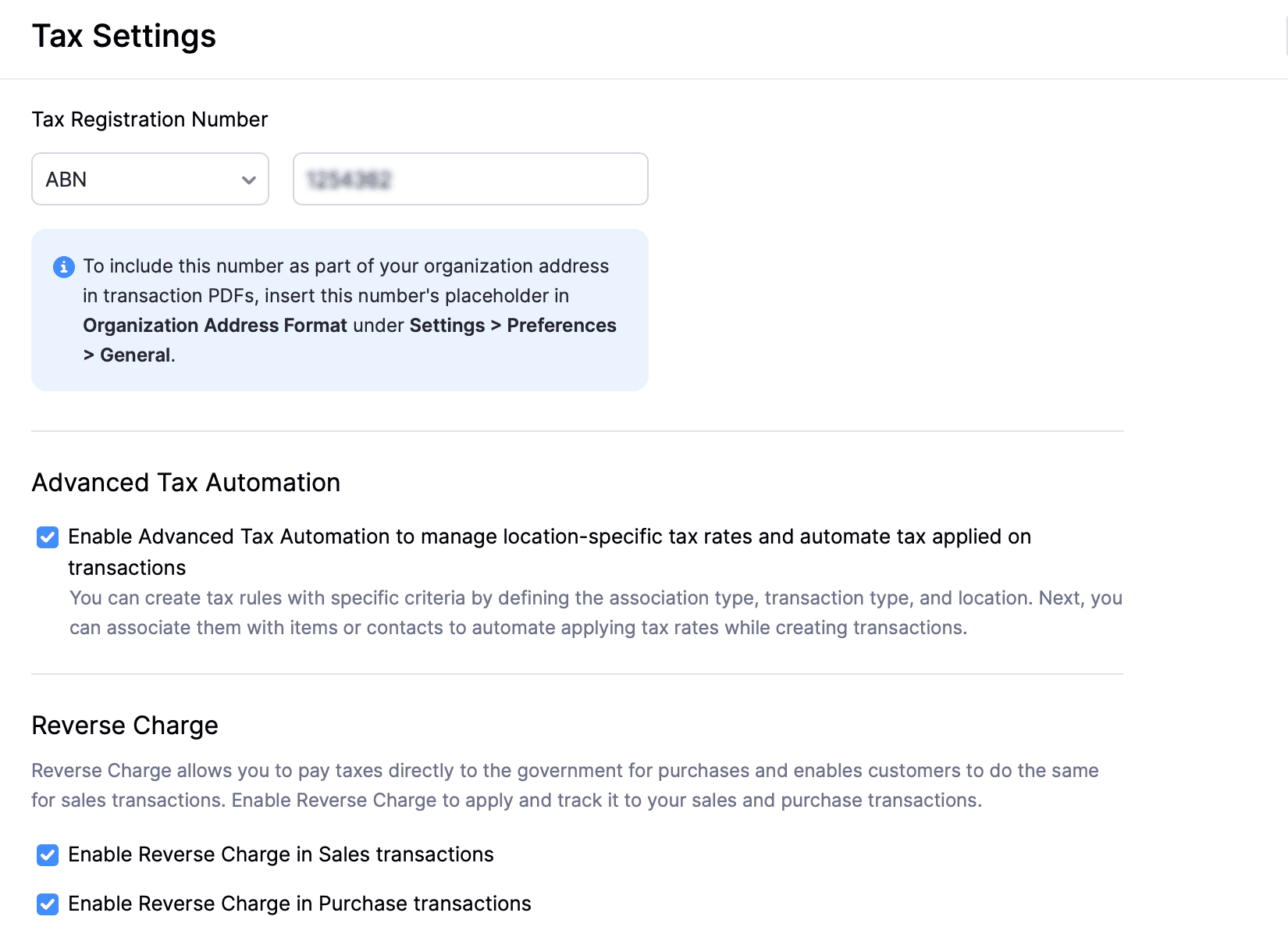
- In the Tax Settings page, enter the Tax Registration Number and select the Tax Label.
- Under Reverse Charge, check the Enable Reverse Charge in Sales transactions and/or Enable Reverse Charge in Purchase transactions options to apply reverse charge to your transactions.
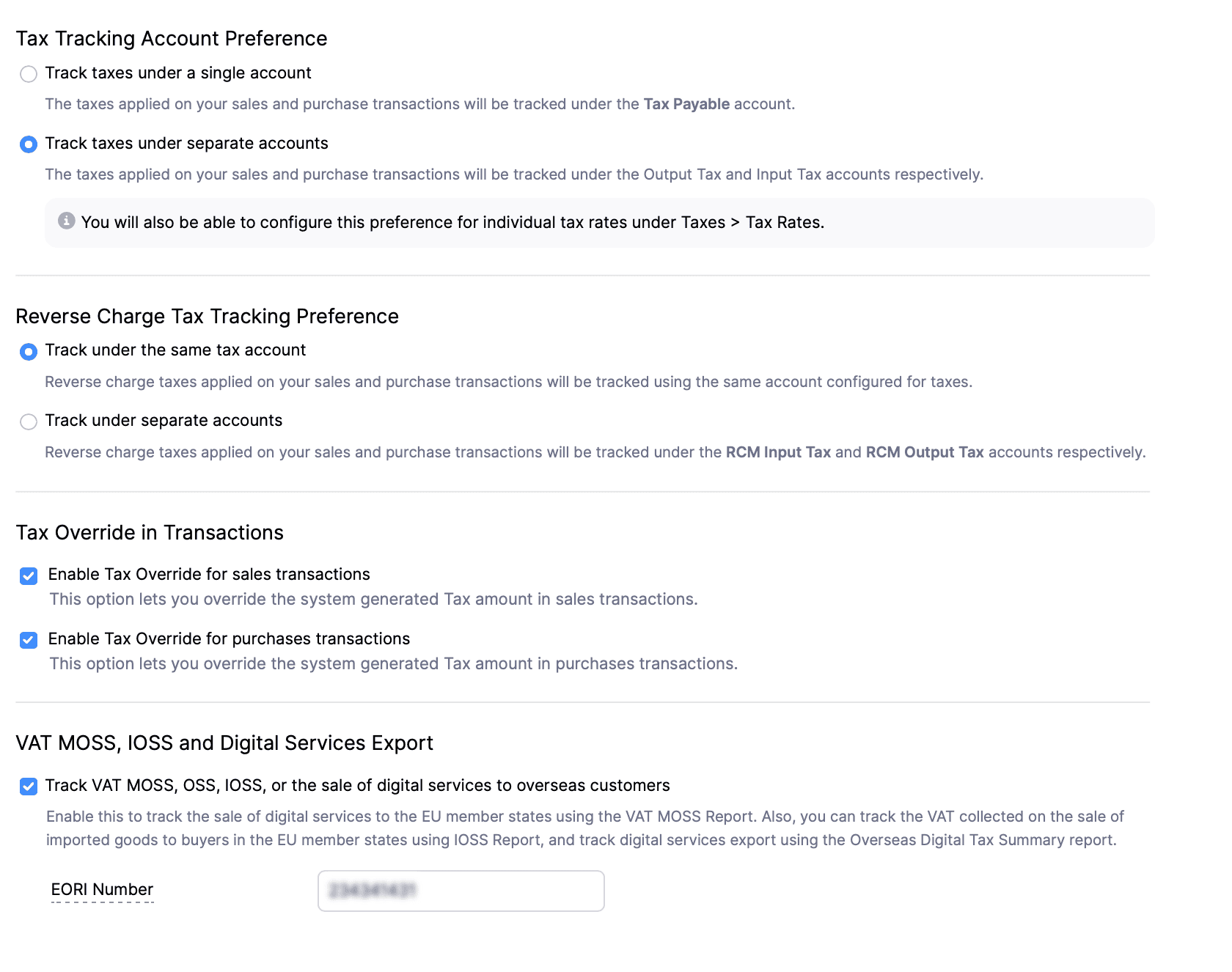
- Under Tax Tracking Account Preference, select if you want to Track taxes under a single account or Track taxes under separate accounts.
- Track taxes under a single account: All taxes will be tracked under the Tax Payable account.
- Track taxes under separate accounts: Taxes will be tracked under separate Output Tax and Input Tax accounts.
- Under Reverse Charge Tax Tracking Preference, select if you want to Track under the same tax account or Track under separate accounts.
- Track under the same account: Reverse charge applied on your sales and purchase transactions will be tracked using the same account.
- Track under separate accounts: Reverse charge taxes applied on your sales and purchase transactions will be tracked under the RCM Input Tax and RCM Output Tax accounts.
- Under Tax Override in Transactions:
- Check the Enable tax override for sales transactions option to override the total tax amount in sales transactions.
- Check the Enable tax override for purchase transactions option to override the total tax amount in purchase transactions.
- Under VAT MOSS, IOSS and Digital Services Export, check Track VAT MOSS, OSS, IOSS, or the sale of digital services to overseas customers and enter the EORI Number. This lets you track taxes on digital services and transactions under the VAT MOSS, OSS/IOSS schemes and generate dedicated reports.
- Click Save.
Your tax settings will be configured based on the options you’ve selected.
Tax Rates
In Zoho Books, you can add, edit, and delete the tax rates applicable to your business. You can also create tax groups to combine multiple tax rates and apply them together to transactions.
Add a Tax Rate
To create a new tax rate:
- Go to Settings.
- Select Taxes under Taxes & Compliance.
- In the Taxes pane, select Tax Rates.
- Click + New Tax.
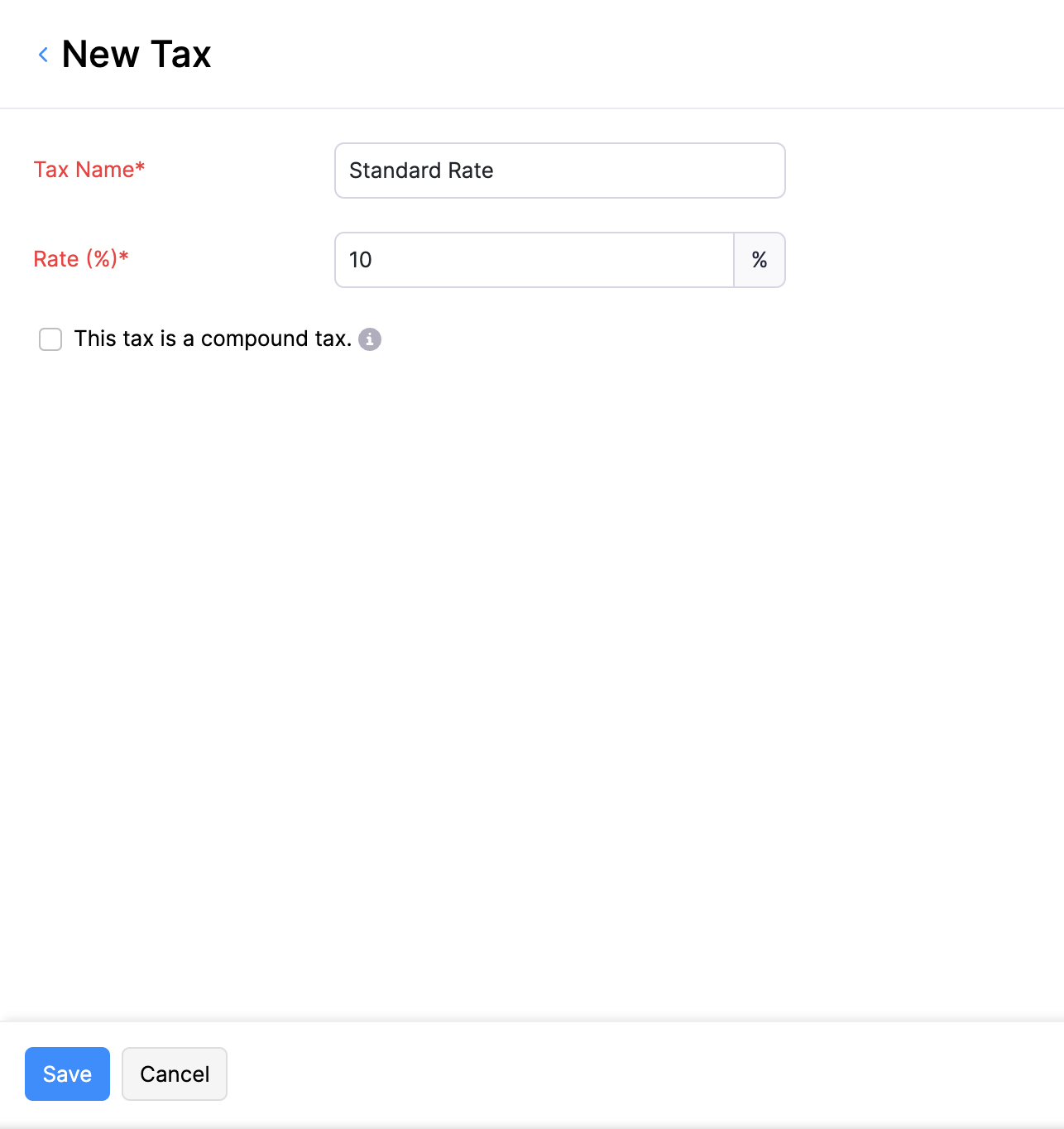
- Enter the Tax Name and select the Rate (%).
- Check the This tax is claimable option if you can claim this tax back.
- Check the Track the tax collected using this tax rate country-wise when it is applied on digital services export or on transactions where VAT MOSS or OSS scheme is applicable option if you want to track the tax collected on digital services exports or transactions to which the VAT MOSS or OSS scheme applies.
- Select the Country/Region to which you’re selling your digital services.
- The Account to Track Tax is set to VAT MOSS Payable by default. Click the Edit icon next to it to choose a different account.
Note: Only accounts with the Account Type as Overseas Tax Payable are listed under Account to Track Tax. You can create a new account with this Account Type if you need to track this tax separately. You cannot change the account for transactions that are already associated with a tax rate.
- Check the This tax is a compound tax option if this is a tax that is calculated on top of a primary tax.
Insight: In some cases, you may need to collect more than one tax from your customers. For example, one tax may be applied first, and another tax may be calculated on the total amount, including the initial tax. In such cases, the second tax is calculated on the transaction amount along with the first tax. These are called compound taxes.
- Under Tracking Preference, select Track taxes under a single account or Track taxes under separate accounts to set how this tax is tracked.
- Click Save.
Note: If you need to add multiple tax rates, you can create them in bulk instead of adding each tax rate individually. To do this, go to Settings > Taxes & Compliance > Taxes > Tax Rates, click the dropdown next to + New Tax, and select Create Taxes in Bulk.
Edit a Tax Rate
You can make changes to any tax rate that you have added in Zoho Books. Here’s how:
- Go to Settings.
- Select Taxes under Taxes & Compliance.
- In the Taxes pane, select Tax Rates.
- Hover over the tax rate you want to edit, click the dropdown next to it, and click the Edit icon.
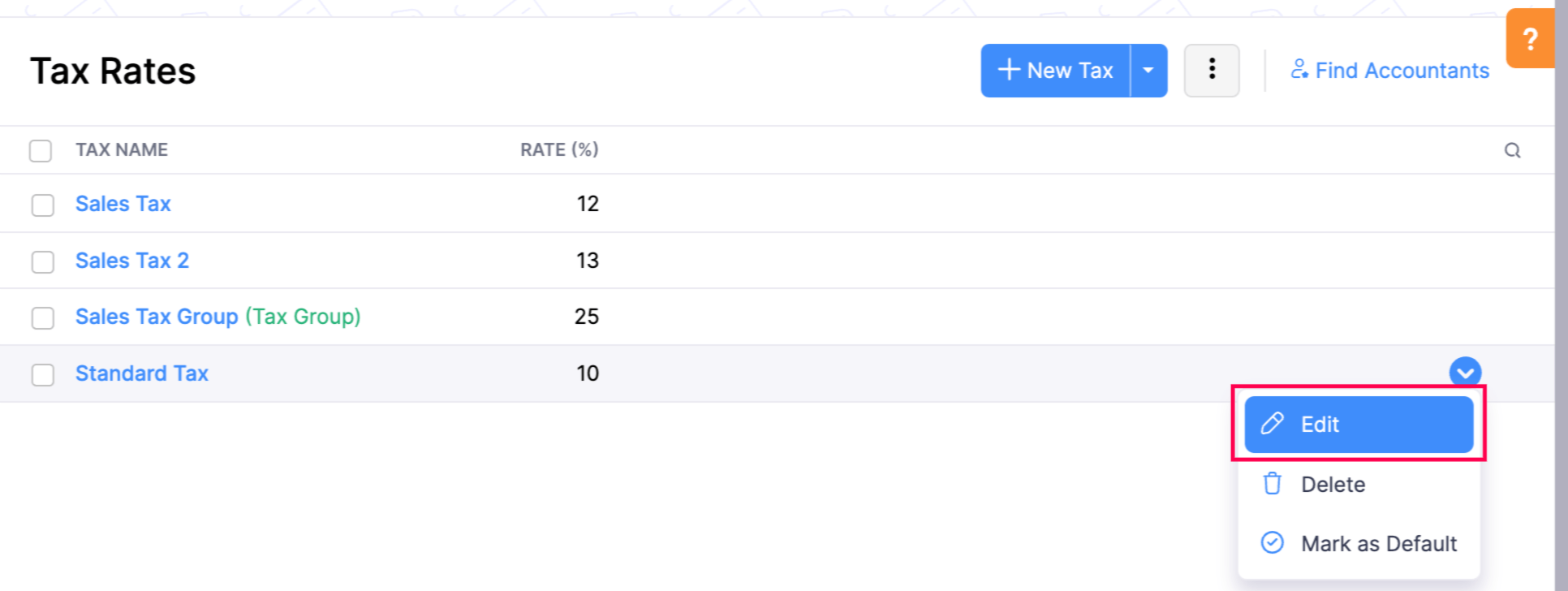
- In the Edit Tax page, make the necessary changes. If the tax rate has already been applied to existing transactions, you’ll be prompted to select the existing transactions you want to update tax details for. Select the applicable transactions, then check the option I accept that updating the tax will mark the existing tax inactive, create a new one, and update it in chosen transactions to confirm.
- Click Save.
Note: Editing a tax rate will also update the rate in all active recurring profiles associated with it.
Mark a Tax Rate as Inactive
If you no longer use a tax rate but still need it for reference in past transactions, you can mark it as inactive instead of deleting it. Inactive tax rates cannot be applied to new transactions, but they remain visible in transactions where they were already used.
To mark a tax rate as inactive:
- Go to Settings.
- Select Taxes under Taxes & Compliance.
- Navigate to Tax Rates under the Taxes pane.
- Hover over the tax rate you want to mark as inactive, click the dropdown next to it, and click Mark as Inactive.
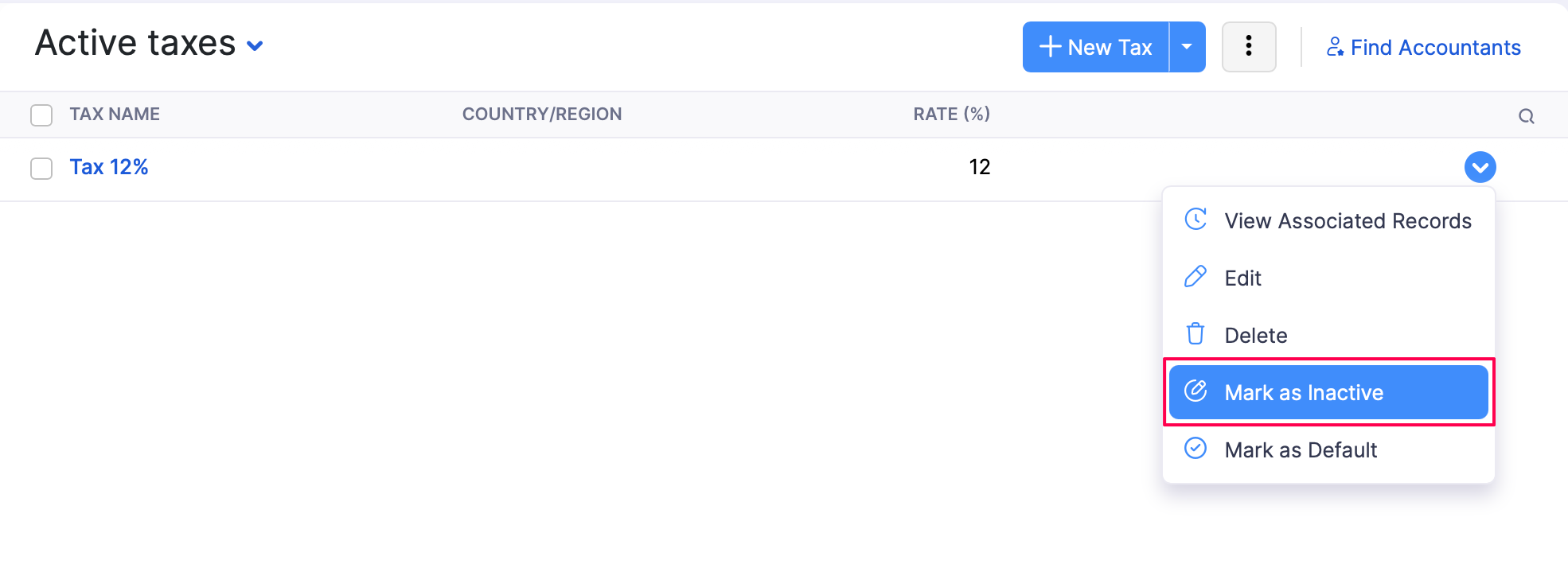
The tax rate will be marked as inactive.
Delete a Tax Rate
You can delete any tax rate that you have created in Zoho Books, as long as it hasn’t been used in a transaction. Here’s how:
- Go to Settings.
- Select Taxes under Taxes & Compliance.
- Navigate to Tax Rates under the Taxes pane.
- Hover over the tax rate you want to delete, click the dropdown next to it, and click the Delete icon.
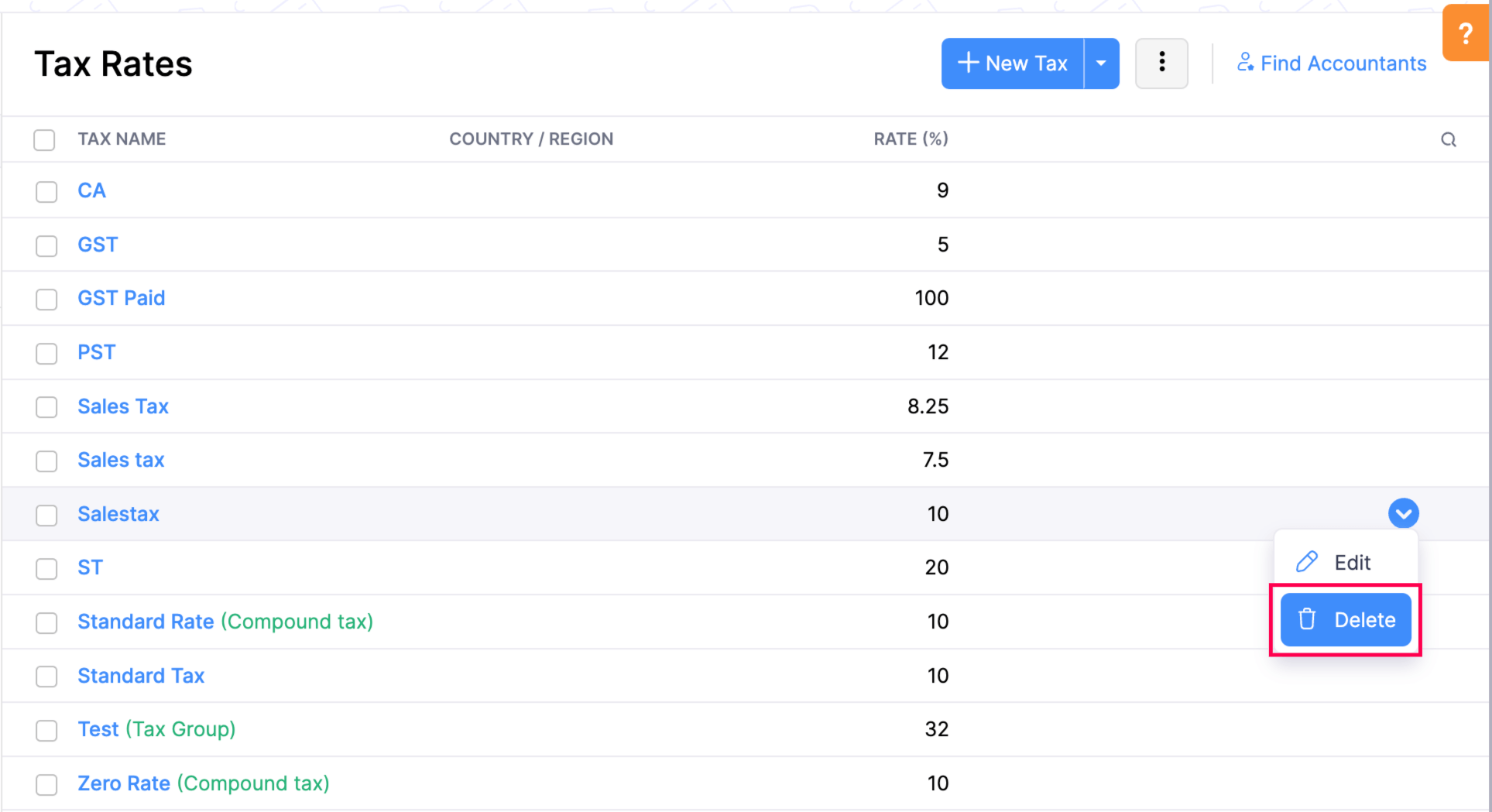
- Click OK in the confirmation pop-up.
Note: You cannot delete a tax rate associated with existing transactions.
Mark a Tax Rate As Default
To mark a tax rate as default:
- Go to Settings.
- Select Taxes under Taxes & Compliance.
- Navigate to Tax Rates under the Taxes pane.
- Hover over the tax rate you want to mark as default, click the dropdown next to it, and click the Mark as Default icon.
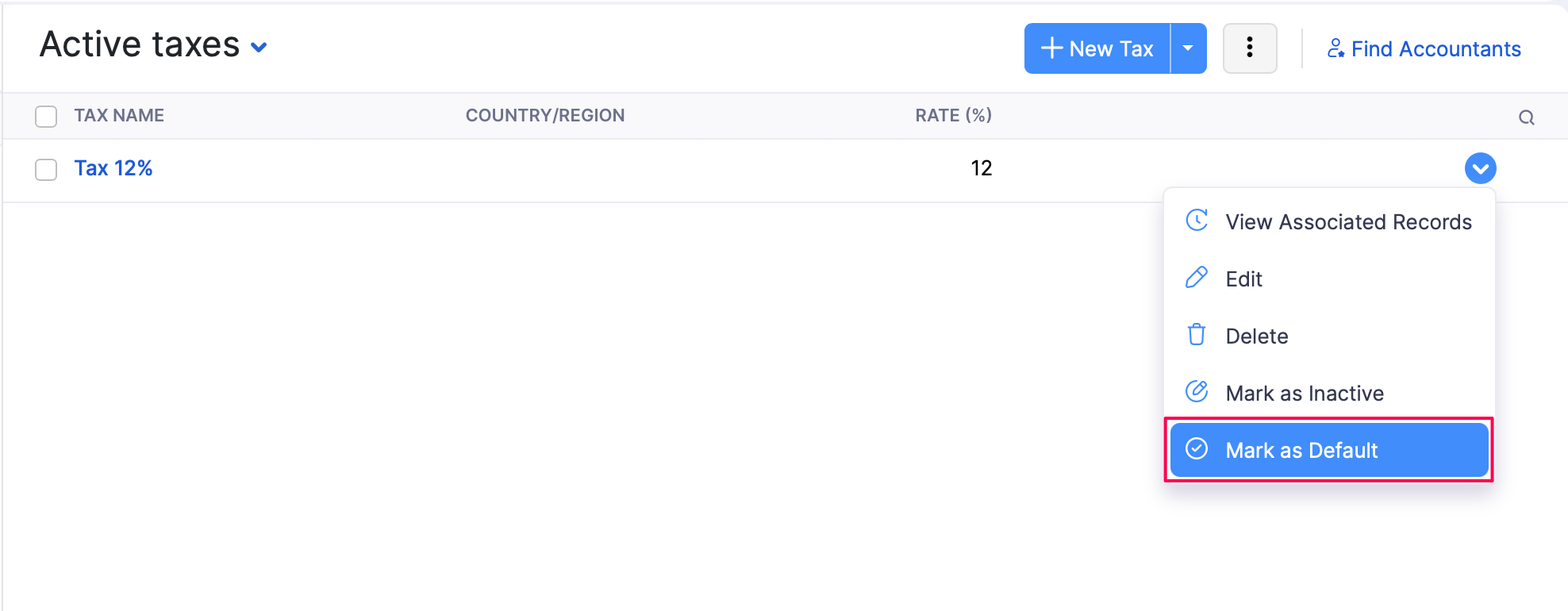
The tax rate will be marked as the default and applied to all transactions you create.
View Associated Records of a Tax Rate
To view the records associated with a tax rate:
- Go to Settings.
- Select Taxes under Taxes & Compliance.
- Navigate to Tax Rates under the Taxes pane.
- Hover over the tax rate for which you want to view associated records, click the dropdown next to it, and click the View Associated Records icon.
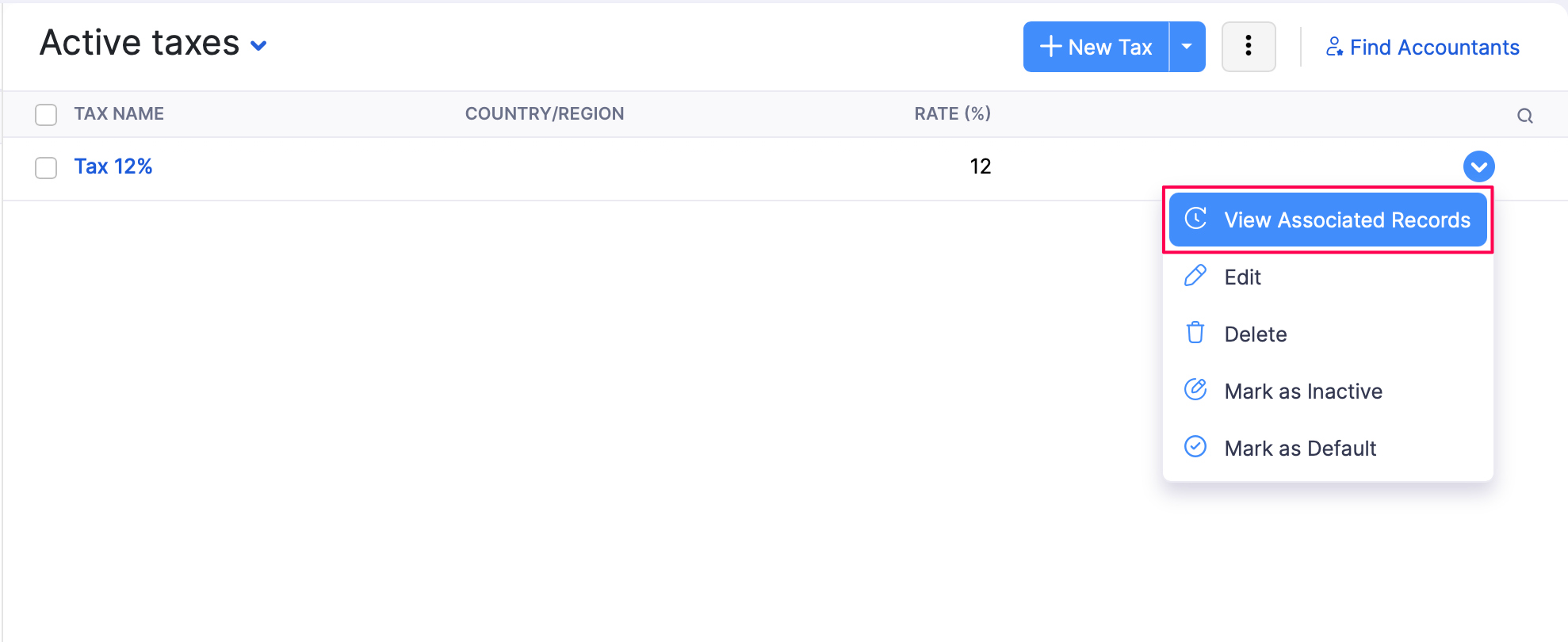
You can view the records associated with the tax rate in the Associated Records pane that opens on the right.
Create a Tax Group
Tax groups allow you to combine two or more tax rates and apply them together in a single transaction. The total rate of a tax group is the sum of all the rates it contains. To create a tax group:
- Go to Settings.
- Select Taxes under Taxes & Compliance.
- Navigate to Tax Rates under the Taxes pane.
- Click the dropdown next to + New and select New Tax Group.
- In the New Tax Group pop-up, enter the Tax Group Name and select the rates you want to group. You can drag and reorder the tax rates as needed.
- Click Save.
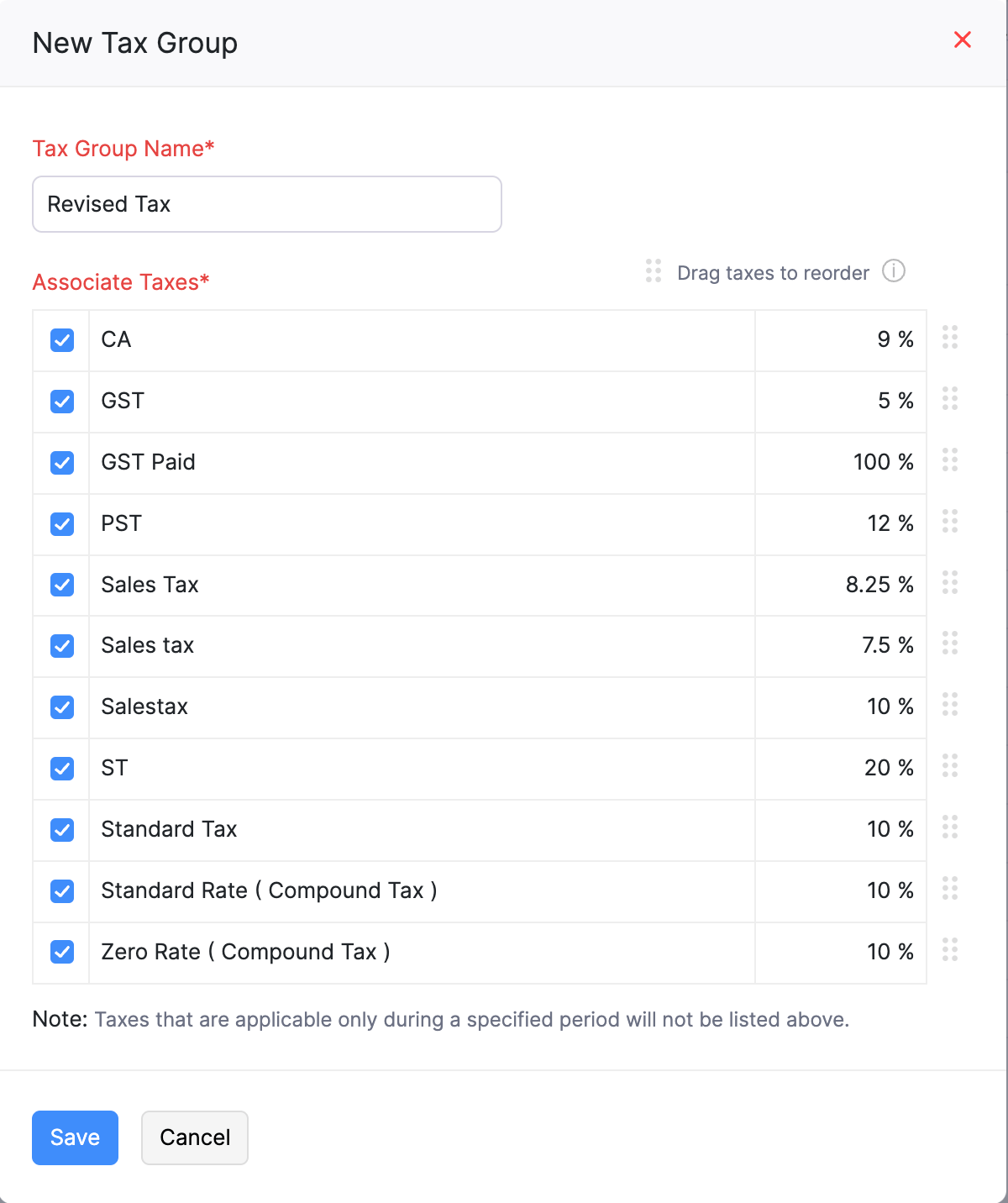
The tax group will be created.
Note: To edit or delete a tax group, go to Settings > Taxes & Compliance > Taxes > Tax Rates, hover over the tax group you want to edit or delete, and select Edit or Delete.
Note: If you maintain your tax rates or tax groups outside Zoho Books, you can import them in bulk instead of creating each one manually. You can also export your existing tax rates or tax groups. To do this, go to Settings > Taxes & Compliance > Taxes > Tax Rates, click the More icon, and select the required option.
Apply Reverse Charge to Transactions
Reverse Charge is a mechanism by which the customer is liable to pay the tax directly to the government for goods or services that fall under Reverse Charge as specified by your government. Once you’ve enabled Reverse Charge for your organization, you can apply it to your transactions. Here’s how:
- Create a transaction, for example, an invoice.
- Enter all the necessary details.
- Check the option This transaction is applicable for reverse charge.
- Click Save.
Once you apply reverse charge to your transactions, you can view the details in the Reverse Charge Summary report and the Sales Reverse Charge Summary report.
Track VAT MOSS, OSS, IOSS, or Digital Services for a Customer
Once you enable tracking of VAT MOSS, OSS, IOSS, or digital services export under Tax Settings, you can enable this option for individual customers so that tax on their transactions is tracked and reported separately. This applies whether the customer is registered under the VAT MOSS, OSS, or IOSS scheme, or you’re simply selling digital services, such as software or cloud services, to an overseas customer.
To enable this option for a customer:
- Click Sales on the left sidebar, and select Customers from the dropdown.
- Create or edit and enter the required details.
- Check the Track VAT MOSS, OSS, IOSS, or sale of digital services for this customer option.
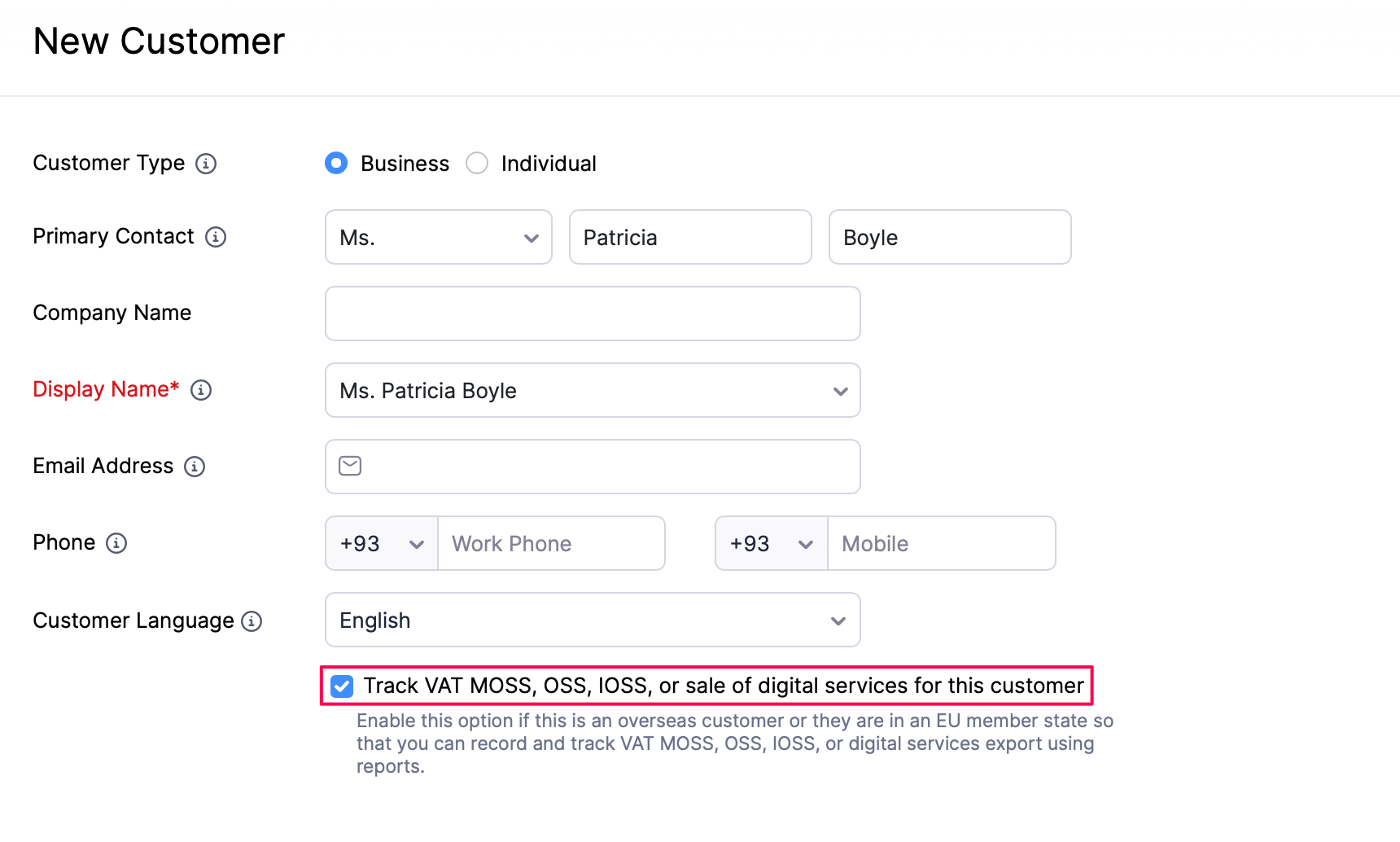
- Click Save.
Note: The OSS/IOSS scheme is applicable only on the sale of goods and services to an OSS/IOSS scheme registered customer.
The tax as per the VAT MOSS, OSS/IOSS scheme, or digital services export will be automatically applied once you create an invoice or credit note for this customer. You can track these transactions using the VAT MOSS report, the OSS/IOSS Scheme report, and the Overseas Digital Tax Summary report.
 Yes
Yes