

TDS

Tax Deducted at Source (TDS) is applied to a transaction when you deduct tax from the amount payable to a vendor or receivable from a customer and remit it to the government.
Configure TDS Settings
To configure TDS settings in your Zoho Books organization:
- Go to Settings.
- Select TDS under Taxes & Compliance.
- In the TDS page, enable the option Do you want to enable TDS?.
- Under Enable TDS For, select whether you want to enable TDS for Customers, Vendors, or Customers and Vendors.
- Under TDS Accounting Method, select if TDS should be deducted on cash or accrual basis for sales and purchase transactions.
- Both: TDS is deducted when the transaction is recorded and when the payment is made or received.
- When the transaction is recorded: TDS is deducted when the invoice or bill is recorded (accrual basis).
- When payment is received/made: TDS is deducted when the payment is received or made (cash basis).
- Under TDS Override in Transactions:
- Check the Enable TDS override for sales transactions option to override the total TDS amount in sales transactions.
- Check the Enable TDS override for purchase transactions option to override the total TDS amount in purchase transactions.
- Click Save.
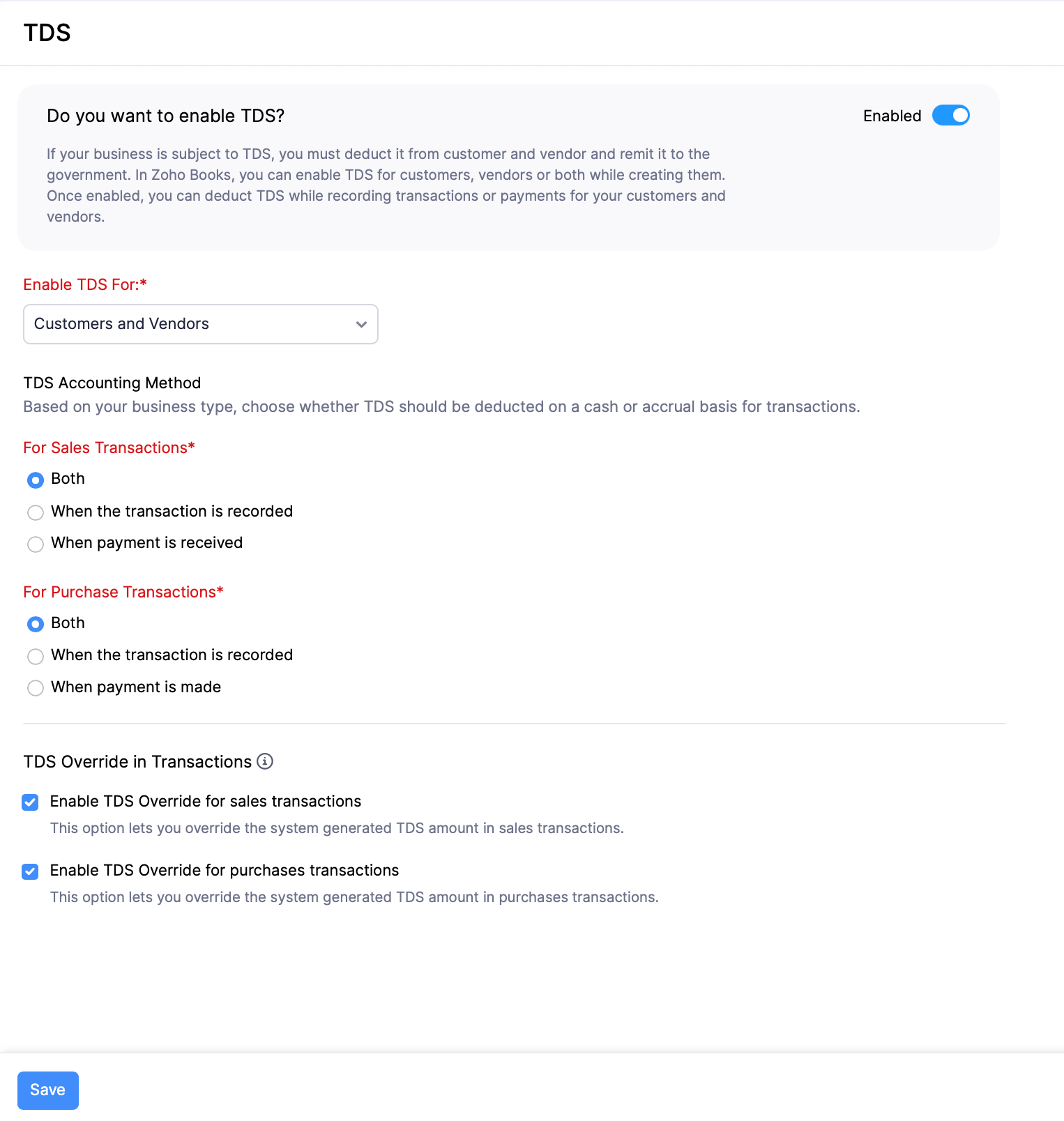
Note: You can’t disable TDS or change the TDS Accounting Method if existing transactions or payments already have TDS applied.
TDS Rates
Once TDS is enabled for your organization, you can add, edit, and delete TDS rates, and group them as needed.
Add a TDS Rate
Once TDS is enabled for your organization, you can add TDS rates. Here’s how:
- Go to Settings.
- Select TDS under Taxes & Compliance.
- In the TDS pane, select TDS Rates.
- Click + New Rate.
- In the New TDS page, enter the TDS Name and TDS Rate (%).
- Under the Tracking Preference section, select the Account to Track TDS in Sales and Account to Track TDS in Purchases.
- Click Save.
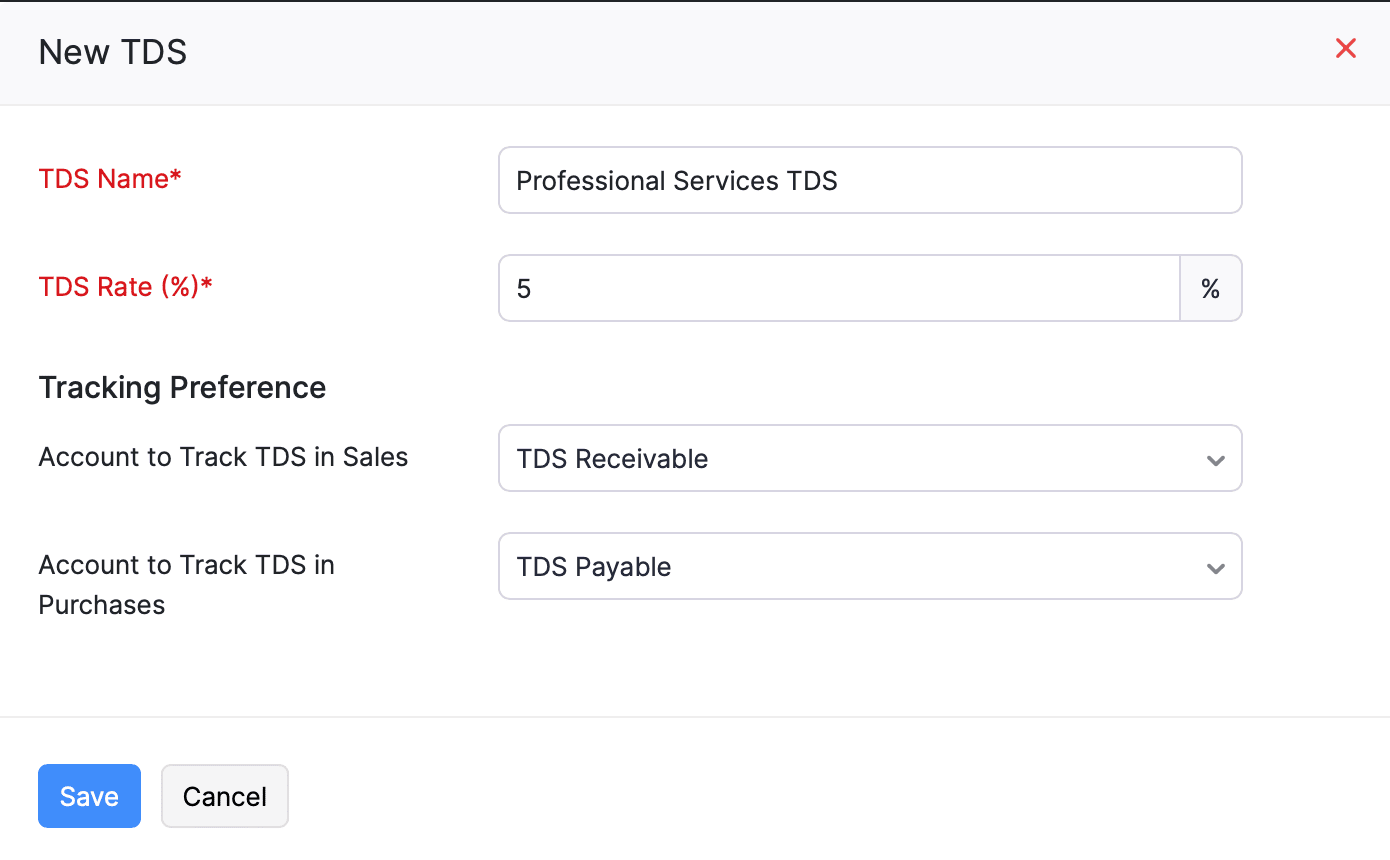
The new TDS rate will be available and listed under Active TDS Rates.
Edit a TDS Rate
To edit an existing TDS rate:
- Go to Settings.
- Select TDS under Taxes & Compliance.
- In the TDS pane, select TDS Rates.
- Hover over the TDS rate you want to edit, click the dropdown next to it, and click the Edit icon.
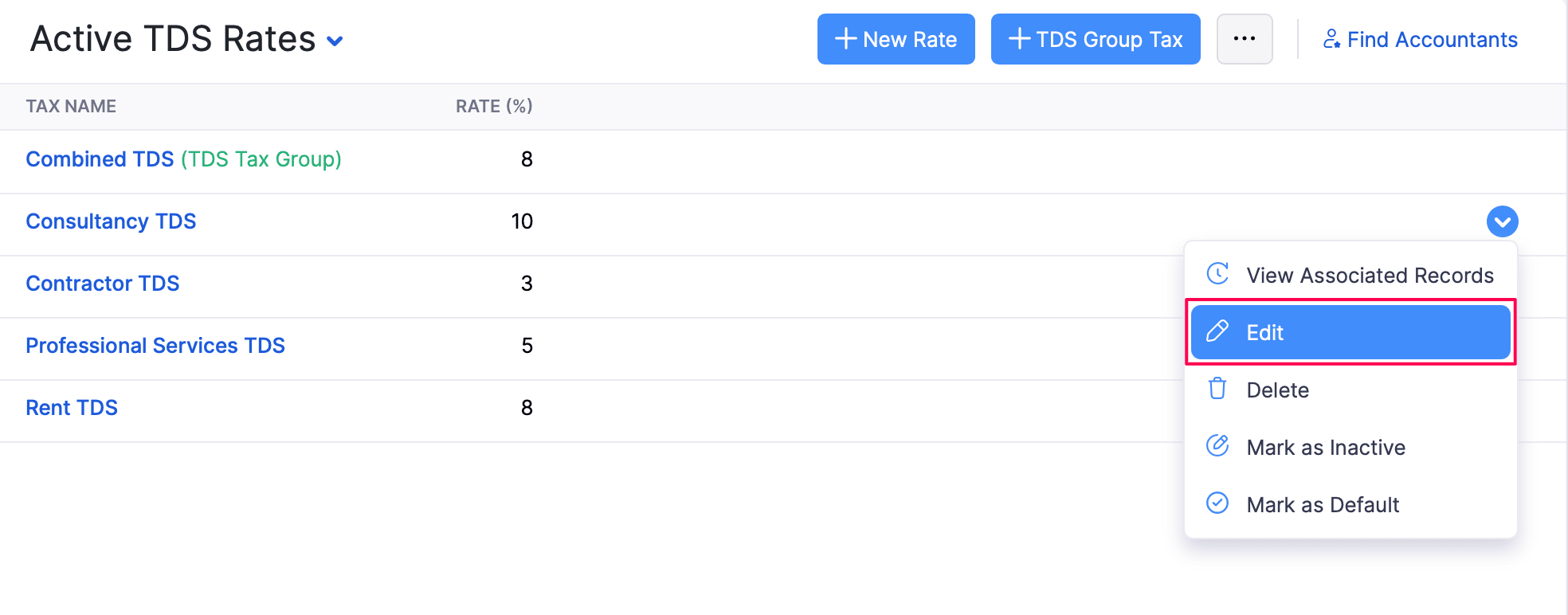
- In the Edit Tax pop-up, make the necessary changes.
- Click Save.
The TDS rate will be updated.
Delete a TDS Rate
To delete a TDS rate:
- Go to Settings.
- Select TDS under Taxes & Compliance.
- In the TDS pane, select TDS Rates.
- Hover over the TDS rate you want to delete, click the dropdown next to it, and click the Delete icon.
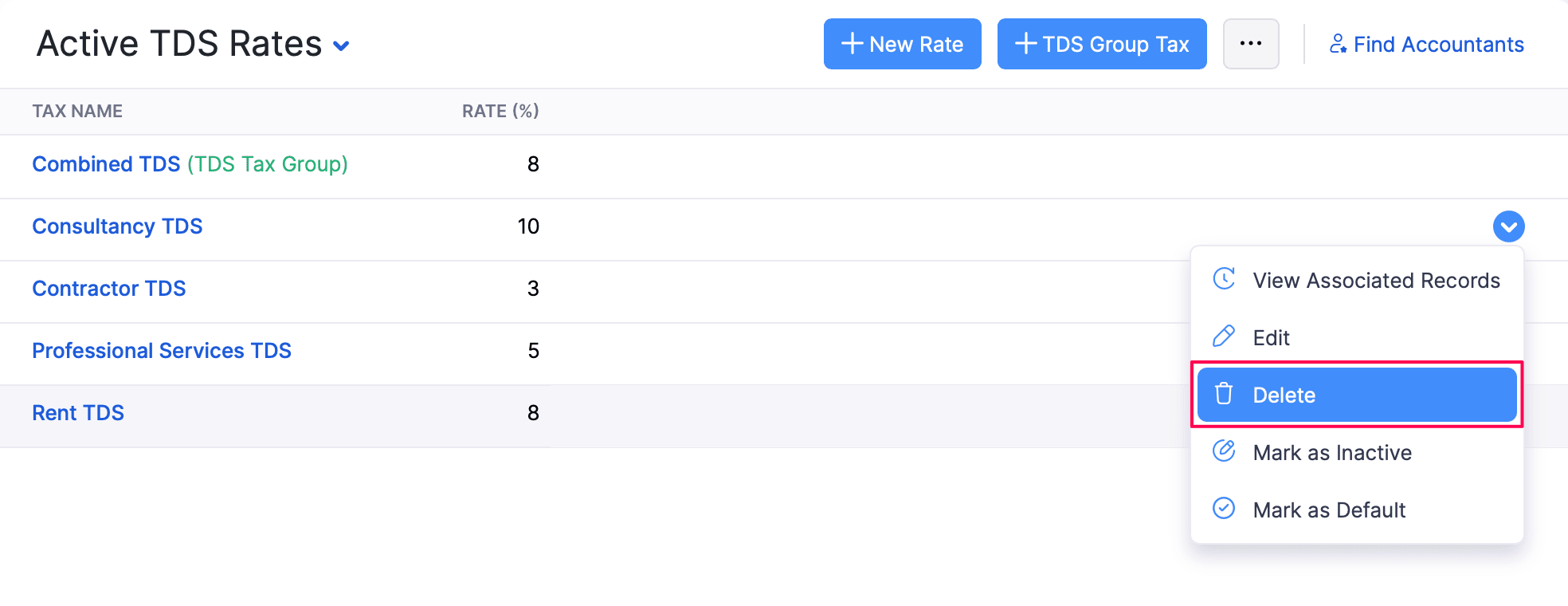
- Click OK in the confirmation pop-up.
The TDS rate will be deleted.
Mark a TDS Rate As Inactive
To mark a TDS rate as inactive:
- Go to Settings.
- Select TDS under Taxes & Compliance.
- In the TDS pane, select TDS Rates.
- Hover over the TDS rate you want to mark as inactive, click the dropdown next to it, and click Mark as Inactive.
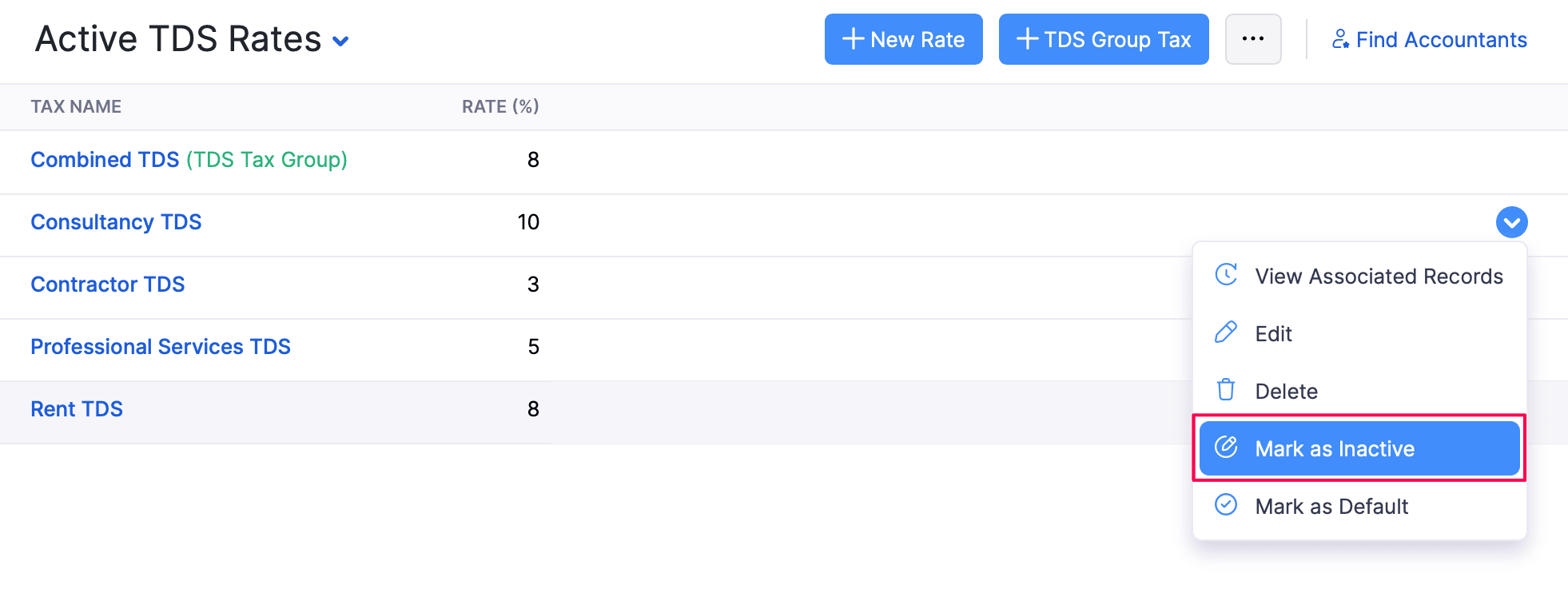
The TDS rate will be marked as inactive.
View Associated Records of a TDS Rate
To view the records associated with a TDS rate:
- Go to Settings.
- Select TDS under Taxes & Compliance.
- In the TDS pane, select TDS Rates.
- Hover over the TDS rate for which you want to view associated records, click the dropdown next to it, and click the View Associated Records icon.
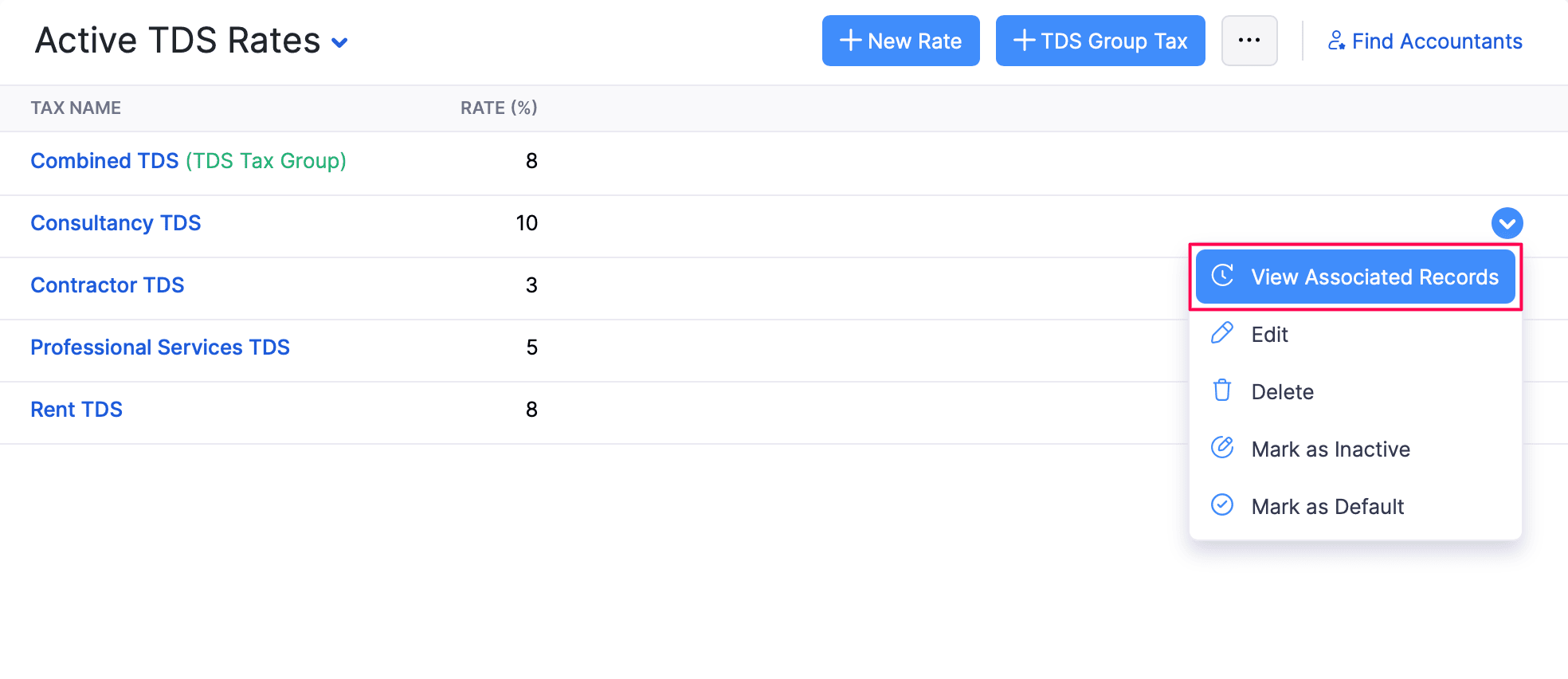
You can view the records associated with the TDS rate in the Associated Records pane that opens on the right.
Create a TDS Group Tax
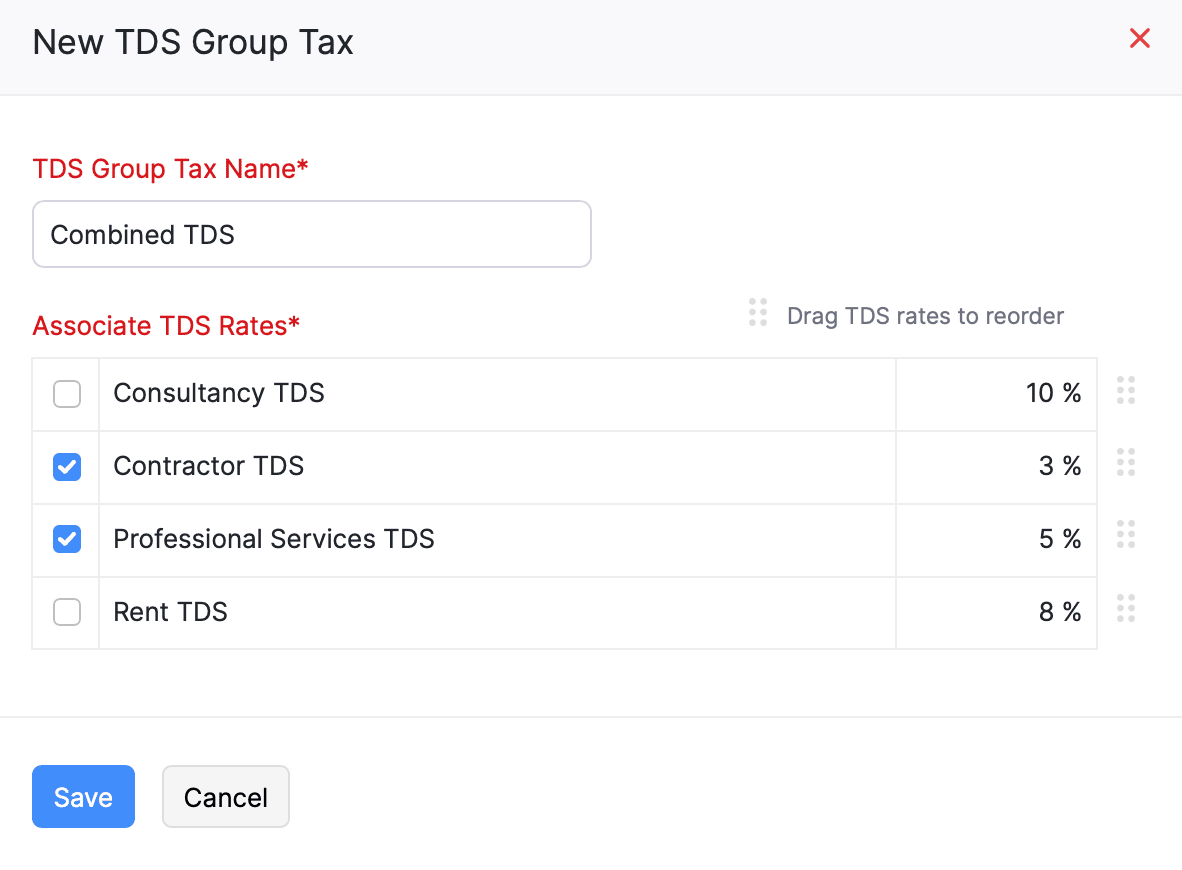
You can group multiple TDS rates and apply them as a single TDS in your transactions. Here’s how to create a TDS group tax:
- Go to Settings.
- Select TDS under Taxes & Compliance.
- In the TDS pane, select TDS Rates.
- Click TDS Group Tax in the top right corner of the page.
- Enter the Tax Group Name and select the TDS rates to include in this group.
- Click Save.
Note: To edit or delete a TDS group tax, go to Settings > Taxes & Compliance > TDS > TDS Rates, hover over the tax group you want to edit or delete, and select Edit or Delete.
Note: If you maintain your TDS rates or TDS group taxes outside Zoho Books, you can import them in bulk instead of creating each one manually. You can also export your existing tax rates or tax groups. To do this, go to Settings > Taxes & Compliance > TDS > TDS Rates, click the More icon, and select the required option.
Enable TDS for Customers/Vendors
To enable TDS for a customer or vendor:
- Go to Sales/Purchases on the left sidebar and select Customers/Vendors.
- Create or edit a customer/vendor.
- In the New Customer/Vendor page, navigate to the Other Details section and check Enable TDS for this customer or Enable TDS for this vendor.
- Enter the other necessary details.
- Click Save.
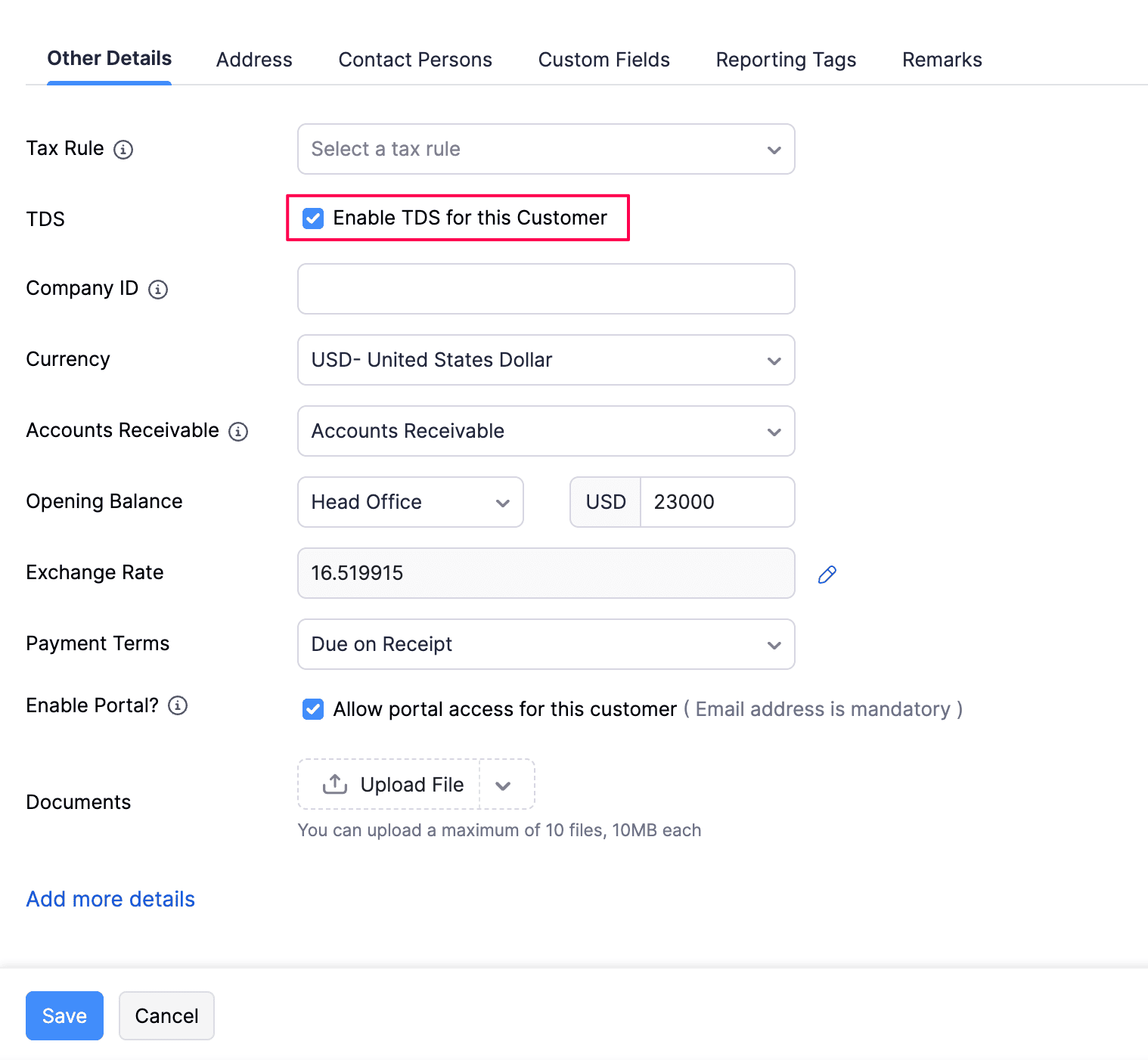
TDS will be enabled for the customer or vendor.
Apply TDS to a Transaction
To apply TDS to a transaction:
- Go to Sales or Purchases on the left sidebar and select a module (for example, Invoices).
- Create or edit an invoice.
- Enter all the necessary details.
- In the Item Table, select the items and select the checkboxes in the Apply TDS column for the respective line items.
Note: You can apply TDS to a transaction only if TDS is enabled for the customer or vendor.
- In the Total section, select the TDS.
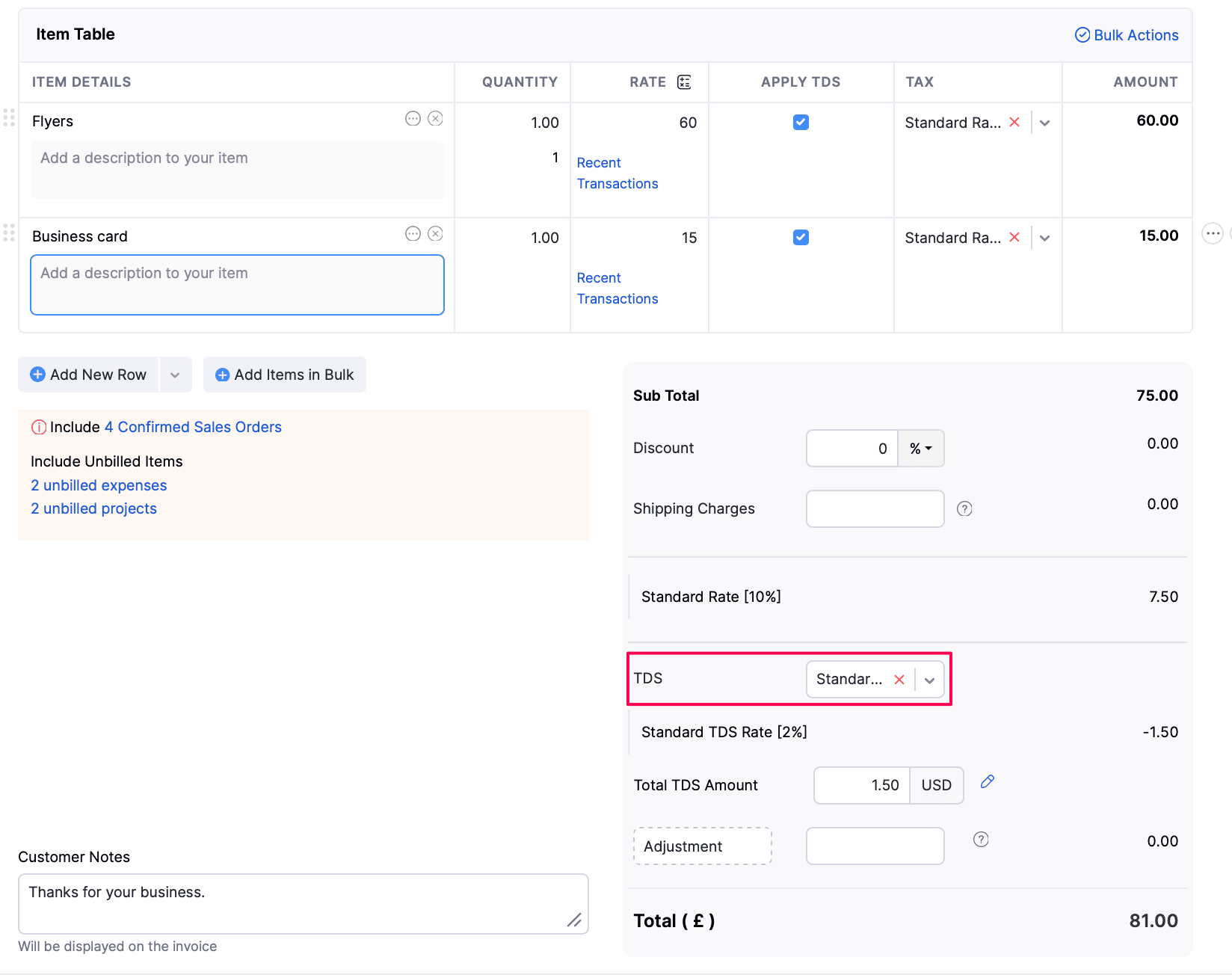
Once you add a TDS rate to your transaction, you can also update the TDS amount deducted from the taxable amount of your transaction. To do this:
- Click the Edit icon next to the Total TDS Amount field.
- In the Update TDS Amount pop-up that appears, enter the amount you want to override.
- Click Update. The TDS amount to be deducted from the transaction will be updated accordingly.
- Click Save.
Record TDS When Recording Payments
If your TDS Accounting Method is set to When payment is received/made or Both, you can enter the TDS deducted while recording a payment for an invoice or a bill.
Record TDS from an Invoice Payment
To record the TDS deducted while recording a payment for an invoice:
- Go to Sales on the left sidebar and select Invoices.
- Select the invoice for which you want to record the payment.
- Click the dropdown next to Record Payment and select Record Payment.
- In the page that follows, enter all the necessary details and select Yes, TDS next to Tax deducted?.
- Select the TDS Tax Account and enter the Amount Withheld.
- Click Save as Paid.
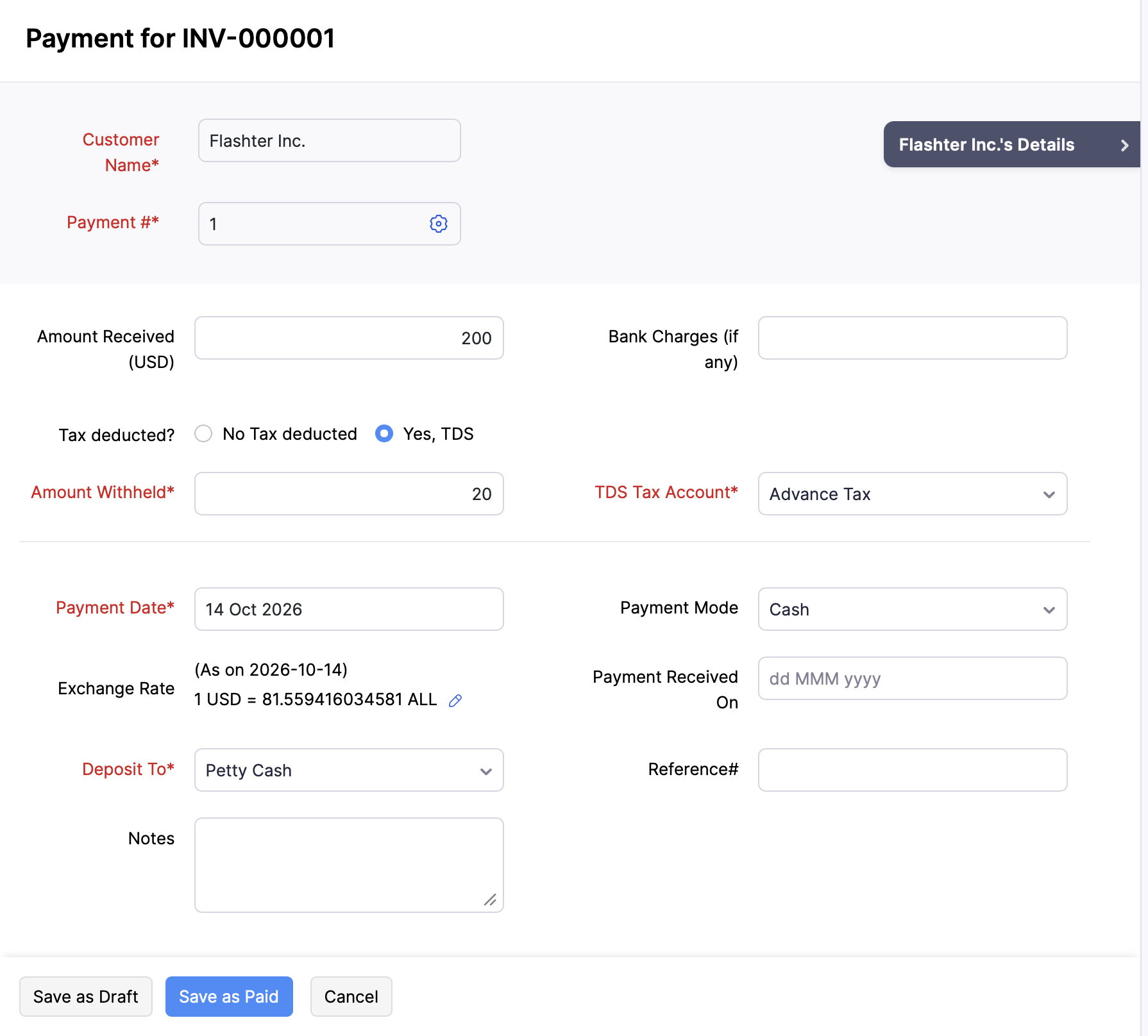
The payment will be recorded under Payments Received, with the TDS amount withheld from the invoice.
Record TDS Directly from Payments Received
You can also record TDS while creating a new payment directly from the Payments Received module instead of opening the invoice. Here’s how:
- Go to Sales on the left sidebar and select Payments Received.
- Click + New in the top right corner.
- In the Record Payment page, select the Customer and fill in the required payment details.
- Select Yes, TDS next to Tax deducted?, then select the TDS Tax Account.
- Under the Unpaid Invoices section, enter the withholding tax amount in the Withholding Tax field next to the invoice you want to apply it to.
- Click Save as Paid.
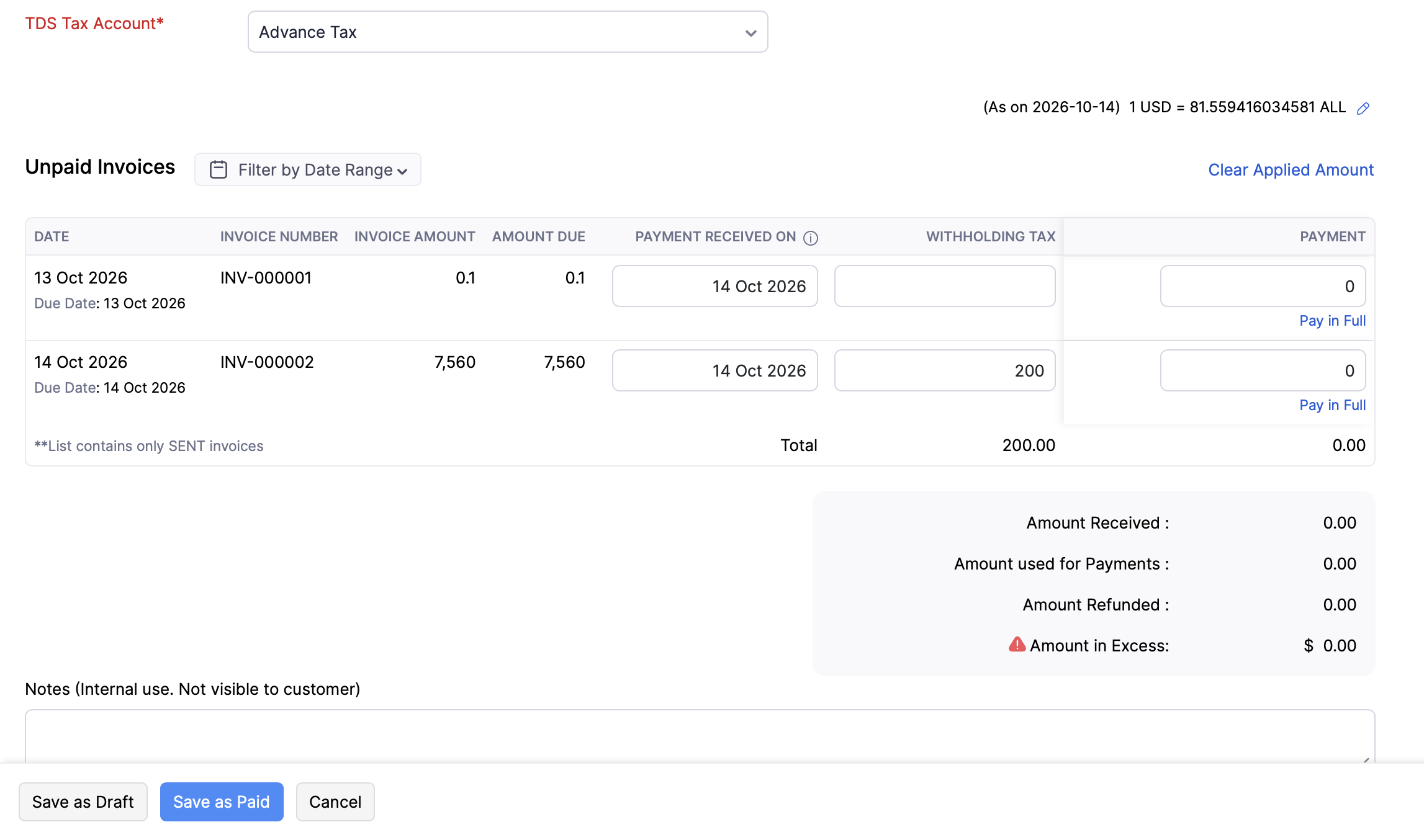
The payment, along with the TDS withheld, will be recorded under Payments Received.
Record TDS from a Bill Payment
To record the TDS deducted while recording a payment for a bill:
- Go to Purchases on the left sidebar and select Bills.
- Select the bill for which you want to record the payment.
- Click Record Payment.
- In the page that follows, enter all the necessary details and check the Deduct TDS option.
- Enter the Amount Withheld and select the TDS Account.
- Click Save as Paid.
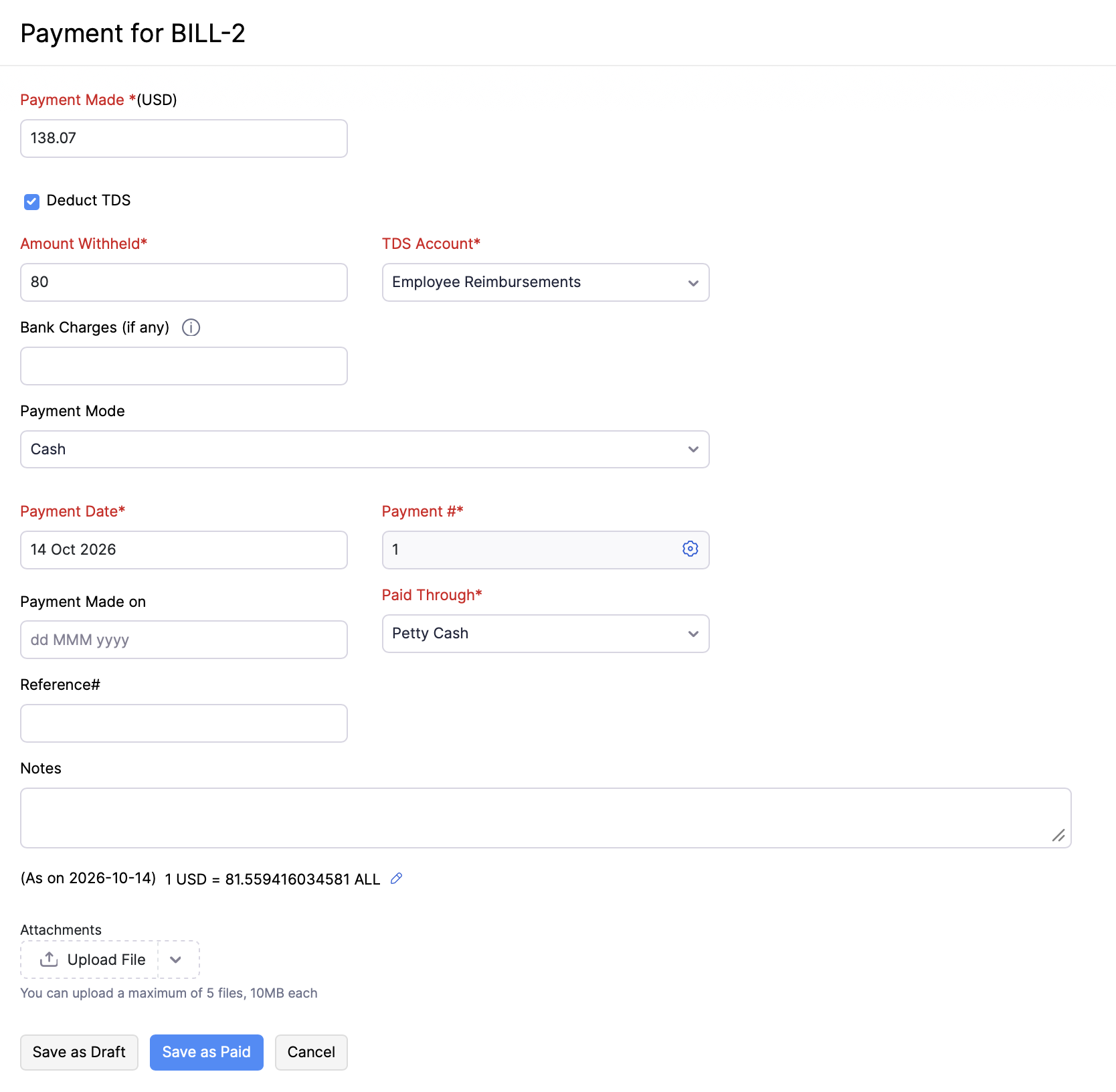
The payment will be recorded under Payments Made, with the TDS amount withheld from the bill.
Record TDS Directly from Payments Made
You can also record TDS while creating a new vendor payment directly from the Payments Made module instead of opening the bill. Here’s how:
- Go to Purchases on the left sidebar and select Payments Made.
- Click + New in the top right corner.
- In the Record Payment page, select the Vendor Name and fill in the required payment details.
- Check the Deduct TDS? option next to TDS.
- In the table below, enter the TDS amount next to the bill you want to apply it to.
- Click Save as Paid.
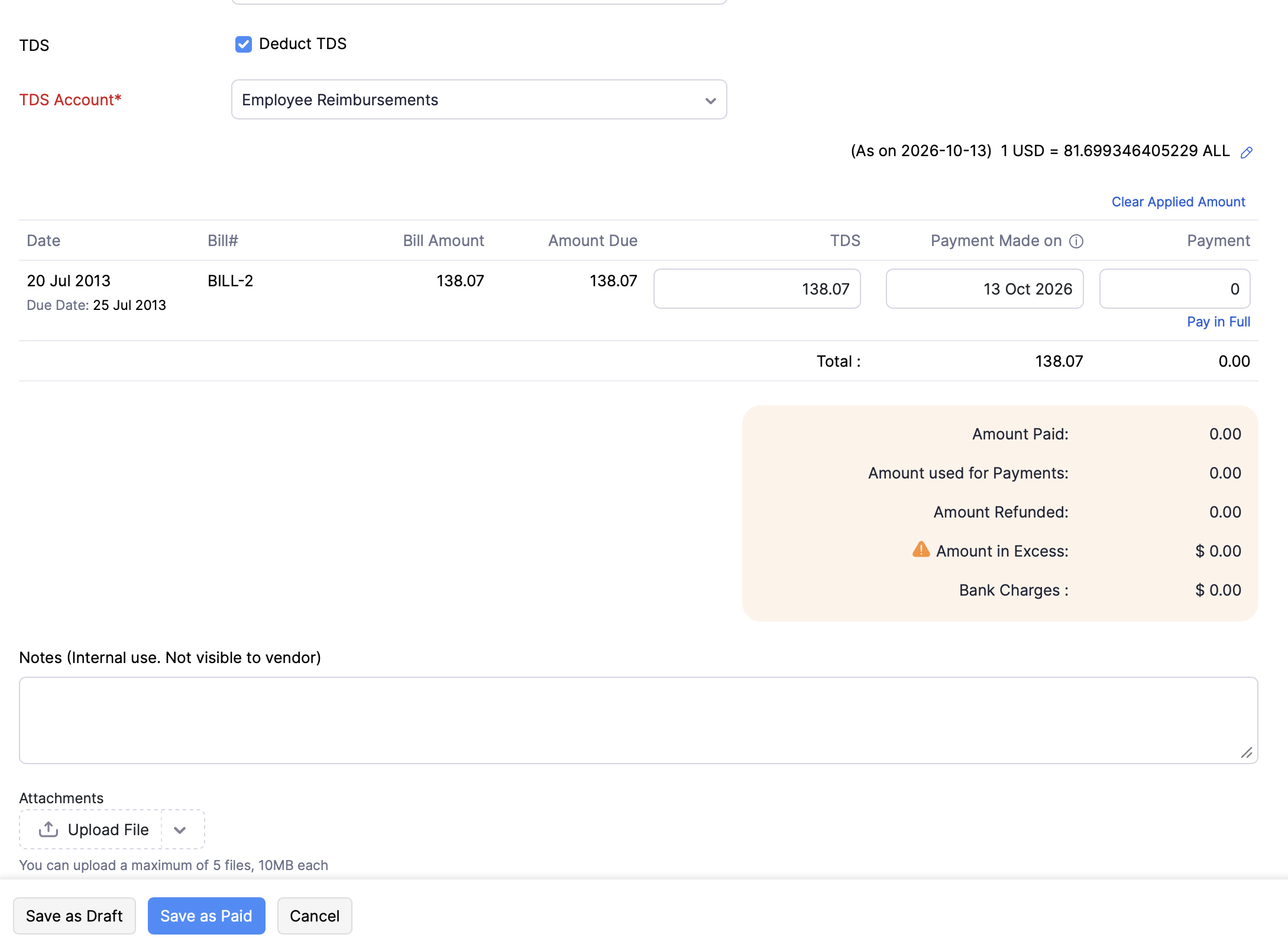
The payment, along with the TDS withheld, will be recorded under Payments Made.
Note: You can record TDS in a payment only if TDS is enabled for your organization, the selected TDS Accounting Method supports payments, and TDS is enabled for the customer or vendor you’re recording it for.
Note: Check the TDS Payables and TDS Receivables reports to track the TDS details of your transactions.
 Yes
Yes