

Introduction - Credit Note

A Credit Note is a document issued by a vendor to a customer when goods are returned to the vendor after a sale. This can happen due to reasons like the goods being damaged or not satisfactory. The credit note is created for the value of the goods returned.
Create Credit Note
You can directly create a credit note from the Credit Notes module. Here’s how:
- Go to Sales on the left sidebar and select Credit Notes.
- Click + New in the top right corner.
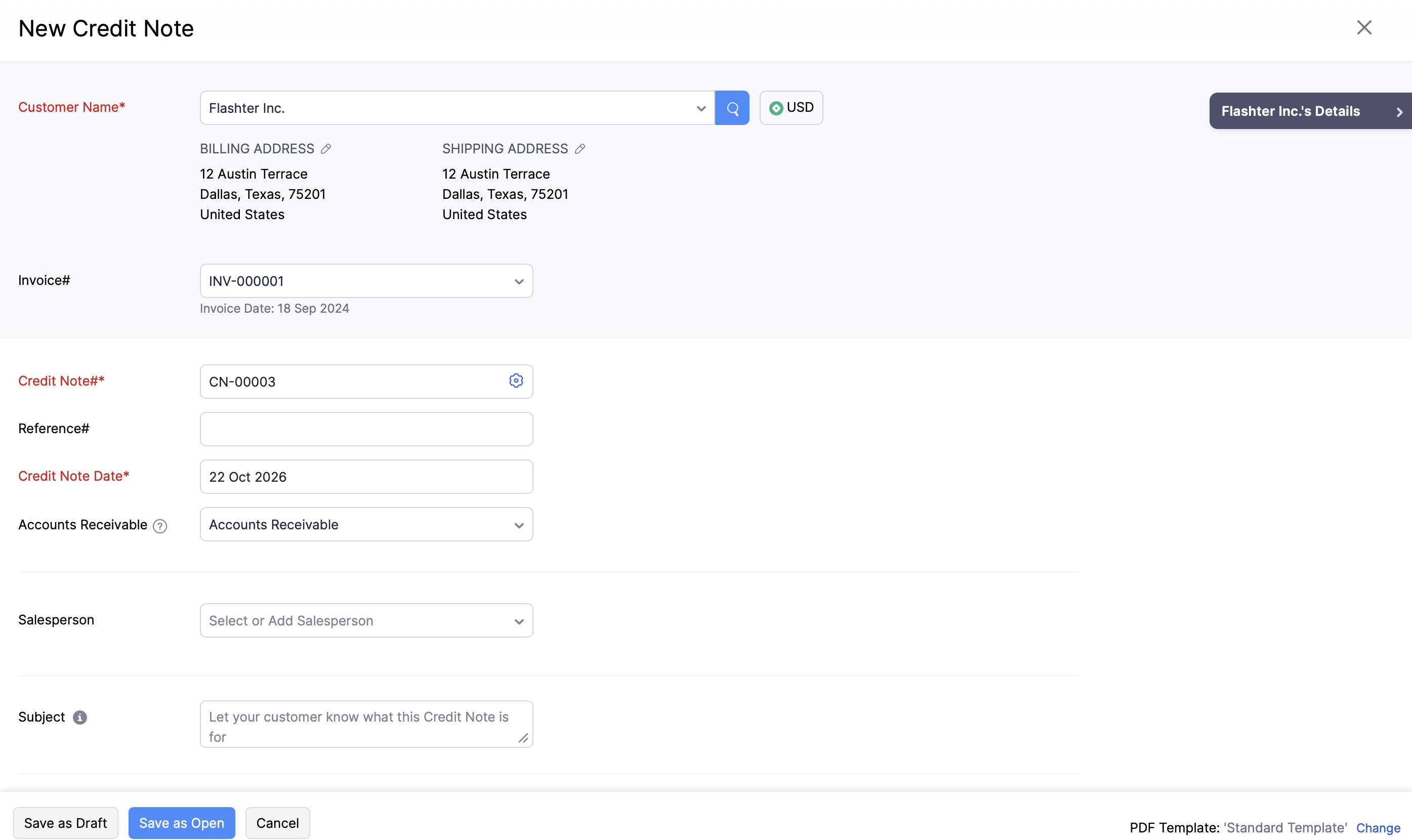
- In the Credit Note page, fill in the following fields:
- Customer Name: Select the customer for whom you want to create the credit note.
- Invoice#: Select a sent invoice to associate with this credit note. Only invoices in the Sent status for the selected customer are available in the dropdown. Associating an invoice lets Avalara calculate tax using the invoice’s date instead of the credit note’s date, keeping the tax rate consistent with the original invoice.
- Credit Note#: The Credit Note# will be automatically generated using the default transaction series. You can also enter it manually by clicking the Gear icon next to the field, selecting Enter credit note numbers manually, and clicking Save in the Configure Credit Note Number Preferences popup.
- Credit Note Date: Select the date on which the credit note is issued.
- Enter the item and all the other necessary details.
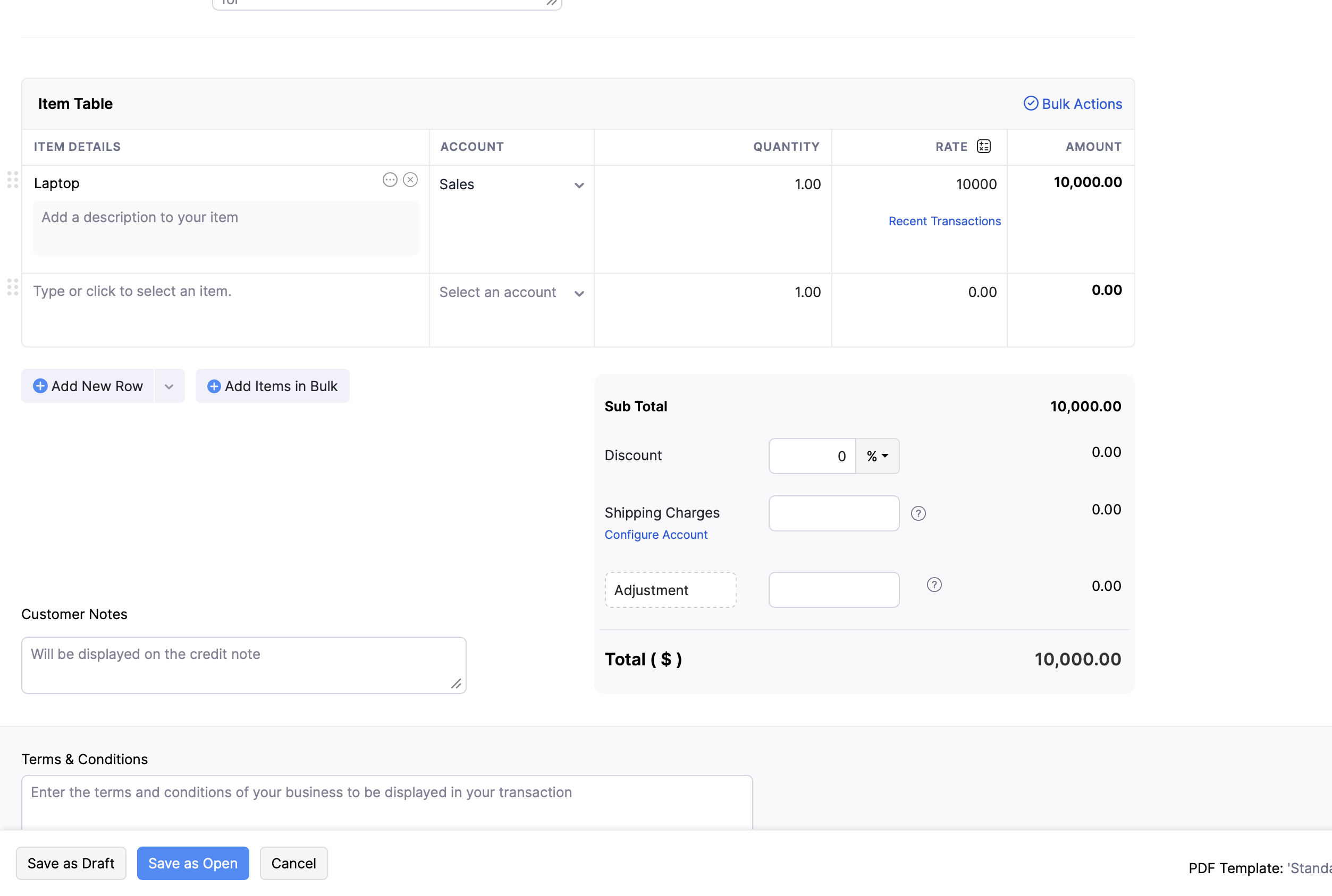
- Click Save as Draft or Save as Open.
Note: You can also create a credit note directly from an invoice. To do this, go to Sales > Invoices and select an invoice. Click the More icon and select Create Credit Note from the dropdown. The New Credit Note page will open with the invoice details automatically populated. Review the details and save the credit note.
Import Credit Notes
Another way of adding credit notes in Zoho Books is to import them. You can import the credit notes you have in your system in CSV, TSV or XLS format.
To import credit notes:
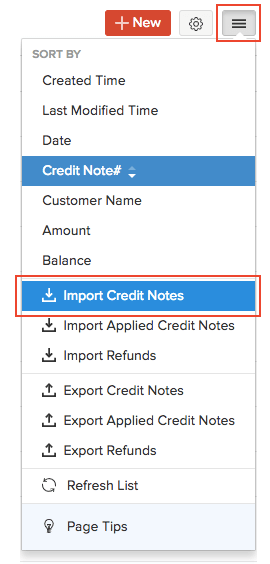
- Go to Sales > Credit Notes.
- Click the More icon in the top right corner of the page.
- Select Import Credit Notes.
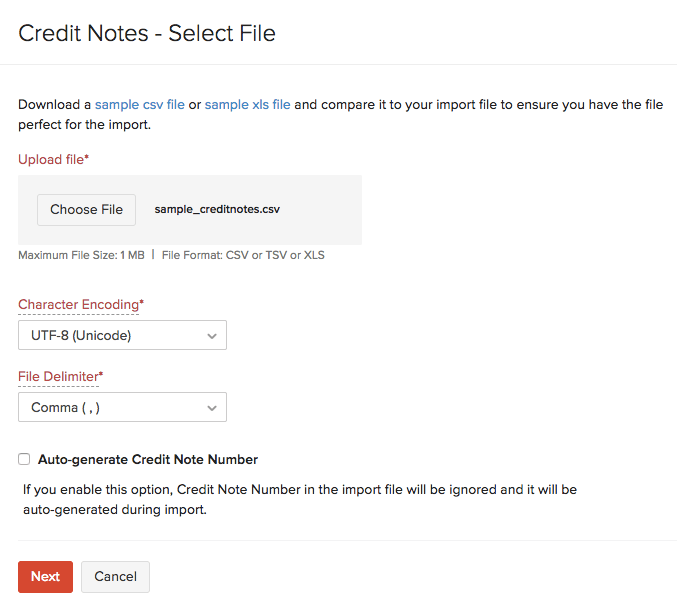
- Click the Choose File button under Upload file. You can download a sample CSV or XLS file for your reference by clicking sample csv file or sample xls file.
- If you want your credit note number in the imported file to be auto-generated, mark the box Auto-generate Credit Note Number.
- Click Next.
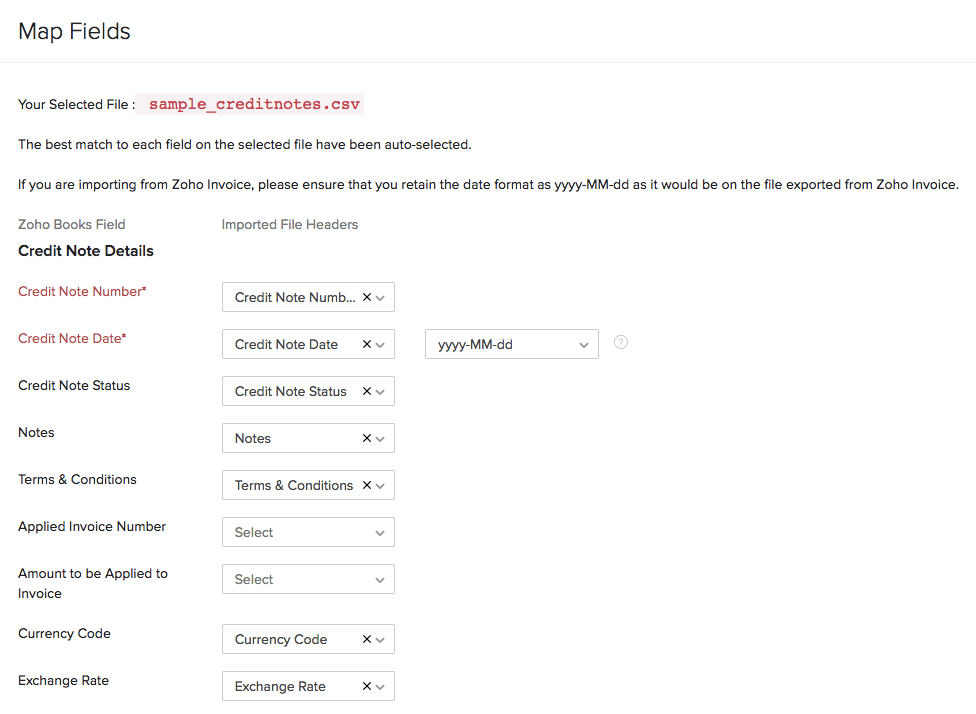
- Ensure that all the fields are mapped correctly in the Map Fields page.
- To import using the same format next time, mark the box Save these selections for use during future imports.
- Click Next.
- Click Import.
Next >
Apply Credits to Invoice
Related >
 Yes
Yes