Troubleshooting Zoho Calendar
Zoho Calendar helps you manage your schedule efficiently. You can search for events, retrieve troubleshooting information for events, recover deleted events or calendars, and print calendars or events in Zoho Calendar.
Retrieve troubleshooting information in Zoho Calendar
If you experience unexpected behavior in Zoho Calendar, our support team may ask you to share troubleshooting information for the affected event. This information includes the Event ID, Calendar ID (Cal ID), and other diagnostic details that help us analyze the issue and identify its cause.
How to retrieve troubleshooting information in Zoho Calendar
You can access the Troubleshoot option in three places within your Zoho Calendar:
- Log in to your Zoho Calendar.
Open the following URL in your browser:
https://calendar.zoho.com/zc/event?troubleShootMode=true
Note
In the URL above, the
.com(TLD) indicates the US data center. If your Zoho account is hosted in a different data center, replace the TLD with the one corresponding to your region. For example, use.eufor the EU data center.Locate the Troubleshoot option using any of the following methods:
- Right-click the required event and select the Troubleshoot icon from the context menu.
- Open the event details and click the Troubleshoot icon in the upper-right corner.
- In Agenda view, hover over the event and click the Troubleshoot icon.
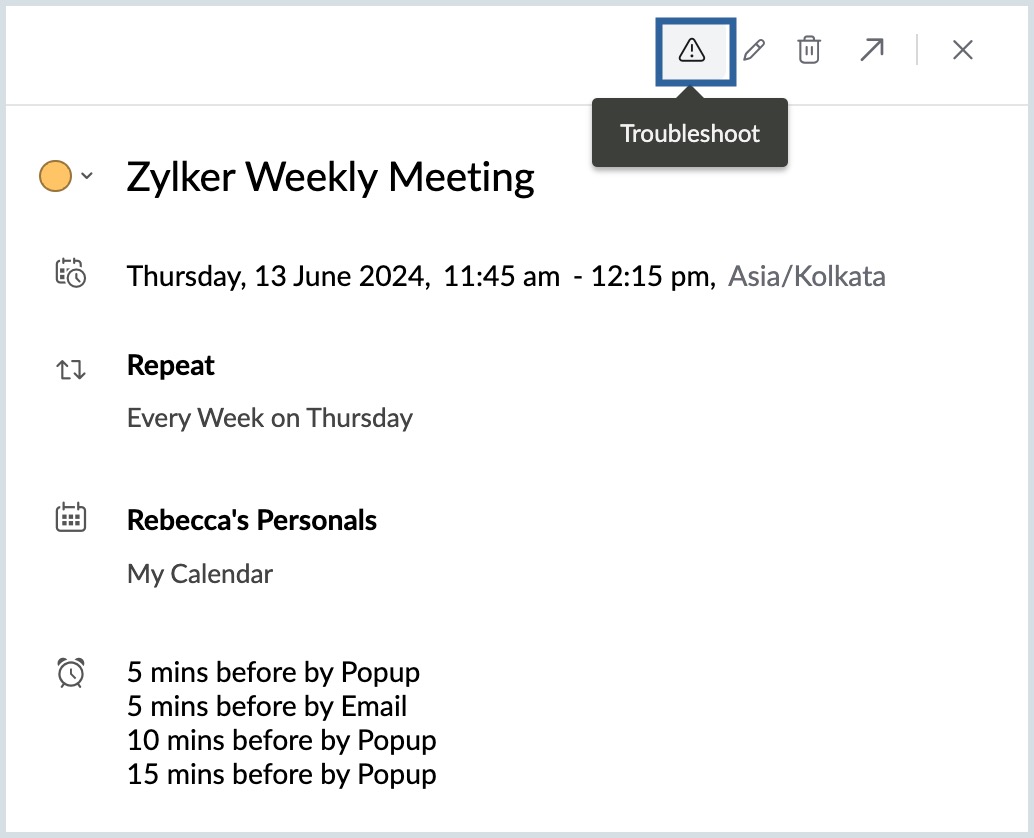
- Click the Troubleshoot icon to view the diagnostic information for the event.
- Click Copy to copy the troubleshooting information, and share it with the Zoho Support team when reporting the issue.
Search for an event
If you are looking to locate a particular event from a list of events on your calendar, the search option can be used. You can search for events in your calendar using the Event Title, Event Location, or the Organizer of the event.
Steps to search for an event
- Log in to Zoho Calendar.
- Click on the Search bar on the top-right corner of the calendar.
- Choose the department (Calendar, Resources, Bookings) you want to search from the drop-down on the left side of the search box.
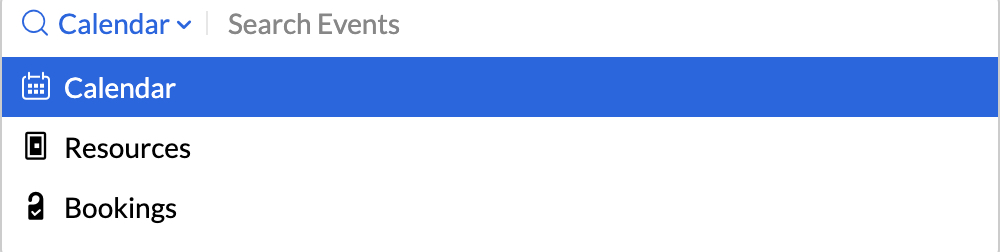
- Choose the parameter based on which you want to search from the list given in the search bar drop-down.
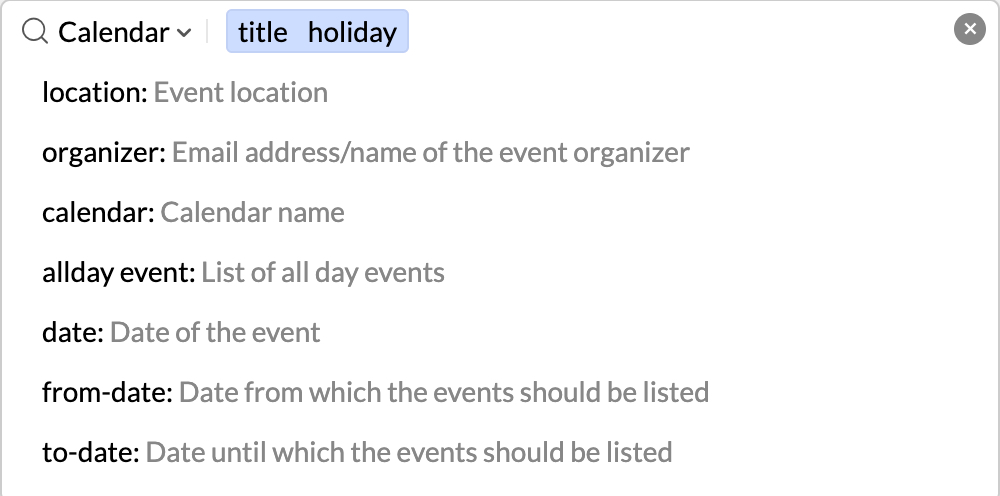
- Enter the content in the search field and tap Enter.
- The event list matching your search criteria will be displayed.
You can also access the Search events feature in the Calendar using the shortcut "/+c".
Recovering from trash
If you are looking to locate a particular event from a list of events in your calendar, you can use the search option. You can search for events using the Event Title, Event Location, or Organizer of the event.
Steps to recover a Calendar from Trash
- Login to Zoho Calendar.
- Click on the More Options icon from the top-right corner of the calendar grid.
- Click on Trash from the list.
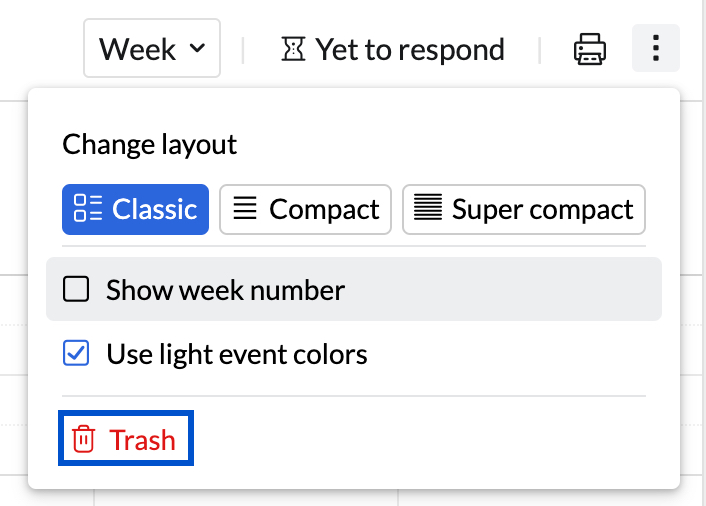
- In the drop-down on the top-left corner of the trash window, click on Calendars.
- All the deleted/emptied calendars will be displayed.
- If you want to permanently delete the calendars, you can select specific calendars and then click on the Delete icon (or) You can clear the trash from all deleted/emptied calendars by selecting all and clicking the Delete icon.
- If you want to recover the calendars, you can select specific calendars and then click on the Restore icon (or) You can recover all the deleted/emptied calendars by selecting all and clicking the Restore icon.
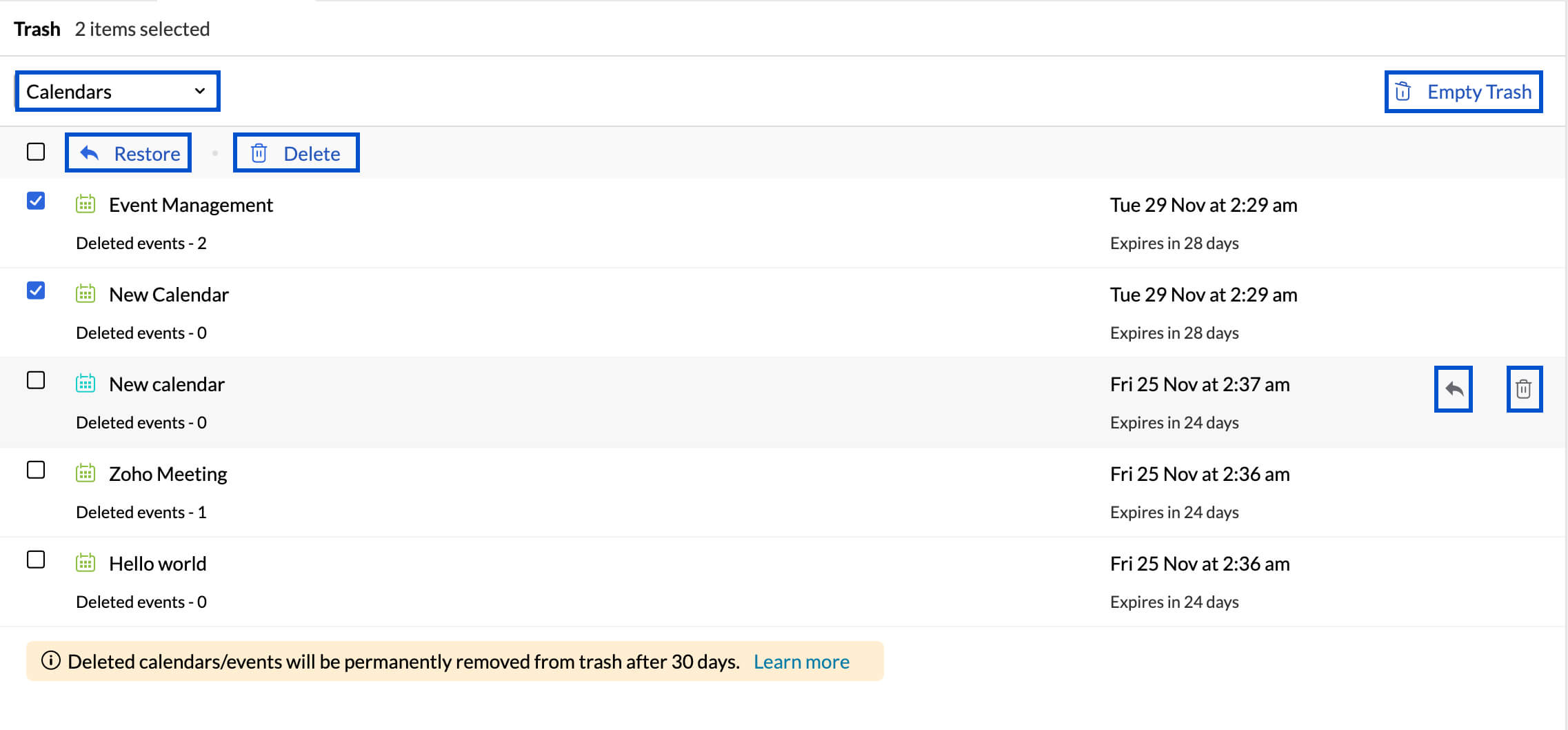
- You can restore/delete a calendar from the trash by hovering over the specific calendar and clicking the Restore/Delete icon next to the calendar.
- You can clear the trash by clicking on the Empty Trash icon.
Note
- Events that are deleted will also be moved to the trash. You can view the events that were deleted and moved to trash by clicking on the drop-down from the top-left corner of the trash window and selecting Events.
- When you click on All from the drop-down on the top-left corner of the trash window, all the deleted events, and calendars present in the trash will be displayed.
- If you click on the Empty Trash button on the top-right corner of the trash window, all the calendars and events present in the trash will be cleared immediately.
Print a calendar
You have the option to customize the view and print a calendar using the Print feature provided in Zoho Calendar. The view that is currently on display will be printed. You can get a list of the events scheduled on a specific day/week/month by customizing your view. Before printing, you can get a preview of the calendar. You can choose to print from the preview or save it as a PDF.
Steps to Print a Calendar
- Log in to Zoho Calendar.
Change the view of the calendar before taking the print.
Note
Print option is not available for Year view.
- Click on the Print option in the top right corner of the calendar.
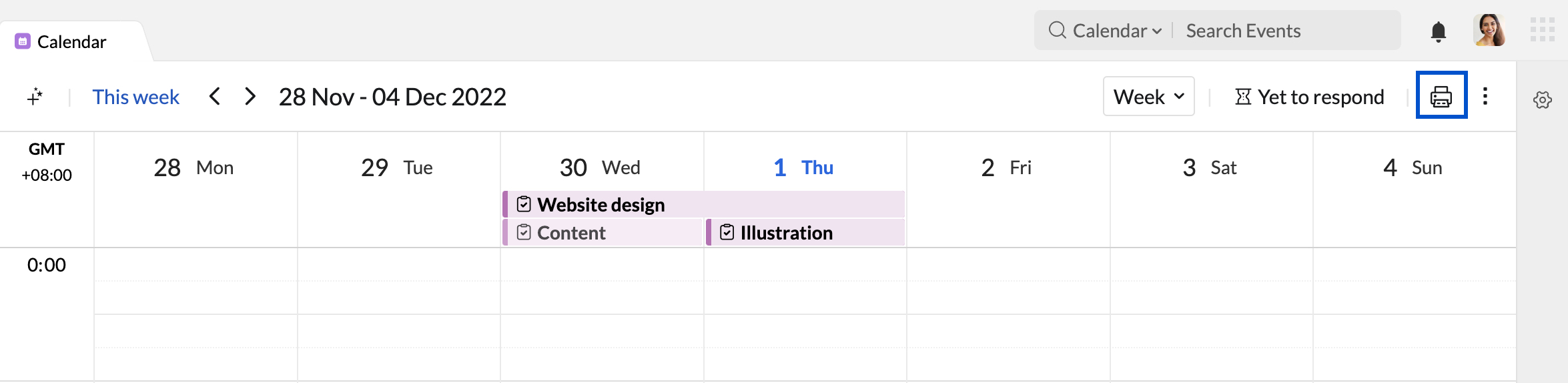
- The print preview of the calendar opens in a separate tab.
- You can choose to Show calendar names, and print All day events.
- While printing the month view calendar, you have an additional option to Disable colors.
- You can also select/deselect the calendars you want to print from the list given on the left of your print calendar window.
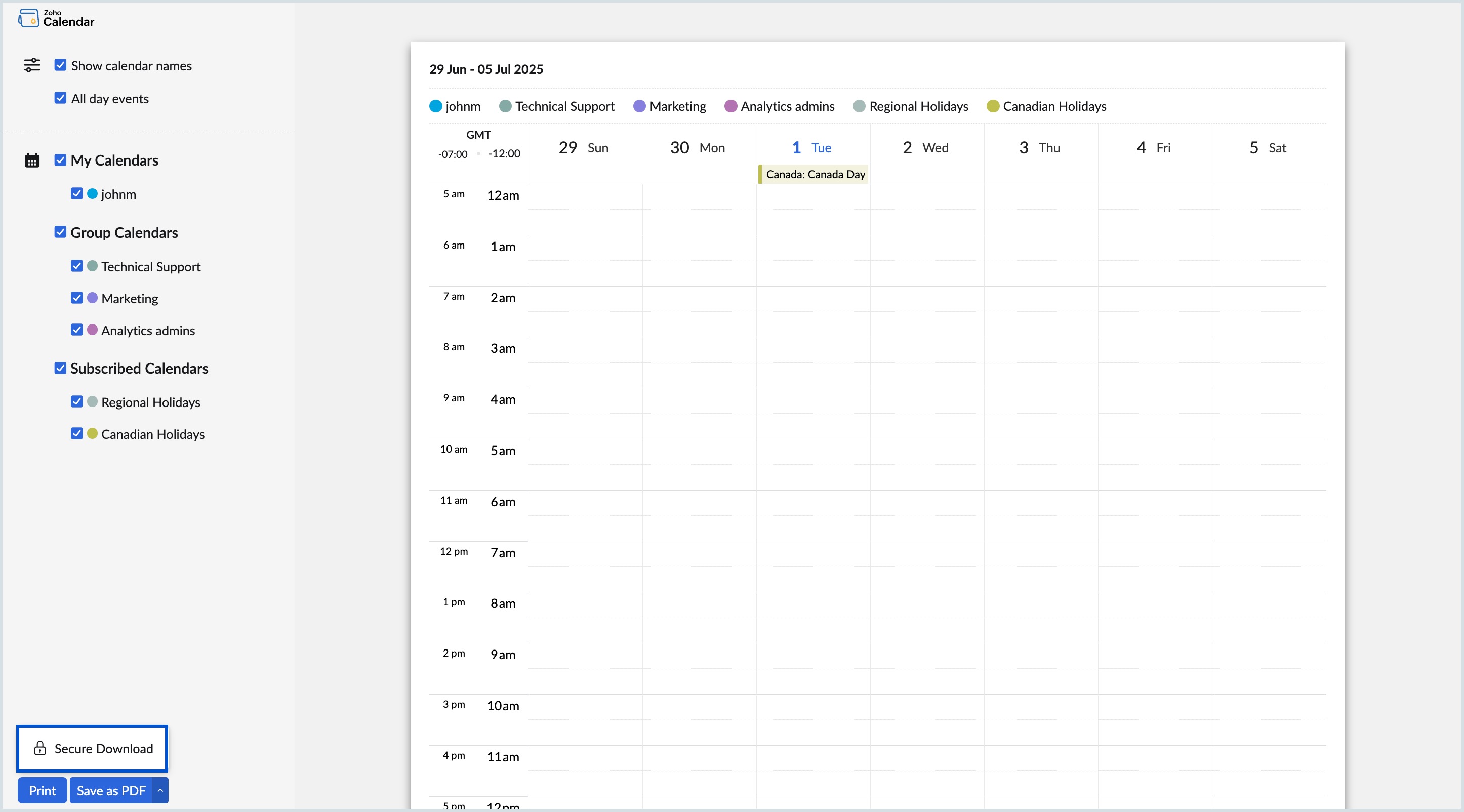
- Click on Print to print the calendar or click on Save as PDF to save the calendar as a PDF on your computer.
Note
- While saving your calendar as a PDF file, you can secure it with a password. Click Secure Download option from the drop-down and enter the required password in the Secure your download pop-up window and click Download.
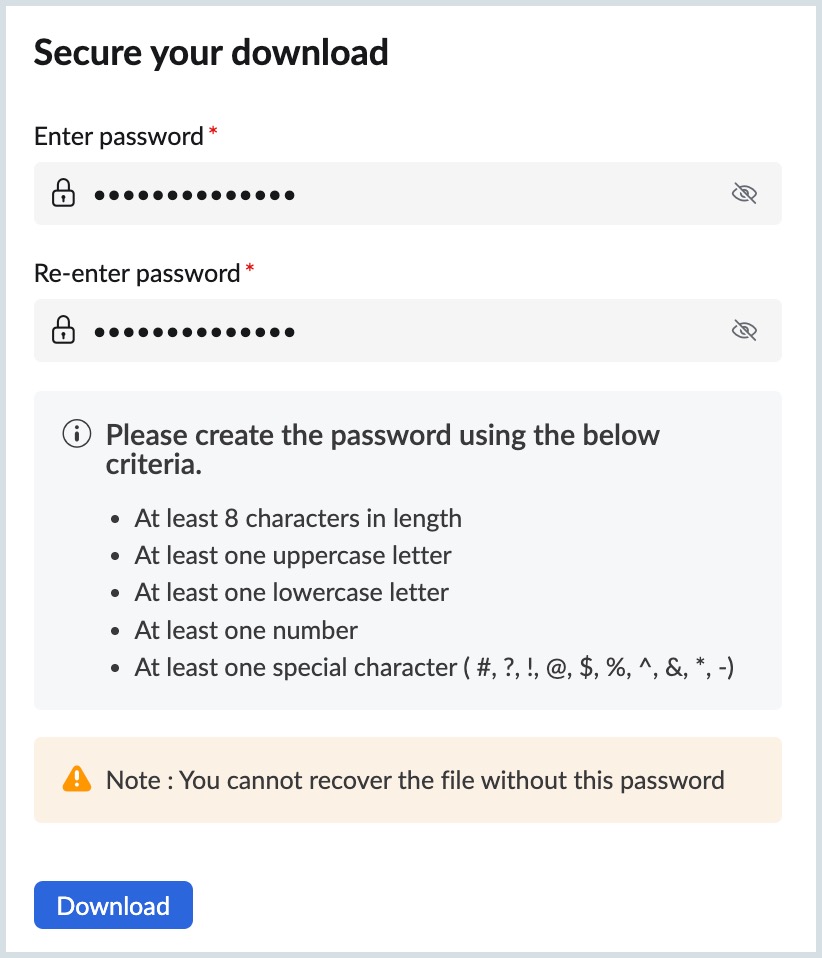
- Your password should contain at least 8 characters with a mix of upper, and lower case alphabets, numbers, and special characters (#, ?, !, @, $, %, ^, &, *, -)
You cannot recover the secure file if the password is forgotten.
Reach out to our support team by mailing your queries to support@zohocalendar.com