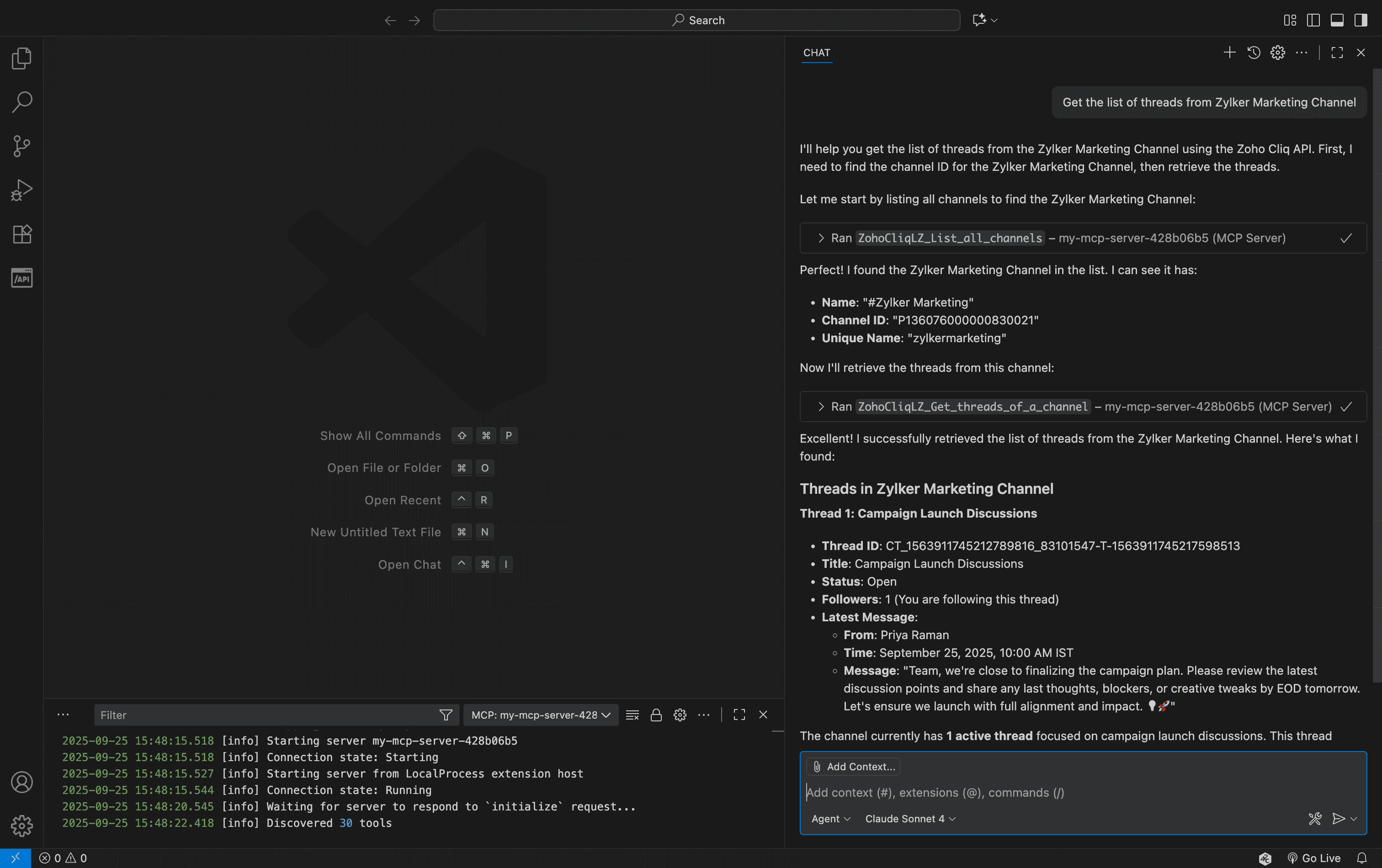
Connecting Zoho Cliq MCP with VS Code
Utilize tools directly within Visual Studio Code by integrating Zoho MCP. With Zoho MCP connected to Visual Studio Code, you can use Zoho Cliq tools without leaving your coding workspace.
This means you can send updates, check channel activity, or message teammates directly from VS Code, which is perfect for developers who want to keep the team in sync without context switching.
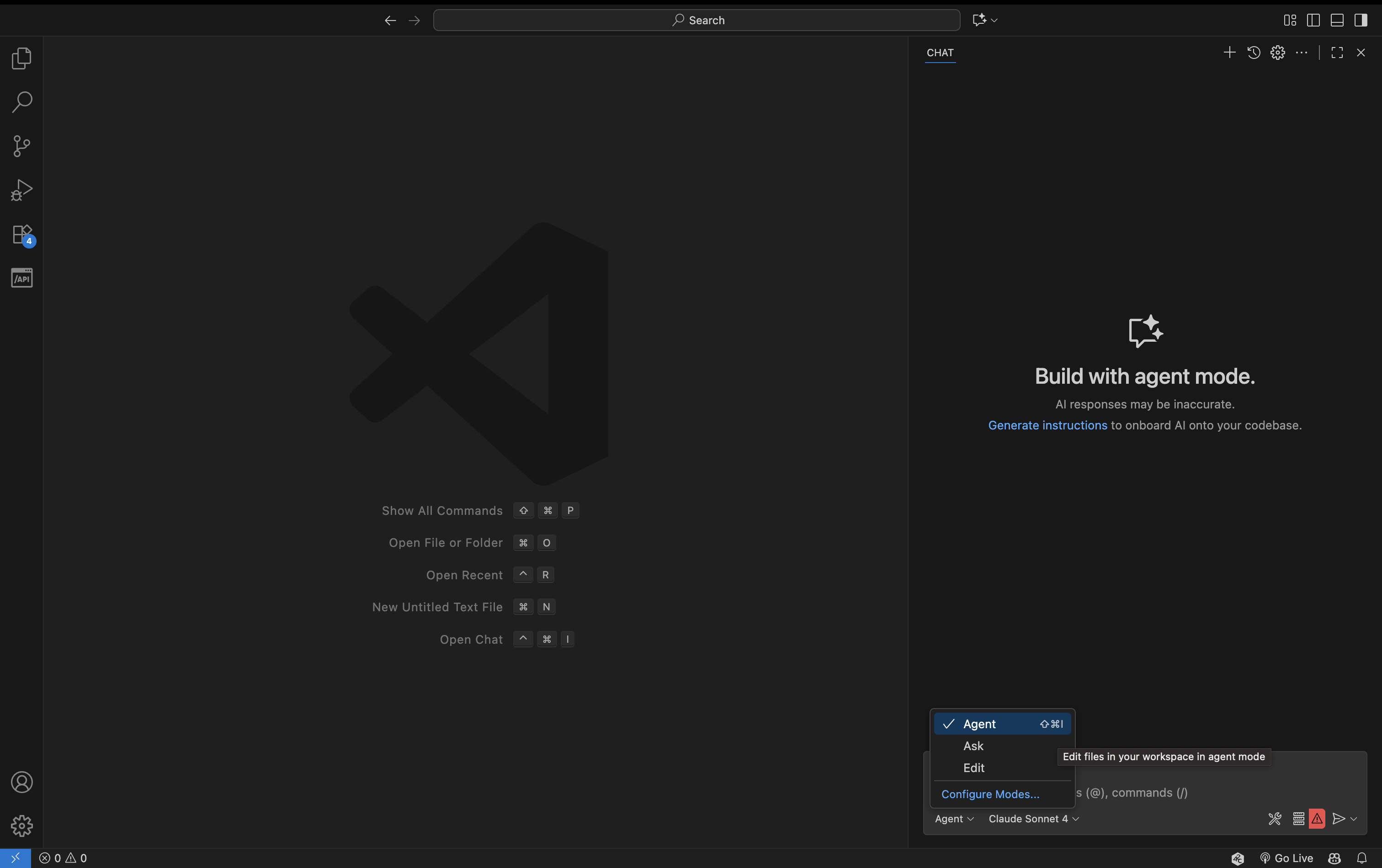
Note: For Zoho MCP to function correctly, ensure that GitHub Copilot is enabled and set to Agent mode in Visual Studio Code. Also, ensure that the installed version of Visual Studio Code is version 1.101 or above.
Configuring Zoho MCP in Visual Studio Code
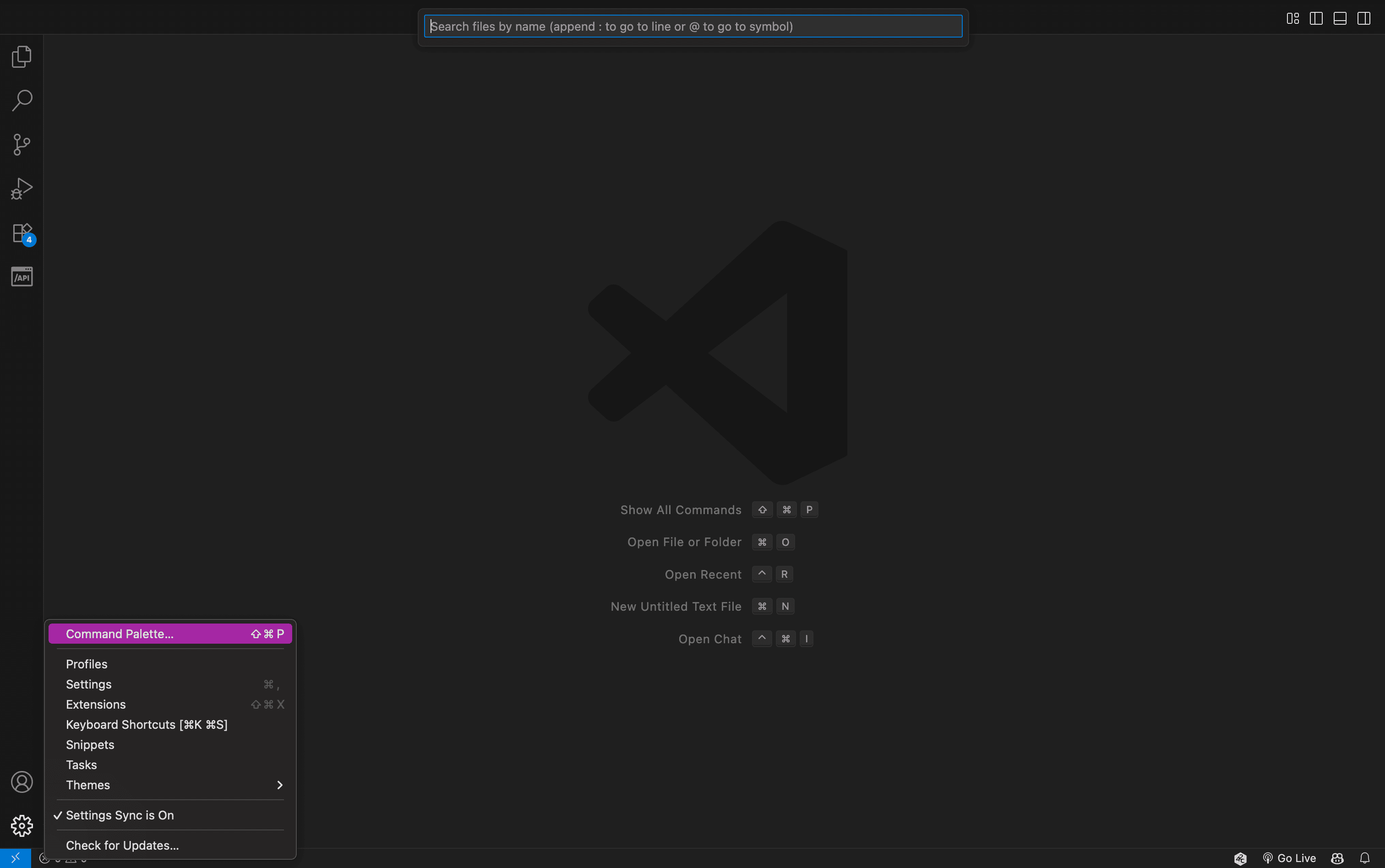
Open the Command Palette in Visual Studio Code (⇧ + ⌘ + P on Mac, Ctrl + Shift + P on Windows).
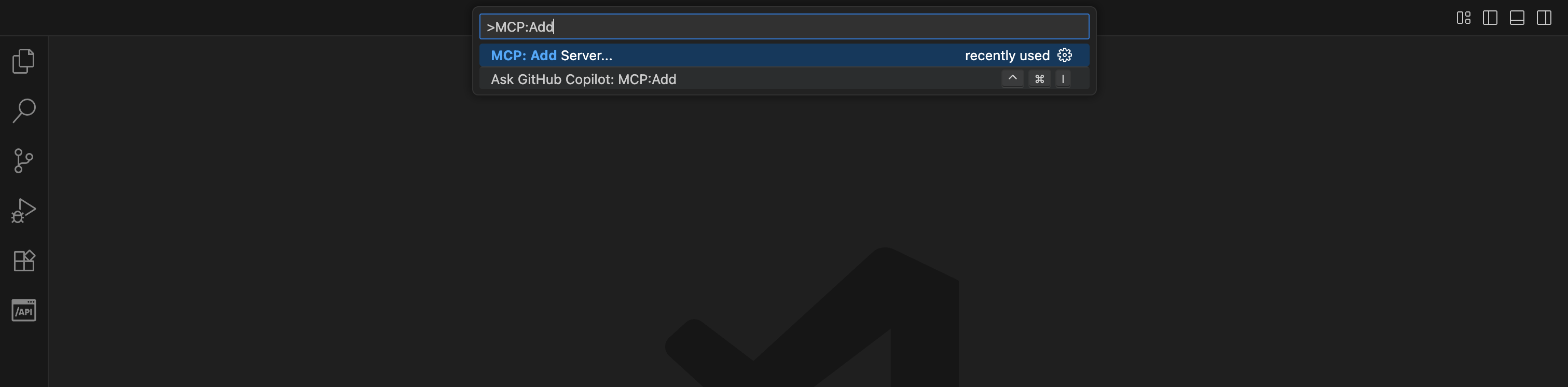
Type "MCP: Add Server..." and press Enter.
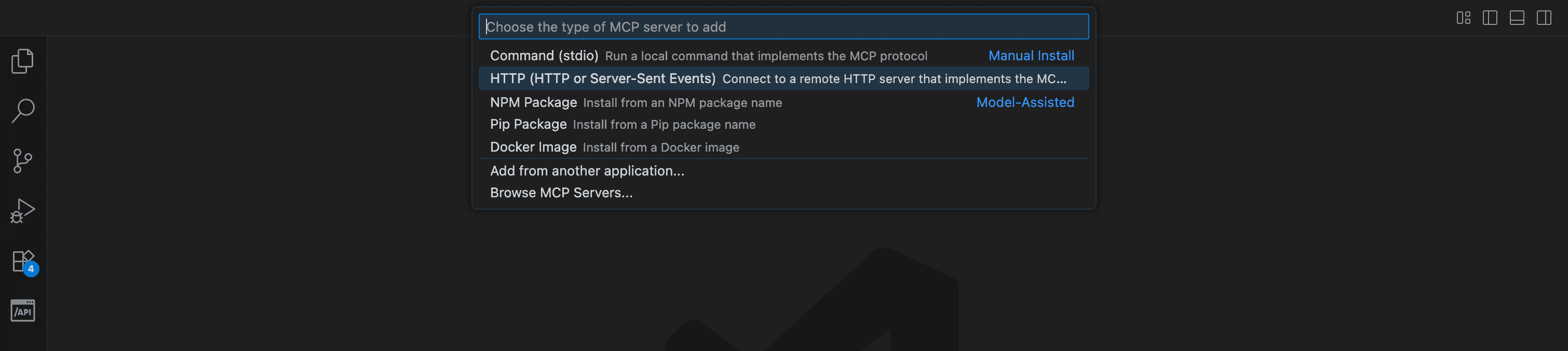
Choose"HTTP (HTTP or Server-Sent Events) and press Enter.
Paste your MCP key into the "Server Key" field and press Enter.
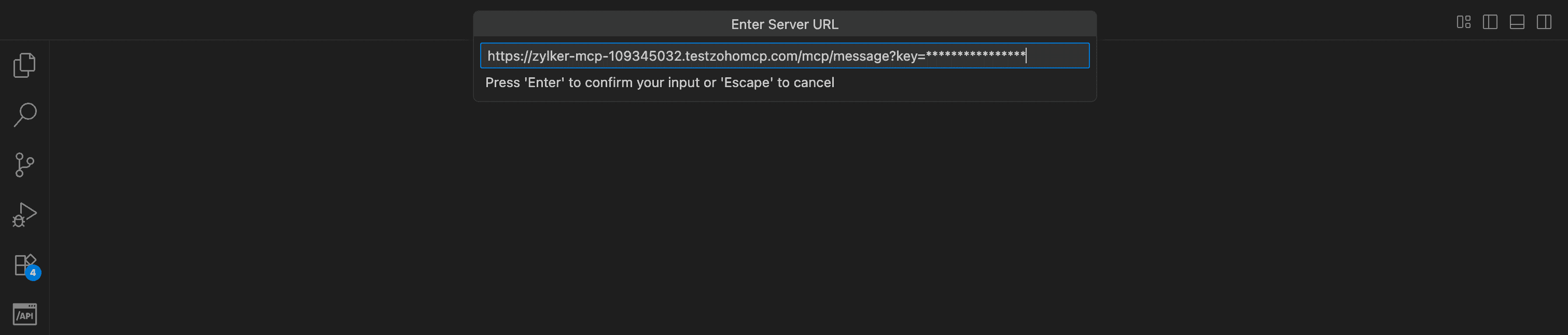
Provide a name for the server and press Enter.

Confirm that GitHub Copilot is set to Agent mode.

Caution: Treat your MCP server key like a password! It can activate tools connected to your server and access sensitive data.
Accessing Zoho MCP Tools in VS Code
- Open GitHub Copilot Chat in VS Code (bottom panel, or Ctrl+Shift+I / ⇧⌘I on Mac).
- Ask GitHub Copilot to use Zoho Cliq tools from your Zoho MCP server.
Run real-world workflows directly from your editor, such as posting build updates, alerting teammates after commits, or checking channel activity, without switching out of VS Code.