Zoho CPaaS Dashboard
Dashboard is the first screen you see when you login to your Zoho CPaaS account. It provides a quick snapshot of all the key information you need to monitor and manage you transactional communication. Dashboard lists all the important sections of your account in a single place. It consists of the following sections:
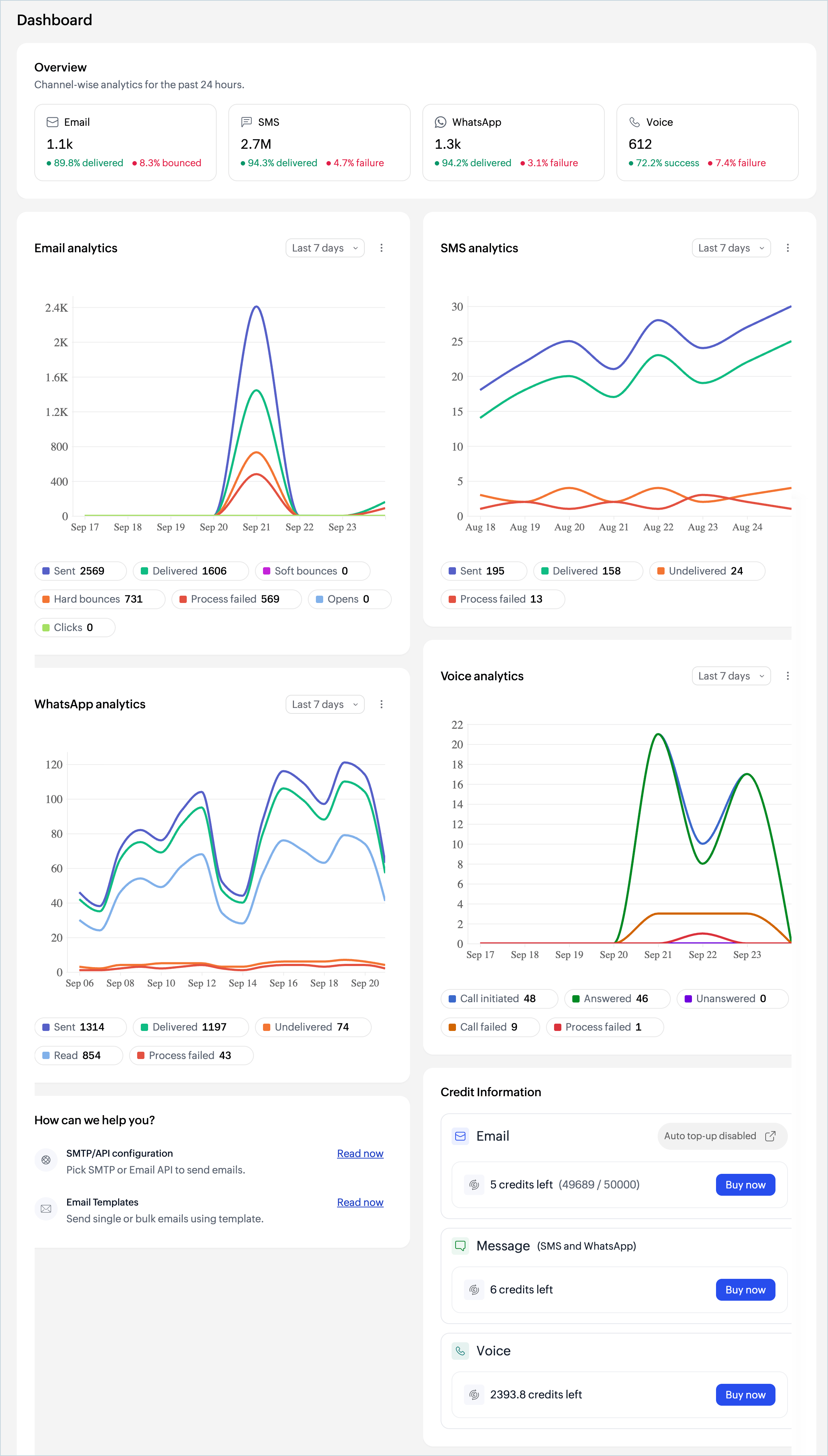
Email analytics
Email count gives a categorization of the outgoing emails into the following sections:
- Sent: Total number of emails processed. If your email has 1 recipient in the 'to' field, 1 recipient in 'cc' field, and 1 recipient in 'bcc' field; then the total count of emails sent is 3.
- Delivered: Number of emails delivered to the recipient.
- Soft Bounces: Number of emails that did not deliver due to temporary reasons like recipient server being down or the recipient's inbox being full.
- Hard Bounces: Number of emails that did not deliver due to permanent reasons like invalid recipient address.
- Process failed: Number of emails that have not been sent out due to various reasons.
You can choose the desired time range from the drop-down in the top-right corner.
SMS analytics
SMS count gives a categorization of the outgoing messages into the following sections:
- Sent: Total number of SMS messages processed and submitted to the carrier for delivery.
- Delivered: Number of messages successfully delivered to the recipient's device.
- Undelivered: Number of messages that could not be delivered to the recipient.
- Process failed: Number of messages that have not been sent out due to various reasons.
You can choose the desired time range from the drop-down in the top-right corner.
WhatsApp analytics
WhatsApp count gives a categorization of the outgoing messages into the following sections:
- Sent: Total number of WhatsApp messages processed and submitted for delivery.
- Delivered: Number of messages successfully delivered to the recipient's device.
- Undelivered: Number of messages that could not be delivered to the recipient.
- Read: Number of messages that were opened and read by the recipient.
- Process failed: Number of messages that have not been sent out due to various reasons.
You can choose the desired time range from the drop-down in the top-right corner.
Voice analytics
Voice count gives a categorization of the outgoing calls into the following sections:
- Call initiated: Total number of calls triggered and submitted for processing.
- Answered: Number of calls that were picked up and connected successfully with the recipient.
- Unanswered: Number of calls that were not picked up by the recipient.
- Call failed: Number of calls that could not be connected due to a network or carrier error.
- Process failed: Number of calls that have not been initiated due to various reasons.
You can choose the desired time range from the drop-down in the top-right corner.
Credit Information
The Credit Information section displays the subscription-related information for each channel. Zoho CPaaS uses a credit-based system where credits are consumed based on the channel and usage. This help guide explains the subscription model in detail.
Credit information is shown separately for each channel:
- Email: Displays the number of credits remaining along with the total credits purchased (for example, 209701 / 210000). Click Buy now to purchase additional credits. If Auto top-up is not enabled for your account, an Auto top-up disabled indicator is shown. Click it to go to the subscriptions page and enable the feature.
- Message (WhatsApp and SMS) : Displays the number of credits remaining. Click Buy now to purchase additional credits.
- Voice: Displays the number of credits remaining. Click Buy now to purchase additional credits.
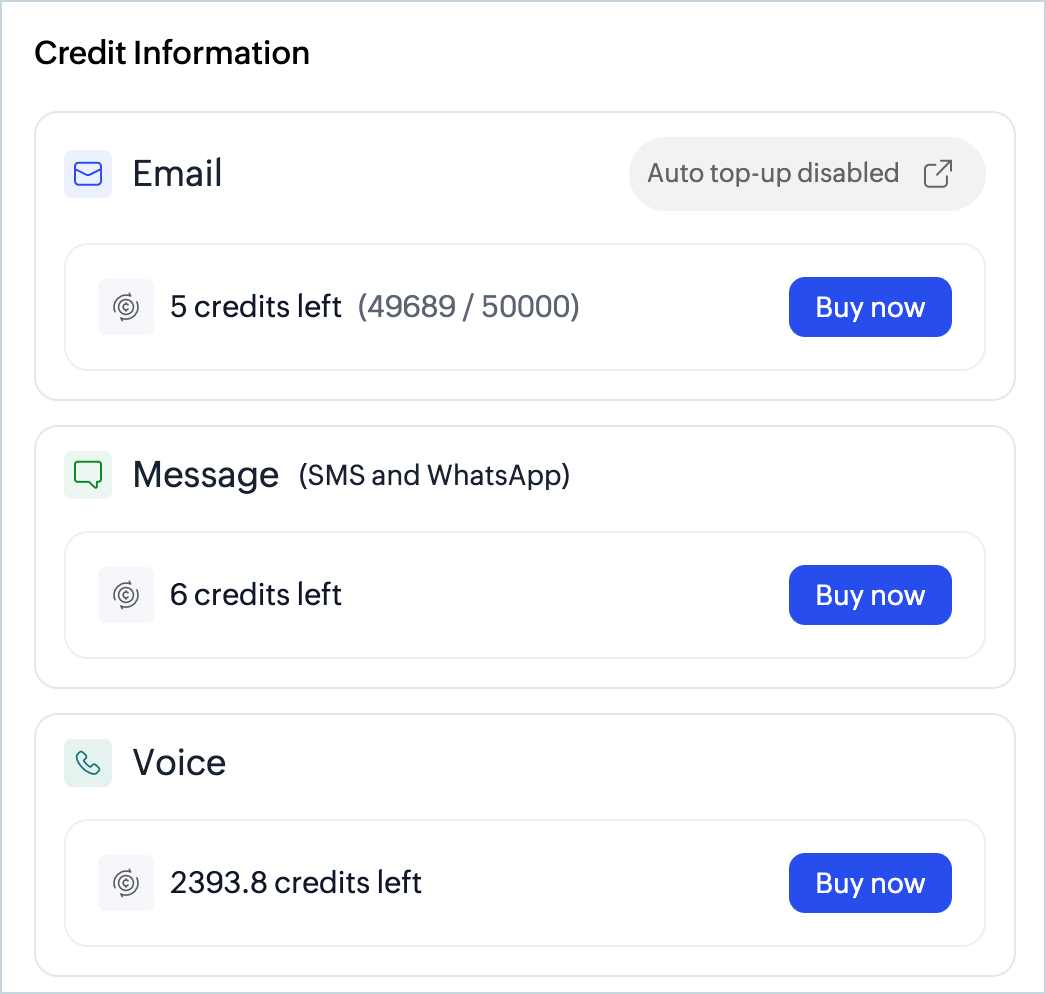
To know more about your subscription details visit here.
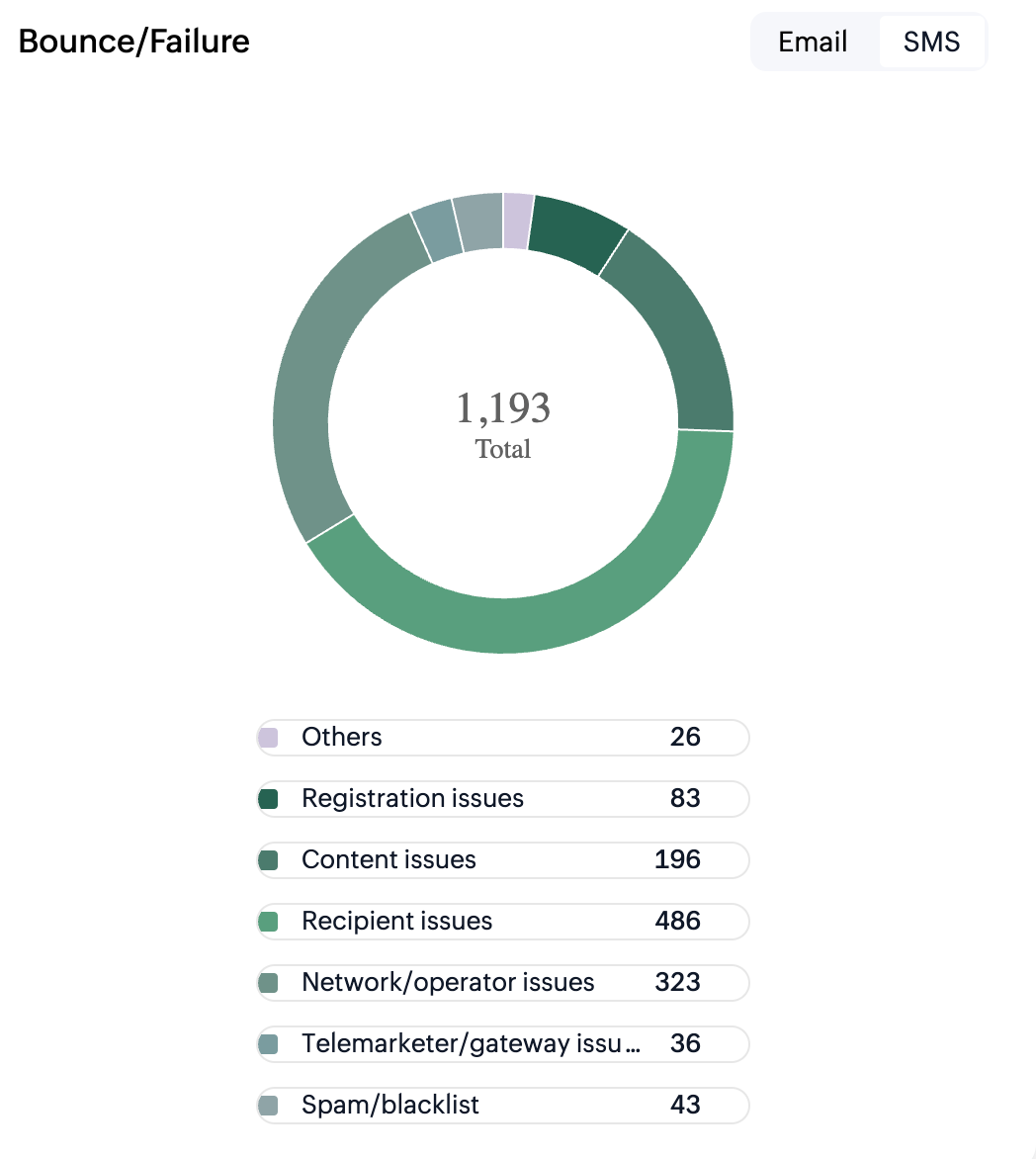
Bounce/Failure
This section categorizes and gives a graphical representation of the various email bounces or SMS failure.
Help Guides
In this section, you'll find quick links to some of the help guides available in Zoho CPaaS.
- SMTP & API Info - You can download the SDK file; find SMTP credentials and API key for both API and SMTP.
- Email templates - You can view how to create and use templates in your account.
Note
If your SMTP application is restricting longer passwords, then you can generate a shorter password. Click Generate weaker credentials in the SMTP section within the Agent.
Chart options
They indicate the following:
- Time range: Lists the time range over which you wish to view the data.
- Download : To download the chart to your device. Allowed formats - JPEG, PNG, SVG, CSV, PDF.
- Table : Gives you a tabular view of the analytics data.
- Expand : Gives you an enlarged view of the chart.
Note
Before you get started it is important to know that CPaaS is built for transactional and customer-initiated communications such as OTPs, order confirmations, password resets, and appointment reminders. We do not support sending of bulk emails or promotional emails like newsletters or marketing campaign emails. If you are looking for a bulk email provider, you can visit Zoho Campaigns.