Zoho CPaaS module for Drupal
Drupal is an open-source content management framework to build websites and web applications. Drupal supports various third-party modules that can be integrated to enhance application's experience.
The Zoho CPaaS module for Drupal can be used to send transactional emails from your Drupal application.
Installing Zoho CPaaS module for Drupal
Follow the steps given below to install the Zoho CPaaS module in Drupal to send transactional emails.
- Login to your Drupal admin dashboard.
- Search for the Zoho CPaaS module in the search bar at the top.
- Navigate to the Releases section in the module and copy the installation command.
- In your local device, open the terminal or command prompt and go to Drupal's root directory.
- Paste the copied installation command.
- Run the command to download and install the module.
- On successful installation, navigate to the administrator settings in your application.
- Go to the Extend section on the top pane.
- Search for the Zoho CPaaS module in the list and select it using the checkbox.
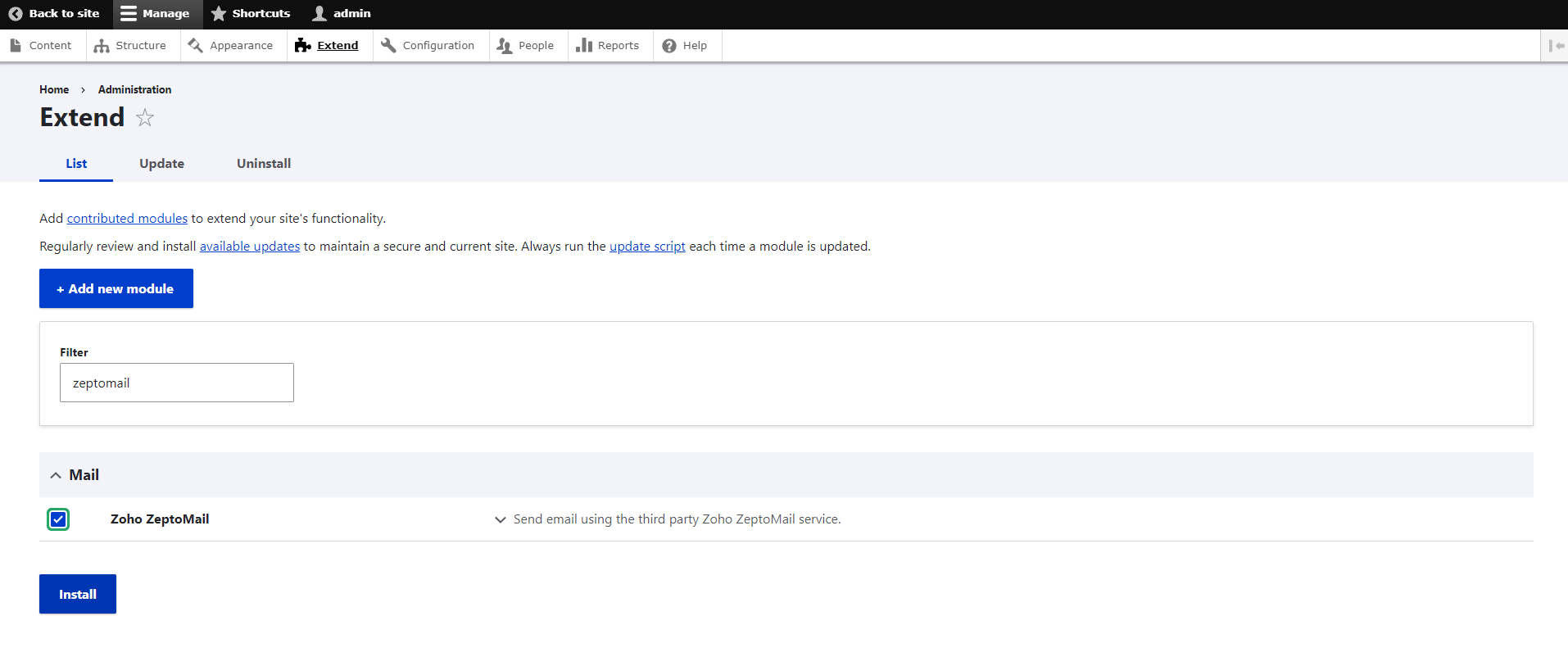
- Click Install.
- The module is successfully installed.
Configuring Zoho CPaaS
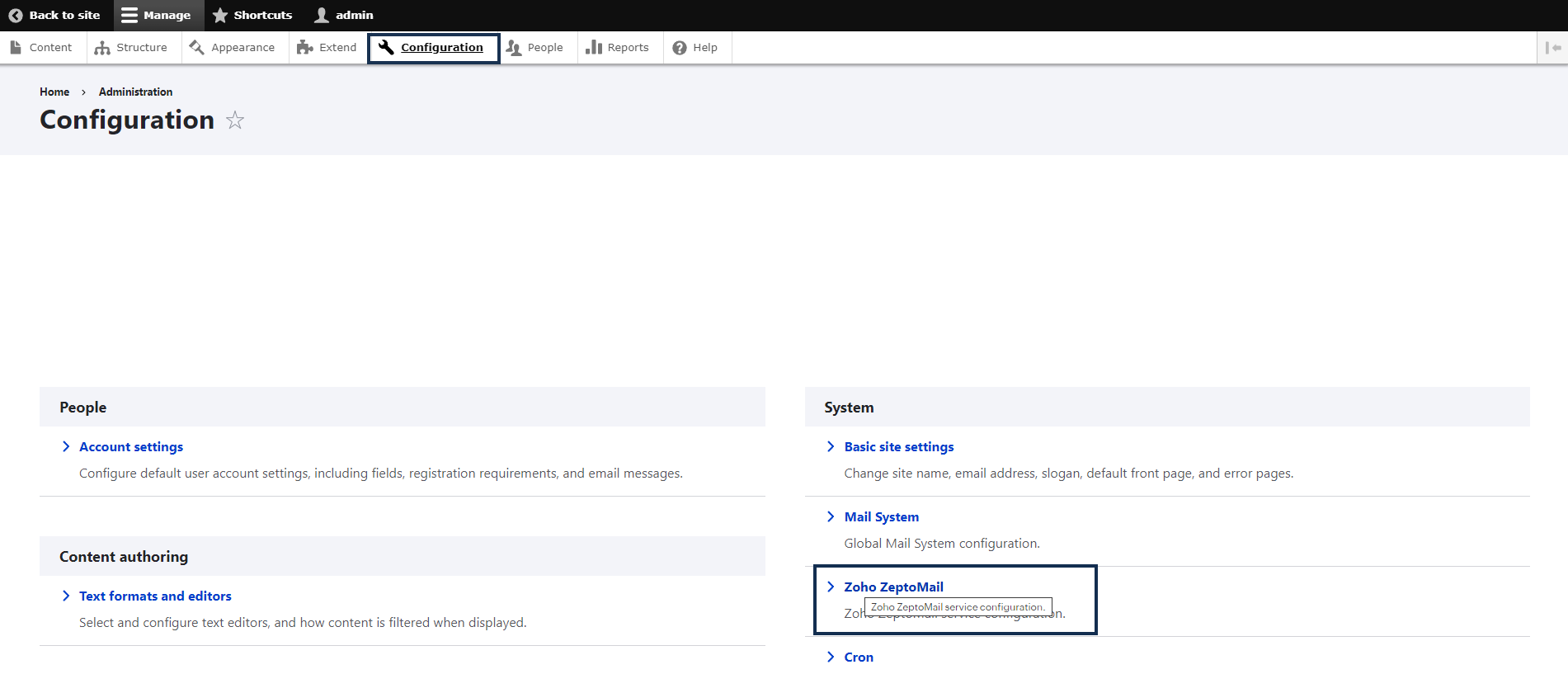
- Once you enable the module, go to the Configuration menu at the top.
- Locate the Zoho CPaaS module in the Systems section on the right and select it.
- In the configuration pop-up, paste the Send Mail Token generated from your Zoho CPaaS account. Follow the steps below to generate the token.
- Login to your Zoho CPaaS account.
- Select the Agent that you want to connect to your application.
- Navigate to the SMTP/API tab. This will open the Setup Details page.
- From here you can copy your Agent specific send mail token under the API tab.
- You can either use the default Send Mail Token or generate a new one.
Agents >> SMTP/API >> Send Mail Token >> Click to copy icon.
- Next, enter the FROM name and FROM address. Click Save.
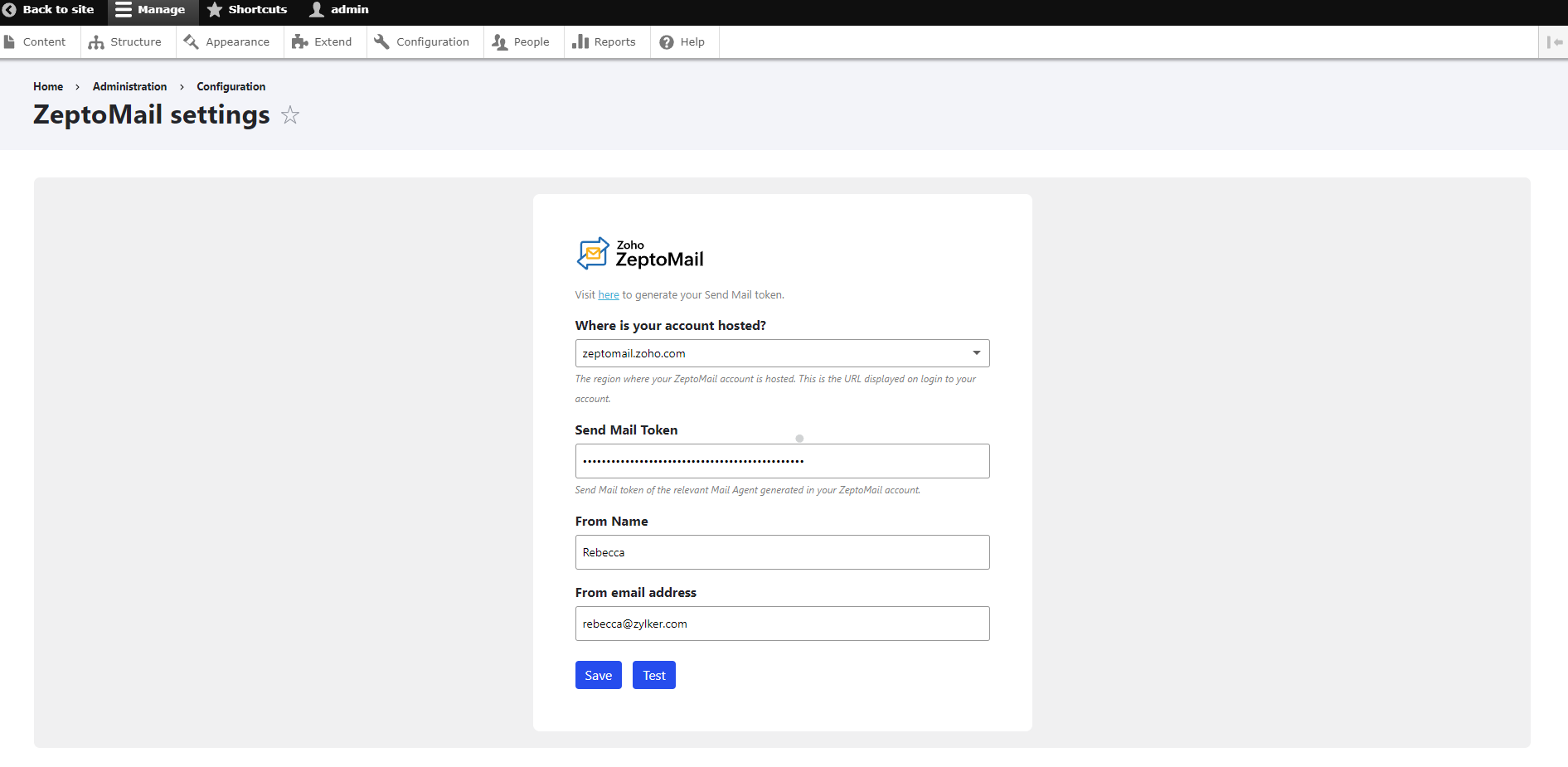
- You have successfully configured the Zoho CPaaS module in Drupal.
Email sending using Zoho CPaaS
You can set Zoho CPaaS as your default email-sending medium. To do so:
- Navigate to the Configuration menu and go to Systems section.
- In the Default Mail System section, select Zoho CPaaS mailer from the Sender drop-down. Click Save configuration.
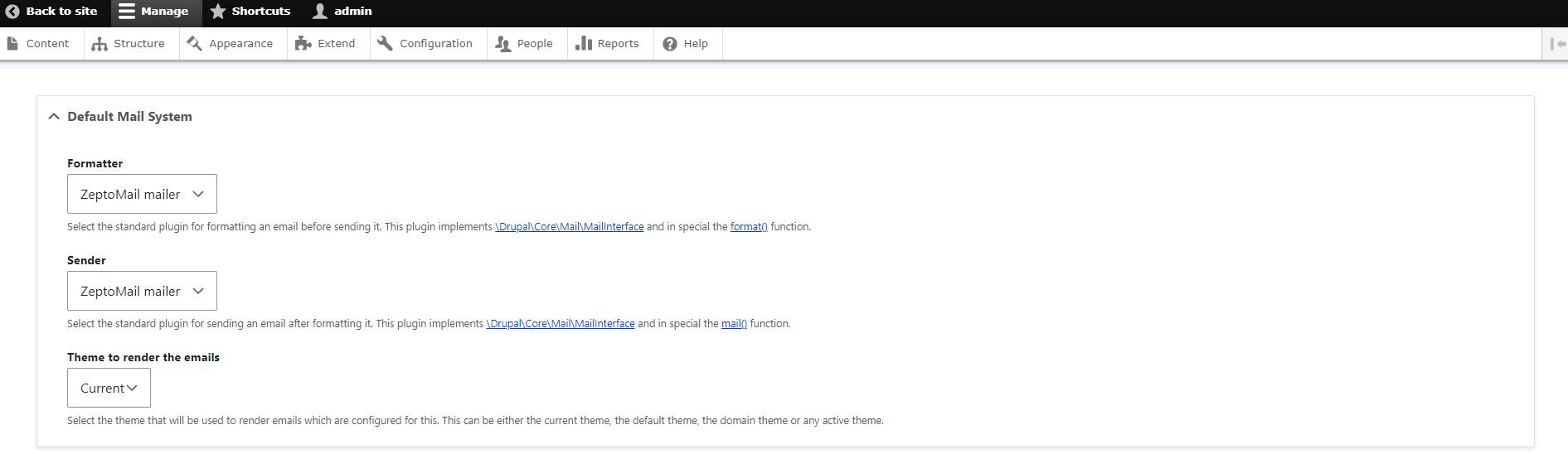
- This will route all the transactional emails via Zoho CPaaS.
Note:
Before you get started it is important to know that Zoho CPaaS is for sending transactional emails like welcome emailers, password resets emails, OTPs. We do not support sending of bulk emails or promotional emails like newsletters or marketing campaign emails. If you are looking for a bulk email provider, you can visit Zoho Campaigns.