Users in Zoho CPaaS
The manage users section in Settings allows you to view all the users of your Zoho CPaaS account. These users can be anyone from your organisation and can have varied levels of access based on their privileges. The role and the asociated Agents for each user can be viewed in this section.
There are 3 roles in your Zoho CPaaS account :
- Postmaster - Admin.
- Engineer - Multiple privileges.
- Viewer - View only.
Roles are set at the account level, and access is set per Agent. Each user has one role, and that role applies across your whole account. A role is not different for different Agents.
To control which Agents a user can work with, choose the Agents when you invite the user, you can change them later from the user card in Settings menu. Users with the Engineer or Viewer role can see and work in only the Agents associated with them. Postmasters can access all Agents.
A total of 30 users can be added to your Zoho CPaaS account.
User roles and access privileges
Postmaster Access Privileges
By default the user who signs up for the Zoho CPaaS account will be granted the Postmaster role. The Postmaster can add other users and has access to create, view, edit and delete account related settings. Only users with Postmaster access level can purchase credits. Given below are the access privileges for the Postmaster.
| Module Name | Create | View | Edit | Delete |
| Account Configuration | ✔ | ✔ | ✔ | ✔ |
| Agent | ✔ | ✔ | ✔ | ✔ |
| Domains | ✔ | ✔ | ✔ | ✔ |
| Bounce Address Setup | ✔ | ✔ | ✔ | ✔ |
| Webhooks | ✔ | ✔ | ✔ | ✔ |
| Tracking | ✔ | ✔ | ✔ | ✔ |
| File Cache | ✔ | ✔ | ✔ | ✔ |
| Reports | ✔ | ✔ | ✔ | ✔ |
| Manage Users | ✔ | ✔ | ✔ | ✔ |
| Custom Email Notifications | ✔ | ✔ | ✔ | ✔ |
| Content Setting | ✔ | ✔ | ✔ | ✔ |
| Activity logs | ❌ | ✔ | ❌ | ❌ |
| IP restriction | ✔ | ✔ | ✔ | ✔ |
| Export Logs | ✔ | ✔ | ✔ | ✔ |
| Buy credits | ✔ | ✔ | ✔ | ✔ |
| Auto top-up | ✔ | ✔ | ✔ | ✔ |
| Suppression list | ✔ | ✔ | ✔ | ✔ |
| Auto suppression | ✔ | ✔ | ✔ | ✔ |
| Domain setting | ✔ | ✔ | ✔ | ✔ |
| Generate API key | ✔ | ✔ | ❌ | ✔ |
| Sender address | ✔ | ✔ | ✔ | ✔ |
| Delete account | ❌ | ✔ | ❌ | ✔ |
Engineer Access Privileges
The privileges of users with Engineer access is limited to a few modules based on their role and needs. Once your account is setup, these users will be able to manage your account. The following table illustrates the privileges of users with Engineer access.
| Module Name | Create | View | Edit | Delete |
| Account Configuration | ❌ | ✔ | ❌ | ❌ |
| Agent | ❌ | ✔ | ❌ | ❌ |
| Domains | ❌ | ✔ | ❌ | ❌ |
| Bounce Address Setup | ❌ | ✔ | ❌ | ❌ |
| Webhooks | ✔ | ✔ | ✔ | ✔ |
| Tracking | ✔ | ✔ | ✔ | ✔ |
| File Cache | ✔ | ✔ | ✔ | ✔ |
| Reports | ✔ | ✔ | ✔ | ✔ |
| Manage Users | ❌ | ✔ | ❌ | ❌ |
| Custom Email Notifications | ❌ | ✔ | ❌ | ❌ |
| Content Setting | ❌ | ✔ | ❌ | ❌ |
| Activity logs | ❌ | ❌ | ❌ | ❌ |
| IP restriction | ❌ | ✔ | ❌ | ❌ |
| Export logs | ❌ | ❌ | ❌ | ❌ |
| Buy credits | ❌ | ✔ | ❌ | ❌ |
| Auto top-up | ❌ | ❌ | ❌ | ❌ |
| Suppression list | ❌ | ✔ | ❌ | ❌ |
| Auto suppression | ❌ | ✔ | ❌ | ❌ |
| Domain setting | ❌ | ✔ | ❌ | ❌ |
| Generate API key | ✔ | ❌ | ❌ | ❌ |
| Sender address | ❌ | ✔ | ❌ | ❌ |
| Delete account | ❌ | ❌ | ❌ | ❌ |
Viewer Access Privileges
Users with viewer access privilege can only view the modules and cannot perform other activities.
| Module Name | Create | View | Edit | Delete |
| Account Configuration | ❌ | ✔ | ❌ | ❌ |
| Agent | ❌ | ✔ | ❌ | ❌ |
| Domains | ❌ | ✔ | ❌ | ❌ |
| Bounce Address Setup | ❌ | ✔ | ❌ | ❌ |
| Webhooks | ❌ | ✔ | ❌ | ❌ |
| Tracking | ❌ | ✔ | ❌ | ❌ |
| File Cache | ❌ | ✔ | ❌ | ❌ |
| Reports | ❌ | ✔ | ❌ | ❌ |
| Manage Users | ❌ | ✔ | ❌ | ❌ |
| Custom Email Notifications | ❌ | ✔ | ❌ | ❌ |
| Content setting | ❌ | ✔ | ❌ | ❌ |
| Activity logs | ❌ | ❌ | ❌ | ❌ |
| IP restriction | ❌ | ❌ | ❌ | ❌ |
| Export logs | ❌ | ❌ | ❌ | ❌ |
| Buy credits | ❌ | ✔ | ❌ | ❌ |
| Auto top-up | ❌ | ❌ | ❌ | ❌ |
| Suppression list | ❌ | ✔ | ❌ | ❌ |
| Auto suppression | ❌ | ✔ | ❌ | ❌ |
| Domain setting | ❌ | ✔ | ❌ | ❌ |
| Generate API key | ❌ | ❌ | ❌ | ❌ |
| Sender address | ❌ | ✔ | ❌ | ❌ |
| Delete account | ❌ | ❌ | ❌ | ❌ |
Invite a new user to your Zoho CPaaS account
- From the left panel, click on Settings.
- Click on Invite User on the top right corner.

- Enter Email Address of the invitee and select the appropriate Role and Agents you want the invitee to have access to. Click on Invite.
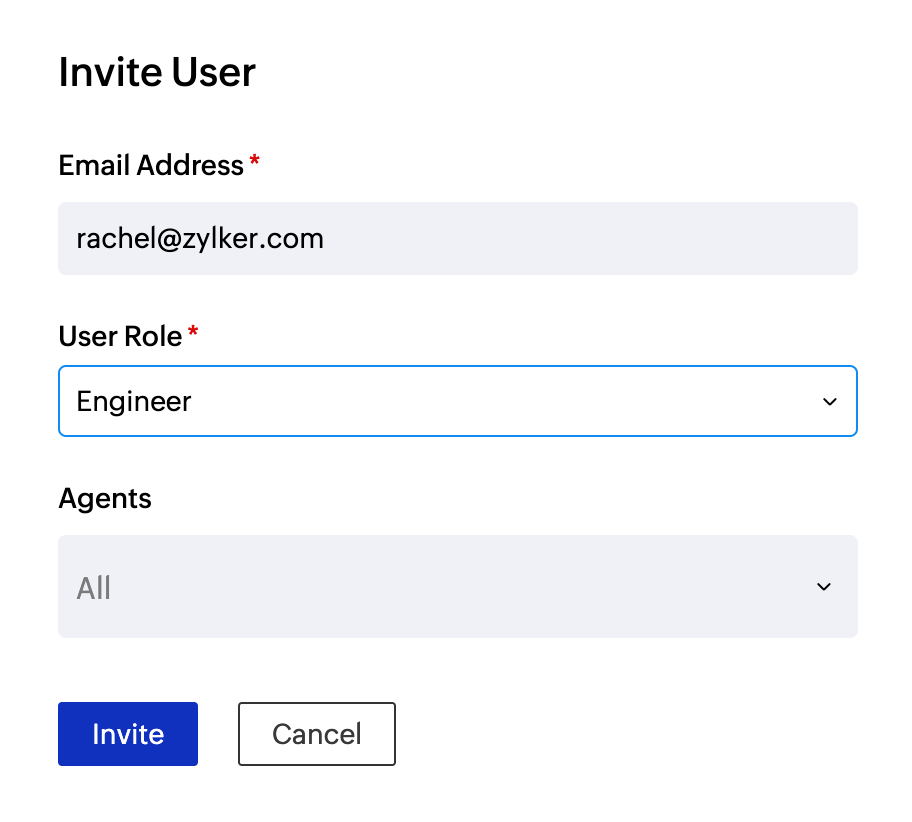
- An invite message would have been sent to the invitee from your Zoho CPaaS account. Once the invitee accepts the invitation, the user can access your Zoho CPaaS account.
- You can repeat the steps from 1 till 3 to add multiple users.
For all the users in your Zoho CPaaS account, you can perform the following actions in the User Listing:
- Associate Agents to a user
- Remove associated Agent for a user
- Remove Users from your Zoho CPaaS account
Associate Agents to a user
The Postmaster can associate Agents to users with Engineer and Viewer access privileges. Here are the steps to associate an Agent.
- Click on the edit icon near the user card to associate an Agent to it.
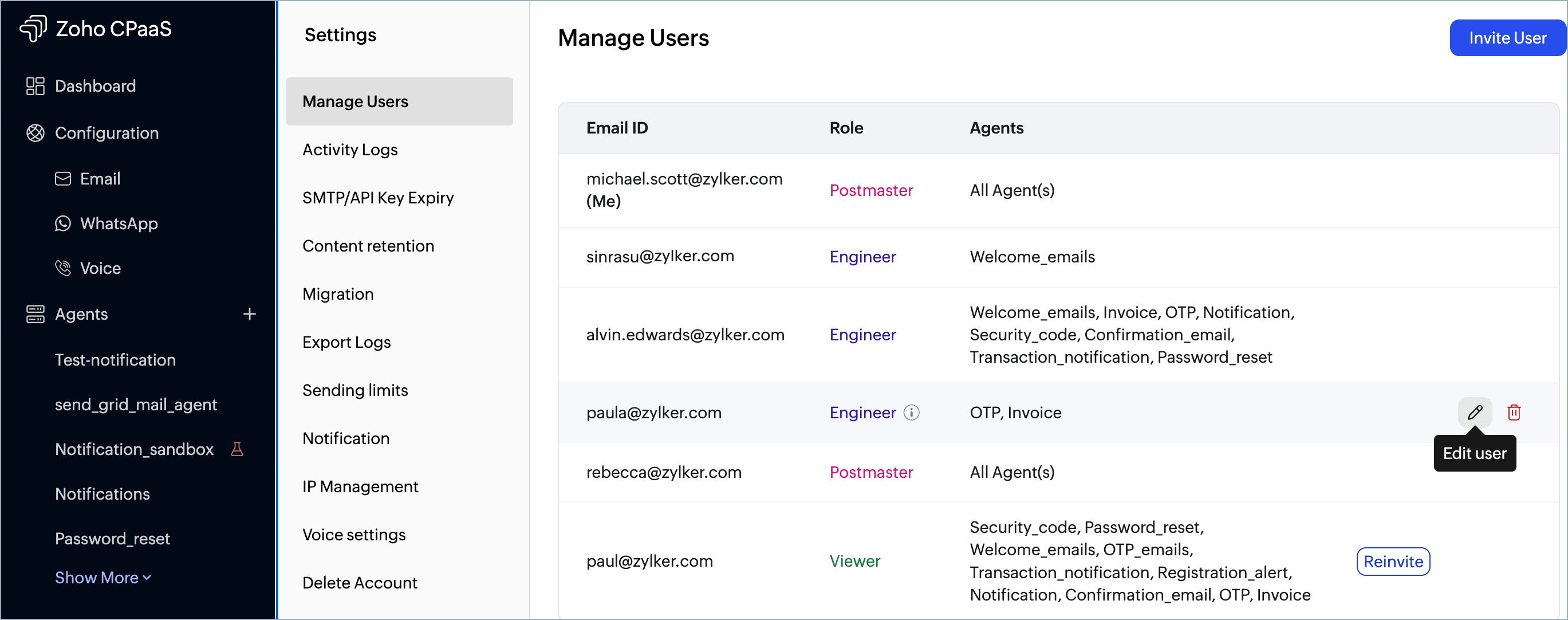
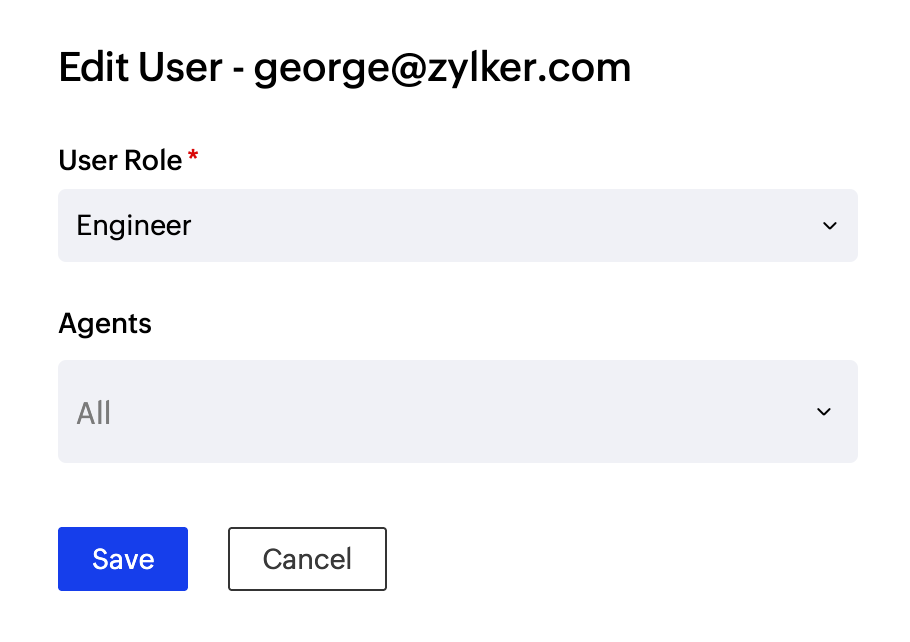
- Choose the Agent you wish to add from the drop-down. Click save.
- The associated Agent will appear next to the user in the Manage Users tab.
Remove associated Agents for a user
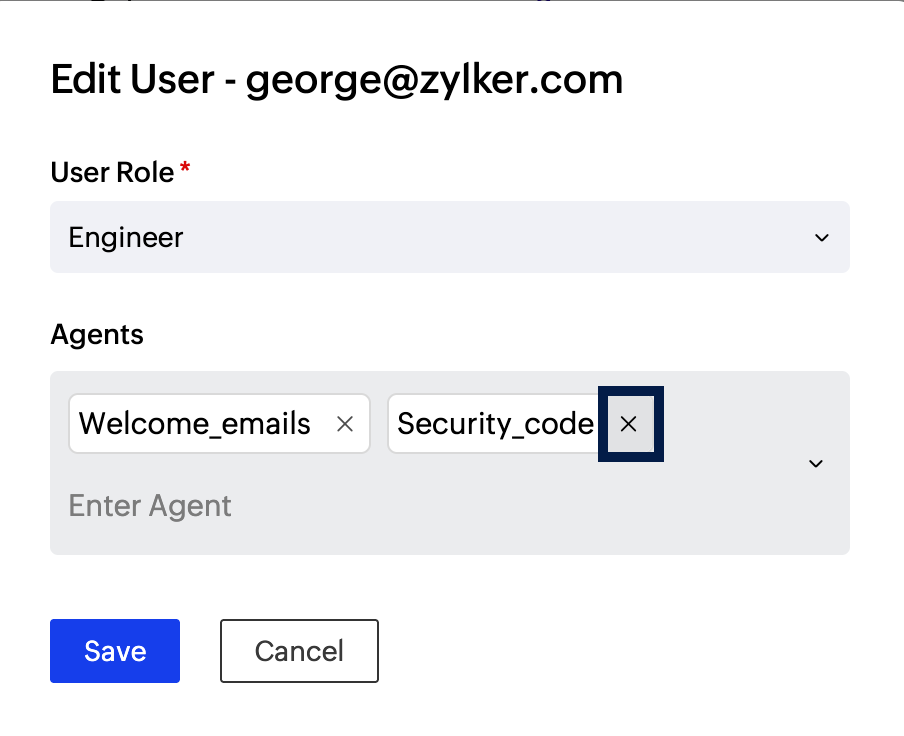
- Click the edit icon near the user card.
- Click the remove icon next to the Agent that you wish to remove. The Agent will be removed.
Remove Users from your Zoho CPaaS account
- Hover over the user, a delete icon will appear on the right side of the user card. Click on the delete icon on the right corner of that user card.
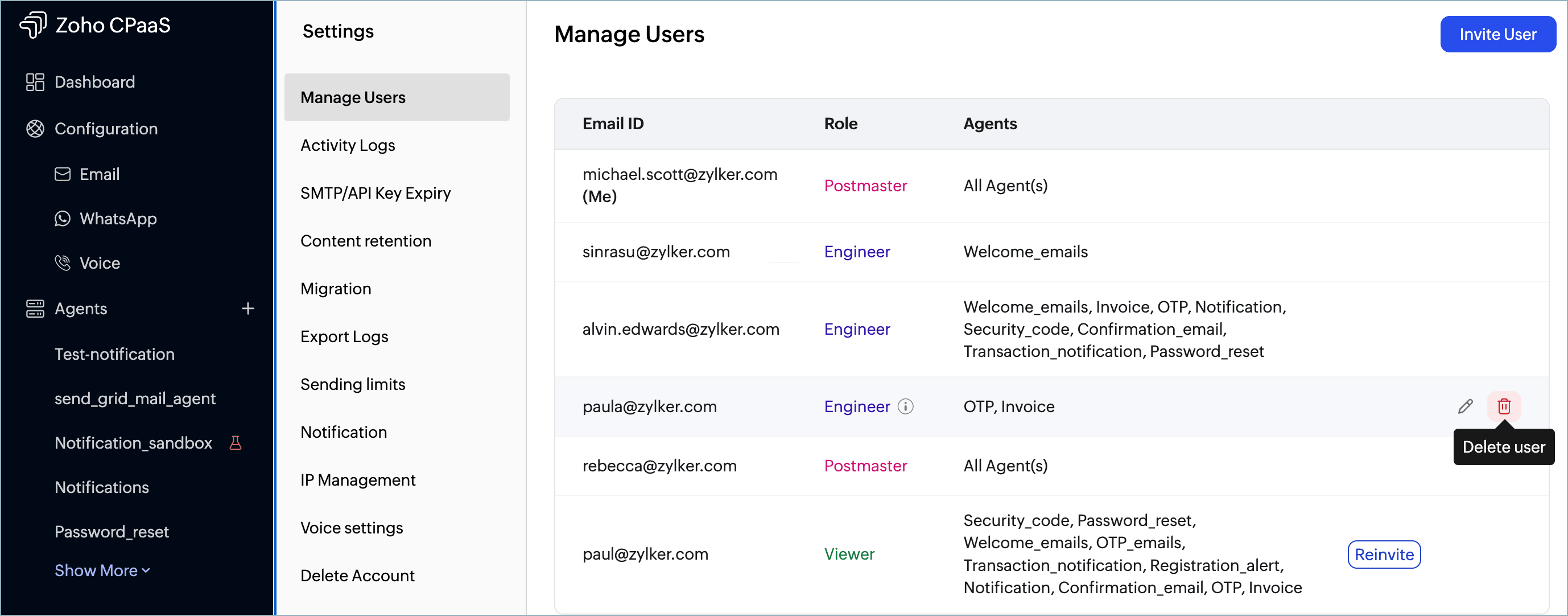
- Click on yes to confirm user deletion.
Note
Before you get started it is important to know that Zoho CPaaS supports transactional communications only. We do not support sending of bulk emails or promotional emails like newsletters or marketing campaign emails. If you are looking for a bulk email provider, you can visit Zoho Campaigns.