Migration from Postmark to Zoho CPaaS
Zoho CPaaS is a unified communication platform that helps businesses add transactional messaging and communication to their applications through Email, SMS, WhatsApp, and voice calls. This guide explains how to migrate your transactional email setup from Postmark to Zoho CPaaS with minimal disruption.
Terminology mapping
The table below maps commonly used Postmark terms to their Zoho CPaaS equivalents:
| Postmark | Zoho CPaaS |
| Servers | Agents |
| Sender signature | Domains |
| Templates | Templates |
| Activity | Processed emails |
| Suppressions | Suppression List |
| Statistics | Reports |
Before migration
Before you begin migrating from Postmark to Zoho CPaaS, ensure you have the following in place:
- Your Postmark Account API token.
- Any critical transactional emails logs exported for reference.
- All the transactional email streams, templates, webhooks, and suppression lists are reviewed and upto date.
Migrating from Postmark to Zoho CPaaS
The migration process involves the following steps:
- Zoho CPaaS account creation
- Initiating the migration
- Troubleshooting and ensuring a smooth transition
- Domain verification
Zoho CPaaS account creation
To migrate to Zoho CPaaS you must first create a Zoho CPaaS account.
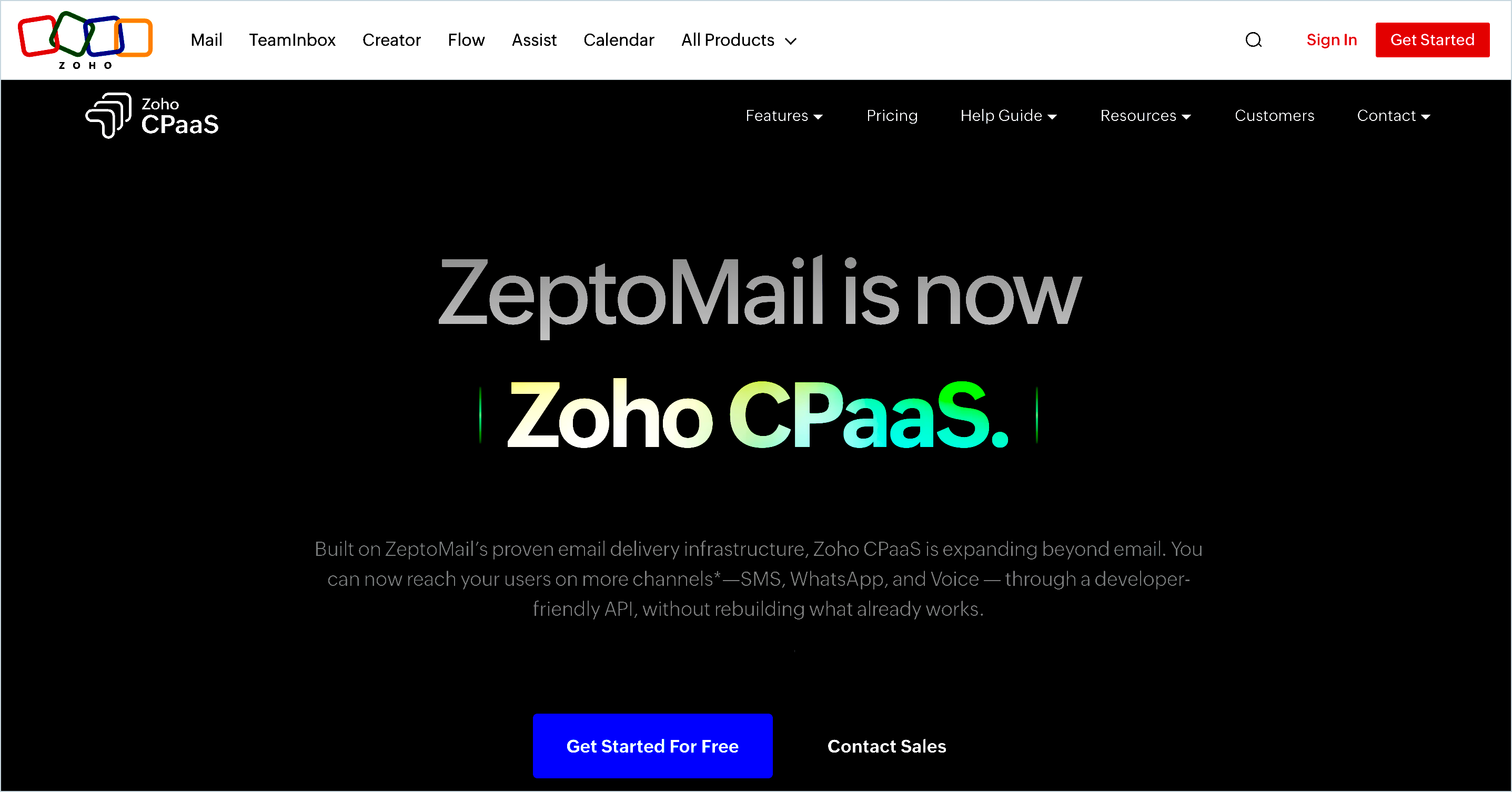
- Navigate to the Zoho CPaaS homepage and click Get started from the top right corner.
- Enter the relevant details and click Sign up for free.
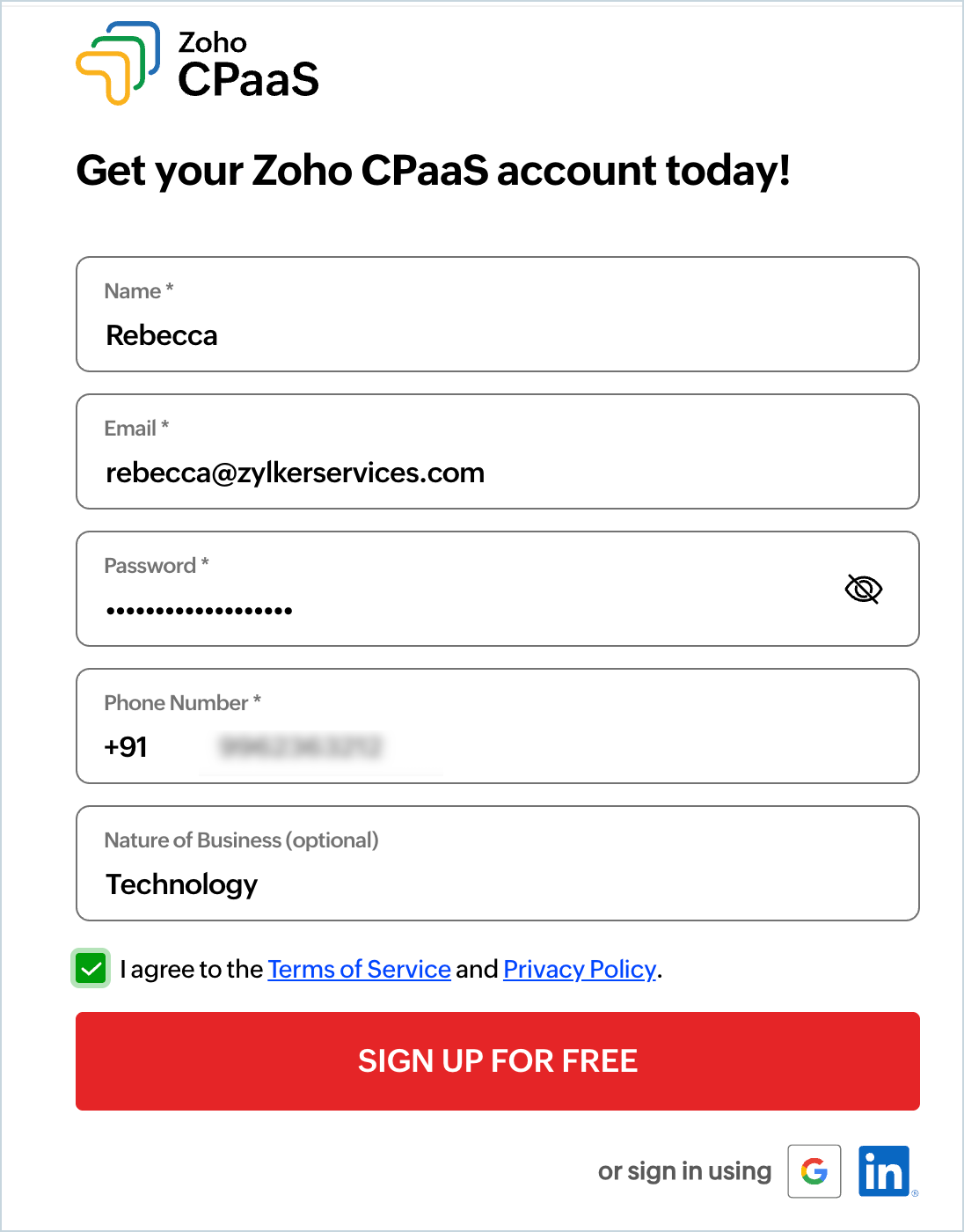
- Verify your account using the verification code sent to your registered mobile number.
- If you are already using other Zoho services and have an existing Zoho account, click Access Zoho CPaaS and proceed with the next steps.
- Once you sign up and verify yourself, you will be directed to the Welcome page.
- Enter your organization name.
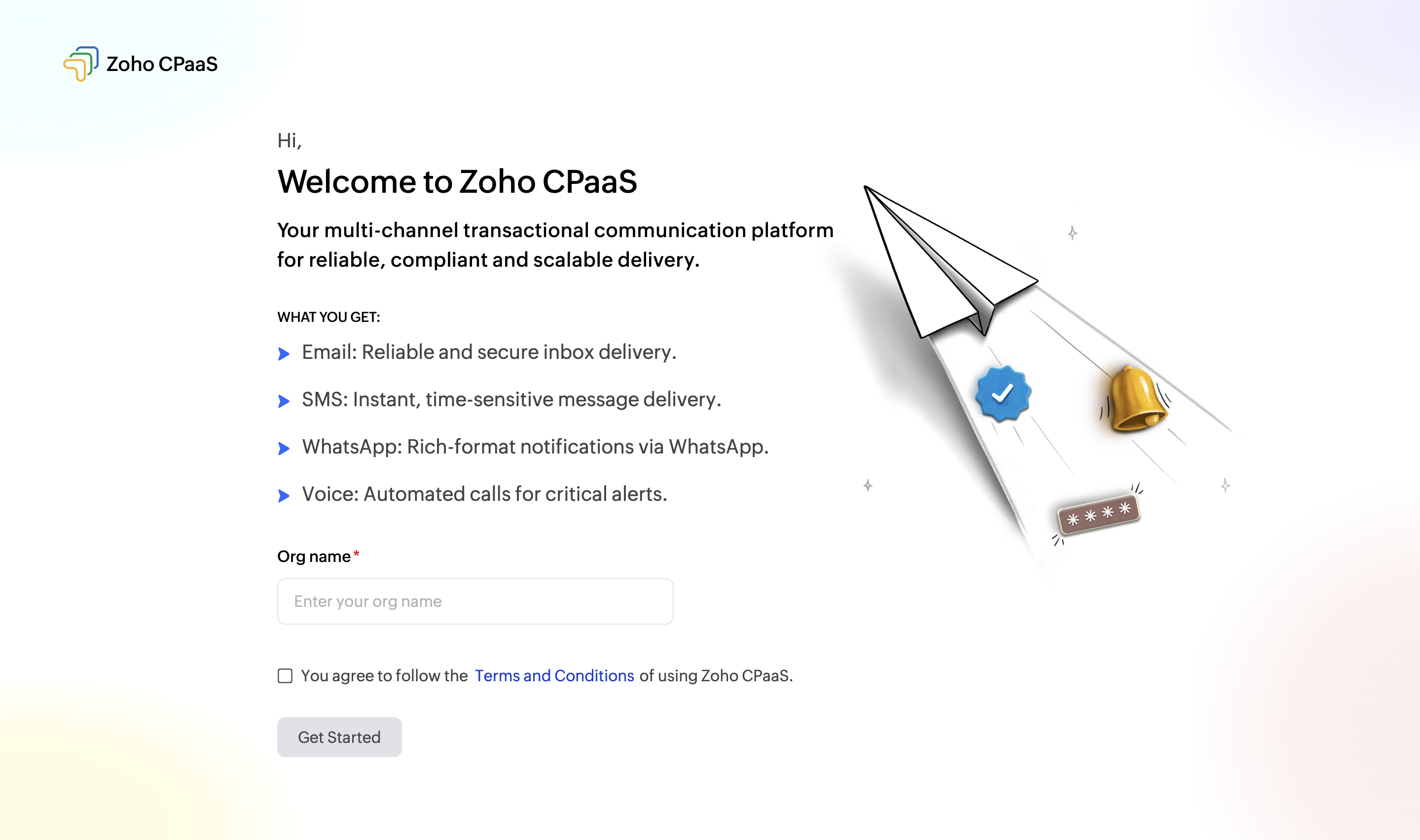
- Review the terms and conditions and click Get started.
- Once the details are added successfully, you will be redirected to the Zoho CPaaS dashboard.
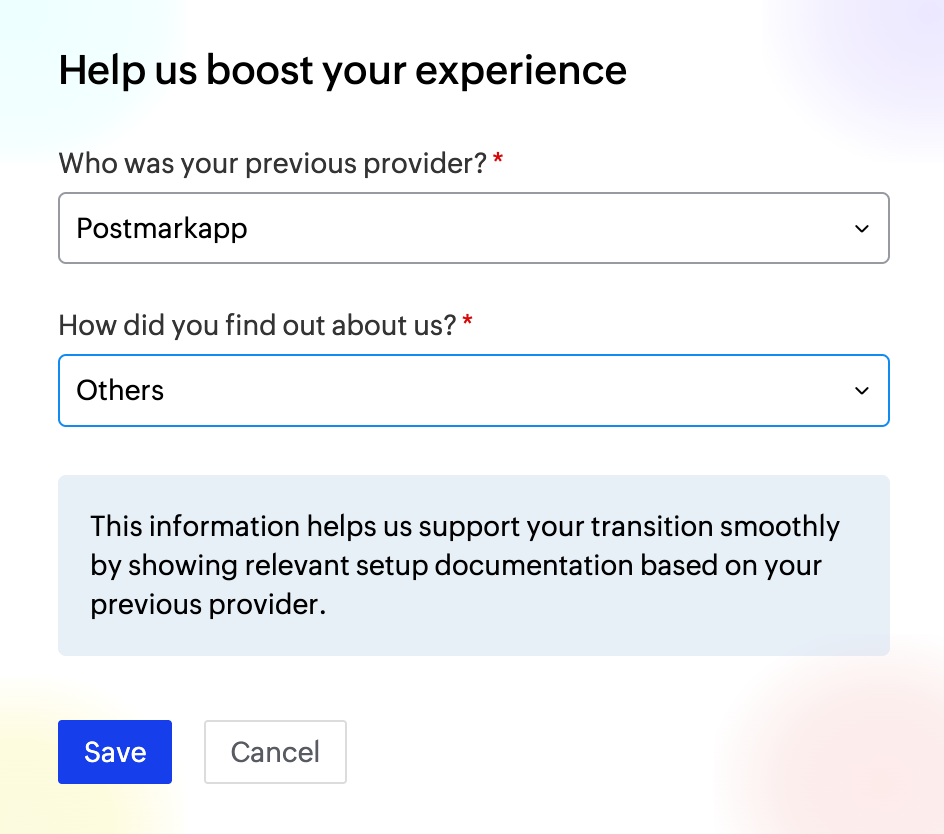
A short survey will appear asking how you found Zoho CPaaS. Select Postmark from the drop-down list and click Save. This will take you to the migration setup screen.
Migration process
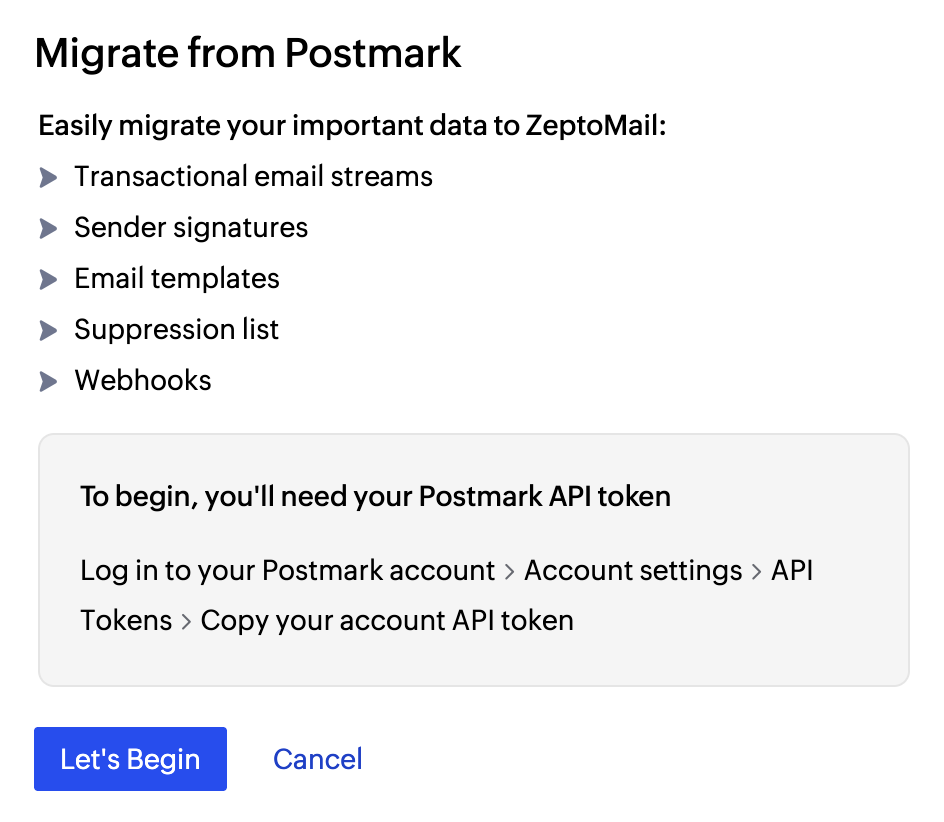
The following data will be migrated from your Postmark account:
- Transactional email streams
- Sender signatures
- Email templates
- Suppression lists
- Webhooks
To begin migration:
- Click Let's begin.
- Enter the Account API key copied from your PostMark account and click Validate.
- Once validated, click Migrate to start the migration process.
You can view the progress of your data migration in the migration window. Upon successful migration, each Postmark server will be created as a separate Agent in Zoho CPaaS, along with its associated templates and webhooks.
Agent
A Agent in Zoho CPaaS is similar to a server in Postmark. Agents help segment different types of transactional emails based on their purpose, application, or workflow. Segmenting emails using Agents enables better organization and management. You can associate one or more verified domains with each Agent to send emails.
Migrating additional accounts
To migrate additional accounts, you can access the migration menu from Settings >>Migration >>New migration.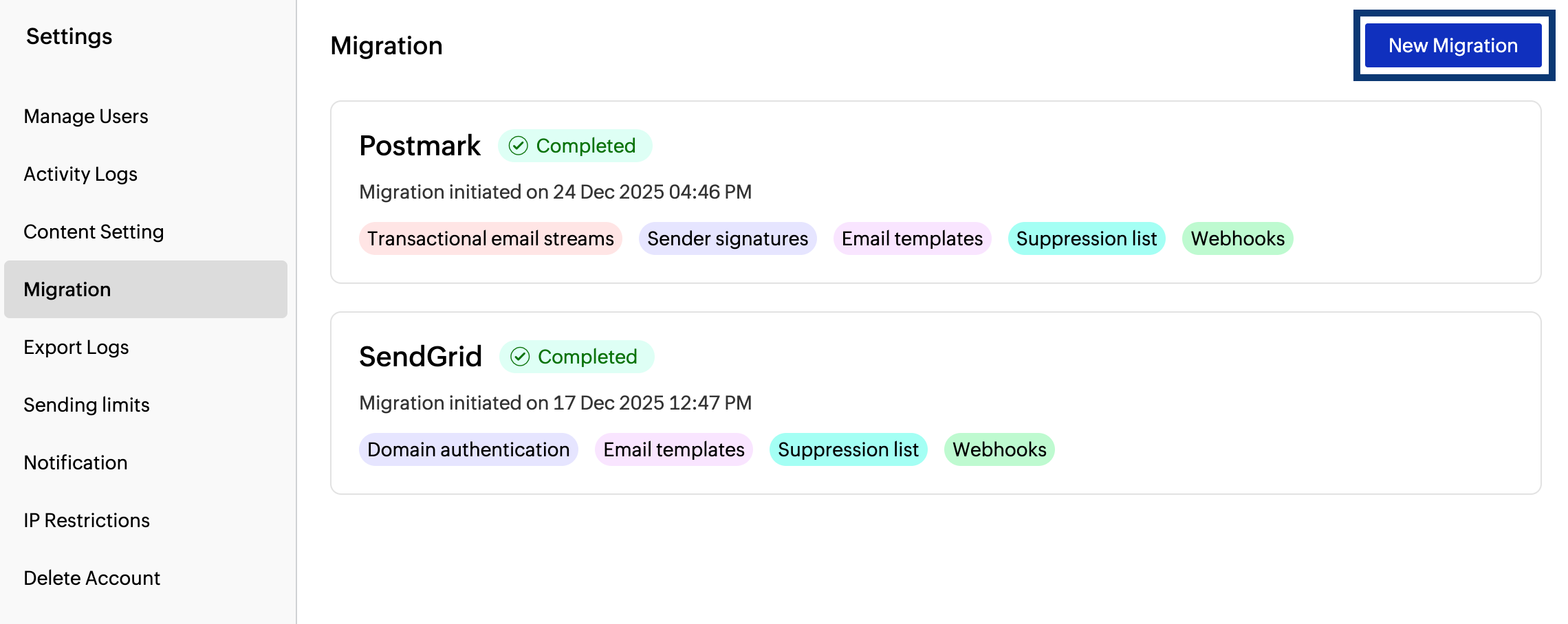
This section lists the past 30 days' migration information.
Troubleshooting migration issues
In some cases, you may encounter errors during migration. The table below lists common issues and their resolutions:
| Error/failure message | Resolution | |
| General errors | Data already exists | Check for duplicates or update the existing record and try again. |
| Invalid value | Occurs when some templates or webhooks contain formats that maybe valid, but are restricted by Zoho CPaaS. Contact support@zohocpaas.com for further clarifications. | |
| Threshold reached | The maximum number of API requests allowed, has been reached. Wait for 15–30 mins and retry. | |
| Max limit exceeded | The limit on how much data can be migrated has been reached. Delete any unused migrated data and try again. | |
| Records already exist | Check for duplicates or update the existing record and retry. | |
| Template-related errors | You have reached the maximum limit for creating a message templates | Delete unused templates or contact support@zohocpaas.com. |
| Message template alias already exists | Use a different name or update the existing template alias. | |
| Template addition failed. | Occurs if the template size or formate exceeds the permissible limit or any undefined issue that prevents the template from being migrated. Contact support@zohocpaas.com if the issue persists. | |
| Template size limit exceeds | Reduce the template size by removing attachments or minimizing template content and retry. The maximum size of the template is 5KB. | |
| Template not found | Check your Postmark account for the right template and retry. | |
| Webhook-related errors | URL cannot be reached | Ensure the Webhook URL is active and retry. |
| Invalid URL | Ensure the Webhook URL is well formatted and retry. | |
| URL already exists | Remove duplicates or update the existing webhook. | |
| Sandbox webhook limit exceeded | Delete any unused webhooks and try again. Contact support@zohocpaas.com if the issue continues. The permissable number of sandbox webhooks is 10. | |
| Suppression-related errors | Suppression data already exists | Check for duplicates or update the existing data. |
| Suppression data not found | Ensure the suppression data exists in Postmark and try again. |
Domain verification
Before sending emails through Zoho CPaaS, you must verify the domain(s) that are migrated from Postmark. Domain authorization is specific to each email service provider. DNS records added for Postmark authorize only Postmark’s infrastructure and cannot be reused for Zoho CPaaS.
Zoho CPaaS requires new DKIM and CNAME records to be added to your domain’s DNS.
To verify your domain:
- In the domain verification page of your Zoho CPaaS account, choose your DNS provider from the Select your DNS provider drop-down. In-case your DNS provider is not listed, select Other from the drop-down.
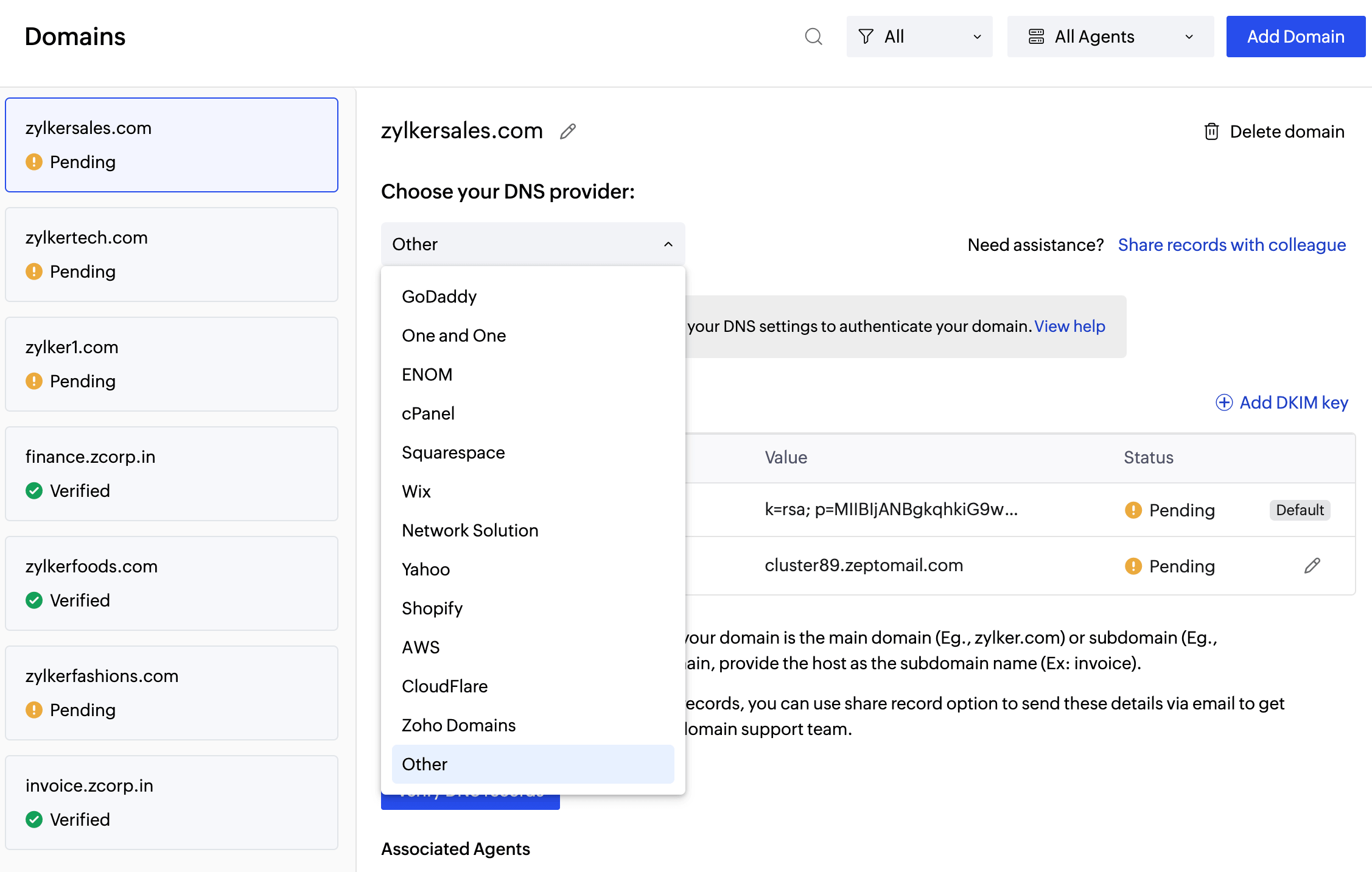
- Copy the DKIM and CNAME values.
- Login to your respective DNS provider.
- Add the copied DKIM and CNAME records.
- Return to Zoho CPaaS and click Verify.
- Once verified, the domain will be ready to send emails.
- DNS record update can take upto 48 hours depending on the DNS provider.
If you do not have access to the DNS Manager, click Share records with colleague to email the records to your IT admin.
Setting up email-sending
Zoho CPaaS supports both SMTP and API-based email sending.
SMTP configuration
| Postmark | Zoho CPaaS | |
| SMTP end-points | smtp.postmarkapp.com | smtp.zeptomail.com |
| Supported port values | 25, 2525, 587 (all STARTTLS) | 587 (STARTTLS), 465 (implicit SSL/TLS) |
To configure SMTP:
- Choose the Agent that you want to connect with your Zoho CPaaS account.
- Navigate to the SMTP/API section and go to the SMTP tab.
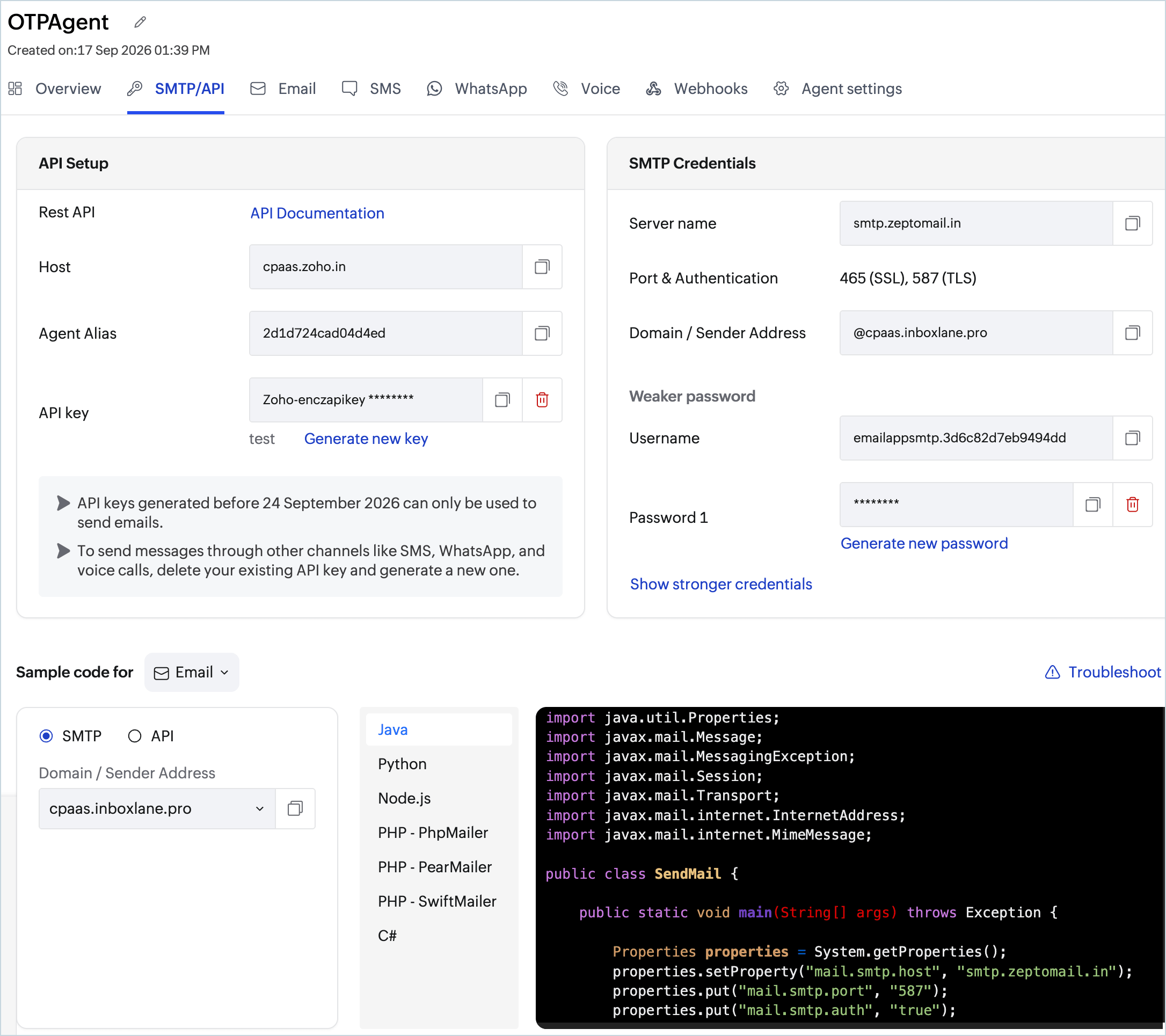
- Copy the SMTP credentials to your application to start sending out emails.
API configuration
Each Agent in Zoho CPaaS has a unique API token also known as the Send API key , that separates the Agents from one another.
To access the Send API key :
- Go to the required Agent.
- Navigate to SMTP/API → API.
- Copy the Send API key .
Refer to the Zoho CPaaS API library to select the appropriate API for your application.
Email tracking
You can enable open and click tracking for individual Agents.
To enable tracking:
- Go to the required Agent.
- Navigate to Email tracking.
- Enable tracking as needed.
Refer to the Zoho CPaaS help documentation to learn more about email tracking.
Points to note
After completing the migration, it is recommended to:
- Send test emails to confirm successful delivery.
- Monitor reports and suppression activity.
- Keep note of the tracking activity.
Note
Before you get started it is important to know that Zoho CPaaS supports transactional communications only. We do not support sending of bulk emails or promotional emails like newsletters or marketing campaign emails. If you are looking for a bulk email provider, you can visit Zoho Campaigns.