SMS logs
SMS Logs is the delivery record section within an SMS sending Agent in Zoho CPaaS. Every SMS sent through the Agent is recorded here along with its delivery details, making it easy to track, filter, and analyze message activity.
This feature is currently supported for customers hosting their accounts in the IN DC.You can send transactional SMS from your registered sender to customers in India.
To view the SMS log:
- Login to your Zoho CPaaS account.
- Select the desired Agent from the left pane.
- Navigate to SMS >Log tab.
- Select any criteria from the drop-down to view the SMS log.
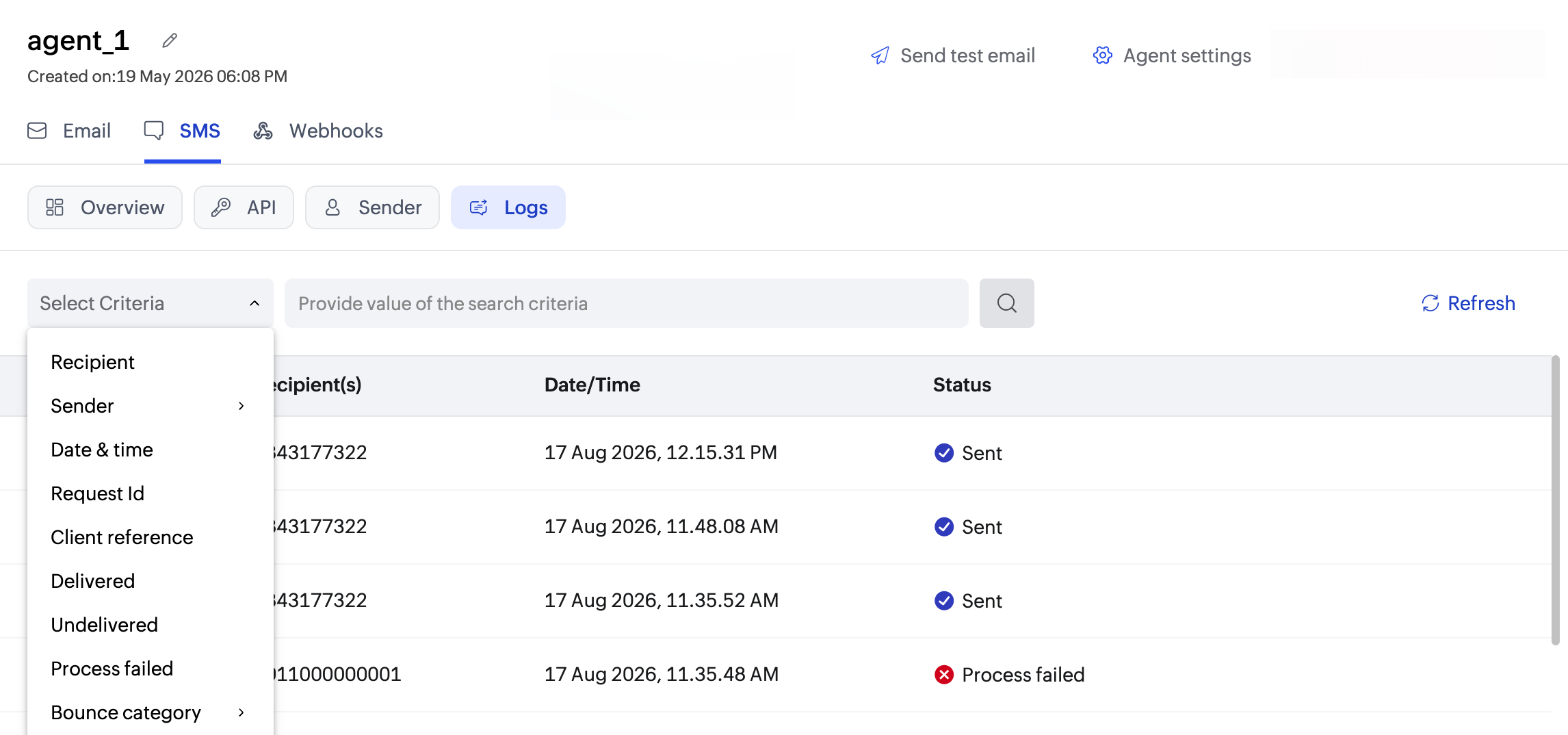
Log entry information
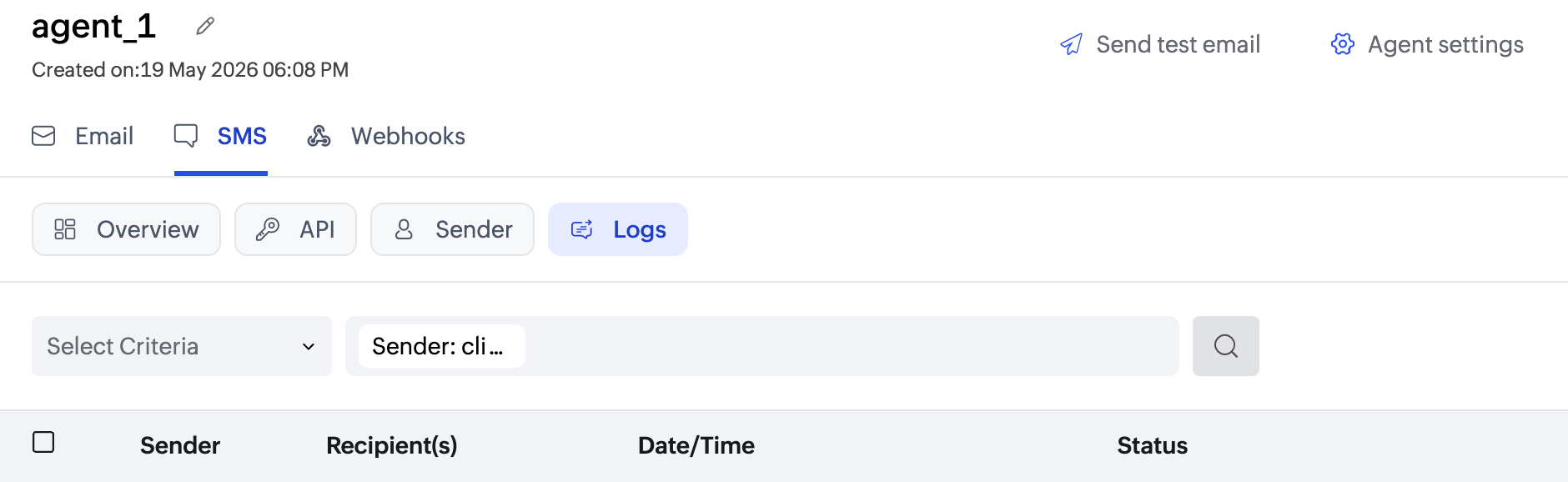
The Logs tab displays a table of all SMS messages sent from the Agent. Each row in the table represents one message and includes the following information:
| Column | Description |
| Sender | The name of the Sender used to dispatch the message. |
| Recipient(s) | The mobile number the SMS was sent to. |
| Date/Time | The exact date and time the message was sent, for example, 17 Aug 2026, 12.15.31 PM. |
| Status | The delivery status of the message — Sent, Delivered, Undelivered, or Process failed. |
Filter criteria
The log table supports criteria-based filtering so you can narrow your search results. Click the Select Criteria dropdown to choose a filter, then enter the corresponding value in the search field and click the search icon to execute the query.
The following filter criteria are available:
| Filter | Description |
| Recipient | Search by the recipient's mobile number. |
| Sender | Filter logs by a specific Sender. Select the desired Sender from the sub-menu. |
| Date & time | Filter by the date and time the message was sent. |
| Request ID | Find a specific send request by its unique identifier. |
| Client reference | Search using your own reference value passed at send time. |
| Delivered | Show only messages that were successfully delivered to the recipient's device. |
| Undelivered | Isolate messages that were sent but did not reach the recipient. |
| Process failed | Show messages that could not be processed or dispatched before reaching the carrier. |
| Failure report | Filter messages by a specific Failure report. Select the desired category from the sub-menu to view messages that failed for that particular reason. |
Delivery status
Each log entry displays one of the following delivery statuses:
- Sent : The message has been processed and dispatched from the Agent to the carrier.
- Delivered : The message was successfully received on the recipient's device.
- Undelivered : The message was sent but did not reach the recipient. This can happen due to an invalid number, device unavailability, or carrier-side rejection.
- Process failed : The message could not be dispatched. This typically indicates a configuration issue such as an invalid sender, unapproved template, or insufficient account credits.
SMS details
Clicking View details on any log entry opens the SMS details page for that message. This page gives you a complete breakdown of the message request, its delivery status, message content, and a timeline of delivery events.
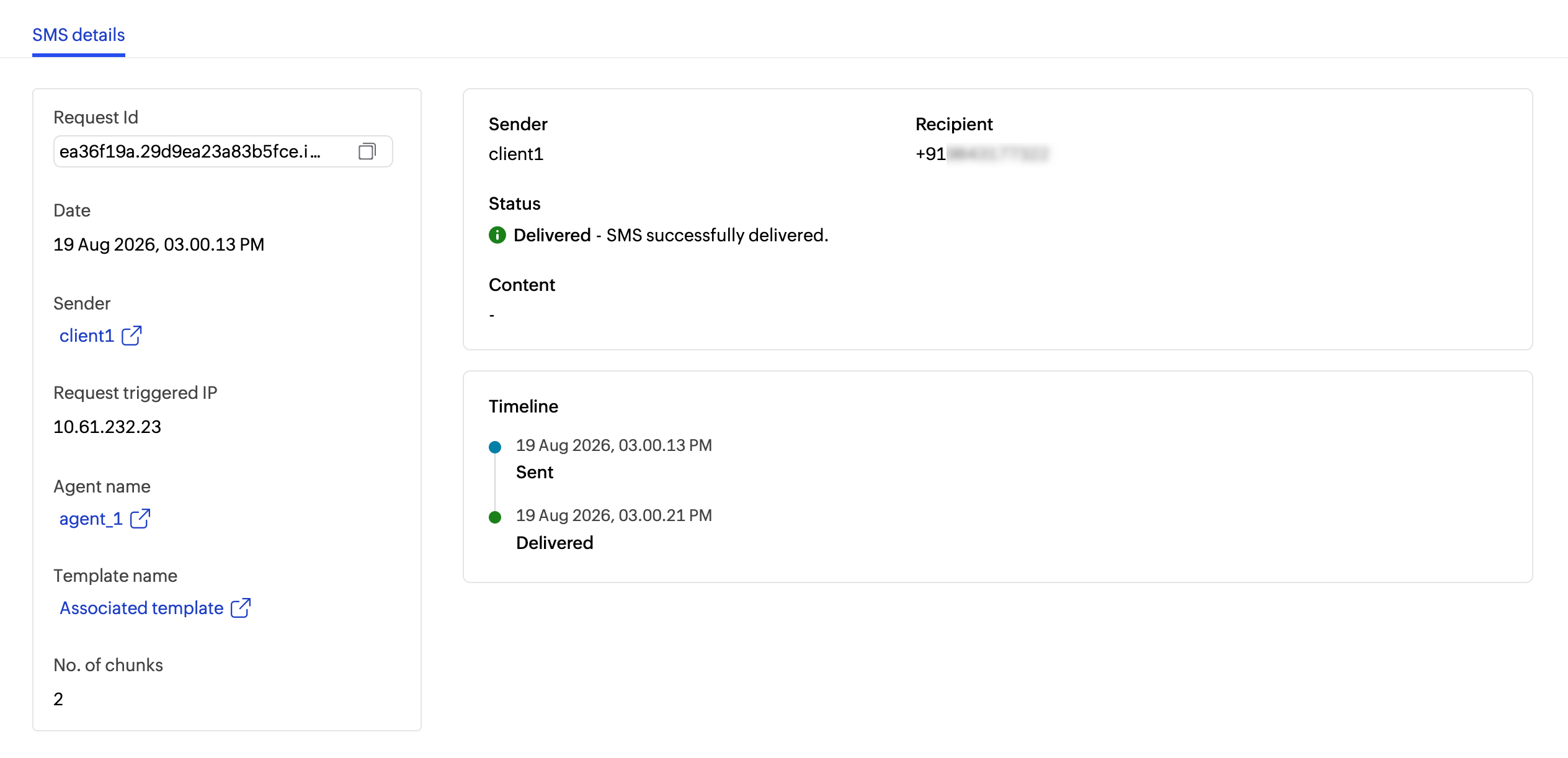
The SMS details page is divided into two panels:
Left panel
The left panel displays the technical details of the message request:
| Field | Description |
| Request ID | The unique identifier assigned to this send request. You can copy this ID to use it for filtering in the Logs table or for referencing the request when contacting support. |
| Date | The exact date and time the message was sent. |
| Sender | The name of the Sender used to dispatch the message. Click the link to open the Sender's configuration page. |
| Request triggered IP | The IP address from which the API request was triggered. |
| Agent name | The name of the Agent that sent the message. Click the link to open the Agent's page. |
| Template name | The name of the template used for this message. Click the link to view the associated template. |
| No. of chunks | The number of parts the message was split into for delivery. Messages exceeding 160 characters are split into chunks of up to 153 characters each, and each chunk is billed separately. |
Right panel
The right panel displays the delivery details and message content:
| Field | Description |
| Sender | The Sender name used to dispatch the message. |
| Recipient | The mobile number the message was sent to, in the format +91XXXXXXXXXX. |
| Status | The final delivery status of the message along with a short description, for example, Delivered — SMS successfully delivered. |
| Content | The actual message content that was sent to the recipient. |