Voice templates
Voice templates are the call flows that define what happens during an automated call — from what the customer hears to how the call branches based on their keypad response. Every automated voice call in Zoho CPaaS is done using a template.
Voice channel is currently supported for customers hosting their accounts in the US, IN, EU and AU DCs.
Template list
The Templates tab displays all the voice call flow templates you have created. Each row shows:
- Name : The name assigned to the template.
- Key: A unique system-generated identifier used for API references.
- Alias: An optional alternate name for easier identification. Shown as --- if not set.
- Associated Agents: The agent this template is linked to.
- Modified time: The date and time the template was last updated.
Creating a Voice template
You can build a template from scratch, or start from one of the pre-built sample templates that come with common call flows ready to customize:
To create a new voice template in Zoho CPaaS
- Log in to your Zoho CPaaS account.
- Go to Configuration > Voice from the left navigation menu.
- Click the Templates tab.
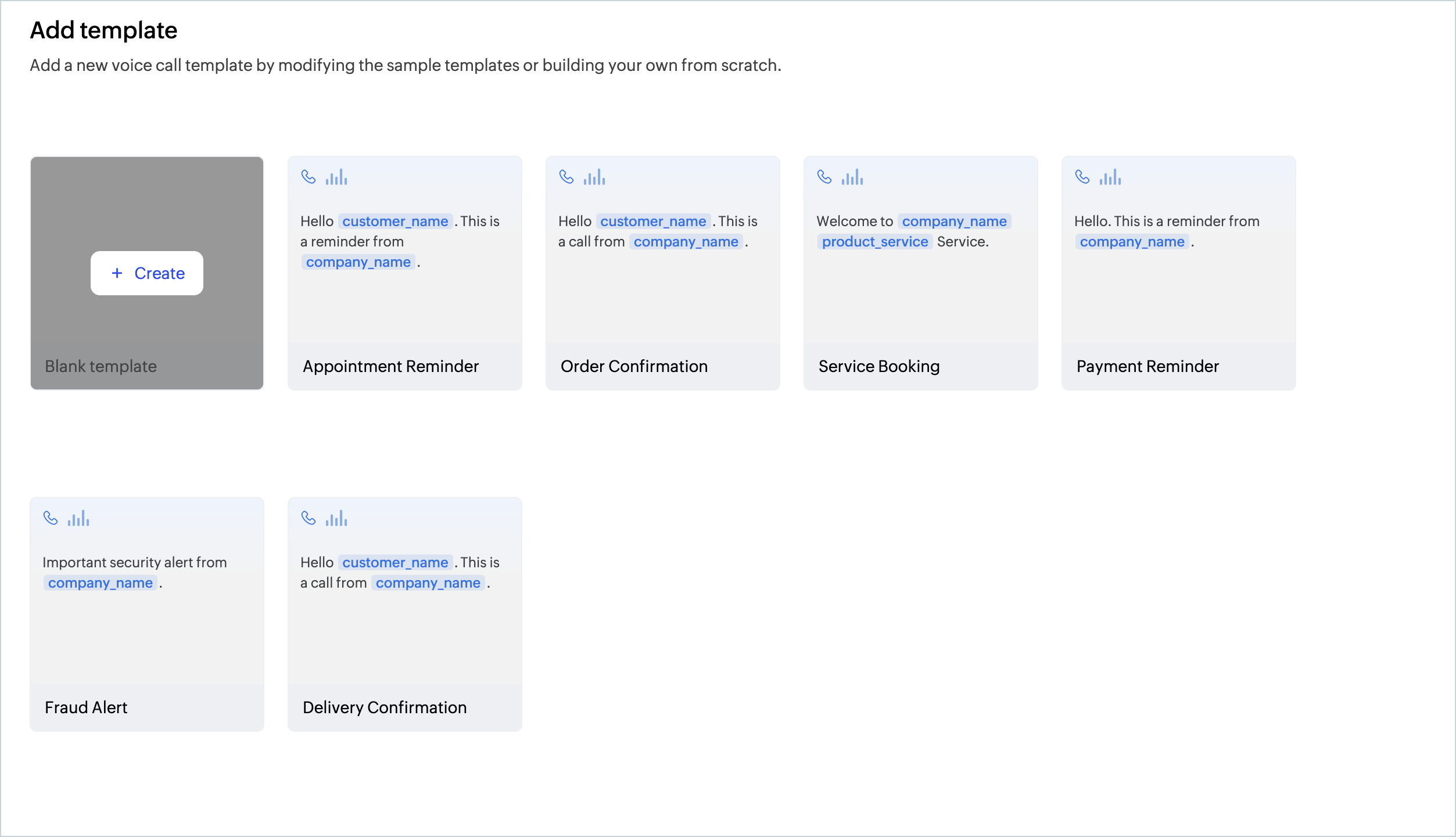
- Select a sample template to customise, or click Blank template to start from scratch.
- In the template editor, fill in the header fields at the top:
- Name: A unique name for the template (required).
- Alias: An optional shorthand identifier for the template.
- Associate Agent: The agent that will use this template to make calls.
- Default call duration is 180 seconds. The Maximum call duration is 7200 seconds.
- Language: The language used for text-to-speech (IVR) playback throughout this call flow. The IVR voice will speak in the accent and pronunciation of the selected language.
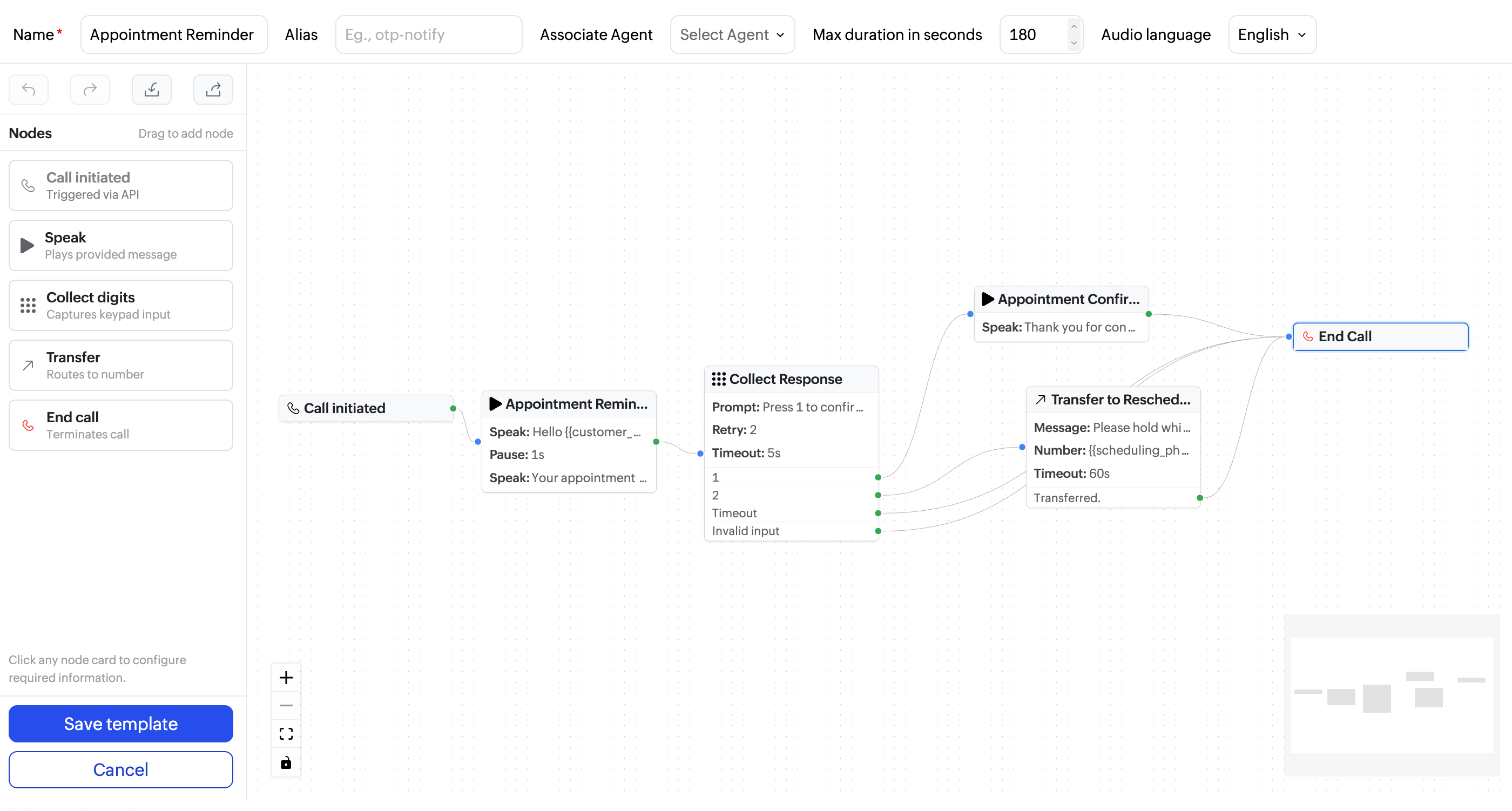
- In the canvas area, drag nodes from the left panel and drop them onto the canvas.
- Connect the nodes by linking their output points to the next node's input. Each node's output branches represent different outcomes (for example, digit pressed, timeout, or invalid input).
- Click on any node (except call initiated and end node) to open its configuration panel and fill in the required details.
- Click Save template to save the flow.
Every template must start with a Call initiated node and end with at least one End call node. Templates with unconnected nodes or missing end points cannot be saved.
Call flow nodes
Nodes are the building blocks of your voice call flow. Each node represents a different step in the call experience. Drag them from the left panel and connect them in sequence to define how the call progresses.
- Call initiated : The start node represents the User's Voice API triggering action
- Speak : Plays a text-to-speech message to the recipient. You can compose multi-part messages with pauses between them within a single Speak node.
- Collect digits : Pauses the call and prompts the recipient to press a key on their keypad. Configure the prompt message, the number of retries allowed, and the timeout duration. The node branches based on the digit pressed — each possible input (1, 2, Timeout, Invalid input) can connect to a different next step.
- Transfer : Routes the live call to another phone number, where you can set a hold message and define a transfer timeout.
- End call : Terminates the connection and must be the final node in every branch of the flow.
Voice settings
Voice Settings lets you set a maximum call duration at the account level. Only the Postmaster (the account administrator in Zoho CPaaS) can view and change Voice Settings.
To configure Voice Settings in Zoho CPaaS:
- Log in to your Zoho CPaaS account.
- Go to Settings > Voice settings from the left navigation menu.
- Check Configure a max duration for calls to enable the setting.
- Enter the maximum call duration in the Max duration in seconds field. The default is 7200 seconds (2 hours).
- Click Save.
If a call template has its own Max duration in seconds configured, the template-level setting takes priority and overrides the account-level setting for calls placed using that template.