WhatsApp analytics
The WhatsApp analytics dashboard in Zoho CPaaS provides a comprehensive view of your message activity and delivery performance over a specific time period. It monitors the number of messages sent, delivered, and read, delivering engagement insights into your transactional WhatsApp messaging performance.
WhatsApp analytics dashboard
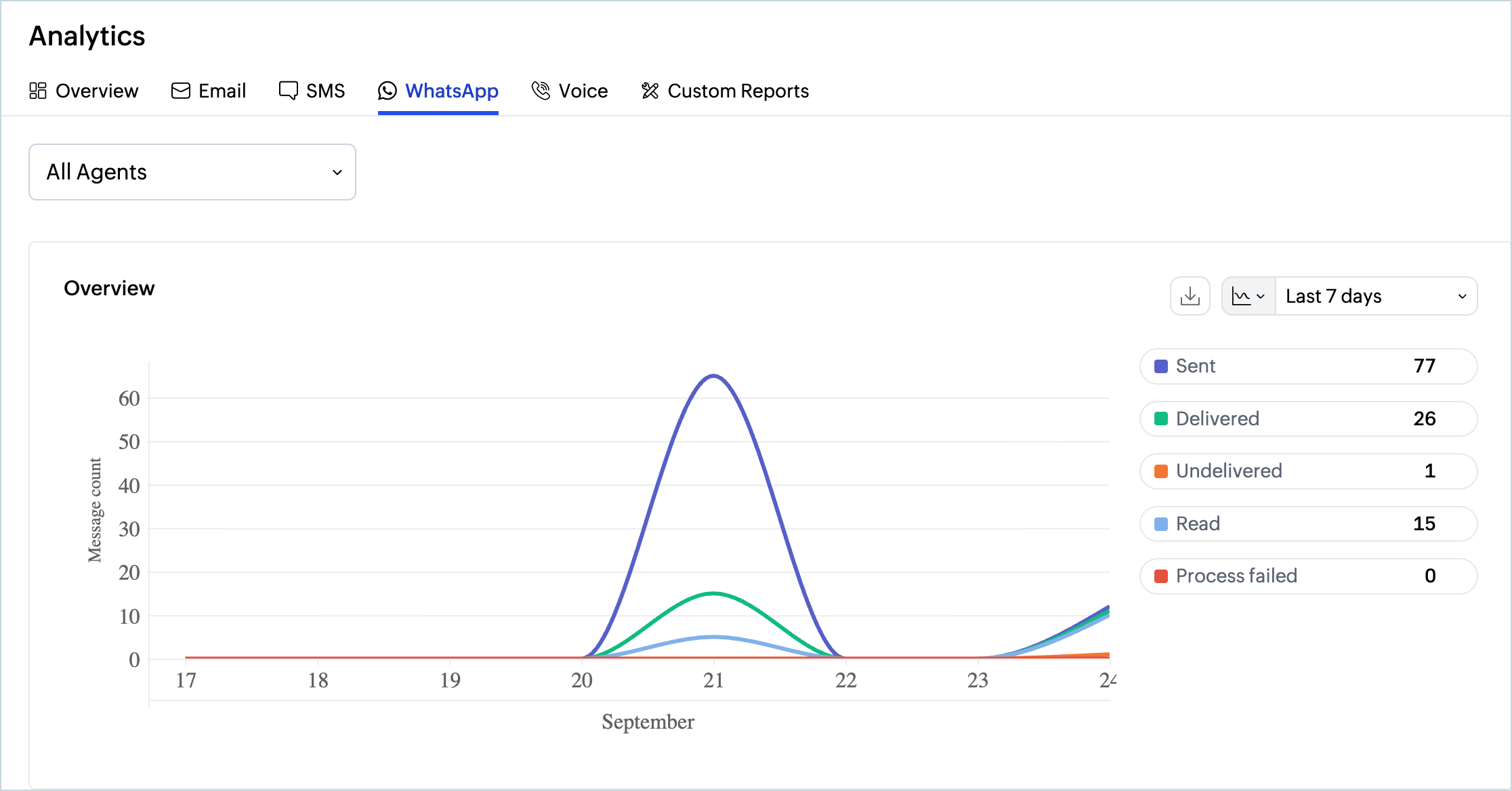
The WhatsApp Analytics dashboard is available under Analytics > WhatsApp. It gives you an overview of all WhatsApp messages sent from your account within the selected time range, along with a breakdown by delivery and engagement status.
To view WhatsApp messages analytics reports in Zoho CPaaS:
- Log in to your Zoho CPaaS account.
- Go to Analytics tab.
- Click WhatsApp in the top menu.
Overview chart
The overview chart plots the count of WhatsApp messages by status over the selected date range. Each status is represented by a separate line in a distinct colour, giving you an immediate visual sense of how delivery and engagement levels compare and evolve over time.
The chart updates dynamically when you change the time range. To adjust the period, click the time range drop-down in the top-right corner and choose the desired option. Available options include Last 7 days, Last 15 days, Last 30 days, and custom date ranges.
Message status summary
The status summary panel to the right of the chart shows the total count for each message status within the selected period. The following statuses are tracked:
- Sent: The total number of WhatsApp messages submitted from your account. A message is marked as Sent once it has been accepted by the WhatsApp Business API and is on its way to the recipient.
- Delivered: The number of messages successfully delivered to the recipient's device. This status is confirmed via a delivery receipt from WhatsApp and indicates the message reached the recipient's WhatsApp client, regardless of whether they opened it.
- Undelivered: The number of messages that could not be delivered to the recipient's device. Common reasons include the recipient not having WhatsApp installed or active on the destination number, the message expiring before delivery, or the recipient having blocked your WhatsApp Business number.
- Read: The number of delivered messages that the recipient has opened and read. This status is available only when the recipient has read receipts enabled on their WhatsApp account.
- Process failed: The number of messages that failed before being submitted to the WhatsApp Business API. This usually points to issues such as an invalid or unapproved message template, missing required parameters, or account-level configuration errors.
The Read count will always be less than or equal to the Delivered count, since a message must be delivered before it can be read. If read receipts are disabled by the recipient, delivered messages will not contribute to the Read count even if the recipient opens them.
Filter criteria
By default, the dashboard displays data across all Agents in your account. To view statistics for a specific Agent, click the All Agents drop-down at the top of the page and select the desired Agent. The overview chart and status summary will update to show data for that Agent only.
Chart and download options
The overview chart supports two display modes, which you can toggle using the icons in the top-right corner of the chart panel:
- Line chart: Displays message counts for each status as continuous lines over the date axis. This view makes it easy to compare how statuses like Sent, Delivered, and Read track against each other and to spot periods of high or low engagement.
- Bar chart: Displays the WhatsApp message count for each status as verticals bars plotted on the date axis.
- Tabular format — Shows the exact count for each status broken down by date. Use this when you need precise numbers for a specific day rather than a visual overview.
You can export the chart data for offline analysis or to include in reports. To download:
- Select the preferred chart-view option from the top-right corner of the chart panel.
- Click the download icon and choose the desired format from the list.
The supported download formats are JPEG, PNG, SVG, CSV, and PDF.