WhatsApp templates
Templates are the structured messages formats that you send to customers on WhatsApp. All templates must be approved by Meta before they can be used. Zoho CPaaS lets you create, manage, and track the approval status of your templates directly from your account.
Template types
With the WhatsApp channel in Zoho CPaaS, you can create and send two types of message templates: Utility and Authentication.
Note: WhatsApp also supports Marketing templates for promotional messages, such as discounts, product announcements, and campaigns. However, Zoho CPaaS does not support Marketing templates. For complete content guidelines, see Meta's template categorization documentation.
Utility
Transactional messages tied to an ongoing or completed business activity. These are informative in nature and sent in response to an action the user has taken or a request they have made. Examples are:
- Order confirmations and shipping or delivery updates
- Payment confirmations, receipts, and billing updates
- Appointment and reservation confirmations and reminders
- Account or subscription status updates
- Service notifications related to an existing transaction or account
Utility templates have strict content requirements. If a template contains marketing content, such as discounts or upselling offers, Meta automatically re-categorizes it as a Marketing template when you create or update it. For content guidelines, see Meta’s Utility template documentation.
Authentication
You should use Authentication templates to deliver one-time passwords (OTPs) or verification codes through WhatsApp so users can securely verify their identity. Examples are:
- Login verification codes
- Account registration verification codes
- Password reset codes
- Identity verification during a transaction
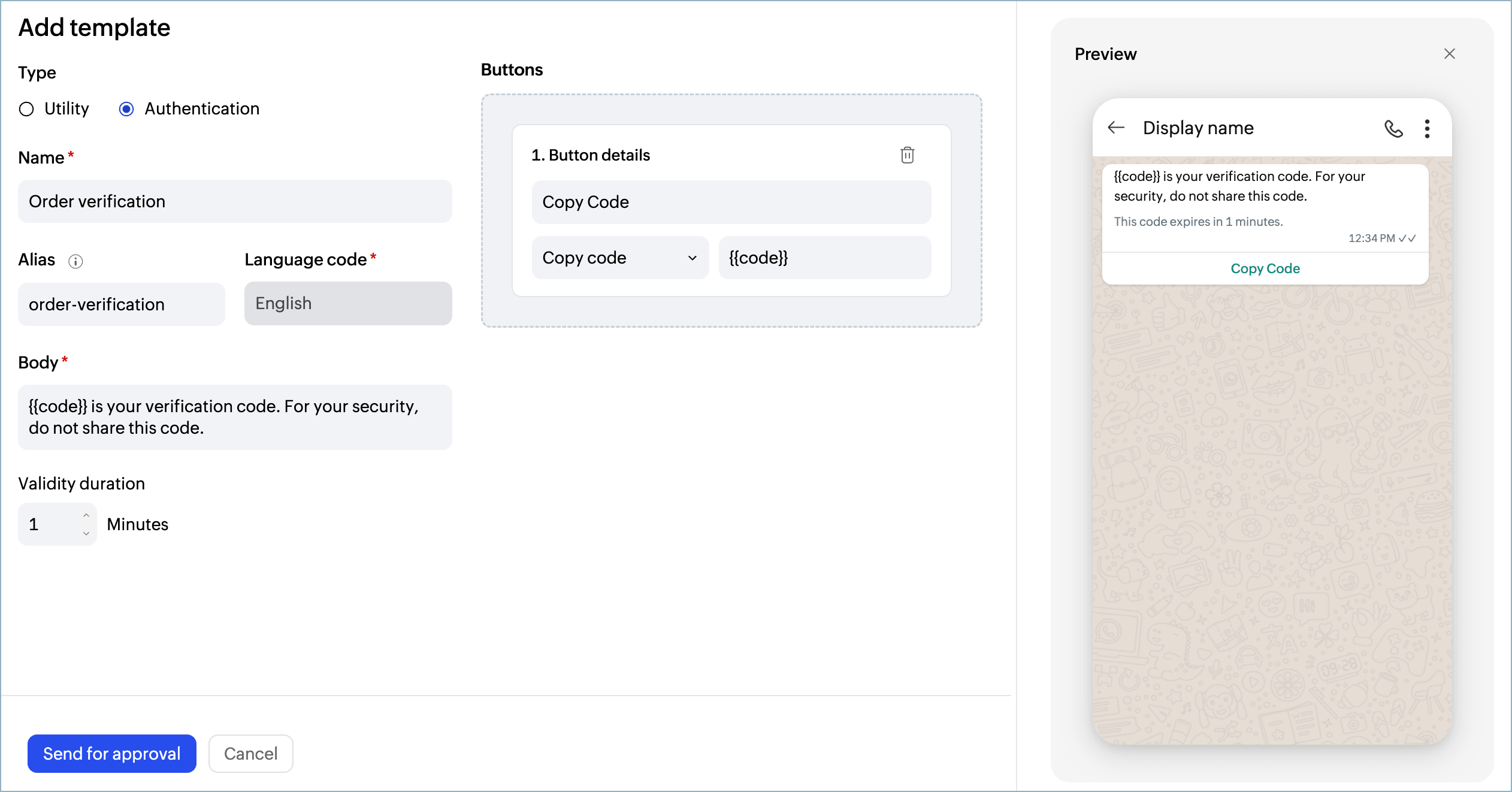
Authentication templates follow a fixed format defined by Meta, and the message text cannot be customized. Learn more about Meta's Authentication templates documentation.
Creating a template
You can start with a blank template or choose from a set of pre-built samples, such as OTP Verification, Order Confirmation, Shipping Update, Appointment Reminder, and more.
To create a new template in Zoho CPaaS:
- Log in to your Zoho CPaaS account.
- Go to Configuration > WhatsApp.
- Click the Templates tab.
- Click + Add template.
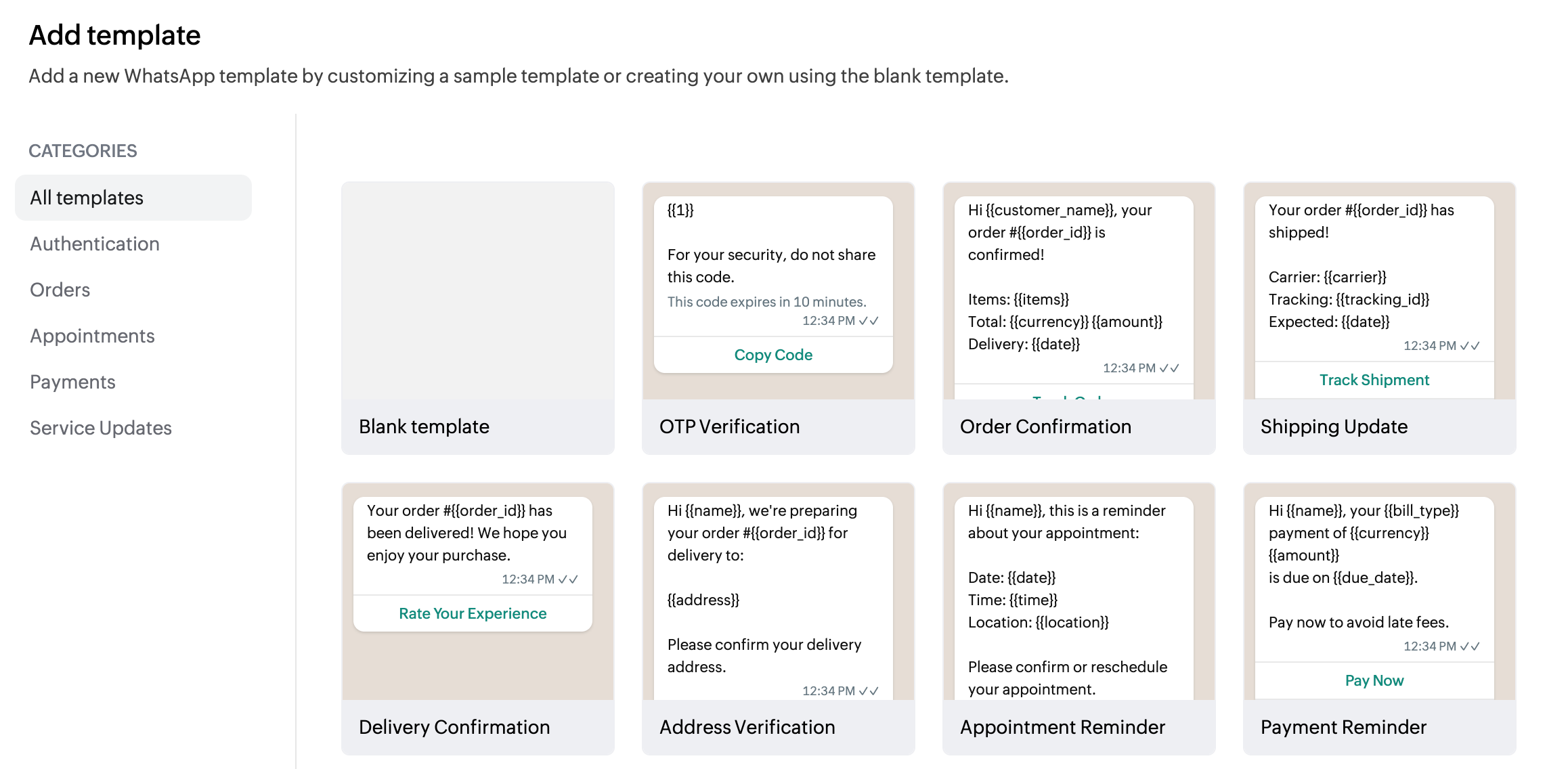
- Select Blank template to build your own or choose a sample template to edit it.
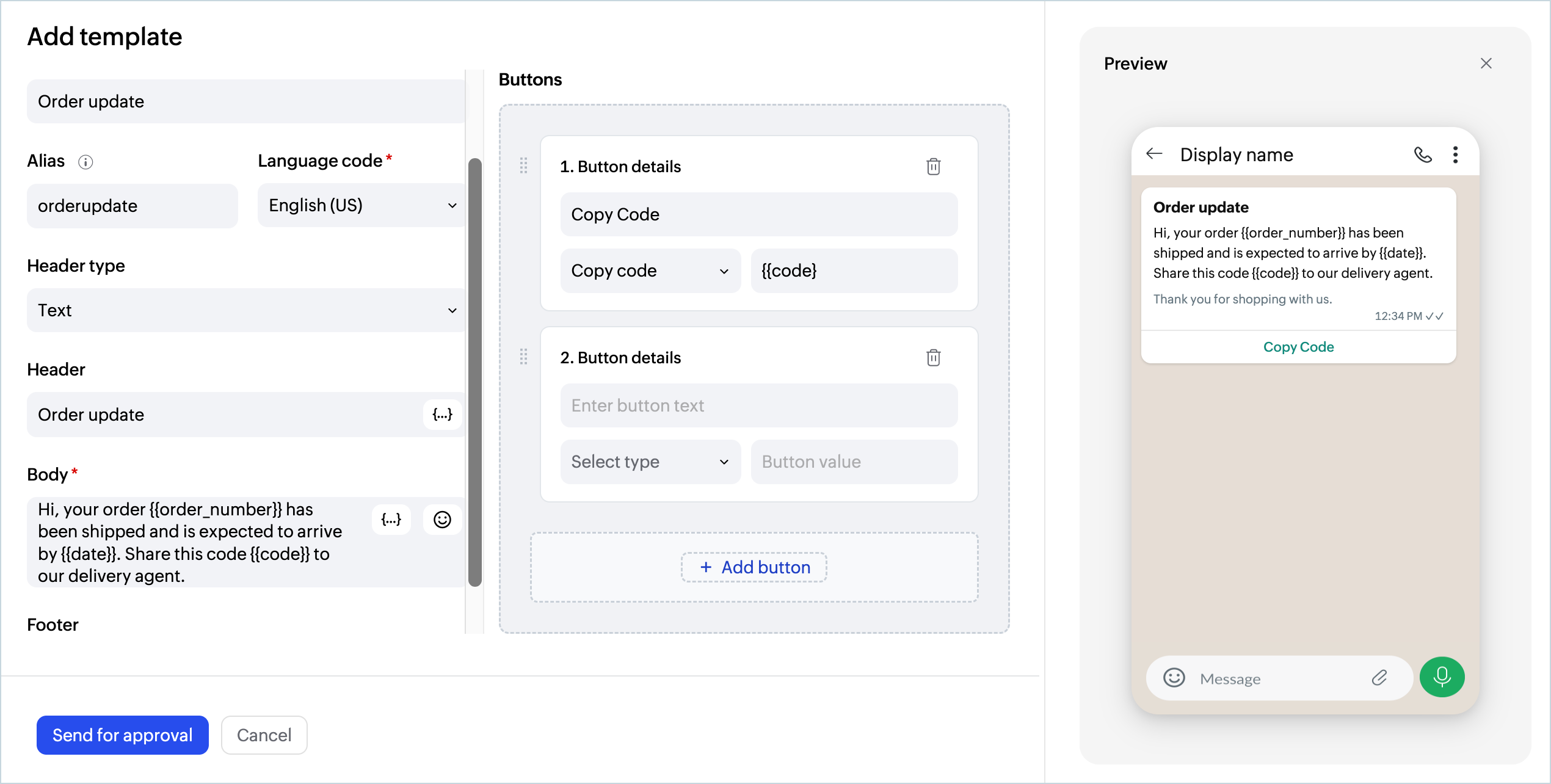
- For the blank template in the template editor, fill in the following fields:
- Type: Select Utility or Authentication.
- Name: A unique name for the template. Do not use spaces — use hyphens or underscores instead.
- Alias: An optional alternate identifier for the template.
- Language code: The language the template is written in (for example, English (US)).
- Header type: Choose Text, Image, Document, or Video.
- Header: The text shown at the top of the message. Use {{1}}, {{2}} for dynamic values.
- Body: The main message text. Use variables like {{customer_name}} or {{order_id}} to personalize it.
- Footer: Optional text at the bottom of the message (for example, "Reply to this message for support.").
- Buttons: Add up to 4 action buttons. Supported types: Quick Reply, Phone Number, URL. Inbound handling for Quick Reply button responses is not supported at this time. This feature will be available soon.
- Preview the template on the right side of the editor to see how it will appear on a customer's device.
- Click Send for approval and it'll be submitted for Meta review.
- A template cannot be edited while it is under review or once it has been approved.
- Approval time varies depending on the content, language, and Meta's review process.
- Only approved templates can be used to send messages.
- Refer to Meta's WhatsApp Business message template guidelines for content best practices.
Template details
To view a template's full details, click its name in the Templates tab. The detail view shows:
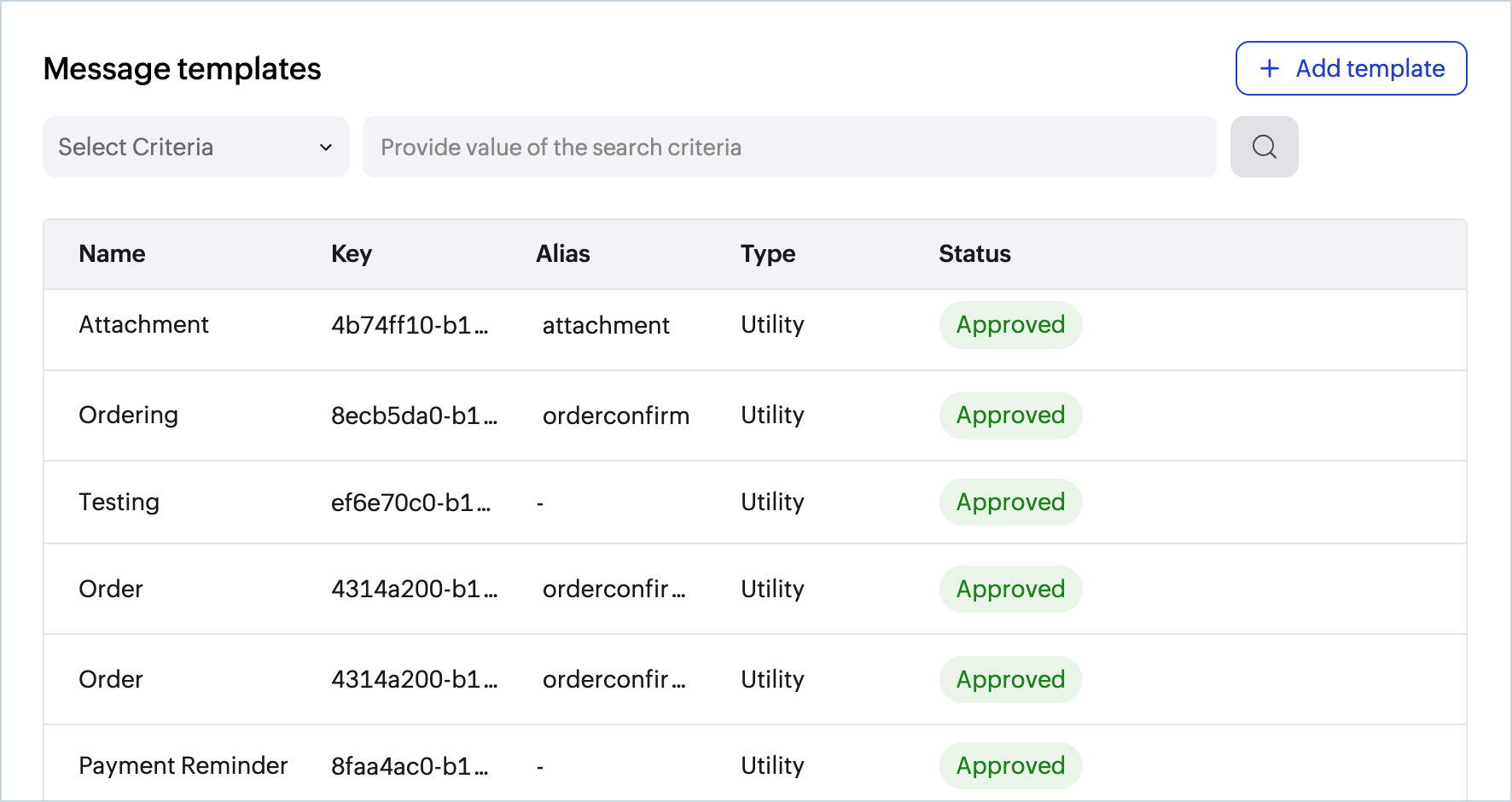
- Template name: The name you assigned when creating the template. Used to identify it within Zoho CPaaS.
- Template key: A unique system-generated identifier for the template, used for API references and internal tracking.
- Template alias: An optional alternate name you can set for easier identification. Displayed as - if not set.
- Type: The category of the template, either Utility or Authentication.
- Status: The current Meta approval status of the template.
- Approved: The template is ready to use.
- In review: The template has been submitted and is awaiting Meta review.
- Rejected: The template was not approved by Meta. Review the content as per Meta's guidelines and recreate if needed.