Zoho CPaaS module for WHMCS
The Zoho CPaaS module for WHMCS allows you to send transactional emails directly from your site hosted with WHMCS. Configure your Zoho CPaaS account with WHMCS to start sending your emails.
Steps to install Zoho CPaaS module
- Login to the WHMCS Marketplace.
- Search for the Zoho CPaaS module. Click Get it now.
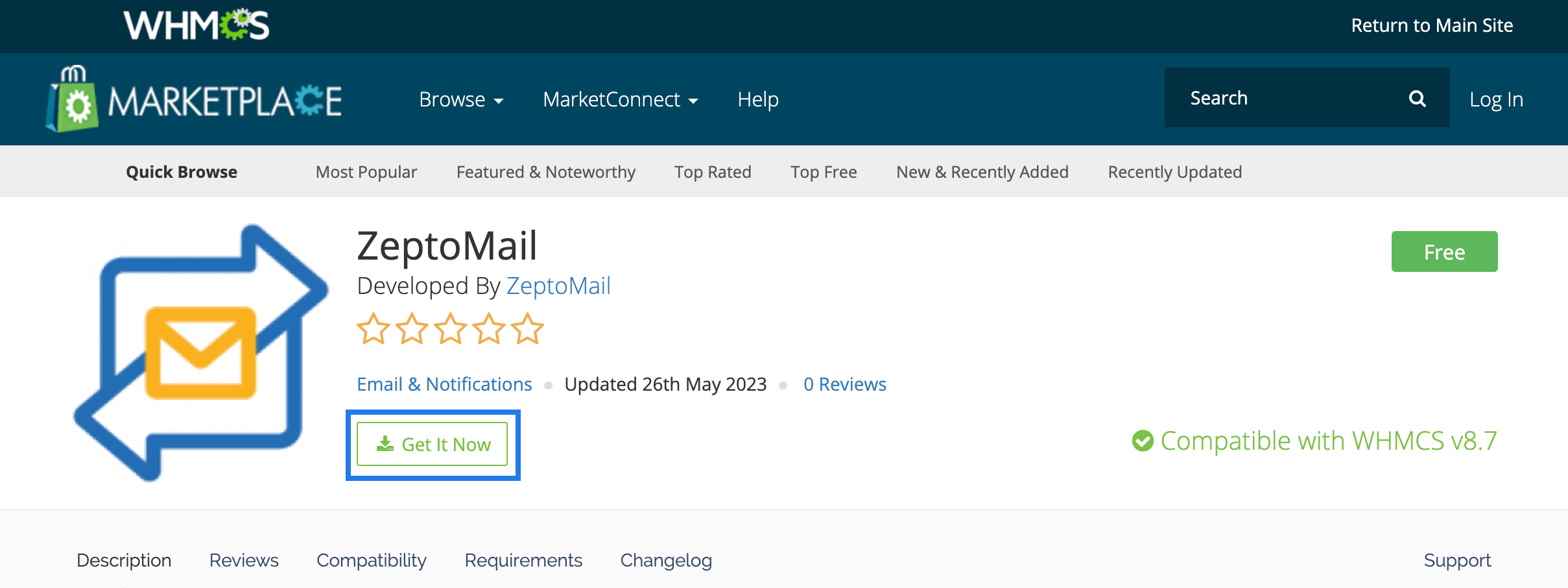
- A zip file labelled "Zoho CPaaS-WHMCS-1.0.zip" will be downloaded. Decompress the file.
- Find the " Zoho CPaaS " folder in the decompressed "Zoho CPaaS-WHMCS-1.0" folder. Upload it in the /modules/mail directory in your WHMCS account.
- You will now be able to use this module.
Configuring Zoho CPaaS module
Once the module is installed, you should configure it to start sending out your emails. Follow the steps given below to configure your Zoho CPaaS account.
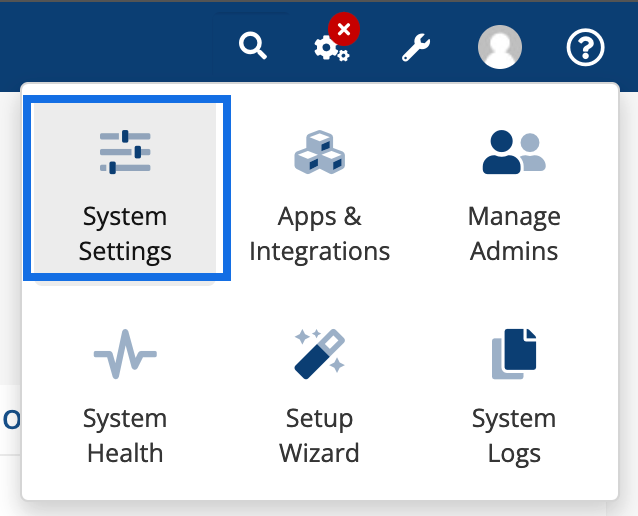
- Navigate to System settings on the top right corner of your Dashboard.
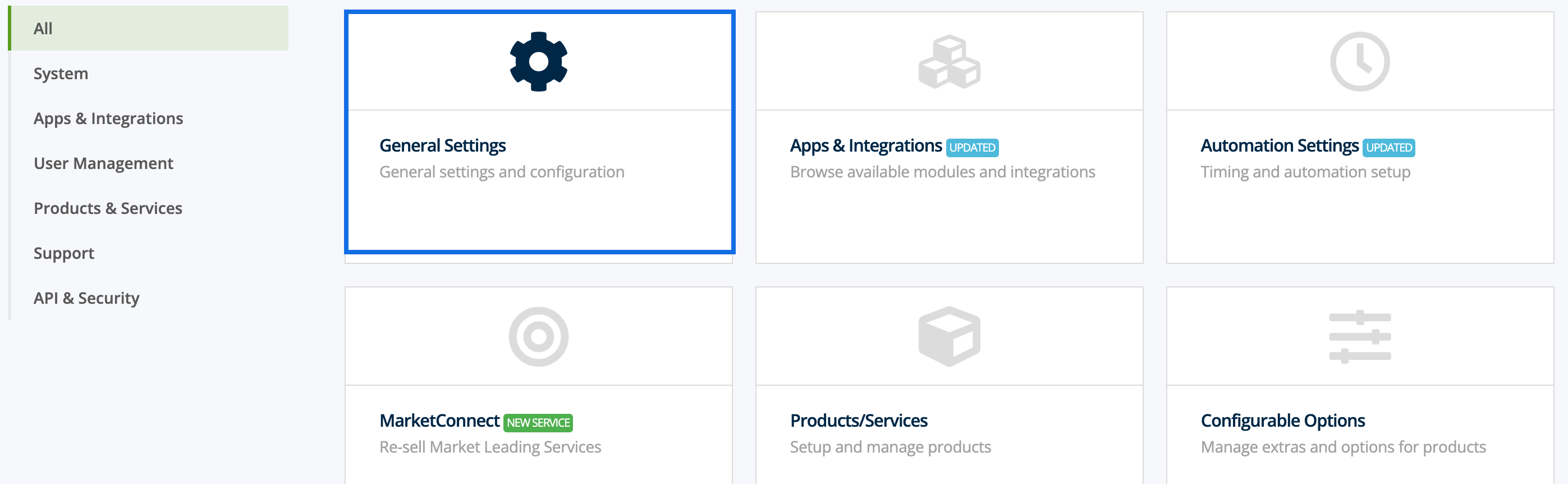
- Select General settings.
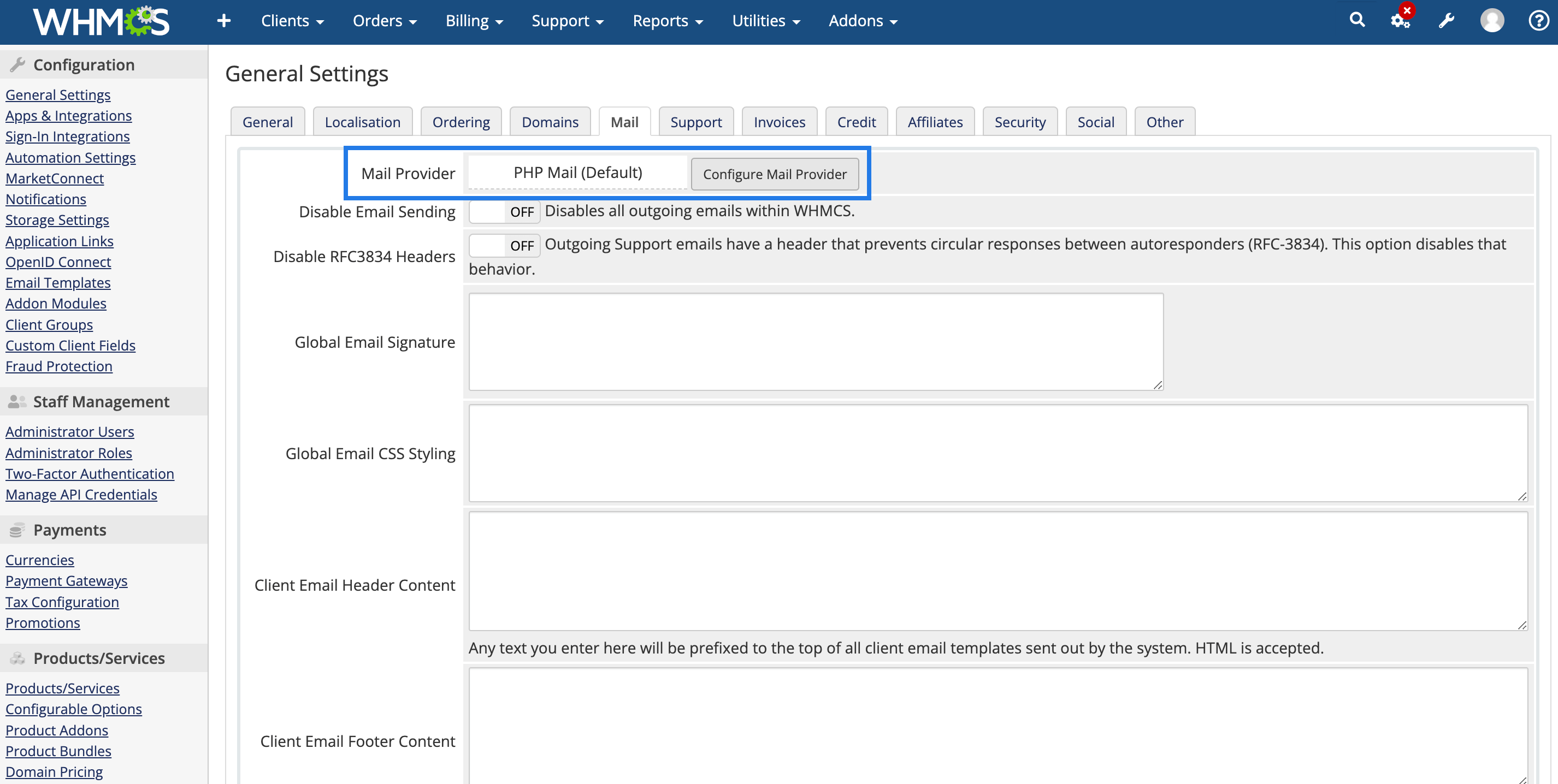
- Navigate to the Mail tab. Under Mail Provider section, select the Configure Mail Provider button.
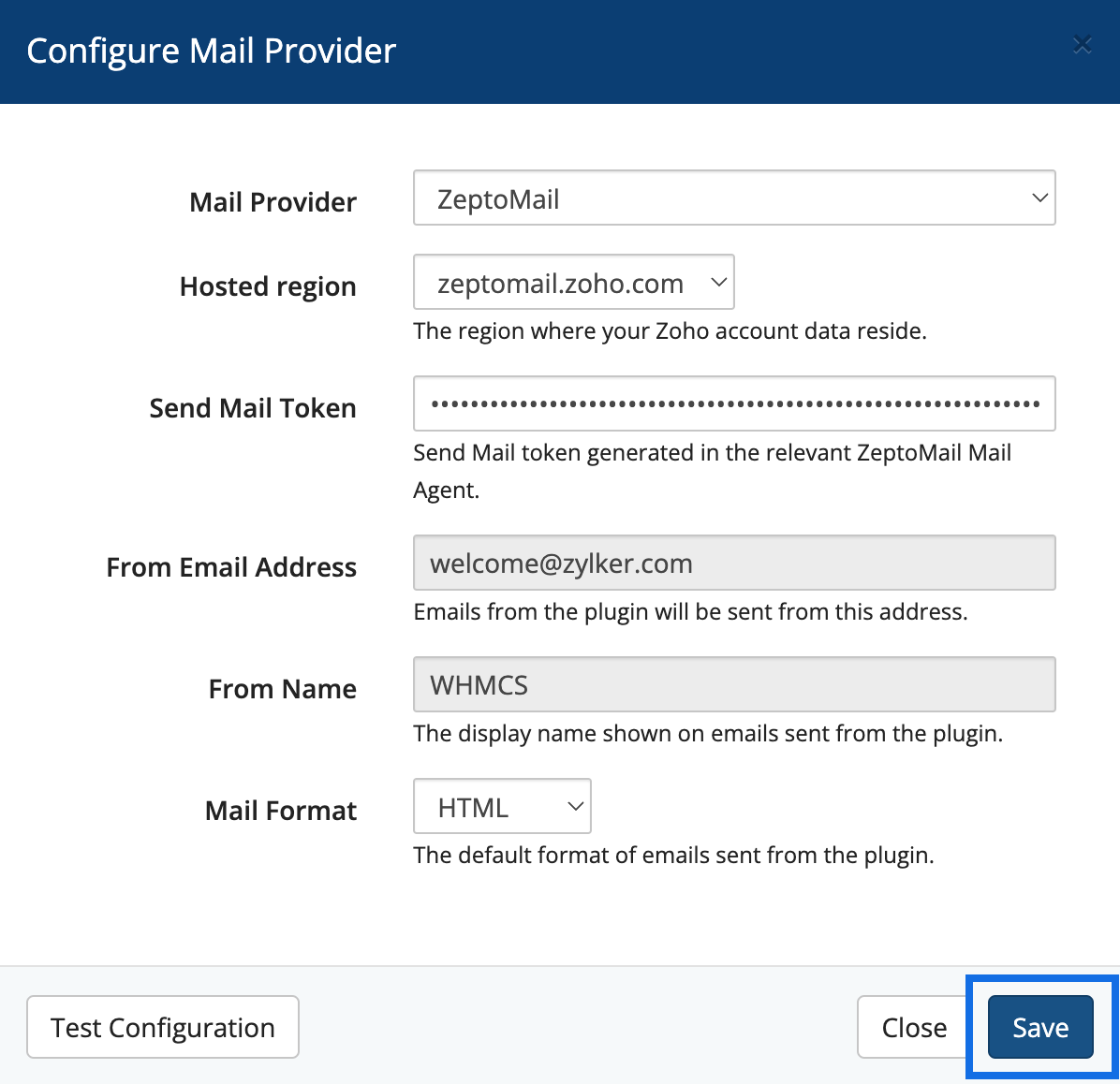
The Configure Mail Provider box will appear. Fill in the configuration parameters given below :
- Mail provider: The email service you will use to send your emails.
- Hosted region: The region in which your Zoho CPaaS account is hosted. You can obtain this value from your Zoho CPaaS login URL.
- Send API key: The Send API key generated within the Agent using which you wish to configure WHMCS. This information can be obtained from the setup info section of your Zoho CPaaS account.
- From email address: The email address that will be used to send your emails. Ensure that the domain which you use to send your emails is a valid domain verified in Zoho CPaaS. To verify your domain in Zoho CPaaS, follow the steps given here.
- From name: The sender name which will be displayed over the emails sent.
Note:
The From name and From email address will be auto-populated from the General settings of your WHMCS account.
- Click save.
- Once configured, you will be able to send emails.
Test email :
To send a test email :
- In the configuration window, select Test Configuration.
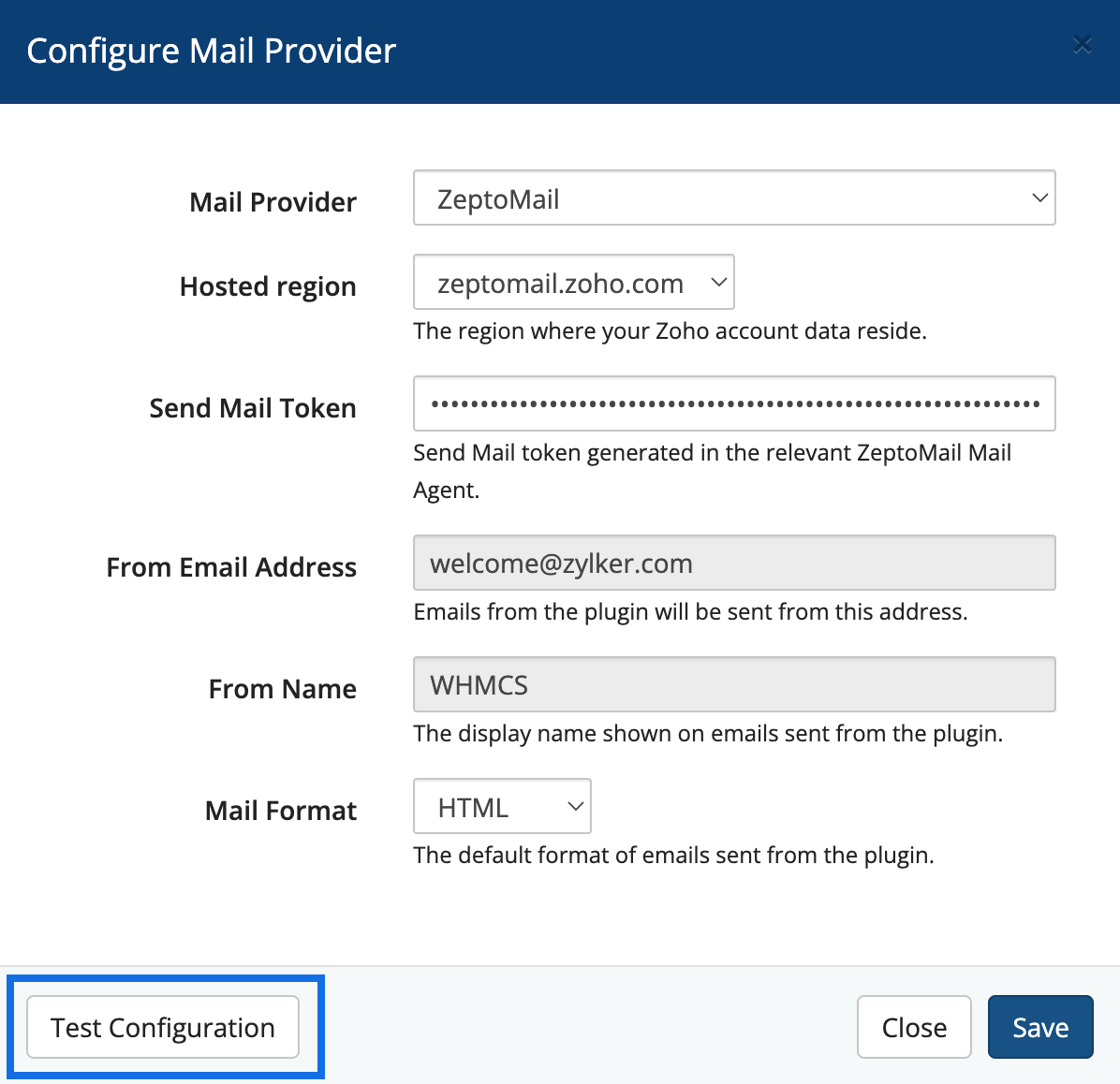
- A test email will be sent to the From address.
Note:
Sending emails through Zoho CPaaS is subject to our Usage Policy restrictions. Please refer to our Usage Policy page for details.