Understand audit trail
A typical organization has several users accessing their applications and services. Monitoring every user's activity is crucial to alleviate potential threats to sensitive data and prevent data misuse. The Audit trail feature in Zoho Creator is a means to assist an organization by maintaining logs on the sequence of activities performed inside an application's live mode. This is helpful in case of security violations by identifying user behavior and the chronological order of events that caused them.
You can customize what you review by settings filters based on specific dates, actions performed, record IDs, and email addresses of users. This feature is form-specific and lets you view the history of the following action types performed in the forms in your applications. For example, while investigating a security incident, Audit Trail helps detect who exported sensitive data or deleted critical records and when those actions were performed. Audit Trail is available in two types, based on the level of detail captured:
- Basic Audit Trail captures actions performed directly by users in the live mode of the application, such as record creation, updates, deletions, and report activities like import, export, and print.
- Advanced Audit Trail extends this capability by capturing system-driven actions, including those triggered through Deluge script executions, API calls, form emails, and data access actions in workflows, providing deeper visibility into background operations.
This feature is form-specific and lets you view the various sources (listed below) of the activities performed in your application's form:
- User actions - Direct actions performed by users within the application, such as creating, editing, or deleting records as well as importing, exporting, and printing reports.
- Deluge - Actions triggered through custom Deluge scripts, including updates and task executions.
- Form email data - Data interactions initiated via form-based emails, such as submissions or updates triggered through email inputs.
- APIs - Data changes or retrievals made through external API calls, ensuring transparency in third-party system interactions.
- Workflows - Automated actions performed by configured workflows, including task executions, record updates, and conditional operations.
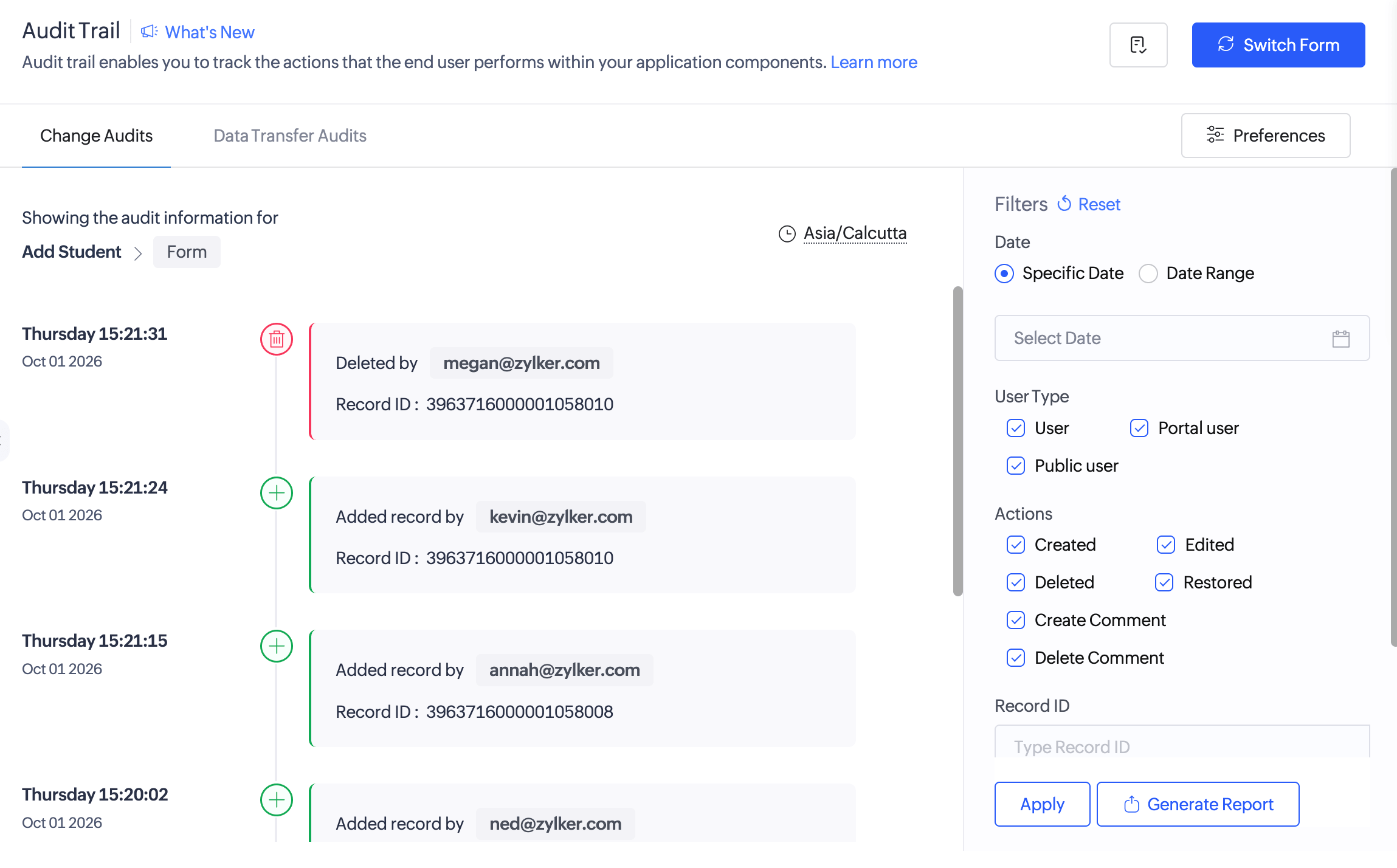
In short, the Audit Trail feature keeps track of the changes made in your application forms as well as when, by whom, and how much of data has been modified. This serves as documentary evidence for the sequence of activities in your application records and reports.
1. How long is data saved?
- For free plans, the audit data for both Change Audits and Data Transfer Audits is retained for three months.
- For paid plans, Change Audit data is retained for three years, while Data Transfer Audit data is retained for three months.
2. What are the tabs in Audit Trail
The audit trail data is categorized into the following two tabs.
2.1 Change Audits
This tab captures user actions in records like create, edit, delete, and restore while also logging before-and-after edit values for compliance purposes. These user actions are logged from the app’s live mode, along with Deluge script executions, API calls, and form emails, and data access actions in workflows. In this tab, you can view who performed the action (created, edited, deleted or restored) on the record, users' email address, the timestamp at which they performed it, and the respective record ID. You can restore the record changes. Learn how
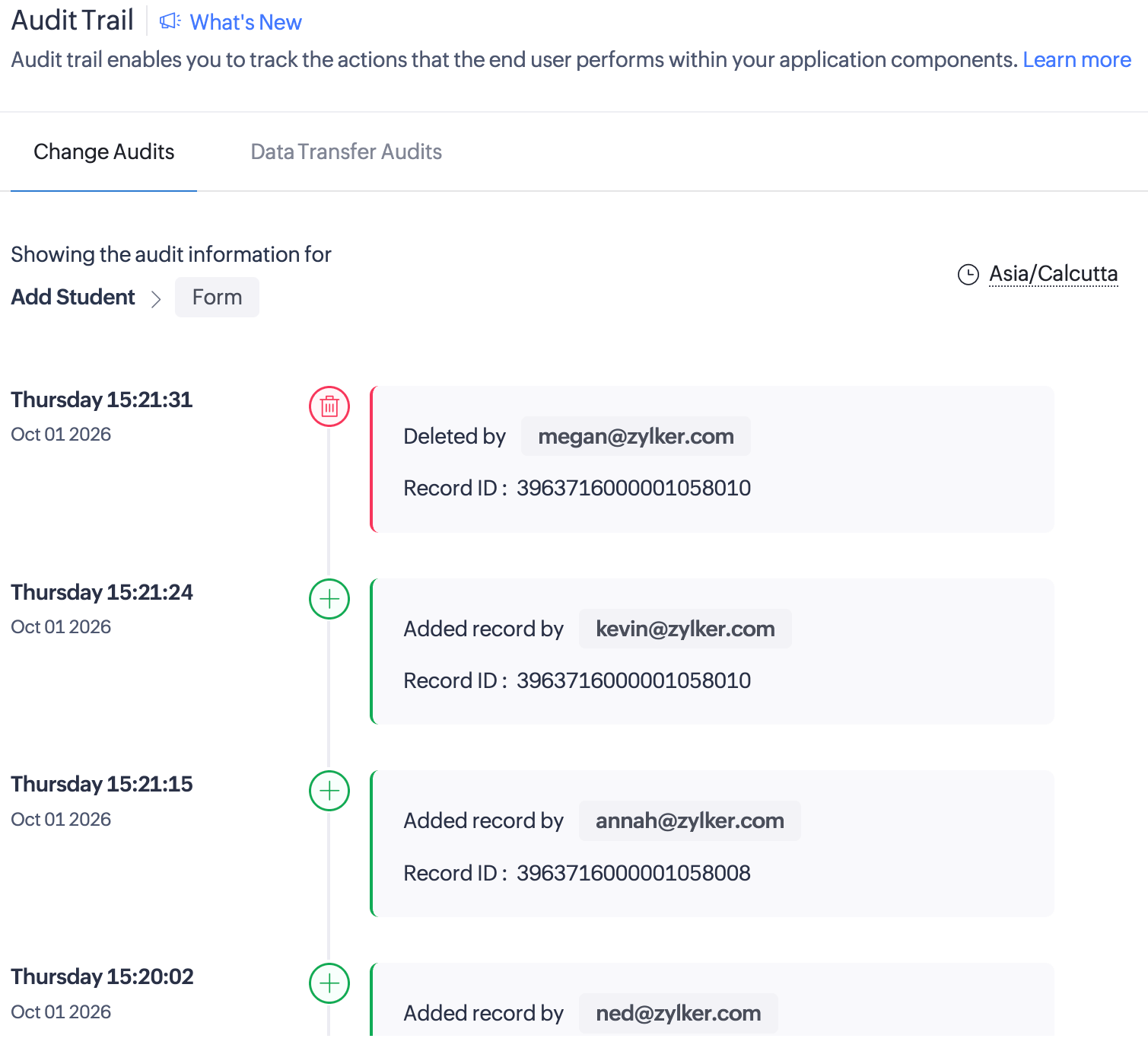
You can click on an entry in the Audit Trail page to view its detailed log that provides full visibility into the record details and the device type on which the record changes were performed. Each Detailed Log has the following two sections apart from displaying the user details and the component type in which the user performed that action.
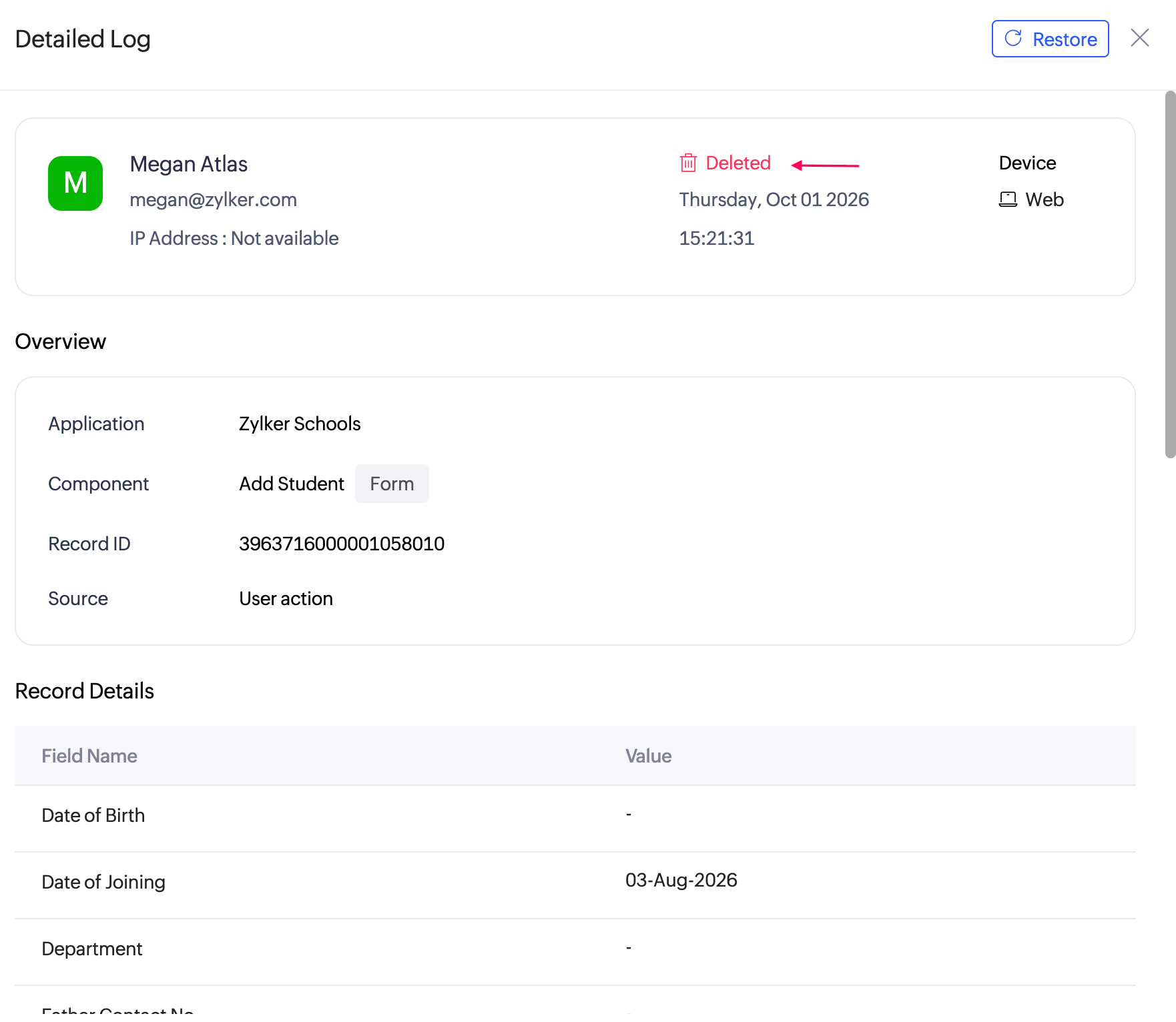
- Overview: App and component names along with the component type, and source of the action (live mode).
- Record Details: Field name, type, value, and attachments (names of uploaded images and files) for created, deleted, and restored records. If a record is edited, the before-and-after edit values will also be displayed.
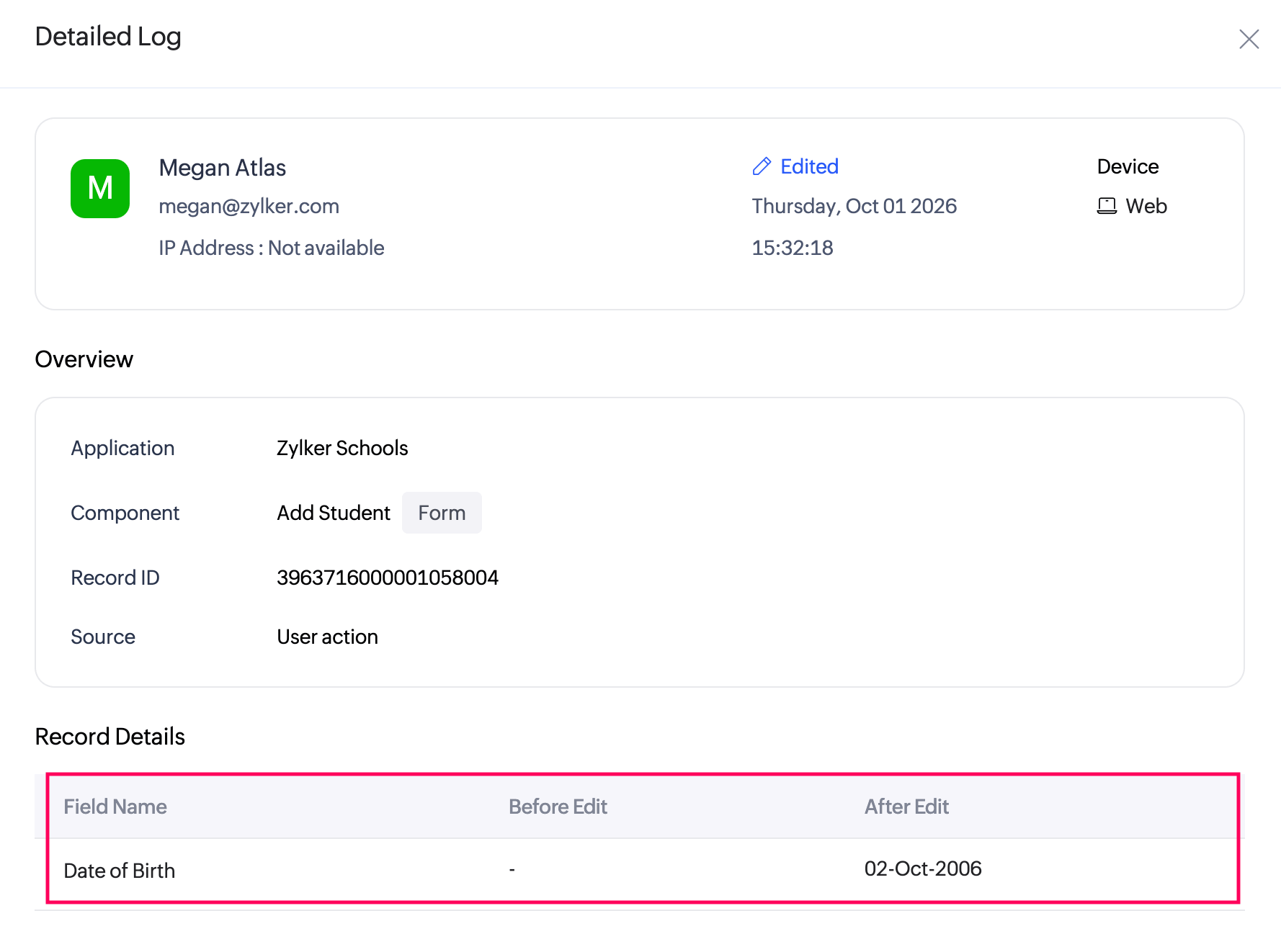
- Subform Details: This section appears when your form has a subform in which a user has performed the following actions. The record ID of the subform will also be captured.
- Created - This activity is captured when a subform row has been added.
- Edited - This activity is captured when a subform row has been edited, with the before and after edit values.
- Deleted - Indicates that a subform row is deleted.
- Comment Details: Details of the created and deleted comments (available only for record comment-related actions).
2.2 Data Transfer Audits
This tab captures export, print, and import activities on reports by users, offering a comprehensive view of these actions for oversight. Here, you can view who (users' email address) performed the action (import, export, or print) on the report, the timestamp at which they performed it, and the respective record ID.
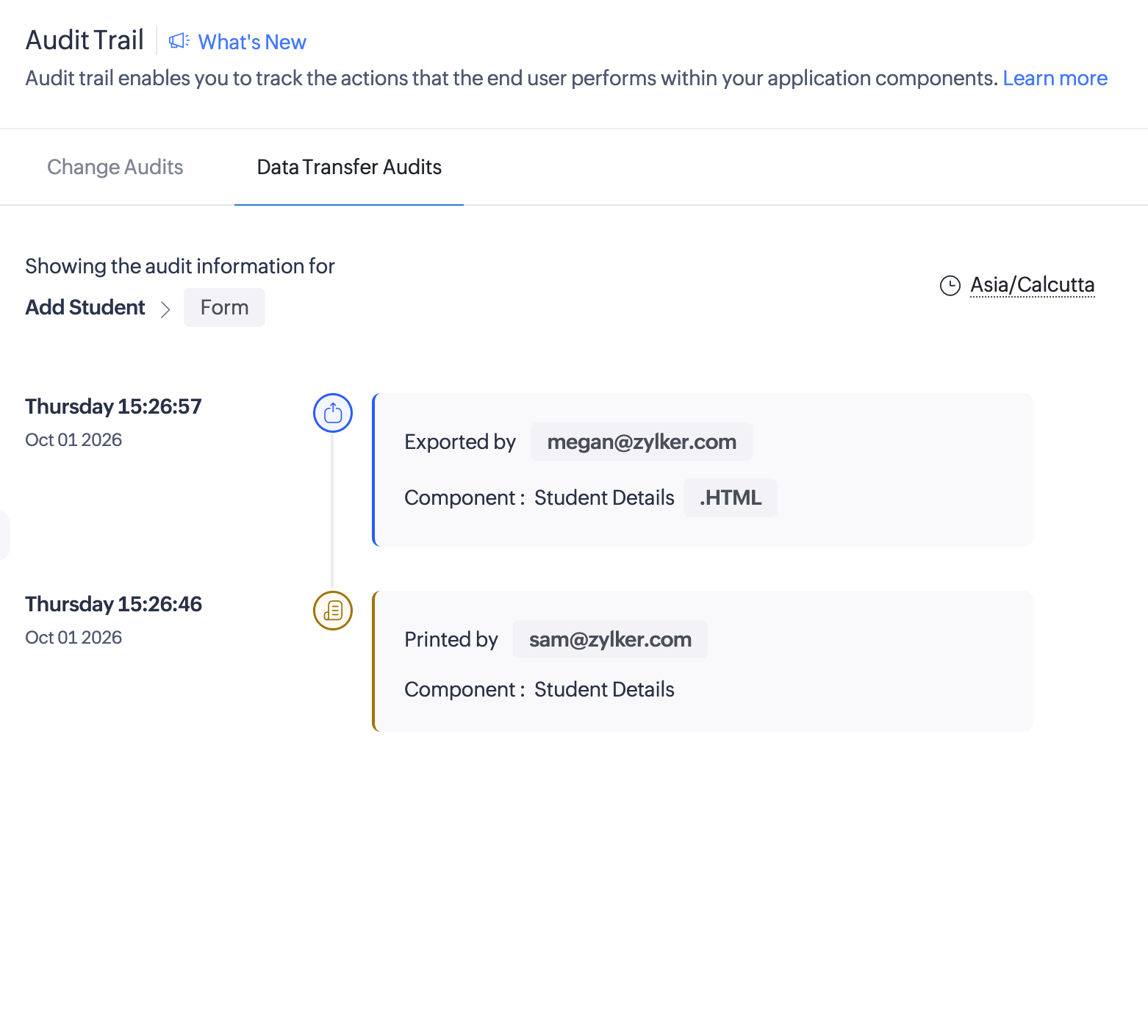
You can click on an entry to view its detailed log that provides full visibility into the record details and the device type on which the record changes were done. Each Detailed Log has the following two sections apart from displaying the user details and the component type viewed.
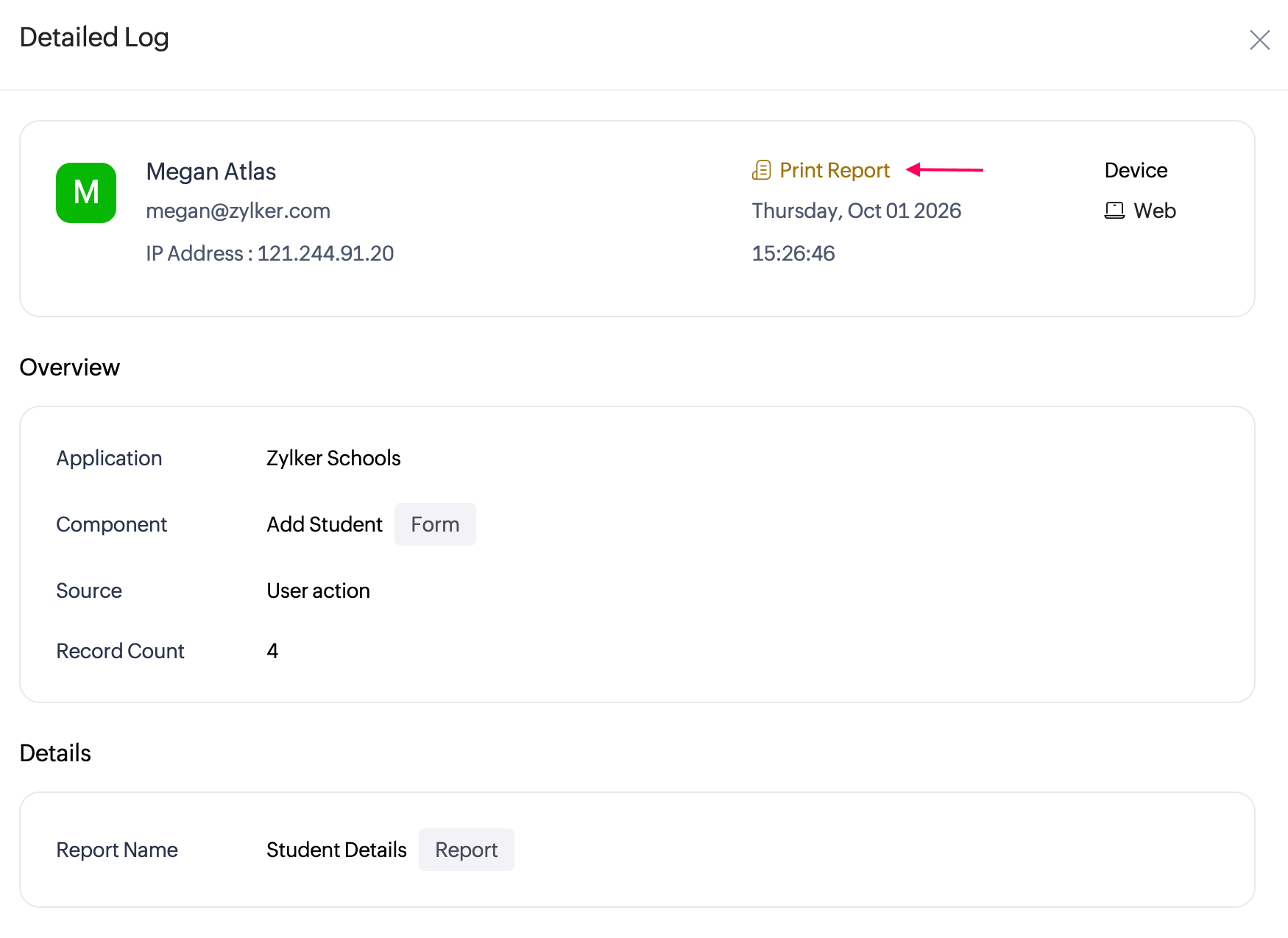
- Overview: App and report names along with the source and count of records.
- Record Details: Report name, number of records, PII fields (if any), file format and size, and the source of action. In the detailed view of export and print activities, details of any applied filters in the report and name of the file attachment that has been exported will be captured.
3. Audit Reports
An audit report is a downloadable report generated from audit trail data based on user-selected filters. It enables super admins and admins to review filtered audit data in a structured format for better transparency, traceability, and compliance across applications.
3.1 How to generate a audit report
Reports can be generated based on the selected audit tab and filter criteria. To generate an audit report, apply the required filters in the respective audit tab and click the Generate Report button at the bottom-right corner.
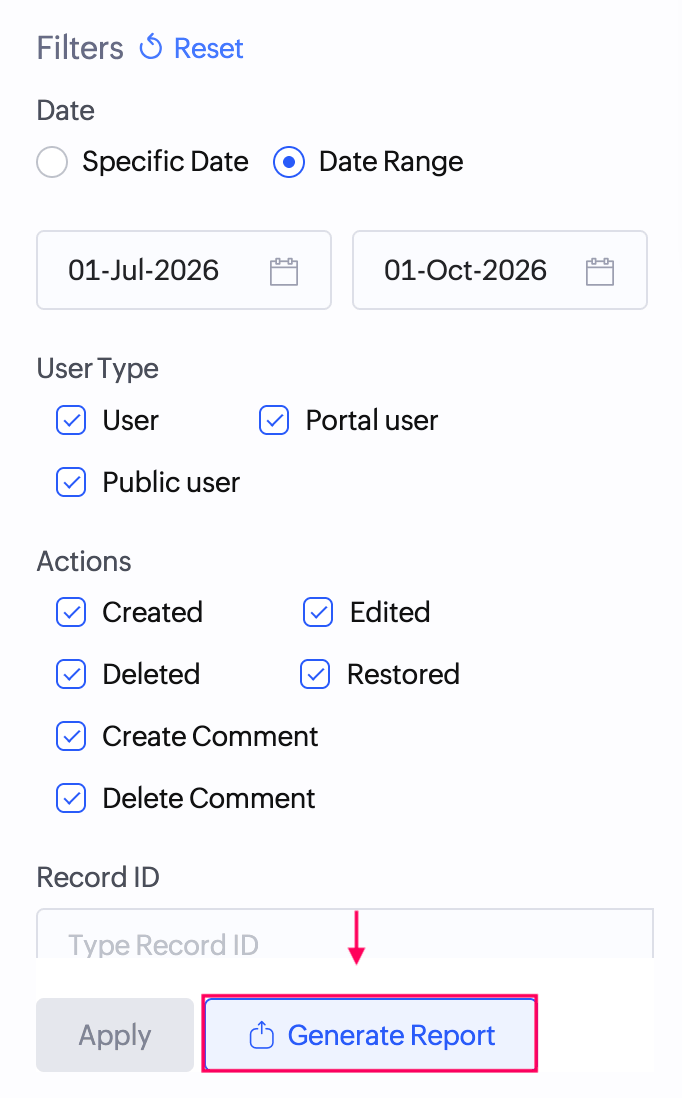
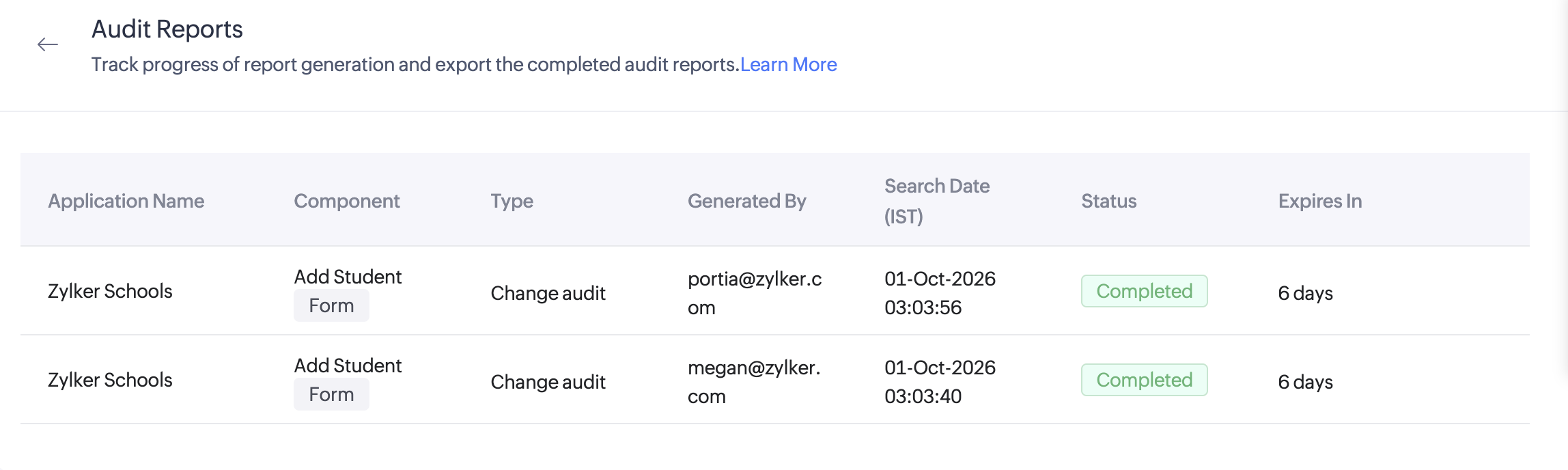
Once initiated, the report generation progress can be tracked in the Audit Reports tab. Here, you can view other details that include application name, component type, generated by, generated date, export status, and expiry date. You can also download the completed reports from here. Learn how to generate and manage audit reports.
4. Setting audit Preferences
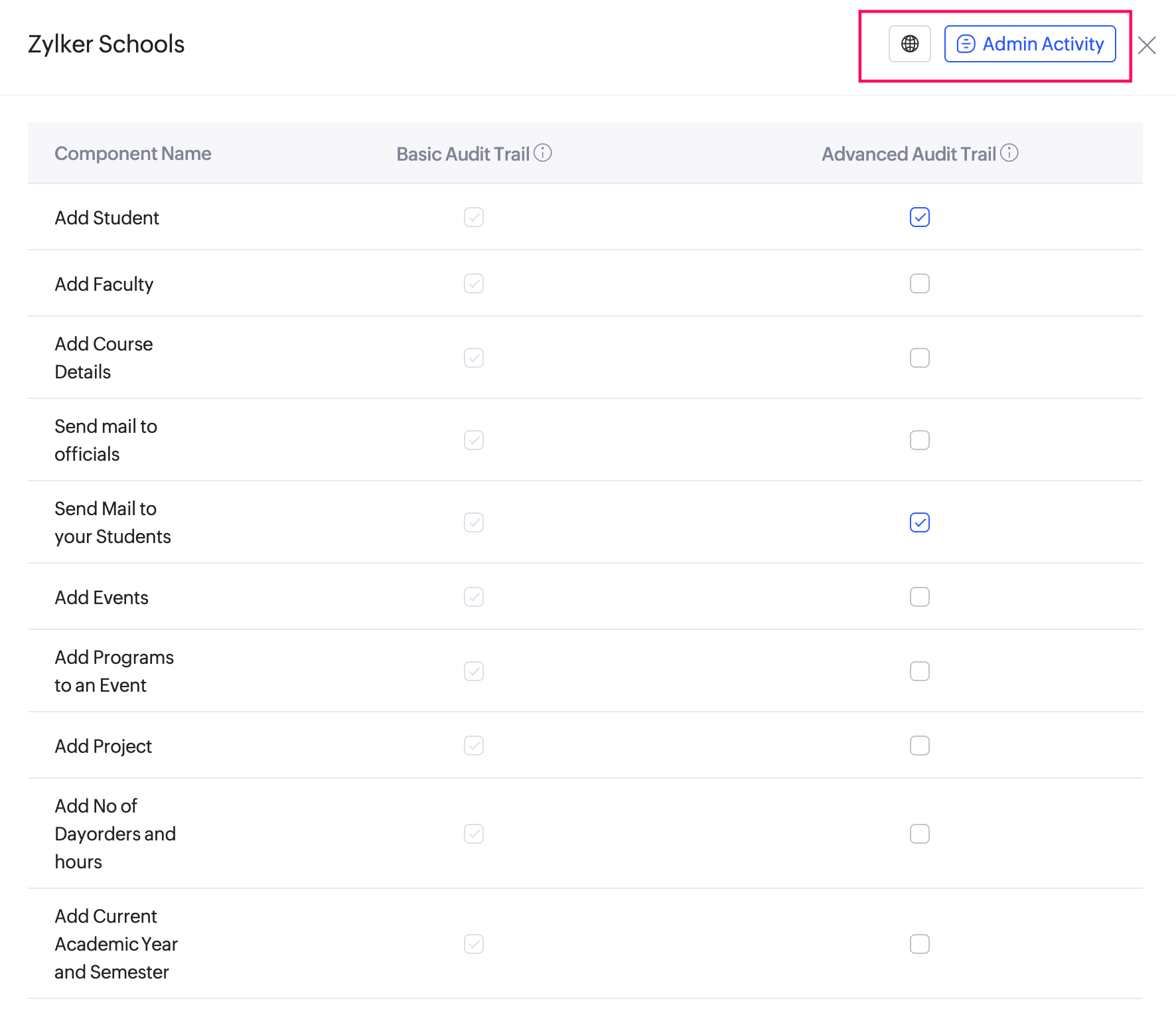
You can set audit Preferences to control the type and level of actions captured in your application. By default, the audit trail records user activities performed in the live mode of the app under Basic audit trail. You can further extend this to capture more detailed system-level actions under Advanced audit trail actions, including actions triggered through Deluge scripts across apps, API calls, form emails, and data access actions in workflows.
4.1 How to capture IP address
The Capture IP Address toggle allows you to record the IP address associated with each action in the audit trail. When enabled, every activity, such as record creation, updates, access, or data transactions will include the originating IP address as part of the audit trail. This additional information provides better visibility into where actions are performed from, helping administrators enhance security monitoring, detect suspicious activity, and support compliance requirements.
4.2. Admin activity
This tab captures administrative-level actions performed on existing audit trail configurations. Unlike regular audit trail, which focus on end user activity, admin activity focus on who within the organization - super admin or admins, changed audit preferences, applied filters, or altered the way auditing works. To know more on how to view captured activity by admins, refer this page.
5. Applying filters
Filters enable you to be precise about the parameters with which the audit trail must be filtered. You can filter by:
- Date Range - View audit data by defining a custom date range.
- Specific Date - Select a specific date to view audit data.
- User Type - Narrow results by User, Portal user, or Public user.
- Actions:
- Change Audits - Focusses on specific activities such as Created, Edited, Deleted, and Restored for records, Created and Deleted for record comments.
- Data Transfer Audits - Focusses on activities like Exported, Imported, and Printed reports. Here, you can choose the component - All reports or the required report to view the audit data.
- Record ID - Search for audits related to a particular record by entering its ID.
- Source - Choose the source of the action, such as User action, Deluge scripts, API calls, form emails, and data access actions in workflows.
- User Email Address - Filter results based on the email address of the user who performed the action.
6. Usage details
The Usage Details page displays a comprehensive inventory that lists details of your current Creator subscription. Here, you can view the storage consumed by audit trail, measured in GB. Learn more
7. Points to note
- The Audit Trail feature is form-specific and lets you view the history of the action types performed in your application forms, categorized by two tabs.
- By default, the Basic audit trail actions will be captured. API-related audit actions, which were previously included in the Basic audit trail, are now available under the Advanced audit trail. You can choose to capture Advanced audit trail actions by ticking the checkboxes beside the required applications.
- Export and print actions from pivot reports (pivot charts and pivot tables) will not be captured in audit trail.
- While generating audit report after applying filters,
- Each export file can include data from a maximum duration of 6 months or up to 1 GB in size, whichever limit is reached first.
- The generated audit reports will remain available for download for 7 days from the date of generation.
- Admins can generate export of multiple audit reports, but only one export will be processed at a time.
- The maximum size allowed per audit entry is 512 KB. Once this limit is exceeded, only the field names are captured in the detailed log, while the corresponding field data is omitted.
Change audits:
- Only record IDs will be captured in the detailed log for created or duplicated records.
- When records are deleted through user actions or API, the audit trail captures all field values, record comments, and associated record details. However, for records deleted via delete records Deluge task, only the Record ID is audited.
Restore record:
- Only field values are restored; record comments are not restored.
- Only records deleted within the last 3 days are eligible for restoration.
- Record restoration may fail if the associated form or its fields have undergone metadata changes after deletion. This includes adding, removing, renaming, or modifying fields, changing field types or relationships, or making other structural changes to the form. In such cases, the deleted record may no longer be compatible with the current form structure, preventing successful restoration.
- Restoration of a main form record will fail if its linked subform records have been deleted.
- Restore functionality is not supported for audit entries created before the feature release date i.e., Sep 29, 2026.
Bulk actions:
- For bulk edit, duplicate, and delete actions performed by users or via APIs, a separate audit entry is created for each record.
- Records added through import are captured under a single audit entry containing all imported record IDs.
- For records updated through import, a separate audit entry is generated for each modified record.
8. Best Practices (optional)
- Regularly download audit reports for long-term compliance storage.
- Use filters to narrow down reports to specific incidents or users.
- Share reports with your compliance team or auditors as part of periodic reviews.