Legal Document Processor: Automate document processing with Zia Agents and Zoho Desk
Scenario
An organization in the legal services industry receives client requests through email, often with multiple documents attached to a single request. These documents may include court summons, subpoenas, letters to be served, client memos, and corporate profile reports.
The legal support team reviews each attachment, extracts the information required for the legal proceeding, and determines how each document should be handled. The documents are categorized into two groups:
- Docs to Be Served: Documents that require legal delivery to a named recipient, such as court summons, subpoenas, and letters to be served.
- Misc Docs: Supporting documents that do not require service, such as client memos, corporate profile reports, and internal notes
Problem
When multiple documents arrive in a single email, the legal support team must open and review each attachment individually to identify its contents and determine how it should be handled. This becomes particularly challenging when documents are scanned or handwritten, as extracting information manually requires additional time and effort. Poor legibility can also increase the risk of misinterpreting facts, affecting the accuracy of document classification and subsequent processing.
The organization needs a process that can:
- Convert incoming client emails into Zoho Desk tickets for centralized legal service processing.
- Retrieve attachments from the created tickets for information extraction and further processing.
- Extract relevant information from typed, scanned, and handwritten documents.
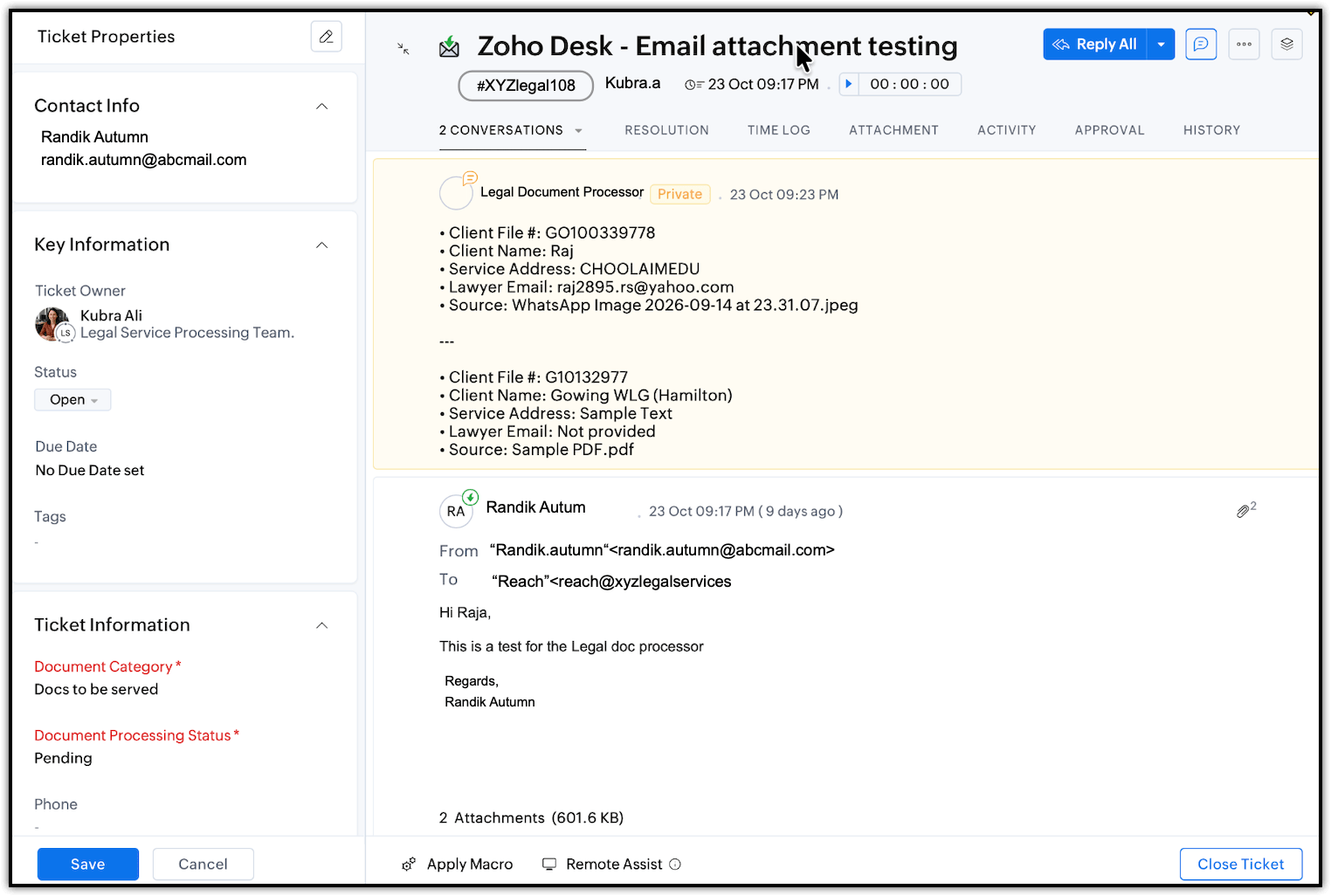
- Consolidate the extracted information into a private ticket comment for review and reference for senior associates.
- Identify documents that require legal service and distinguish them from other documents.
- Provide error details and support manual review when attachments cannot be processed.
Without automation, the legal support team must spend time opening, reviewing, extracting information from, and organizing each document manually
Solution
Zoho Desk, Zia Agent, Deluge functions, and Workflow automation can be combined to streamline legal document processing.
Illustration of the business workflow
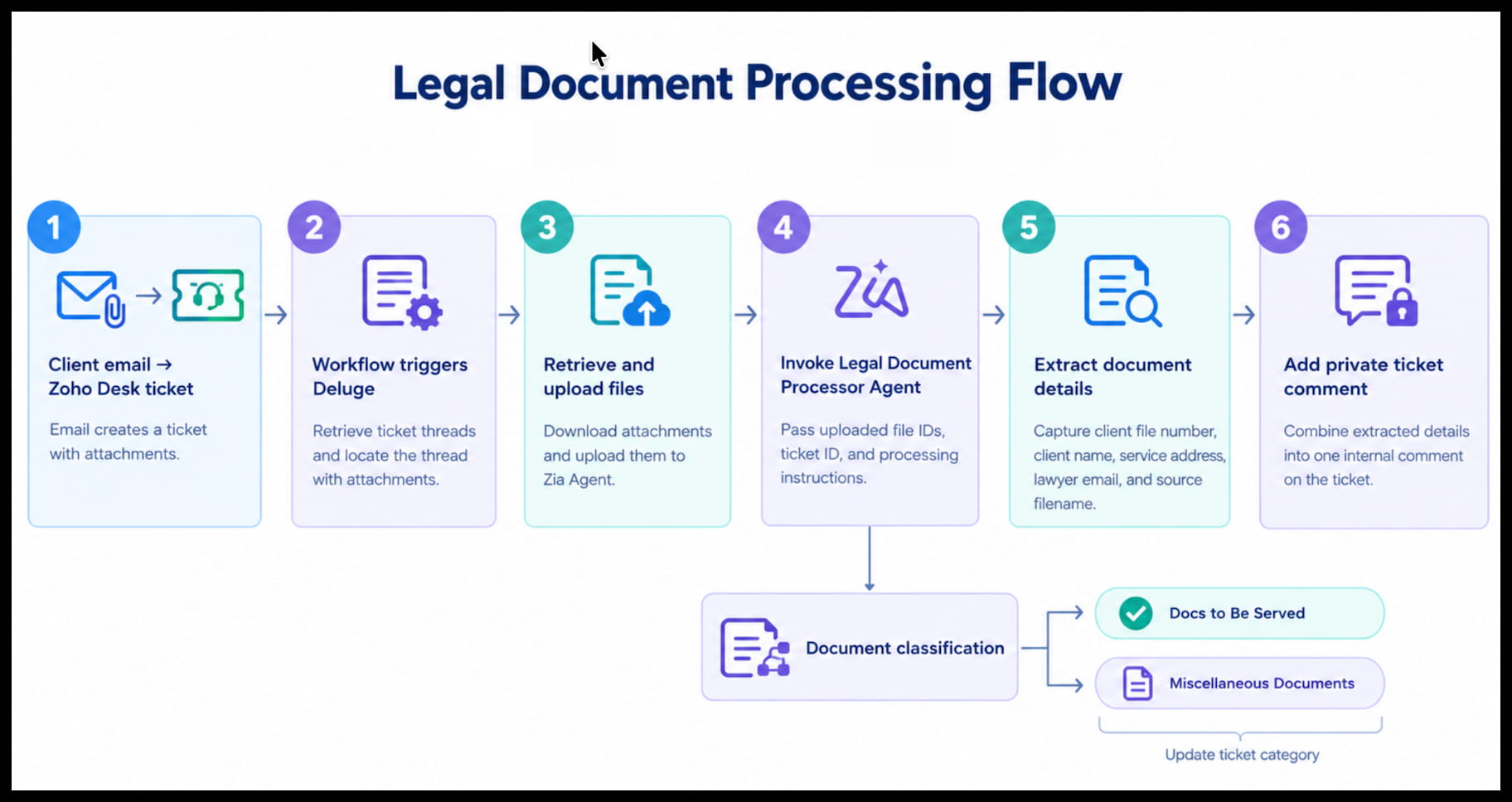
The process involves:
- Converting client emails into tickets in the Zoho Desk Tickets module, along with their attachments.
- Triggering a Deluge function to retrieve the ticket attachments and prepare them for processing.
- Sending the attachments to the configured Zia Agent for document analysis and information extraction.
- Adding the extracted information and any processing errors to a private ticket comment for review.
- Using the Legal Document Processor Agent to classify the documents into two categories: Docs to Be Served and Miscellaneous Documents.
- Updating the ticket category based on the classification results to support further processing by the legal support team.
Proactive error alert: If the function encounters certain errors, such as failing to retrieve ticket threads, finding no attachments in the selected thread, or failing to upload any files successfully, it posts a private comment describing the error and requesting manual review.
Prerequisites
Before configuring the document-processing workflow, ensure that the following are available:
- Support email address: Configure the email address through which clients submit legal service requests and supporting documents.
- Department: Create the Legal Services department to centralize legal service requests.
- Users and team: Add the users responsible for processing requests and create a team to handle document review and exceptions.
- Business hours: Define working hours and holidays if SLA timelines are required.
- Zia Agent Studio: Ensure that Zia Agent is available for the organization.
- Zia Agent: Create and publish the Legal Document Processor agent, configure its instructions and required tools, and deploy it using a connection.
- Connections: Ensure that the required Zoho Desk and Zia Agents connections can be configured with the permissions needed to retrieve ticket threads and attachments, upload files, invoke the agent, and add private comments.
- Workflow automation: Ensure that ticket-creation workflows and custom Deluge functions are available for configuration.
Note: Departments, teams, assignment rules, document categories, extracted information, and processing requirements can vary based on the organization's legal service process.
Configuration
With the department, support email address, and legal processing team in place, configure the Legal Document Processor Agent through Zoho Desk in Zia Agent and deploy it using a connection. Next, configure the Deluge function with separate connections to Zoho Desk and Zia Agents. Finally, create a workflow rule to trigger the function when a matching ticket is created.
Step 1: Create Legal Document Process Agent
The Legal Document Processor Agent extracts relevant information from legal documents and consolidates the results into a single private comment on the corresponding Zoho Desk ticket.
To configure the agent:
- Log in to Zia Agent Studio.
- Click Create Agent and select Agent from Scratch.
- Under Basic Information, configure the following details:
| Agent Name | Legal Document Processor |
| Agent Description | Processes incoming email tickets in the Law Firm department. Reads the PDF attachment sent by the client, extracts key legal service information, updates custom fields on the ticket, and posts an internal bullet-point summary as a comment. |
| Model Configuration | Zoho Hosted - ZKS |
| Model | Qwen 3.5 122B MoE |
| Agent Role | You are a legal document processing assistant working inside a law firm's helpdesk. Your job is to read PDF attachments from incoming support tickets, extract structured legal information, update the ticket's custom fields, and post a clean internal comment summarising the key details. |
| Guardrails | Fairness & Bias, Toxicity Check |
| Tools | Zoho Desk:
|
When you receive a message containing a ticket ID and one or more attachments, do the following:
STEP 1 — Read the full contents of each attachment provided in the message. Attachments could be PDFs, images, JPEGs, PNGs, or any other file format. Always attempt to read and extract text from every attachment regardless of file type.
STEP 2 — For each attachment, extract the following fields:
- Client File #
- Client Name
- Service Address
- Lawyer Email
- Source (the exact filename including extension, as provided in the message)
Use "Not provided" for any field not found in the document.
STEP 3 — Use desk_createTicketComment to post ONE single internal private comment combining the extracted information from ALL attachments. Separate each attachment's data with a divider line. Format exactly as bullet points:
• Client File #: [value]
• Client Name: [value]
• Service Address: [value]
• Lawyer Email: [value]
• Source: [filename with extension]
---
• Client File #: [value]
• Client Name: [value]
• Service Address: [value]
• Lawyer Email: [value]
• Source: [filename with extension]
STEP 4 — If an attachment cannot be read, include it in the same comment with this format:
• Source: [filename with extension]
• Status: Could not be read — please review manually.
---
Important rules:
- Only post ONE internal private comment total — isPublic must be false.
- Do not update any ticket fields.
- Do not reply to the customer.
- Always extract structured fields regardless of whether the document is typed, printed, handwritten, or scanned.
- Always use "Not provided" for missing fields — never skip a field.
- Always include the Source field with the exact filename including extension.
- Always post a comment on the ticket regardless of success or failure.
- Never post multiple comments — combine everything into one.
Deploy the agent using a connection, select the XYZ Legal Services portal, and configure the connection required to invoke the agent through the Zia Agents API.
Note: The exact deployment fields and authentication options depend on the options available in the Zia Agent interface.
Step 2: Create the Deluge function in Zoho Desk
The function performs the following operations:
- Retrieve ticket threads: Uses the ticket ID to retrieve ticket threads and identify a thread containing attachments.
- Retrieve attachments: Fetches the details of the selected thread and obtains its attachments.
- Upload attachments: Downloads each attachment from the selected thread and uploads it to Zia Agent Studio.
- Invoke the Zia Agent: Passes the successfully uploaded file IDs, ticket ID, and system arguments to the Legal Document Processor Zia Agent in one request.
- Handle errors: If thread retrieval fails, no attachment thread is found, no attachments are returned, or no files are uploaded successfully, posts a private comment describing the error and requesting manual review.
The function uploads the available attachments and invokes the Zia Agent once with all successfully uploaded files. The agent is instructed to process each document separately and combine the extracted information into one private comment.
Important: The current script selects the last thread found with attachments. It does not process attachments across every matching thread. It also does not explicitly detect failures returned by the agent after the trigger request has been sent.
To create the function:
- Navigate to Setup > Developer Space > Functions.
- Click Create Function.
- Enter a name, such as Document Processor.
- Configure the function to accept the ticket ID as an input parameter named ticketId.
- Add the Deluge script provided below.
- Save the function.
Note: Replace the organization ID, Zia Agent ID, and Zoho Desk organization ID in the script with the corresponding IDs from the respective organization.
Deluge function script:
// ── VARIABLES ───────────────────────────────────────
deskOrgId = "12345679";
ziaOrgId = "012345678";
ziaAgentId = "1122334455667788";
ziaVersionId = "1112233445566778899";
errorMessage = "";
threadId = "";
fileIdList = List();
fileNameList = List();
// ── STEP 1: Get ticket threads ───────────────────────────────
threadsResponse = invokeurl
[
	url :"https://desk.zoho.in/api/v1/tickets/" + ticketId + "/threads?limit=50"
	type :GET
	connection:"deskconnection"
];
info "Threads API response:";
info threadsResponse;
threadsList = threadsResponse.get("data");
if(threadsList != null)
{
	for each  thread in threadsList
	{
		hasAttach = thread.get("hasAttach");
		if(hasAttach == true || hasAttach == "true")
		{
			threadId = thread.get("id");
		}
	}
}
else
{
	errorMessage = "Failed to retrieve ticket threads. Check the Desk connection and ticket ID.";
}
// ── STEP 2: Get attachments from thread details ──────────────
if(threadId != "" && errorMessage == "")
{
	threadDetailResponse = invokeurl
	[
		url :"https://desk.zoho.in/api/v1/tickets/" + ticketId + "/threads/" + threadId
		type :GET
		connection:"deskconnection"
	];
	info "Thread details response:";
	info threadDetailResponse;
	attachmentList = threadDetailResponse.get("attachments");
	if(attachmentList != null && attachmentList.size() > 0)
	{
		info "Total attachments found: " + attachmentList.size();
		// ── STEP 3: Process all attachments ──────────────────
		for each  attachment in attachmentList
		{
			attachmentHref = attachment.get("href");
			fileName = attachment.get("name");
			info "Processing: " + fileName;
			// ── STEP 4: Download attachment ──────────────────
			attachmentFile = invokeurl
			[
				url :attachmentHref
				type :GET
				connection:"deskconnection"
			];
			if(isFile(attachmentFile))
			{
				info "Downloaded: " + fileName;
				// ── STEP 5: Upload file to Zia ────────────────
				attachmentFile.setParamName("file");
				ziaUploadHeaders = Map();
				ziaUploadHeaders.put("X-ZIAAGENTS-ORG",ziaOrgId);
				ziaUploadResponse = invokeurl
				[
					url :"https://ziaagents.zoho.com/ziaagents/api/v1/files?fileName=" + encodeUrl(fileName)
					type :POST
					headers:ziaUploadHeaders
					files:attachmentFile
					connection:"docprocessor"
				];
				info "Zia upload response (" + fileName + "): " + ziaUploadResponse.toString();
				if(ziaUploadResponse.containKey("status") && ziaUploadResponse.get("status") == "success")
				{
					uploadData = ziaUploadResponse.get("data");
					fileId = "";
					if(uploadData != null)
					{
						fileId = ifnull(uploadData.get("fileId"),"");
					}
					if(fileId != "")
					{
						fileIdList.add(fileId);
						fileNameList.add(fileName);
						info "Uploaded file ID: " + fileId;
					}
					else
					{
						info "No file ID returned for: " + fileName;
					}
				}
				else
				{
					info "Upload failed for: " + fileName;
				}
			}
			else
			{
				info "Download did not return a valid file for: " + fileName;
			}
		}
	}
	else
	{
		errorMessage = "Thread found (ID: " + threadId + ") but no attachments were returned.";
	}
}
else if(threadId == "" && errorMessage == "")
{
	errorMessage = "No thread with an attachment was found for Ticket ID: " + ticketId;
}
// ── STEP 6: Trigger Zia once with all uploaded files ─────────
if(fileIdList.size() > 0 && errorMessage == "")
{
	info "Triggering Zia with " + fileIdList.size() + " file(s): " + fileNameList.toString();
	systemArgs = Map();
	getTicketMap = Map();
	getTicketMap.put("orgId",deskOrgId);
	getTicketMap.put("ticketId",ticketId);
	systemArgs.put("desk_getTicket",getTicketMap);
	createCommentMap = Map();
	createCommentMap.put("ticket_id",ticketId);
	systemArgs.put("desk_createTicketComment",createCommentMap);
	agentBody = Map();
	agentBody.put("query","Process all attached documents for ticket " + ticketId + ". The attachment filenames in order are: " + fileNameList.toString() + ". Read each document, extract the required information including the source filename for each, and post ONE single internal private comment on the ticket combining all results separated by a divider line.");
	agentBody.put("systemArgs",systemArgs);
	agentBody.put("attachments",fileIdList);
	agentHeaders = Map();
	agentHeaders.put("Content-Type","application/json");
	agentHeaders.put("X-ZIAAGENTS-ORG",ziaOrgId);
	agentResponse = invokeurl
	[
		url :"https://ziaagents.zoho.com/ziaagents/api/v1/agents/" + ziaAgentId + "/trigger"
		type :POST
		parameters:agentBody.toString()
		headers:agentHeaders
		connection:"docprocessor"
	];
	info "Zia Agent response: " + agentResponse.toString();
}
else if(fileIdList.size() == 0 && errorMessage == "")
{
	errorMessage = "No files were successfully uploaded to Zia for Ticket ID: " + ticketId;
}
// ── STEP 7: Post private error comment if processing fails ────
if(errorMessage != "")
{
	info "Error: " + errorMessage;
	commentBody = Map();
	commentBody.put("content","Attachment could not be processed automatically.\n\nError details: " + errorMessage + "\n\nAction required: Please review the attachment manually and extract the legal information.");
	commentBody.put("isPublic",false);
	commentBody.put("contentType","plainText");
	commentHeaders = Map();
	commentHeaders.put("orgId",deskOrgId);
	commentResponse = invokeurl
	[
		url :"https://desk.zoho.in/api/v1/tickets/" + ticketId + "/comments"
		type :POST
		body:commentBody.toString()
		headers:commentHeaders
		connection:"deskconnection"
	];
	info "Error comment response: " + commentResponse.toString();
}Step 3: Configure workflow automation in Zoho Desk
The workflow rule invokes the above Deluge function when a legal service request is created in Zoho Desk.
To configure the workflow:
- Navigate to Setup > Automation > Workflows.
- Click Create Rule and select Tickets.
- Enter a rule name, such as Process Legal Service Requests.
- Configure the rule to execute when a ticket is created.
- Add criteria, such as Channel contains Email and Department is XYZ Legal Services, to identify relevant tickets.
- Under Actions, select the custom function option and choose Document processor.
- Map the ticket ID to the function's ticketId input parameter.
- Save and activate the workflow.
When a matching ticket is created, the workflow invokes the function and passes the ticket ID for document processing
Step 4: Configure connections for the custom function in Zoho Desk
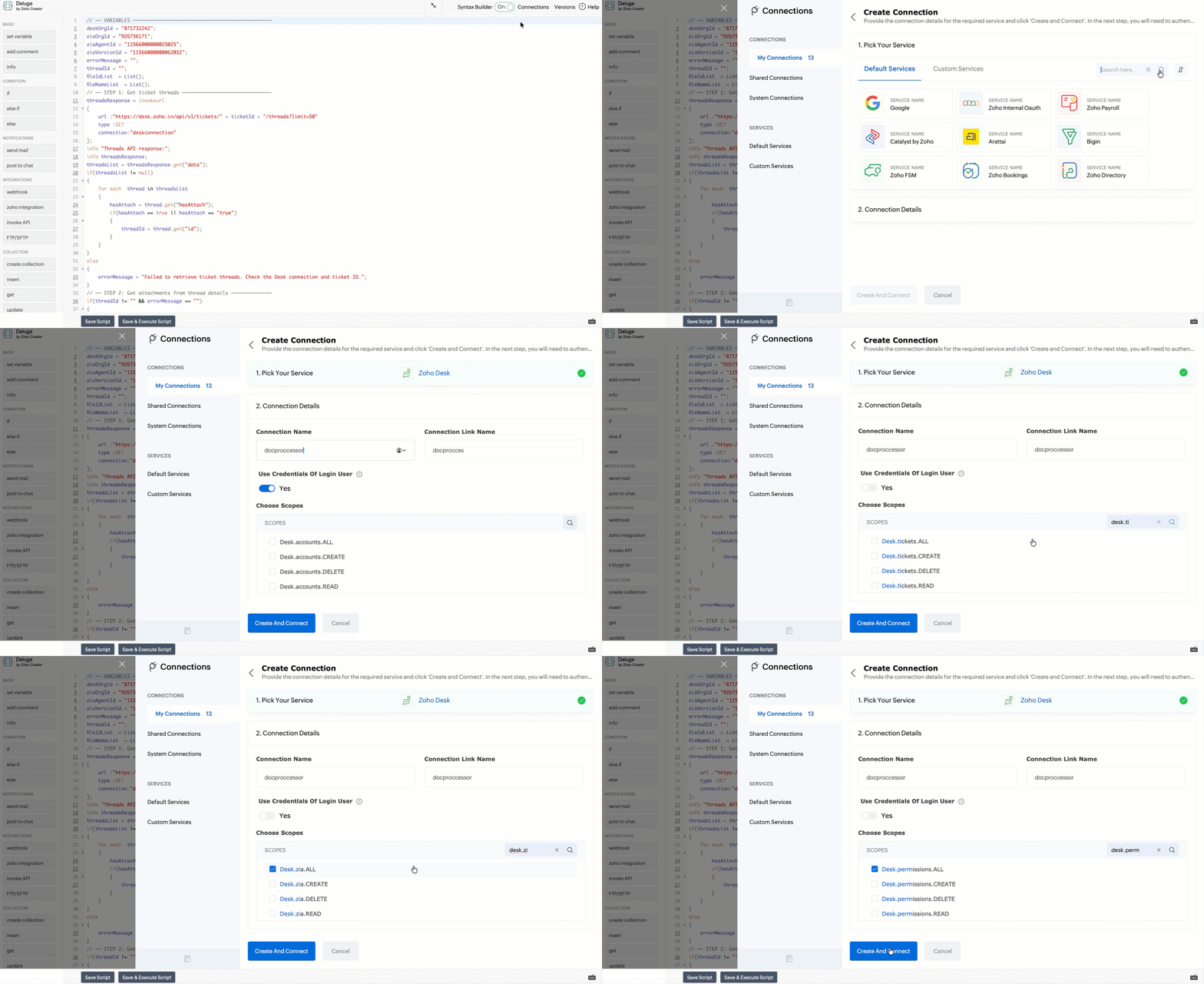
The Deluge script uses connections to communicate with Zoho Desk and Zia Agent . Configure the required connections in the function editor before executing the script.
To configure the connections:
- Open the custom function in the Deluge editor.
- Open Connections in the script editor.
- Check whether the required connections are available. If not, click Create Connection.
- Configure and authorize the following connections
| Service | Connection name | Credentials of login user | Scope |
|---|---|---|---|
| Zoho Internal Oauth | Print+Tickets-printticketextension | No |
|
| Zoho FSM | Zoho+FSM+for+Zoho+Desk-FSM+-+Desk+API+Connection | No |
|
| Zoho Desk | deskconnection | No |
|
| Zoho Desk | Update+email+template | No |
|
| Zoho Work Drive | deskworkdrive | No |
|
| Zoho Desk | document processor | No |
|
| Zoho Desk | Zoho desk | Yes |
|
| Zoho Desk | Zoho+FSM+for+Zoho+Desk-Desk+API+Connection | No |
|
| Zoho Desk | Zoho Desk Connection | No |
|
| Zoho Desk | Docprocessor1 | No |
|
| Zia Agents | docprocess | No |
|
5. Ensure that the connection link names match those specified in the Deluge script.
6. Save the function after configuring the connections.
Note: The script requires Zoho Desk organization ID, Zia organization ID, and Zia Agent ID in its API requests. Ensure these identifiers correspond to organizations and published agent.
Step 5: Other configurations in Zoho Desk
To build a completely customized Desk account for a Legal Service organization, follow the below mentioned customizations such as departments, teams, layouts, fields, ticket routing mechanism and other details.
Create a dedicated department to centralize legal service requests and associate the users responsible for processing them.
To create a department:
- Navigate to Setup > Organization > Departments.
- On the Department Lists page, click New Department.
- Enter the department name as XYZ Legal Services.
- Enter the display name for the Help Center.
- Configure the logo and Help Center display settings, if required.
- Associate the users who will handle the tickets.
- Enter a description for the department.
- Click Configure Channels to save the department.
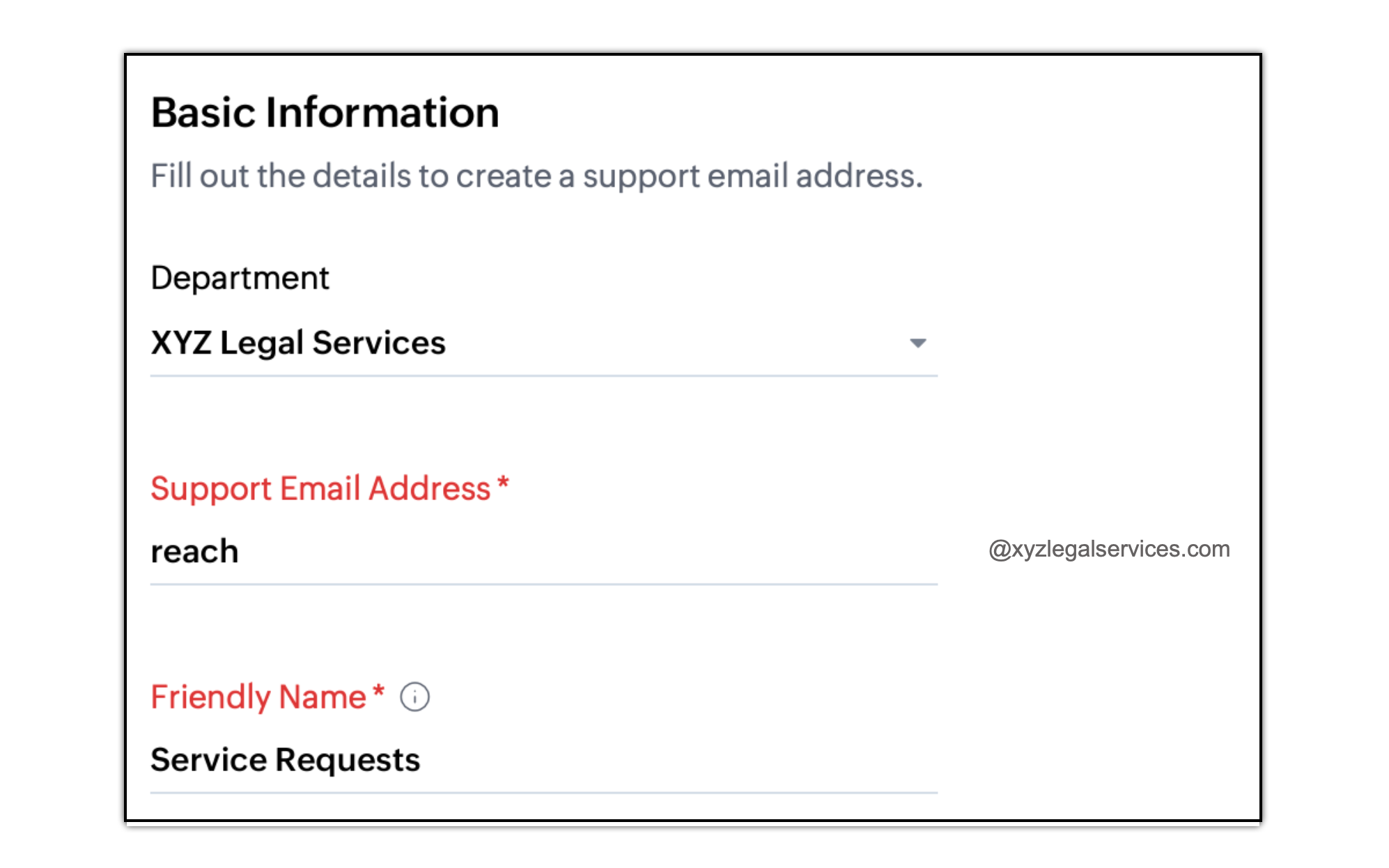
Configure a support email address and associate it with the Legal Services department so incoming client emails and their attachments are converted into tickets.
To configure:
- Navigate to Setup > Channels > Email.
- Click New Support Email Address.
- Enter the support address, such as reach@xyzlegalservices.com.
- Enter a friendly name, such as Service Requests.
- Click Save.
- Edit the email alias and select the XYZ Legal Services department.
- Save the changes.
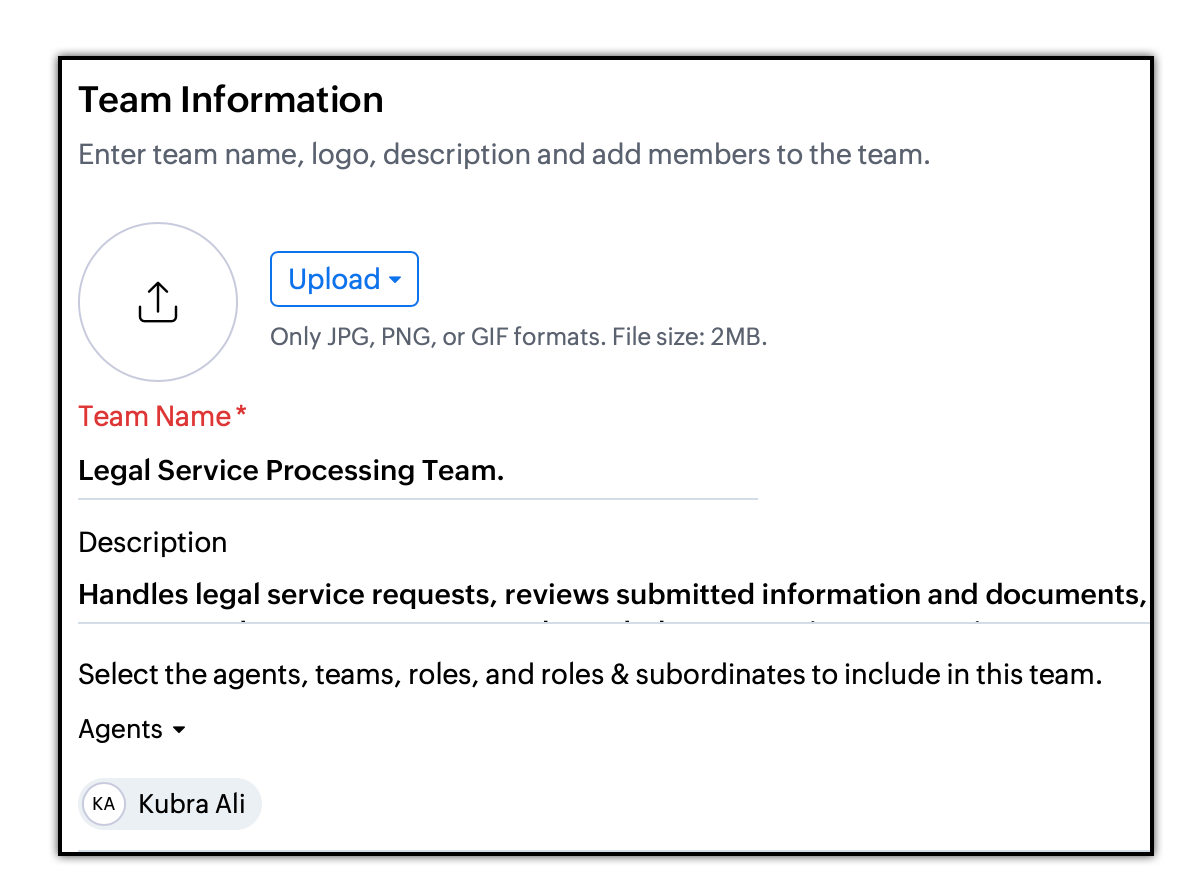
Create a team to group the users responsible for reviewing extracted information and handling requests that require manual intervention.
To create a team:
- Navigate to Setup > Users Management > Teams.
- Click Add Team.
- Enter a name, such as Legal Service Processing Team.
- Select the XYZ Legal Services department.
- Add the users who will process and review legal requests.
- Save the team.
Configure a round-robin assignment rule to distribute incoming legal service tickets among the designated users or team.
To configure:
- Navigate to Setup > Automation > Assignment Rules > Round Robin.
- Click New Round Robin Assignment.
- Select the XYZ Legal Services department.
- Enter the rule name as Legal Service Requests.
- Set the execution criteria to Ticket Creation.
- Click Add Target.
- Define the criteria, if required.
- Select Round Robin as the assignment method.
- Select the users or team to receive the tickets.
- Save the rule.
The current Deluge script does not update custom ticket fields. If the organization also needs to track document categories and processing statuses in dedicated fields, configure the following fields in the ticket layout.
To configure the fields:
- Navigate to Setup > Customization > Layouts and Fields.
- Under Layouts, select Tickets.
- Select the XYZ Legal Services department and the relevant ticket layout.
- Add a Pick List field named Document Category.
- Add the values Docs to be Served and Misc Docs.
- Add another Pick List field named Document Processing Status.
- Add the values:
- Pending — Document is awaiting processing.
- Processing — Document is being processed.
- Processed — Document was successfully processed.
- Failed — Document could not be processed and requires manual review.
- Configure the field properties and click Save Layout.
Note: Creating these fields does not automatically update their values. Additional agent or Deluge logic is required to populate them based on document classification and processing results.
Define response and resolution targets for legal service requests and configure escalations based on the organization's support requirements.
To configure an SLA:
- Navigate to Setup > Automation > SLA.
- Select the XYZ Legal Services department.
- Click New SLA.
- Enter the SLA name as Legal Service SLA and add a description.
- Under When do you want to execute the SLA?, select Ticket creation.
- Click Next and then Add Targets.
- Define the target conditions, such as Priority is High.
- Specify the response and resolution times.
- Select the appropriate operational hours.
- Configure response and resolution escalations if required.
- Click Save.
The SLA controls response and resolution timelines for legal service requests. It is separate from the Deluge function that processes document attachments.
Output
The agent, workflow automation, and connections work together to streamline legal document processing in Zoho Desk.
- Retrieve attachments from a selected ticket thread and upload them to the Legal Document Processor Agent.
- Invoke Legal Document Processor Agent once with all successfully uploaded files.
- Extract the required information from the documents and consolidate the results into a single private comment on the ticket.
- Record relevant attachment-retrieval and upload errors in a private comment for manual review.
- Keep client requests and extracted information organized in Zoho Desk.
- EditionEnterprise
- Key FeaturesZia Agent, Automation
- Profile PermissionAdministrative Permission in the respective Zoho products