


Introduction - Customers & Vendors
In Zoho Books, you can add customers or vendors that you deal with in your business.
For creating sales transaction like invoices or sales orders, you will have to add customers in your organization. For creating purchase transactions like bills and purchase orders, you’ll have to add vendors.
There are two ways of adding customers/vendors in Zoho Books:
Create from Customer and Vendor creation page
To create a new customer:
Go to Sales on the left sidebar and select Customers.
Click + New in the top right corner of the page.
Select the Customer Type as Business for B2B customers, or Individual for B2C customers.
Enter the details of your customer.
Select the Currency they deal in.
You can add other details such as their Billing Address and Shipping Address by navigating through the different tabs at the bottom of the page.
- After entering all the details, click Save.
| Fields | Description |
|---|---|
| Customer Type | Choose Business for B2B customers or Individual for B2C customers. |
| Currency | Select the currency which the customer deals in. This currency will be used in all the customers’ transactions. |
| Credit Limit | A credit limit can be set for the customer. |
| Payment Terms | Select the due date by which the customer has to make the payment. |
| Address | Add a Shipping and Billing address. |
| Contact Persons | Add contact persons to be associated with the customer. |
| Custom Fields | Assign a default value for the custom fields of the customer. |
| Reporting Tags | Assign a default value for the reporting tags of the customer. |
Attachment Format Preference
In the Germany edition, you can choose the e-invoice format that should be attached when you email an invoice or credit note to a customer. You can select XRechnung or ZUGFeRD_2.3.0, or select both formats.
To configure the attachment format for a customer:
- Go to Sales on the left sidebar, select Customers, and click + New. For an existing customer, go to Sales on the left sidebar, select Customers, select the customer, and click Edit.
- In the Other Details section, select XRechnung or ZUGFeRD_2.3.0 under Attachment Format Preference.
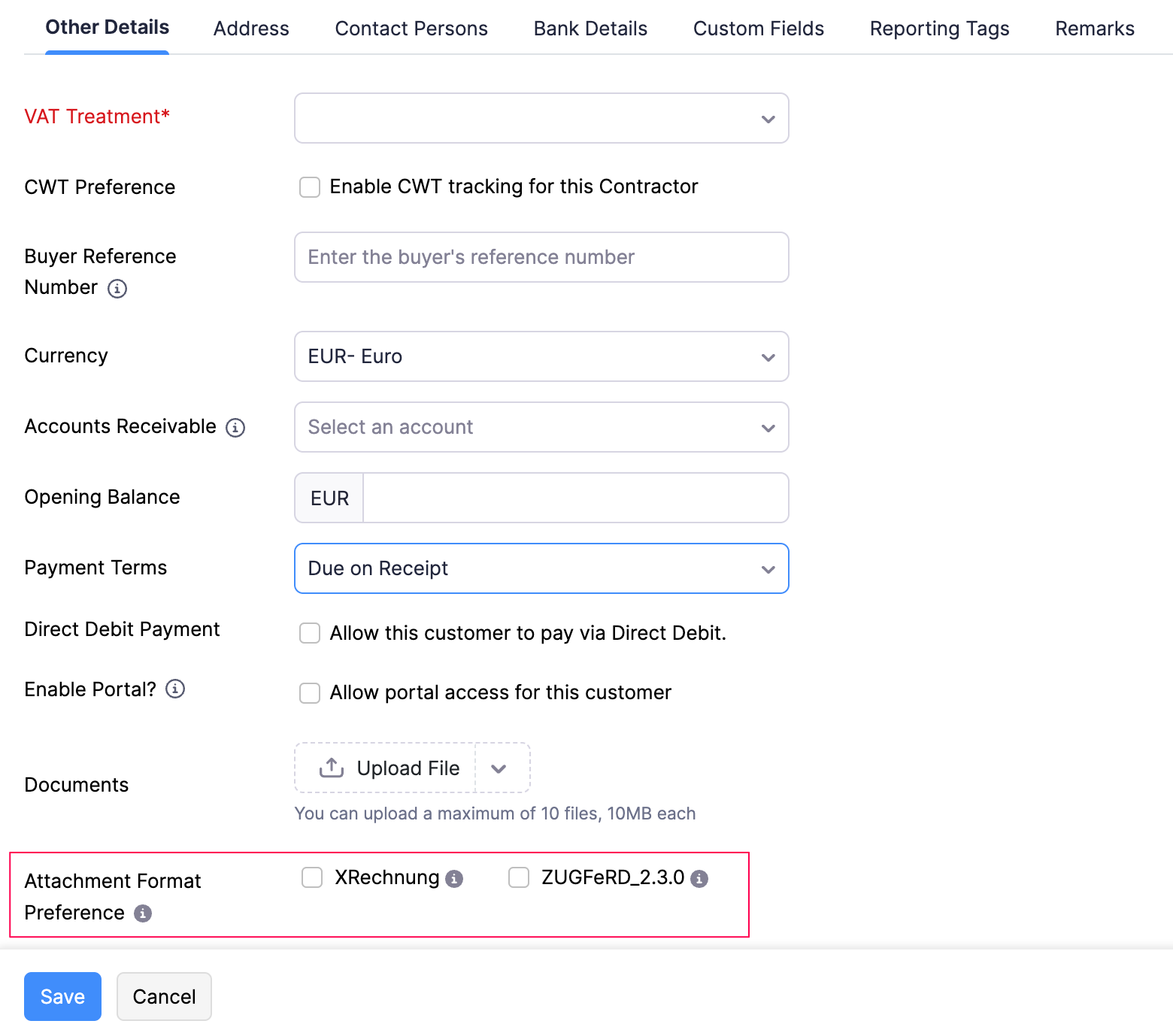
- Click Save.
The selected format will be used when emailing the customer’s invoices or credit notes. The preference is configured for the customer rather than on each invoice or credit note. You can also update this preference for multiple customers at once using bulk update. The preference is available when importing or exporting customer data.
Note: For existing organisations, the organisation-level attachment preference is migrated to the customer level after you acknowledge the migration notification. New organisations can configure this preference at the customer level by default.
To add a new vendor:
Go to Purchases on the left sidebar and select Vendors.
Click + New in the top right corner of the page.
Enter the details of your vendor.
Select the Currency they deal in.
You can add other details such as their Billing Address and Shipping Address by navigating through the different tabs at the bottom of the page.
After entering all the details, click Save.
Note:On the transaction creation page, you can search for a customer or vendor using keywords from their Customer/Vendor Name, Customer/Vendor Number, or Company Name. The keywords can be entered in any order. Enter at least 3 characters to view matching customers or vendors.
Import Customers/Vendors
To import customers/vendors from other systems:
- Go to Sales on the left sidebar and select Customers (for customers) or go to Purchases on the left sidebar and select Vendors (for vendors).
- Click the More icon in the top right corner of the page.
- Select Import Customers or Import Vendors.
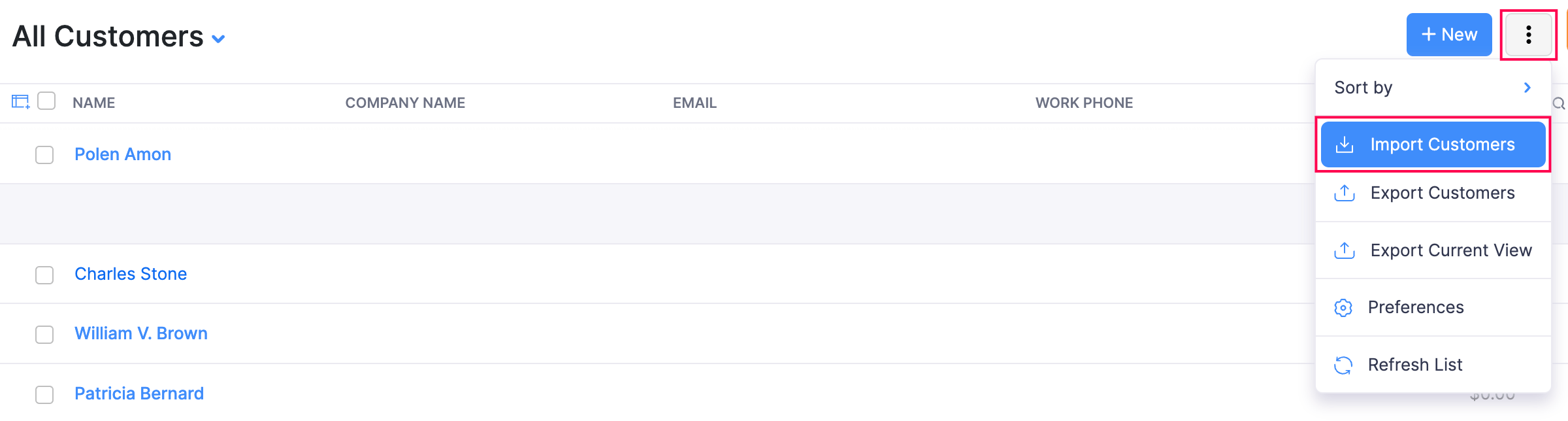
- In the pop-up that appears, click Continue.
- Click Choose File and select the file to be imported. You can download a sample file for your reference.
- Click Next.
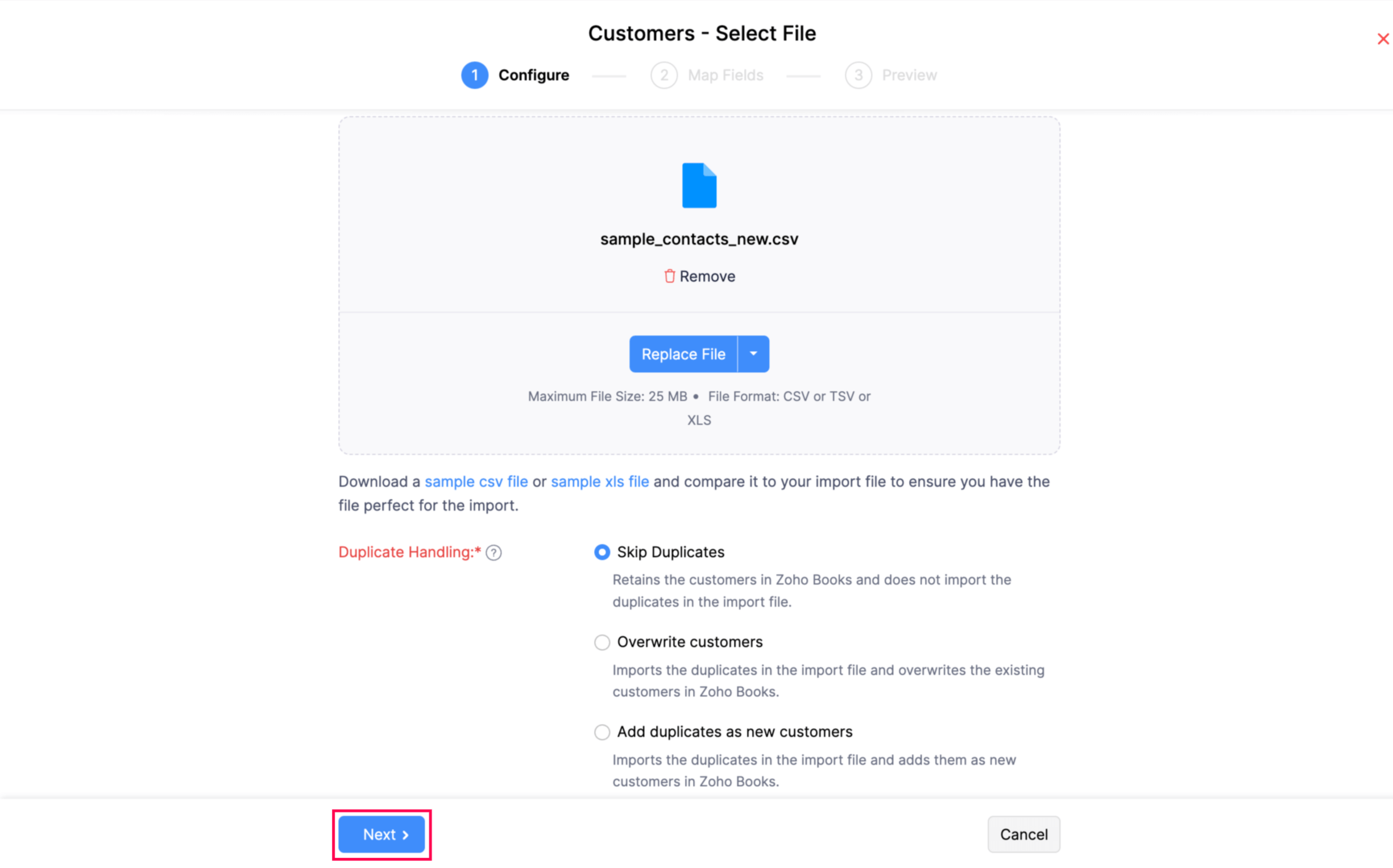
- Check the mapping of the fields and click Next.
- Click Import.
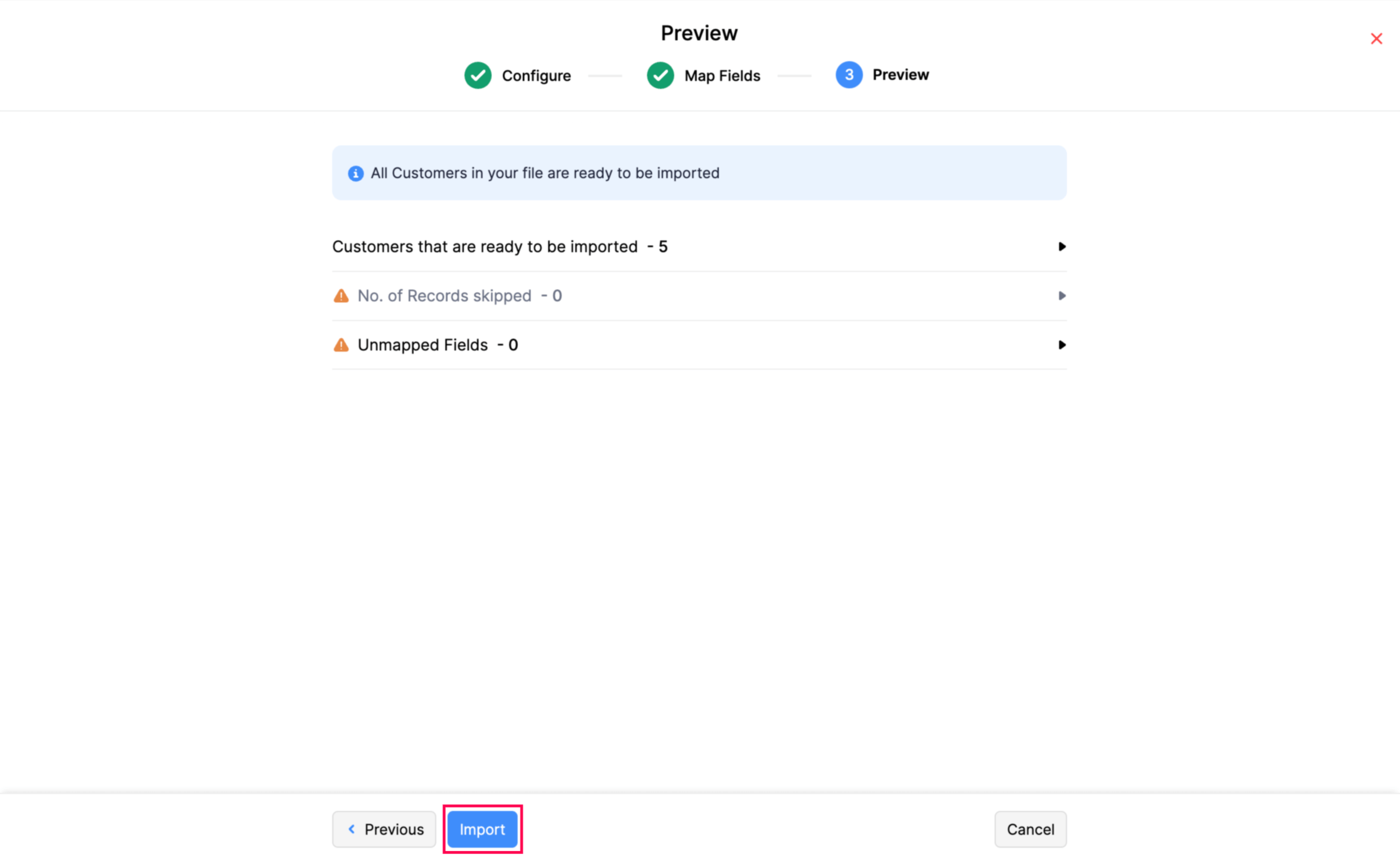
The Attachment Format Preference field is also supported when importing customers. You can import XRechnung, ZUGFeRD_2.3.0, or both preferences for each customer.