


Sales Returns

The Sales Returns module in Zoho Commerce helps you manage return requests raised against shipped or delivered sales orders. When a customer requests a return for a delivered order from your online store, the request is received and listed under Sales Returns. In addition to customer-initiated requests, the admin can also raise a sales return directly from the Sales Orders module on behalf of the customer. Each return is tracked using a unique Return Merchandise Authorization (RMA) number and progresses through three stages: request, approval or rejection, and refund. You can review the returned items, the reason for the return, and process the refund from a single place.
Scenario: Patricia runs Zylker Clothing, a fashion store on Zoho Commerce. A customer, Bailey Miles receives a handloom saree for the order placed in the online store but is not satisfied with the product and raises a return request. The request appears in the Sales Returns list with the status Pending. Patricia reviews the returned item and the reason, approves the return, and processes a refund, all from the Sales Return details page.
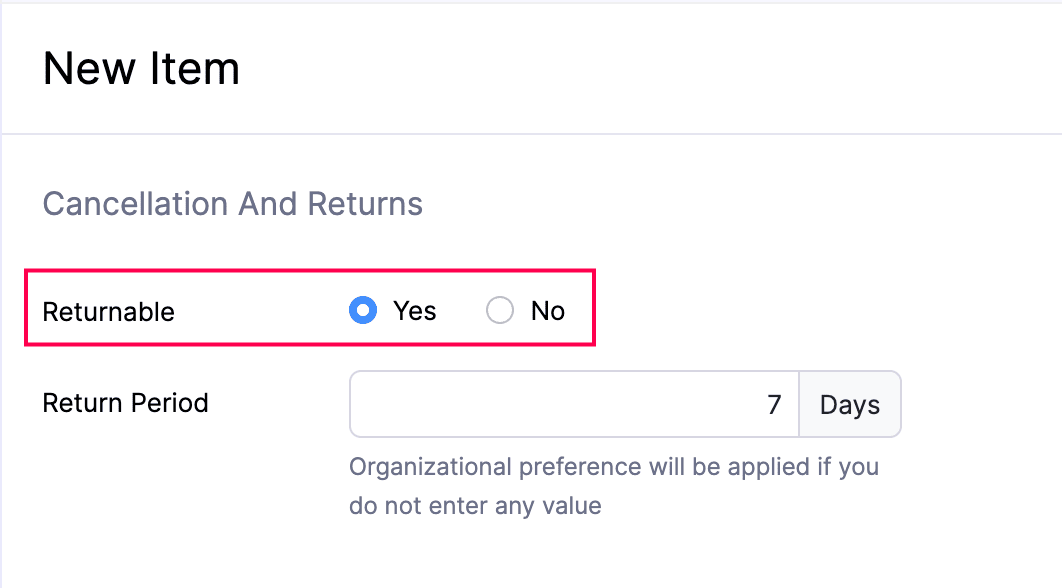
Prerequisite: Sales returns can be raised only for items that have the Returnable option enabled when the item is created or edited. If this option is not enabled for an item, customers cannot request a return for it from the storefront.
How Sales Returns Are Raised
A sales return can originate in two ways: a customer can request a return from the online store, or you can create a return on a customer’s behalf from the sales order. In both cases, the return appears in your Sales Returns list with a unique RMA number and follows the same approval and refund lifecycle.
Customer Initiated Returns from the Online Store
Customers can raise a return request directly from your online store for any delivered order that contains items with the Returnable option enabled.
Note: Customers can request returns only for items that have the Returnable option enabled and only for orders that have been delivered.
- When a customer raises a return request, you will receive an in-app and email notification.
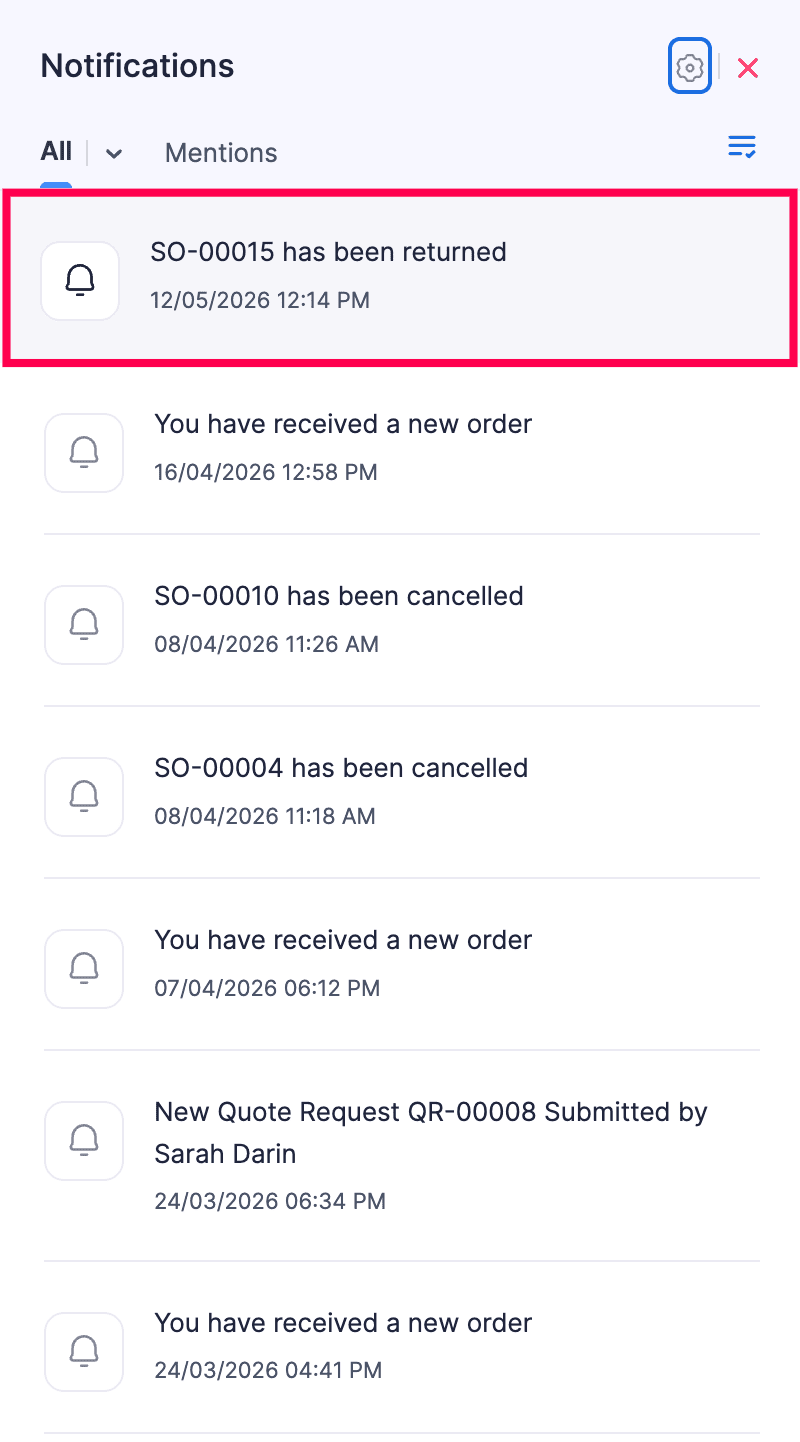
Note: Based on your Notification Preferences, you will receive an email or in-app notification when a customer raises a return request.
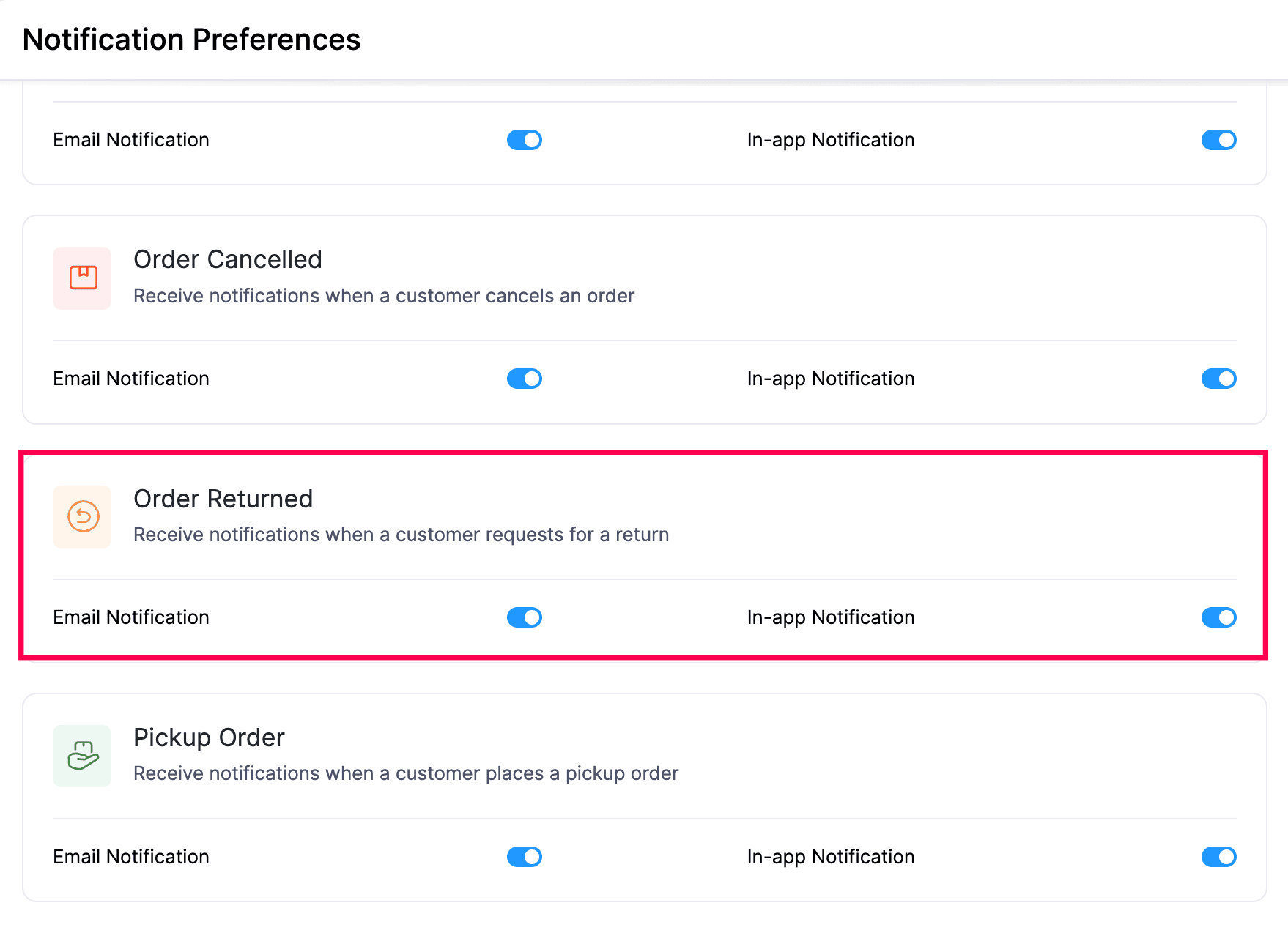
- The request will be listed under Sales Returns with the status Pending.
- You can review the items, the reason, and the customer details before deciding to approve or reject the return request.
Admin Initiated Returns from a Sales Order
You can also create a sales return on a customer’s behalf, for example, when a customer contacts you over phone or email instead of using the storefront.
Note: Guest customers cannot initiate returns directly from the online store. To return an order, they must contact you using the email address or phone number listed on your store. You can then create a sales return on their behalf.
- Click Sales in the left sidebar and select Orders.
- Click the sales order for which you want to record a return.
- Click the More icon at the top of the order details page and select Return Items.
- In the Return Items pop-up, review the item details:
- Product - The item from the sales order.
- Rate - The unit price of the item on the original order.
- Order Quantity - The quantity originally ordered.
- Quantity Returned - The quantity already returned against this order.
- Quantity Remaining - The quantity still eligible for return.
- Select the items to return.
- Enter the Quantity to return for each selected item.
- Enter a Reason for the return.
- Click one of the following to record the return:
- Save as Draft - Saves the sales return with the status Draft so you can review or edit it later before approval.
- Save and Approve - Saves the sales return and immediately approves it, moving the lifecycle to the Refund stage.
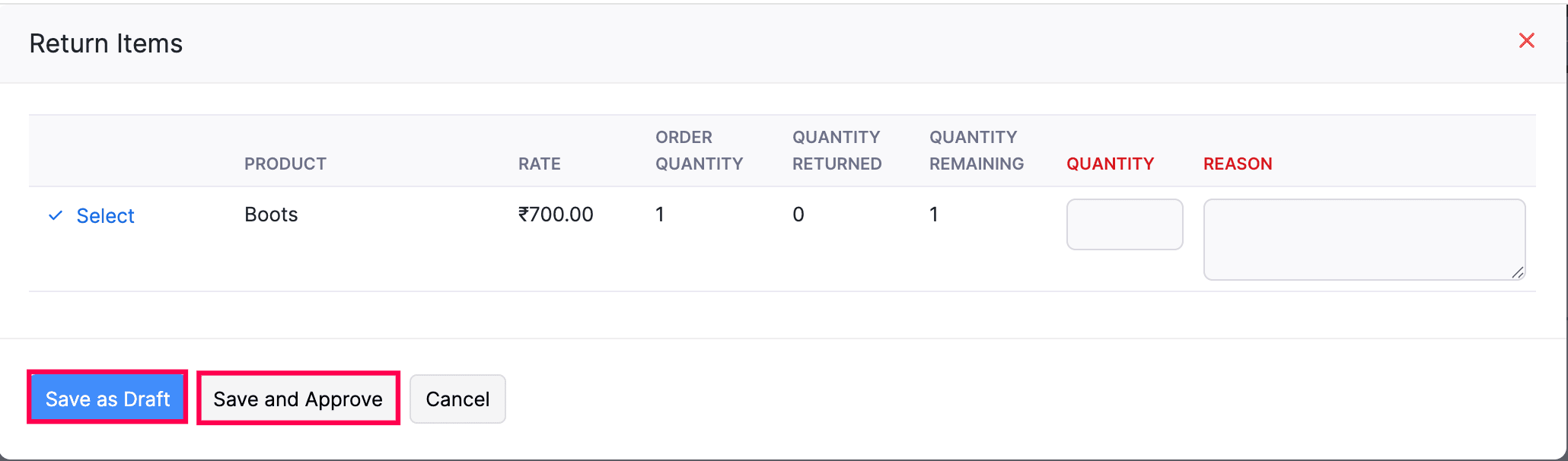
After the return is saved, an RMA is generated and the entry appears in the Sales Returns list. From there, you can process the refund the same way as a customer-initiated return.
View Sales Returns
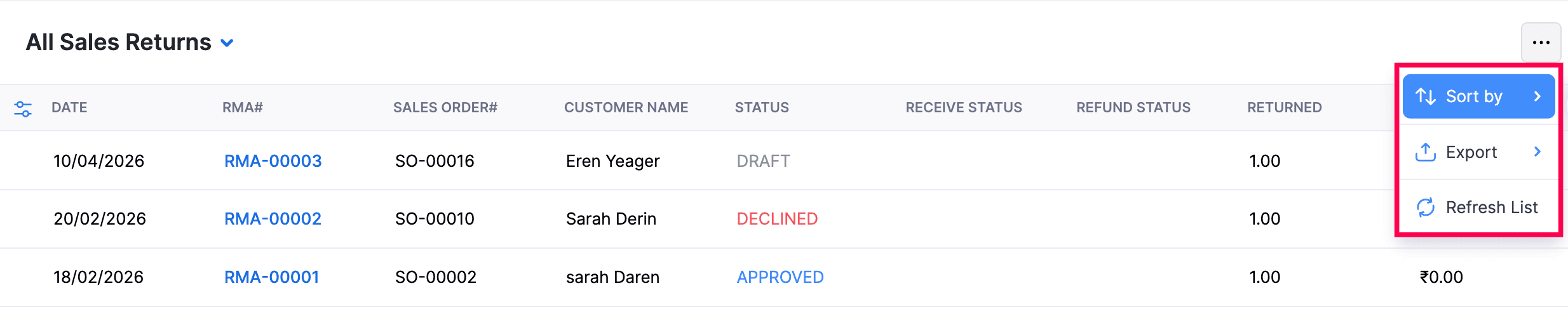
The Sales Returns page lists every return request raised against a shipped or delivered sales order in your store, along with its current status and refund details.
- Log in to your Zoho Commerce organisation.
- Click Sales in the left sidebar.
- Select Sales Returns to see the list of all return requests.
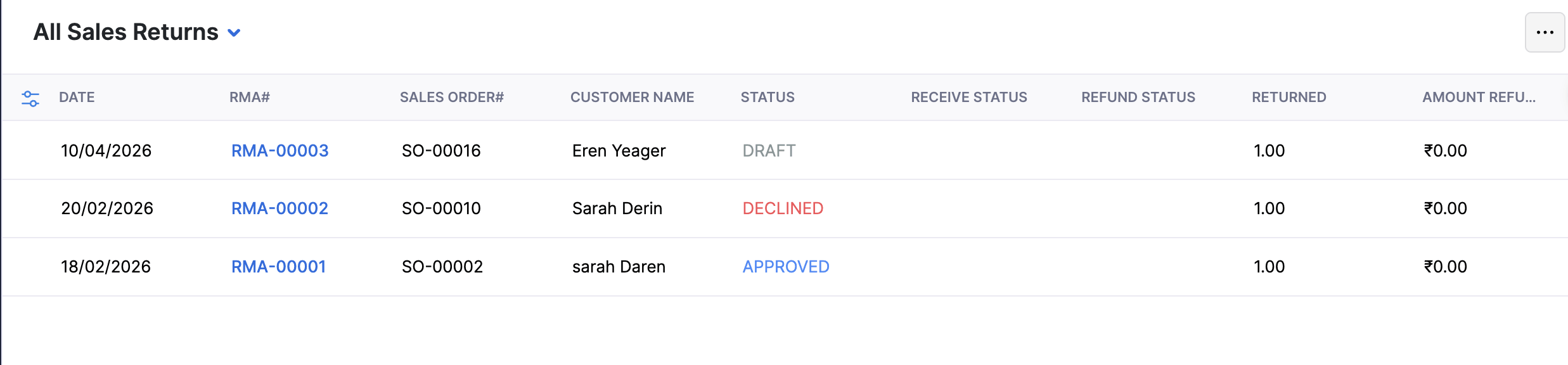
Each entry in the list displays:
- Date - The date the return request was raised.
- RMA - The unique Return Merchandise Authorisation number.
- Sales Order - The original sales order against which the return was raised.
- Customer Name - The customer who requested the return.
- Status - The current stage of the return (such as Pending or Approved).
- Receive Status - Whether the returned items have been received.
- Refund Status - Whether the refund has been processed.
- Returned - The quantity of items being returned.
- Amount Refunded - The amount that has been refunded so far.
Select any sales return in the list to open its details page.
Filter Sales Returns
You can narrow down the list to view sales returns by status:
- In the Sales Returns page, click the All Sales Returns dropdown at the top of the list.
- Select the filter you want to apply. The available filters are:
- All - Shows every sales return.
- Pending - Shows return requests awaiting your action.
- Approved - Shows return requests you have approved.
- Declined - Shows return requests you have rejected.
- Draft - Shows sales returns saved as drafts.
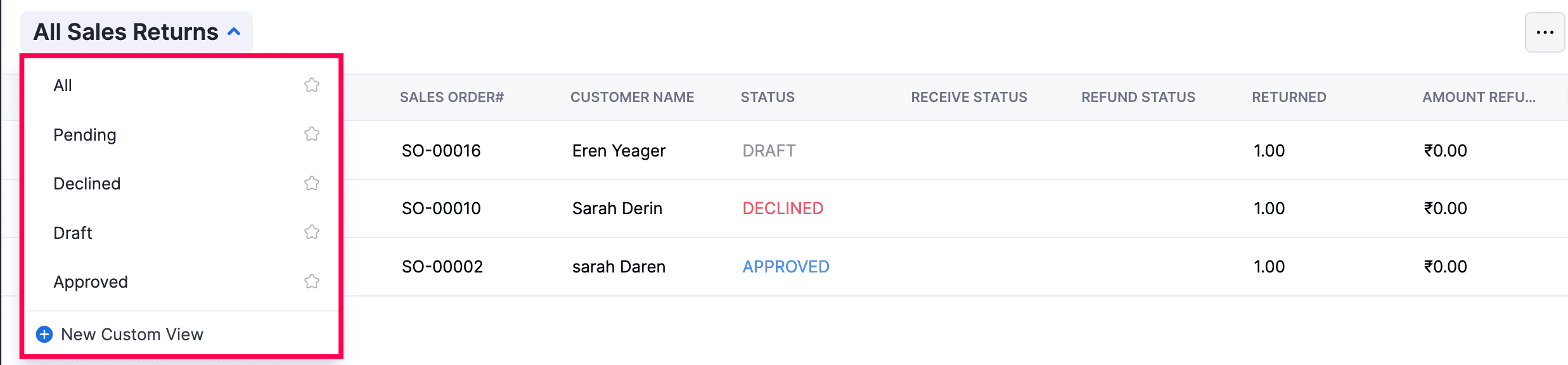
The list refreshes to show only the sales returns that match the selected filter.
Sales Return Lifecycle
Each sales return moves through three stages, shown as a status timeline at the top of the return details page:
| Stage | Description |
|---|---|
| Sales Return Requested | The return request has been recorded against a shipped or delivered sales order. |
| Action Pending | The request is awaiting your review. You can either Approve or Reject the return at this stage. |
| Refund | After the return is approved, the refund can be processed for the returned items. |
Note: Sales returns can only be raised against sales orders that have been shipped or delivered.
Approve a Sales Return
When a return request is in the Pending status, you can approve it after verifying the returned items and the reason for the return.
- Click Sales in the left sidebar and select Sales Returns.
- Select the sales return request you want to approve.
- Review the Item Details, Reason, Return Details, and Customer Details sections on the return details page.
- Click Approve at the top of the page.
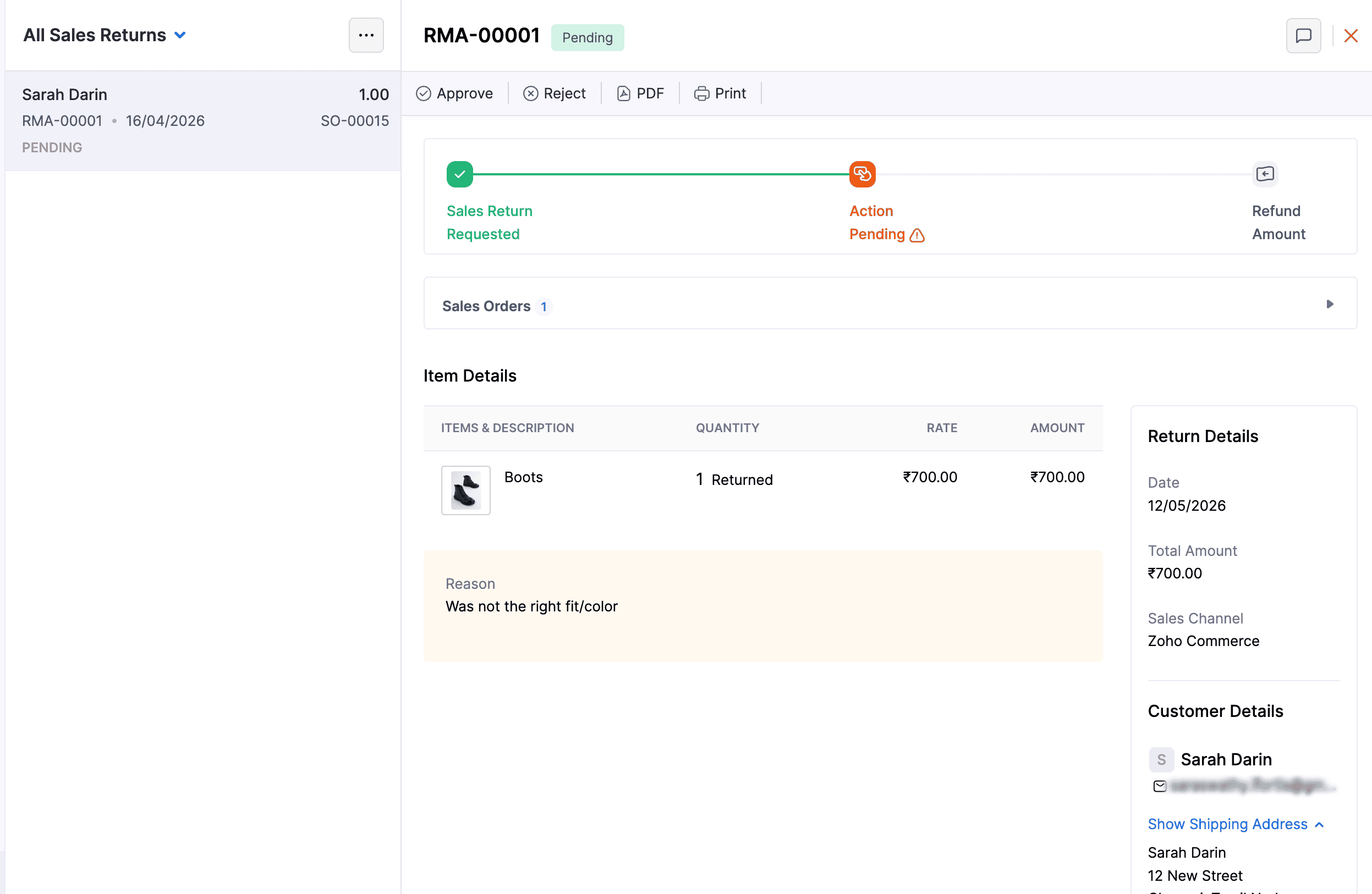
After approval, the status of the sales return is updated to Approved and the lifecycle moves to the Refund stage.
Reject a Sales Return
If a return request does not meet your store’s return policy, you can reject it.
- Click Sales in the left sidebar and select Sales Returns.
- Select the sales return request you want to reject.
- Click Reject at the top of the return details page.
The status of the sales return is updated to Declined.
Note: A rejected sales return is not final, you can reopen and approve it later if needed. Open the declined sales return from the Sales Returns list and click Approve at the top of the return details page to move the request back into the approval flow.
Refund a Sales Return
After a sales return is approved, the lifecycle moves to the Refund stage so you can return the payment for the returned items to the customer.
- Click Sales in the left sidebar and select Sales Returns.
- Select the approved sales return you want to refund.
- Click Refund at the top of the return details page.
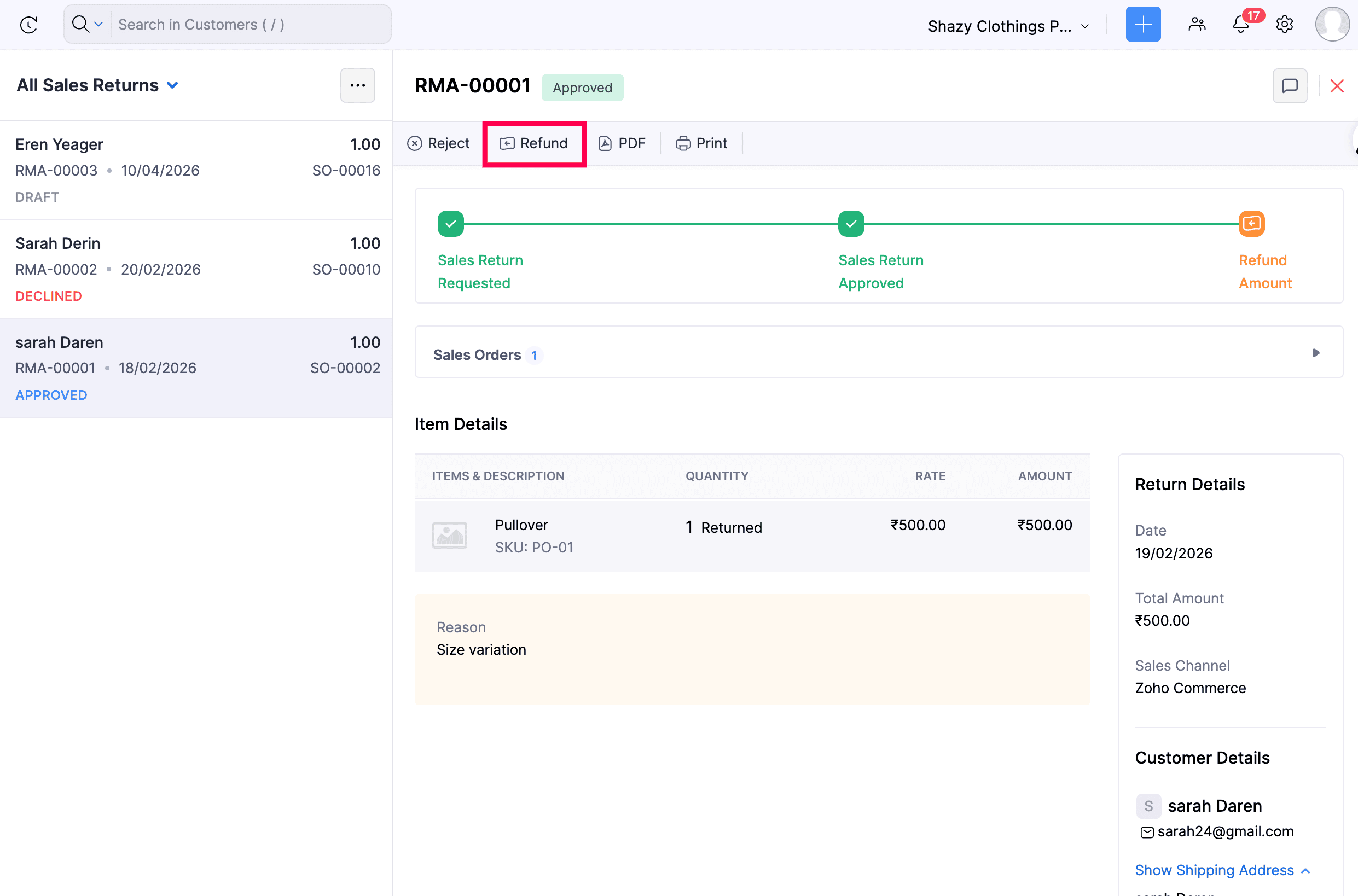
- In the Refund dialog, fill in the following fields:
| Field | Description |
|---|---|
| Refundable Amount | The total amount eligible for refund. This value is calculated automatically and cannot be edited. |
| Refund Type | Choose Refund Full Amount to refund the entire refundable amount, or Partial Refund to refund a smaller amount. |
| Refund Method | Choose Online to initiate the refund through the source payment gateway, the refund is recorded once it is successfully processed. Choose Offline to record a refund that is processed outside Zoho Commerce. |
| Return Quantity | The number of items being returned. |
| Add products to stock | Check this checkbox if the returned items should be added back to your inventory. |
- Click Save to process the refund.
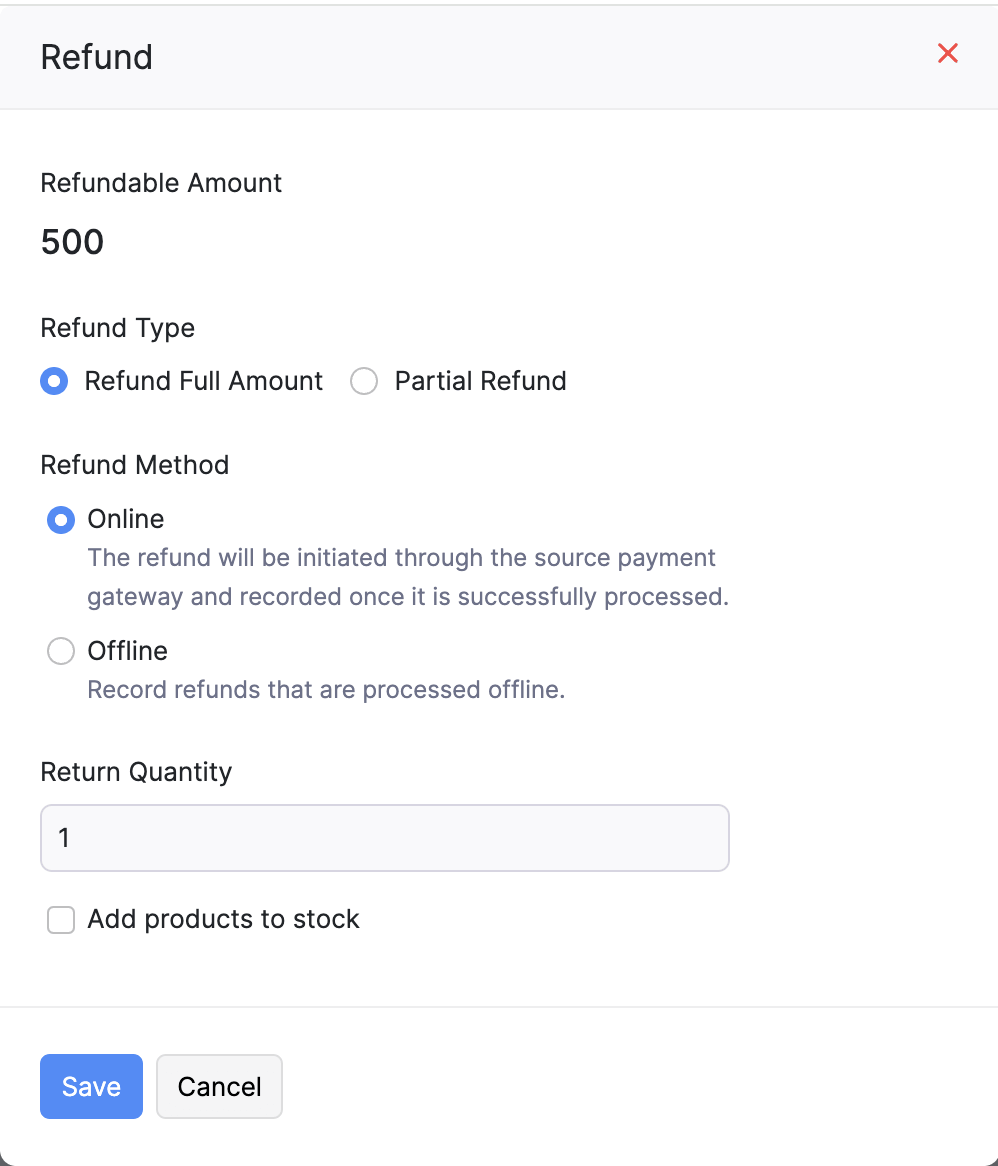
Insight: When you select Add products to stock, the returned quantity is added back to the available stock of the corresponding item, restoring inventory levels affected by the original sale.
Download As PDF
You can download a sales return as a PDF for your records or to share with the customer.
- Click Sales in the left sidebar and select Sales Returns.
- Select the sales return you want to download.
- Click PDF at the top of the return details page.
The sales return is downloaded as a PDF file to your device.
Print a Sales Return
You can print a copy of any sales return directly from the return details page.
- Click Sales in the left sidebar and select Sales Returns.
- Select the sales return you want to print.
- Click Print at the top of the return details page.
More Actions
The Sales Returns list page provides additional actions for managing the list view itself.
- On the Sales Returns page, click the More icon at the top right of the list.
- Select one of the following actions from the dropdown:
- Sort by - Sort the list by Created Time, Last Modified Time, Date, RMA number, Sales Order number, or Customer Name.
- Export - Export the list of sales returns to a file.
- Refresh List - Reload the list to fetch the latest sales returns.