



AI Integration

AI Integration lets you manage the AI features available in your Zoho Commerce organization. You can enable writing assistance, select the AI provider and model used for generated content, and control the access permissions granted to MCP clients.
To open AI Integration:
- Go to Settings in the top-right corner.
- Select AI Integration under Organization Settings.
AI Preferences
The Preferences page displays the AI features available in your organization and lets you configure how they work.
Writing Assistant
Use the Writing Assistant toggle to enable or disable AI-generated content suggestions for your team.
To configure Writing Assistant:
- Go to Settings in the top-right corner.
- Select AI Integration under Organization Settings.
- In the Preferences section, locate Writing Assistant.
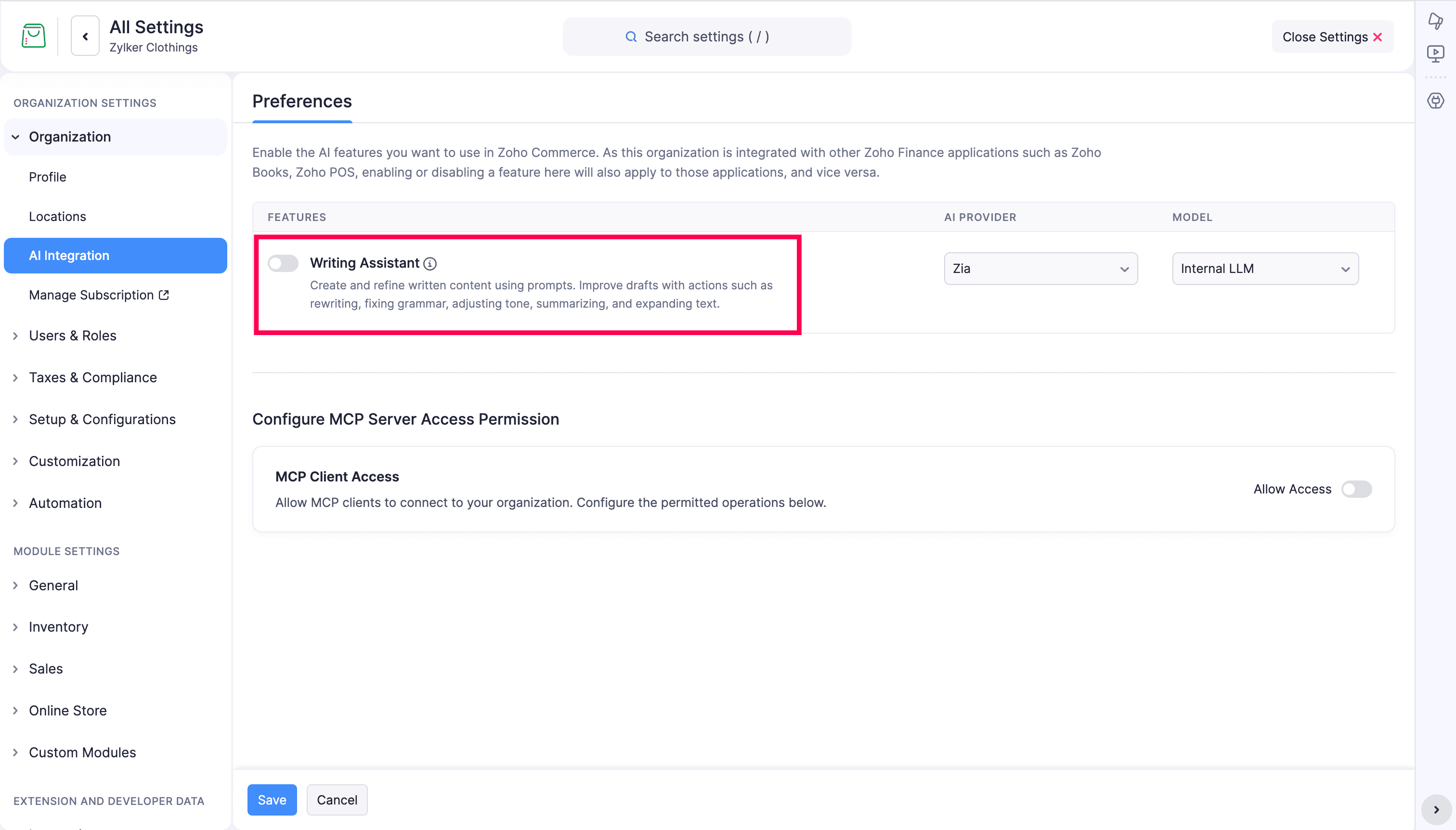
- Turn the toggle on or off.
- Select the AI Provider such as Zia from the dropdown.
- Select the Model such as Internal LLM from the dropdown.
- Click Save.
The selected AI provider is the service used to generate responses, while the model defines the specific AI engine that processes the request. A model can influence the quality, depth, and style of the generated output.
AI Provider and model
The AI Provider and Model fields define which AI engine is used for the feature you enable.
- AI Provider: The external service or platform providing the AI model.
- Model: The specific model version or system used to generate the response.
Choose the provider and model that match your organization’s needs and then save your settings.
Configure MCP Server Access Permission
MCP server access permission lets you control whether MCP clients can connect to your organization and what actions they are allowed to perform.
To configure MCP access:
- Go to Settings in the top-right corner.
- Select AI Integration under Organization Settings.
- Scroll to Configure MCP Server Access Permission.
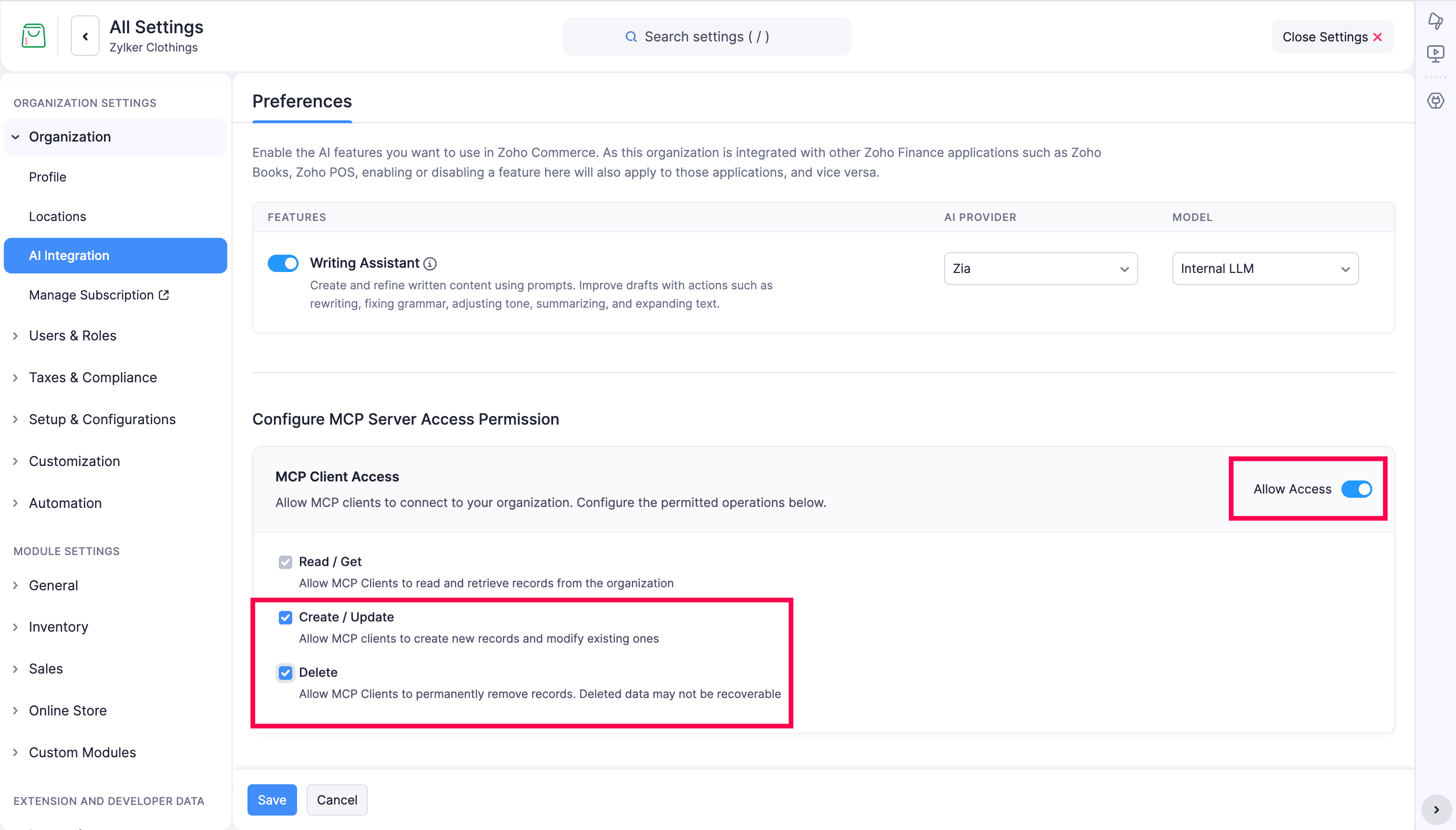
- Turn Allow Access on or off.
- Select the actions you want to allow:
- Read / Get - It is enabled by default and allows the MCP client to read data from your organization.
- Create / Update - Allows the MCP client to create new records and update existing ones in your organization.
- Delete - Allows the MCP client to delete records from your organization.
- Click Save.
When access is enabled, MCP clients can connect to your organization and perform only the operations you allow. You can choose to permit read-only access or allow create, update, and delete actions based on your organization’s requirements.
Note: Review your selected permissions carefully before saving. The access configuration applies to the MCP client actions that are allowed in your organization.