



Assemblies Preferences

The Assemblies page lets you add custom fields to capture details that are not covered by the default fields. This is useful when you want to store extra information related to assembly records, such as production notes, handling instructions, or other required metadata.
Create a custom field for an assembly
To create a custom field for an assembly:
- Go to Settings in the top-right corner.
- Click Assemblies under Inventory.
- Click + New Field.
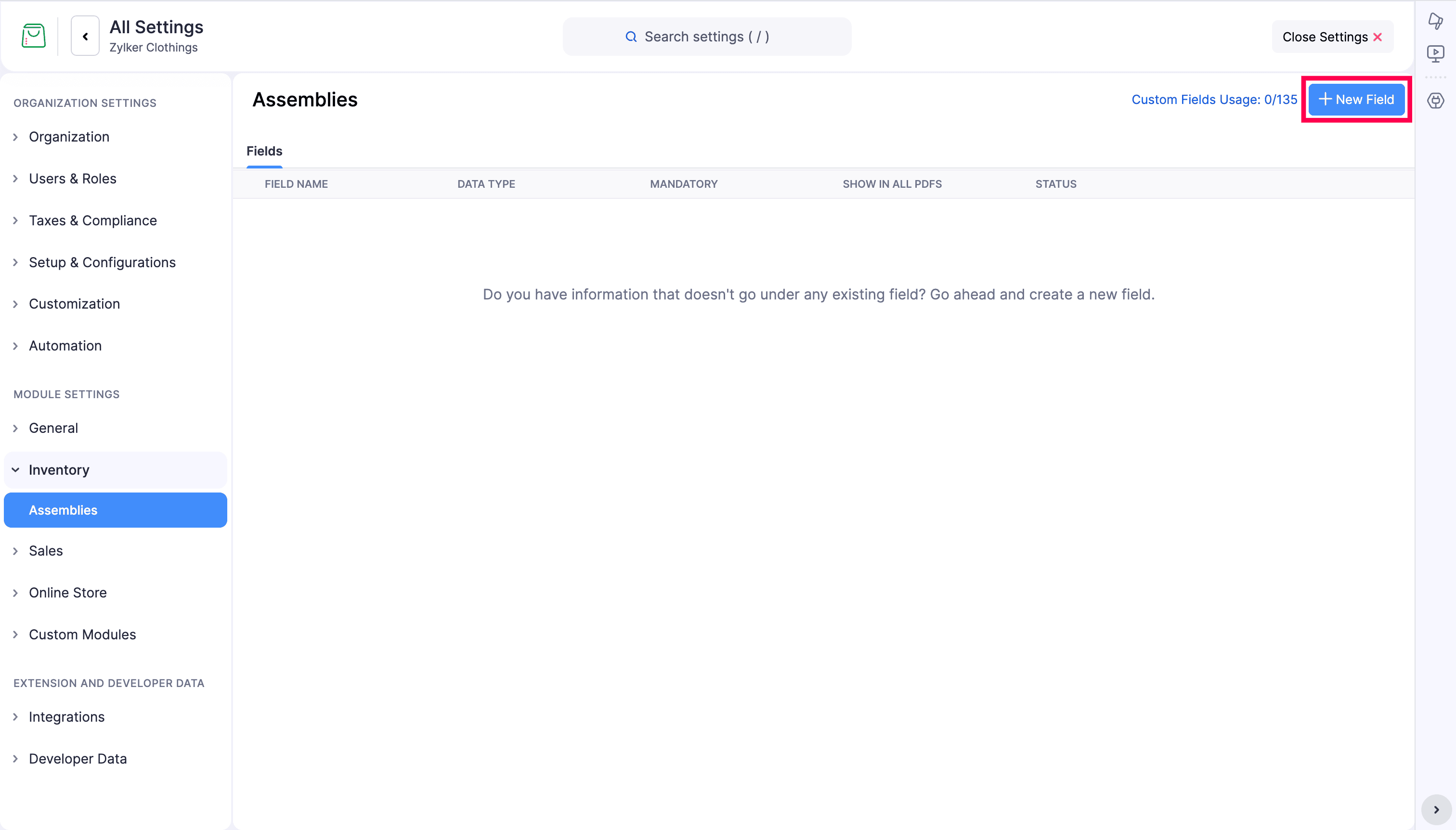
- Enter a Label Name for the field.
- Select the Data Type. Supported options include Text Box (Single Line) and other available field types.
- Add a Help Text to guide users when they enter the field value.
- Select the Data Privacy option:
- PII if the field stores personally identifiable information.
- Sensitive data. Encrypt and store it - The field contains sensitive information and should be encrypted before storage.
- Not sensitive data. Store it without encryption - The field does not contain sensitive information and can be stored without encryption.
- ePHI if the field stores electronic protected health information.
- PII if the field stores personally identifiable information.
- Choose whether to Prevent Duplicate Values by selecting Yes or No.
- Set the Input Format if the field requires a specific format, such as alphanumeric characters without spaces.
- Enter a Default Value, if required.
- Set whether the field is Mandatory by selecting Yes or No.
- Choose Yes or No for Show in All PDFs.
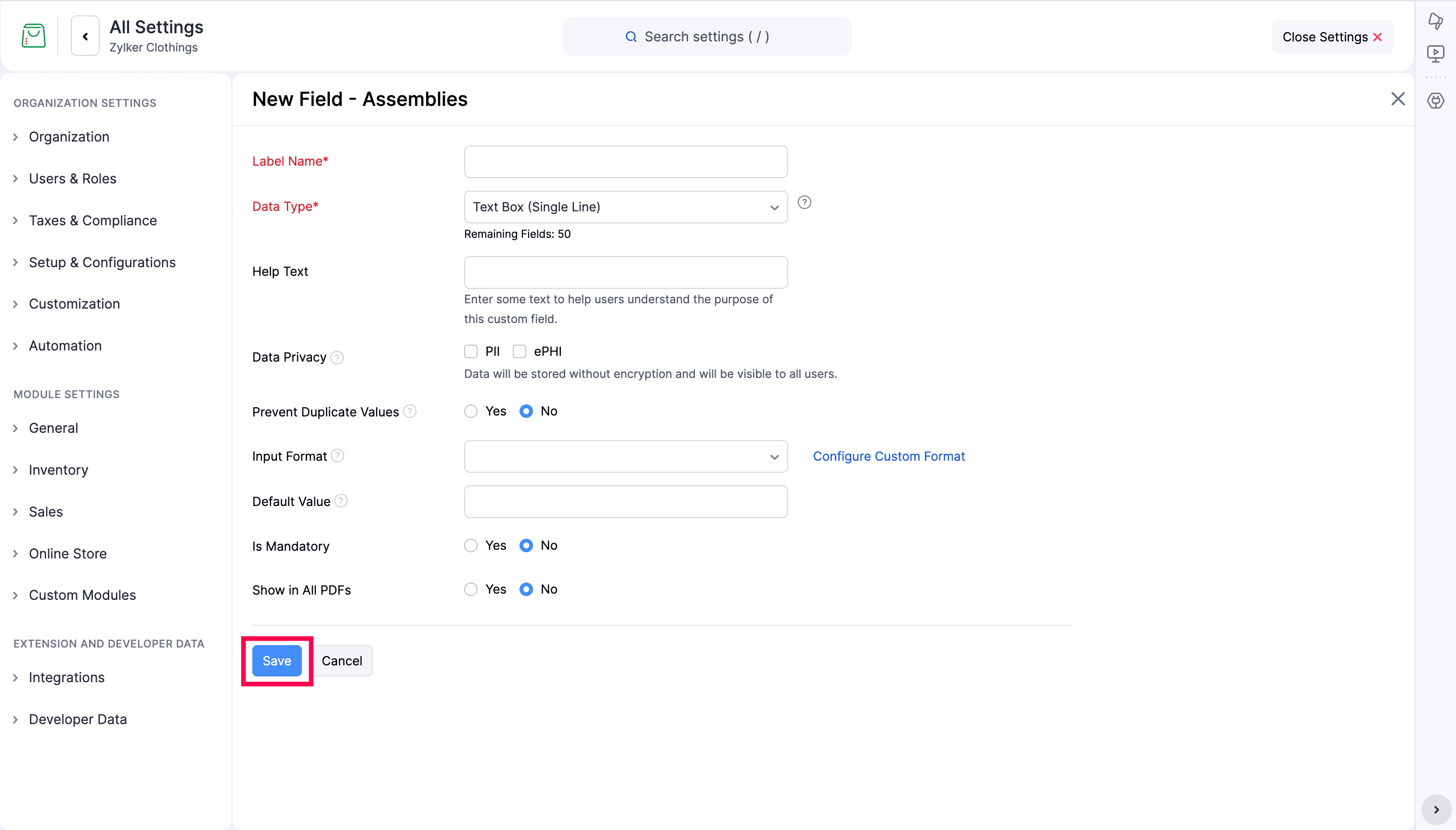
- Click Save.
The custom field is then available for the assembly records. You can update the field later if your business requirements change.
Note: Custom fields help you capture additional assembly data without changing the default structure. Use them only for information that does not fit the existing standard fields.
Custom field Usage
Custom fields for assemblies are used to capture additional information that is not covered by the default fields. Once created, these fields appear in the assembly records, and users can enter relevant data as needed.
For example, if you need to track special handling instructions or internal notes for each assembly, you can create custom fields specifically for this purpose. This ensures that all necessary information is captured without altering the standard structure of the assembly records.
- Navigate to Settings > Inventory > Assemblies.
- Click Custom Fields Usage. The Custom Field Usage popup will be displayed.
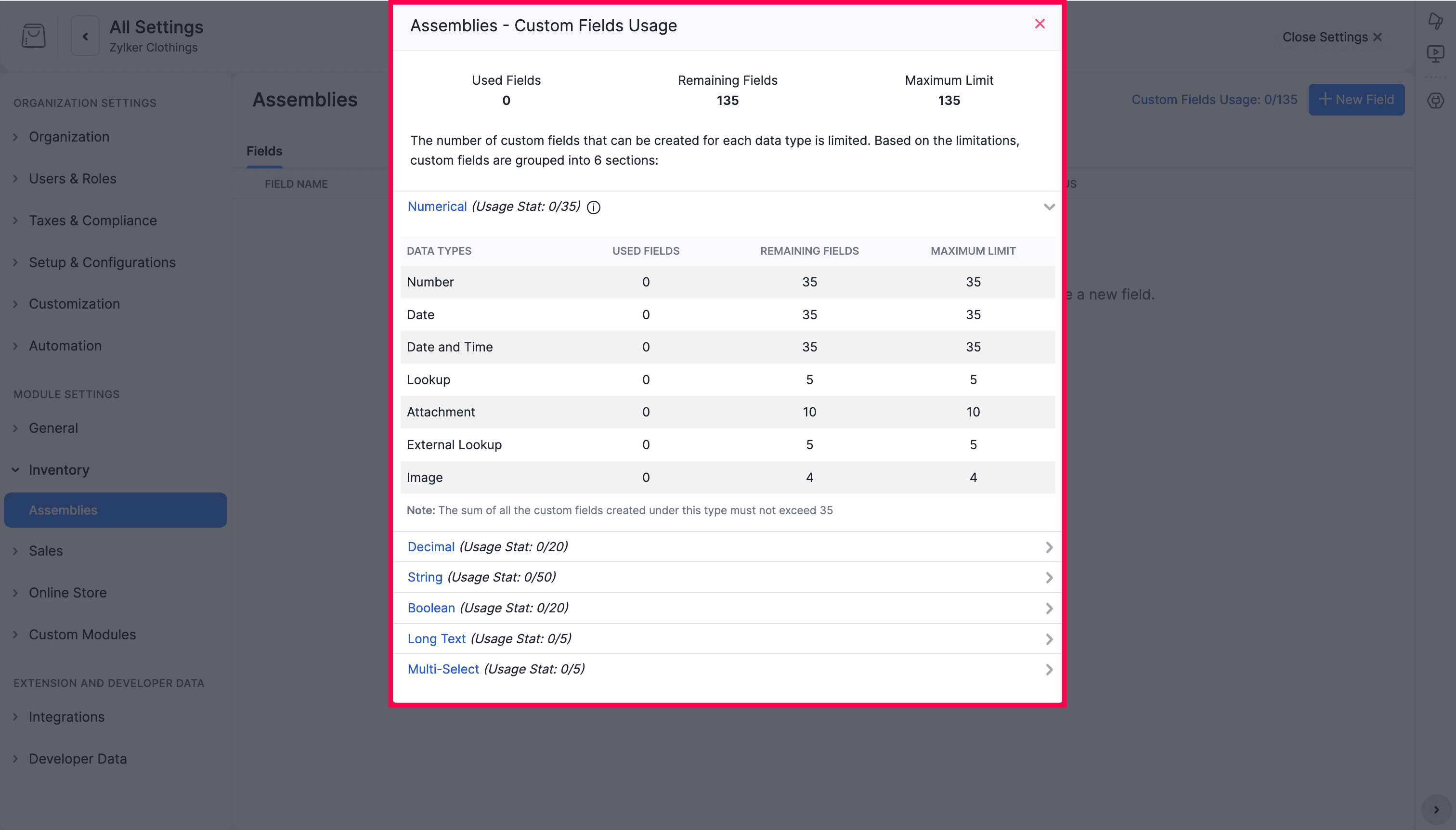
- In the popup, you can view the count of custom fields against the respective data types with their maximum limit. You can also view the count of used, remaining, and total custom fields for each data type. This helps you manage your custom fields effectively and ensure that you do not exceed the allowed limits.
- Click Close to exit the popup once you have reviewed the custom field usage.