



Notification Preferences

Notification Preferences lets you decide which customer and order events trigger email notifications and in-app notifications for your team. This helps you stay informed about sales activity without receiving notifications for events that are not relevant to your business.
To open Notification Preferences:
- Go to Settings in the top-right corner.
- Select Customization.
- Click Notification Preferences.
The page displays a list of events and toggles for each event. For every event, you can enable or disable both Email Notification and In-app Notification.
Note: All the email and in-app notifications are enabled by default. You can turn off the notifications for events that are not relevant to your business.
Enable or disable notifications
To enable or disable a notification:
- Go to Settings in the top-right corner.
- Select Customization.
- Click Notification Preferences.
- Find the event you want to manage.
- Turn the Email Notification toggle on or off.
- Turn the In-app Notification toggle on or off.
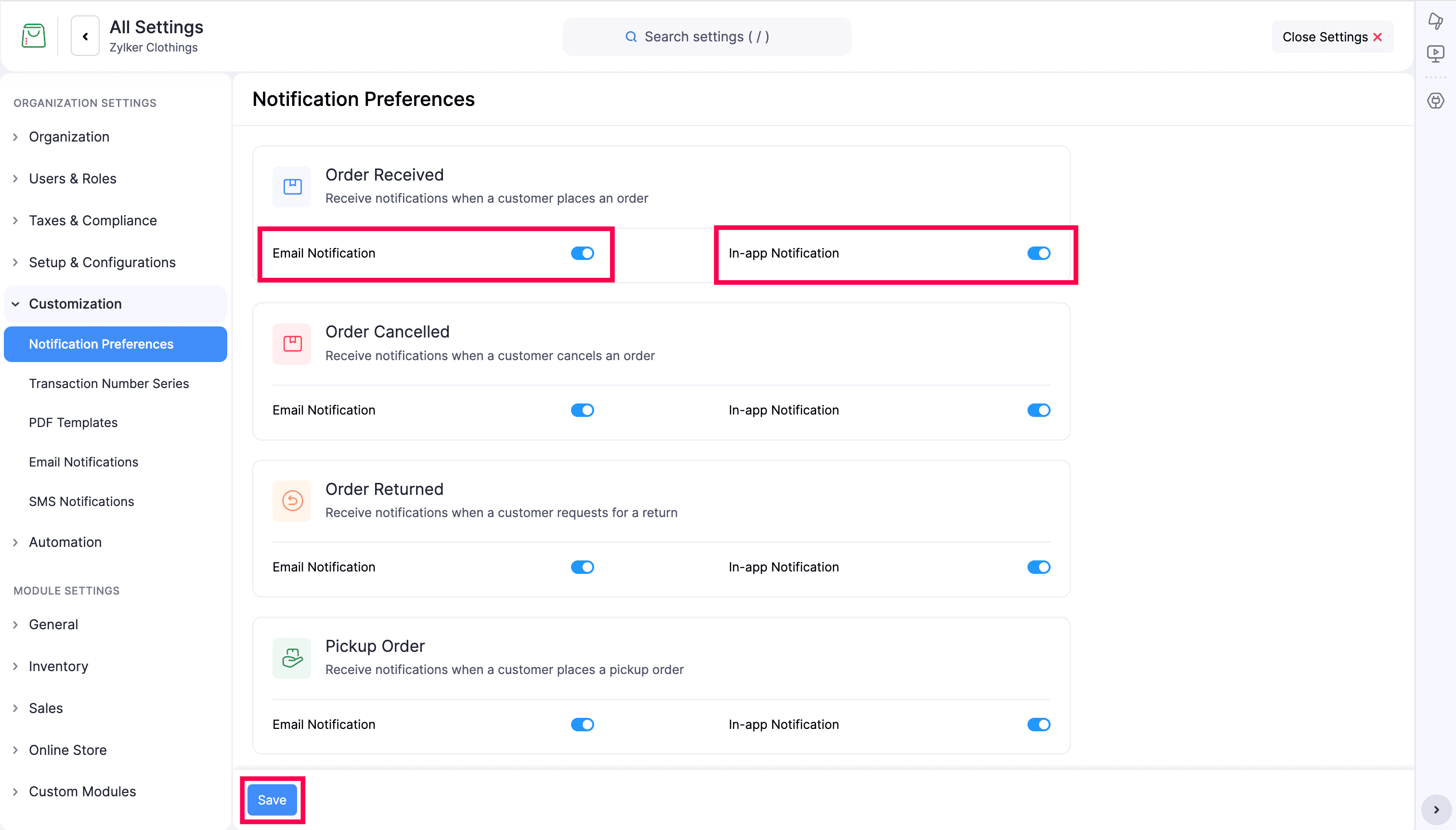
- Click Save.
The toggles are independent for each notification type. You can keep email alerts enabled for one event while turning off in-app alerts for the same event, or vice versa.
Available notification events
The notifications page includes the following events:
Order Received
Receive notifications when a customer places an order.
Use the Email Notification and In-app Notification toggles to decide how the order placement alert is delivered.
Order Cancelled
Receive notifications when a customer cancels an order.
This helps your team stay updated when an order is canceled and take any required follow-up actions.
Order Returned
Receive notifications when a customer requests a return.
Use this option to monitor return requests and start the return workflow promptly.
Pickup Order
Receive notifications when a customer places a pickup order.
This is useful when your store offers local pickup and you want to prepare the order for collection.
Quote Request Received
Receive notifications when a customer requests a quote.
This helps your team respond to sales inquiries quickly and follow up with the customer.
Note: Notification settings are managed per event, and your selections are applied only after you click Save.