


Taxes

Taxes are an integral part of any business. The taxes applicable to your business depend on your location and what you sell. In Zoho Commerce, taxes vary based on the country where your business operates, so you can configure the specific taxes your business needs.
Note: This help document is applicable only to the France edition of Zoho Commerce.
VAT Registration Settings
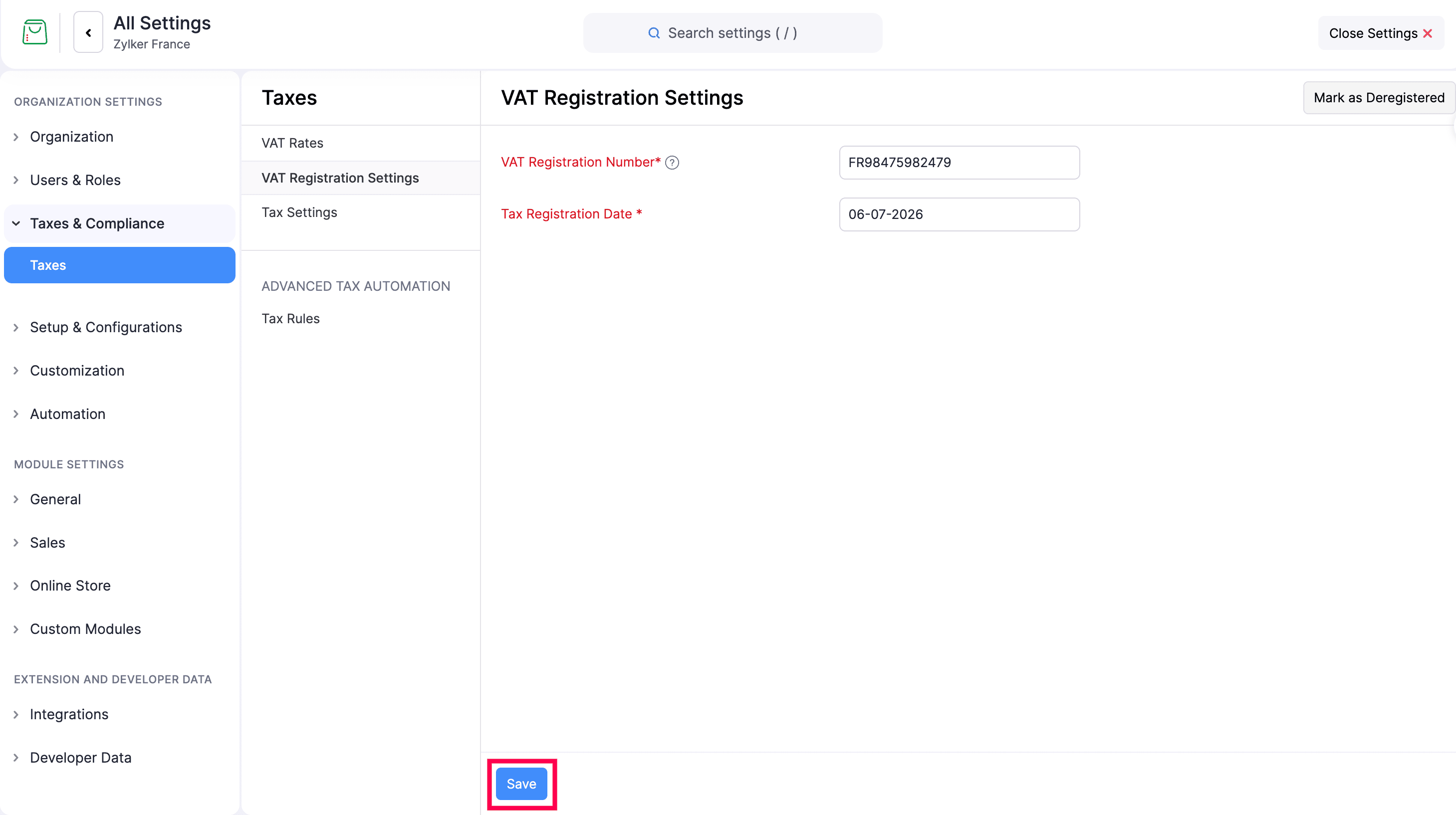
Add your business’s VAT registration details so that tax applies correctly to your orders.
- Go to Settings > Taxes & Compliance > Taxes.
- Open the VAT Registration Settings tab.
- Enter your VAT Registration Number. Hover over the help icon beside the field for guidance on the expected format.
- Enter the Tax Registration Date, which is the date your business was registered for VAT.
- Click Save.
VAT Rates
The VAT Rates tab lists the taxes active in your store, including the Tax Name and Rate (%). Use the Active taxes dropdown at the top to switch views.
Add a VAT Rate
- Go to Settings > Taxes & Compliance > Taxes.
- Open the VAT Rates tab.
- Click + New Tax in the top right.
- Enter the Tax Name and the Rate (%) at which it applies.
- To calculate this tax on top of another tax, select This tax is a compound tax.
- Click Save.
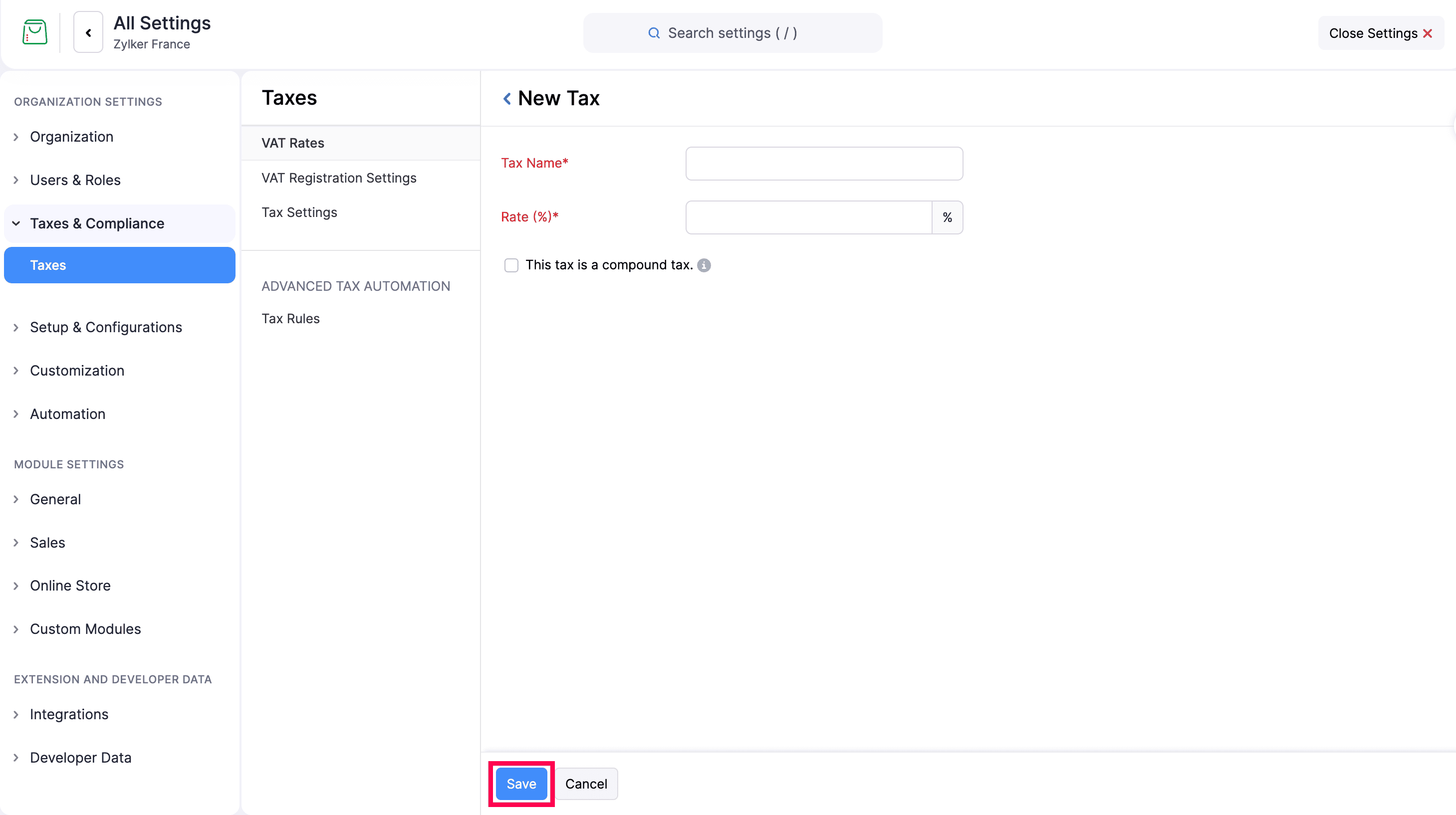
Once created, a VAT rate can be applied to your items so tax is calculated automatically on orders.
Edit a VAT Rate
- Go to Settings > Taxes & Compliance > Taxes.
- Open the VAT Rates tab.
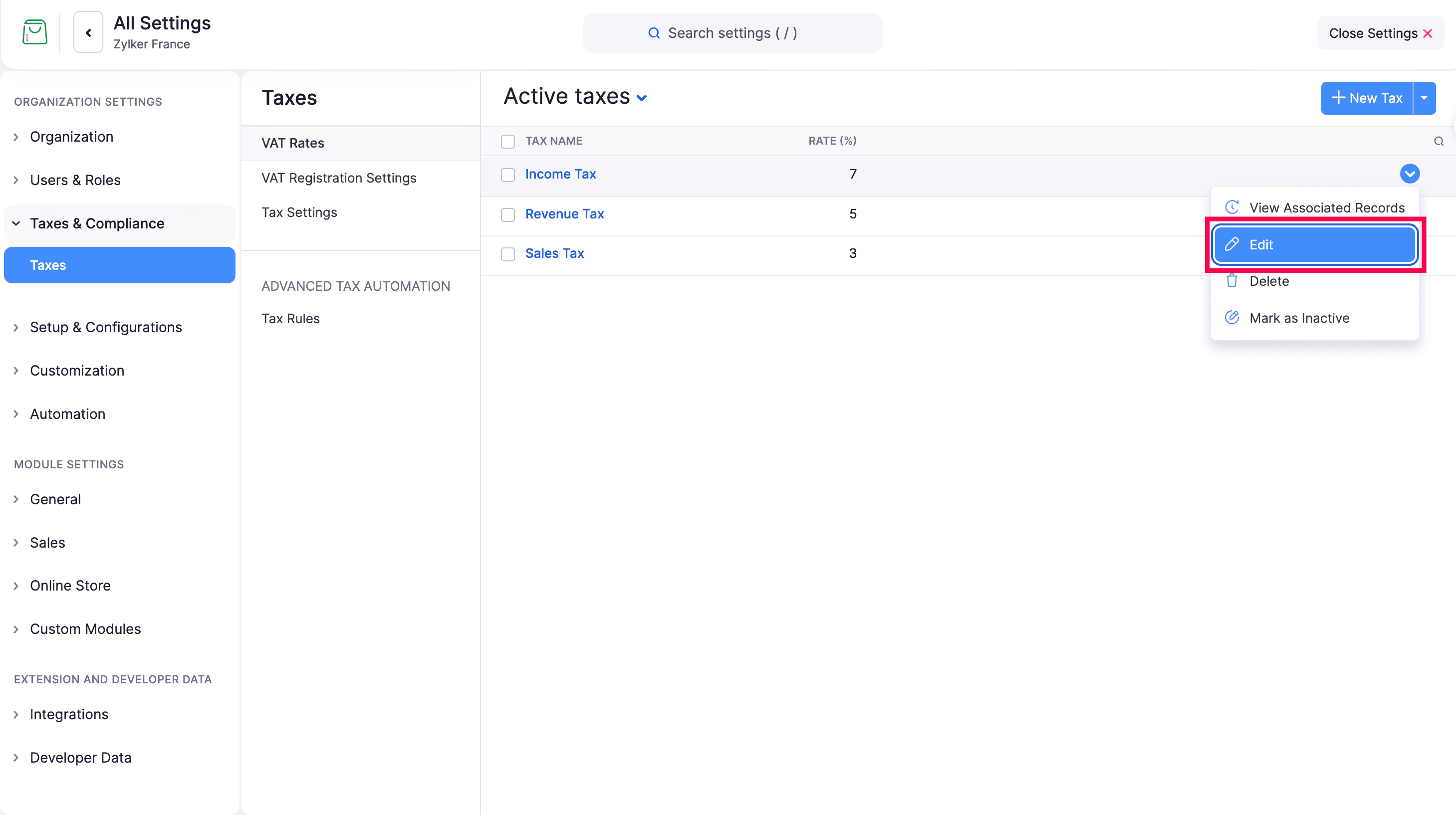
- Hover over the tax and select Edit from the dropdown.
- Make your changes and select the existing transactions for which you want to update the tax details.
- Click Save.
Delete a VAT Rate
- Go to Settings > Taxes & Compliance > Taxes.
- Open the VAT Rates tab.
- Hover over the tax and select Delete from the dropdown.
- In the confirmation popup, click OK to delete the tax.
Mark a VAT Rate as Inactive
You can mark a tax as inactive so it no longer applies to new orders while keeping it on record. You can mark it as active again whenever necessary.
- Go to Settings > Taxes & Compliance > Taxes.
- Open the VAT Rates tab.
- Hover over the tax and select Mark as Inactive from the dropdown.
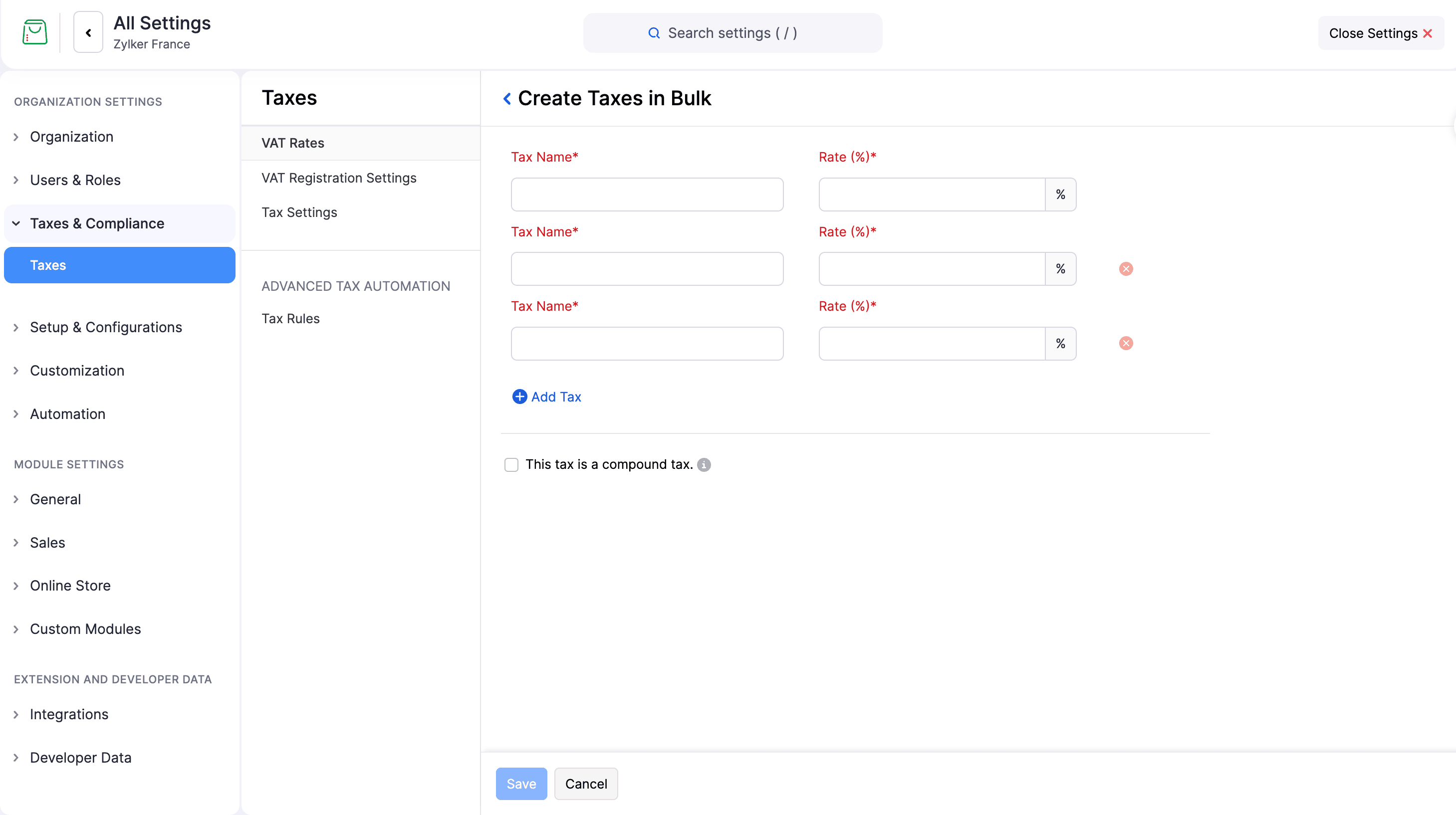
Create Taxes in Bulk
- Go to Settings > Taxes & Compliance > Taxes.
- Open the VAT Rates tab.
- Click the dropdown arrow next to + New Tax and select Create Taxes in Bulk.
- For each tax, enter the Tax Name and Rate (%).
- Click + Add Tax to add another row. Use the remove icon to delete a row.
- To mark the taxes as compound, select This tax is a compound tax.
- Click Save.
Tax Settings
The Tax Settings tab contains the VAT Basis for Services preference, which determines when VAT becomes due on the services you sell:
- VAT on Accrual: You owe tax as of the invoice date.
- VAT on Cash: You owe tax upon payment receipt.
Select the basis that applies to your business.
Note: VAT Basis is always accrual for sales of goods. This setting affects services only.
Tax Rules
Tax Rules let you automate how tax is applied across your store using a base country rate, with optional overrides for specific item categories and states.
Note: If tax is not mapped at the item level, create tax rules to apply tax rates to online orders automatically during checkout.
To create a tax rule:
- Go to Settings > Taxes & Compliance > Taxes.
- Under Advanced Tax Automation, open Tax Rules.
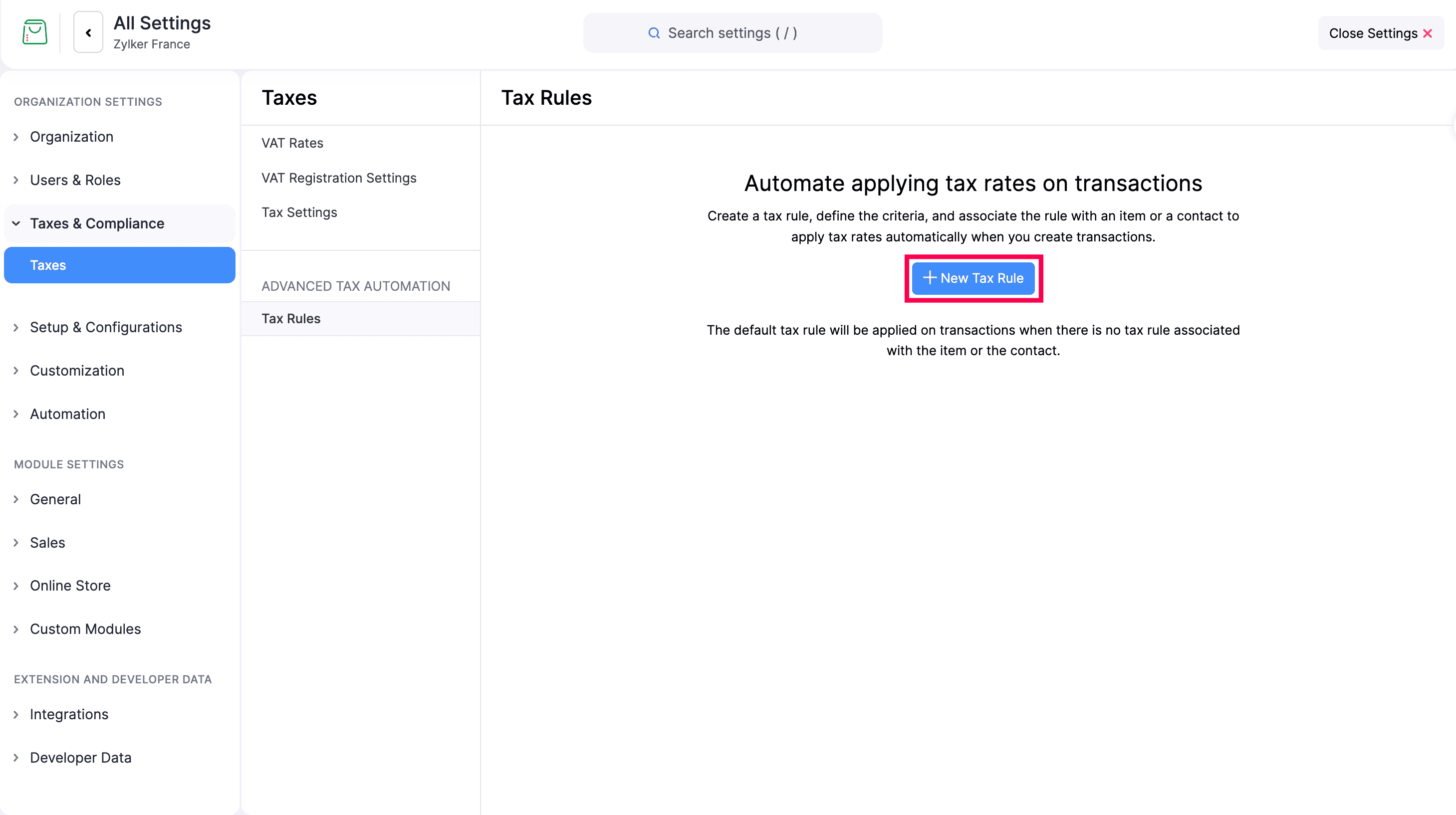
- Click New Tax Rule.
- Set the Country for which the tax rule applies, such as France.
- Under Country Tax Rate (%), select a tax from your VAT Rates. This rate applies throughout the country.
- To set different rates for specific item categories, turn on Category Tax Override. For each override, select:
- Category Name: The item category.
- Location: The state it applies to. This defaults to All States.
- Tax: The tax rate to apply.
- Click + Add Category Tax Override to add another row. Use the delete icon to remove a row.
- To set different rates for specific states, turn on State Tax Override. For each override, select:
- Tax Type: Item is the default tax type.
- State: The state it applies to.
- Tax: The tax rate to apply.
- Click + Add State Tax Override to add another row. Use the delete icon to remove a row.
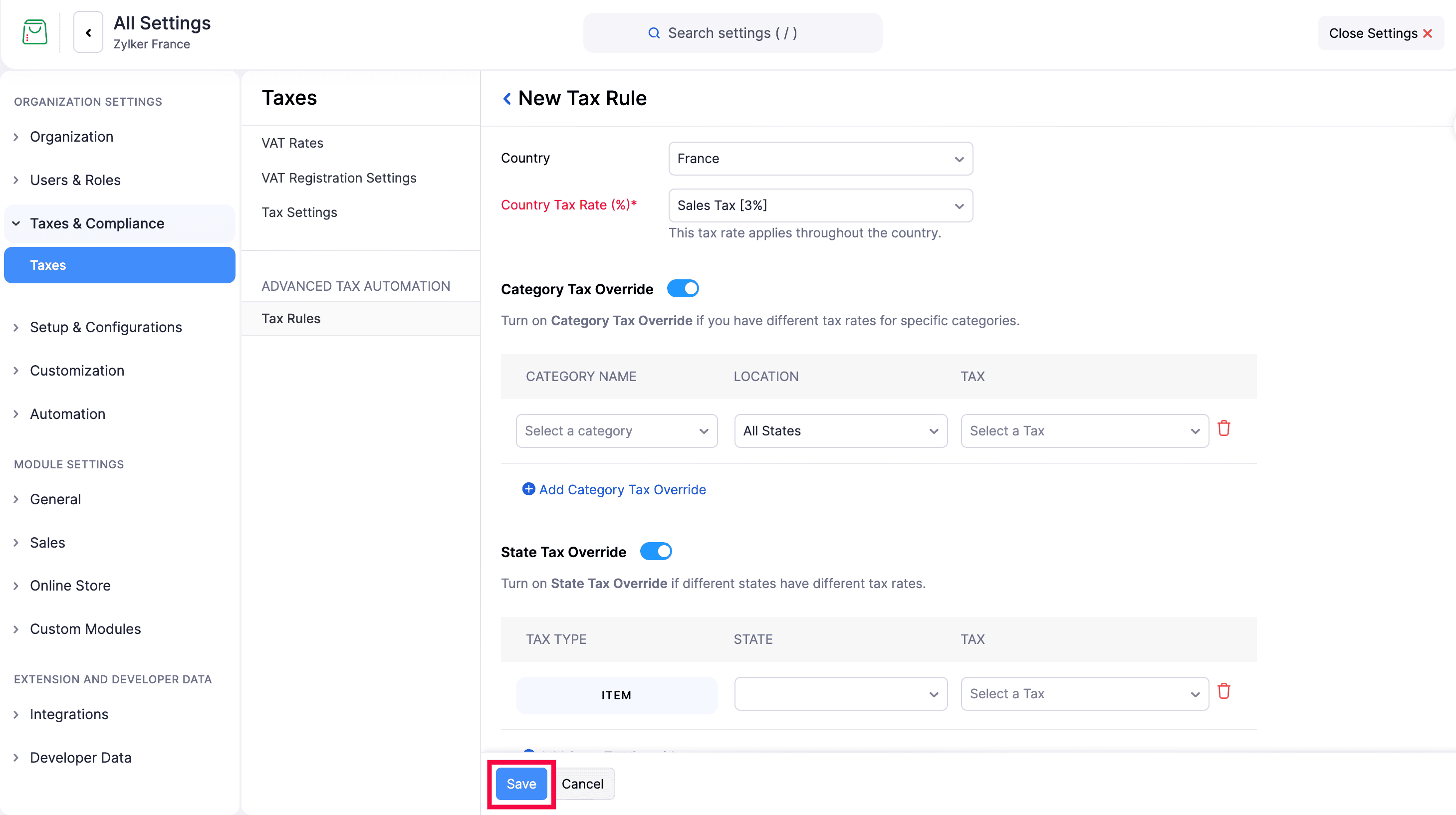
- Click Save.