
Zoho Inventory – Zoho Commerce Integration

Zoho Commerce is an e-commerce app that helps you create and manage your online store. By integrating Zoho Commerce with Zoho Inventory, you can manage your items, track stock levels, and sync order information across both apps.
Benefits of the Integration
Integrating Zoho Commerce with Zoho Inventory helps you:
- Sync items and stock levels: Keep item details and stock availability aligned across both apps.
- Manage online orders: Sync order information to support order processing and fulfillment.
- Manage customer information: Keep relevant customer details available in Zoho Inventory.
Set Up the Integration
Connect Zoho Commerce with Zoho Inventory to sync your inventory data and manage your online store efficiently.
To integrate Zoho Commerce with Zoho Inventory:
- Log in to your Zoho Inventory organization.
- Click Settings in the top right corner.
- Navigate to Extension and Developer Data.
- Under Integrations & Marketplace, click Zoho Apps.
- Click Try Now next to Zoho Commerce. You’ll be redirected to Zoho Commerce.
- To join an existing organization, click Join Organization next to the organization name.
- Read and agree to the Terms and Services.
- Click Continue.
- To create a new organization, click + New Organization. Follow these steps to complete the setup.
Once the integration is set up, the relevant item, stock, order, and customer information can be synced between the apps.
Module Names in Zoho Inventory and Zoho Commerce
The following table lists the module names shared between Zoho Inventory and Zoho Commerce.
| Zoho Inventory | Zoho Commerce |
|---|---|
| Items | Items |
| Composite Items | Composite Items |
| Stock Levels | Stock Levels |
| Sales Orders | Orders |
| Customers | Customers |
| Reports | Reports |
Display Items in the Online Store
You can choose which items are displayed in your Online Store from the Zoho Inventory app.
To display an item in your Online Store:
- Go to Items or Composite Items in the left sidebar.
- Select the item you want to display.
- Click the Edit icon on the item details page.
- Select Yes for Show in Online Store.
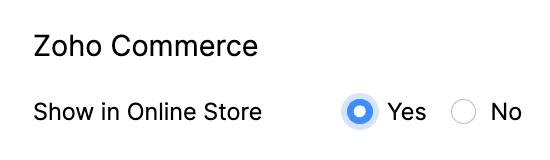
Note: This option is available only when Zoho Commerce is integrated with Zoho Inventory.
- Click Save.
The item can then be displayed in your Online Store, subject to the applicable item and online store settings. For more information, refer to the Zoho Commerce user guide.
Modules Synced Between Zoho Inventory and Zoho Commerce
The following table lists the modules that are synced between Zoho Inventory and Zoho Commerce.
| Zoho Commerce | Zoho Inventory |
|---|---|
| Items | Items |
| Orders | Sales Orders |
| Reports | Reports |
| Categories | Categories and Sub-categories |
| Payment Methods | Integrated Payment Methods |
| Customers (portal users and guest customers who place orders through the online store) | Customers |
Insight: You must confirm a sales order in Zoho Commerce manually for it to be available in Zoho Inventory.