



AI Features

Zoho Commerce includes AI tools that help you create content, build workflows, and complete store tasks faster. Zia can understand natural-language prompts and assist with content creation, section generation, and day-to-day operations. To use these features, enable the required ones, choose an AI provider and model, and configure them in AI Integration Settings.
Explore with AI
To enable AI features in Zoho Commerce:
- Go to Settings in the top-right corner.
- Select AI Integration under Organization Settings.
- Open the Preferences tab.
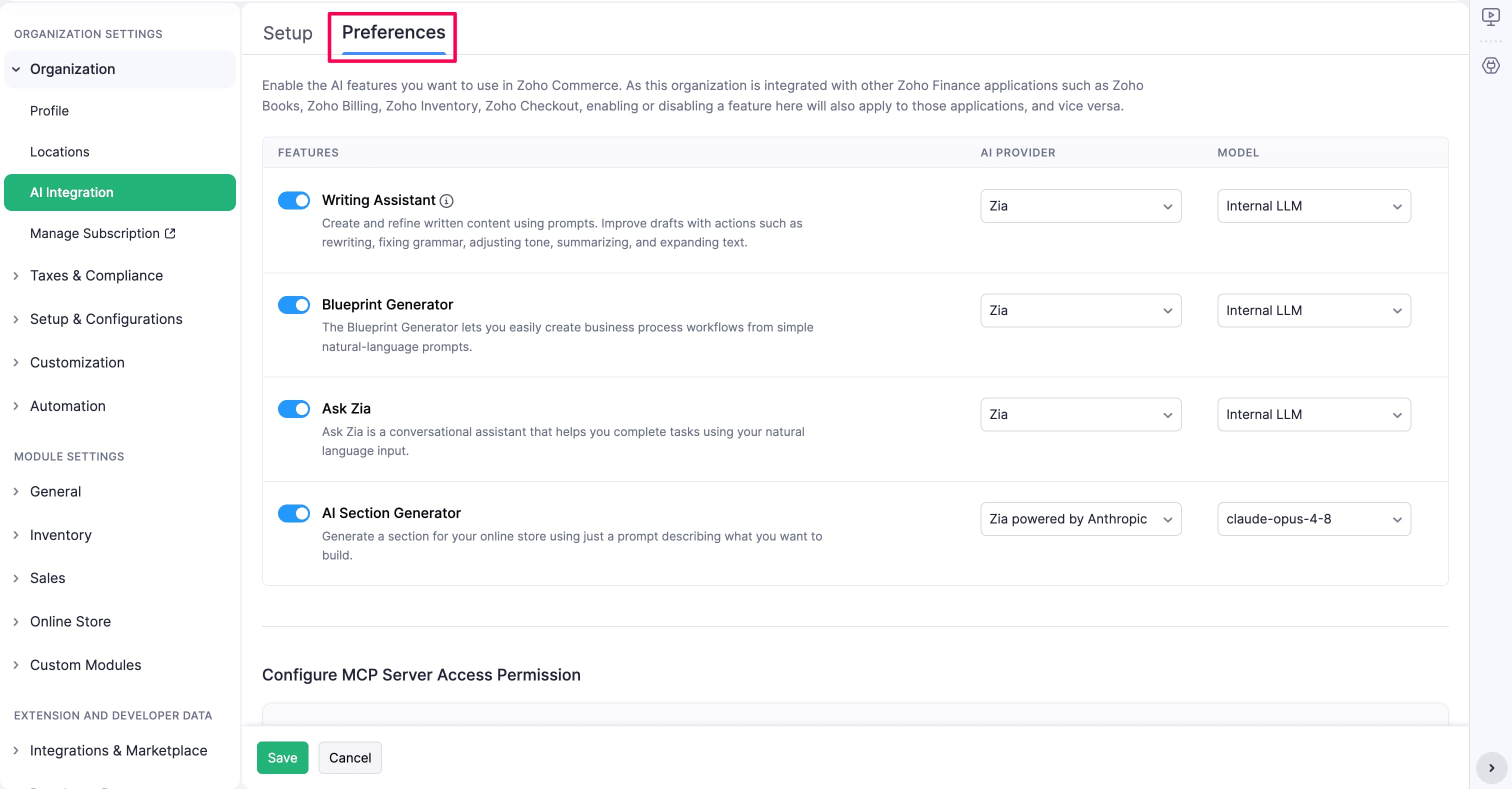
- Turn on the toggle beside each feature you want to use.
- Choose the AI Provider and Model for that feature.
- Click Save.
- Review and accept the AI Terms and Conditions when prompted.
- Click Proceed.
The AI provider is the service that supplies the model, and the model is the system used to process your request.
Writing Assistant
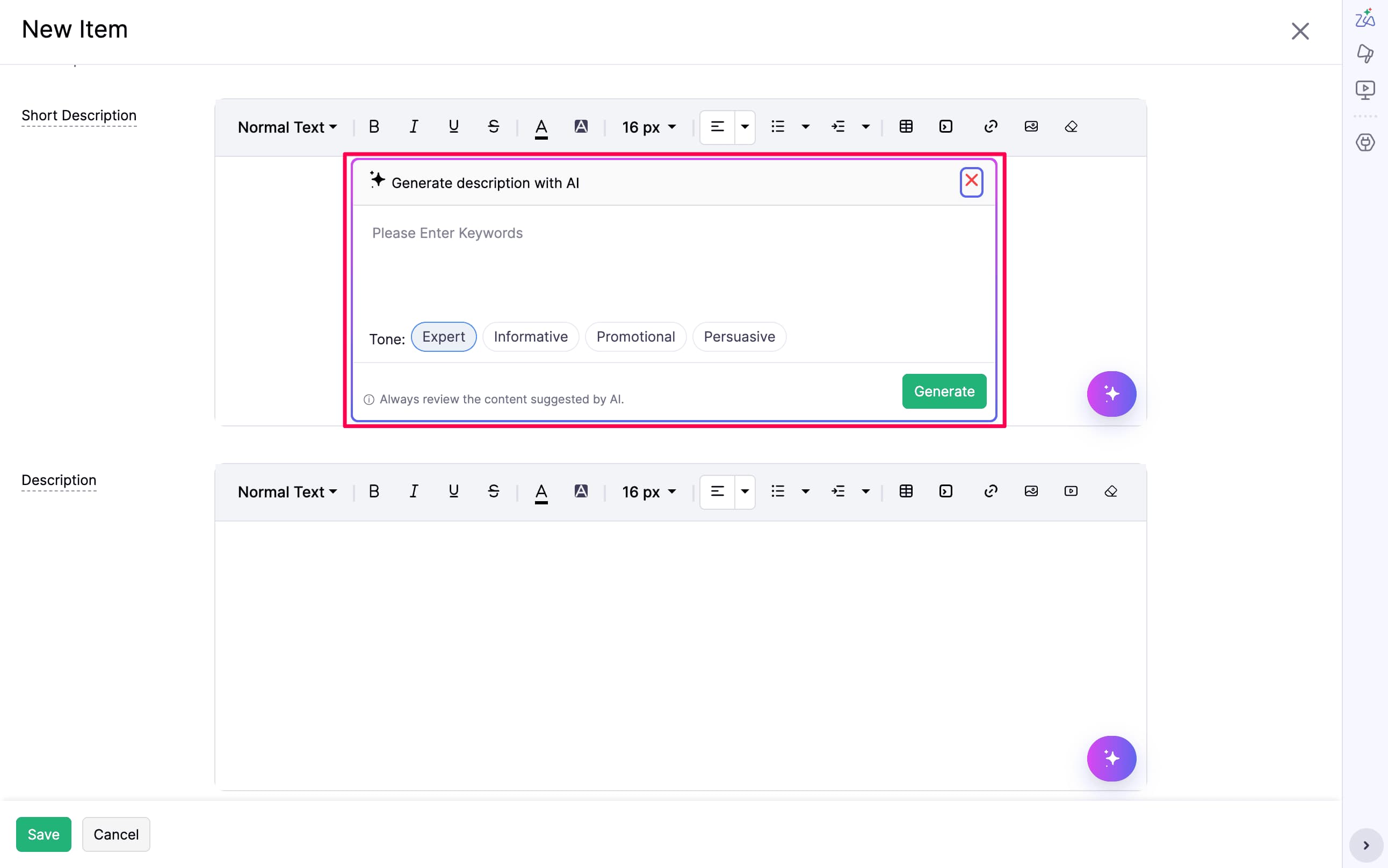
Writing Assistant helps you create and improve written content using natural-language prompts. It can rewrite text, fix grammar, adjust tone, summarize content, and generate new copy based on a brief. You can use it for product descriptions, and email templates.
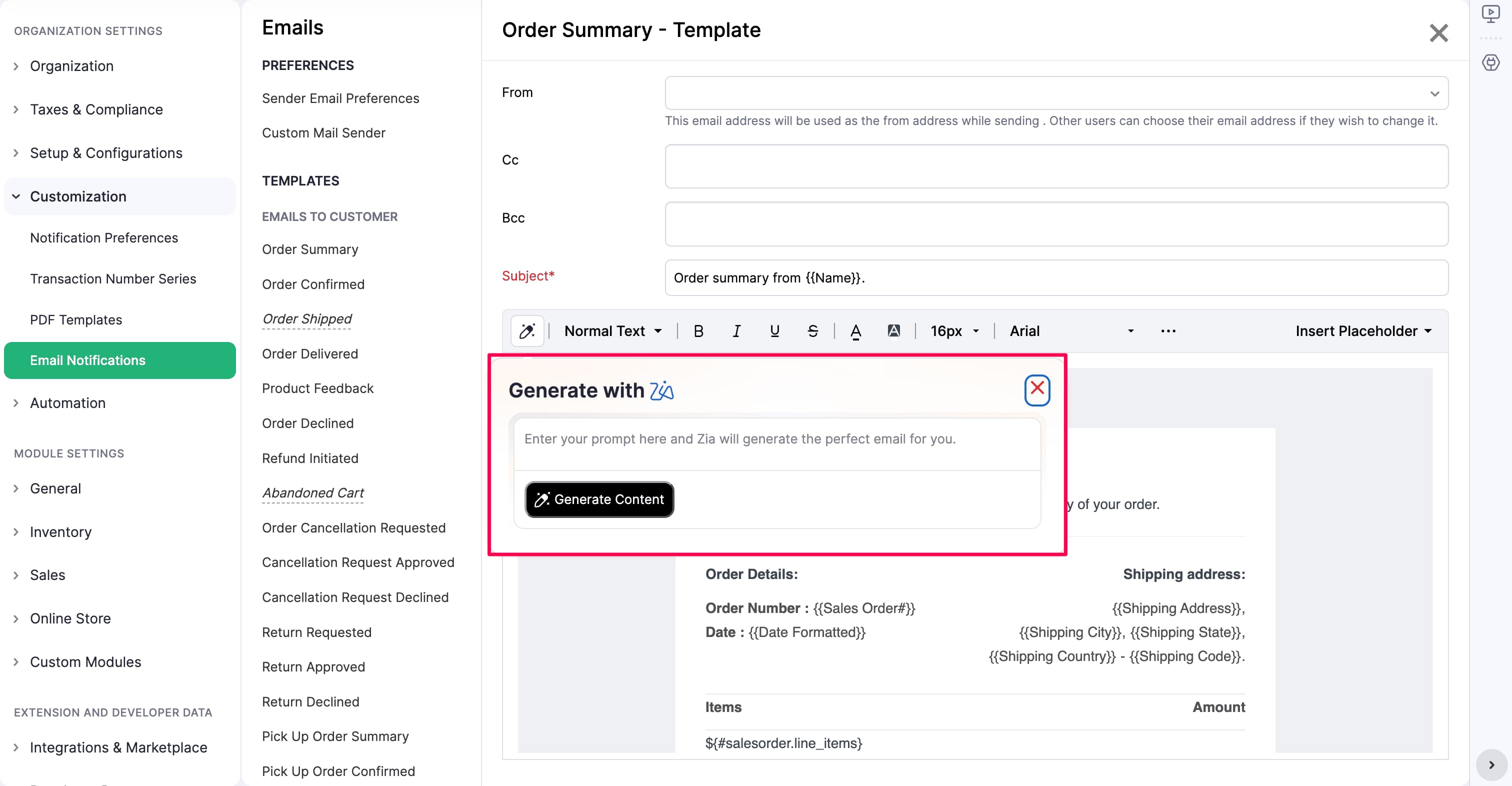
In the email template editor, you can open a template, click the Generate with Zia icon, describe the content you want, and insert the generated text directly into the email body. This helps draft order updates, promotional emails, delivery notices, and other customer communications faster.
Enable the feature and select its AI provider and model in AI Integration Settings.
Blueprint Generator
Blueprint Generator creates business-process workflows from natural-language prompts. It can help you plan and structure processes for tasks such as order handling, customer communication, and operational workflows.
Enable the feature and select its AI provider and model in AI Integration Settings.
Ask Zia
Ask Zia is a conversational assistant that helps you complete tasks using natural-language input. You can ask for information, create content, or guide work across your store using prompts.
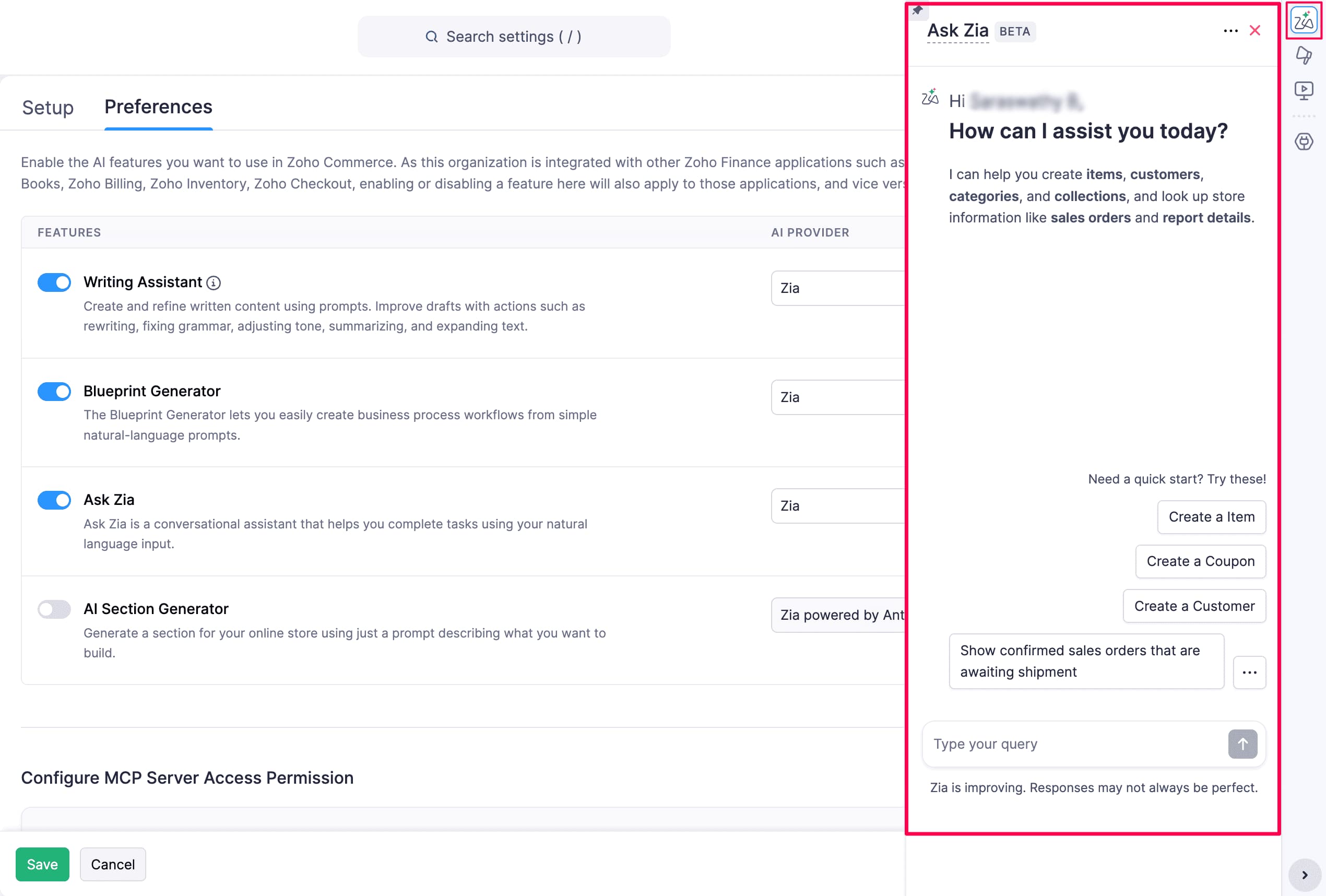
Enable the feature and select its AI provider and model in AI Integration Settings.
AI Section Generator
AI Section Generator creates a section for your online store from a prompt describing the layout or content you want to build. It helps you quickly draft sections for campaigns, promotional pages, product collections, or online store experiences.
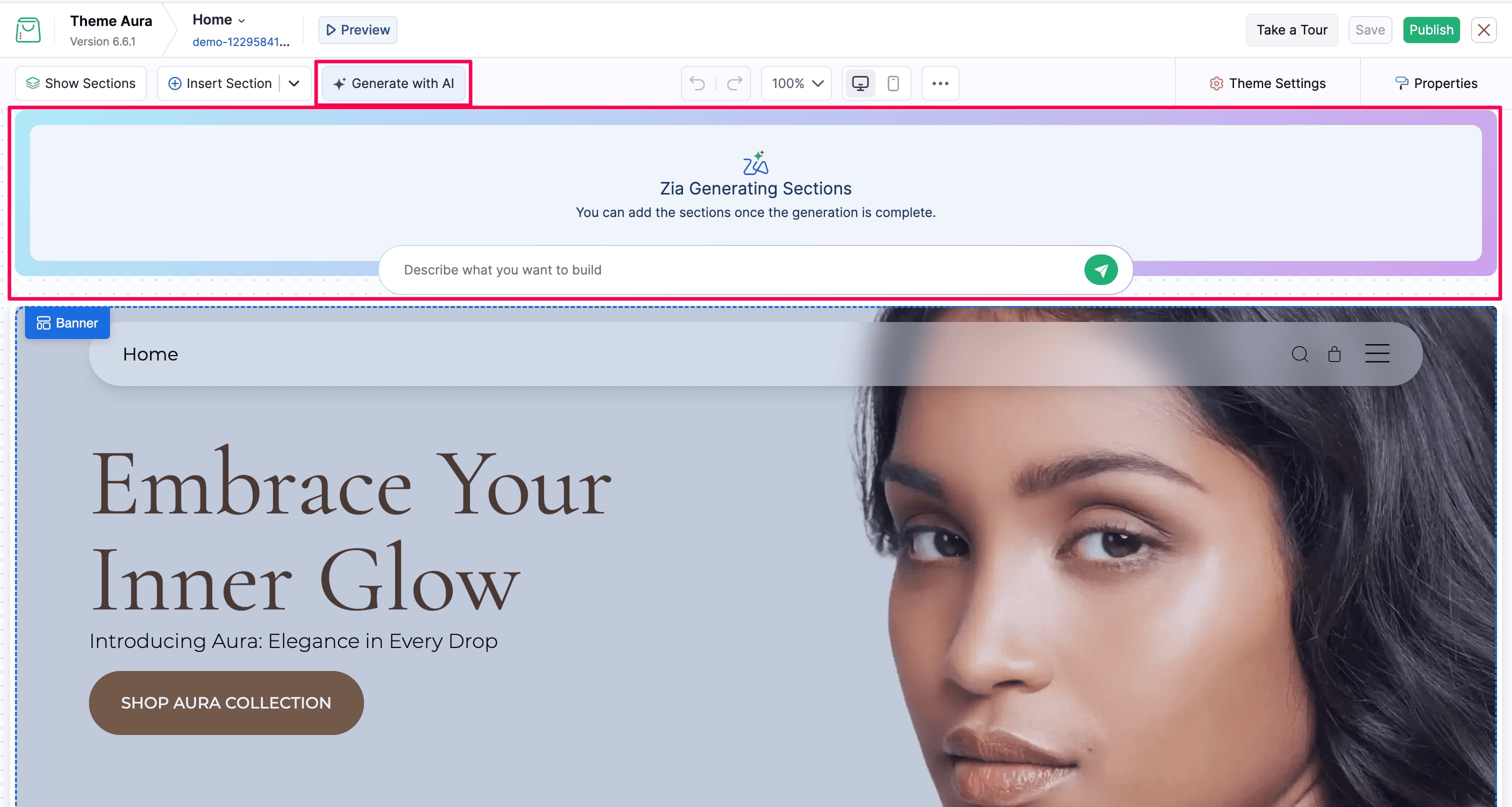
Enable the feature and select its AI provider and model in AI Integration Settings.
Connect an AI Provider
In AI Integration, the Setup tab lets you connect the AI provider using your own API key. In Preferences tab, you can enable each AI feature and select the AI provider and model it uses.
Note: Currently, Zoho Commerce supports only Anthropic as an external AI provider. Zia is the default internal AI provider for all features, but you can choose a different AI provider and model for each feature.
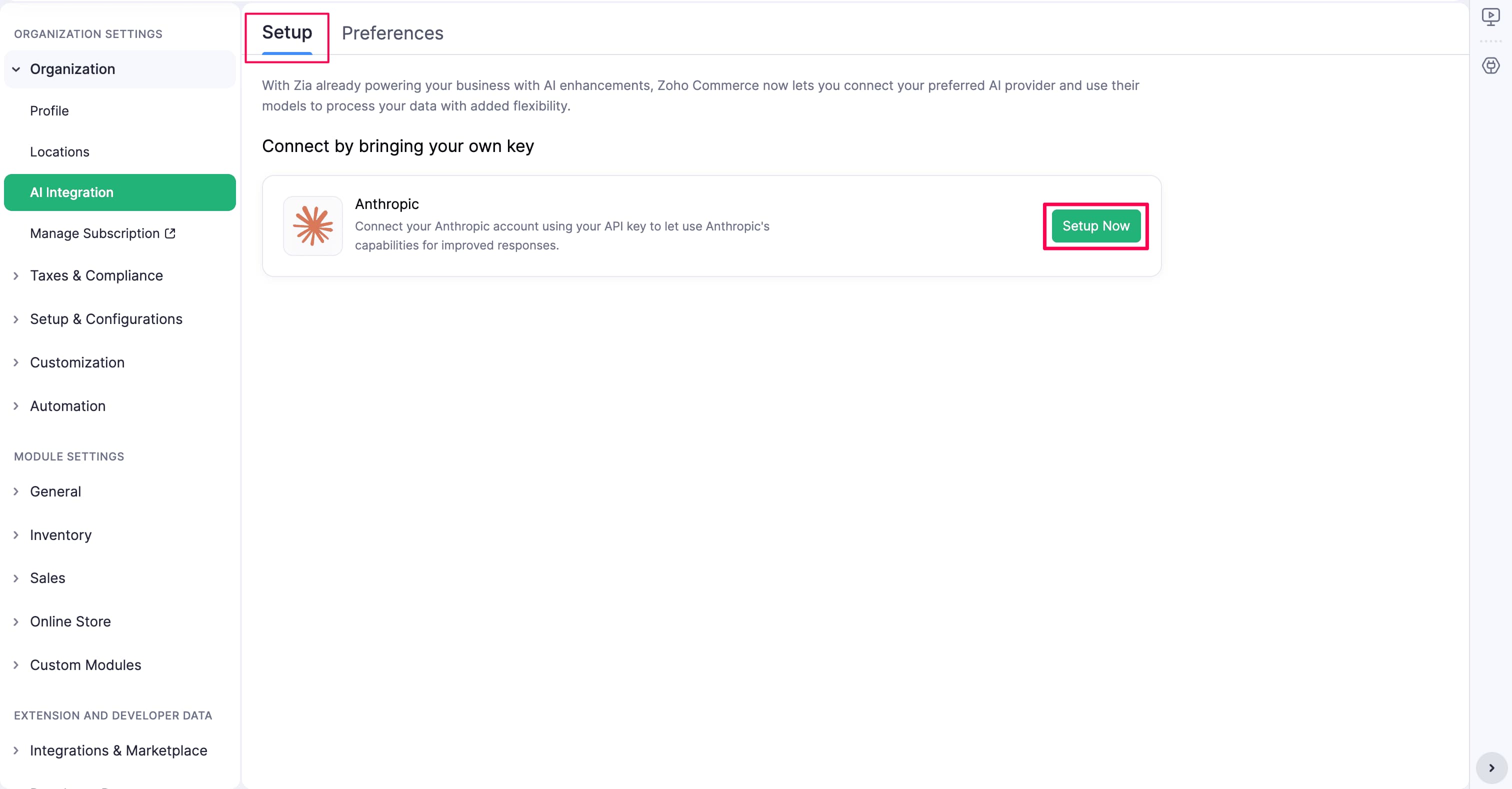
Anthropic is an external service. Do not share confidential or personal information through AI features, and review the AI Terms and Conditions before using them. See AI Integration Settings for connection and configuration steps.
Zoho Commerce MCP
Zoho Commerce MCP connects your organization to AI clients that support the Model Context Protocol (MCP). You can use prompts to work with supported store data and workflows, including shipping zones and pickup locations, coupons, and product SEO metadata.
Before an MCP client can connect, configure MCP Client Access and the operations it is allowed to perform in AI Integration. Allow only the access your organization requires.
To configure MCP permissions:
- Go to Settings in the top-right corner.
- Select AI Integration under Organization Settings.
- Open the Preferences tab and scroll to Configure MCP Server Access Permission.
- Turn Allow Access on or off.
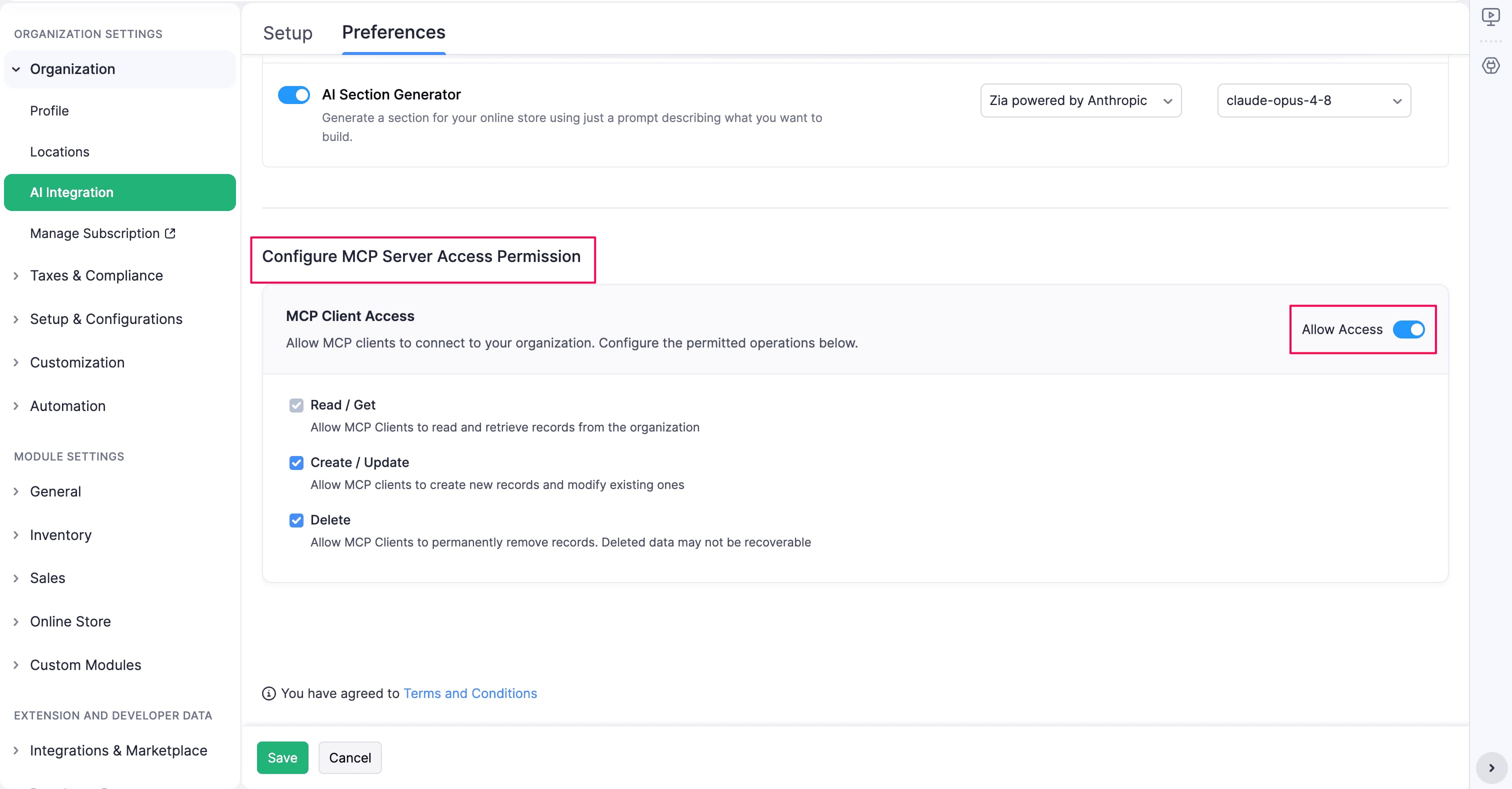
- Select the operations you want to permit.
- Click Save.
For server setup, client connections, and supported workflows, see Set Up MCP Server for Zoho Commerce.
Note: Review MCP permissions carefully. MCP clients can perform only the operations you allow for your organization.