



Connect Google Analytics

Connect Google Analytics, Google Tag Manager (GTM), and ad-platform tracking to your Zoho Commerce store. Use the direct Google Analytics integration for standard website analytics, or use GTM to send ecommerce activity to Google Analytics 4 (GA4), Google Ads, and other advertising platforms. A single custom event trigger can capture the standard online store actions and pass them to multiple tags.
Set Up a Google Analytics Account
If you don’t already have a GA4 property for your store, create one and add a web data stream:
- Sign in to Google Analytics and follow the prompts to create an account and property.
- Complete the business details and business objectives, then continue to Data collection.
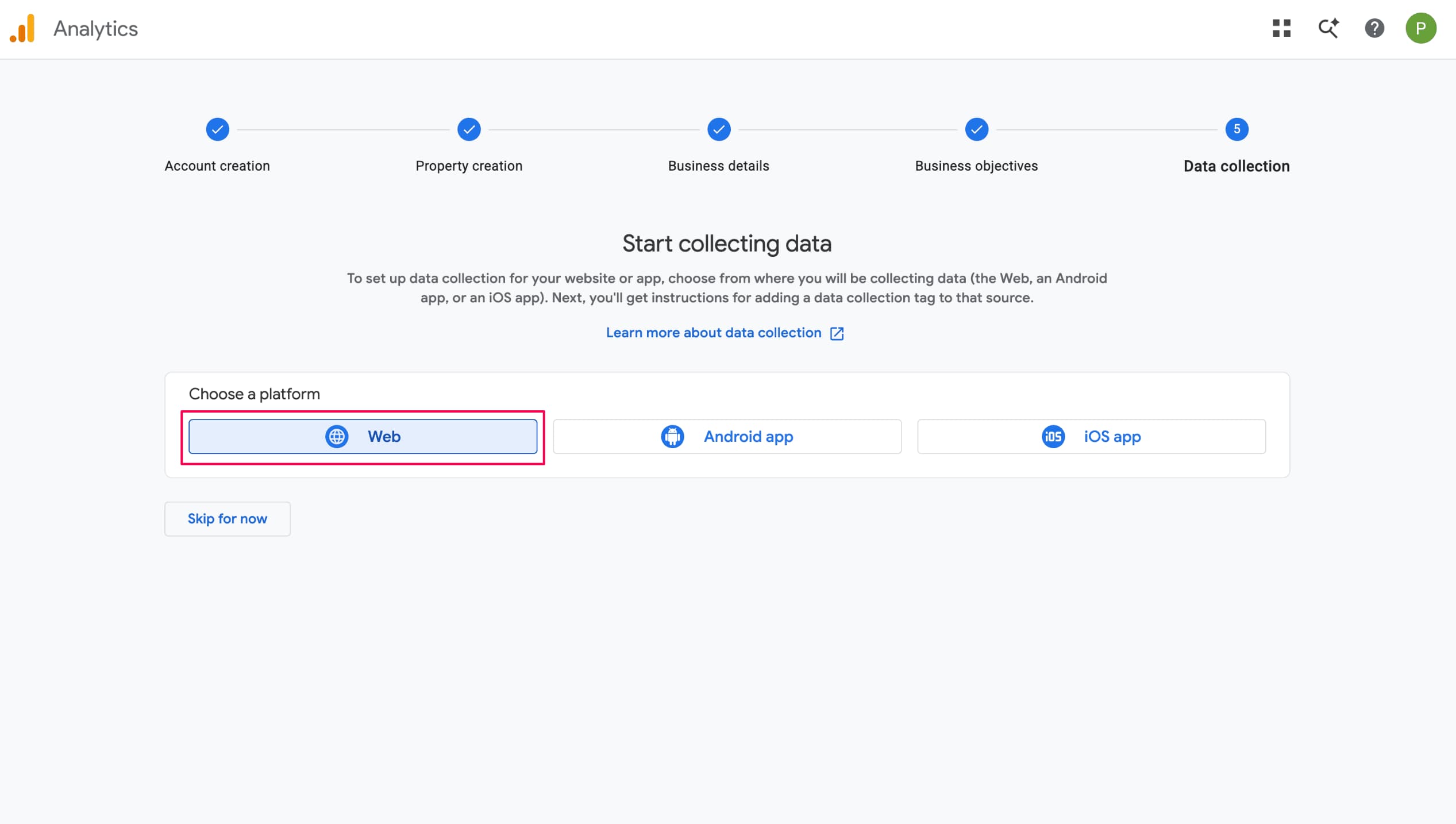
- Select Web as the platform.
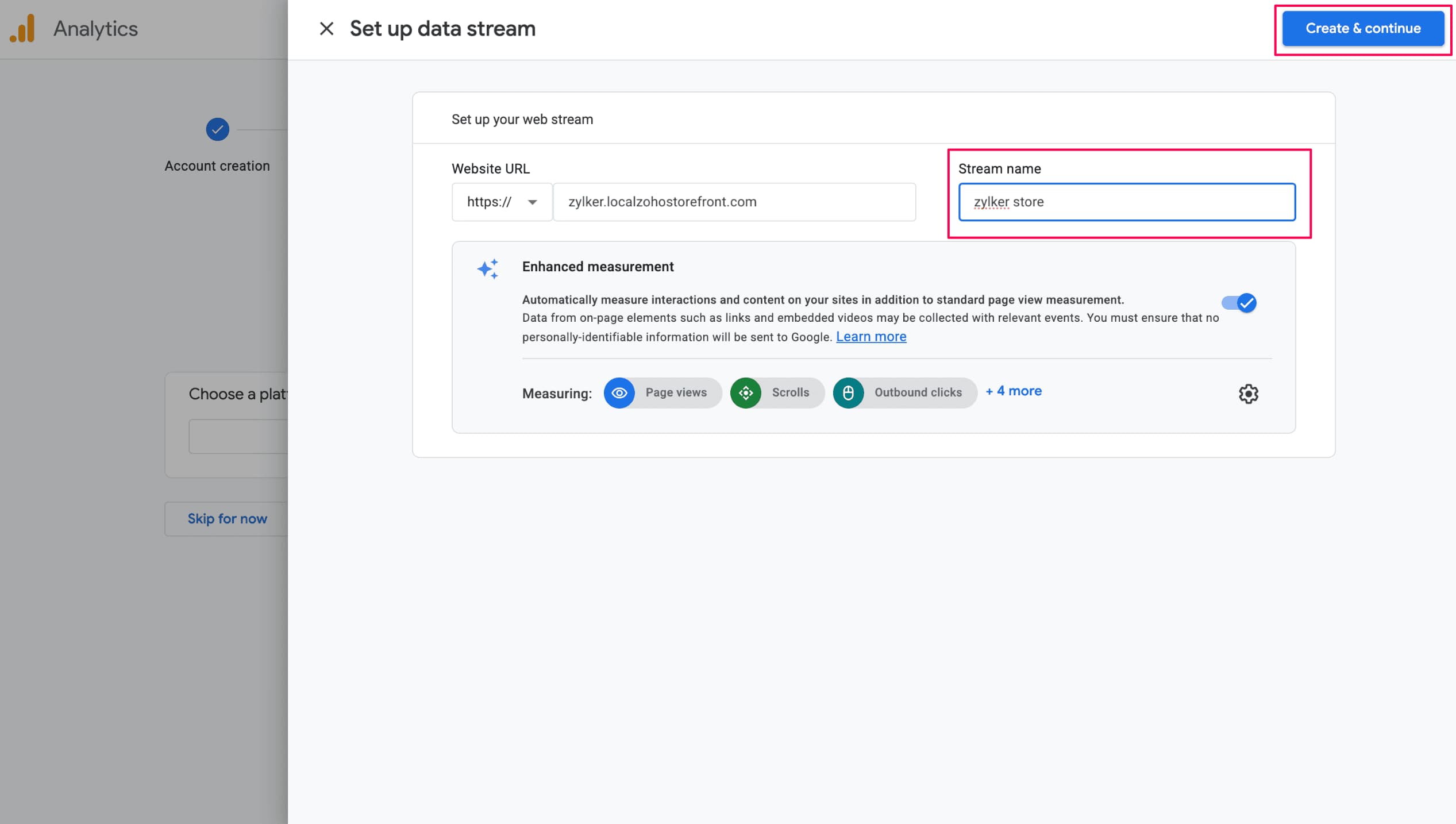
- In Website URL, enter your store URL. Choose the matching protocol (
https://orhttp://) if prompted. - Enter a name for the Stream name and click Create & continue.
- In Web stream details, copy the Measurement ID. It uses the format
G-XXXXXXXXXX.
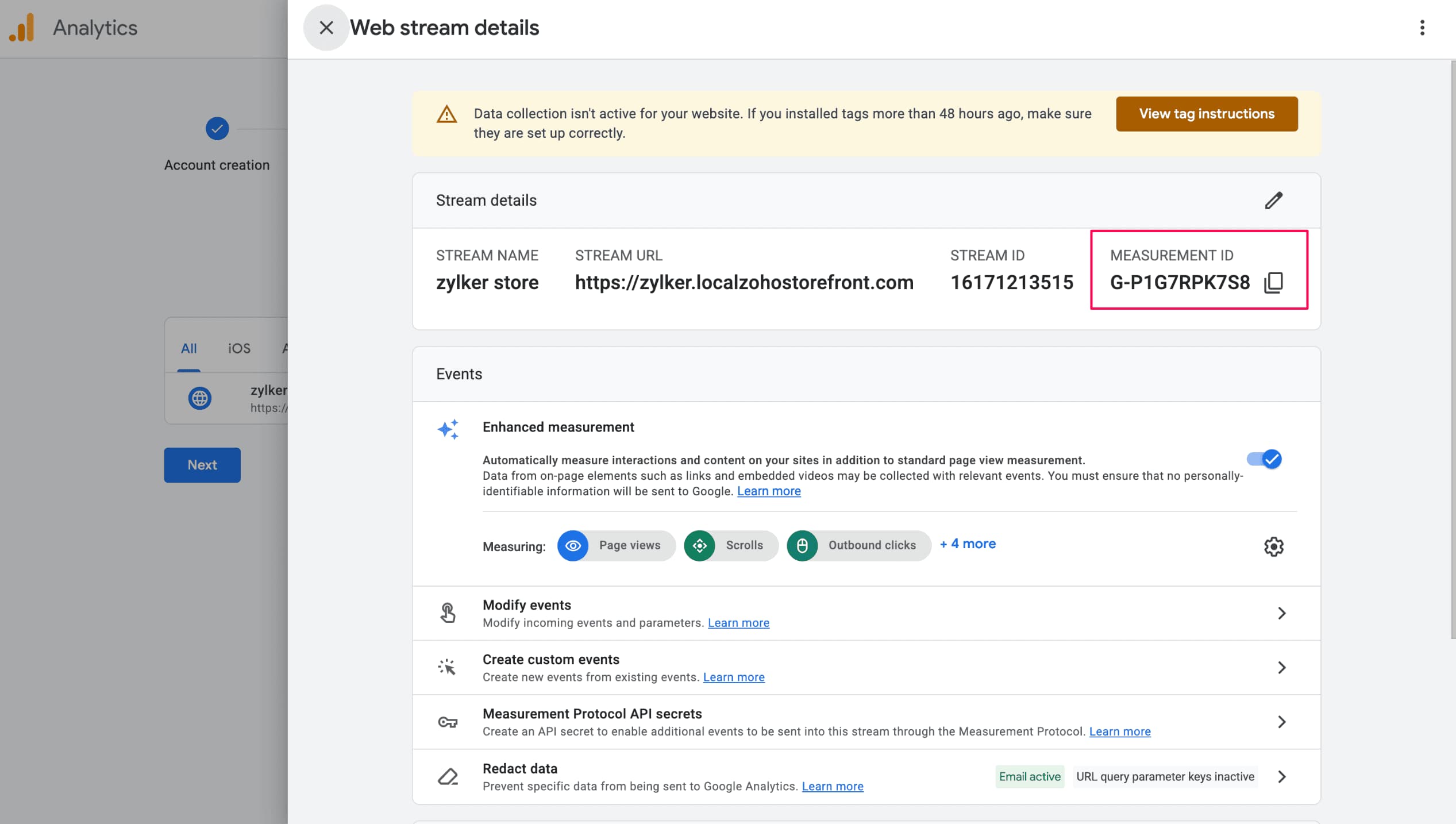
You don’t need to add code to your store. Continue to Add Google Tag Manager to Zoho Commerce, then use the Measurement ID when you configure the GA4 tag in GTM. Data collection may show as inactive until you finish and publish the GTM setup.
Prerequisites
Before you begin, make sure that:
- You have Administrator access to Zoho Commerce and Google Tag Manager.
- You have a published Web container in Google Tag Manager.
- You have a GA4 property and its Measurement ID.
- You have a Google Ads account if you want to track purchases as conversions.
Connect Google Analytics Directly
If you want to track page views, acquisition, and basic store performance in Google Analytics, add your Google Tag Manager container in Zoho Commerce and configure your GA4 tag in GTM:
- Sign in to Google Tag Manager and open the Web container you want to use.
- Copy the Container ID. It uses the format
GTM-XXXXXXX. - In Zoho Commerce, go to Settings > Integrations > Analytics.
- Click Show Details against Google Analytics.
- Under Google Tag Manager, enter the copied Container ID.
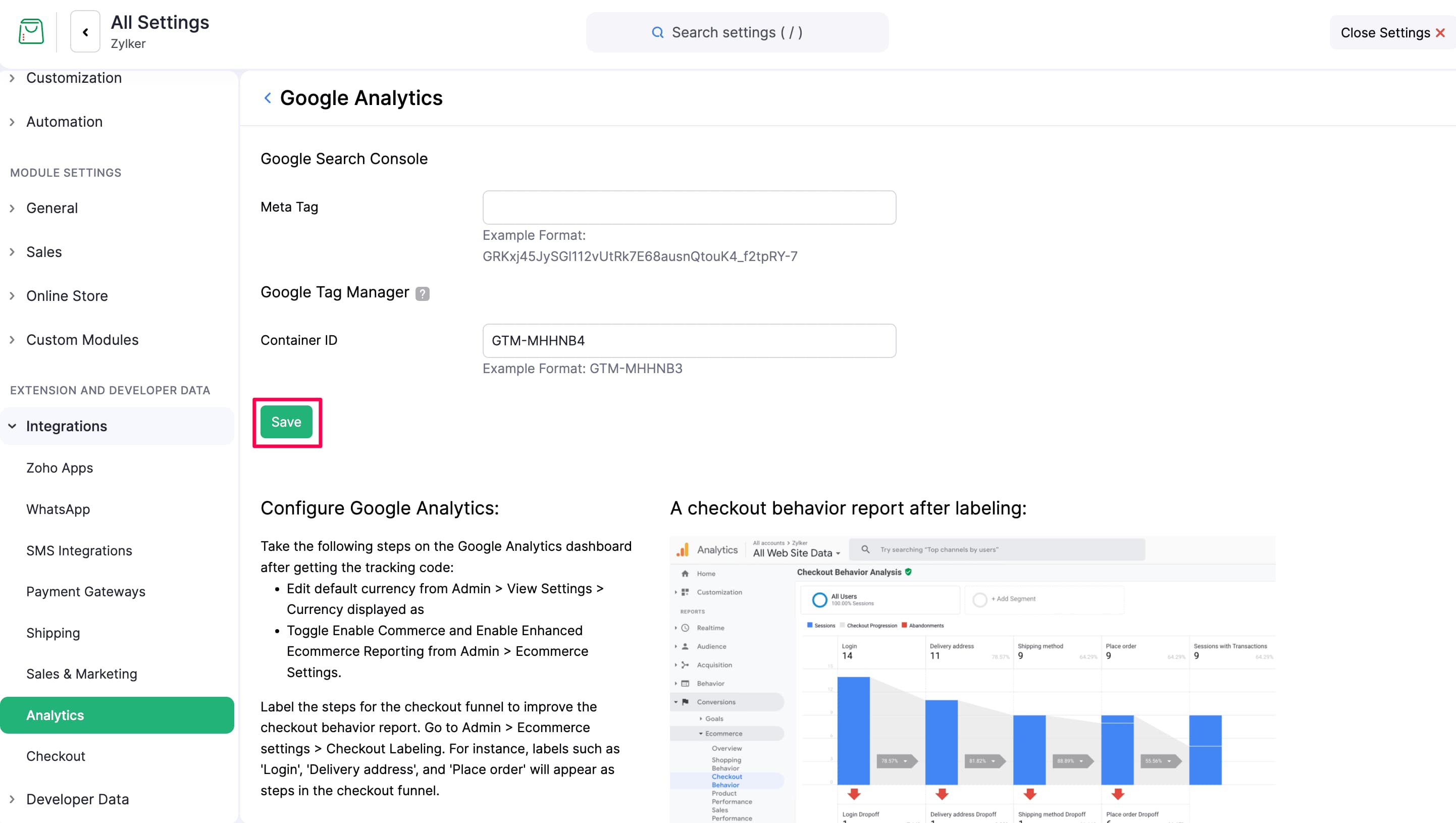
- Click Save.
This sends standard site analytics data to your GA4 property. For richer ecommerce events and ad-platform tracking, continue with the GTM setup below.
Add Google Tag Manager to Zoho Commerce
First, add your GTM container to your Zoho Commerce store:
- Go to Google Tag Manager and create a Web container.
- Copy the container ID. It uses the format
GTM-XXXXXXX. - In Zoho Commerce, go to Settings > Integrations > Analytics.
- Click Show Details against Google Analytics.
- Enter the container ID in Google Tag Manager > Container ID.
- Click Save.
Zoho Commerce’s default themes push standard ecommerce actions to the dataLayer. If you use a custom theme, ask your developer to push these events to the dataLayer before configuring GTM.
Create the Ecommerce Event Trigger
Create one custom event trigger in GTM for the standard online store actions:
- Sign in to Google Tag Manager and select your Web container.
- Go to Triggers and click New.
- Select Custom Event as the trigger type.
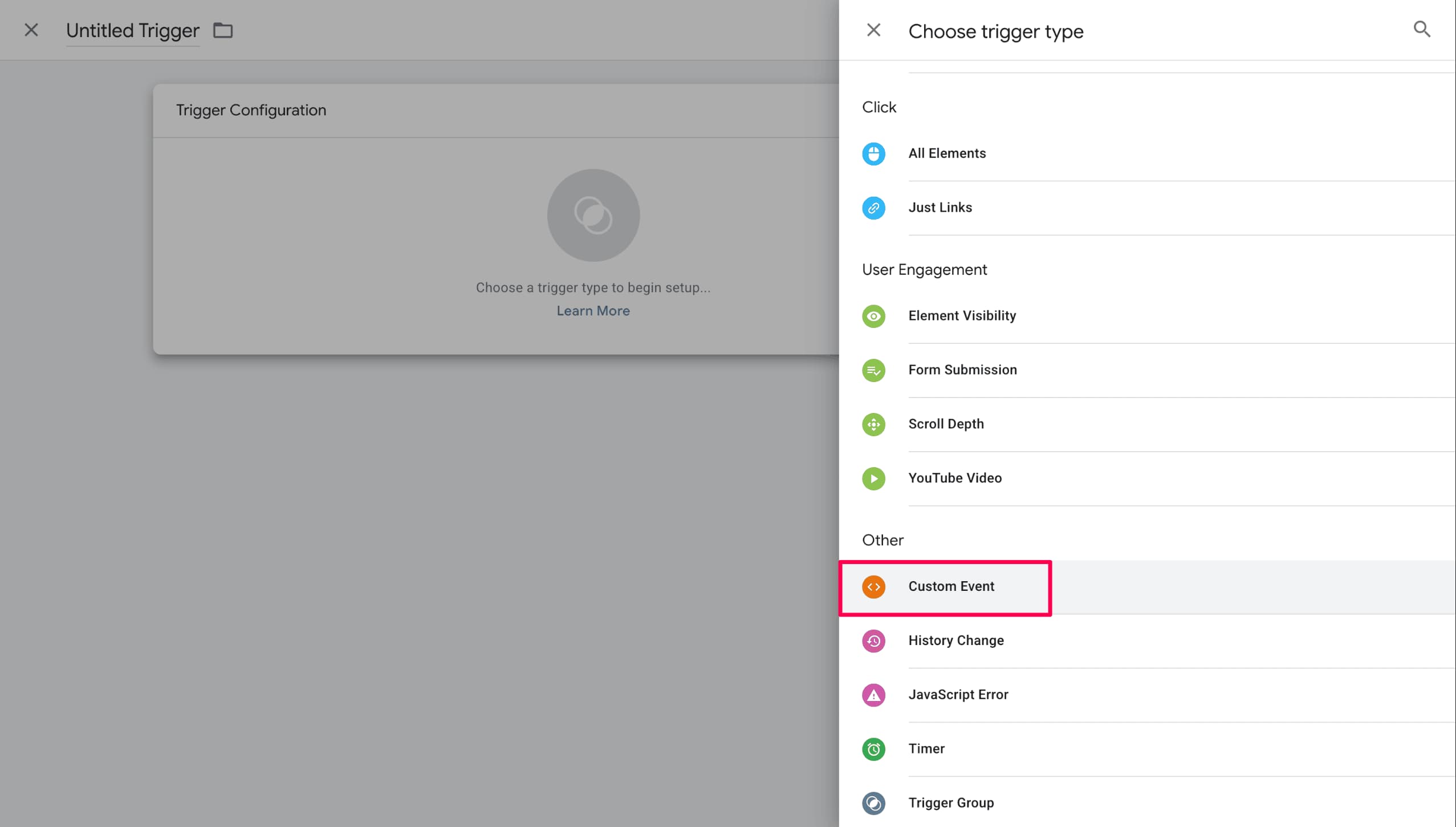
- Enter the following regular expression in Event name:
^(view_item_list|select_item|view_item|add_to_wishlist|add_to_cart|remove_from_cart|view_cart|begin_checkout|add_shipping_info|add_payment_info|purchase)$
- Enable Use regex matching.
- Keep This trigger fires on set to All Custom Events.
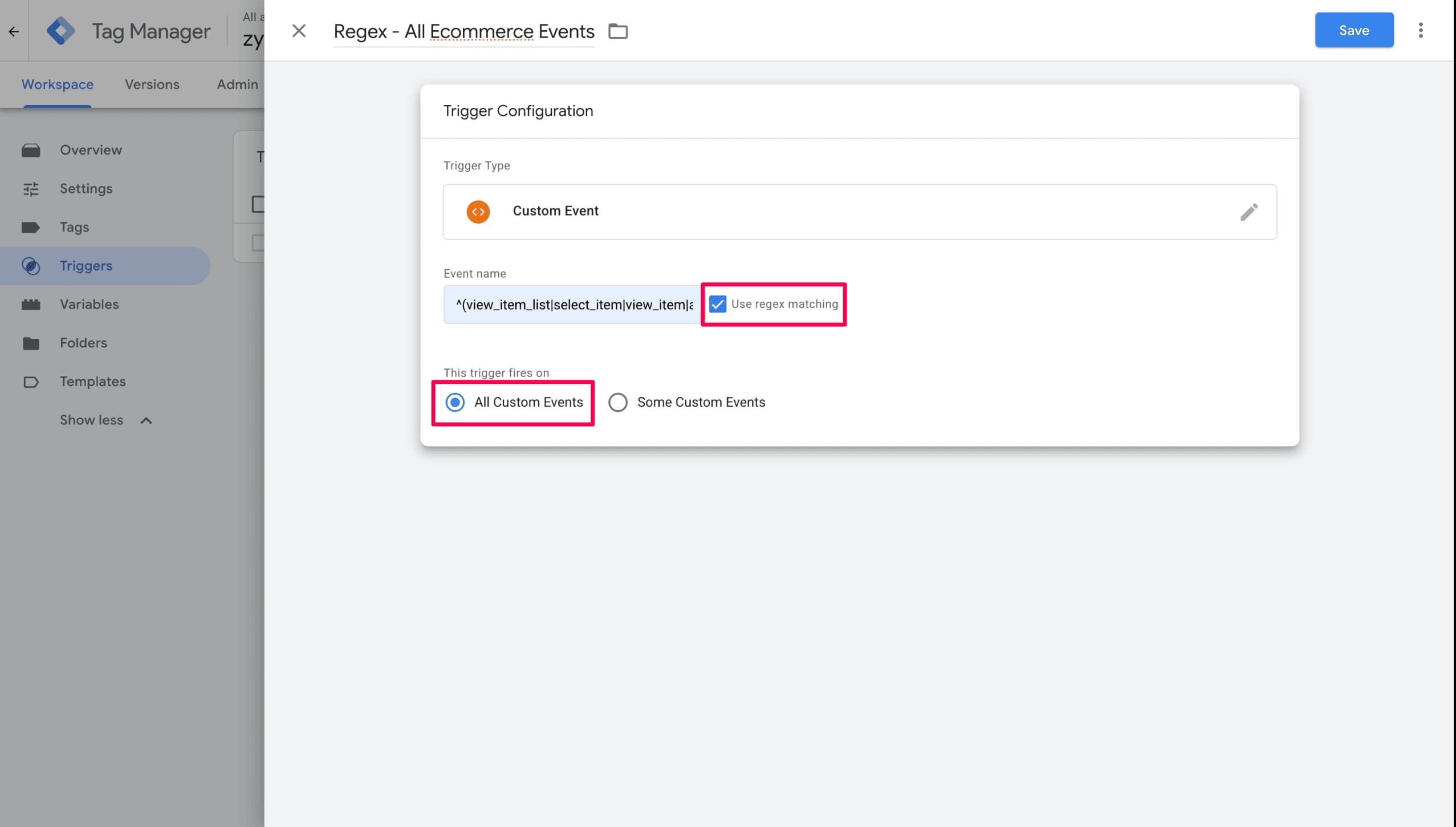
- Name the trigger
Regex - All Ecommerce Events. - Click Save.
This trigger captures the following events: view_item_list, select_item, view_item, add_to_wishlist, add_to_cart, remove_from_cart, view_cart, begin_checkout, add_shipping_info, add_payment_info, and purchase.
Connect Google Analytics 4
Create a GA4 event tag that uses the event name received from the dataLayer:
- In Google Tag Manager, go to Tags and click New.
- Select Google Analytics in the Choose tag type section.
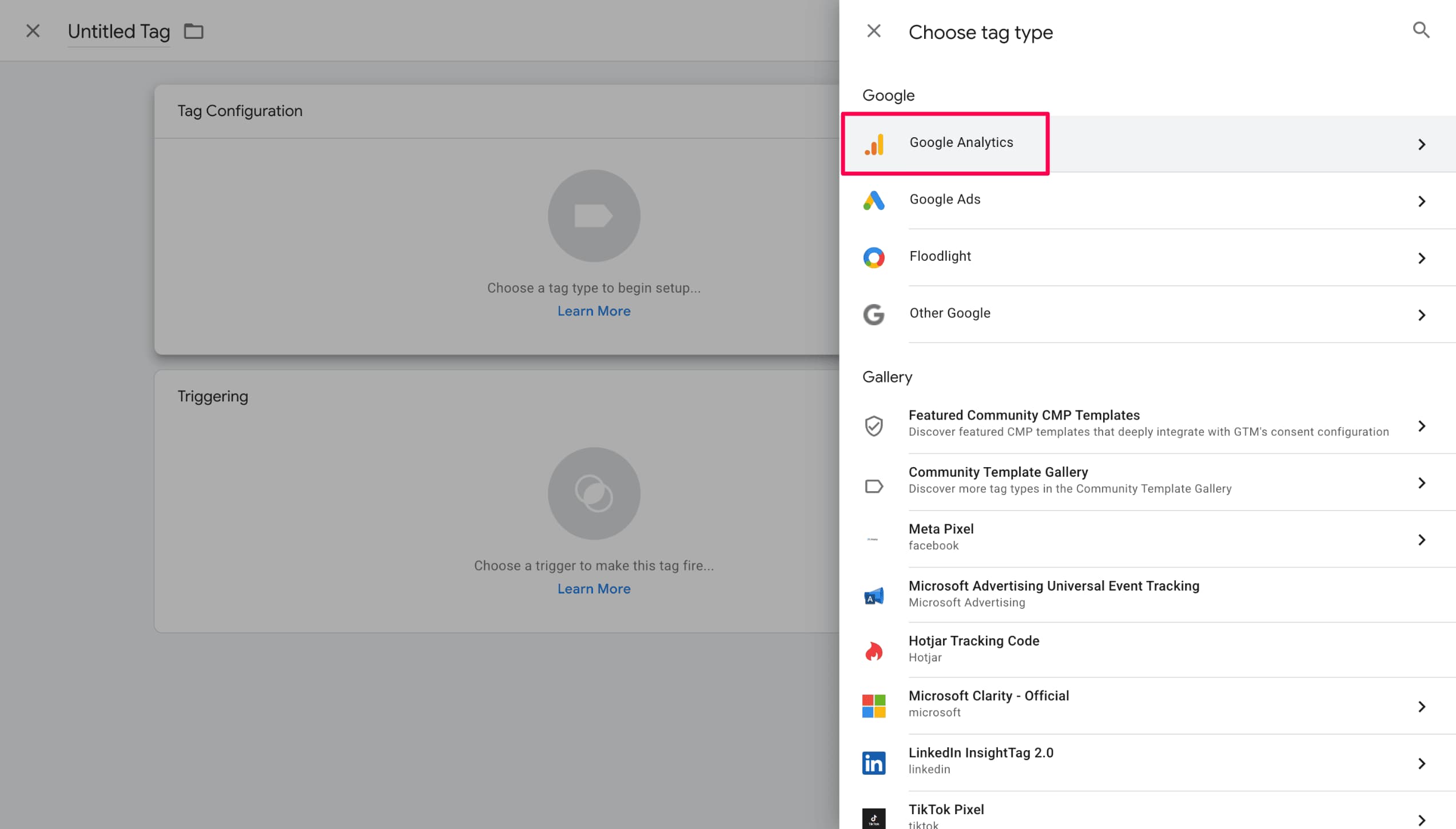
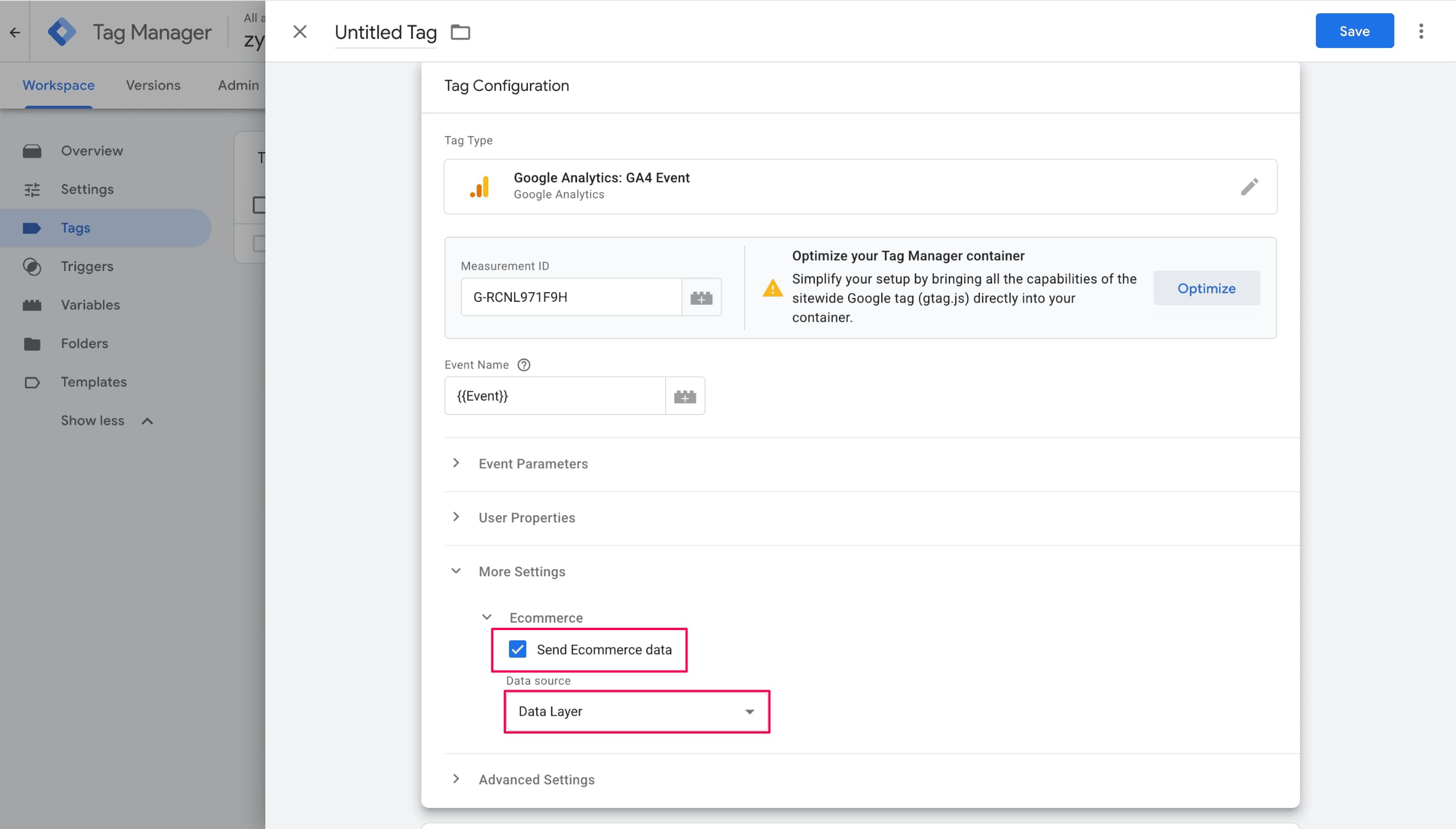
- Then select Google Analytics: GA4 Event as the tag type.
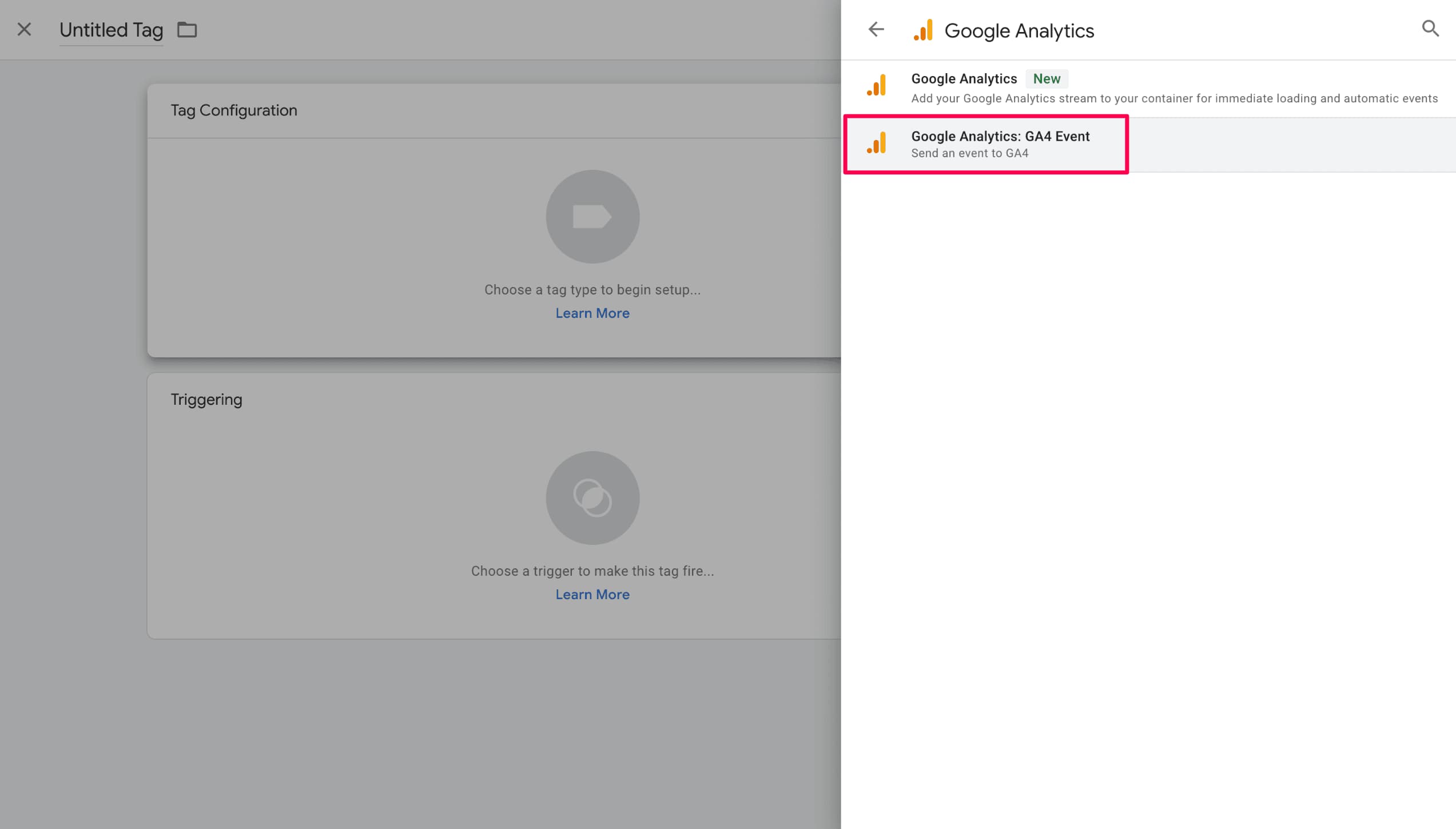
- Enter your GA4 Measurement ID, such as
G-XXXXXXXXXX. - Enter
{{Event}}in Event Name. - Expand More Settings > Ecommerce.
- Enable Send Ecommerce data and select Data Layer as the data source.
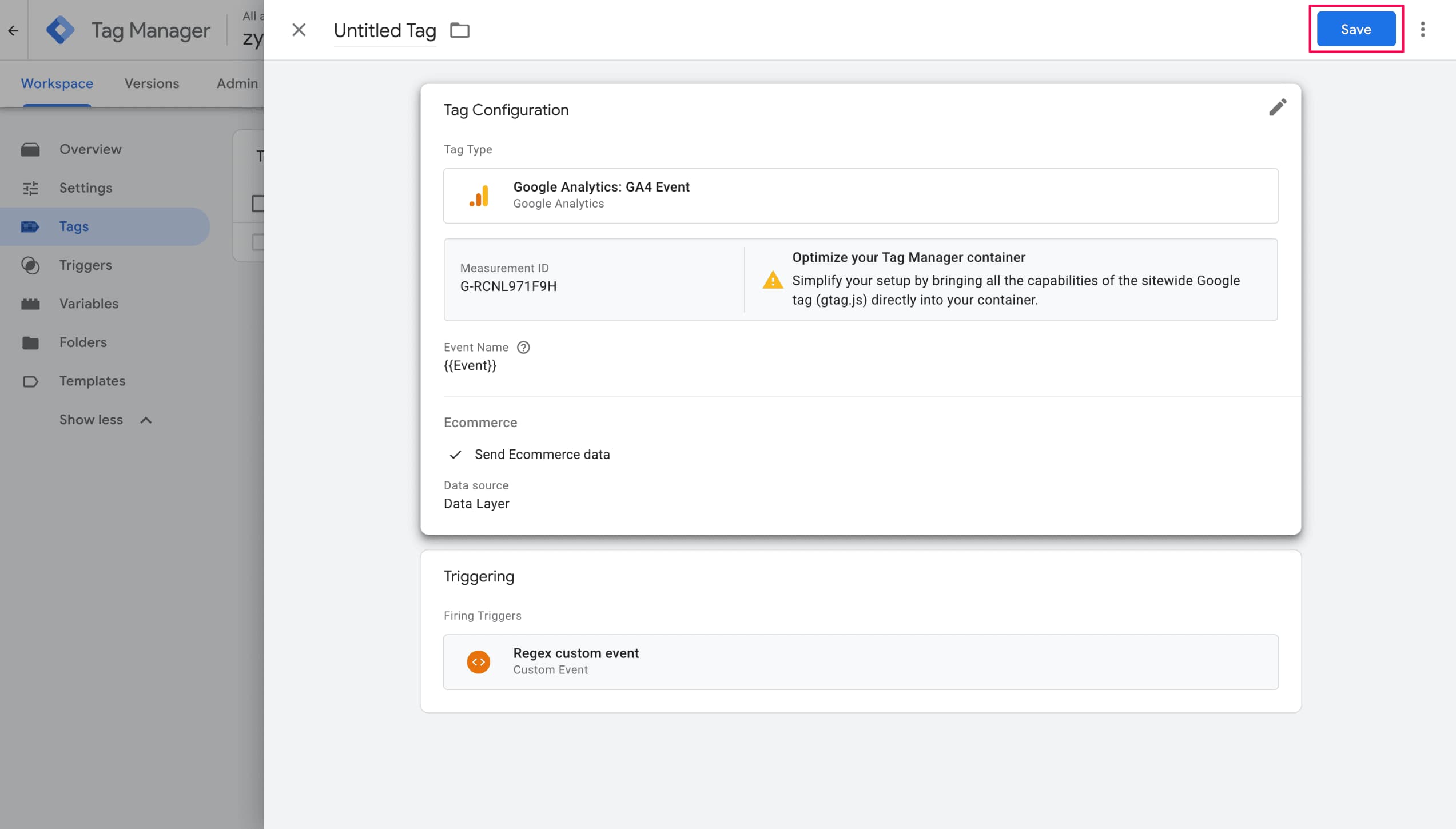
- Under Triggering, select
Regex - All Ecommerce Events. - Name the tag
GA4 - Dynamic Ecommerce Events. - Click Save.
Connect Google Ads
Create a Conversion Action in Google Ads
- Sign in to Google Ads and open the Goals module.
- Go to Conversions > Summary.
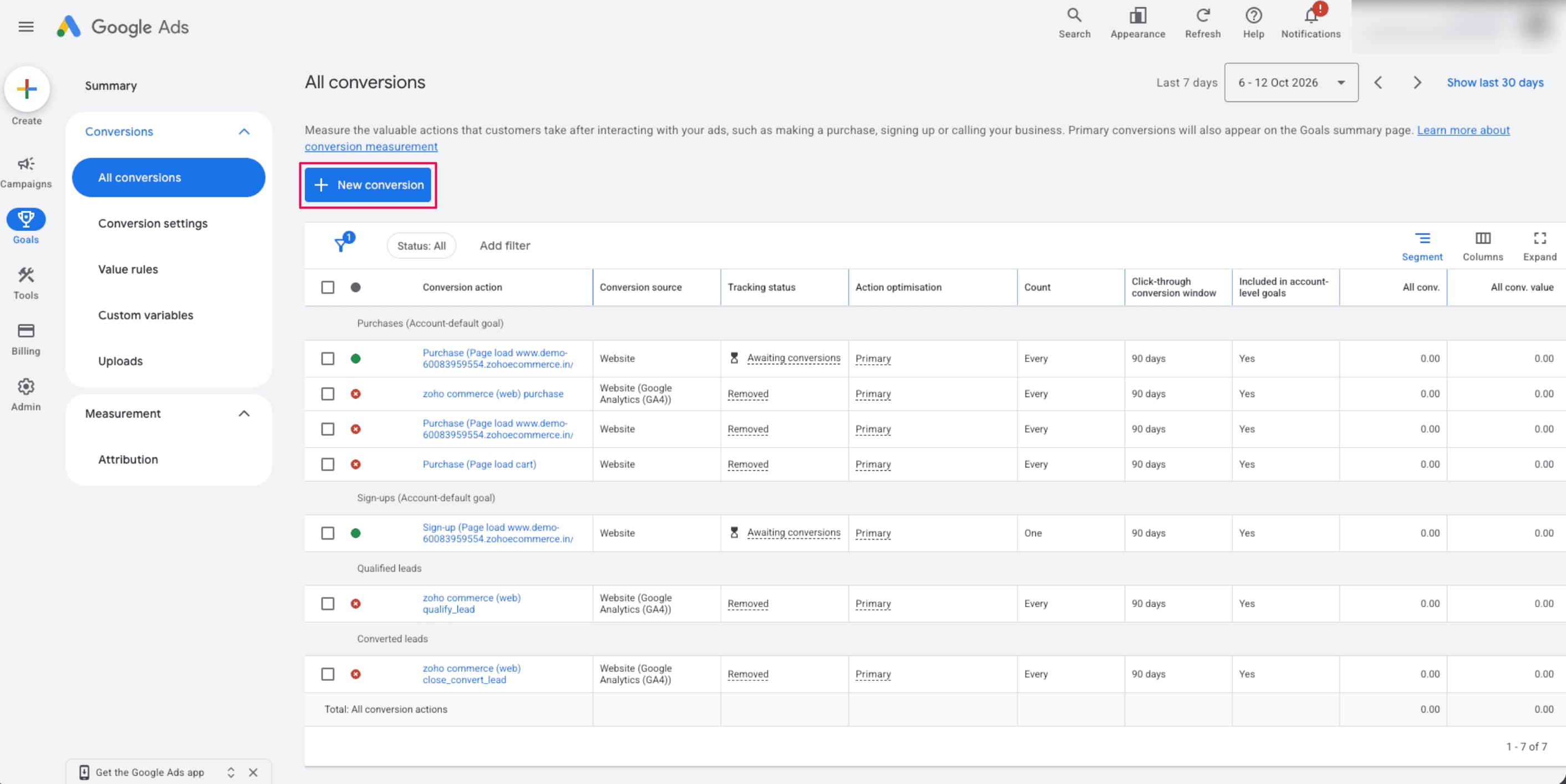
- Click + Create conversion action.
- Select Conversions on a website and enter your store’s website URL if prompted. Follow the prompts to connect your website data source.
- Select Purchase as the conversion category.
- Select Automatically without code as the setup method, if it is available for your URL-based conversion.
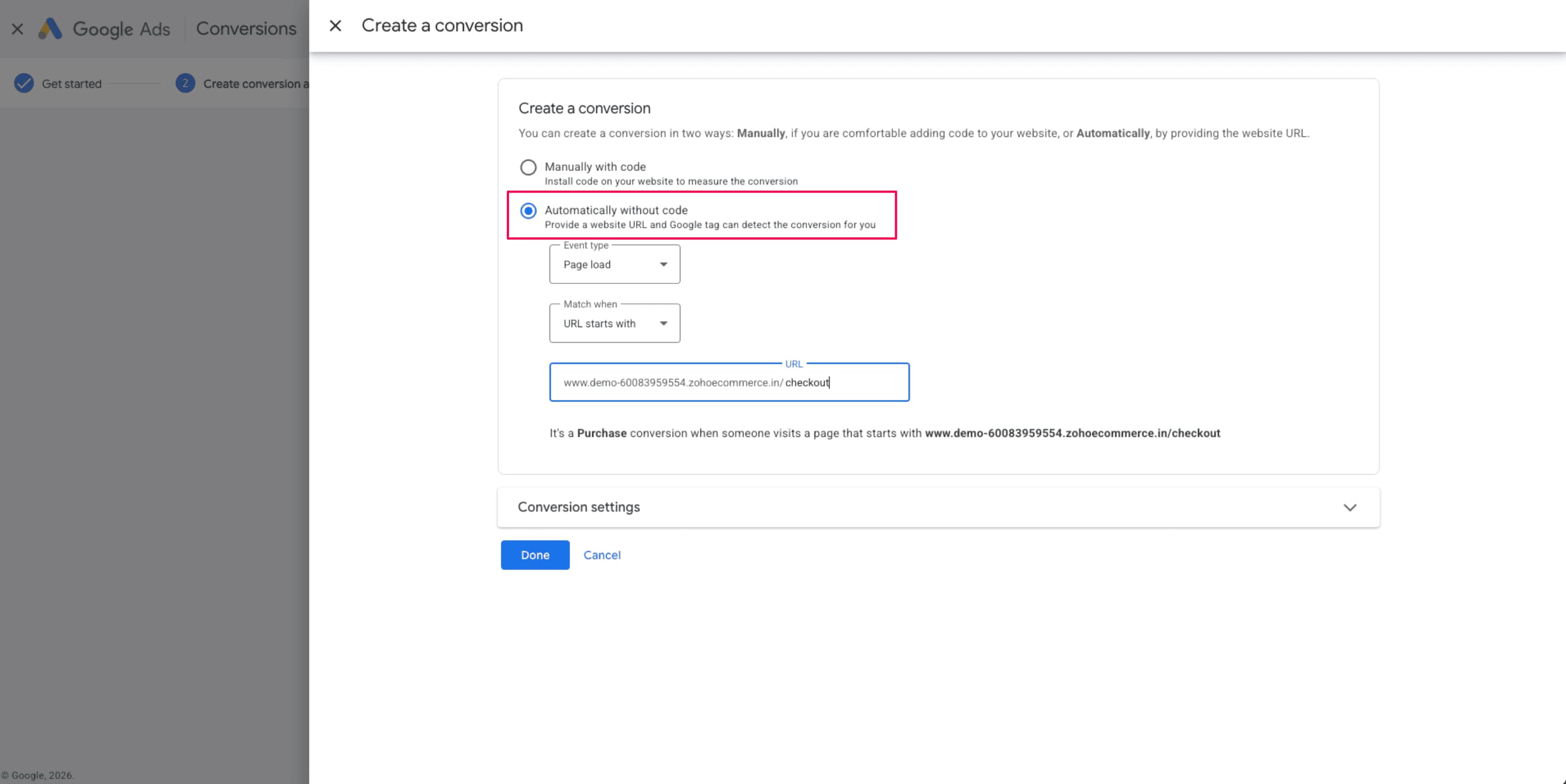
- Configure the event that identifies a successful purchase. For example, use the order confirmation or thank-you page URL if your store has a reliable, unique URL for completed orders.
- Review the Conversion Settings, including the conversion name, value, counting method, and action optimization.
- Click Done, and then click Finish (or the equivalent completion option displayed in your Google Ads account).
Note: URL-based, no-code tracking is suitable when a page visit reliably identifies a completed purchase. It may not be sufficient for tracking dynamic order values, transaction IDs, or purchases that do not navigate to a unique confirmation URL.
Configure the Google Tag in Google Tag Manager
- Open your existing Google Tag Manager Web container.
- Go to Tags and click New, and then open Tag Configuration.
- If Google Ads reports that no Google tag is found in the container, click Create tag to create and configure the Google tag for your Google Ads account.
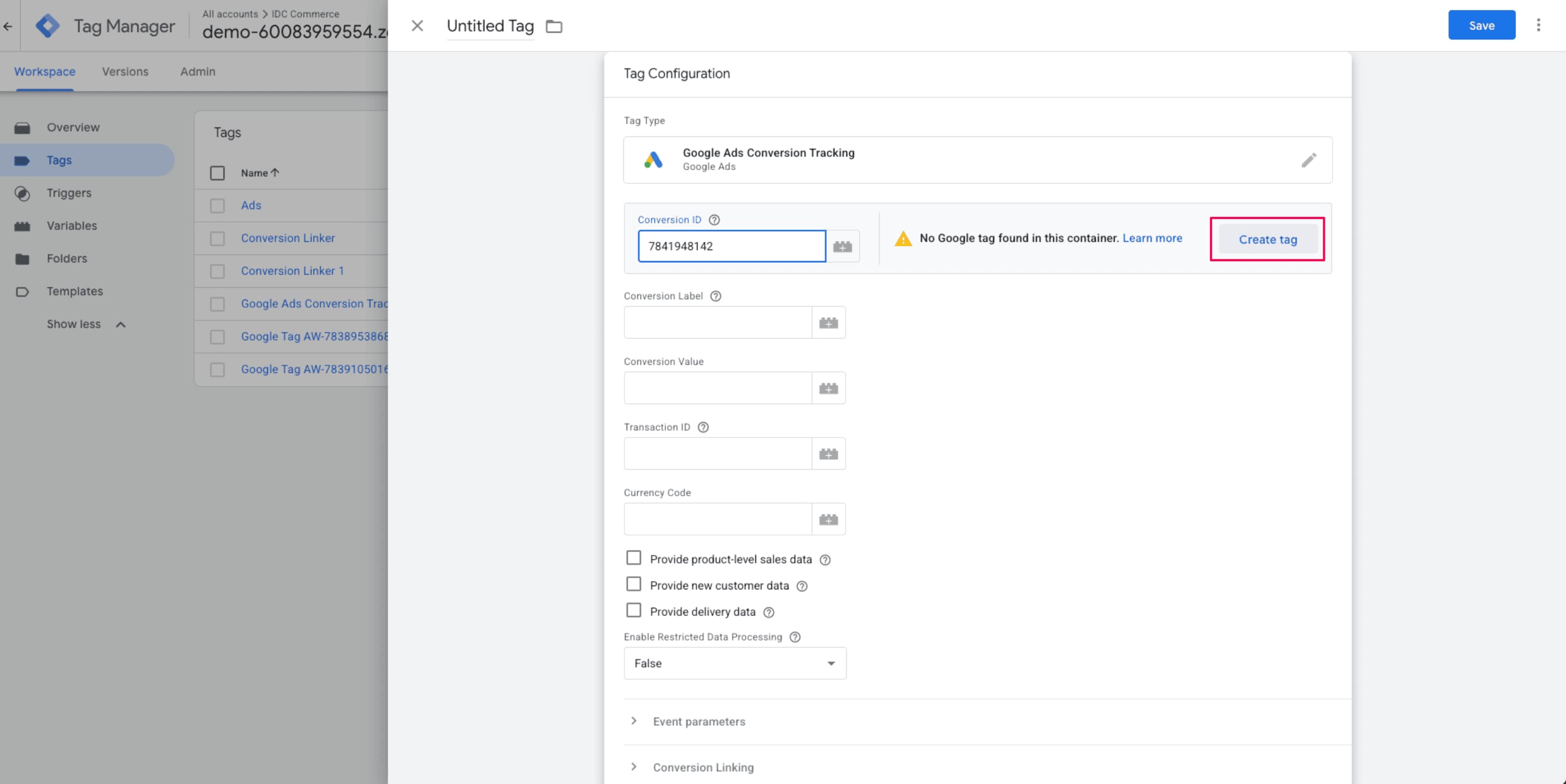
- Enter the Google tag ID when prompted and save the tag configuration. Make sure the tag loads on the pages that your Google Ads conversion setup requires.
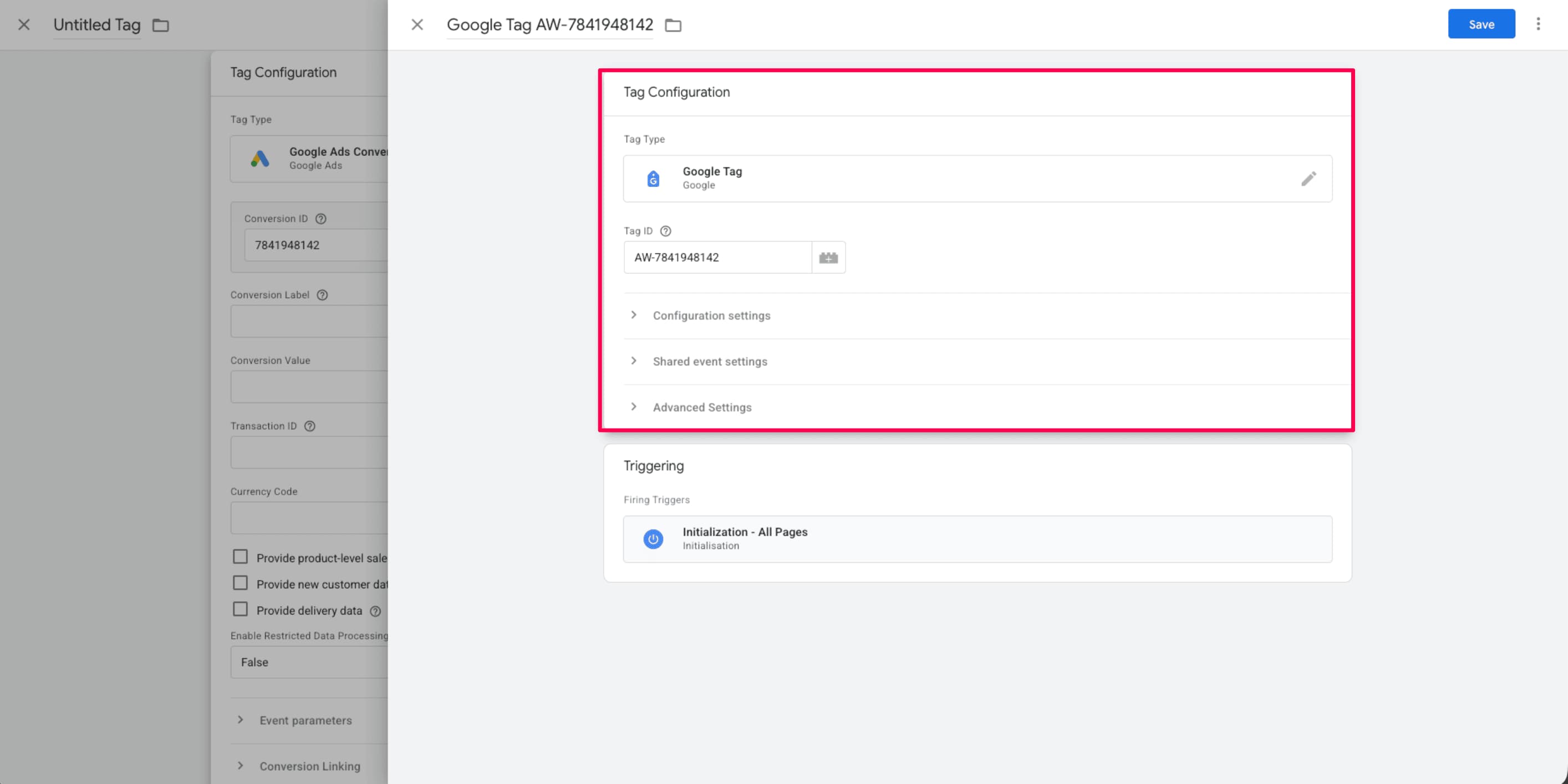
- Save the Google tag and verify that it is configured correctly in your container.
Create the Google Ads Conversion Tracking Tag
- In Google Tag Manager, go to Triggers and click New.
- Select Custom Event as the trigger type.
- Enter
purchasein Event name. - Keep This trigger fires on set to All Custom Events.
- Name the trigger
Custom Event - Purchase. - Click Save.
- Go to Tags and click New > Tag Configuration.
- Select Google Ads Conversion Tracking as the tag type.
- Enter the Conversion ID and Conversion Label for your Purchase conversion action, if your chosen setup method provides them.
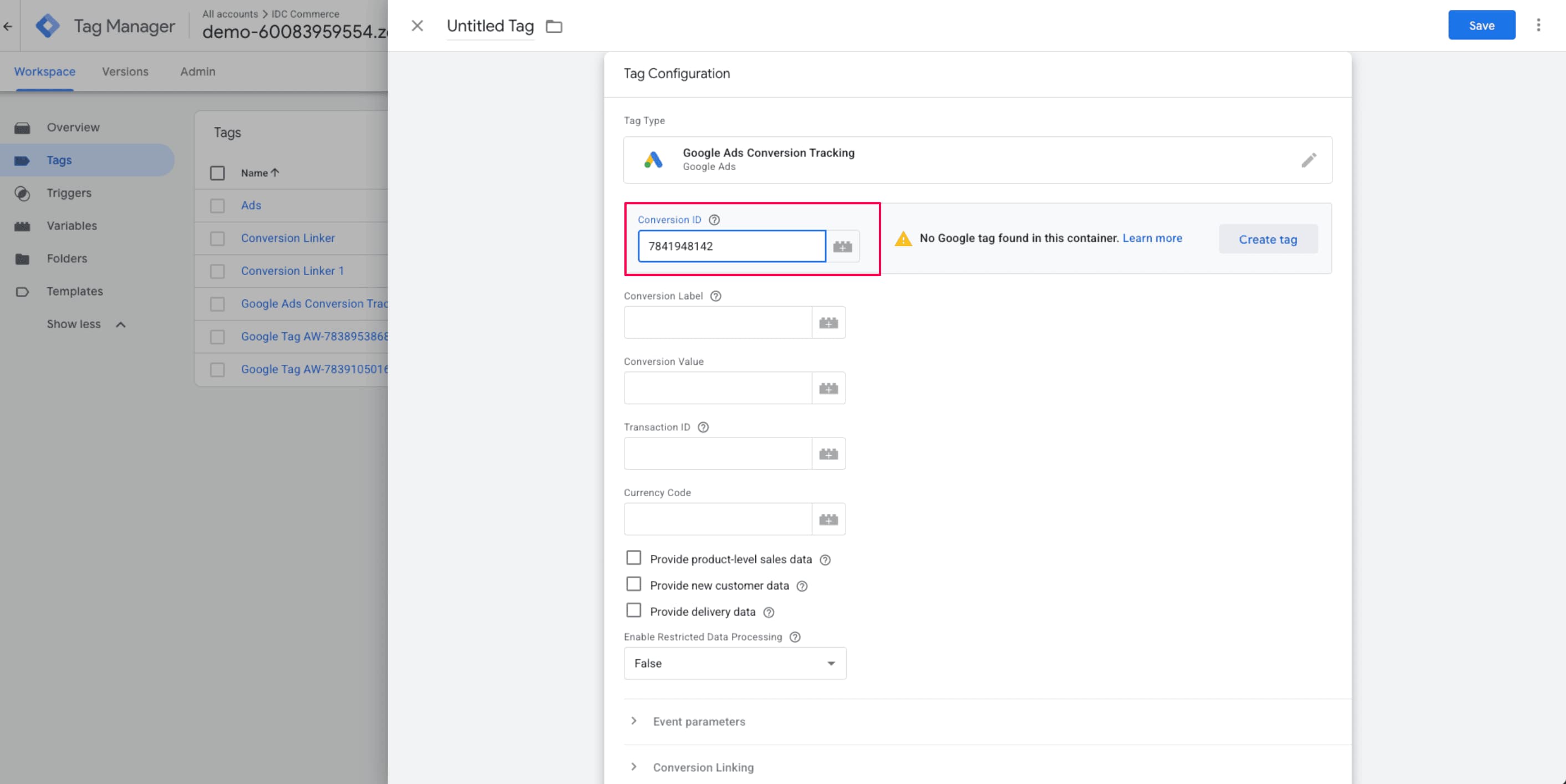
- Configure the conversion value, transaction ID, and currency as your implementation requires.
- Under Triggering, select
Custom Event - Purchase. - Name the tag
Google Ads - Purchase Conversion Tracking. - Click Save.
- Make sure the container also has a correctly configured Conversion Linker tag, typically set to fire on All Pages, to support Google Ads conversion attribution.
This ensures the conversion tag fires only when the online store sends a purchase event, instead of firing on every ecommerce action.
Test and Publish
Test your configuration in Tag Assistant before publishing it:
- In Google Tag Manager, click Preview.
- Enter your store URL and start the Tag Assistant session.
- Browse products, view an item, add an item to the cart, and start checkout.
- Complete a test purchase when your store and payment setup support it, or use a suitable test environment.
- In Tag Assistant, verify that the expected ecommerce events appear in the event timeline.
- Verify that the
purchaseevent appears in thedataLayer. - Verify that the Google Ads conversion tag fires only for
purchase. - Verify that the Conversion ID and Conversion Label match the intended Google Ads conversion action.
- Check for duplicate conversion tags and confirm that the Conversion Linker tag is working.
- Return to Google Tag Manager and click Submit.
- Enter a version name and click Publish.
- In Google Ads, go to Goals > Conversions > Summary and check the status of the conversion action. Reporting can take time to update.