



AI Integration

AI Integration lets you connect an AI provider, choose which AI features your organization can use, and control MCP client access. The Setup tab is used to connect an external provider, while Preferences contains feature and MCP settings.
To open AI Integration:
- Go to Settings in the top-right corner.
- Select AI Integration under Organization Settings.
Connect an AI Provider
You can connect an Anthropic account with your own API key. The key lets Zoho Commerce use Anthropic’s capabilities for supported AI features.
To connect Anthropic:
- Go to Settings in the top-right corner.
- Select AI Integration under Organization Settings.
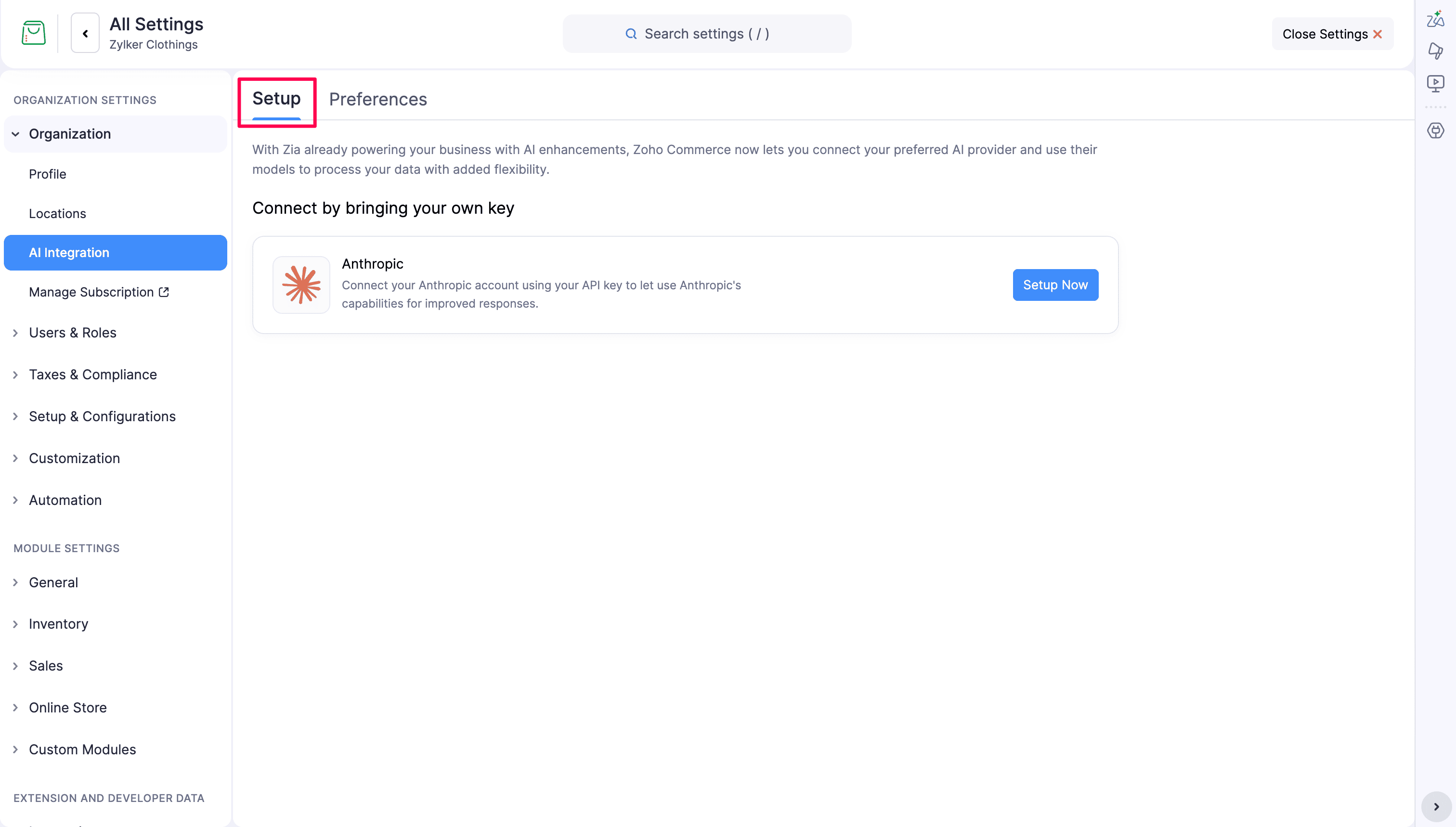
- Open the Setup tab.
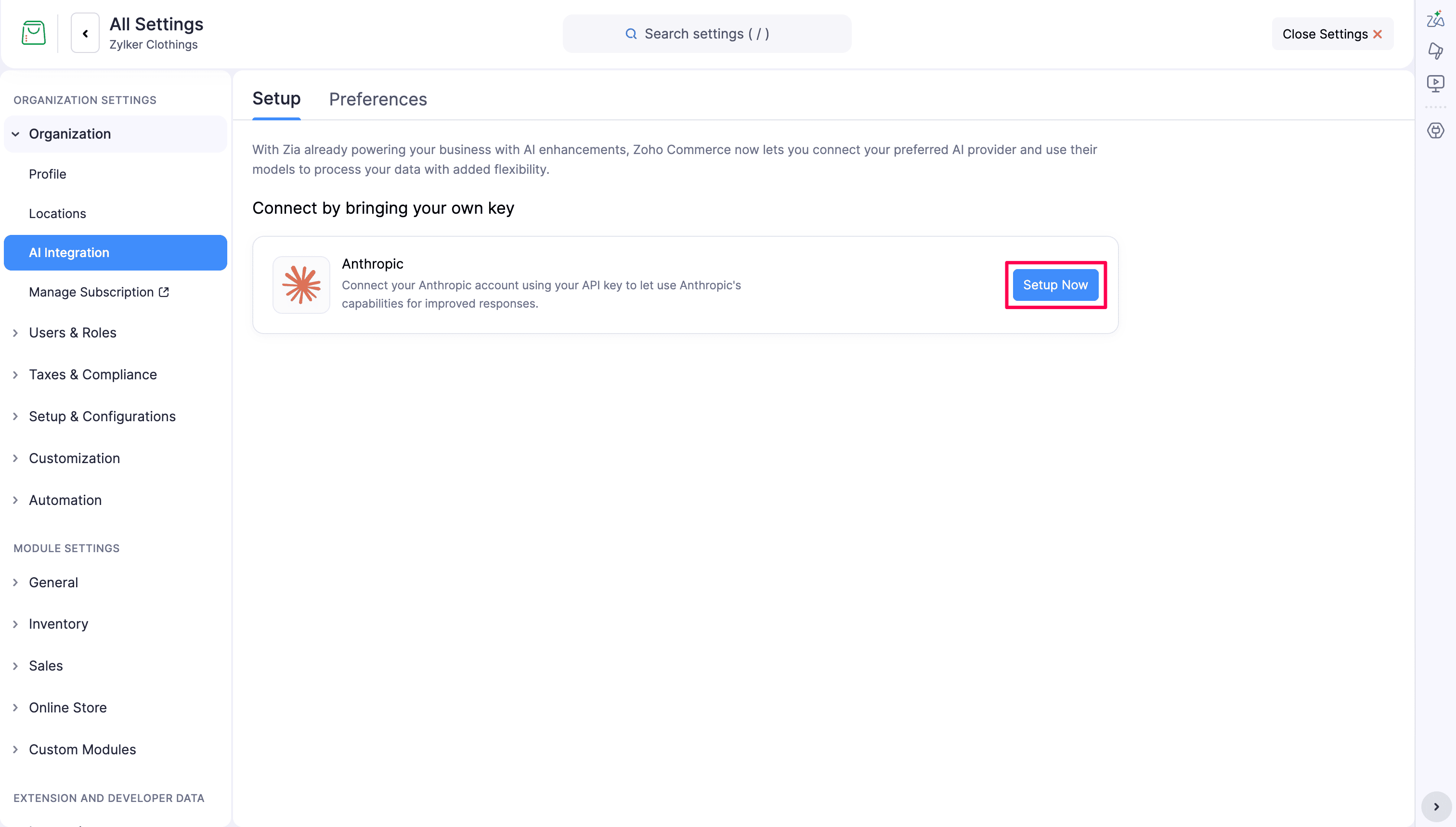
- Click Setup Now in the Anthropic section.
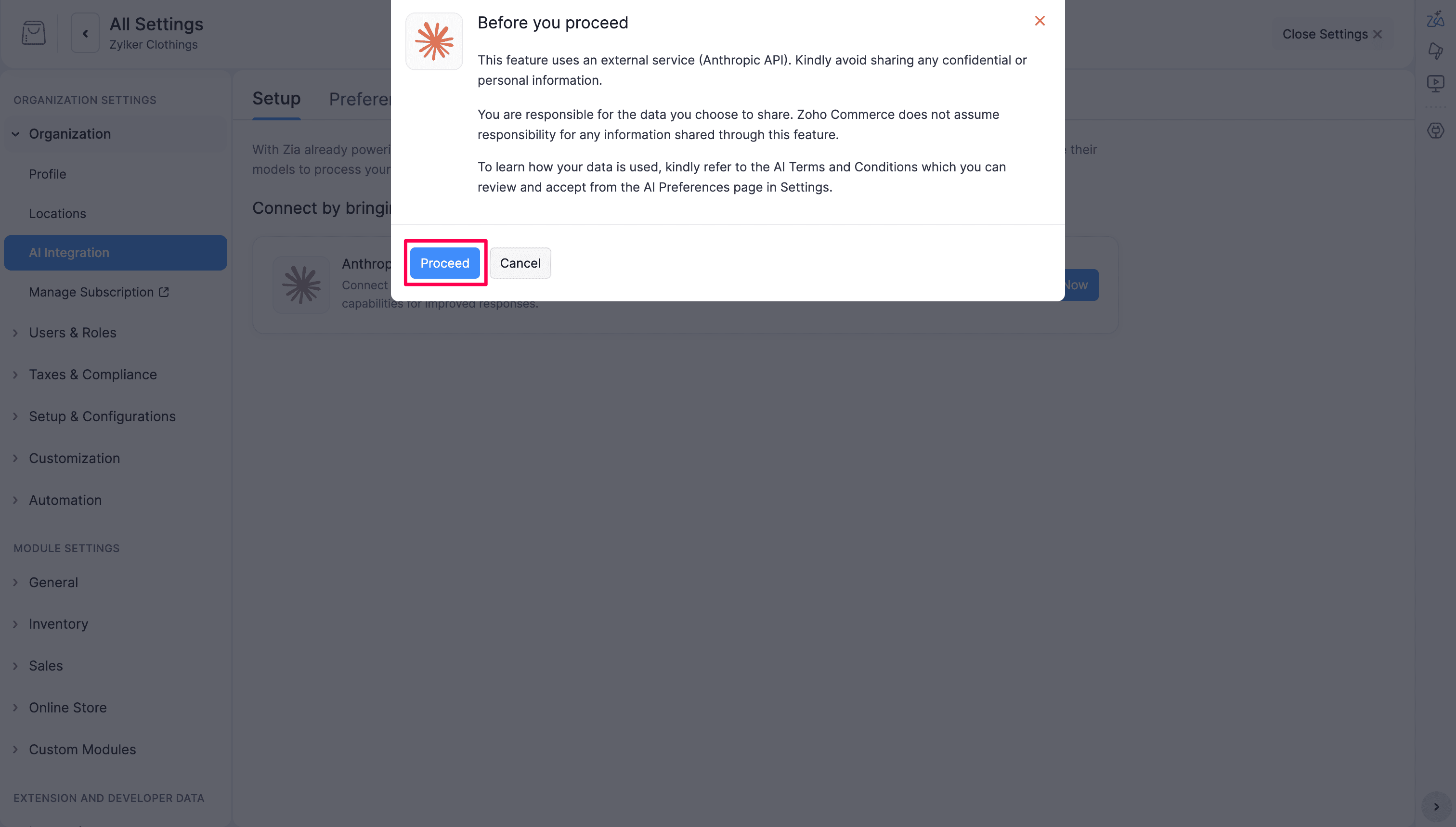
- Review the data-sharing notice, then click Proceed to continue.
Note: Anthropic is an external service. Do not share confidential or personal information through this feature. You are responsible for the information you choose to share; Zoho Commerce is not responsible for information shared with the service.
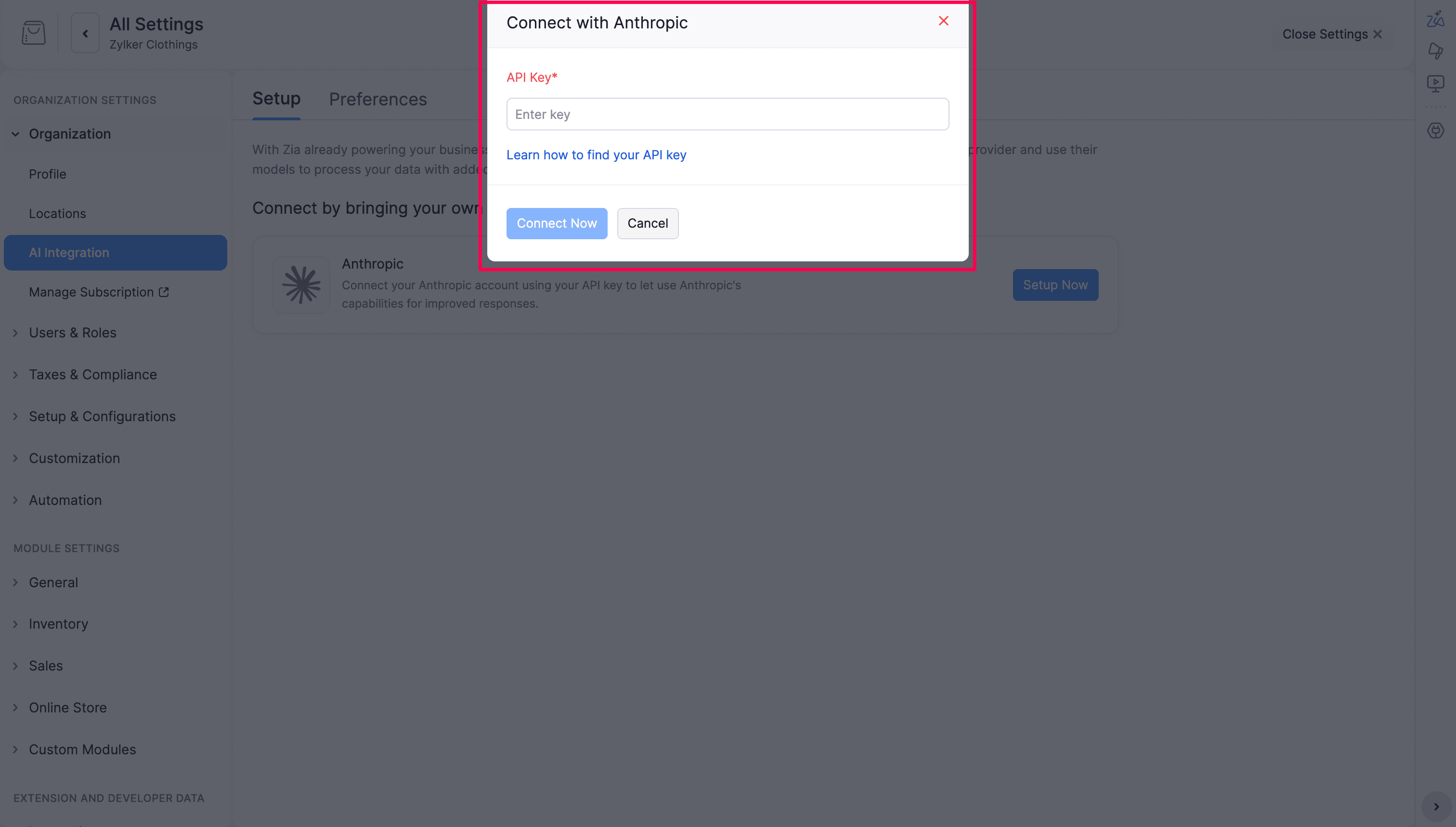
- Enter your Anthropic API key.
- Click Connect Now.
AI Preferences
Use the Preferences tab to enable or disable AI features and select the provider and model for each feature. The available providers and models can differ between features.
Note: Zoho Commerce AI settings are integrated with other Zoho Finance applications, including Zoho Books, Zoho Billing, Zoho Inventory, and Zoho Checkout. Enabling or disabling a feature here also applies to those applications, and changes in those applications can apply here.
Available AI Features
The Preferences tab lists each feature with its own toggle, AI Provider, and Model fields.
- Writing Assistant: Create or refine written content with prompts. You can rewrite text, fix grammar, adjust tone, summarize content, expand text, and generate email-template copy directly in the email editor.
- Blueprint Generator: Create business-process workflows from natural-language prompts.
- Ask Zia: Use a conversational assistant to complete tasks with natural-language input.
- AI Section Generator: Generate a section for your online store by describing what you want to build in a prompt.
To configure an AI feature:
- Go to Settings in the top-right corner.
- Select AI Integration under Organization Settings.
- Open the Preferences tab.
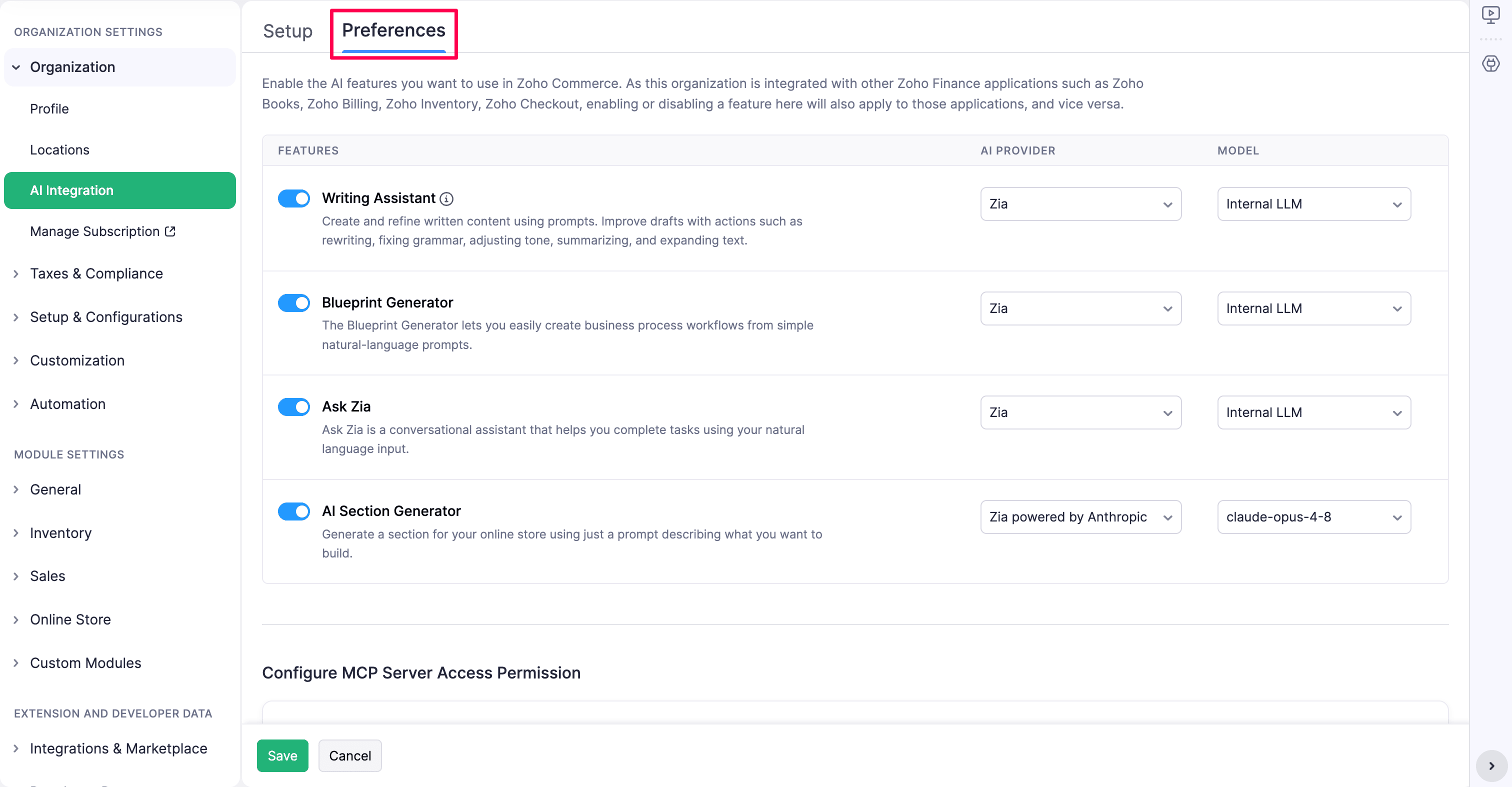
- Turn on the toggle beside the feature you want to use. You can enable multiple features simultaneously.
- Choose an AI Provider and Model from the dropdowns for that feature. The AI provider supplies the AI model, and the model processes the request. Configure these fields for each feature you enable.
- Click Save. The AI Terms and Conditions window appears. The AI terms and conditions must be reviewed and accepted before the changes take effect.
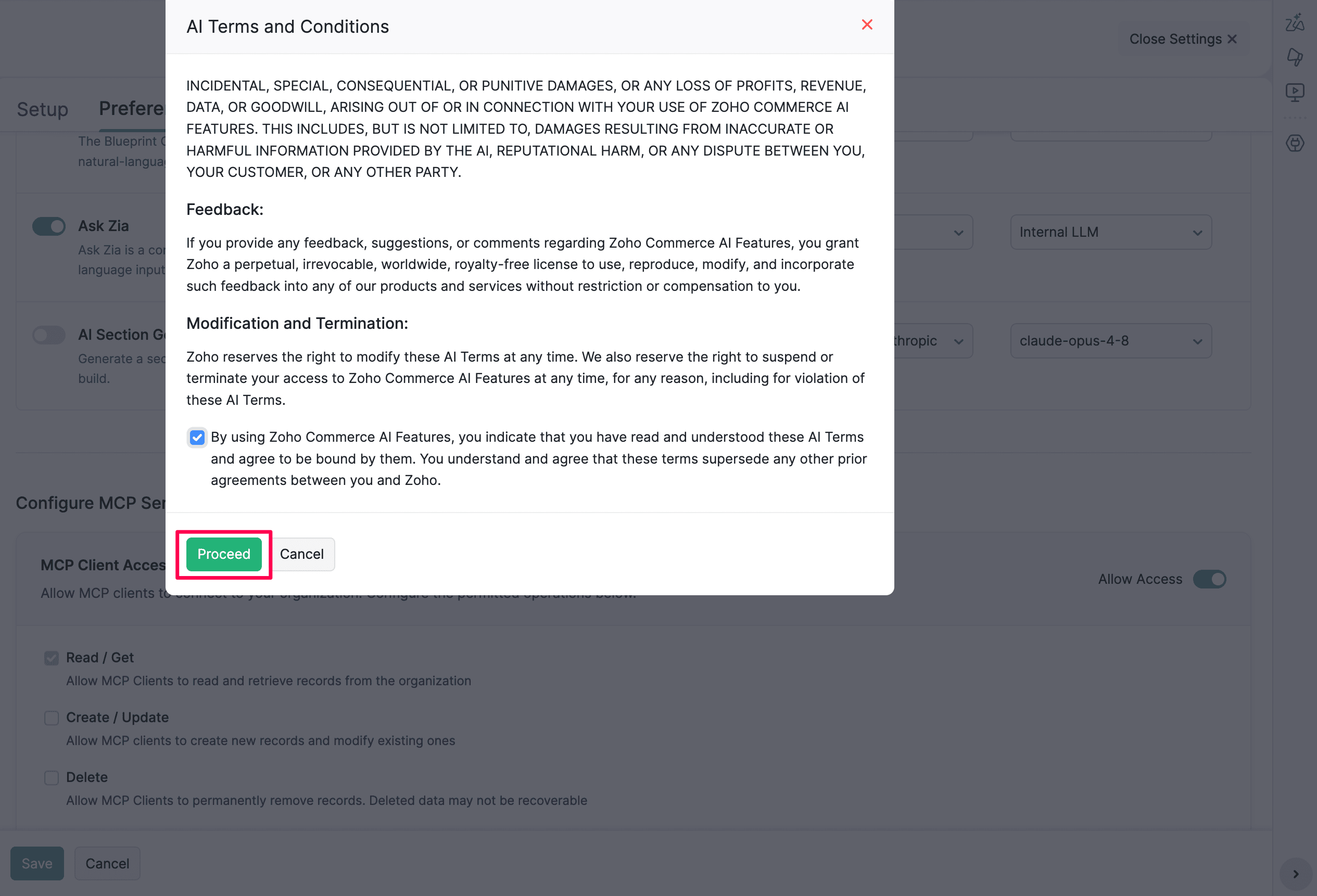
- Read and enable the checkbox to accept the AI Terms and Conditions.
- Click Proceed to save the AI integration.
Configure MCP Server Access Permission
The MCP Client Access setting controls whether MCP clients can connect to your organization. When access is enabled, configure which operations those clients can perform.
To configure MCP access:
- Go to Settings in the top-right corner.
- Select AI Integration under Organization Settings.
- Open the Preferences tab and scroll to Configure MCP Server Access Permission.
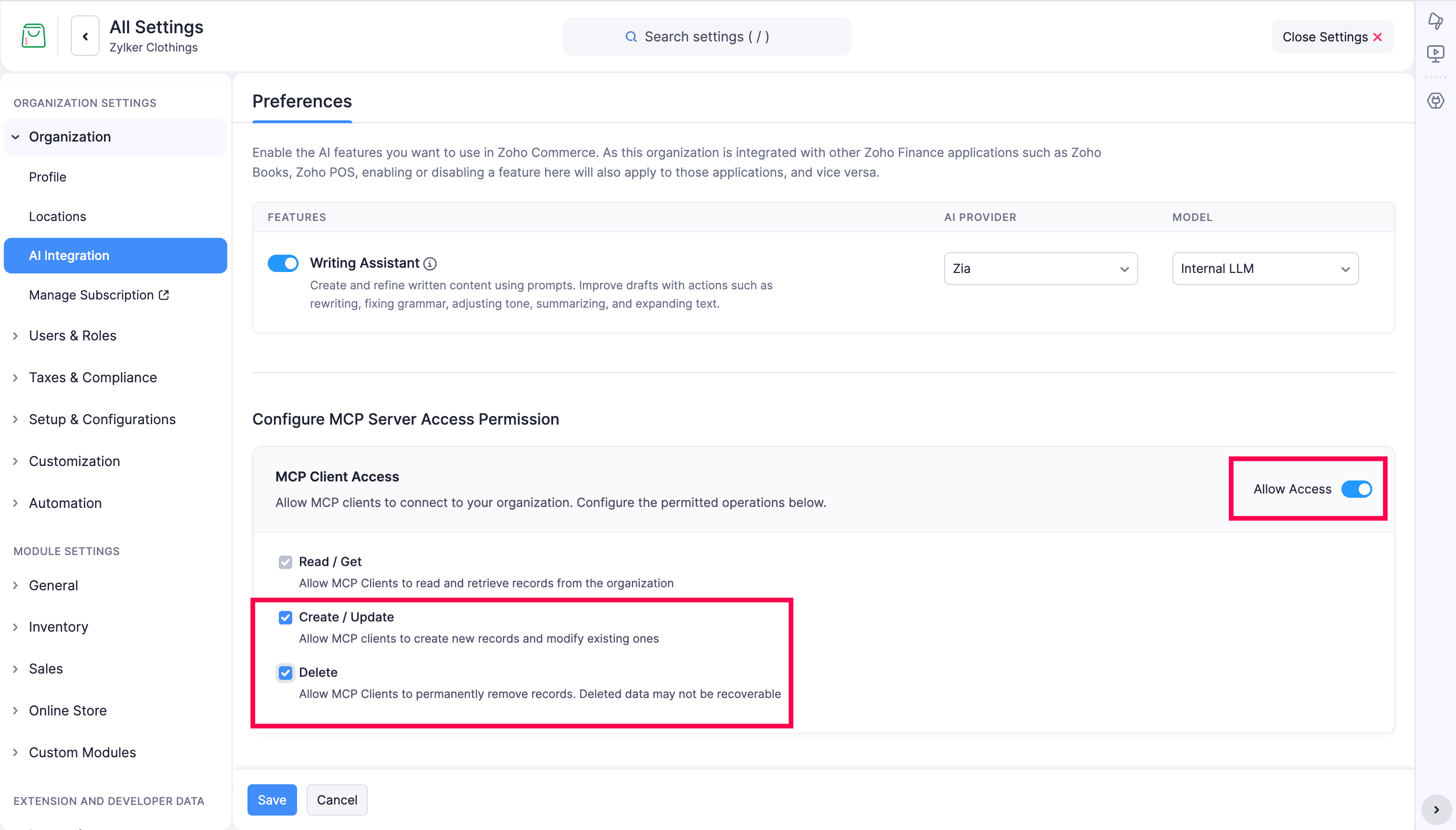
- Turn Allow Access on in the MCP Client Access section.
- Select the actions you want to allow:
- Read / Get - It is enabled by default and allows the MCP client to read data from your organization.
- Create / Update - Allows the MCP client to create new records and update existing ones in your organization.
- Delete - Allows the MCP client to delete records from your organization.
- Click Save. The AI Terms and Conditions window appears. The AI terms and conditions must be reviewed and accepted before the changes take effect.
- Read and enable the checkbox to accept the AI Terms and Conditions.
- Click Proceed.
When access is enabled, MCP clients can connect to your organization and perform only the operations you allow. You can choose to permit read-only access or allow create, update, and delete actions based on your organization’s requirements.
Note: Review your selected permissions carefully before saving. The access configuration applies to the MCP client actions that are allowed in your organization.