



Sales Tax Automation

Sales tax is a consumption tax collected from customers at the point of sale and paid to state or local tax authorities. In the U.S., tax rates vary by state and jurisdiction. The tax you collect depends on where your business operates, where your customers are located, the items you sell, your tax registrations, and any applicable customer exemptions (such as resellers, non-profit organizations, or government entities).
Sales tax can be complex because rates differ across states, counties, cities, and special districts. Some items are taxable, while others may be exempt or partially taxable. To simplify this, you can use Sales Tax Automation, which determines and applies the correct tax to the orders placed in your store. When enabled, Sales Tax Automation calculates the appropriate tax at checkout and applies valid exemptions, helping you stay compliant with tax regulations.
Note: This help document is applicable only to the U.S. edition of Zoho Commerce. Sales Tax Automation applies to stores that sell in the U.S. and Canada.
How Sales Tax Automation Works
Zoho Commerce calculates sales tax based on:
- Your business location and tax registrations.
- The customer’s billing or shipping address entered at checkout.
- The tax category of the item.
- Applicable customer exemptions.
Choose the Right Sales Tax Approach
Choose how you want to handle sales tax for orders in your store. You can automate it or set it up manually, based on your business requirements.
- Go to Settings.
- Select Taxes under Taxes & Compliance.
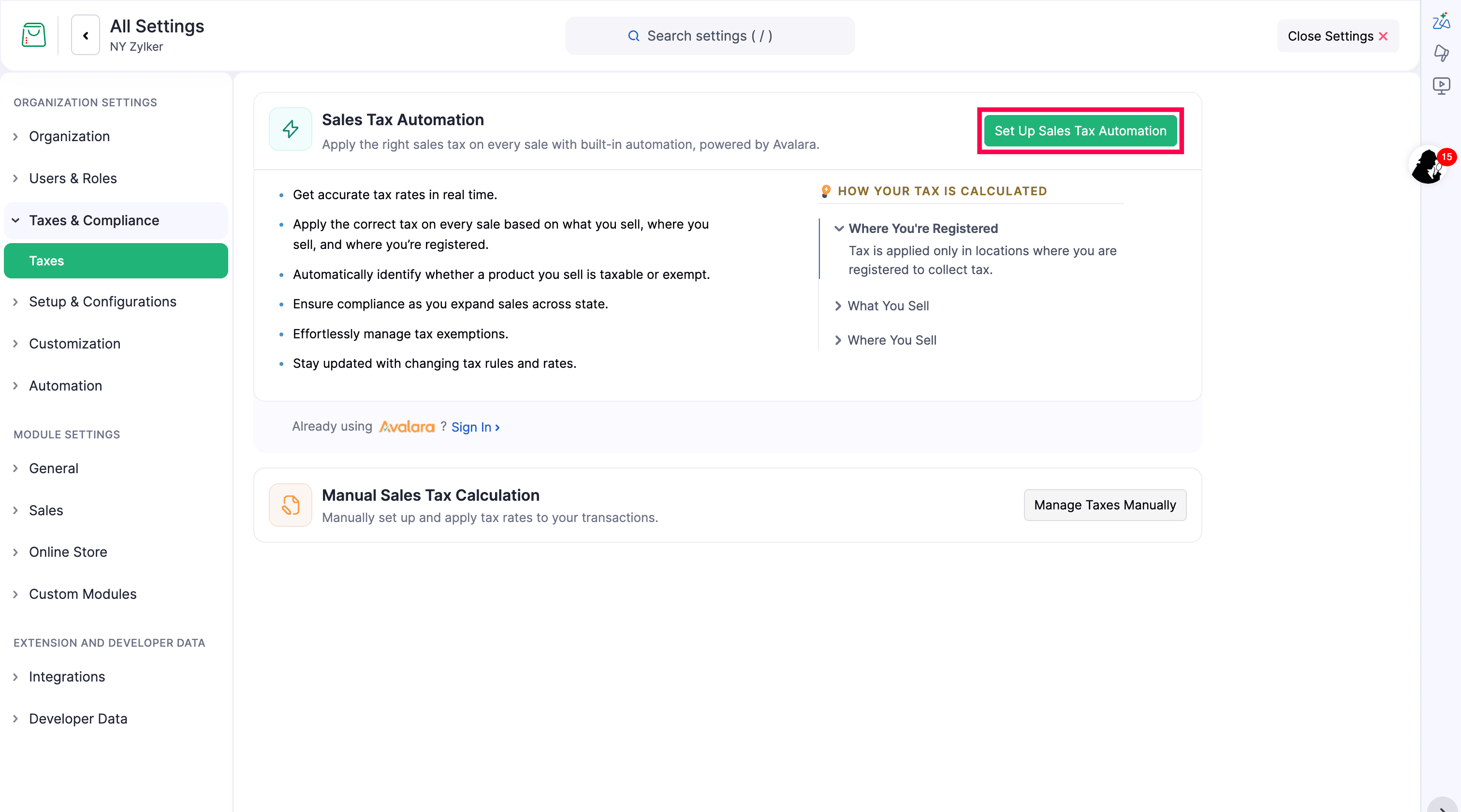
- On the Taxes page, set up Sales Tax Automation or set up taxes manually.
Set Up Taxes Manually
If you know which tax applies to each order, you can set up taxes yourself. Add your tax rates on the Taxes page and let them apply at checkout. This works best when:
- You sell in a few jurisdictions where the tax rate is the same.
- You rarely handle tax-exempt customers.
- You prefer to update tax rates yourself when the law or regulations change.
With manual setup, you can configure a country tax rate, add State Tax Override and Category Tax Override rules, turn on Tax-inclusive Prices, and choose whether to tax your shipping rates. For the full steps, see Taxes in Zoho Commerce.
Set Up Sales Tax Automation
Enable Sales Tax Automation if you want Zoho Commerce to calculate tax for every order. This works best if you:
- Sell in multiple jurisdictions where tax rates vary.
- Offer items with different tax treatments.
- Want tax rates to update when regulations change.
- Work with tax-exempt customers such as resellers, non-profit organizations, or government entities.
Note: If your organization has more than 50 tax authorities, you must first complete the bulk tax authority mapping process before you can set up Sales Tax Automation.
Enable Sales Tax Automation
- Go to Settings.
- Select Taxes under Taxes & Compliance.
- Click Set Up Sales Tax Automation.
- On the next page, under Accept Terms, read the terms.
- Select I agree to the terms and consent to share the required data with Avalara for tax calculation.
- Click Enable & Continue.
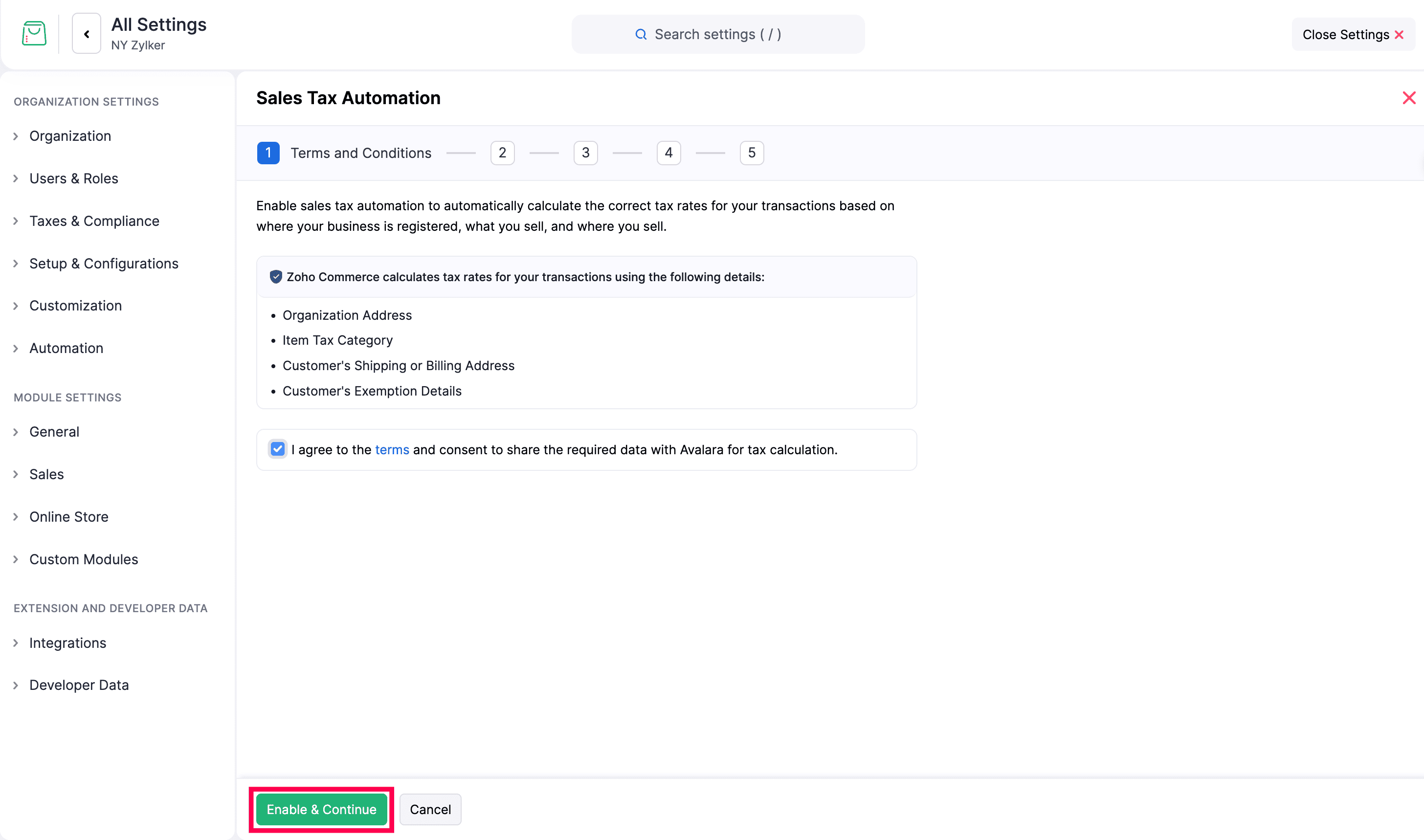
Sales Tax Automation is enabled for your store.
Verify Business Address
Zoho Commerce uses your business address to determine the right sales tax. Check the address under Verify Business Address and edit the fields if any detail is incorrect.
- Review the Address.
- Click Verify to validate the address.
- If the address is invalid, edit it and click Verify again.
- Click Save & Continue.
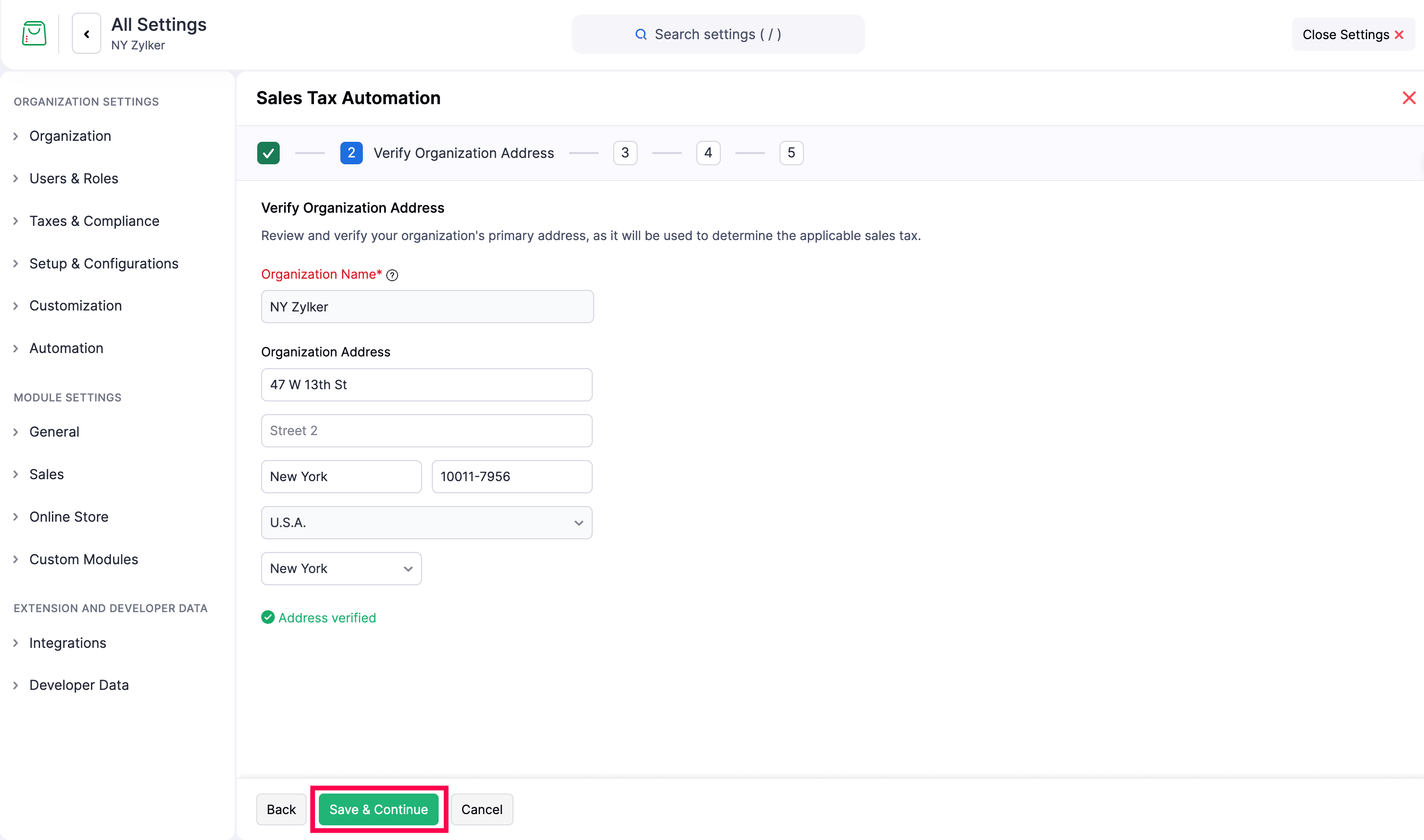
If you edit the address, the Update Organization Address pop-up lets you apply the change to new transactions or to all transactions. Choose the option you need.
Map Tax Category
Map your existing item categories to tax categories. The existing item categories stay the same. The mapped tax category is applied to online orders after you finish setup.
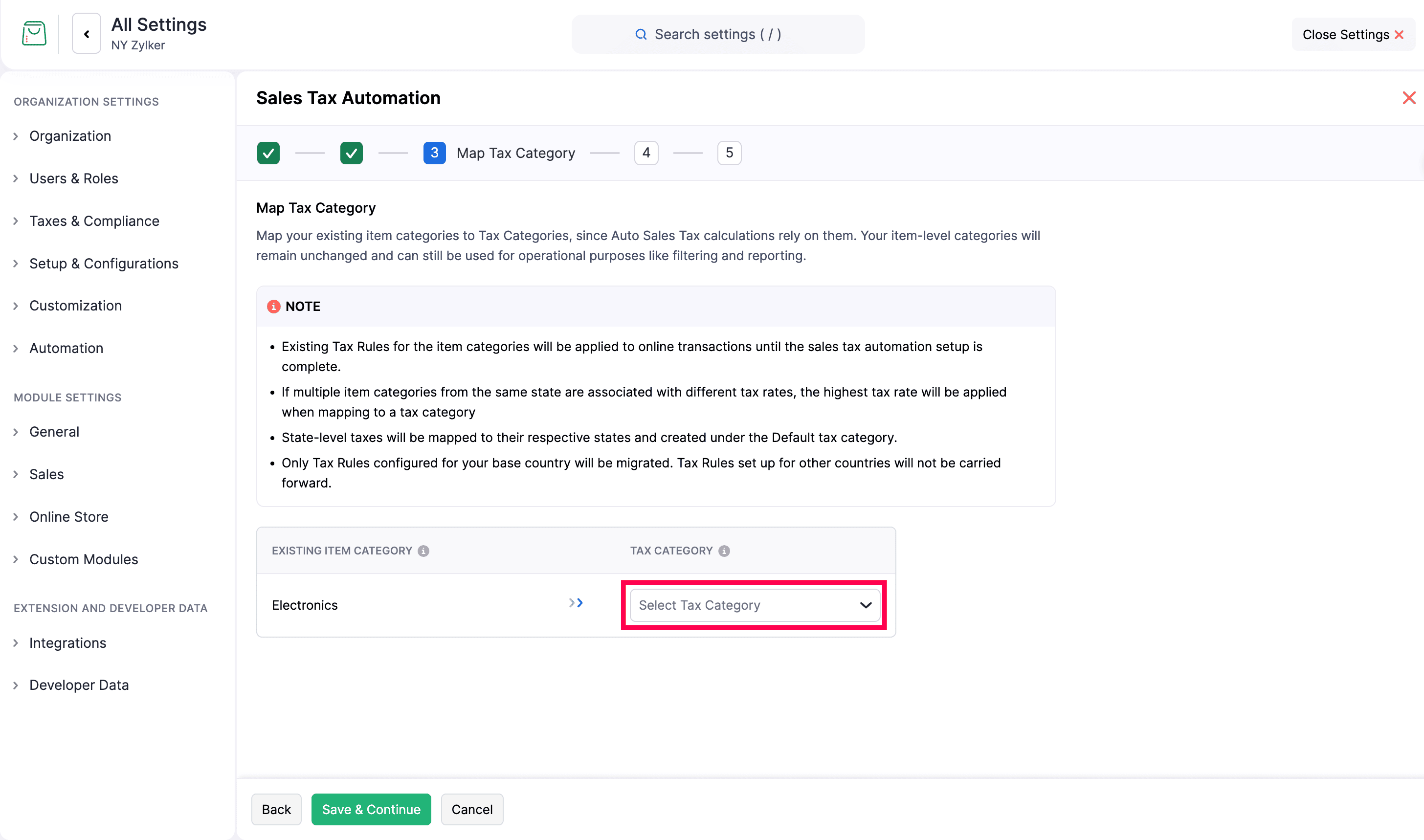
- In the Search Tax Category pop-up, search for the tax category.
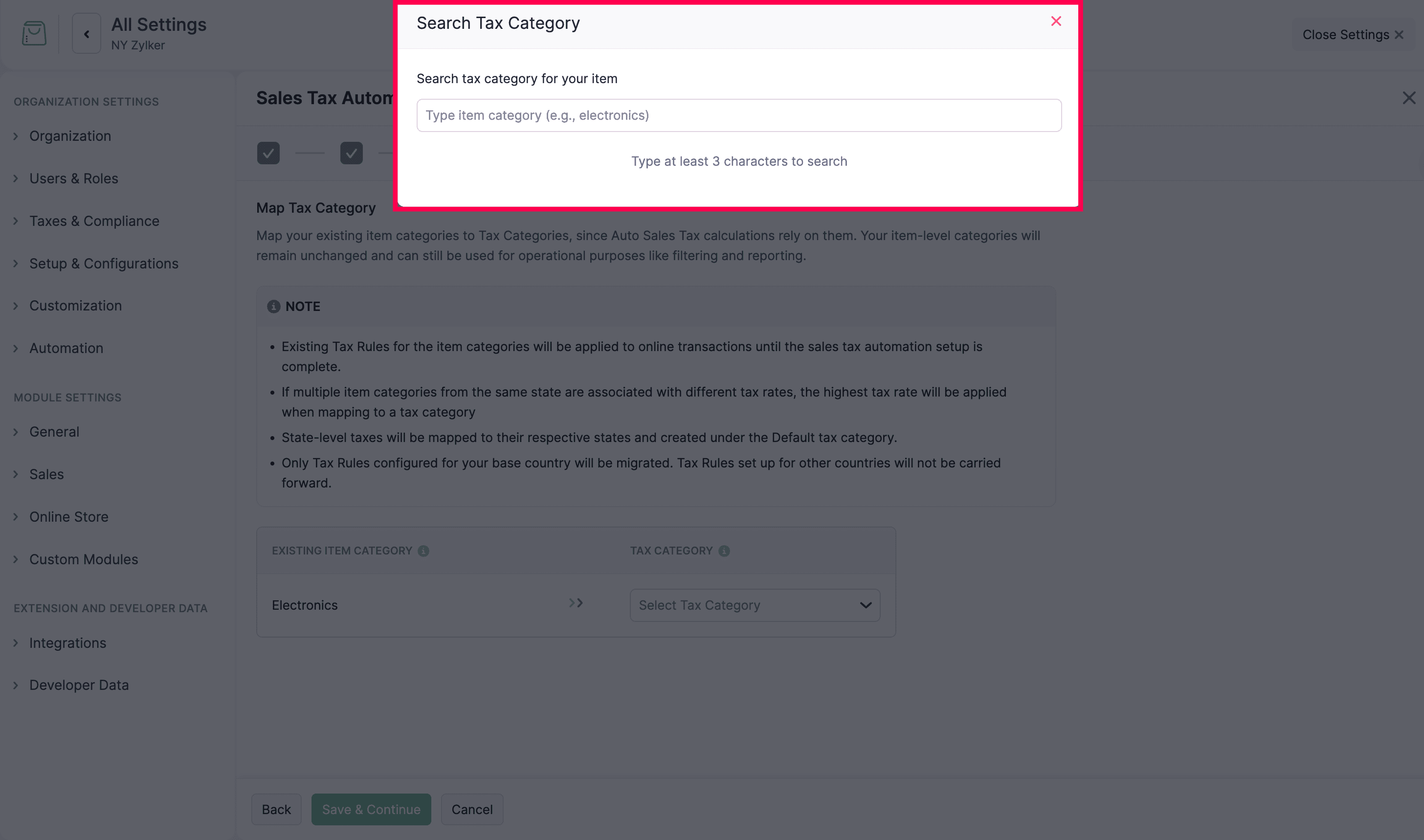
- Select the tax category for the existing item category.
- Click Save & Continue.
Note: Map each existing item category to the appropriate tax category. The item categories listed here come from existing category-based tax rules. If there are no existing rules, no item categories appear here for migration. By default, state-level taxes are mapped to the Default Tax Category with their respective states.
Tax Authority Mapping
Map each Existing Tax Authority to a System-Recognized Tax Authority and select its State. Each existing authority can be mapped to only one system-recognized authority. After mapping, the existing tax authorities are used for new orders. Unmapped authorities are no longer used after automation is enabled.
- Map each existing tax authority and select its State.
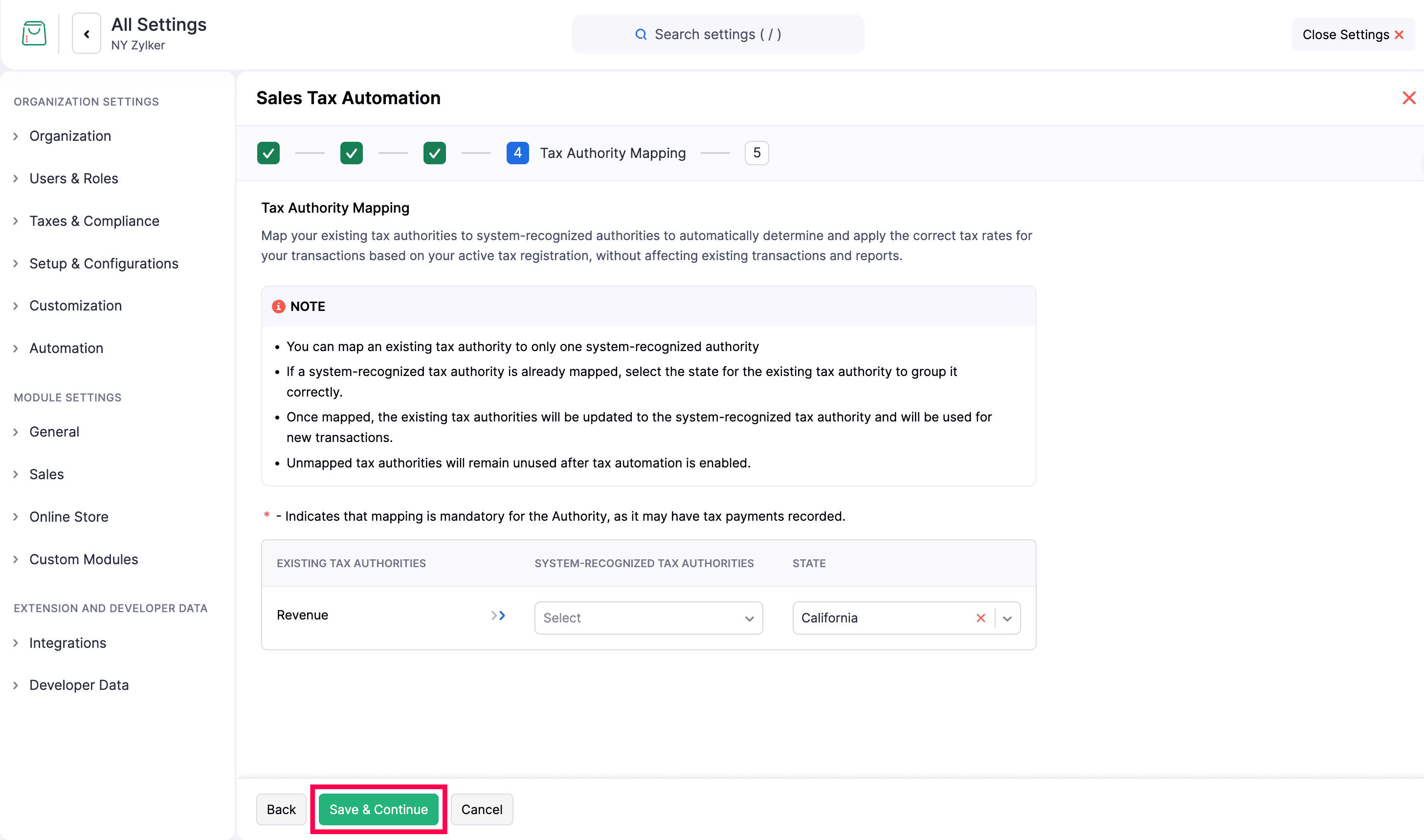
- Click Save & Continue.
- Click Confirm in the confirmation pop-up.
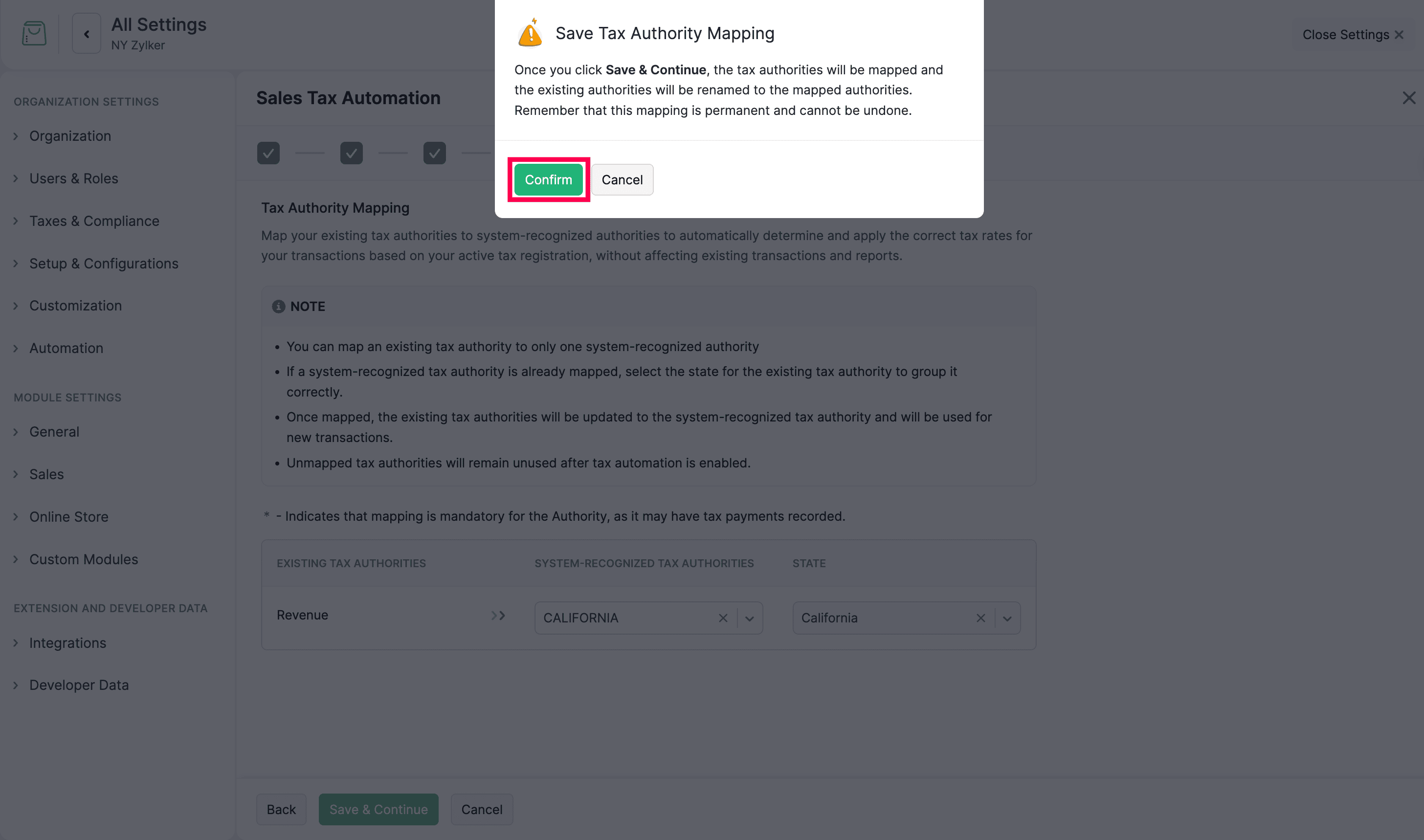
Note: Map the mandatory tax authorities, because they may have tax payments recorded. Tax Authority Mapping applies only if the store already has manually created taxes or authorities to migrate.
State Registration Details
Enter your business’s tax registration details so tax is applied based on your registrations in the relevant states.
- State: Auto-populated from the business address you verified in the previous step.
- Tax Registration Date: Select the date your business was registered to collect sales tax in that state.
- Local Tax Registration Details: If your business is also registered at the city, county, or other jurisdiction level, including special taxes, add them for accurate tax calculation. Click + Add Jurisdiction, select the jurisdictions, and set the Tax Registration Date for each. You can also add these later.
- Click Complete Setup.
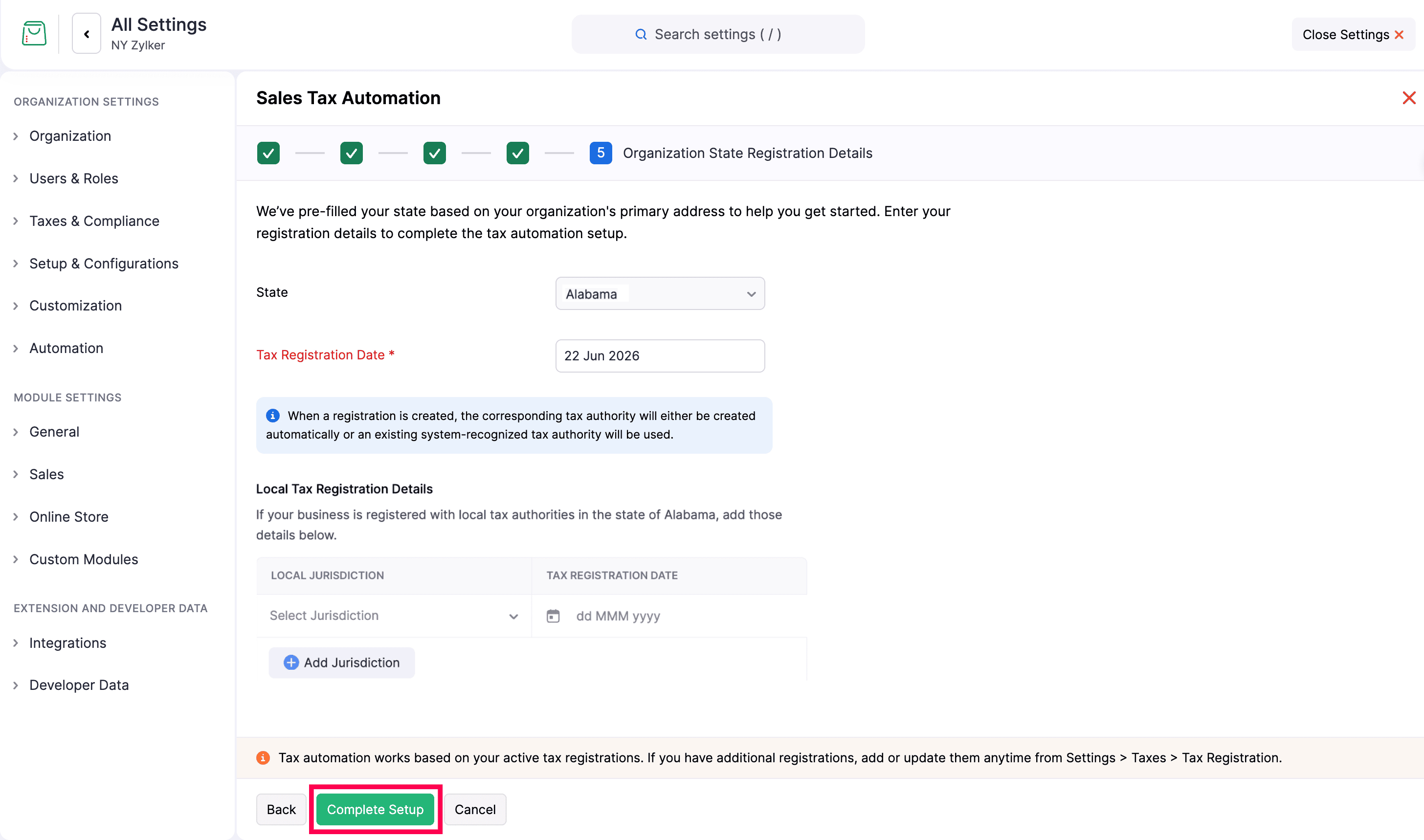
Sales Tax Automation is now set up for your store.
Configure Address Preferences
When Sales Tax Automation is enabled, Zoho Commerce calculates sales tax using the customer’s billing address by default. You can change this to use the shipping address instead.
- Go to Settings.
- Select Taxes under Taxes & Compliance.
- Navigate to Tax Automation Settings.
- Click the Edit icon under Address Preference.
- In the Address Preference pop-up, choose Use Shipping Address or Use Billing Address.
- Click Save.
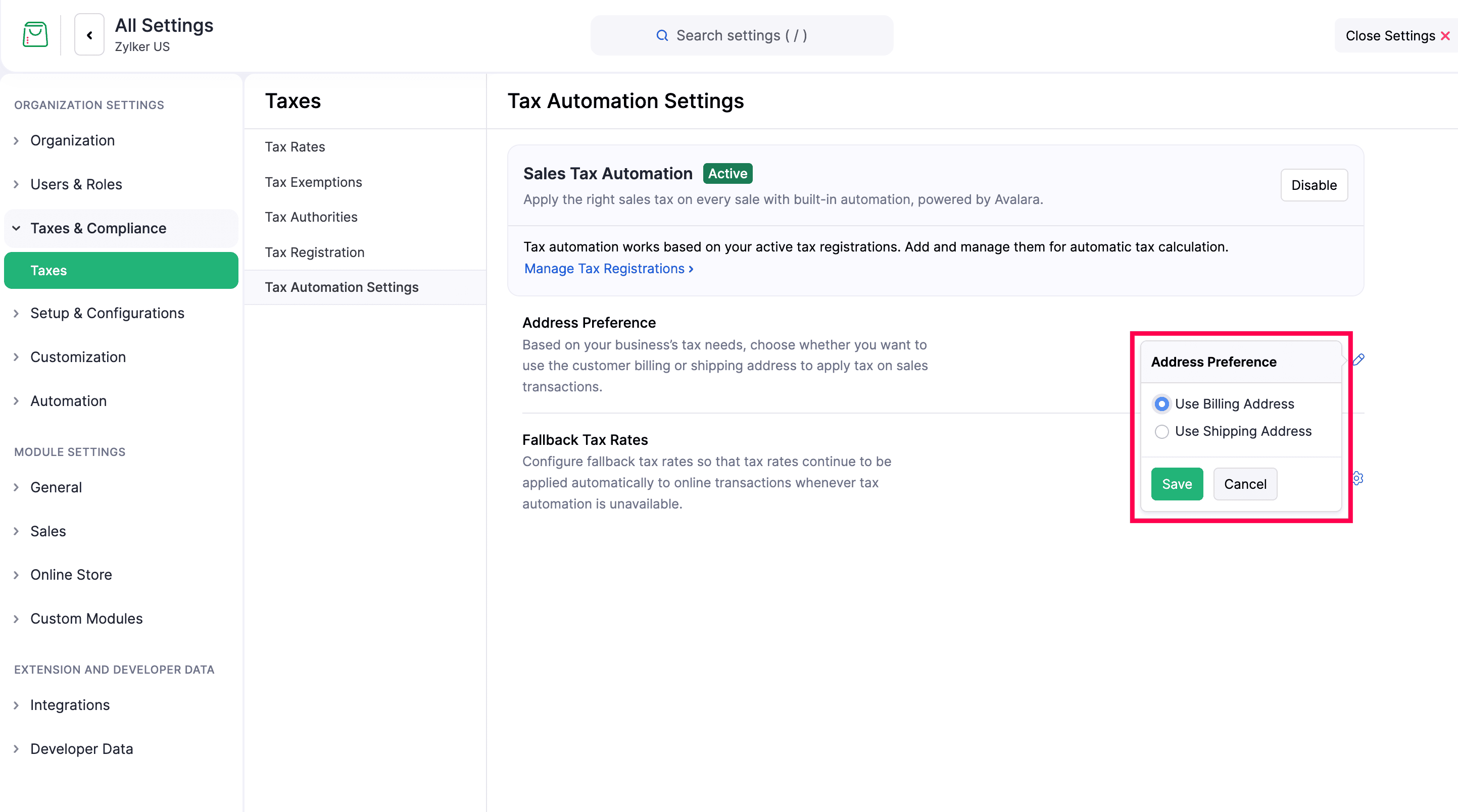
The address preference is applied when calculating sales tax for all new orders.
Configure Fallback Tax Rates
Configure fallback tax rates so orders are still taxed when tax automation is temporarily unavailable, especially for states where you have tax registrations. If automation can’t be reached at checkout, the fallback rate for the relevant state is applied instead.
- Go to Settings.
- Select Taxes under Taxes & Compliance.
- Navigate to Tax Automation Settings.
- Click the Settings icon next to Fallback Tax Rates.
- On the Manage Fallback Rules page, click Create Fallback Rule.
- On the Create Fallback Rule page, select the Product Tax Category.
- Under Configure Tax Rates, click Add New State.
- Select the State, Tax Rate, Start Date, and End Date.
- Click Create Fallback Rule to add a fallback rate for another state.
- Click Save.
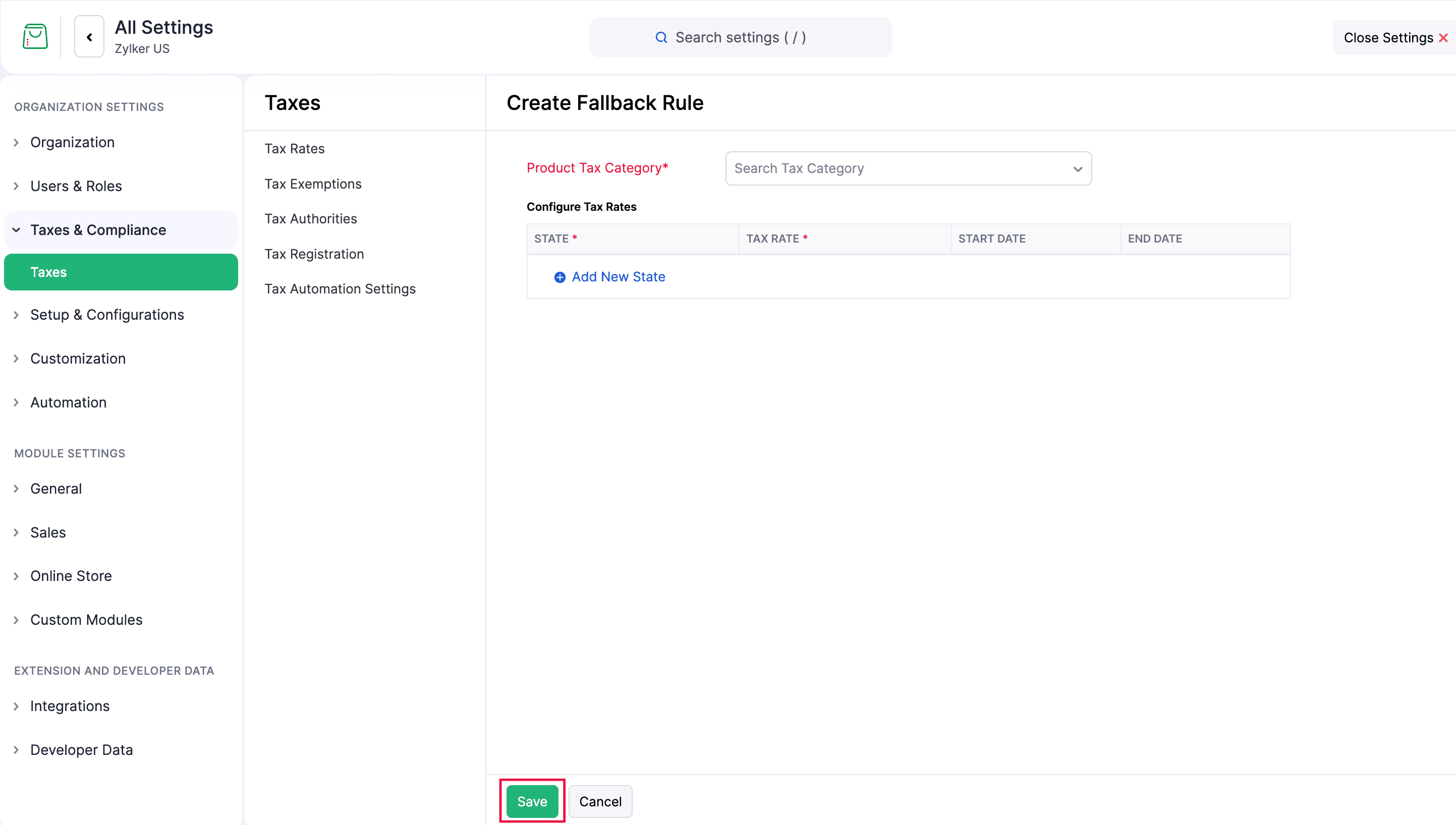
The fallback rate is applied to orders in that state when tax automation is unavailable.
Configure Exemption Certificates
An exemption certificate is a document a customer provides to show that they are not required to pay sales tax on certain purchases. Customers such as resellers, non-profit organizations, or government agencies may qualify under tax regulations. Configure an exemption certificate for a customer so eligible orders apply the exemption based on jurisdiction rules.
- Go to Customers under Sales on the left sidebar.
- Select the customer.
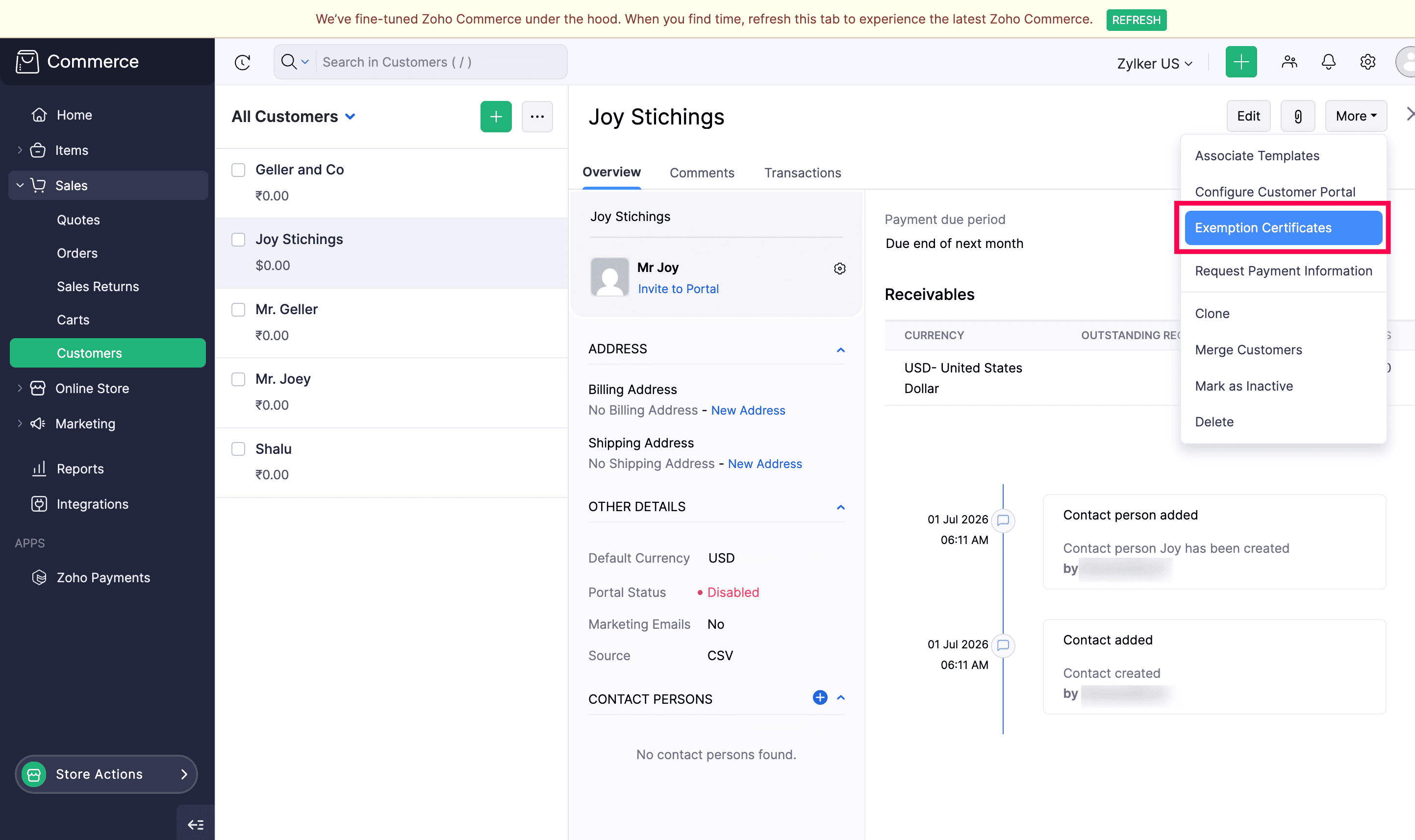
- On the customer’s details page, click the More icon and select Exemption Certificates.
- Click Add New.
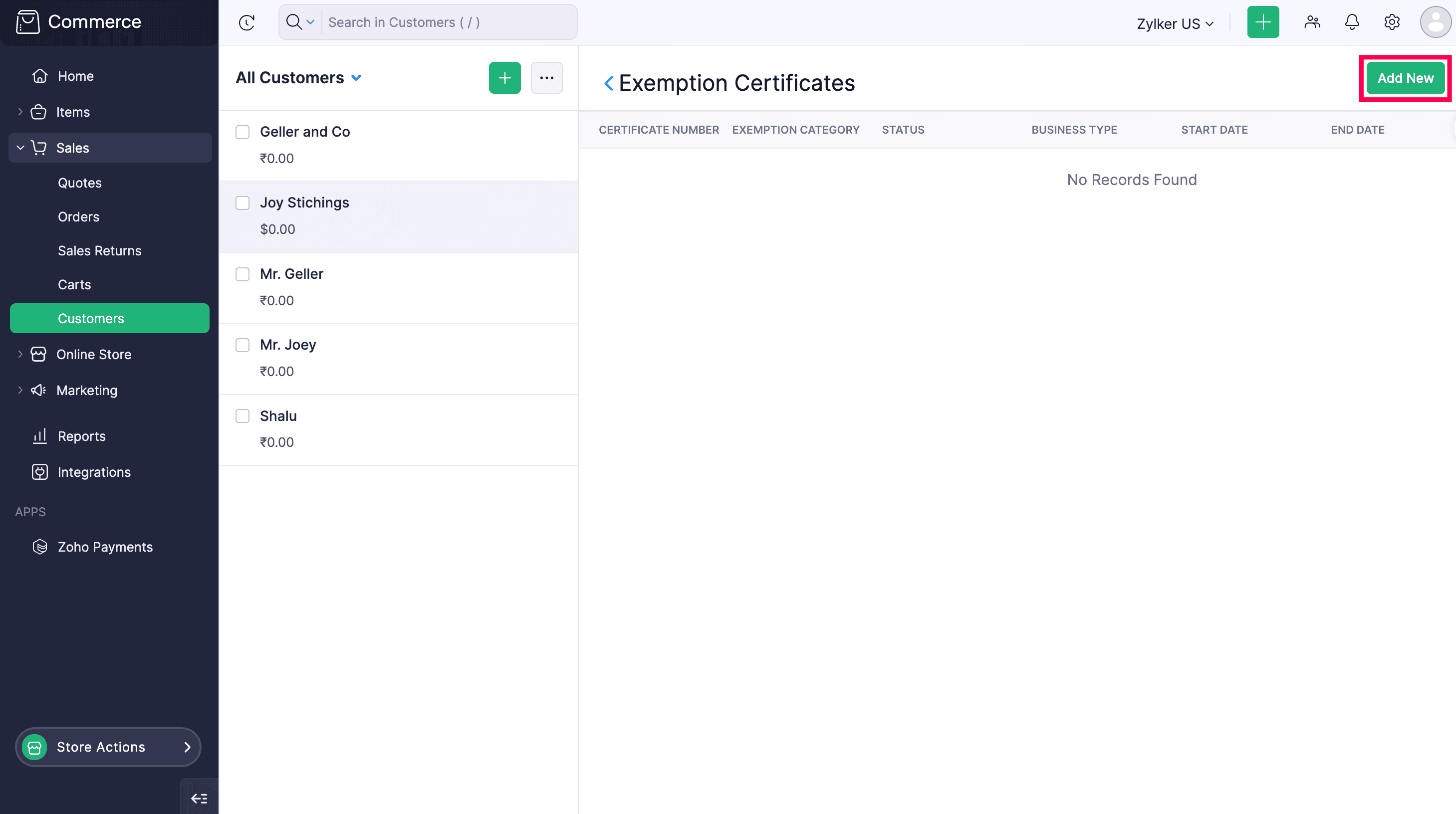
- On the Create Exemption Certificate page, the Customer is selected automatically. Fill in:
- Exemption Category: The reason the customer is exempt from tax.
- State: The state where the certificate was issued.
- Tax Authority: The authority that issued the certificate.
- Tax Exemption: The specific exemption that applies to this customer.
- Enter any other required details.
- Click Save.
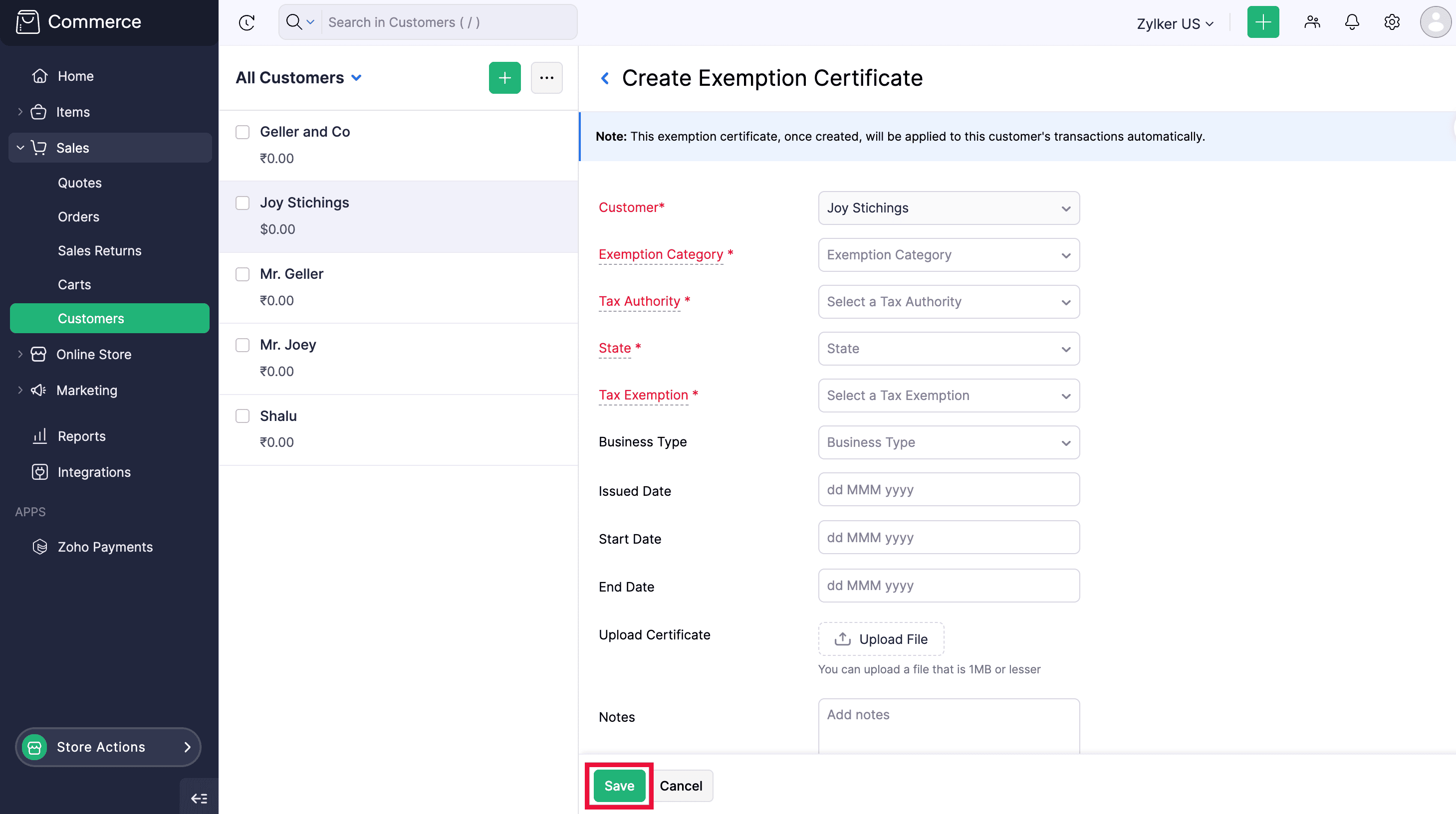
The certificate is validated and applied to orders based on jurisdiction rules.
Note: Tax may still apply if the item’s tax category is not eligible for the exemption under the jurisdiction rules.
Automate Sales Tax Calculation
Set a Tax Category for Items
When you add or edit an item, the Tax Category field categorizes what you sell. When the item is added to an order, its tax category determines the sales tax based on the customer’s billing or shipping address and your tax registrations.
- Click Items in the left sidebar.
- Open the item you want to update, or click + New to create one.
- Click the Search icon next to the Tax Category field.
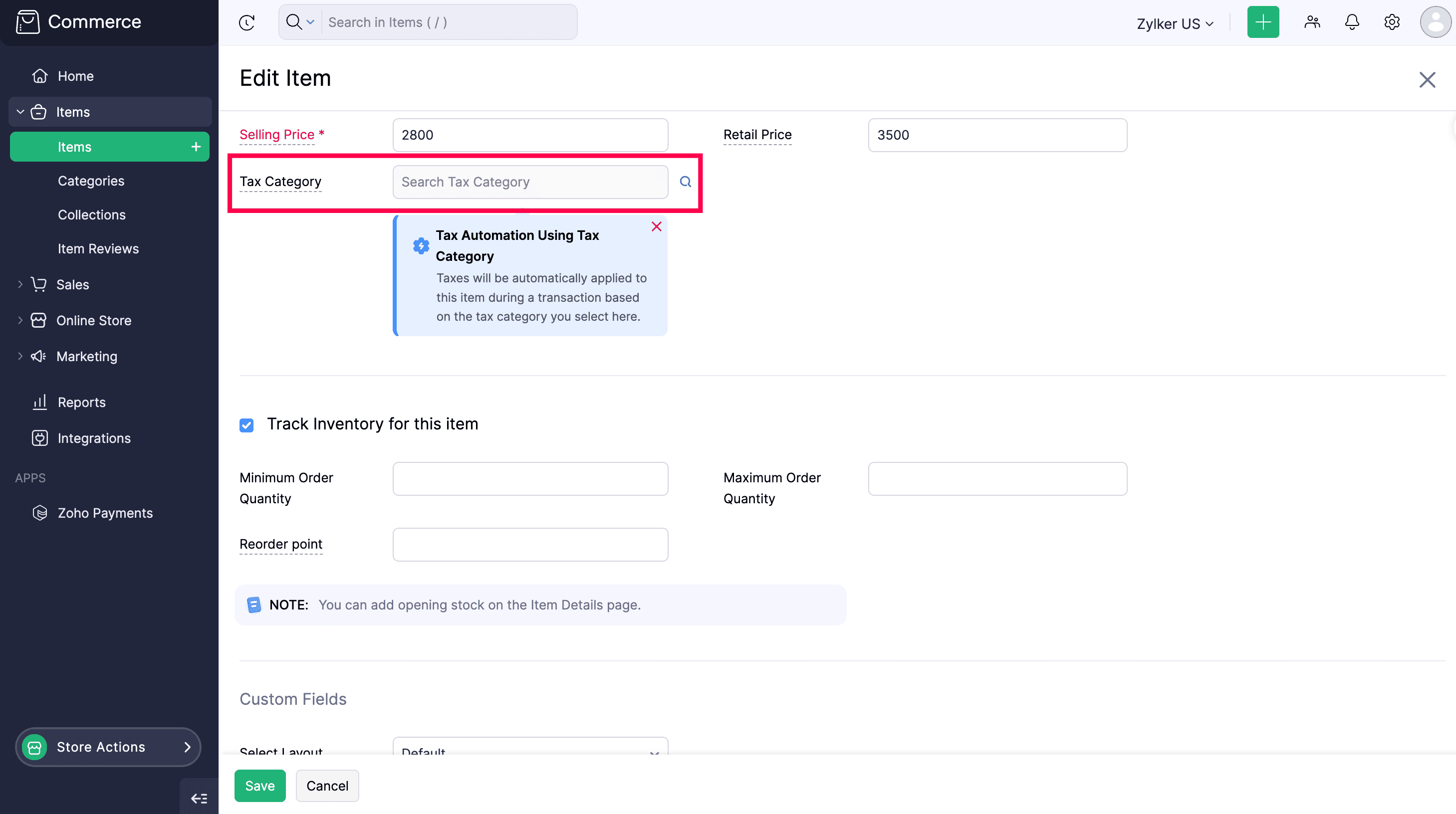
- In the Search Tax Category pop-up, search for the category that matches the item.
- Select the category.
- Enter any other required details.
- Click Save.
The item is saved with its tax category.
How Tax Is Applied to Orders
When an order is placed in your online store, sales tax is calculated based on your tax registration in the relevant state, the customer’s billing or shipping address, and the tax category of each item in the order.
View Tax Calculation Details
When an order is created, you can see how tax was calculated based on your tax registration, the customer’s address, each item’s tax category, and whether the item is taxable.
- Open the order.
- On the Order Details page, review the tax details under Tax Total.
Manage Tax Registrations
Add Tax Registration Details
Once Sales Tax Automation is set up, tax is applied based on your active registrations. You can add registrations as needed. A tax authority is created, or an existing one is reused.
- Go to Settings.
- Select Taxes under Taxes & Compliance.
- Click Tax Registration.
- Click + New Tax Registration.
- Fill in:
- State: The state where you’re registered to collect sales tax.
- Tax Registration Date: The date your business was registered to collect sales tax in that state. Tax is applied to orders placed on or after this date.
- Local Tax Registration Details: Add city, county, or other jurisdiction-level taxes, including special taxes, for accurate calculation.
- Click Save.
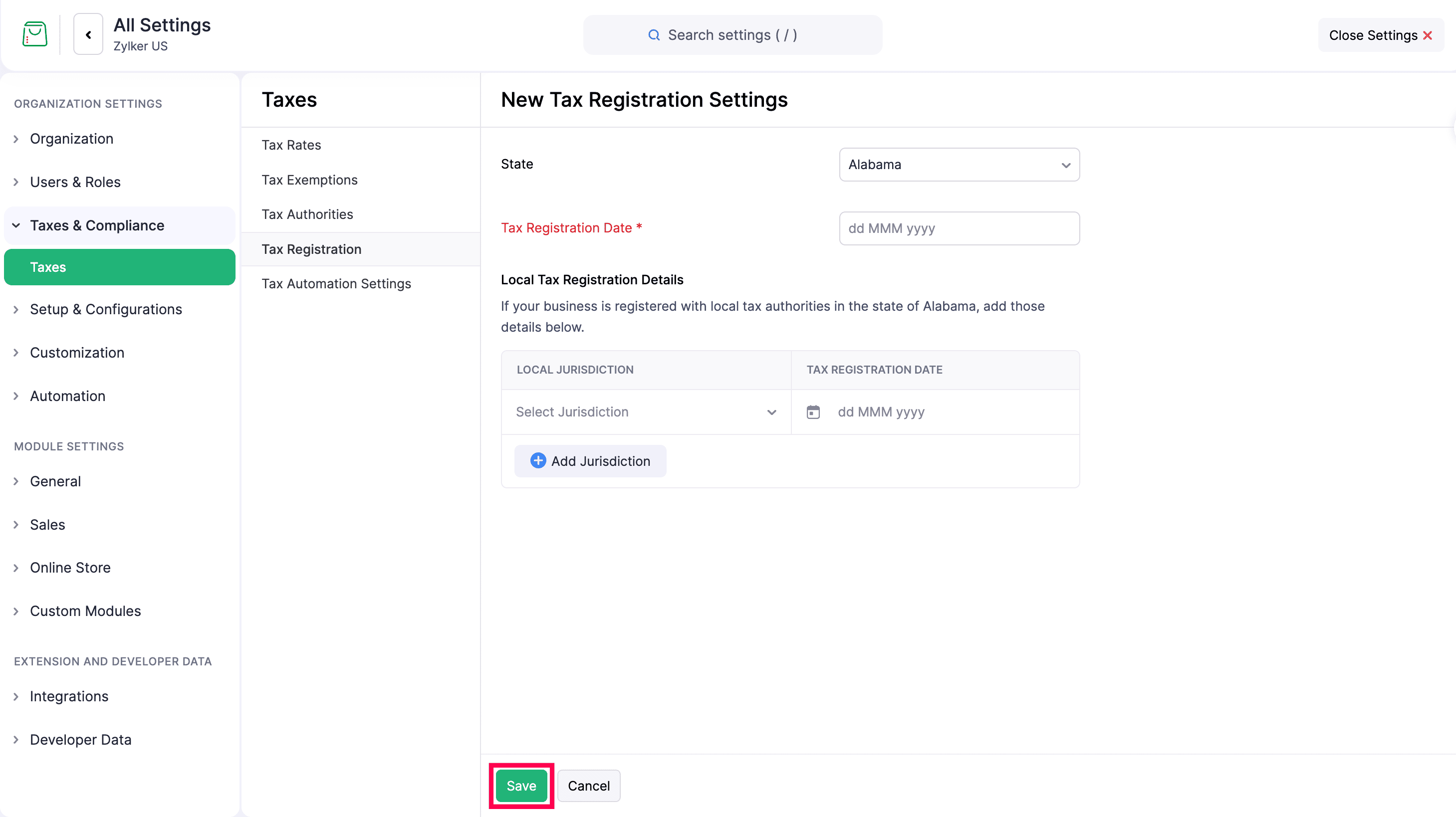
The tax registration is recorded.
Deregister Taxes
If you no longer do business in a state, or you are no longer required to collect tax there, mark the registration as deregistered. This stops sales tax from being calculated for new orders in that state and its local jurisdictions.
- Go to Settings.
- Select Taxes under Taxes & Compliance.
- Click Tax Registration.
- Hover over the registration, click the dropdown, and select Edit.
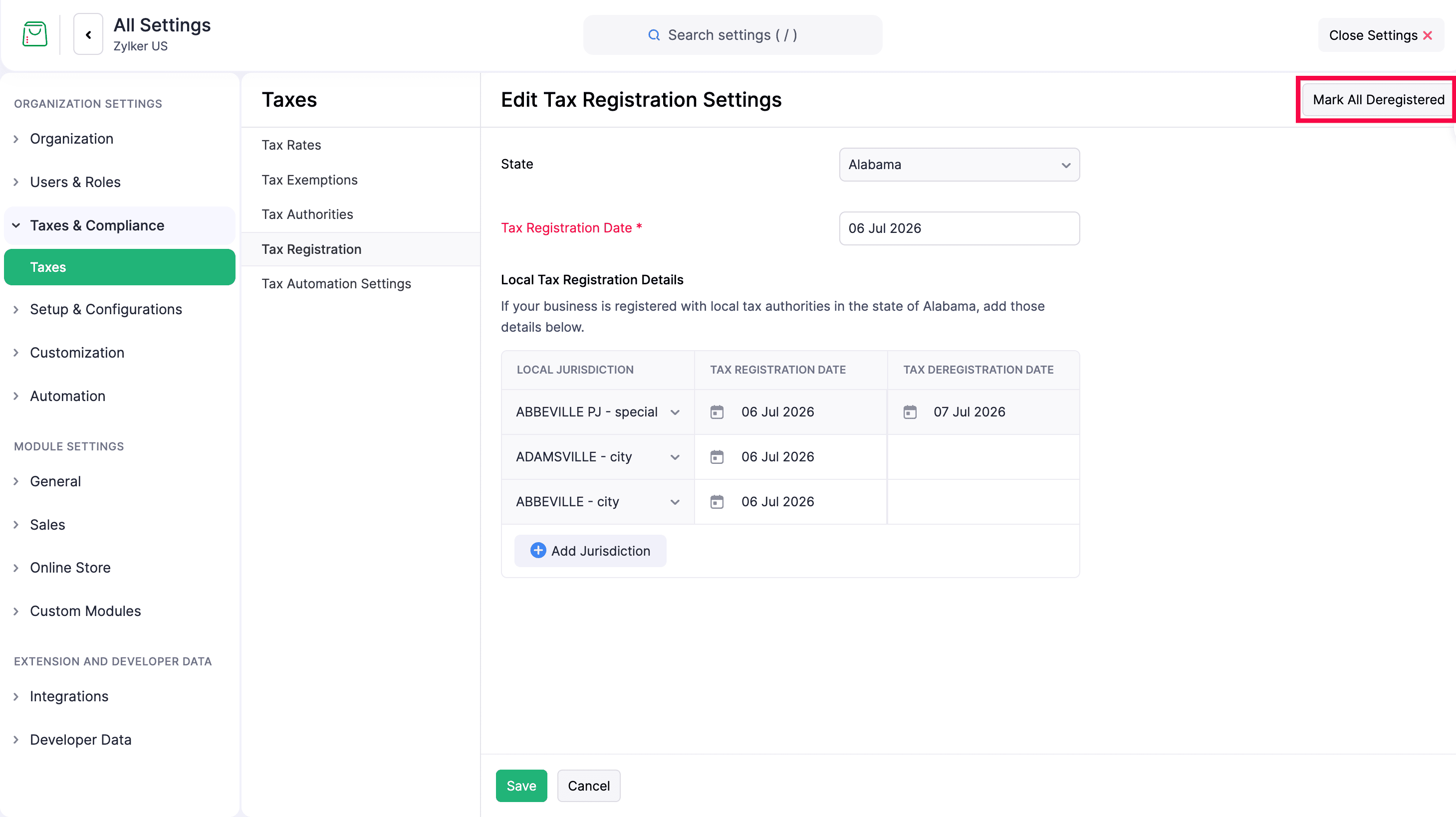
- On the Edit Tax Registration Settings page, click Mark as Deregistered.
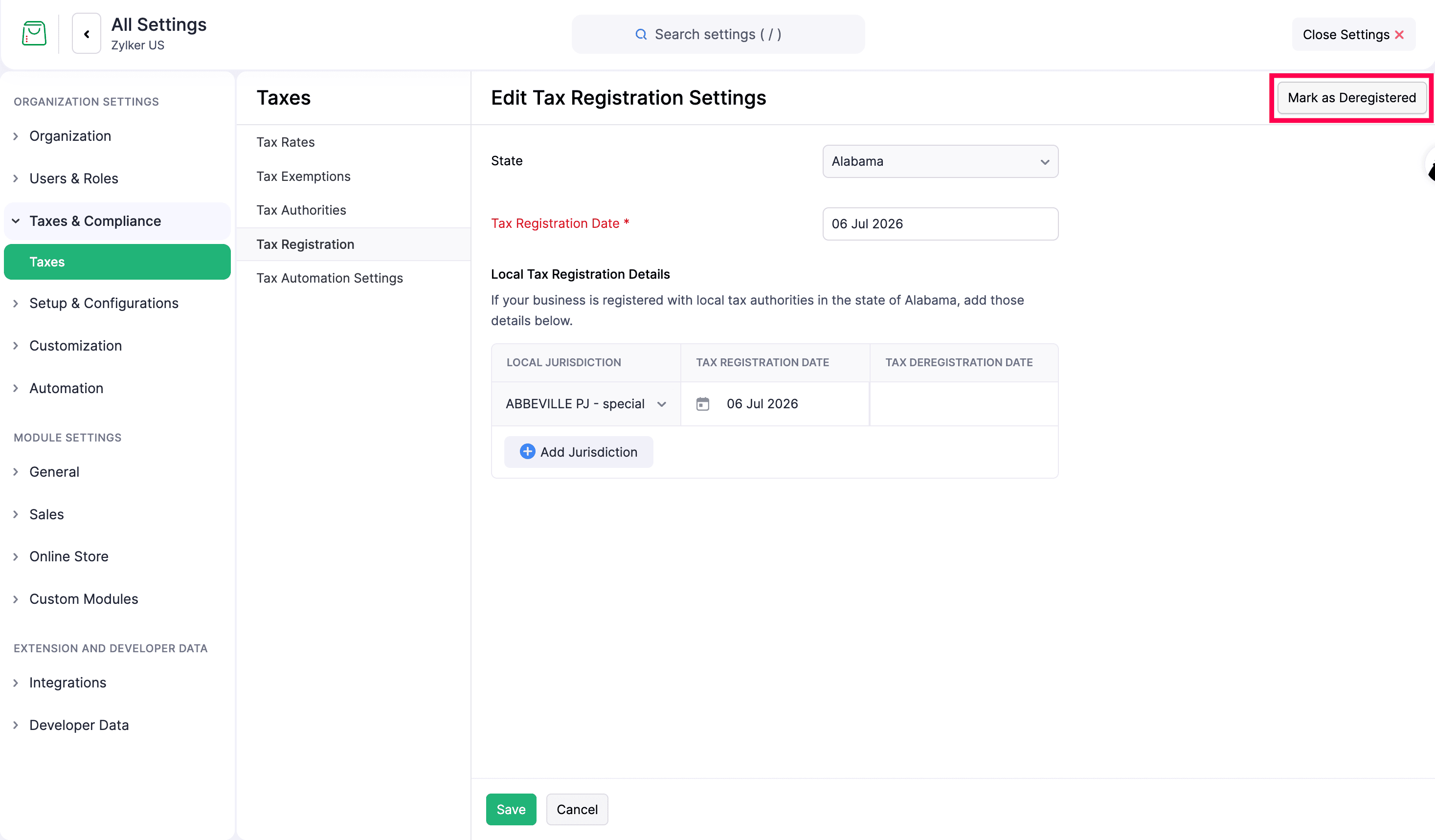
- If you added multiple local taxes under a state, click Mark All Deregistered in the top right corner.
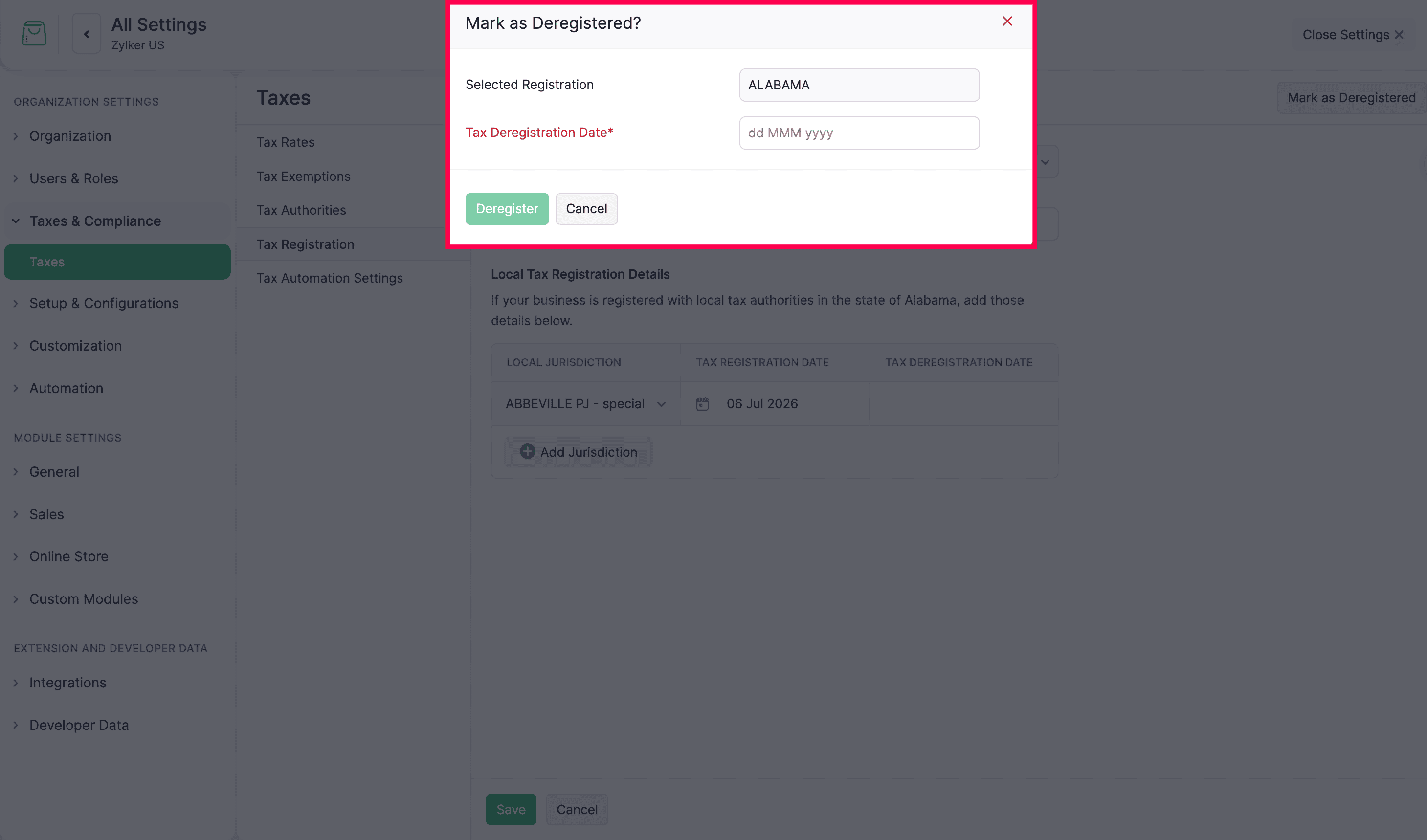
- In the pop-up, enter the Tax Deregistration Date.
- Click Deregister.
The deregistration is recorded, and the tax is no longer applied to new orders.
Note: When you deregister at the state level, the local taxes under that state are also deregistered.
To deregister a specific local tax:
- On the Edit Tax Registration Settings page, hover over the local tax.
- Click Deregister.
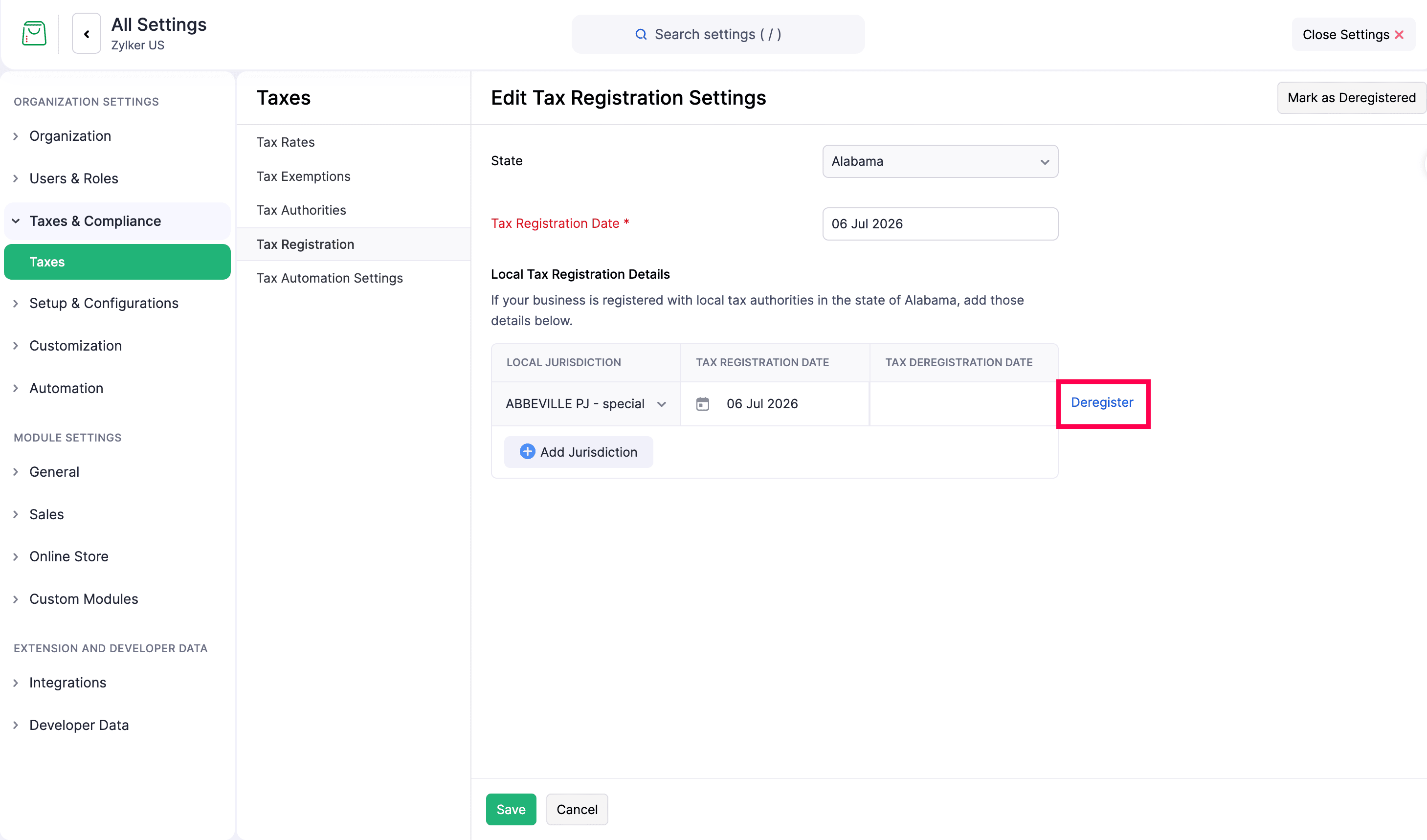
- In the Mark as Deregistered pop-up, enter the Tax Deregistration Date.
- Click Deregister.
The local tax deregistration is recorded. The state-level tax is still applied to your orders.
Undo Tax Deregistration
If you resume business in a state, or you are again required to collect tax there, undo the deregistration.
- Go to Settings.
- Select Taxes under Taxes & Compliance.
- Click Tax Registration.
- Hover over the registration, click the dropdown, and select Edit.
- Click Undo Deregistration. If there are multiple local taxes, click Undo All Deregistrations.
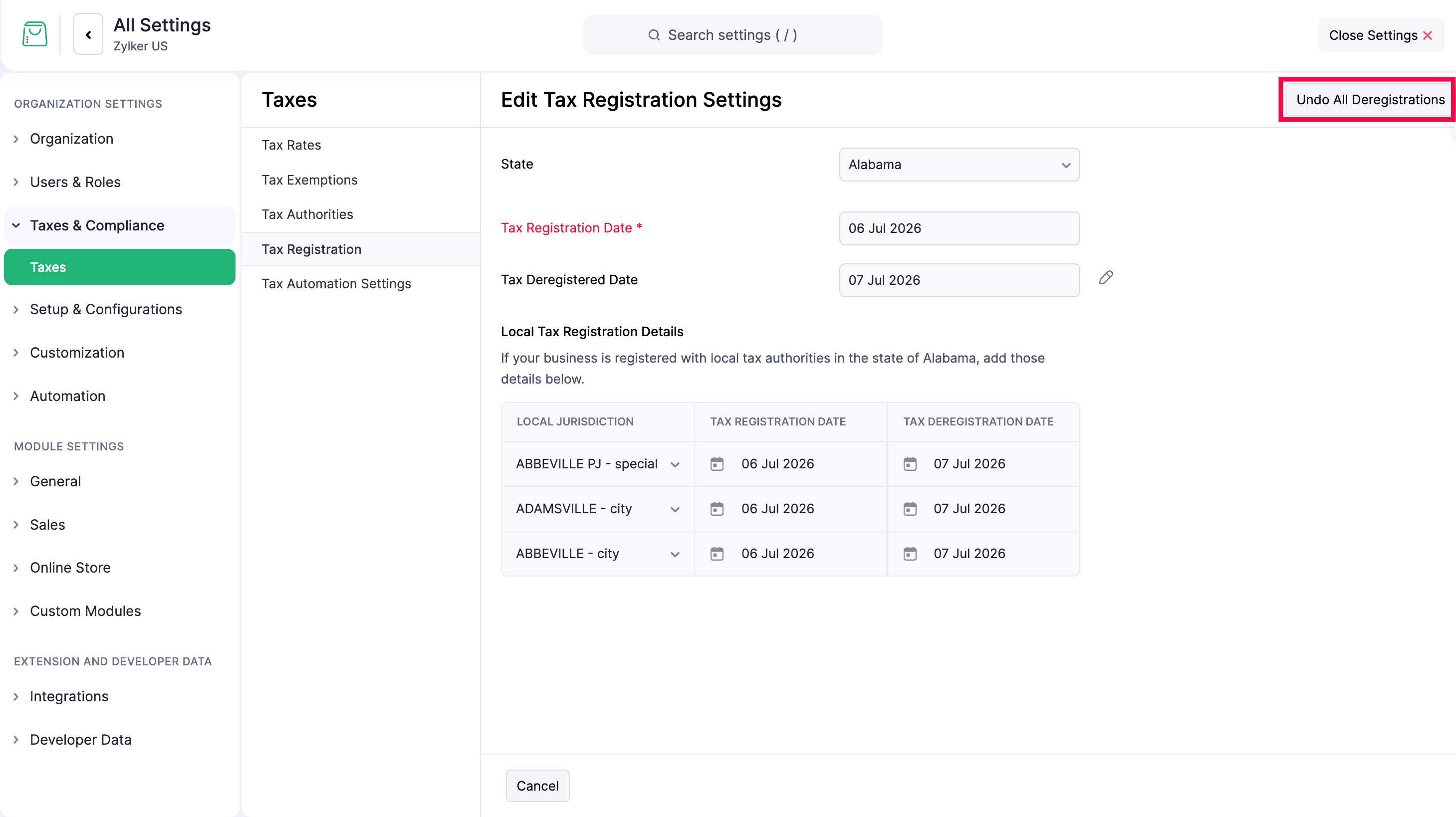
- In the confirmation pop-up, click Undo Deregistration.
The tax is included in orders again and calculated accordingly. You can undo deregistration for a specific local tax the same way.
Mark Tax Registrations as Inactive
Mark a registration as inactive to temporarily stop it from applying to orders.
- Go to Settings.
- Select Taxes under Taxes & Compliance.
- Click Tax Registration.
- Hover over the registration, click the dropdown, and select Mark as Inactive.
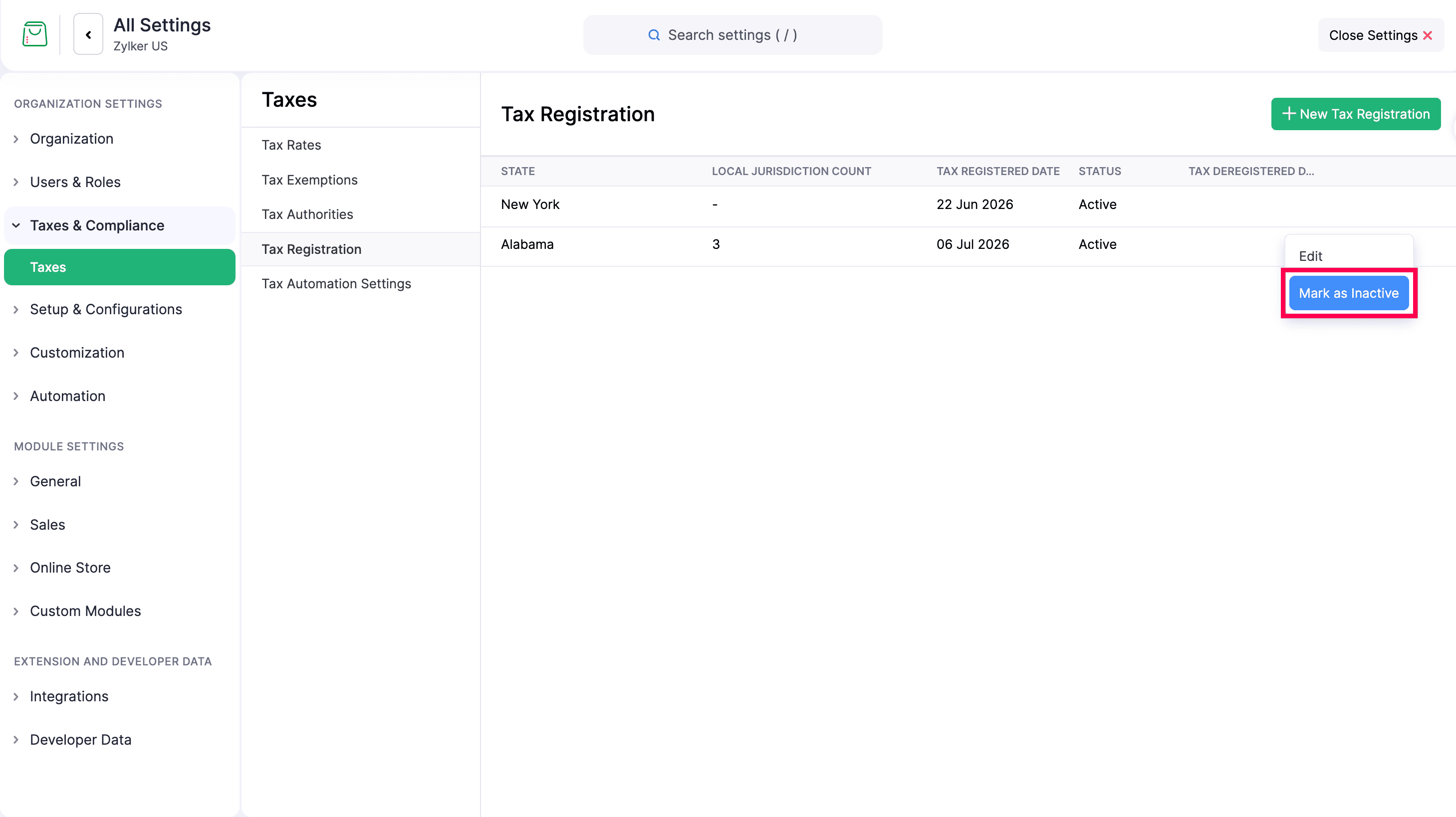
- In the confirmation pop-up, click Mark As Inactive.
The registration is marked Inactive. To reactivate it, repeat the steps and select Mark as Active.
Disable Sales Tax Automation
If you no longer want to use Sales Tax Automation, disable it and manage taxes manually. After you disable it, set up your tax rates on the Taxes page so they apply at checkout. You can still view your existing tax registrations, but they won’t apply to new orders. Set up the correct taxes manually for your orders. See Taxes.
To disable Sales Tax Automation:
- Go to Settings.
- Select Taxes under Taxes & Compliance.
- Navigate to Tax Automation Settings.
- Click Disable next to Sales Tax Automation.
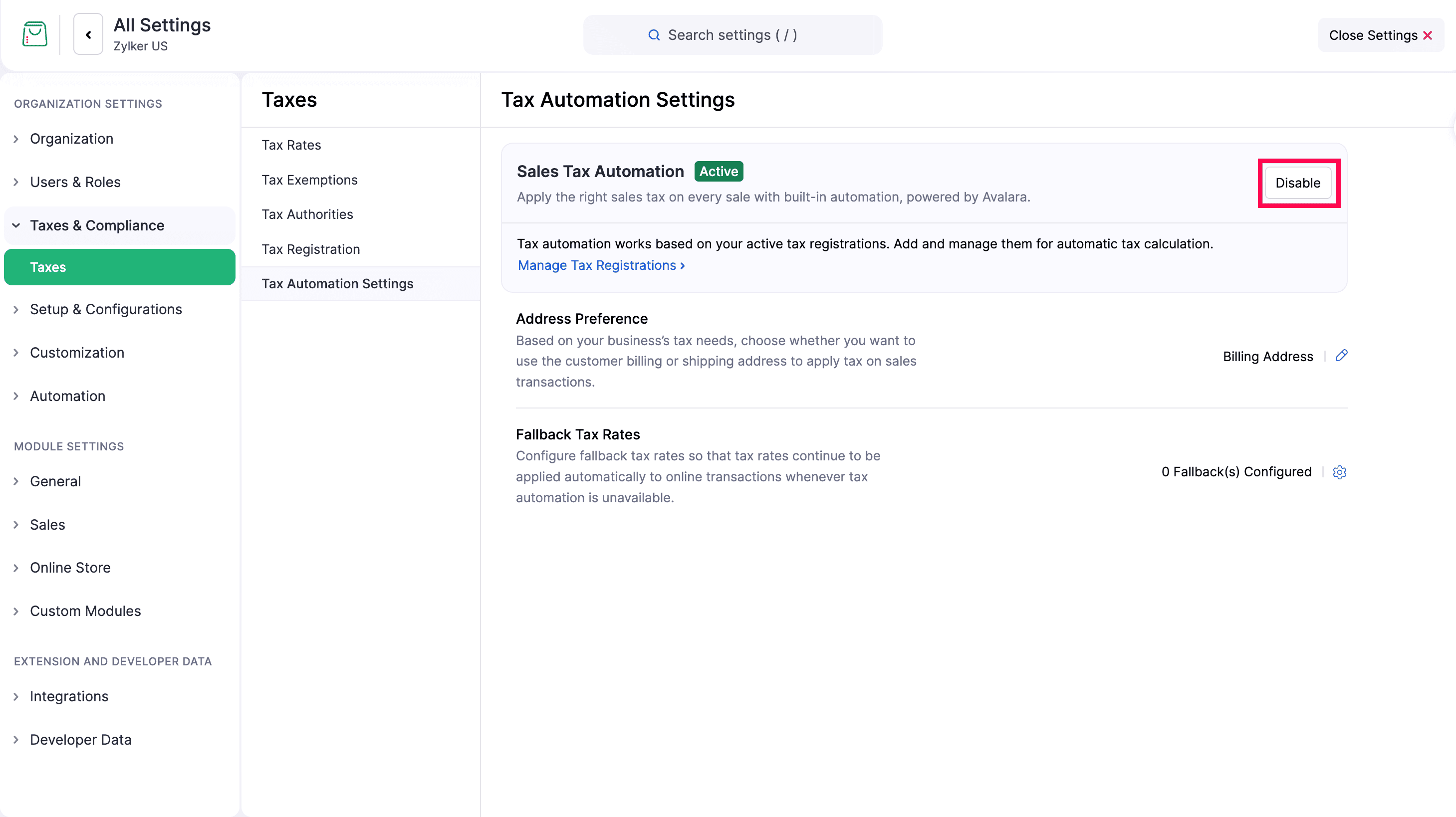
- In the confirmation pop-up, click Disable.
Sales Tax Automation is disabled for your store.
Limitations of Sales Tax Automation
Sales Tax Automation handles most common tax scenarios automatically, but there are certain cases it does not support. Understanding these limitations helps you identify when to apply taxes manually.
- Partial exemptions: Tax is applied at the line-item level, so each item is treated as fully taxable or fully exempt. Partial taxation within a line item is not supported. For example, under the Massachusetts clothing sales tax rule, tax applies only to the amount above $175 for an item priced over $175, not to the full price.
- Exemptions based on business type: Exemptions are not applied based on a customer’s business type. Review potentially exempt transactions manually before saving. For example, cotton purchased by a textile manufacturer may be exempt if it is used to produce goods for resale. CCTV equipment purchased for the manufacturer’s own use is taxable because it is consumed directly and not resold.
- Tax registrations in multiple countries: Each Zoho Commerce organization is configured for one country. If your business collects tax in more than one country, such as the United States and Canada, you cannot manage both countries’ tax registrations in the same organization.
- Slab-based tax rates: Some jurisdictions apply different rates to portions of a taxable amount. For example, Tennessee’s Single Article Tax applies the standard rate to the first $1,600 of an article’s price, a reduced rate to the portion up to $3,200, and no tax beyond that. Sales Tax Automation applies a single rate per line item and cannot split an item’s taxable amount across multiple rate slabs.