

Taxes

Zoho Commerce lets you manage sales tax and stay compliant with U.S. tax regulations. From the Taxes section, you can set up tax rates, manage tax authorities and exemptions, and register the states where you’re liable. To calculate tax automatically at checkout, set up Sales Tax Automation.
Note: This help document is applicable only to the U.S. edition of Zoho Commerce.
Tax Rates
The Tax Rates tab lists your taxes with three columns: Tax Name, Tax Authority, and Rate (%). Use the Active taxes dropdown at the top to filter the list.
The + New Tax button (top-right) opens a dropdown with four options:
- New Tax Group: Combine multiple tax rates into one.
- Create Taxes in Bulk: Add several tax rates at once.
- New Tax Exemption: Add a tax exemption.
- New Tax Authority: Add a tax authority.
Create a Tax Rate
- Go to Settings > Taxes & Compliance > Taxes.
- In the Taxes pane, click Tax Rates.
- Click + New Tax in the top-right corner.
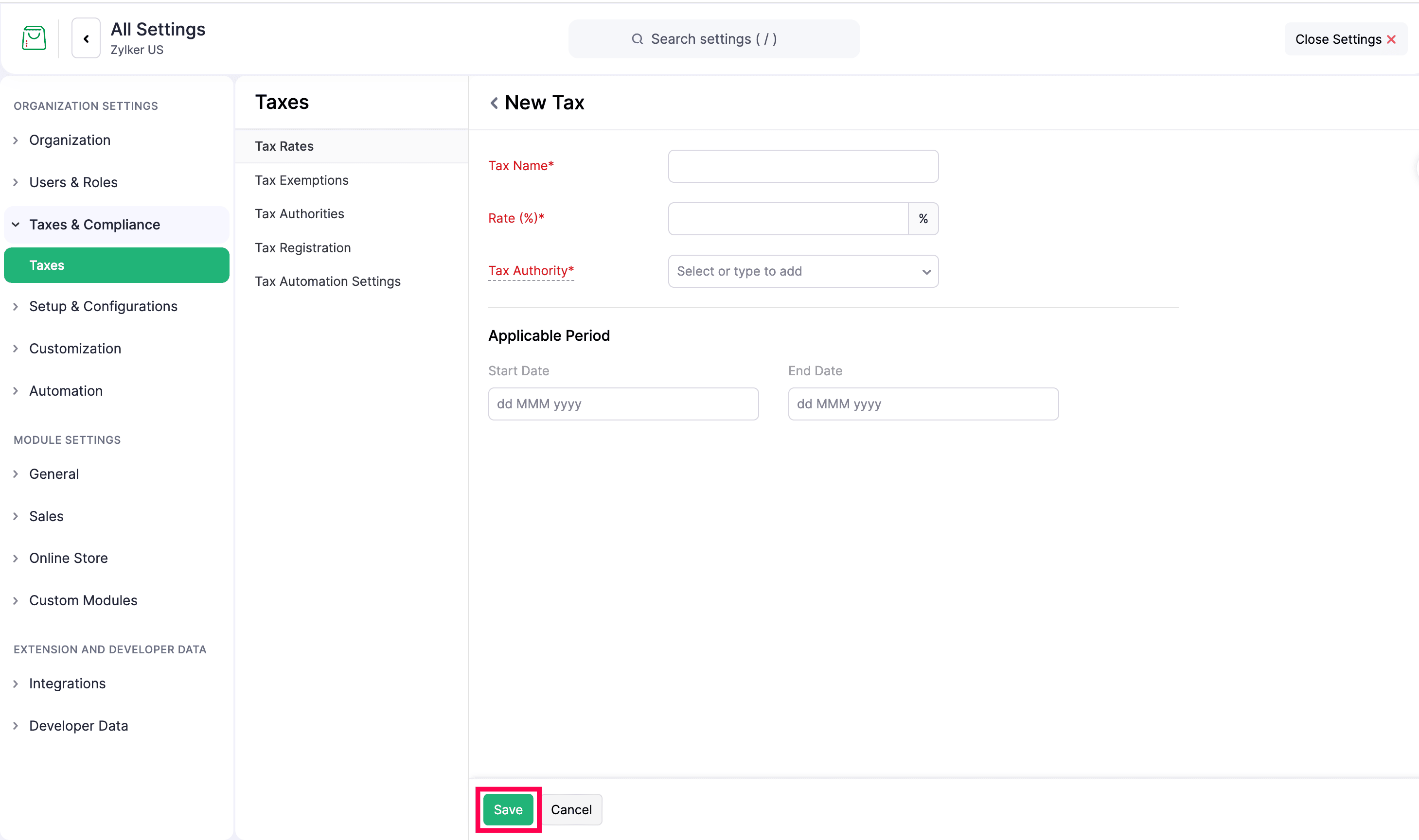
- Enter a Tax Name, the Rate (%), and the Tax Authority.
- Under Applicable Period, enter a Start Date and End Date for the tax.
- Click Save.
Create a Tax Group
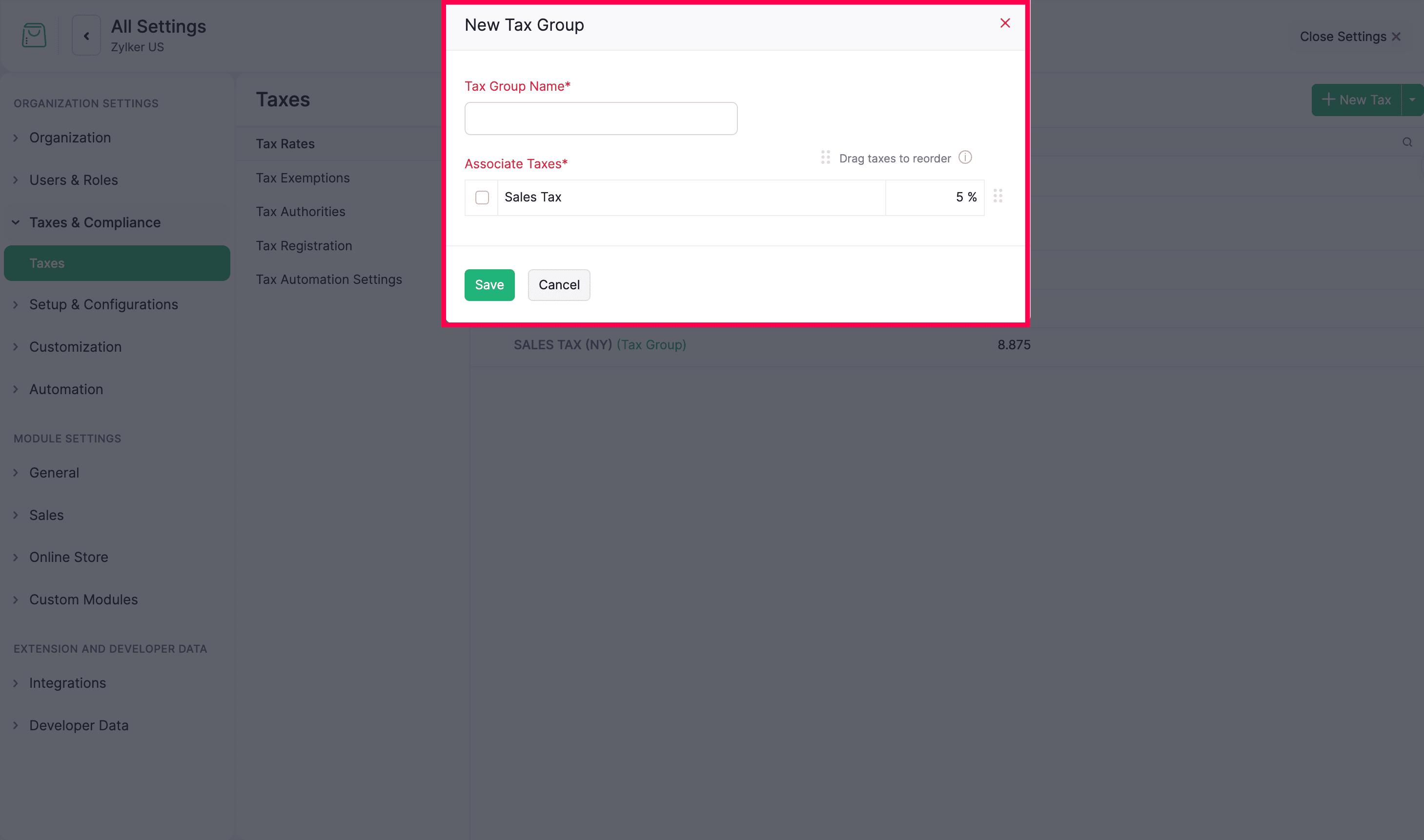
A tax group combines two or more tax rates into a single entity, so customers or items eligible for multiple taxes (for example, state and local) get the combined rate applied at once.
- Go to Settings > Taxes & Compliance > Taxes.
- In the Taxes pane, click Tax Rates.
- Click the + New Tax dropdown in the top-right corner and select New Tax Group.
- Enter a Tax Group Name and select the tax rates to associate with the group.
- Click Save.
Create Taxes in Bulk
- Go to Settings > Taxes & Compliance > Taxes.
- In the Taxes pane, click Tax Rates.
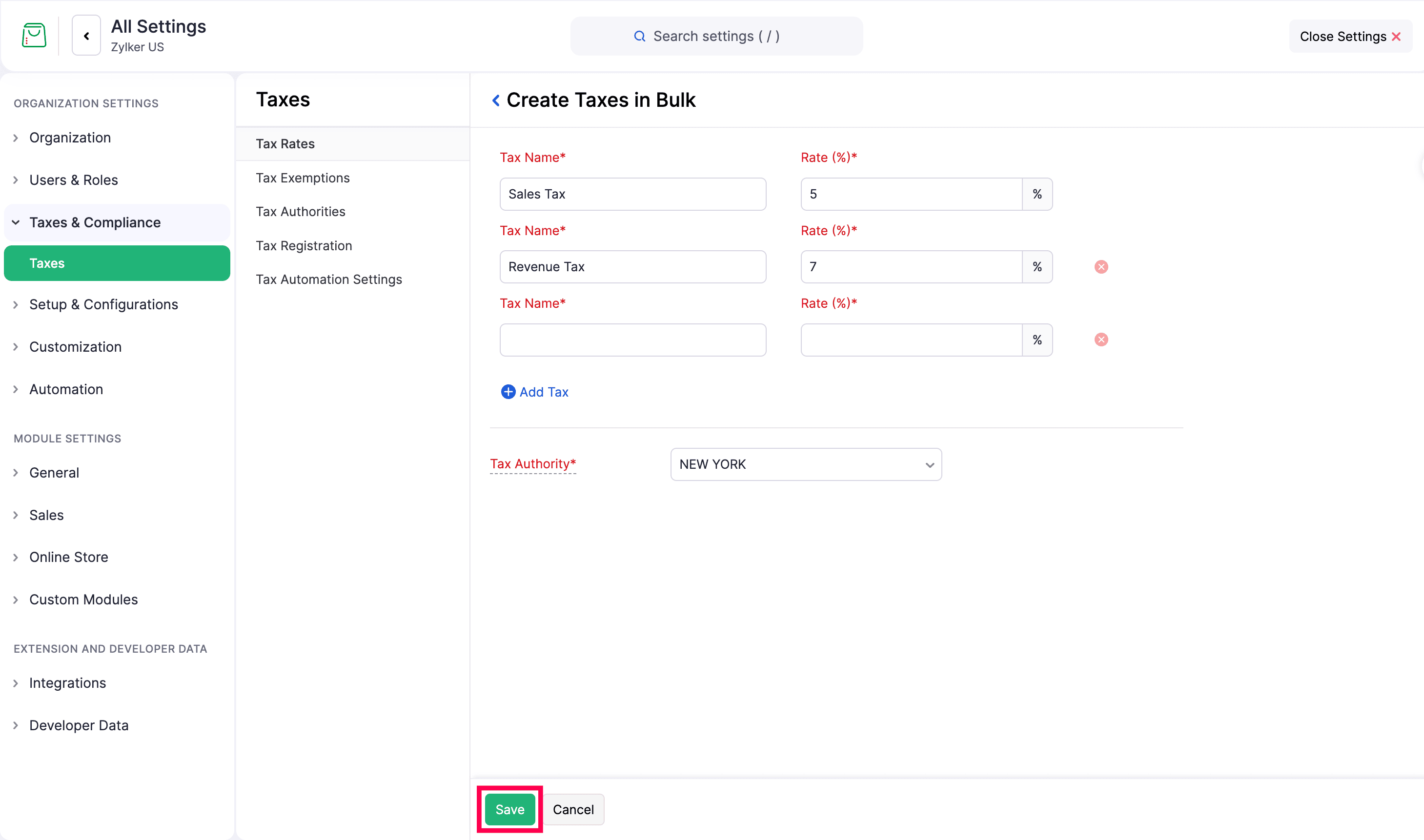
- Click the + New Tax dropdown in the top-right corner and select Create Taxes in Bulk.
- For each tax, enter the Tax Name and Rate (%).
- Click + Add Tax to add another row. Use the remove icon to delete a row.
- Select the Tax Authority: the authority the taxes are collected for. Choose an existing authority from the list, or type to add a new one.
- Click Save.
Tax Exemptions
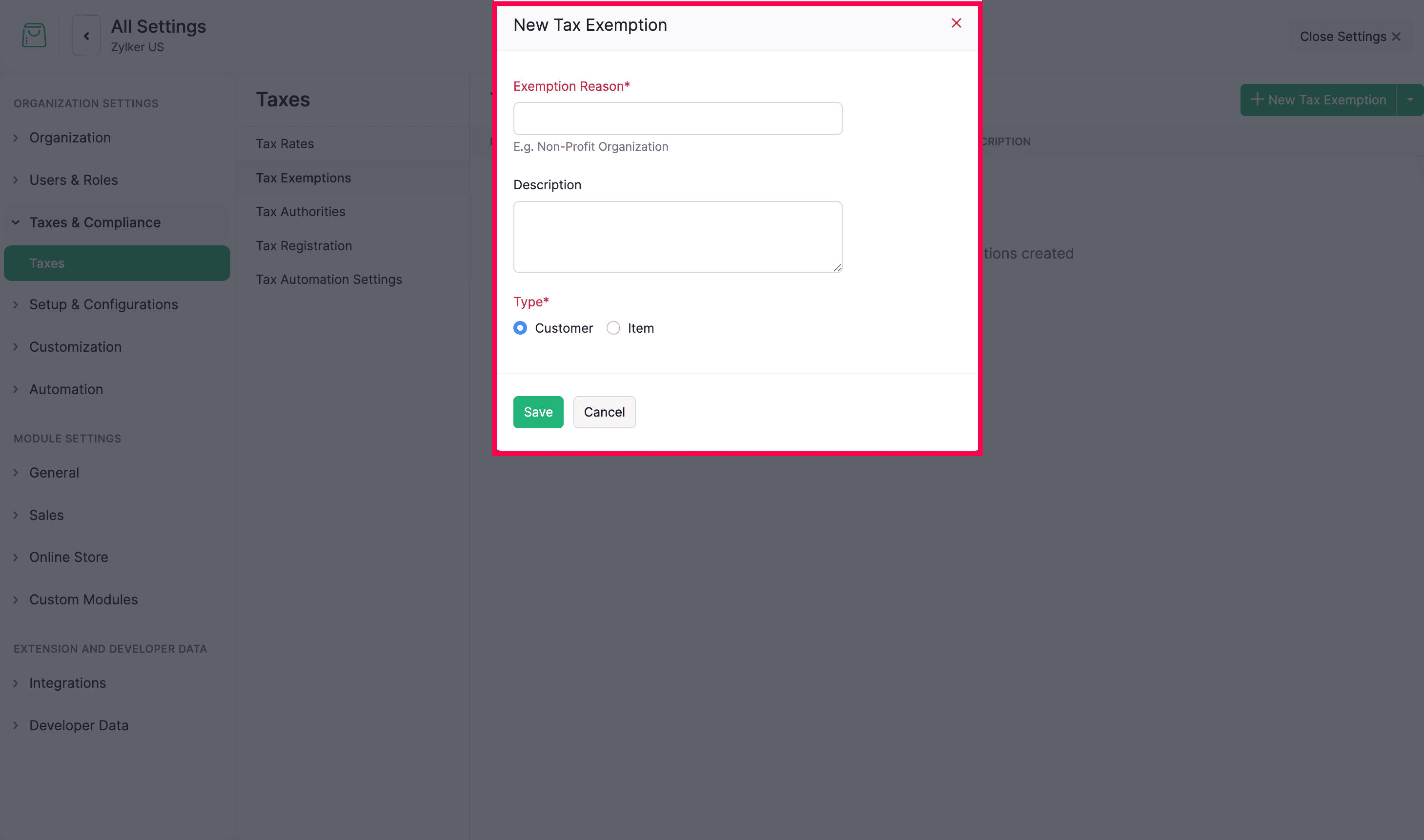
Tax exemptions apply when a customer or item isn’t required to pay sales tax (for example, resale, non-profit organizations, or specific goods).
- Go to Settings > Taxes & Compliance > Taxes.
- In the Taxes pane, click Tax Rates.
- Click the + New Tax dropdown in the top-right corner and select New Tax Exemption.
- Enter the Exemption Reason and a Description, and choose the Type as Customer or Item.
- Click Save.
Create Tax Exemptions in Bulk
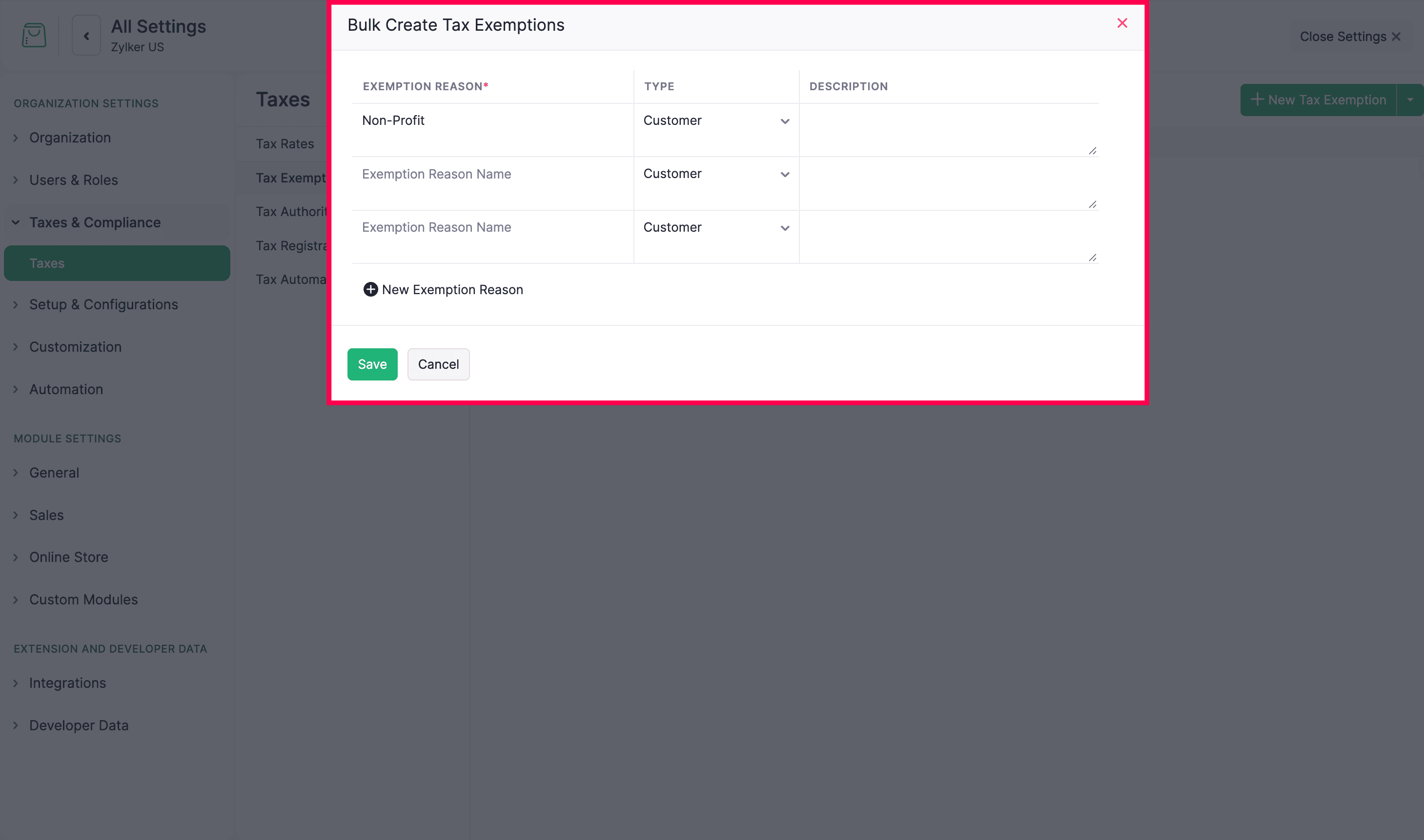
A tax exemption lets you exclude specific customers or items from tax. Instead of adding exemptions one at a time, you can create several at once.
- Go to Settings > Taxes & Compliance > Taxes.
- In the Taxes pane, click Tax Rates.
- Click the + New Tax dropdown and select Bulk Create Tax Exemption.
- For each exemption, enter:
- Exemption Reason: The reason the customer or product is exempt from tax.
- Type: Whether the exemption applies to a Customer or an Item.
- Description: A note to help identify the exemption.
- Click + New Exemption Reason to add another row.
- Click Save.
Tax Authorities
A tax authority is the government agency that collects tax for a given jurisdiction. Associating a tax authority with a rate lets Commerce apply and track the correct tax. The Tax Authorities tab lists your existing authorities (shown by state, for example, California).
- Go to Settings > Taxes & Compliance > Taxes.
- In the Taxes pane, click Tax Rates.
- Click the + New Tax dropdown in the top-right corner and select New Tax Authority.
- Enter the Tax Authority name, select the State, and add a Description if needed.
- Click Save.
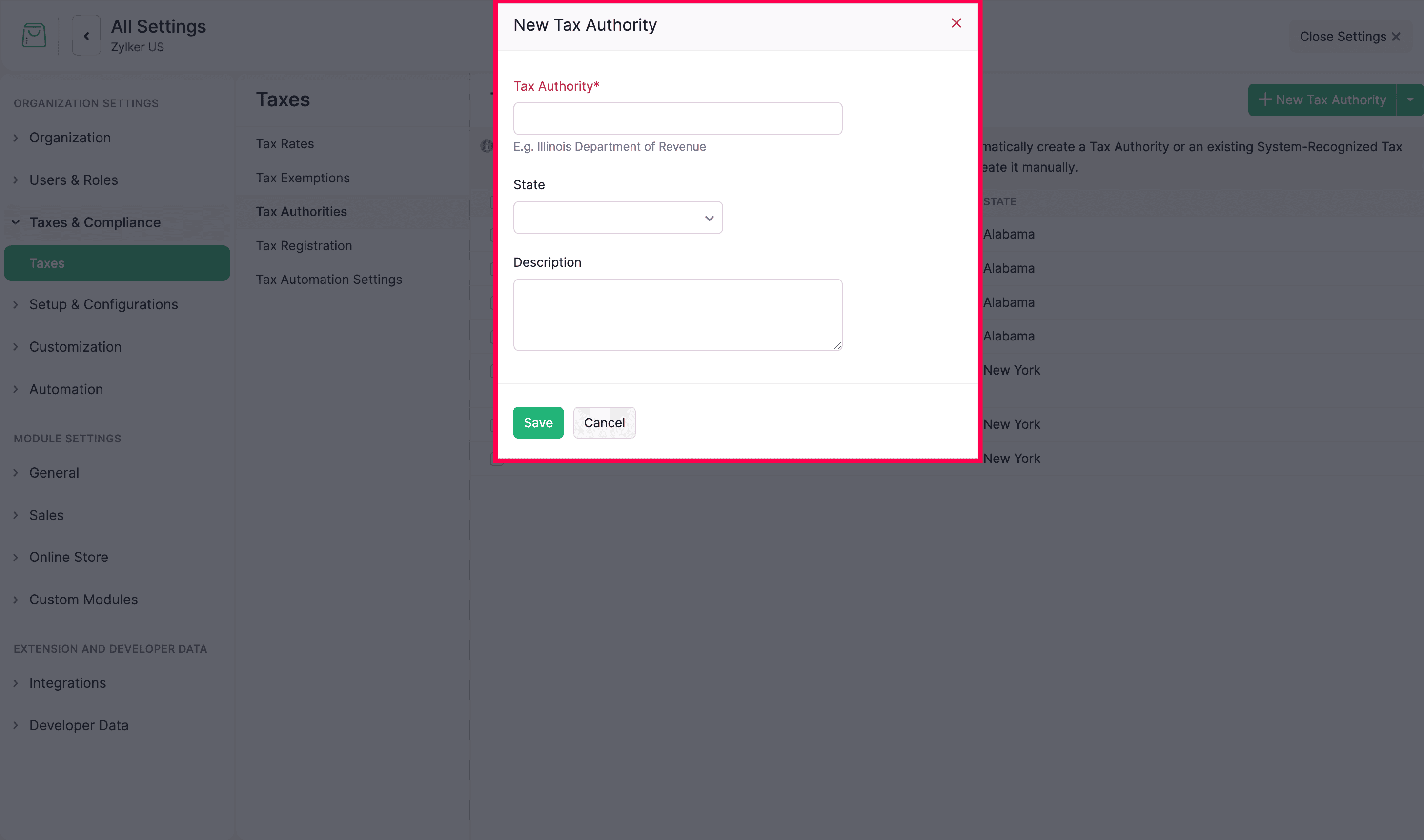
Note: Tax authorities connect directly to tax registration. A mapped tax authority must be registered before automatic tax calculation applies for that state.
Create Tax Authorities in Bulk
A tax authority is the government body you collect a tax for and pay it to, like a state or city. Instead of adding them one by one, you can add several at once.
- Go to Settings > Taxes & Compliance > Taxes.
- Open the Tax Authorities tab.
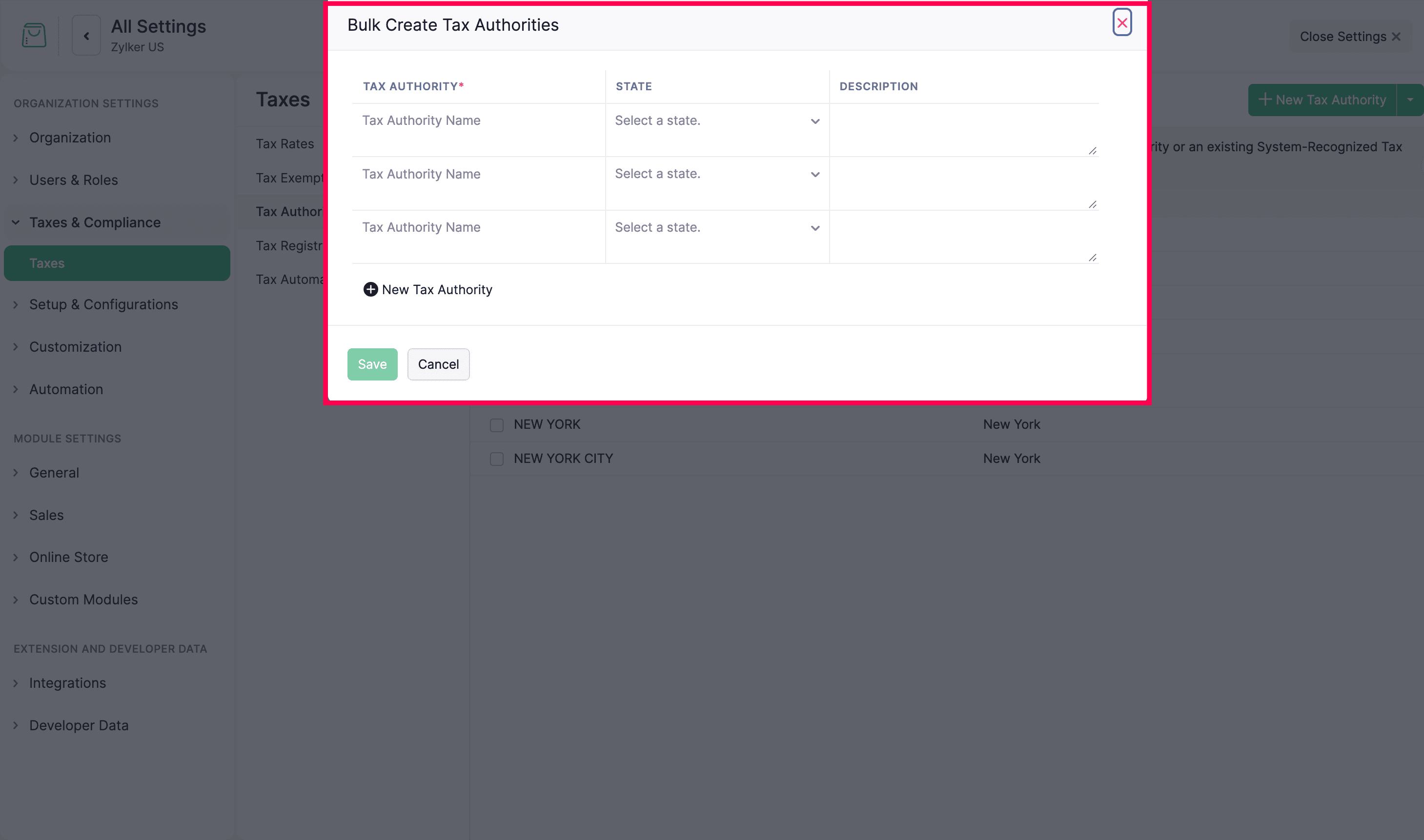
- Click the dropdown arrow next to + New Tax Authority and select Bulk Create Tax Authorities.
- For each authority, fill in the required details:
- Tax Authority: The name of the tax authority.
- State: The state the authority belongs to.
- Description: A note to help identify the authority.
- Click + New Tax Authority to add another row.
- Click Save.
Tax Rules
The Tax Rules tab appears when Sales Tax Automation is disabled. Use it to set up tax manually: you define how tax applies to each product tax category across the states where you’re registered. When Sales Tax Automation is enabled, tax is calculated automatically and you manage tax registrations instead of rules.
Manage Tax Rules
The Manage Tax Rules page lists your existing rules with these columns:
- Product Tax Categories: The category the rule applies to (for example, Default Category, or a specific category such as Product / Consumer Electronics).
- States Configured: The number of states configured for that category.
- Status: Whether the rule is Active or inactive.
Create a Tax Rule
- Go to Settings > Taxes & Compliance > Taxes.
- Open the Tax Rules tab.
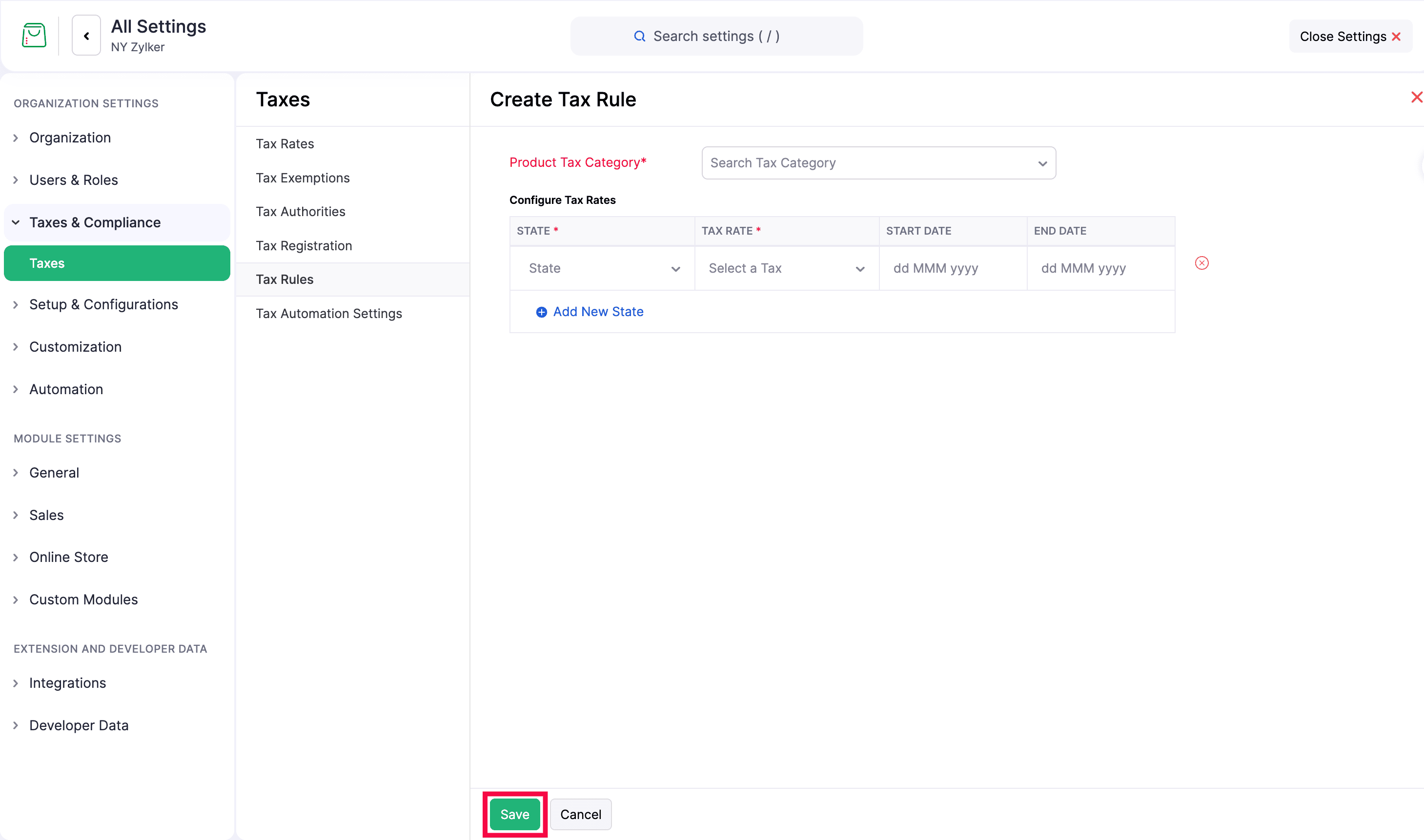
- Click Create Tax Rule.
- Select the Product Tax Category the rule applies to.
- Under Configure Tax Rates, set up a rate for each state:
- State: The state the rate applies to.
- Tax Rate: The tax to apply.
- Start Date: When the rate takes effect.
- End Date: When the rate stops applying.
- Click Add New State to configure another state. Use the remove icon to delete a row.
- Click Save.
To edit an existing rule, click its Product Tax Category name in the list.
Tax Registration
Register each state where your store has a tax obligation so Zoho Commerce can calculate sales tax automatically at checkout.
Note: You can create a tax registration only when Sales Tax Automation is enabled. Creating a tax registration automatically creates a tax authority, or uses an existing system-recognized one.
- Go to Settings > Taxes & Compliance > Taxes.
- In the Taxes pane, click Tax Registration.
- Click + New Tax Registration in the top-right corner.
- In the New Tax Registration Settings page, fill in the required details:
- State: The state where you’re registered to collect sales tax.
- Tax Registration Date: The date your business was registered to collect sales tax in that state. Tax is applied to orders placed on or after this date.
- Local Tax Registration Details: Add city, county, or other jurisdiction-level taxes, including special taxes, for accurate calculation.
- Click Save.