

Dunning Management

Dunning Management is the automated payment recovery process that Zoho Billing uses when a subscription renewal payment fails, an offline subscription’s invoice goes unpaid, or a one-time invoice remains unpaid after its due date. Instead of letting a failed or missed payment silently affect a subscription or invoice, it notifies the customer, retries the charge on a schedule you define where applicable, and applies a final action only after every attempt is exhausted.
Businesses that handle recurring payments may encounter payment failures and unpaid invoices. Payments can fail for various reasons, such as expired cards, insufficient funds, or authentication errors. An efficient dunning management system helps your business recover payments, retain customers, and reduce involuntary churn.
Patricia leads the sales team of a rapidly growing SaaS business. Currently, whenever payments fail for subscription renewals, her team manually follows up with their customers. Patricia understands that this may not be feasible as her business expands further. So, she sets up the dunning rules in Zoho Billing that can help her team cut down on the manual work, thereby saving the company time and resources.
Configure Dunning Management
Zoho Billing lets you configure dunning management separately for subscriptions with autocharge and subscriptions without autocharge.
To configure dunning management:
- Log in to your Zoho Billing organization.
- Navigate to Settings in the top right corner.
- Select Dunning Management under Subscriptions.
- Configure dunning rules according to your business requirements.
Certain plans in Zoho Billing support Multiple Dunning Rules. When an invoice enters dunning, Zoho Billing automatically applies the appropriate rule based on the configured priority orders.
You can configure Email Notifications to remind customers before their cards expire. Sending these reminders early can help reduce the number of subscriptions that enter dunning. To configure this, go to Settings > Customization > Email Notifications > Expiry & Cancellation > Card about to Expire.
Dunning for Subscriptions With Autocharge
Configure dunning management for subscriptions associated with payment methods that support autocharge, such as credit cards, UPI mandates, or similar recurring payment methods.
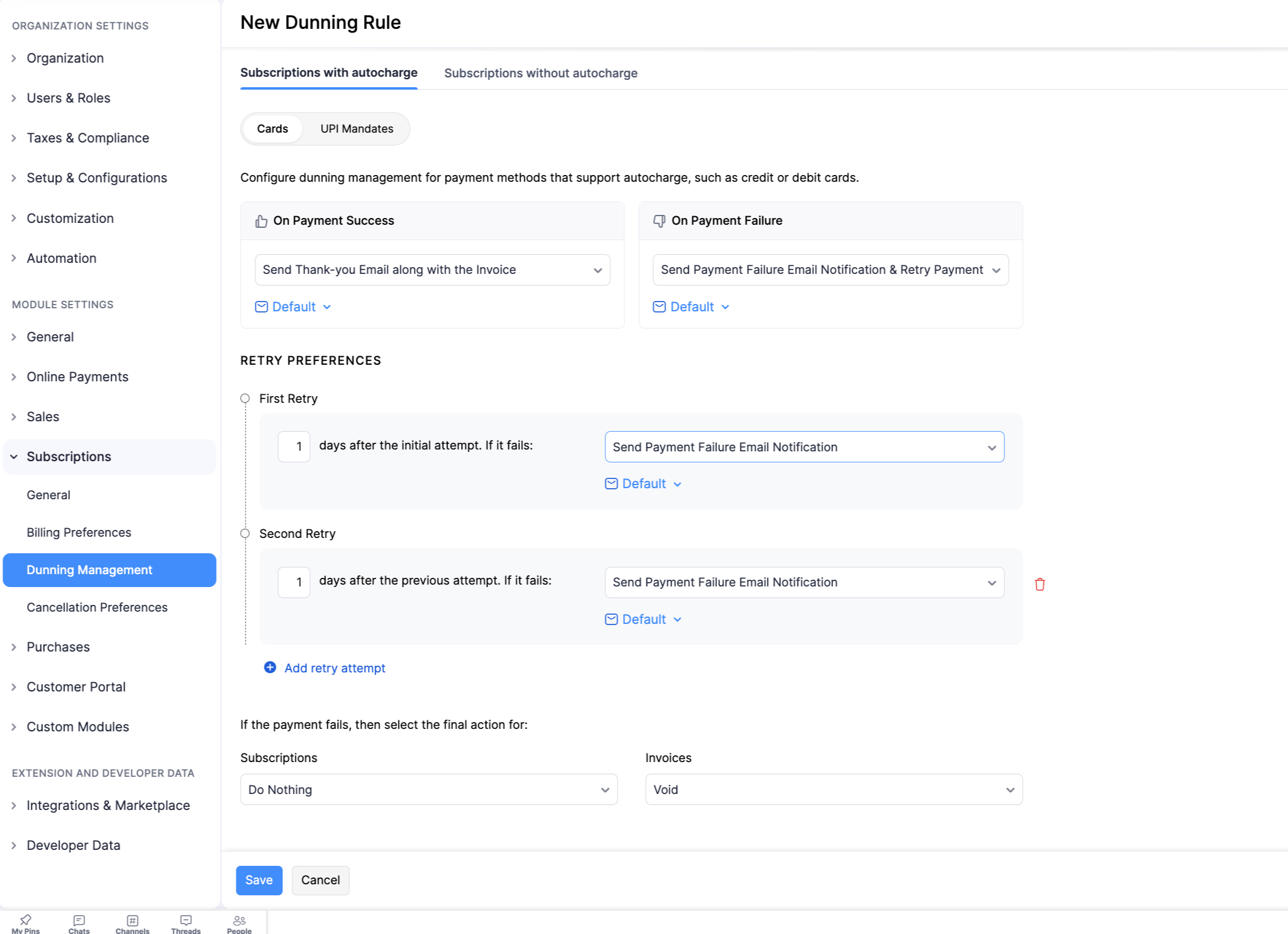
This will only apply to subscriptions that are autocharge-enabled. So, if autocharge for a subscription is disabled, it will follow dunning for subscriptions without autocharge.
You can choose whether to notify your customers about successful payments. To do this, click the On Payment Success dropdown.
| Option | Description |
|---|---|
| Do Nothing | No email will be sent to your customers notifying them about successful payments. |
| Send Thank-you Email along with the Invoice | The customer will receive the invoice along with a payment-success notification. You can customise this email notification to suit your business. |
Similarly, if payments fail for renewals, you can configure what happens next by clicking the On Payment Failure dropdown.
| Option | Description |
|---|---|
| Send Payment Failure Email Notification | Your customers will receive an email notification when payments fail for their subscription’s renewals. No retry attempt will be carried out. |
| Send Payment Failure Email Notification & Retry Payment | An email notification will be sent to your customers when payments fail for their subscription’s renewals. Zoho Billing will also retry the payment method based on the Retry Preferences that you configure. |
| Retry Payment without Payment Failure Email Notification | Your customers will not receive an email notification when payments fail for their subscription’s renewals, and their payment method will be charged based on the Retry Preferences that you configure. |
Payment Method-Specific Dunning Management
You can configure separate dunning management preferences based on the additional autocharge payment-method tab that is shown in your organisation. You can configure dunning preferences such as retry intervals, email templates, and final actions from that payment-method-specific tab.
Note: The final action configured will not apply to the first invoice of a subscription with an UPI Mandate payment method. This means that, if the payment for the first invoice of such subscriptions has failed, its respective subscription will be marked as Canceled after the configured retries.
UPI Mandates
Since UPI mandate payments typically take longer to process, you can configure separate dunning management preferences for subscriptions that have UPI mandate payment methods.
Here’s how you can set up UPI mandate-specific dunning:
- Go to Settings from the top-right corner of the page.
- Select Dunning Management under Subscriptions.
- Navigate to the Subscriptions With Autocharge section.
- Click the UPI Mandates tab.
Note:
The UPI Mandates tab will only be shown if you have configured a payment gateway that supports UPI mandate payments (such as Razorpay or Zoho Payments) and have UPI auto-charge enabled for your account.
You can configure what happens when a UPI mandate payment succeeds or fails, set up retry preferences with up to 3 retry attempts, and define final actions for subscriptions and invoices similar to how you would for cards.
Retry Preferences
In the event of a payment failure, you can configure Retry Preferences to try charging your customers again after a certain number of days.
Zoho Billing supports a maximum of 3 retry attempts, and lets you set the number of days between each attempt.
You can configure the next course of action after each retry attempt by clicking the dropdown next to it.
| Option | Description |
|---|---|
| Don’t Send Email Notification | Your customers will not receive an email notification when the retry attempt fails for their subscription’s renewals. |
| Send Payment Failure Email Notification | Your customers will receive an email notifying them of their subscription’s status, the date of the next retry attempt, and links to complete the payment or update their payment information. |
Final Action
You can choose what happens to your customers’ subscriptions and invoices after the final retry attempt fails.

Subscriptions
| Option | Description |
|---|---|
| Do Nothing | The subscription’s status will change to Unpaid, but it will continue to renew according to its billing cycle. When payment is attempted for the next renewal invoice, the subscription’s status will be updated based on the outcome of that payment attempt and the configured dunning preference |
| Cancel | Cancels the subscription. |
| Mark Subscription as Free or Cancelled | The subscription will be moved to a free plan if the final retry fails. If the product does not have a free plan, the subscription will be cancelled. |
The Mark Subscription as Free or Cancelled option will be available only if you have enabled Free Plans in Subscriptions General settings.
Invoices
| Option | Description |
|---|---|
| Do Nothing | No invoice status change is applied by this setting. |
| Void | Voids the invoice. |
| Reverse Invoice | Marks the invoice as Paid and creates a credit note to balance the invoice amount. |
If the dunning period extends beyond the subscription’s next billing date and the final action is Do Nothing, renewals may be processed together after dunning is completed. Although this might appear as duplicate renewals, each invoice belongs to its respective billing cycle.
Customise Email Templates
Email notifications are sent to your customers informing them whether their subscription’s renewal payment was successful or not. Zoho Billing lets you customise these email notifications to suit your business.
You can also customise the email template of each retry attempt. These emails notify your customers about their subscription’s status, the number of days until the next retry attempt, and contain links to make the payment manually or update their payment method.
For example, some businesses might want to configure only two retry attempts. In this case, the email template of the second retry attempt can be edited to let their customers know the final action regarding their subscription.
Dunning for Subscriptions Without Autocharge
If a subscription’s invoice remains unpaid after its due date, the subscription remains in the Live status, which means that your customer might be able to use your product without having paid for it. Zoho Billing solves this with dunning management by automatically moving such subscriptions to the dunning flow that you configure.
This will only apply to subscriptions without autocharge. So, if autocharge for a subscription is enabled, it will follow dunning for subscriptions with autocharge.
Dunning for Subscriptions that are Past Due
You can configure the number of days a subscription will be payable after an invoice has crossed its due date. This window is called the dunning period. During this time, the subscription will be moved to the Past Due status and your customers will be able to make payments to the respective overdue invoice.
Although subscriptions are in the Past Due status during the dunning period, their corresponding unpaid invoices will show as Overdue. That is, the Past Due status is applicable only to subscriptions and the Overdue status is applicable only to invoices.
If payments are made for overdue invoices within the dunning period, the associated subscriptions return to Live and continue renewing. If the invoices remain unpaid at the end of the dunning period, you can configure the action that follows from the dropdown.
Configure Final Actions For Unpaid Invoices
When this dunning is enabled, configure final actions separately for Subscriptions and Invoices.
Subscriptions
| Option | Description |
|---|---|
| Do Nothing | The subscription’s status will change to Unpaid, but it will continue to renew according to its billing cycle. |
| Cancel | Cancels the subscription. |
| Mark Subscription as Free or Cancelled | The subscription will be moved to a free plan. If the product does not have a free plan, the subscription will be cancelled. |
Invoices
| Option | Description |
|---|---|
| Do Nothing | No invoice status change is applied by this setting. |
| Void | Voids the invoice. |
| Reverse Invoice | Marks the invoice as Paid and creates a credit note to balance the invoice amount. |
If the dunning period extends beyond the subscription’s next billing date and the final action is Do Nothing, renewals may be processed together after dunning is completed. Although this might appear as duplicate renewals, each invoice belongs to a different billing cycle.
Dunning for One-time Invoices
Zoho Billing lets you manage dunning for one-time invoices, i.e., invoices that were generated for one-time charges or one-time addons of a subscription.
Dunning management for one-time invoices can help bring closure on unpaid invoices by applying the configured final action as soon as they cross their due date.
To enable this, click the toggle next to Dunning for one-time invoices.
| Option | Description |
|---|---|
| Do Nothing | No invoice status change is applied by this setting. |
| Void | The invoice will be marked as Void and customers will not be able to make payments for the invoice. |
| Reverse Invoice | The related invoice will be marked as Paid and a credit note equivalent to the invoice amount will be created in the Closed status. |
Pause and Resume Dunning
Zoho Billing allows you to pause a customer’s dunning process and resume it before the next billing cycle. This is particularly helpful for cases such as when you don’t want to lose a customer due to some temporary issues. This also allows customers to update their payment method, resolve failed transactions, or fix billing issues without being pressured by automated dunning retries or final actions.
Note: This feature is currently available in the Enterprise edition and certain plans of Zoho Billing. Visit our pricing page to check whether your plan supports this feature.
Scenario 1: Zylker is a high-value enterprise customer of Patricia’s subscription business. If a payment issue arises during the dunning process, Patricia can pause dunning until it’s resolved. Once the issue is fixed, she can resume dunning and continue the payment recovery process.
Scenario 2: A region is hit by a natural disaster, affecting the customers’ ability to pay for Zylker’s subscriptions. Zylker decides to pause dunning for the period and resume dunning once normalcy is restored. This allows customers to pay when it is convenient for them.
Pause Dunning
Note: Retries scheduled during the pause are skipped. If every remaining retry fell inside the pause, one final attempt is made on resumption.
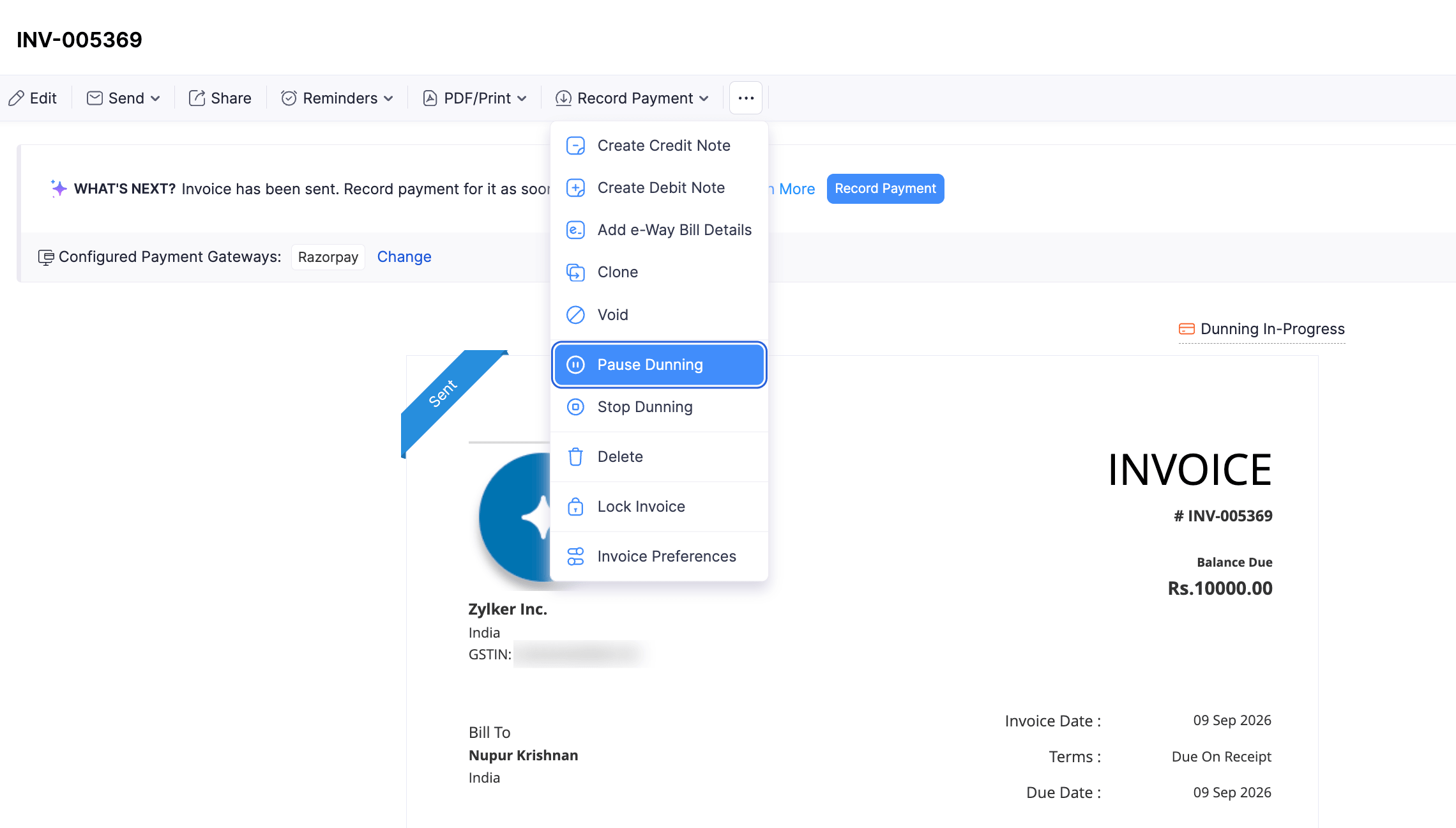
To pause dunning for a subscription’s invoice:
- Navigate to the Invoices module under Sales.
- Select an invoice.
- Click the More button.
- Select Pause Dunning.
- Enter a Reason.
- Select a resume date for the invoice’s dunning in the Resume On field.Note:
The resume date must fall before the next billing date.

- Click Pause.
The invoice’s dunning has been paused and will resume on the selected date. You can also resume the dunning manually before the resume date.
Edit Resume Dunning Date
You can edit the date on which an invoice’s dunning is scheduled to resume. Here’s how:
- Navigate to the Invoices module under Sales.
- Select an invoice.
- Click the Edit button next to the dunning resume date.
- Select the updated resume date for the invoice’s dunning in the Resume On field.
- Click Update.
The invoice’s dunning will automatically resume on the updated date.
Manually Resume Dunning
To manually resume dunning for a subscription’s invoice:
Navigate to the Invoices module under Sales.
Select an invoice.
Click Resume Now.
Click Proceed in the pop-up.
Insight: You can also see the date on which the invoice’s payment will be retried in the pop-up.
The invoice’s dunning will be resumed. If you resume after the scheduled final retry date, the next retry payment will be attempted within one day.

Stop Dunning
Zoho Billing allows you to stop dunning and move the invoice immediately from the dunning process, or mark the next retry as the final retry.
To stop the dunning process for a subscription’s invoice:
- Navigate to the Invoices module under Sales.
- Select an invoice.
- Click the More button.
- Select Stop Dunning.

- Select the desired option.
| Option | Description |
|---|---|
| Mark Next Payment Retry As Final | The next payment retry will be the final attempt. If it fails, the configured final action will be applied. |
| Remove From Dunning Immediately | The associated subscription will return to the Live status, while the invoice’s last status will remain unchanged. |
- Click Proceed.

In-Term Reactivation
Zoho Billing lets you reactivate subscriptions that were cancelled due to dunning without changing their billing cycles or generating new invoices. When in-term reactivation is enabled, recording a payment for the subscription’s latest overdue invoice gives you the option to reactivate the subscription.
Enable In-Term Reactivation
To enable in-term reactivation:
- Navigate to Settings.
- Select General under Subscriptions.
- Enable In-Term Reactivation.
- Click Save.
You can now reactivate subscriptions cancelled through dunning if they’re still within the current billing term and within 30 days of the invoice’s due date. The current billing term is the period between the previous and next billing dates.
By default, in-term reactivation is available for up to 30 days from the invoice’s due date. If your billing term is longer than 30 days and you need this window extended, contact our support team at support@zohobilling.com.
For in-term reactivation, a new invoice will not be generated. For autocharge-enabled subscriptions, Zoho Billing attempts to charge the existing overdue invoice automatically.
Reactivate Cancelled Subscription In-Term
Autocharge-Enabled Subscriptions
To reactivate an autocharge-enabled subscription that was canceled due to dunning:
- Navigate to the Subscriptions module.
- Select a subscription that was canceled due to dunning.
- Click Reactivate Subscription. You’ll see the following checkbox options:

| Option | Description |
|---|---|
| Reactivate subscription even if payment fails | The customer’s card will be charged immediately, and the subscription will be reactivated even if the payment fails. |
| Skip In-Term Reactivation | The customer’s card will be charged and a new invoice will be generated. The subscription’s billing cycle will also change. |
- Click Reactivate.
If you want to reactivate the subscription in-term only if the customer’s payment is successful, leave both checkboxes clear.
If the subscription’s last unpaid invoice is in the Void status, you will have to manually change the invoice status to Open and send it to your customers to receive payment.
Autocharge-Disabled Subscriptions
For autocharge-disabled subscriptions, no automatic payment collection occurs.
To reactivate an autocharge-disabled subscription that was canceled due to dunning:
- Navigate to the Subscriptions module.
- Select a subscription that was canceled due to dunning.
- Click Reactivate Subscription. You’ll see the following checkbox option:

| Option | Description |
|---|---|
| Skip In-Term Reactivation | The subscription will be reactivated immediately and a new invoice will be generated. The subscription’s billing cycle will also change. |
- Click Reactivate.
Reactivate a Subscription While Recording Payment
When in-term reactivation is enabled, you can also reactivate an eligible subscription while recording payment for its latest overdue invoice.
To reactivate a subscription while recording payment:
- Go to the Subscriptions module in the left sidebar.
- Select the subscription you want to reactivate.
- Select its latest overdue invoice.
- Click Record Payment.
- Enter the payment details.
- Select Reactivate the associated subscription after payment.

- Click Save as Paid.
After the payment is recorded, the subscription will be reactivated without changing its current billing cycle or next renewal date.


Ask Zia is powered by AI. Responses are helpful but not always perfect.
 Yes
Yes