

Other Actions in Purchase Orders

Edit Purchase Orders
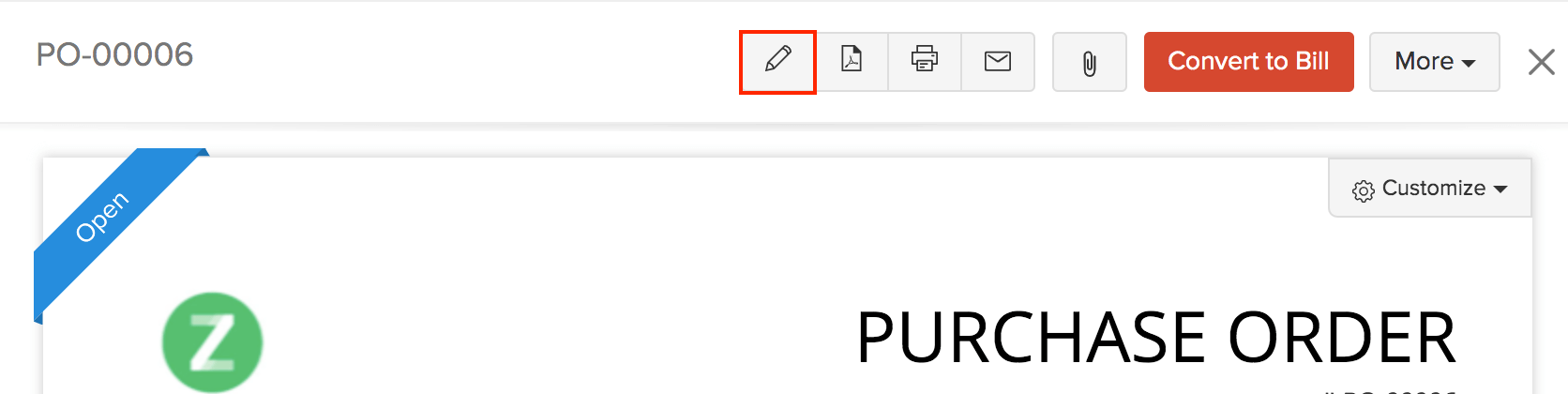
You can edit the details of any purchase orders. Here’s how:
- Go to Purchases in the left sidebar and select Purchase Orders.
- Select the purchase order you want to edit.
- Click the Pencil icon in top of the page.
- Make the changes.
- Click Save.
Insert Headers as Line Items
You can insert headers to group related line items in your purchase order. When you have many line items, headers break the list into clear sections so your vendor can scan the purchase order more easily. For example, you can add a header such as Hardware Items, Office Supplies, or a project name and group the related line items under it. You can also insert multiple headers to your purchase order.
To insert a header row in your purchase order:
- Go to Purchases on the left sidebar and select Purchase Orders.
- Click + New in the top right corner to create a purchase order, or select an existing purchase order and click Edit to modify an existing one.
- In the Item Table, click the More icon next to the required line item, and select Insert New Header. Alternatively, you can click the dropdown next to + New Row below the Item Table and select New Header.
- Type the title for the header.
- Fill in the required fields and click Save.
The header will be added as a row and the line items below it will remain unchanged. To remove a header, click the Remove icon to the right of it.
Insight: Removing a header does not remove the line items below it.
Insert Subtotals as Line Items
A subtotal row displays the total of the line items above it in your purchase order. It includes all line items between the previous subtotal and the current subtotal, or all line items from the beginning of the purchase order if no previous subtotal exists. It is calculated automatically and updates whenever line items are added, edited, or removed. For example, you can add a subtotal for a group of hardware items or a project. You can add multiple subtotals to a purchase order.
Note: The line item subtotal feature is supported only in the Global, Canada, and US editions.
To insert a subtotal row in your purchase order:
- Go to Purchases on the left sidebar and select Purchase Orders.
- Click + New in the top right corner to create a purchase order, or select an existing purchase order and click Edit to modify an existing one.
- In the Item Table, click the More icon next to the required line item, and select Insert New Subtotal. Alternatively, you can click the dropdown next to + New Row below the Item Table and select New Subtotal.
- The subtotal row will be inserted.
- Fill in the required fields and click Save.
The subtotal will be added as a row and the line items below it will remain unchanged. To remove a subtotal, click the Remove icon to the right of it.
Insight: Removing a subtotal does not remove the line items below it. The line items remain in the purchase order and are included in the final total.
Download as PDF
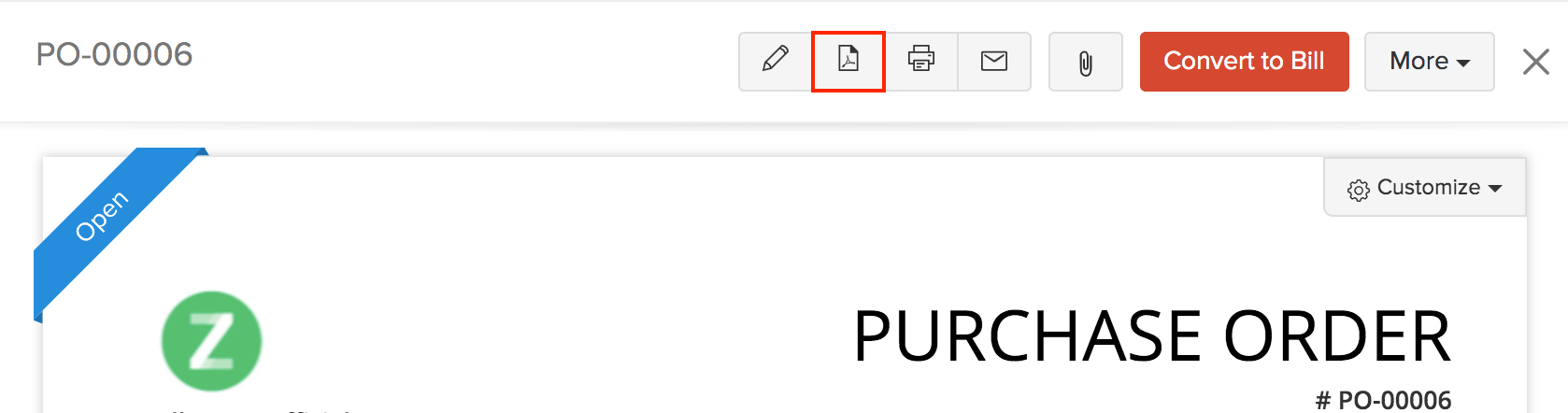
You can download any purchase orders as a PDF. Here’s how:
- Go to Purchases in the left sidebar and select Purchase Orders.
- Select the purchase order you wish to download.
- Click the PDF icon in top of the page.
Print Purchase Orders
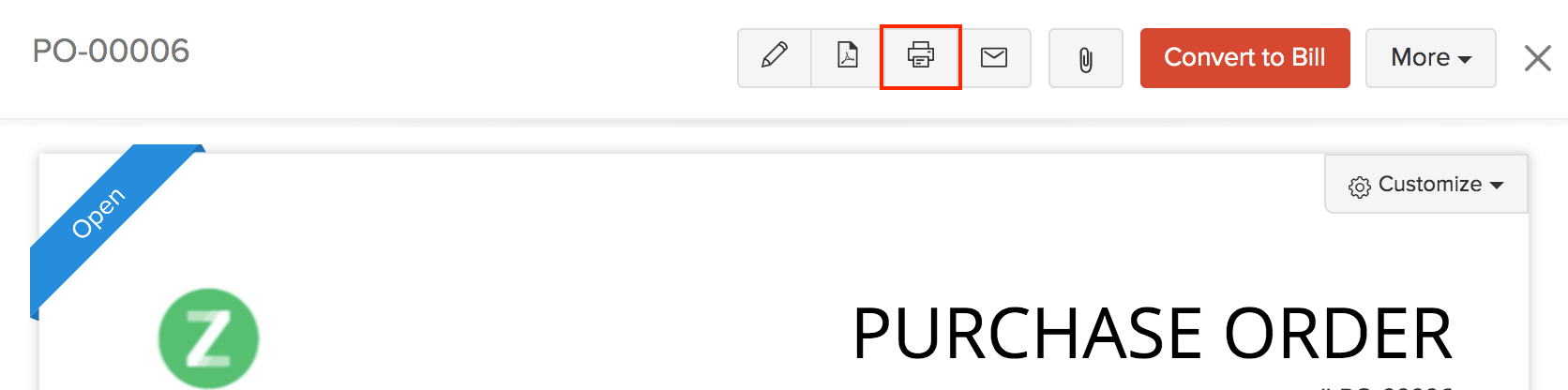
You can print the details of any purchase orders. Here’s how:
- Go to Purchases in the left sidebar and select Purchase Orders.
- Select the purchase order you want to print.
- Click the Print icon in top of the page.
- Check the Preview and click Print.
Attach Files with Purchase Orders
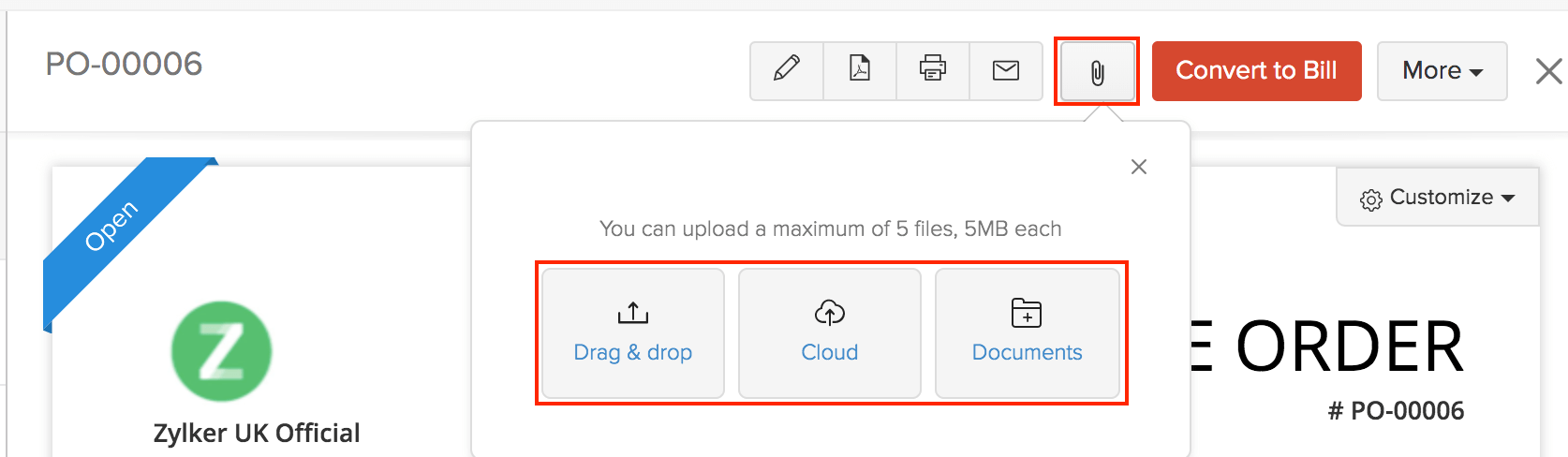
You can attach files to your purchase order. This can be done through:
- Drag & Drop: Upload files from your system (a maximum of 5 files, each of 5 MB).
- Cloud: Upload from cloud resources like Zoho Docs, Google Drive, Dropbox, One Drive, etc.
- Documents: Upload from the Documents folder in Zoho Books.
To attach files to your purchase orders:
- Go to Purchases in the left sidebar and select Purchase Orders.
- Select the required purchase order.
- Click the Attach icon in top of the page.
- Select the desired option and attach your file(s).
Clone Purchase Orders
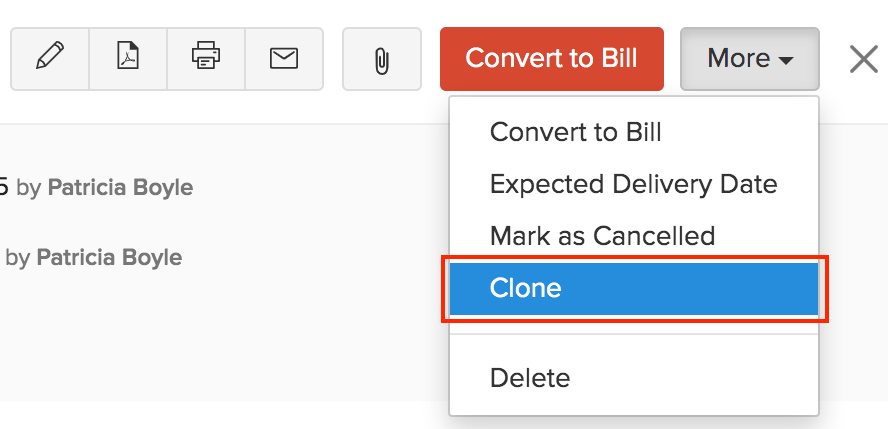
You can create a purchase order in Zoho Books with details similar to an existing one by cloning it. Here’s how:
- Go to Purchases in the left sidebar and select Purchase Orders.
- Click More icon in the top bar and select Clone.
- Review the new purchase orders and save it.
Mail Purchase Order
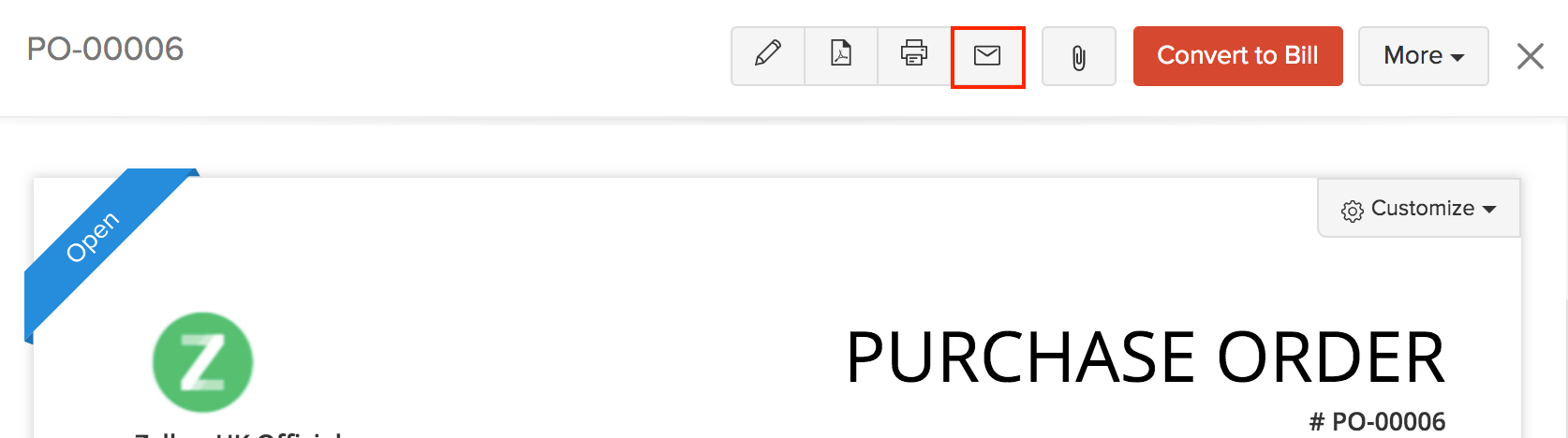
You can email any of the purchase orders to your vendors. Here’s how:
- Go to Purchases in the left sidebar and select Purchase Orders.
- Select the purchase order you want to email to your vendor.
- Click the Email icon in top of the page.
- Check the preview of the email and click Send.
Share Purchase Order Links
You can generate a link for a purchase order and share it with your vendor. The vendor can use this link to view or download the purchase order. They can also accept or decline it if you’ve enabled this option in Purchase Order Preferences. To share a purchase order link:
- Go to Purchases on the left sidebar and select Purchase Orders.
- Select the purchase order you want to share.
- Click Share at the top.
- In the popup, select Visibility as Public.
- Set a Link Expiration Date after which this purchase order link will expire.
- Click Generate Link.
- Click Copy Link to copy and share it with your vendor.
Note: Secure Public Links adds identity verification to purchase order links so that only the intended vendor or their contact persons can access the purchase order. Before sharing a secure public link, add the vendor’s email address or phone number on the Vendor Details page.
When the vendor opens the purchase order link, they must verify their identity using the same email address or phone number entered on the Vendor Details page. After verification, they can access the purchase order.
Delete Purchase Order
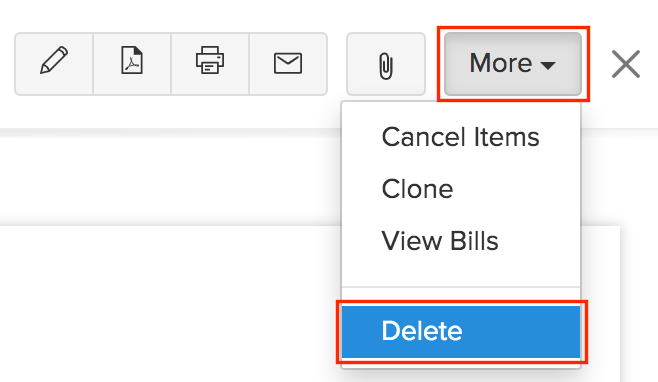
You can delete any purchase orders that you’ve recorded in Zoho Books. Here’s how:
- Go to Purchases in the left sidebar and select Purchase Orders.
- Select the purchase order to delete.
- Click More icon in the top bar and select Delete.
- Click Proceed to confirm.
Export Purchase Orders
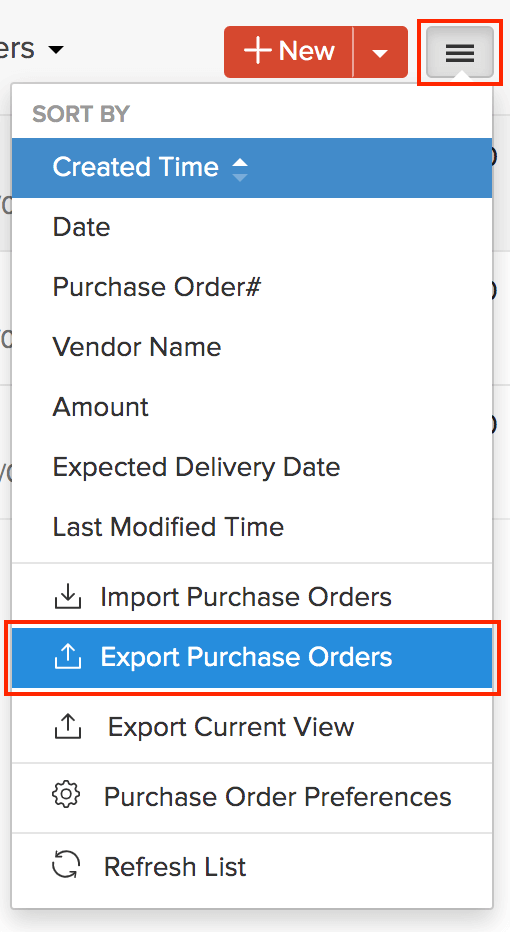
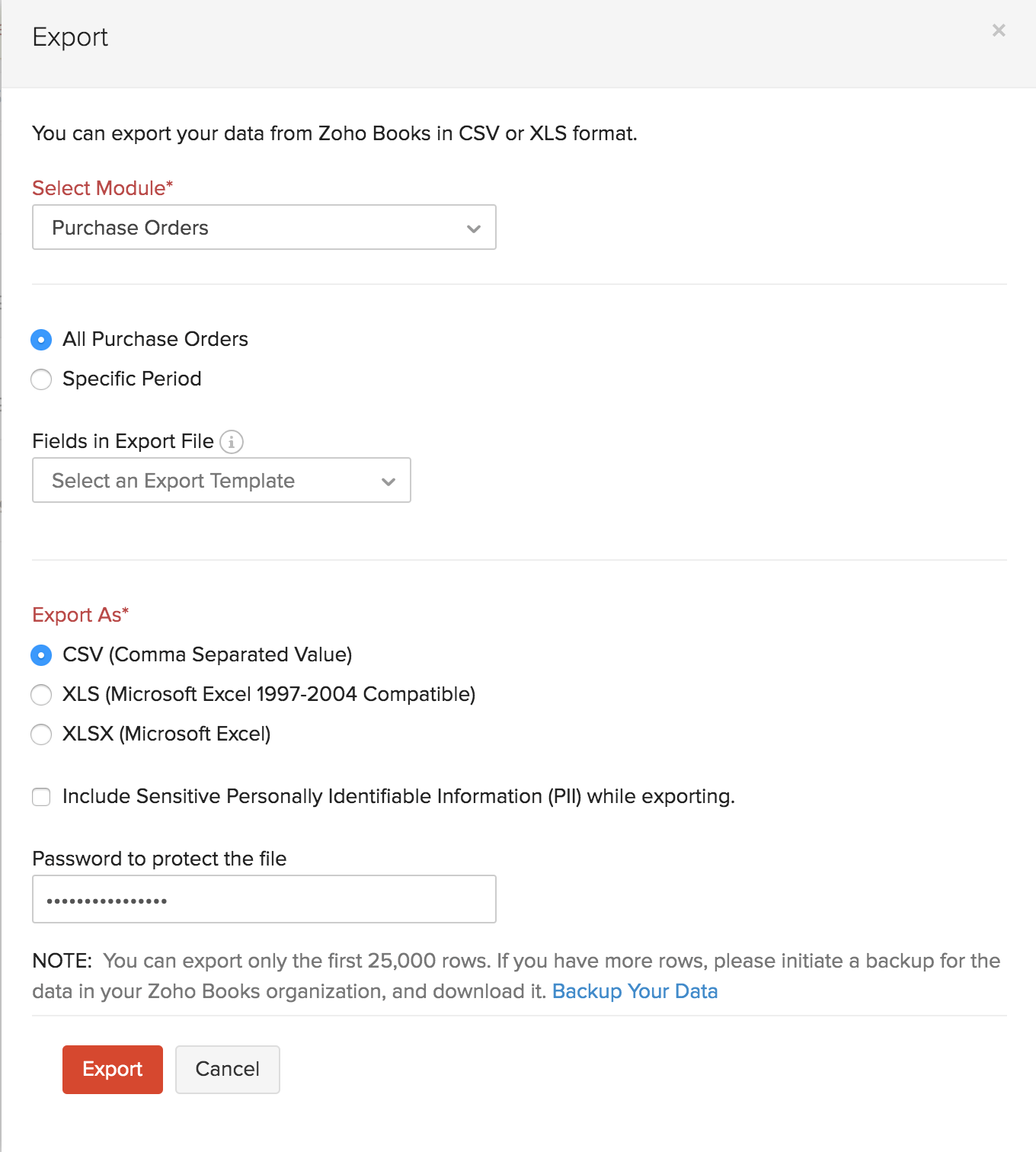
You can export all the purchase orders in Zoho Books in the CSV or XLS format. Here’s how:
- Go to Purchases in the left sidebar and select Purchase Orders.
- Click the More icon in the top bar.
- Select Export Purchase Orders.
- Enter the necessary fields.
- Click Export.
Next >
Purchase Order Preferences
Related
 Yes
Yes