



Approving Reports
Once the expense report is submitted, the approver will take a look at the expense report and decide whether to approve or reject it. In this help document, you’ll learn how to perform these actions using the Zoho Expense web and iOS applications.
Approve Report
Every approver receives a notification when a report is submitted to them. Approvers can review the submitted report and approve them.
To approve a report:
- Go to Approvals on the left sidebar. All the reports, advances, and purchase requests that are waiting for your approval will be listed in the Pending Approval tab.
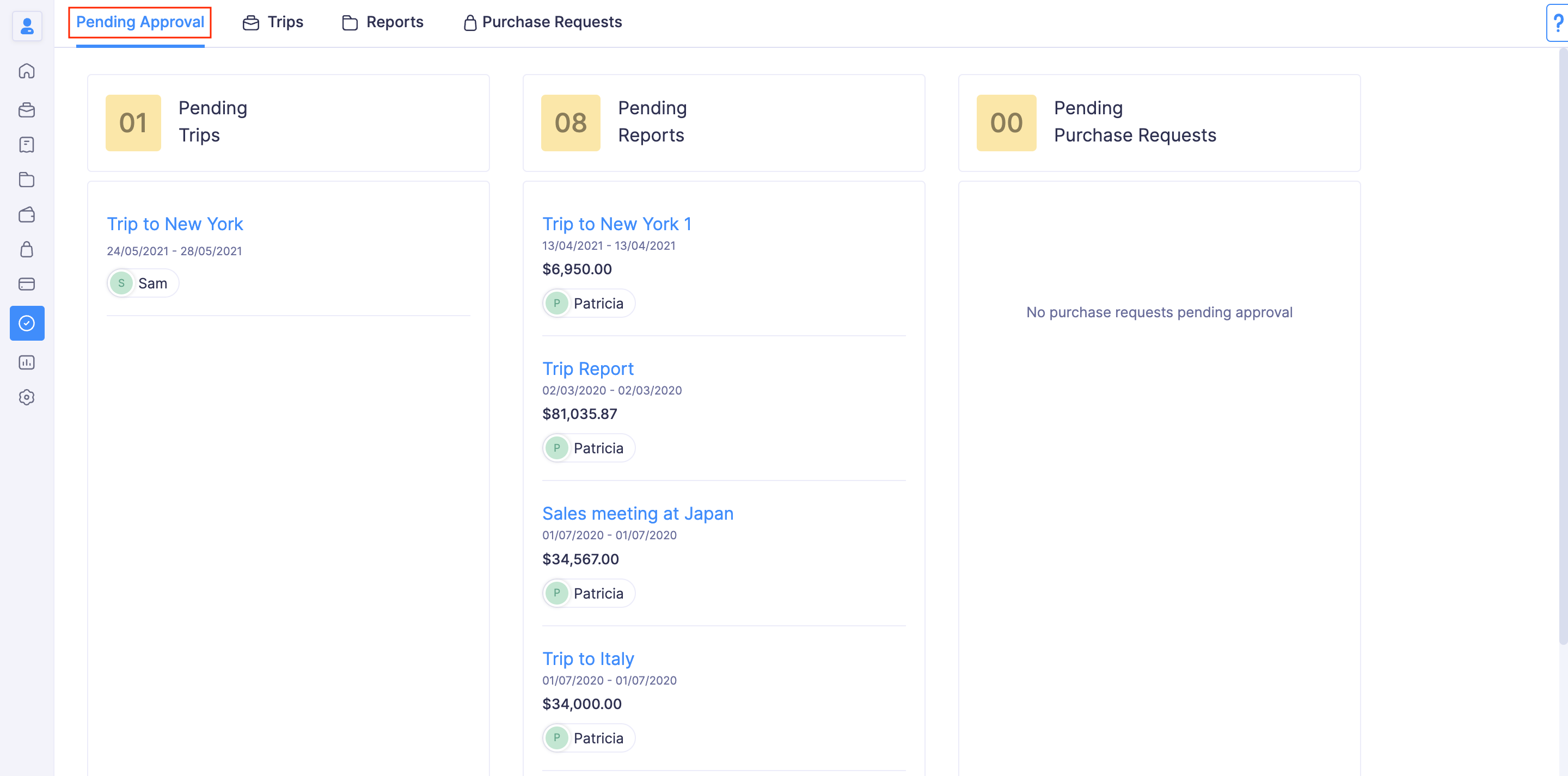
- If you want to view only the list of reports that are submitted to you for approval, navigate to the Reports tab.

- Click the report you would like to consider for approval.
- Verify the details of the report, and add comments, if necessary. The submitter will be notified about your comments and they will be shown in the report.
- If you’ve reviewed the report, click Approve at the top right side of the page. The report will be approved and a notification will be sent to the submitter.
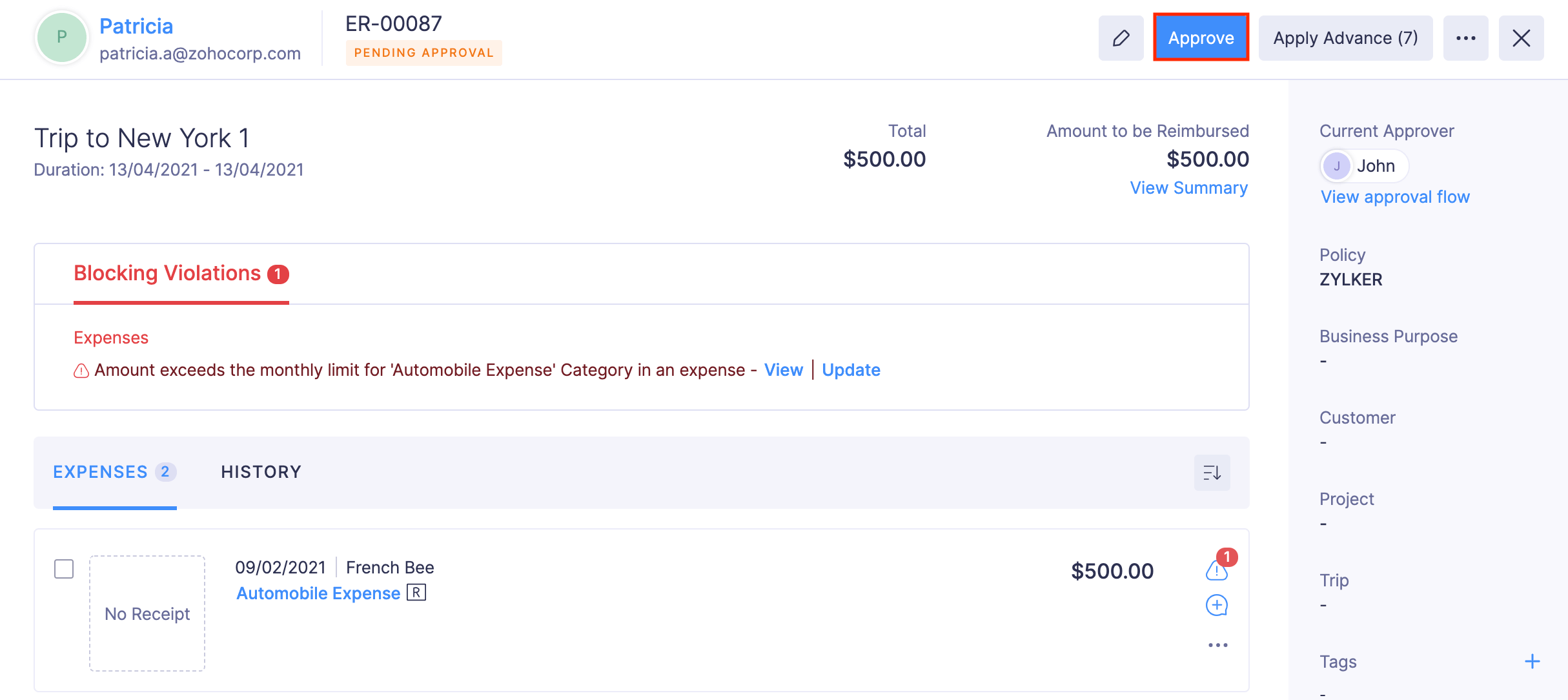
If a report has policy violations, you can choose to approve the report or add comments, reject the report and ask the submitter to re-submit it after resolving the violations.
Note: Approvers can also approve a report that was already rejected. To approve a rejected report: Open the report in Rejected status > Click Approve at the top right corner > Confirm your action by clicking Approve in the pop-up.
Approve Reports in Bulk
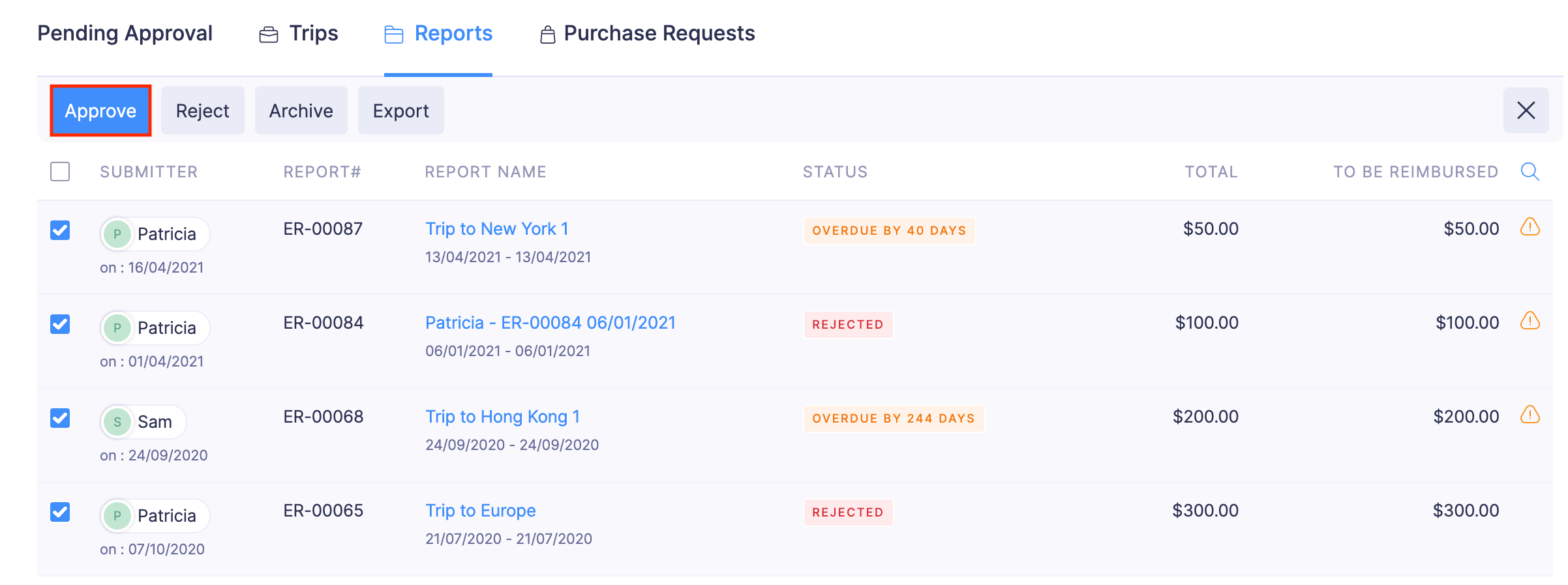
You can also approve multiple expense reports at a time. To approve reports in bulk:
- Go to Approvals on the left sidebar.
- Navigate to the Reports tab.
- Select the reports you would like to approve.
- Click the Approve button on the top of the list. All the reports you’ve selected will be approved and notifications will be sent to the submitters of the reports.
Reject Report
The approver can choose to reject a report if it doesn’t comply with the organisation’s expense policy. Once the approver rejects a report, the submitter of the report will receive a notification. The submitter can then resolve the violation or the comment on their report and re-submit the report for approval.
To reject a report:
- Go to Approvals on the left sidebar.
- All the trips, reports, advances, and purchase requests that are waiting for your approval will be listed in the Pending Approval tab.
- If you want to view only the list of reports that are submitted to you for approval, navigate to the Reports tab.
- Click the report you would like to consider for approval.
- Verify the details of the report, and add comments, if necessary. The submitter will be notified about your comments and they will be shown in the report.
- If you’ve reviewed the report, click Reject at the top right side of the page.
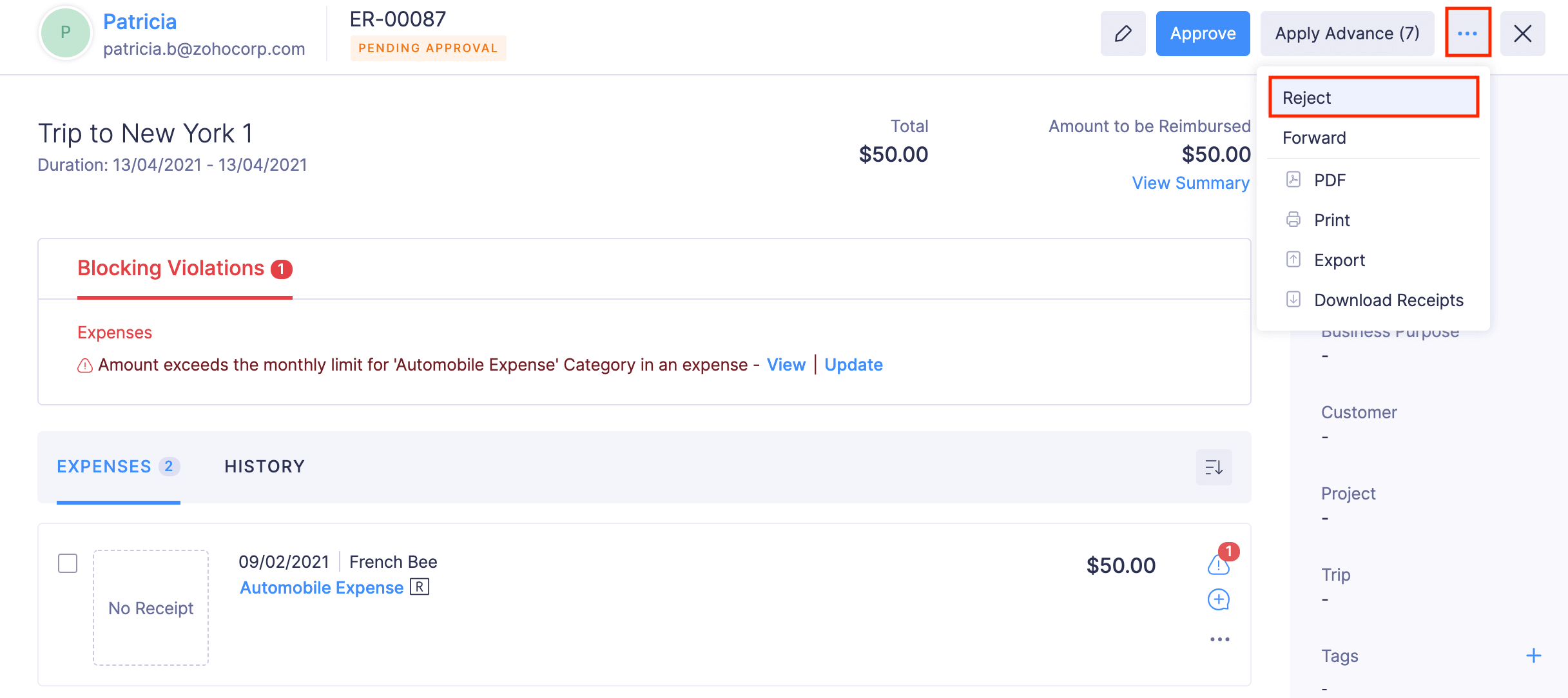
- Provide a reason for rejecting the report and click Confirm. The report will be rejected.
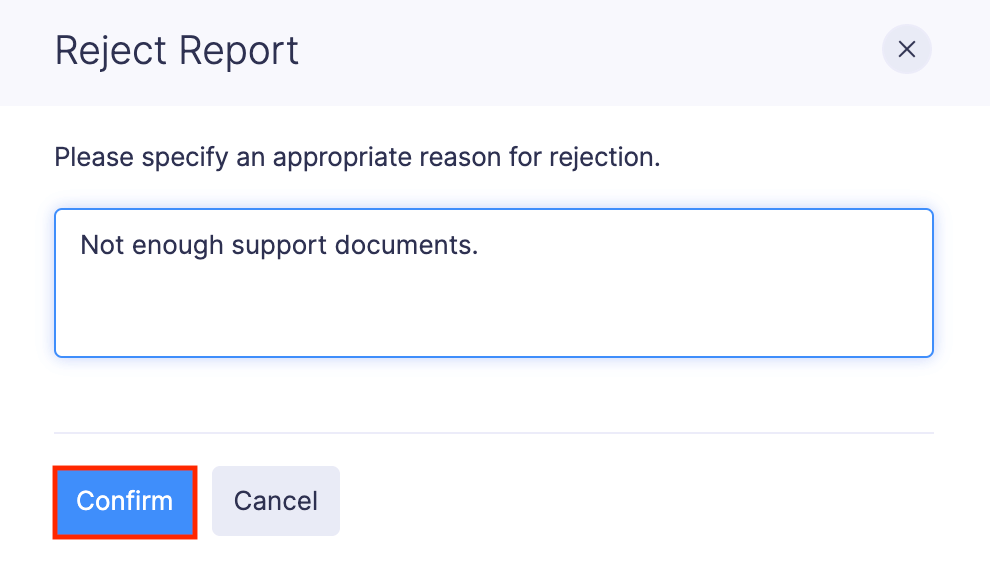
Note: Approvers can revoke the approval of a report by rejecting it. To reject an approved report: Open the report in Approved status > Click Reject at the top right corner > Specify a reason for rejecting the report and click Confirm in the pop-up.
Reject Reports in Bulk
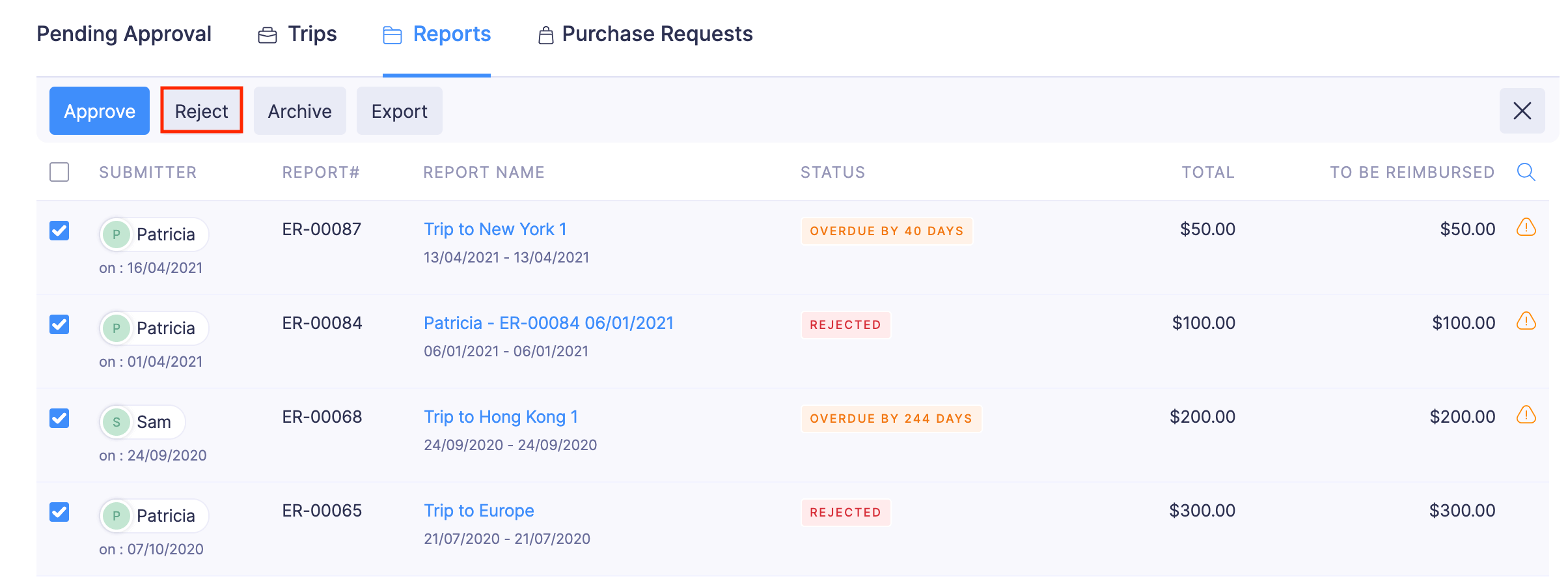
You can also reject multiple expense reports at a time. To reject reports:
- Go to Approvals on the left sidebar.
- Navigate to the Reports tab.
- Select the reports you would like to reject.
- Click the Reject button on the top of the list. All the reports you’ve selected will be rejected and notifications will be sent to the submitters of the reports.
Forward Report to New Approver
Here’s how you can forward an existing report to a new approver:
- Go to Approvals on the left sidebar.
- Click the report in the Pending Approval status that you want to forward to a new approver.
- Click Forward in the top right corner (OR) click the More icon in the top right corner and select Forward.
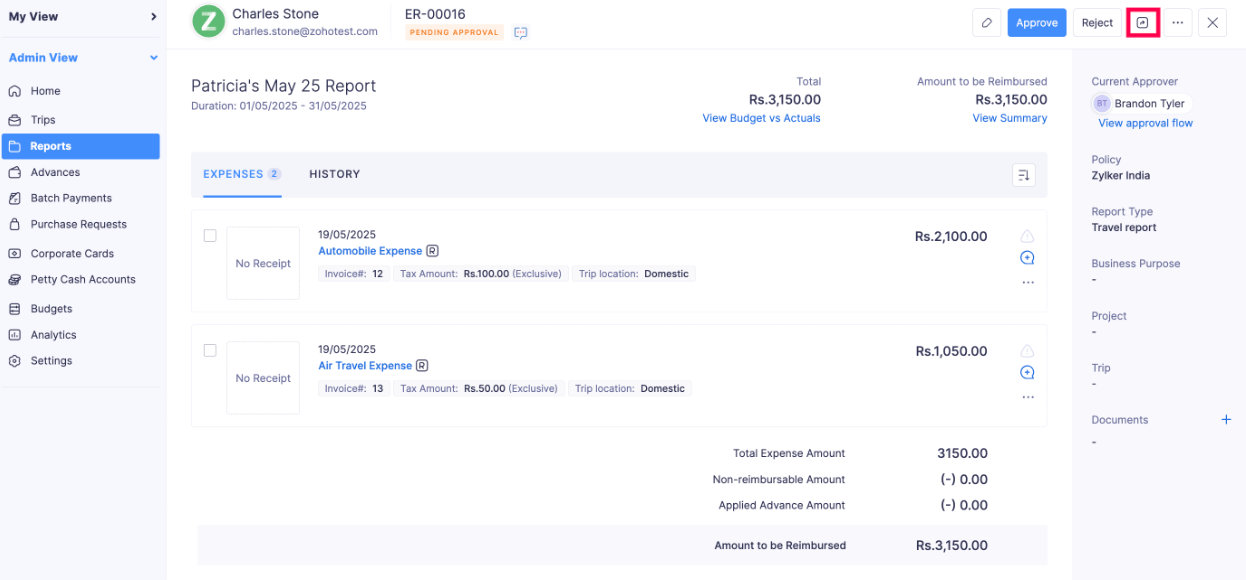
- Select an approver from the dropdown, and add a message to the approver.
- Click Forward.
Reject Individual Expenses in Reports
Let’s say your employee includes the tips of a business lunch as an expense in their report. However, your company policy does not allow tips to be categorised as an expense. Hence, only the expenses recorded for tips restrict you from approving the report. In this case, you can reject only that expense, and proceed with approving the report.
If there is more than one expense in a report, the approver can reject only the expenses that violate the expense policy in a report.
To reject an expense in a report:
- Go to Approvals on the left sidebar.
- Navigate to the Reports tab.
- Select the report for which you would like to reject expenses.
- Click the More icon at the right corner of the expense you want to reject.
- Select Reject.
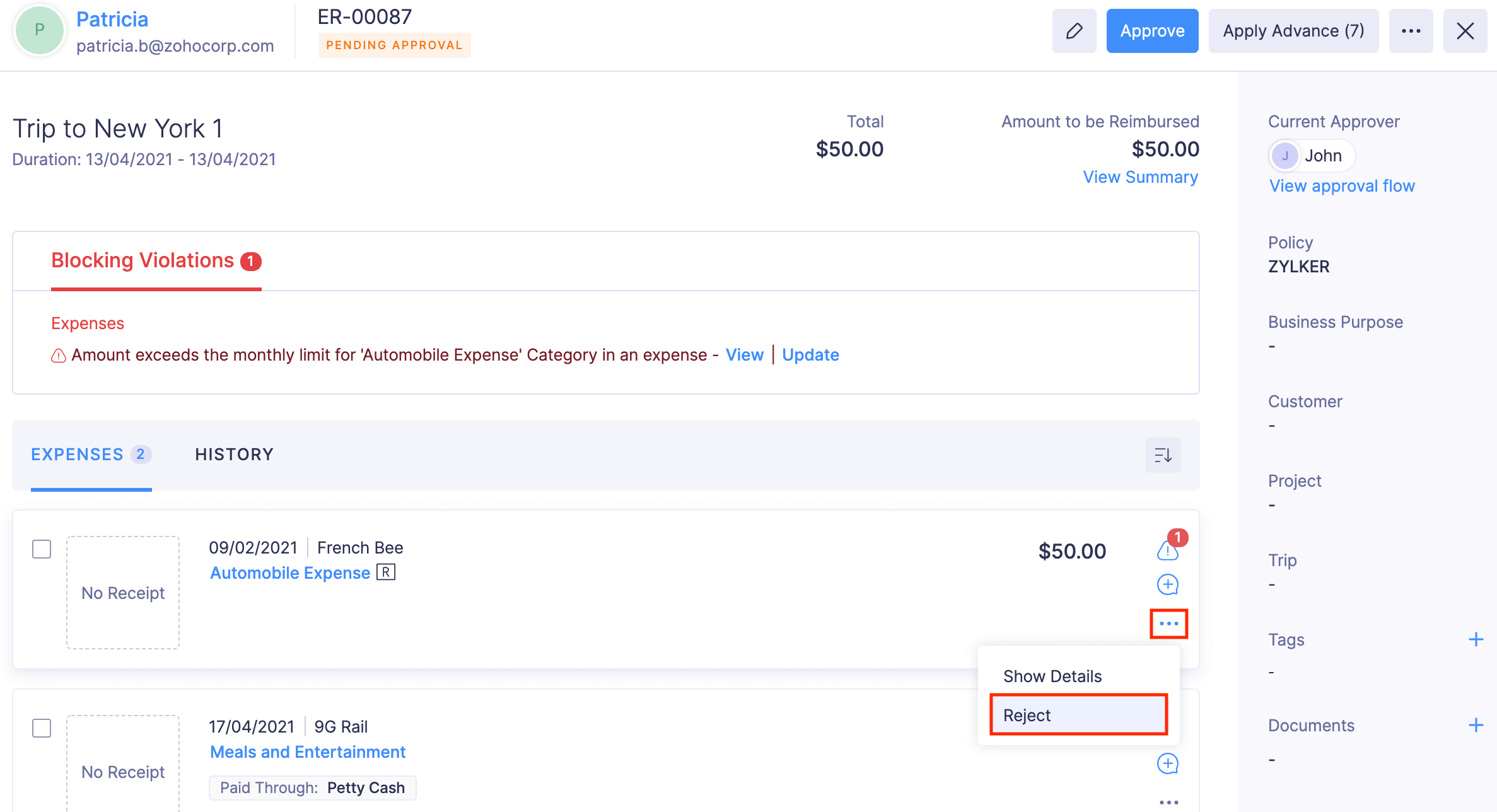
- Enter a reason for rejecting the expense and click Confirm. The expense will be rejected.
Update the Submitted Reports
If you would like to change any details in the reports that are submitted to you for approval, you can edit them.
Prerequisite: You cannot edit the Reimbursed reports.
To edit:
- Go to Approvals on the left sidebar.
- Navigate to Reports tab.
- Click the report you want to edit.
- Click the Edit icon on the top right side of the page.
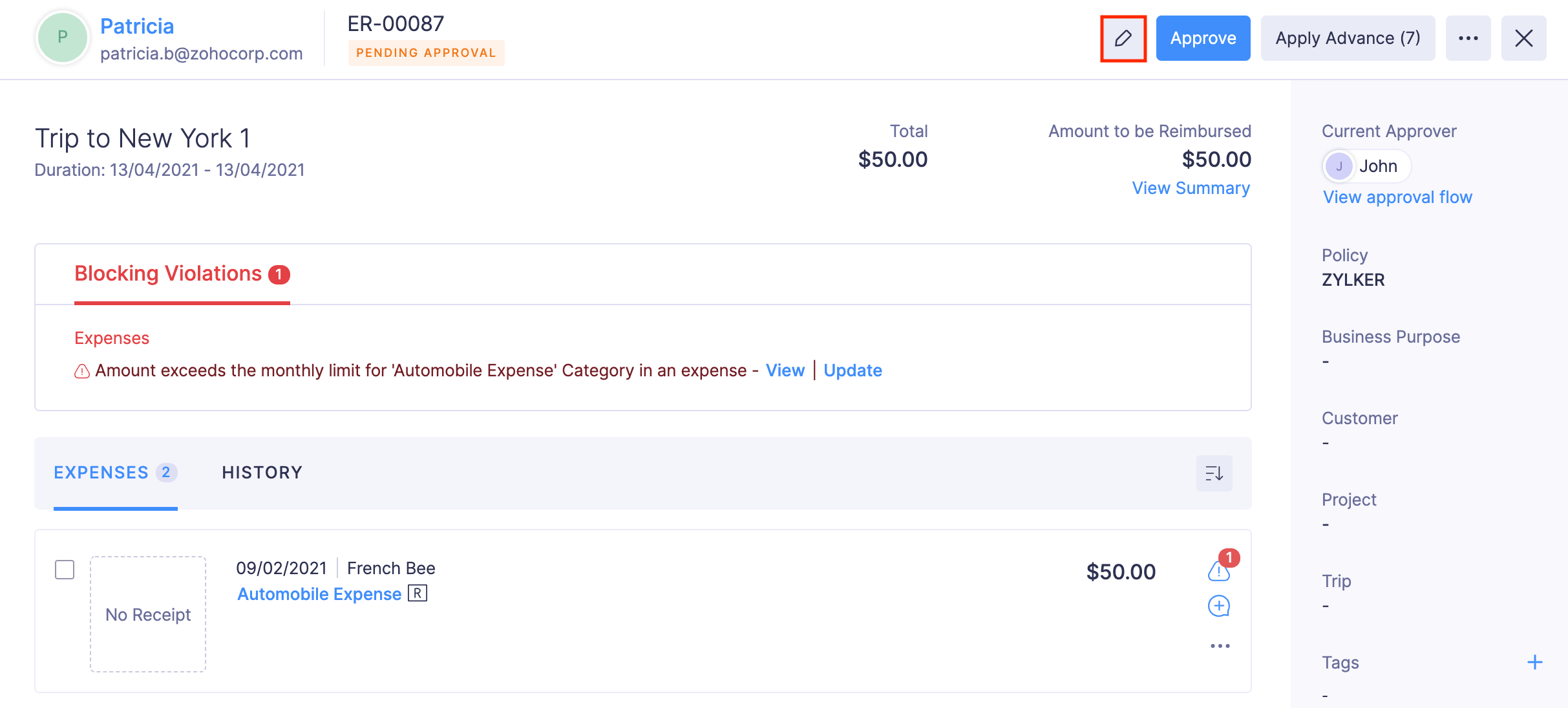
- Make the necessary changes and click Save.
If you want to edit the expenses in a report:
- Click the expense you want to edit.

- Click the Edit icon at the top right side of the page.
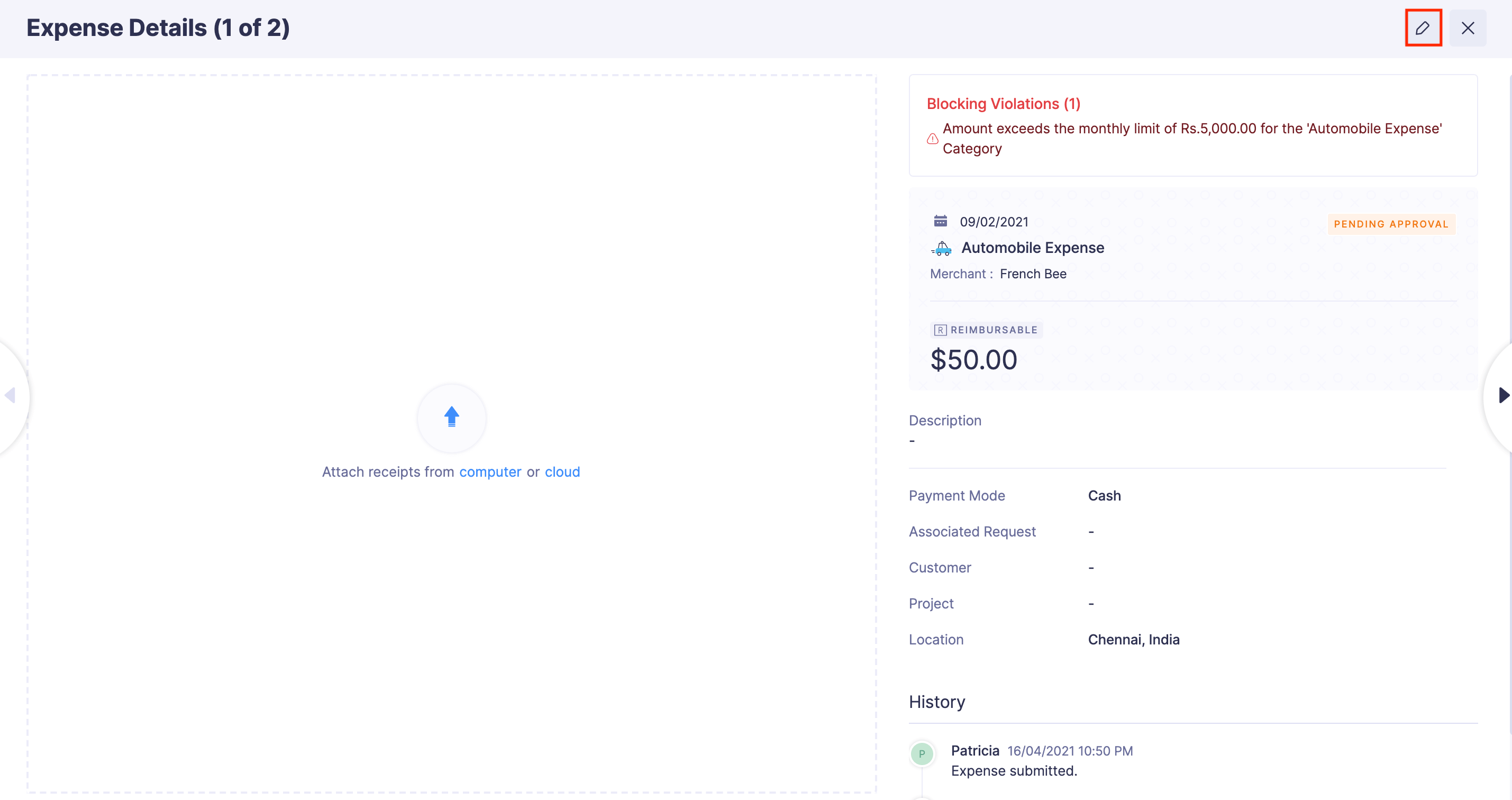
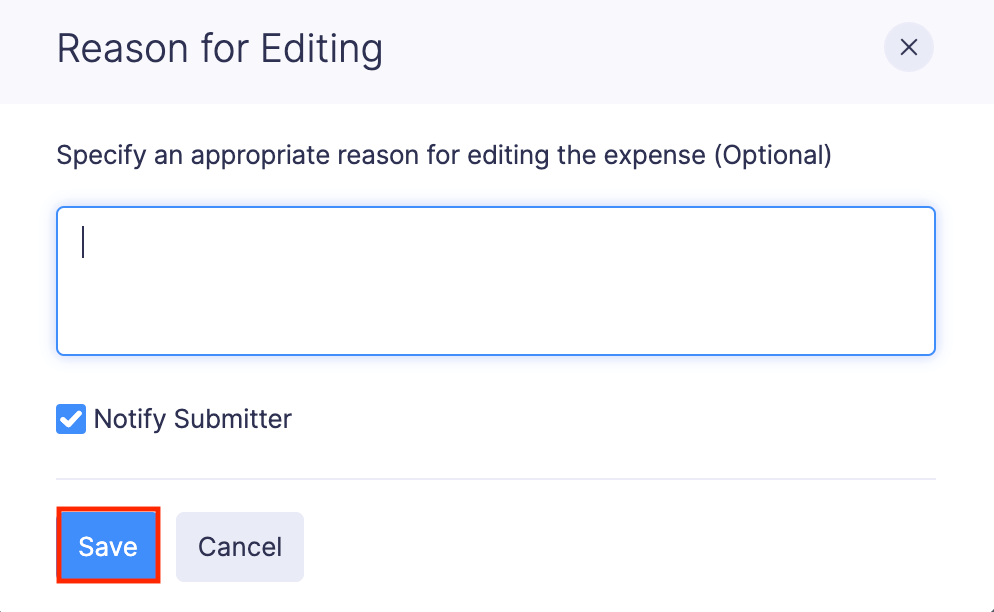
- Make the changes and click Update and Close.

- Provide a reason for editing and click Save. The expense in the report will be edited.
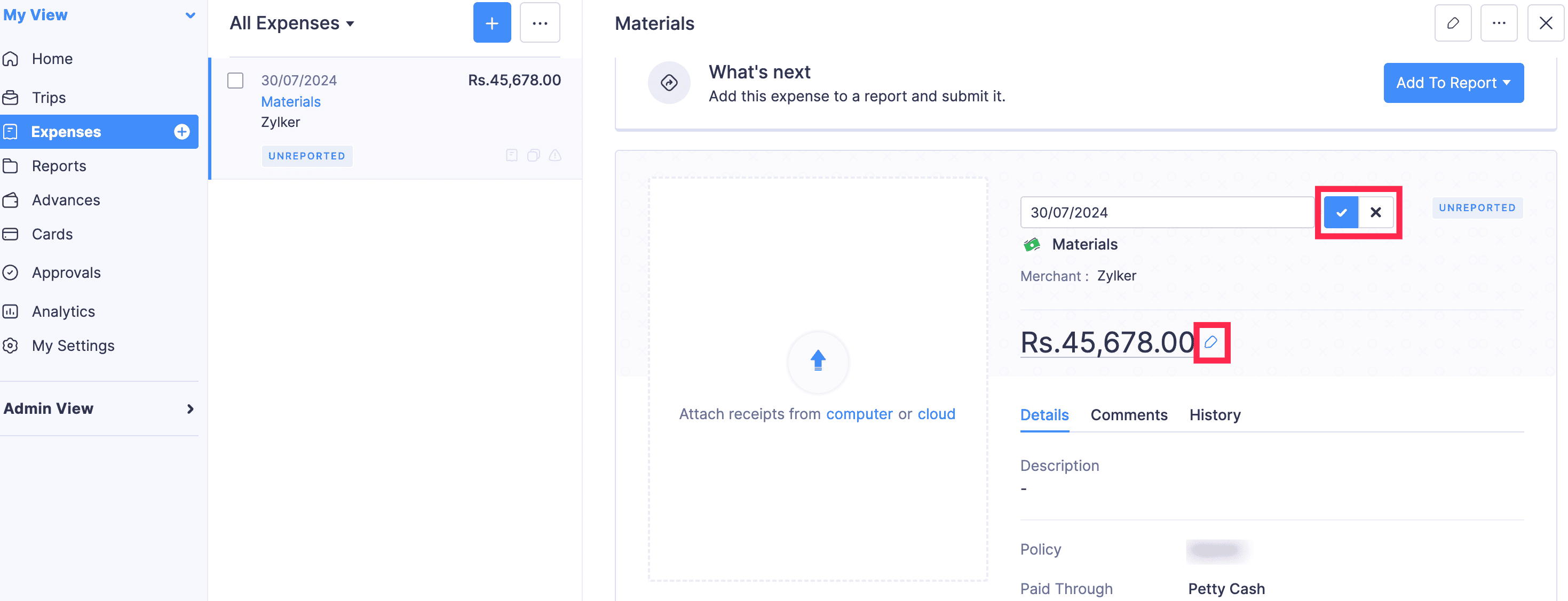
You can now update the expenses directly from the expense detail page, without going to the edit expense page in Reports. To do this:
Note: You can edit only one field at a time.
Click the expense you want to edit.
Under Expenses, click the expense and the expense detail page will open.
(or)
Under Expenses, click the More icon next to the expense you want to edit. Select Show Details, and the expense detail page will open.
Hover over the field you want to edit and click the Edit icon that appears next to it.
Make the necessary changes, and click the tick icon next to the respective field to save your updates.
Approve Reports
Every approver receives a notification when a report is submitted to them. Approvers can review the submitted report and approve them.
To approve a report:
- Open the Zoho Expense app on your device.
- Tap the Menu icon in the top left corner.
- Navigate to Reports Approval.
- Open the report you want to approve. You can also tap Filtered by and select Pending to view only the list of reports that are pending approval.
- Tap Approve at the bottom of the screen.
- In the pop-up, tap Confirm.
Note: Approvers can also approve a report that was already rejected. To approve a rejected report: Open the report in Rejected status > Tap Approve at the bottom of the screen > In the pop-up, tap Confirm.
Reject Reports
The approver can choose to reject a report if it doesn’t comply with the organisation’s expense policy. Once the approver rejects a report, the submitter of the report will receive a notification. The submitter can then resolve the violation or the comment on their report and re-submit the report for approval.
To reject a report:
- Open the Zoho Expense app on your device.
- Tap the Menu icon in the top left corner.
- Navigate to Reports Approval.
- Open the report you would like to reject. You can also tap Filtered by and select Rejected to view only the list of reports that are rejected.
- Tap Reject at the bottom of the screen.
- In the pop-up, enter the reason for rejection and tap Reject.
Note: Approvers can revoke the approval of a report by rejecting it. To reject an approved report: Open the report in Approved status > Tap Reject at the bottom of the screen > In the pop-up, enter a reason for rejecting the report and tap Reject.
Forward Report to New Approver
You can forward a report submitted to you for approval to another approver in your organisation.
Scenario: John submits his expense report, and it first goes to his team leader for approval. But the team leader is on vacation. Instead of waiting, the team leader forwards the report to the department manager so it gets approved without delay.
Scenario: Patricia submits an expense report for ₹30,000. Her team leader approves it, but since the amount is high, the company policy requires the manager to review it as well. In this case, the report is forwarded to the manager for the second level of approval before it can be processed.
Note: Only reports in the Awaiting Approval status can be forwarded.
To forward a report:
- Open the Zoho Expense app on your device.
- Tap the Menu icon in the top left corner.
- Navigate to Reports Approval.
- Open the report you want to forward.
- Tap the More icon in the bottom right corner.
- Select Forward.
- Select an approver and forward the report.
- Add a message if required.
- Tap Done.
Update a Submitted Report
If you would like to change any details in the reports that are submitted to you for approval, you can edit them.
Note: You cannot edit the Reimbursed reports.
To update a submitted report:
- Open the Zoho Expense app on your device.
- Tap the Menu icon in the top left corner.
- Navigate to Reports Approval.
- Open the report you want to update.
- Tap the More icon in the bottom right corner.
- Select Edit.
- Make the required changes and tap Save Report.
View PDF of Submitted Report
You can view and download the PDF of the reports submitted to you for approval. Additionally, you can group the expenses in the report under category, standard, or date.
To view the PDF:
- Open the Zoho Expense app on your device.
- Tap the Menu icon in the top left corner.
- Navigate to Reports Approval.
- Open the report for which you want to view the PDF.
- Tap the More icon in the bottom right corner.
- Select View PDF.
- You can select how you want to group the expenses in the report whether by Category, Standard, or Date.
- Tap Done.
- You can tap the Share icon in the bottom left corner to share, print, and save the report on your device by tapping the respective options.
 Yes
No
Yes
No
Thank you for your feedback!