


How can I update the salary details of employees?

You can update salary details in three ways depending on your workflow and the number of employees:
- Update salary details for multiple employees at once (bulk update)
- Update salary details for a single employee
- Apply common salary template to employees
1. Update salary details for multiple employees (bulk update)
To update salary details in bulk, export the existing details, modify them, and import the updated file back into Zoho Payroll. Here’s how:
Export existing salary details
- Go to Employees.
- Click the More icon and select Export.
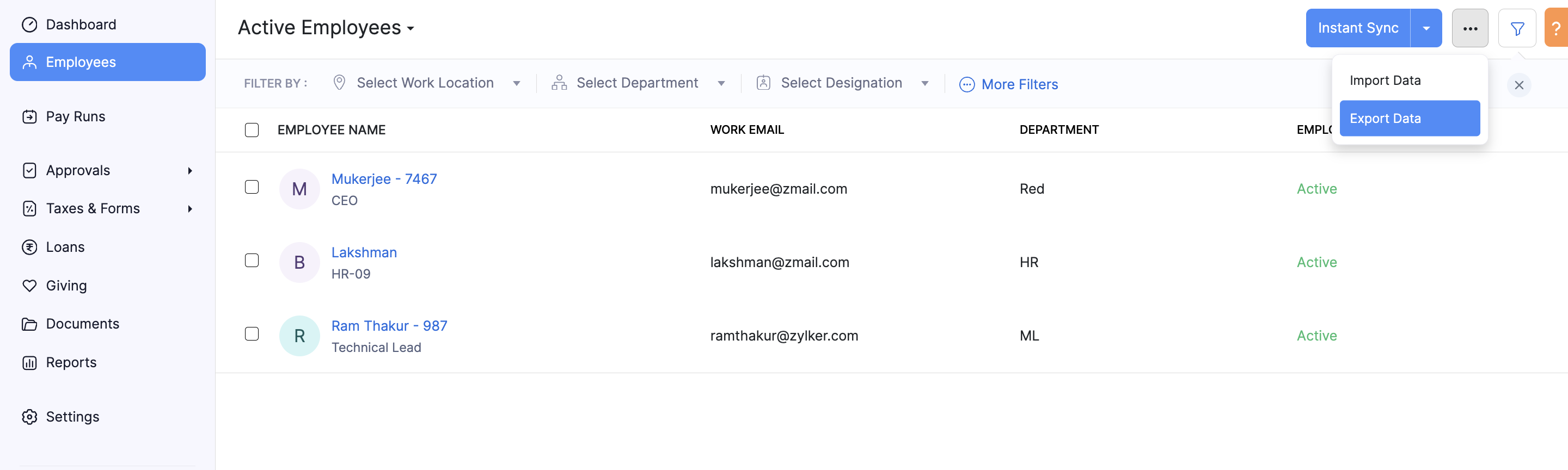
- Choose Employee Salary Details to export the file.
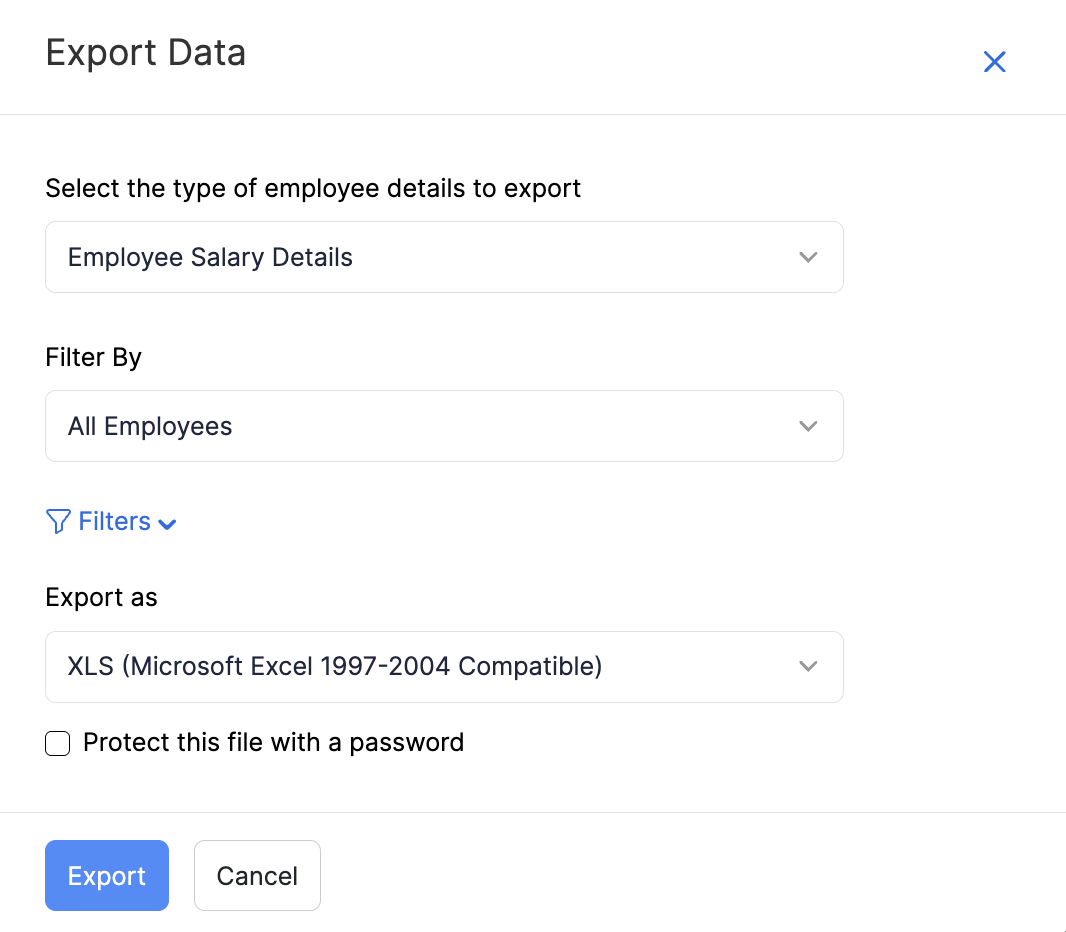
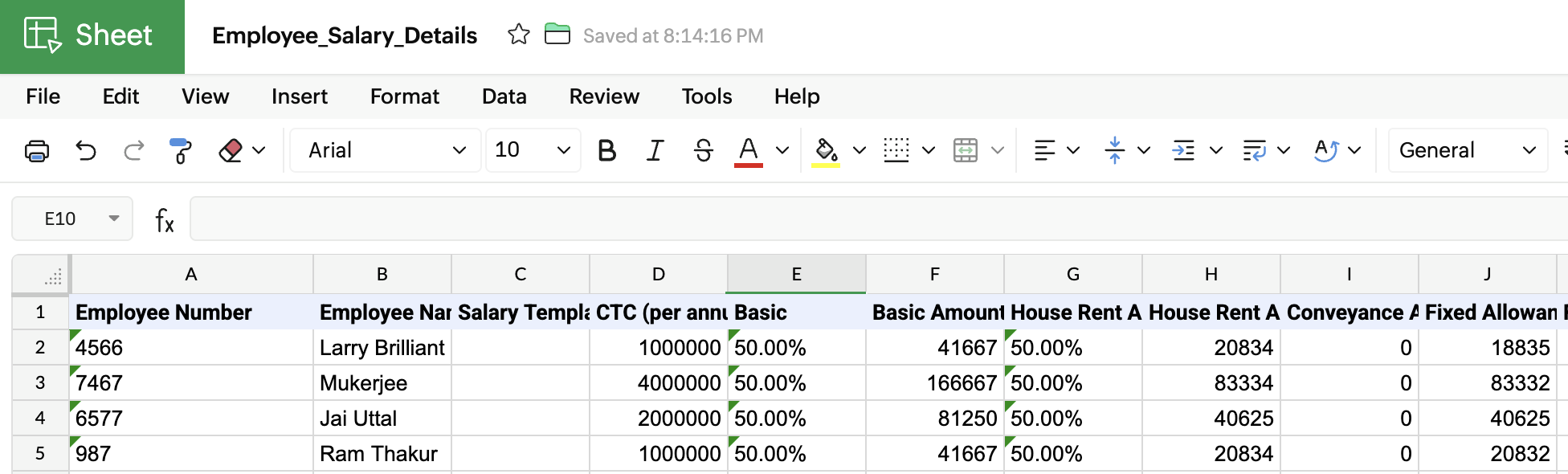
- Modify the exported file as required.
Note: Ensure Basic Pay + Dearness Allowance + Retainer Allowance (if applicable)** is at least 50% of total wages, as per the wage rule.
Import the updated file
- Go to Employees.
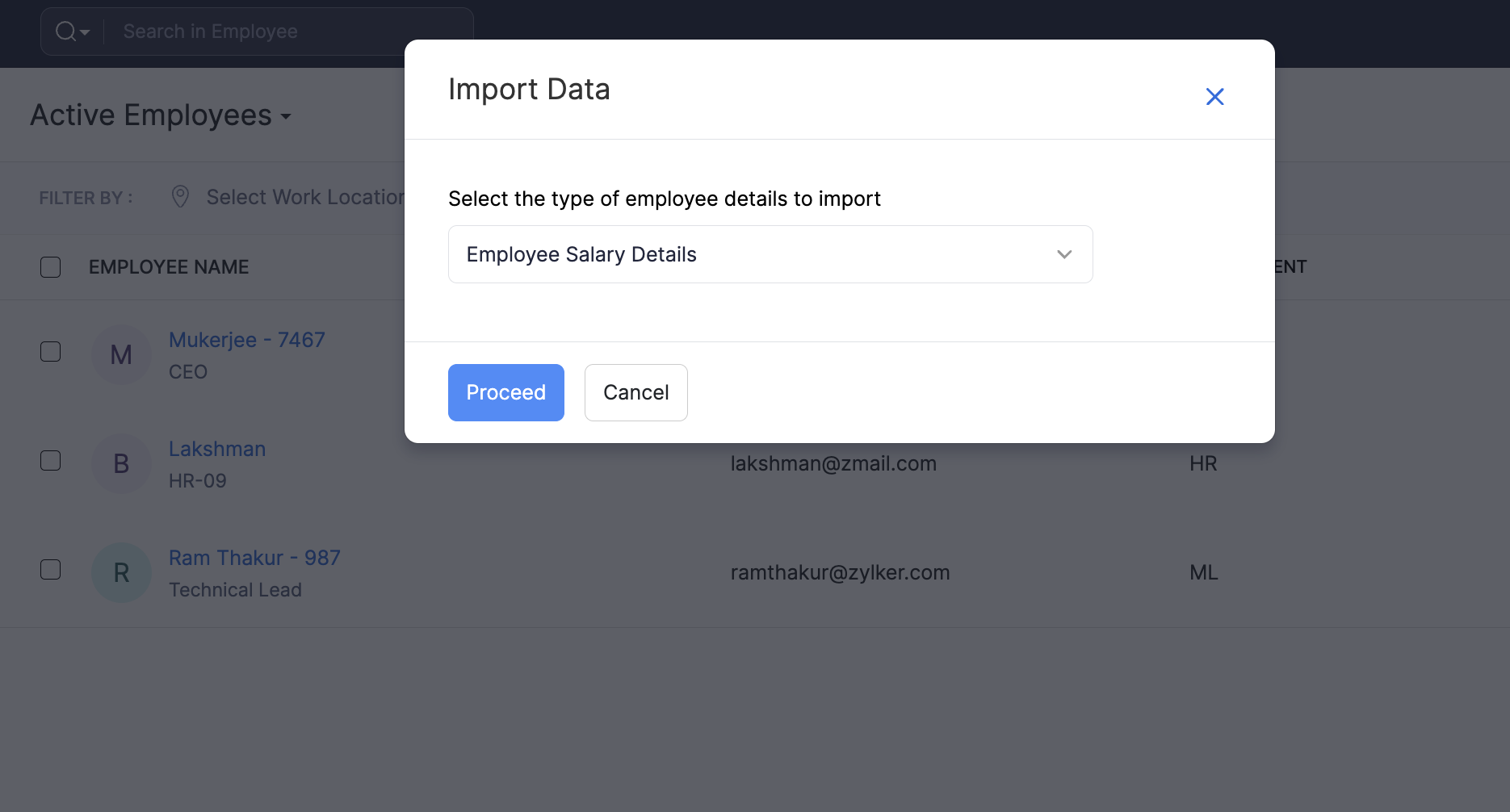
- Click the More icon and select Import.
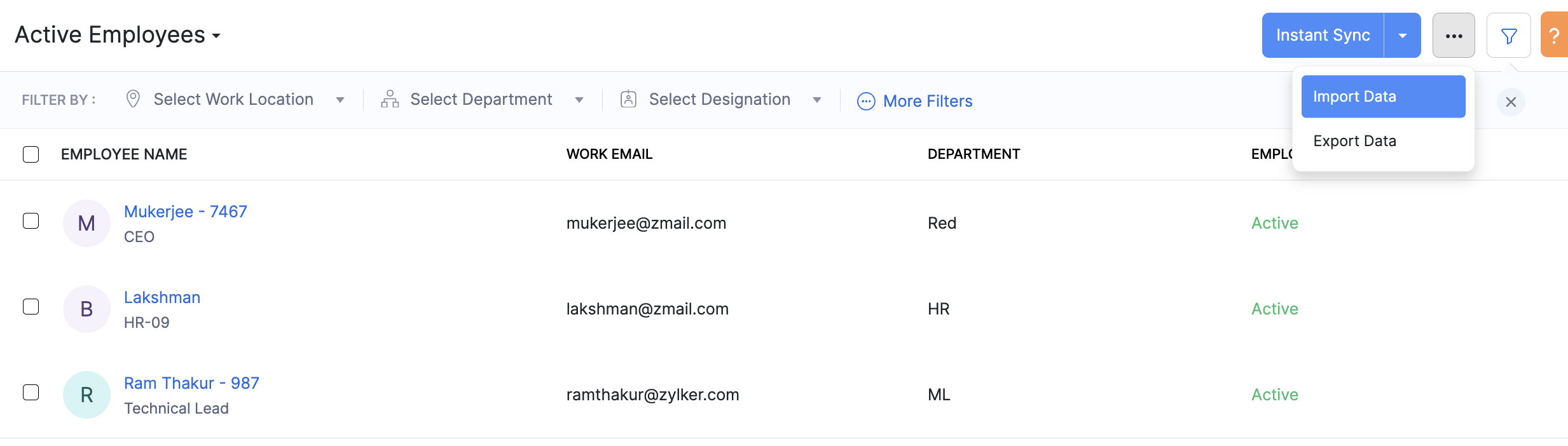
- Choose Employee Salary Details as the import type.
- Upload the modified file and map the fields.
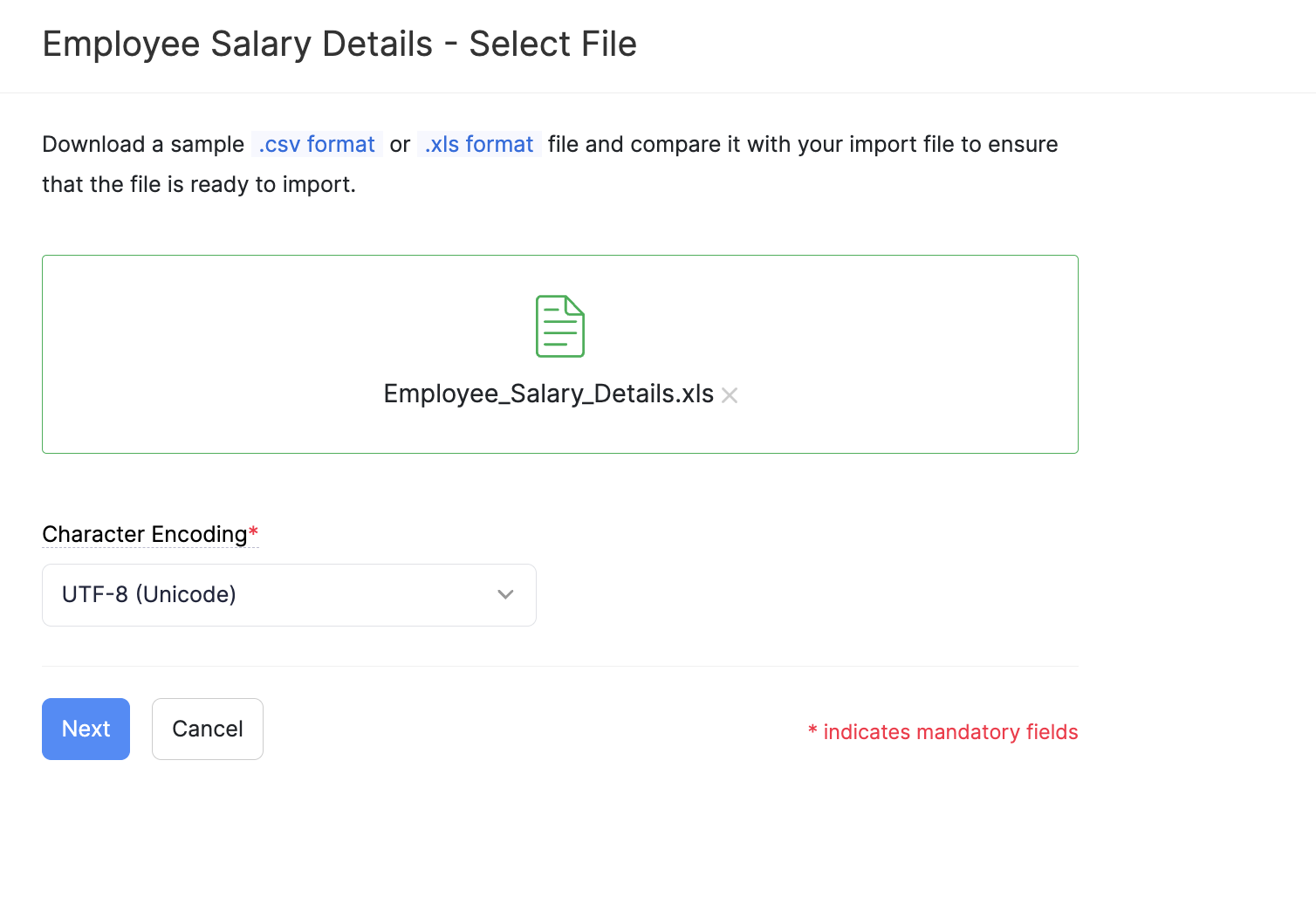
- Click Import.
Once the import is complete, the salary details of your employees will be updated.
2. Update salary details for a single employee
If you want to update the salary structure of an individual employee, you can do it directly from their profile:
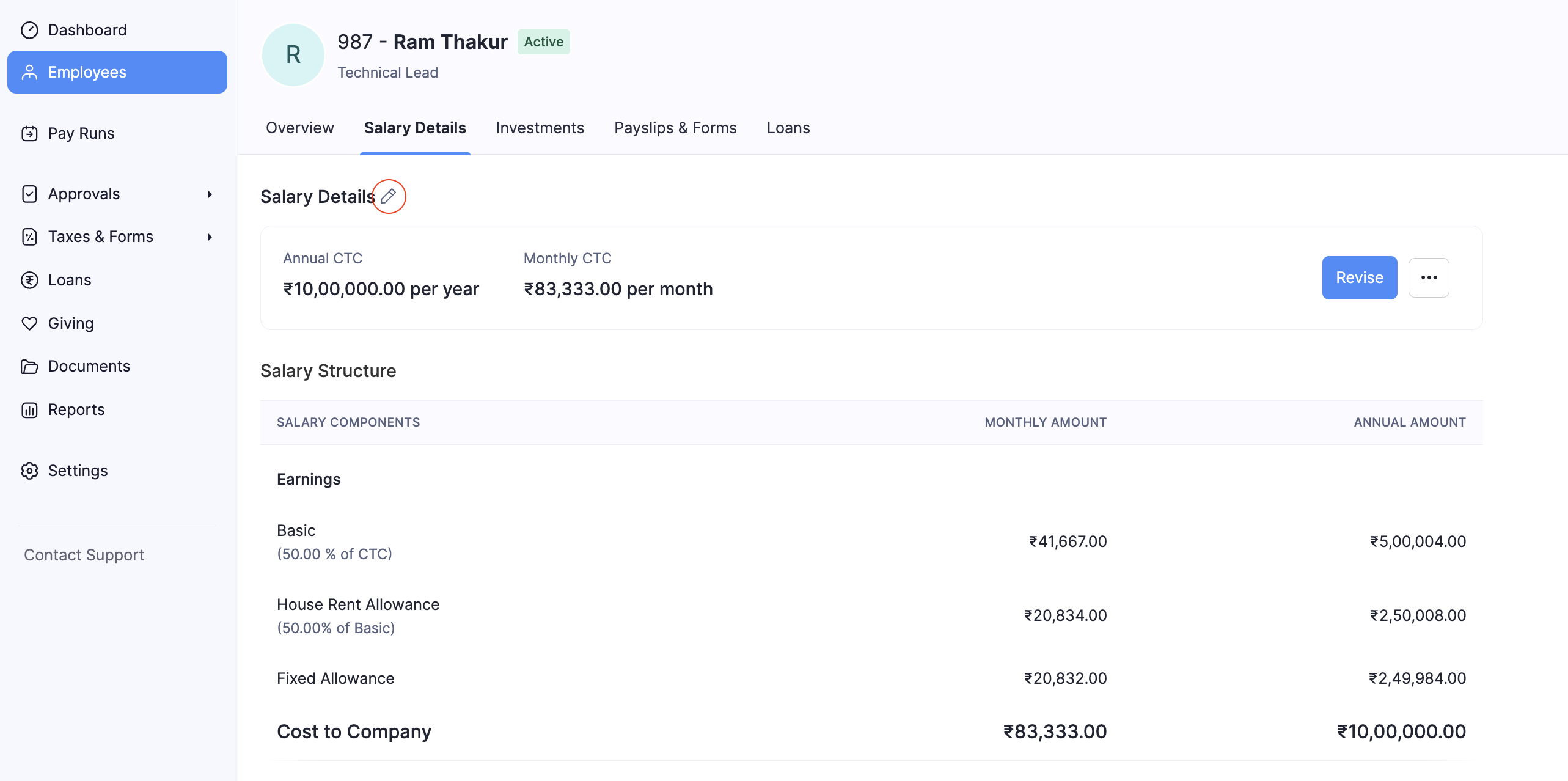
- Go to Employees and select the employee.
- Open the Salary Details tab and click Edit.
- Modify the components as required.
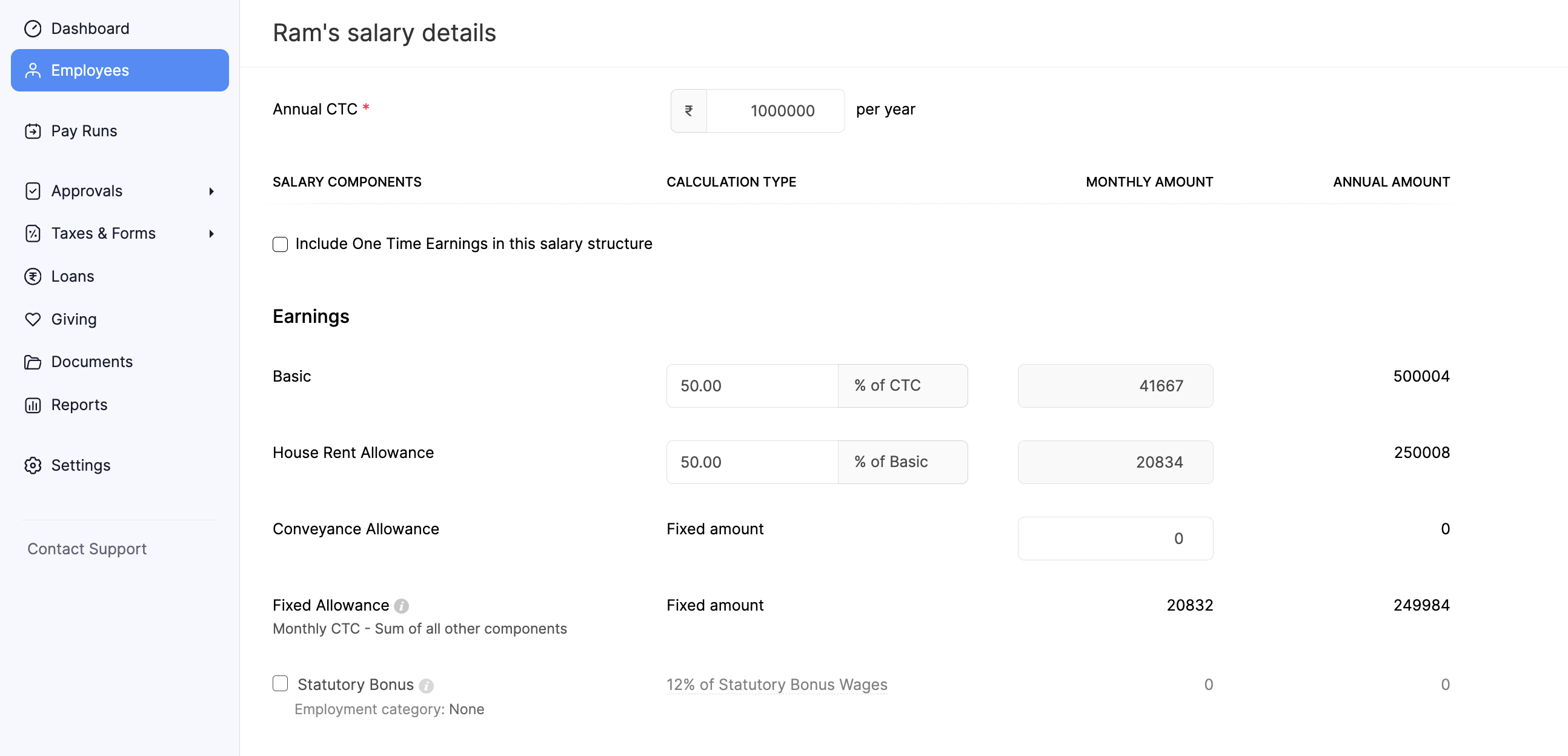
Note: Ensure Basic Pay + Dearness Allowance + Retainer Allowance (if applicable)** is at least 50% of total wages, as per the wage rule.
- Click Save.
The updated salary structure will take effect immediately for the selected employee.
3. Apply common salary template
If you want to standardise salary structures across employees, you can create a salary template and apply it individually or in bulk. Here’s how:
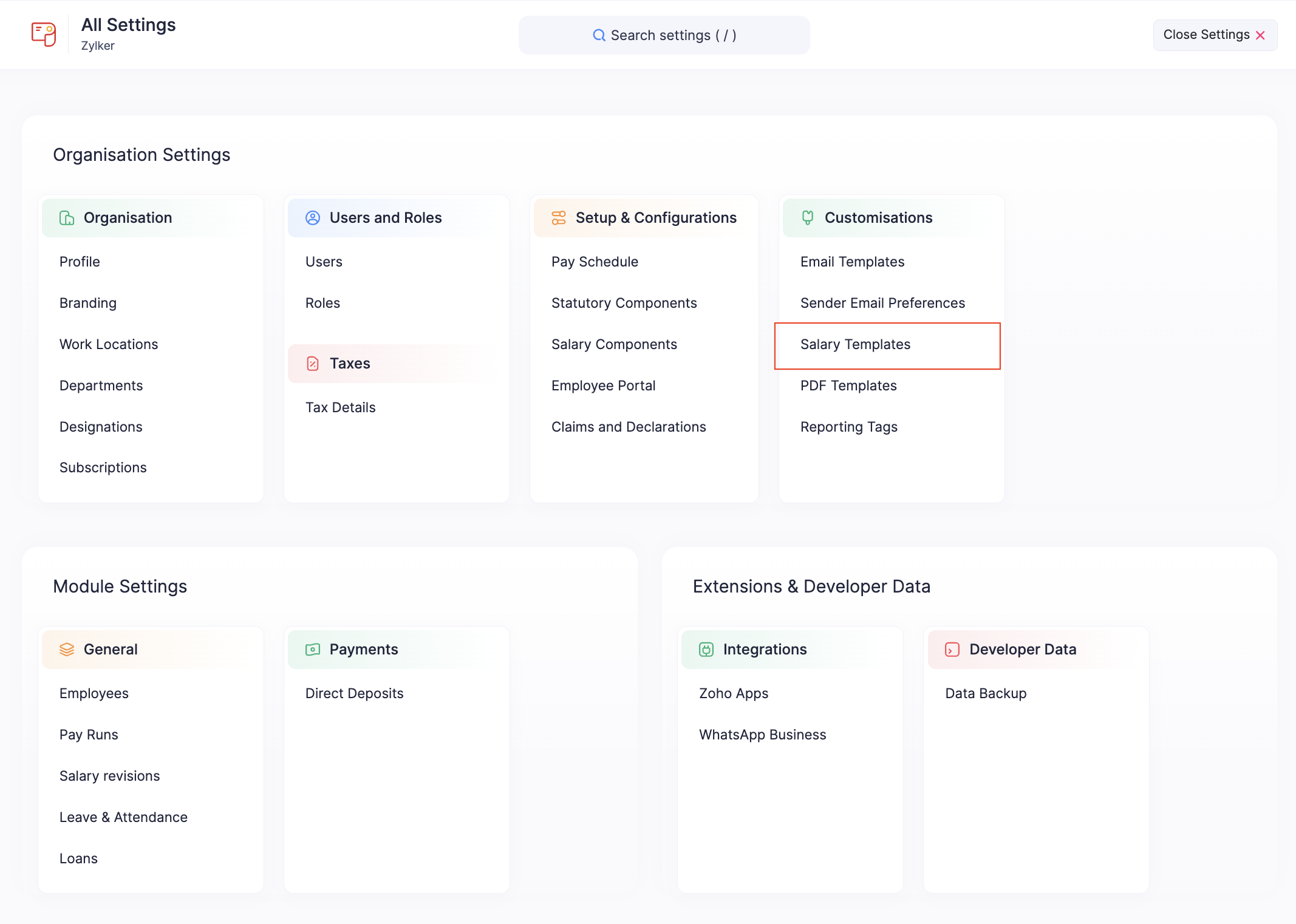
- Go to Settings and click Salary Template in the Customisations section.
- Create a new template and enter the salary details.

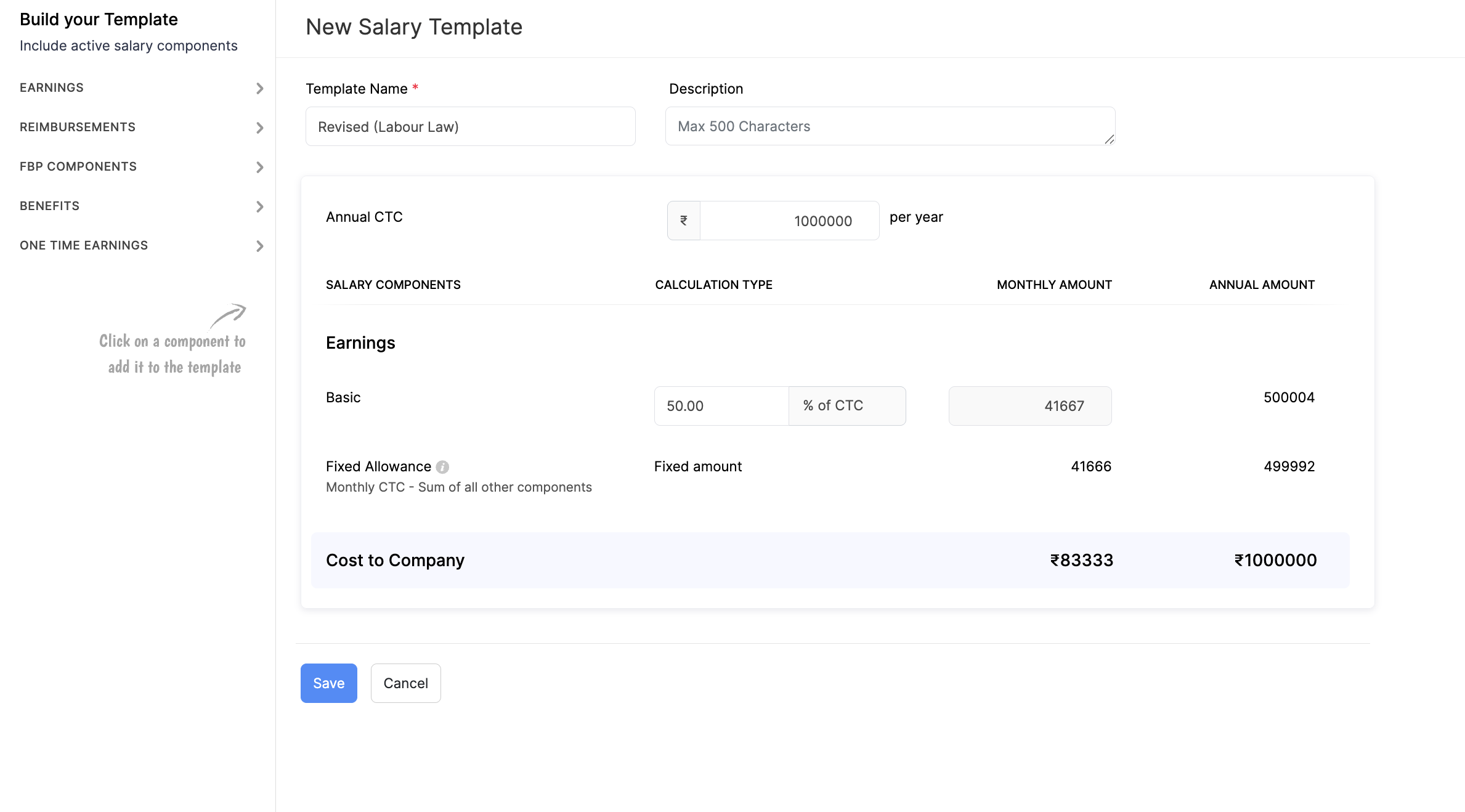
Note: Ensure Basic Pay + Dearness Allowance + Retainer Allowance (if applicable) is at least 50% of total wages, as per the wage rule.
If you want to apply the salary template for an employee:
- Once the template is created, go to Employees and select an employee.
- Open the Salary Details tab and click Edit.
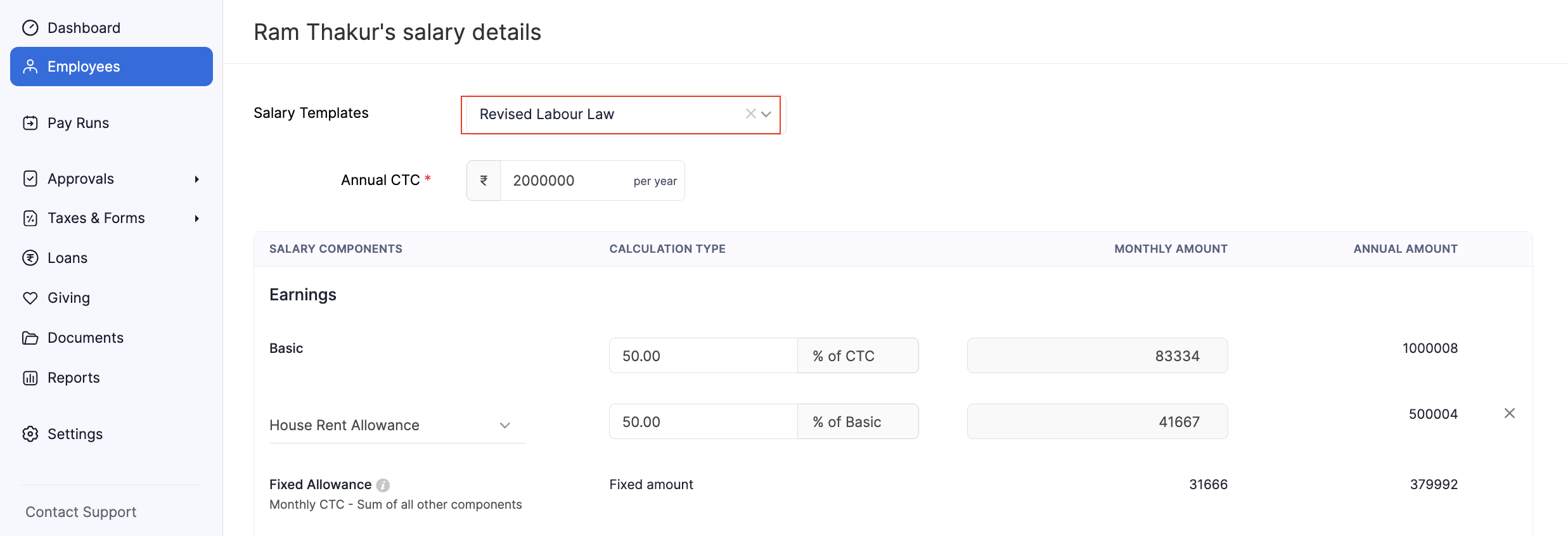
- Select the salary template and apply it.
- Click Save.
If you want to apply the salary template for multiple employees:
- Go to Employees.
- Click the More icon and select Import.
- Choose Employee Salary Details as the import type.
- Upload the modified file and map the salary template fields.
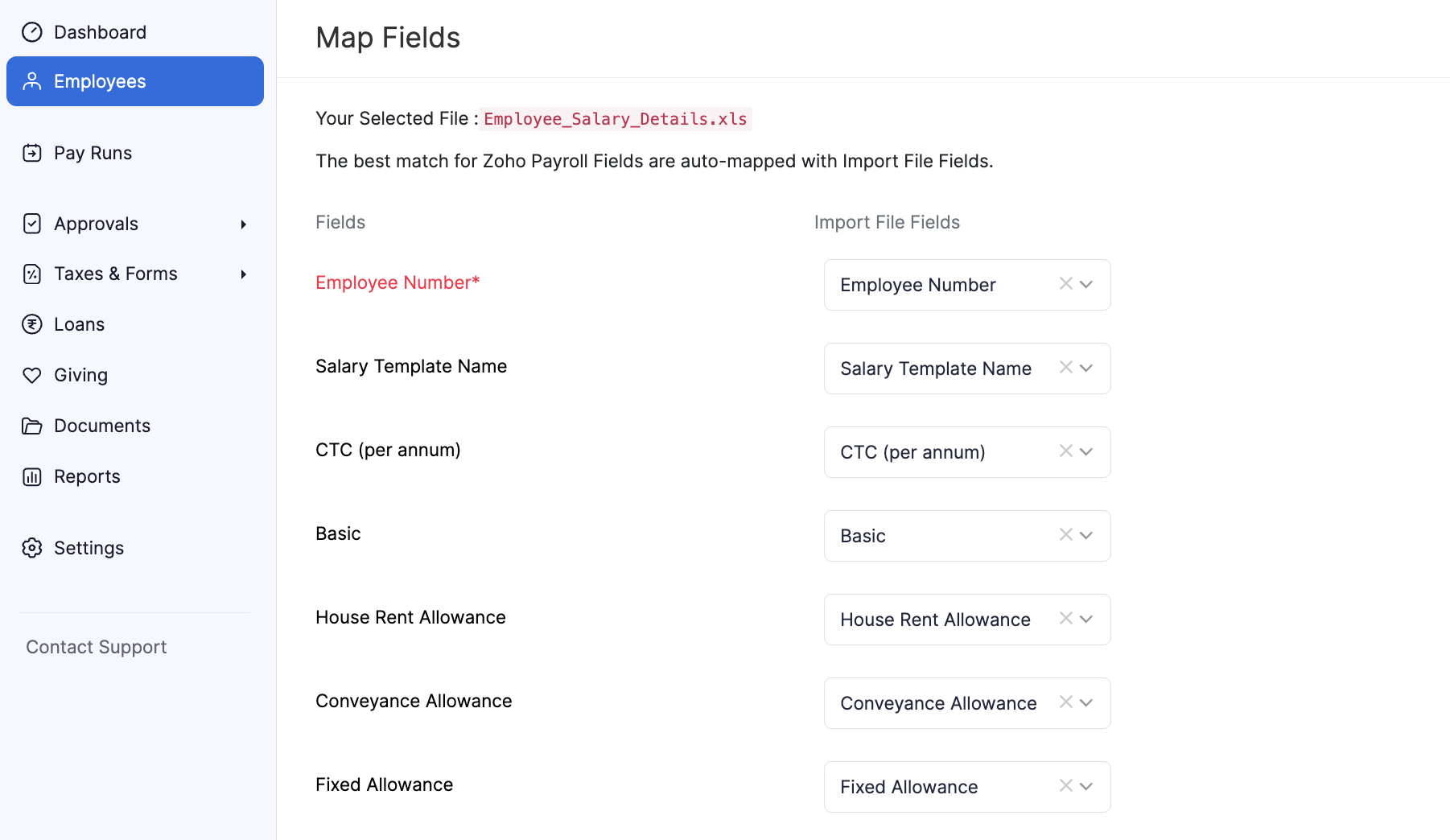
- Click Import.
Warning: Updating an existing salary template that is already associated with employees will not update their current salary details.