

More with Timesheets

Mark the project as inactive or completed, clone the project, add users to the project and delete the project.
- Select the project from the projects window.
- Click on the More drop down placed on top of the window.
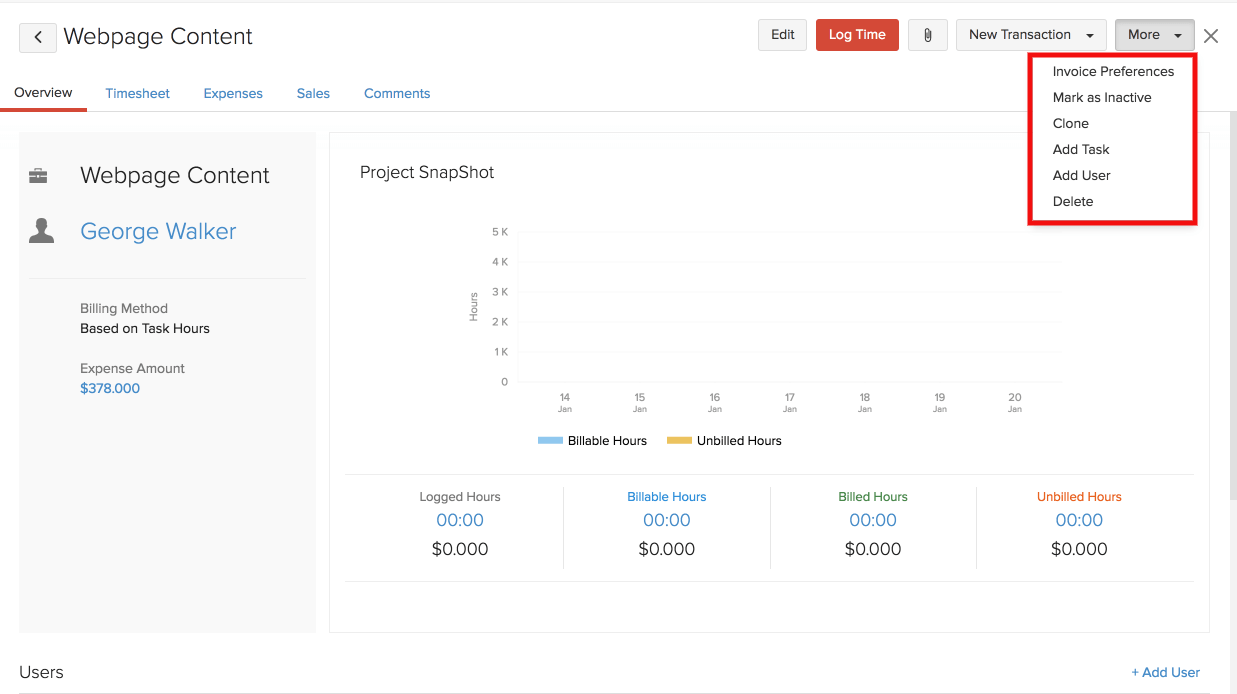
| Options | Description |
|---|---|
| Invoice Preferences | You can choose the way by which you would like your project to be displayed on the invoice. |
| Mark as Inactive | This option allows you to make the project inactive. You can make the project active by selecting Mark as Active option on top of the project dashboard. |
| Mark as Completed | This option allows you to mark a project as completed once the work on it is done. Marking a project as completed does not reduce the number of projects counted toward your organization’s project limit. |
| Clone | Clone the project and its information to create a similar project. |
| Add Task | Add tasks for the project. |
| Add User | Add extra users in the project to finish more tasks. |
| Delete | Delete the project. |
 Yes
Yes