MTA-STS configuration in Zoho Mail
Mail Transfer Agent-Strict Transport Security (MTA-STS) is an email security protocol in Zoho Mail, that strengthens the security of email connections between two Simple Mail Transfer Protocol (SMTP) mail servers. It ensures emails are sent securely by enforcing encryption via Transport Layer Security (TLS) and blocking delivery if a secure connection is not established. It helps prevent vulnerabilities such as man-in-the-middle (MITM), email spoofing, and SMTP downgrade attacks. This allows administrators to configure and enforce MTA-STS settings for their organization through the Zoho Mail Admin Console.
What are the requirements for MTA-STS?
Before configuring MTA-STS, ensure that your mail server meets the following requirements:
- Supports mail transfers via TLS connection using TLS version 1.2 or higher. Connections using older TLS versions will not be accepted.
- Has a valid TLS certificate that is up-to-date, trusted by a root certificate authority, and matches the servers listed in your MX records.
- Supports HTTPS, as the MTA-STS policy file must be hosted on an HTTPS-enabled web server.
MTA-STS protocol can be deployed by adding a DNS record to your domain provider's Manage DNS page. The steps to configure MTA-STS are as follows:
- Configure an MTA-STS policy for your domain/ subdomain
- Publish the policy in your domain's public web server
- Add a DNS (TXT) record
- Verify the MTA-STS configuration in Zoho Mail Admin Console.
Steps to configure MTA-STS in Zoho Mail Admin Console
Follow these steps to configure MTA-STS for your domain:
- Log in to Zoho Mail Admin Console and navigate to Domains.
- Select the preferred domain/ subdomain and choose Email Configuration.
- Select MTA-STS and download the policy file from the on-screen instructions provided.
Set the mode to None / Testing / Enforce based on your requirement to define how strictly TLS encryption should be enforced when sending emails, and then click Download.
- None - In this mode, the MTA-STS policy does not require TLS encryption for sending emails to the domain.
- Testing - In this mode, email servers can retrieve and evaluate the policy without enforcing strict Transport Layer Security (TLS) encryption requirements. It indicates that the domain owner is in the process of setting up or testing their MTA-STS policy. It's important to note that emails sent in this mode aren't fully secure because TLS isn't enforced yet.
- Enforce - In enforce mode, the MTA-STS policy requires that all email communication with the domain must be encrypted using TLS. If a sending email server cannot establish a TLS-encrypted connection, the receiving mail server will reject the email, thereby enforcing secure communication.
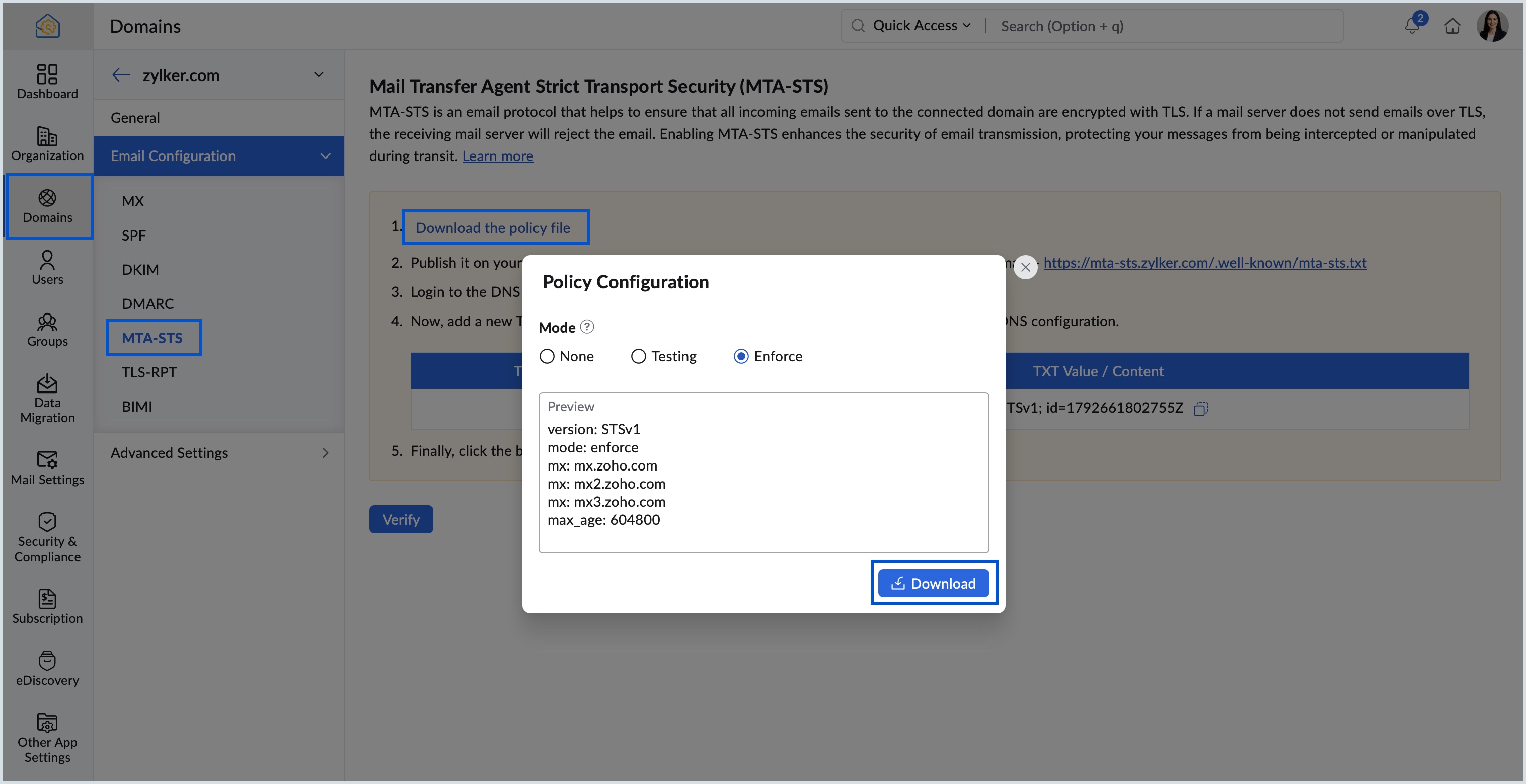
Once done, publish the MTA-STS policy file you downloaded by uploading it to the well-known folder on your HTTPS-enabled web server. This makes the policy file publicly accessible to sending mail servers, so they can fetch and validate it when delivering emails to your domain.
Note:
Ensure it's accessible at the following URL: https://mta-sts.yourdomain.com/.well-known/mta-sts.txt. (Replace "yourdomain.com" with your actual domain/subdomain name) This ensures that email servers can fetch the policy file when sending emails to your domain.- Open a new tab and log in to your domain provider's portal.
Navigate to the Manage DNS page and add a TXT record with the values generated in Admin Console. The DNS TXT record serves as a signal to sending mail servers that your domain supports MTA-STS. It points to the MTA-STS policy file and contains the following components:
Components of MTA-STS policy file Components
Description
Values
version
Identifies the policy format. This must appear as the first line.
Fixed value: STSv1
mode
Sets the enforcement level; what happens when TLS validation fails.
testing: failures reported, delivery not blocked.
enforce: failures block delivery.
none: policy disabled.
mx
Lists the authorized MX hostnames for your domain. Sending servers only deliver to hosts listed here.
List each MX hostname on a separate line.
max_age
How long sending servers cache this policy before re-fetching, expressed in seconds.
1–2 weeks during testing; up to one year in enforce mode.
Example policy file:
version: STSv1
mode: enforce
mx: mx.zoho.com
mx: mx2.zoho.com
max_age: 86400
Note:
If the TXT record is not verified, ensure that the record has been published correctly in your domain provider's DNS settings and that the id value in the DNS record matches the current policy version. DNS propagation may take up to 48 hours.
- Switch back to Zoho Mail Admin Console and click Verify.
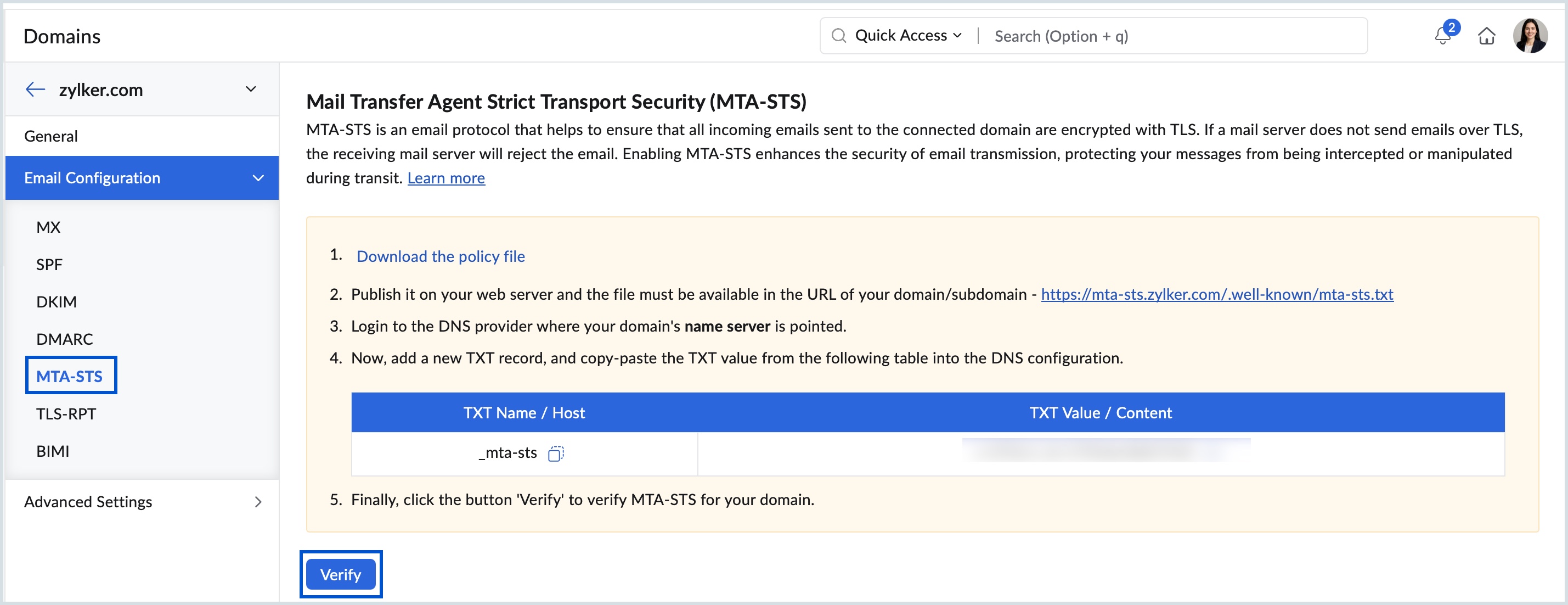
It is generally recommended to first set MTA-STS to Testing mode. This allows you to verify that your MTA-STS policy is configured correctly and that email delivery is not disrupted. Once you are confident that the MTA-STS works as desired, you can modify the mode to Enforce.
Once the MTA-STS policy file is published, sending mail servers cache the file and use it for the duration specified in the policy. Upon expiration, the sending servers fetch the updated policy file again.
TLS-RPT in Zoho Mail Admin Console
Transport Layer Security Reporting (TLS-RPT) is an email security protocol that enables domain owners to receive reports about the success or failure of encrypted email transmissions. It works in conjunction with MTA-STS to provide visibility into TLS encryption issues during email delivery.
Configuring TLS-RPT alongside MTA-STS is recommended to ensure that administrators are notified of any delivery failures related to MTA-STS policy violations or TLS negotiation errors, and can take the necessary action.
How does TLS-RPT help administrators monitor email delivery failures?
- DNS Configuration: Domain administrators publish a DNS TXT record by specifying the reporting URI (e.g., mailto:tlsrpt@domain.com).
- Report Generation: Sending mail servers generate aggregate reports detailing TLS connection outcomes for each email delivery attempt, including both successful and failed negotiations.
- Failure Details: The reports capture specific failure reasons such as certificate validation errors, handshake failures, or TLS not being available, allowing administrators to identify and resolve the root cause of the issue.
- Report Delivery: These reports are sent to the specified URI, typically via email or HTTPS POST, allowing domain owners to monitor and address encryption-related issues.
Why is TLS-RPT recommended for organizations using MTA-STS?
- Enhanced Visibility: Provides insights into TLS encryption failures and successes, helping identify potential security issues.
- Proactive Monitoring: Enables domain owners to detect and resolve problems before they impact email deliverability or security.
- Complementary to MTA-STS: Works alongside MTA-STS to ensure that email transmissions are both secure and monitored.
How to configure TLS-RPT in Zoho Mail Admin Console
Follow these steps to configure the TLS-RPT aggregate notification address for your domain:
- Log in to Zoho Mail Admin Console and navigate to Domains.
- Select the preferred domain/ subdomain and choose Email Configuration.
- Select TLS-RPT and enter the email address in the Aggregate notification email address field.
- Click Generate, and copy the generated TXT records.
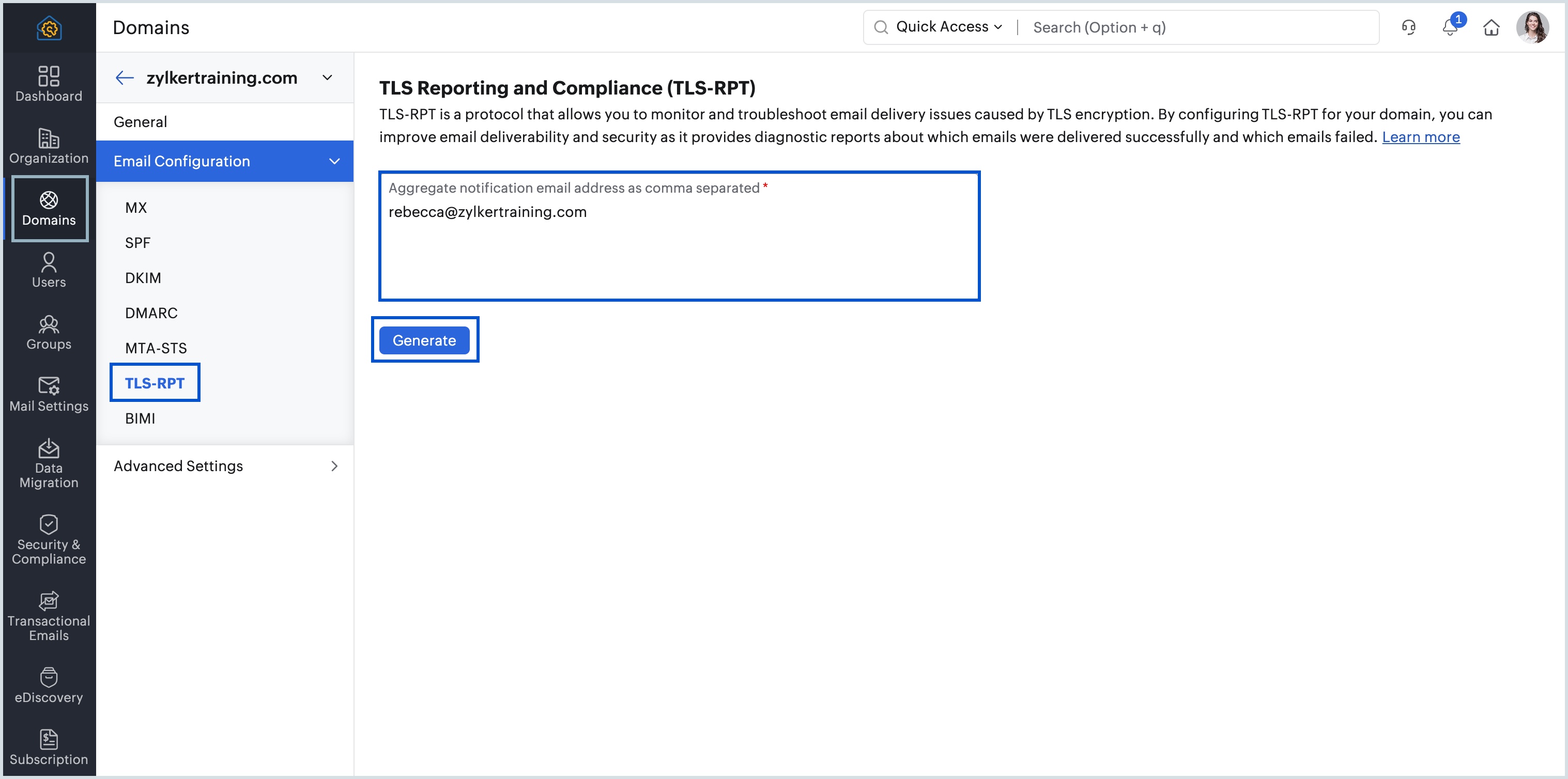
- Open a new tab and log in to your domain provider's portal.
- Navigate to the Manage DNS page and add a TXT record with the values generated in Admin Console.
- Switch back to Zoho Mail Admin Console and click Verify.
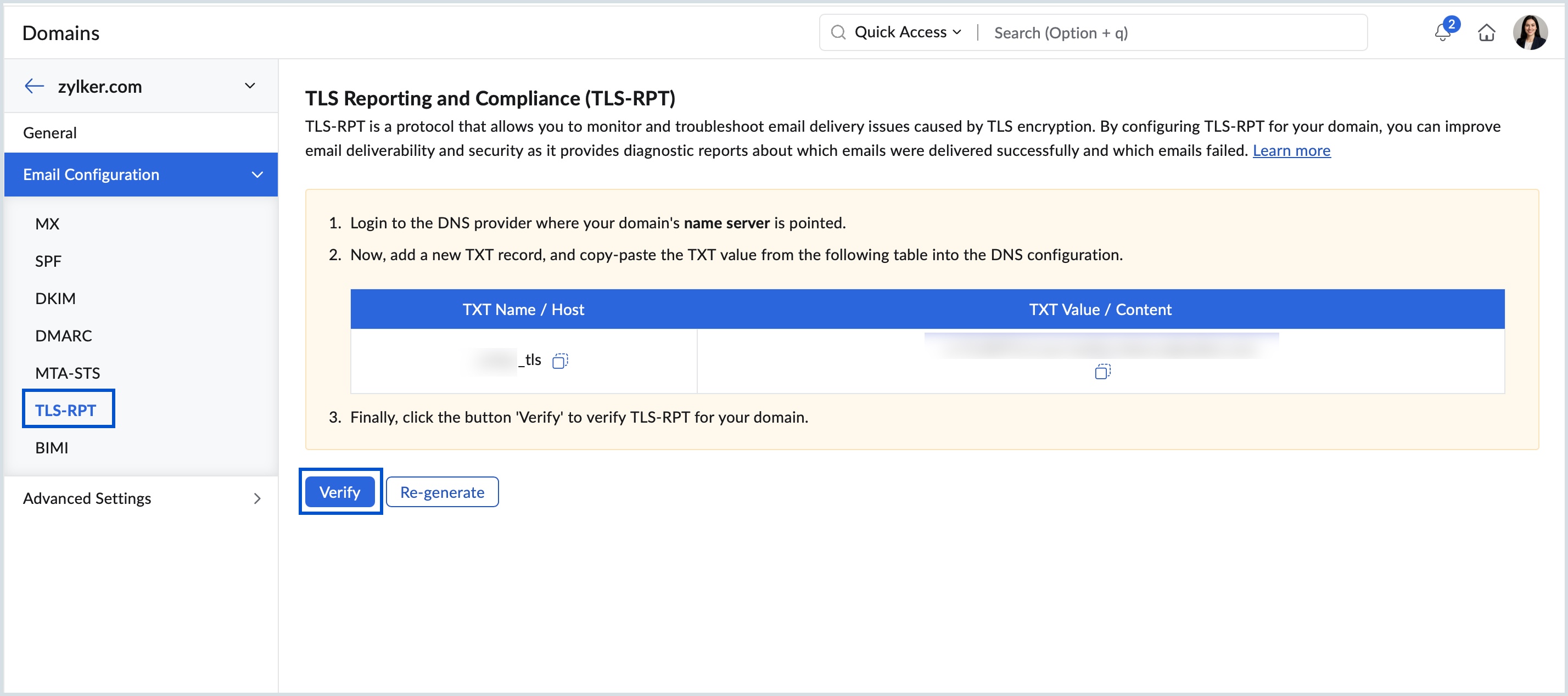
You have successfully configured TLS reporting for your domain.
Frequently Asked Questions (FAQs)
What is the difference between MTA-STS and other email security protocols like SPF, DKIM, and DMARC?
SPF, DKIM, and DMARC are email authentication protocols that verify the sender's identity and protect against email spoofing. MTA-STS, on the other hand, focuses on securing the email transmission channel by enforcing TLS encryption between mail servers. MTA-STS works in conjunction with these protocols to provide a comprehensive email security framework.
What happens to an email if the receiving domain has MTA-STS set to Enforce mode but the sending server cannot establish a TLS connection?
If the receiving domain has MTA-STS set to Enforce mode and the sending server cannot establish a valid TLS-encrypted connection, or if the TLS certificate does not match the MX records listed in the MTA-STS policy file, the email delivery will be blocked. In Testing mode, the email will not be blocked and will still be delivered to the recipient. However, a failure report will be sent to the address configured in TLS-RPT, allowing administrators to identify and resolve the issue before switching to Enforce mode.
Is it mandatory to configure TLS-RPT alongside MTA-STS in Zoho Mail?
No, TLS-RPT is not mandatory. However, configuring TLS-RPT alongside MTA-STS is strongly recommended. Without TLS-RPT, administrators will not receive reports about email delivery failures related to TLS errors or MTA-STS policy violations, making it difficult to identify and resolve issues proactively.
What is the recommended approach when setting up MTA-STS for the first time?
It is recommended to first set MTA-STS to Testing mode. This allows administrators to verify that the MTA-STS policy is configured correctly and that email delivery is not disrupted. Once the configuration is confirmed to be working as expected, the mode can be changed to Enforce to apply strict TLS encryption requirements.
Where are TLS-RPT reports sent and what information do they contain?
TLS-RPT reports are sent to the email address specified during TLS-RPT configuration. These reports provide a summary of email delivery attempts, including details on which emails were successfully delivered over an encrypted connection and which ones failed due to encryption issues. This helps administrators identify and resolve email delivery problems before they impact users.