Pooled Storage in Zoho Mail Admin Console
The Pooled Storage feature in Zoho Mail allows organizations to manage storage resources efficiently from the Admin Console. Organizations can purchase storage on a cumulative basis, depending on the number of users, providing shared storage that can be allocated according to individual user's needs. This ensures that users with higher storage requirements can access additional space, while users with lower requirements utilize less.
For example, If an organization with 1000 users subscribes to a Zoho Mail plan (10GB storage per user), the total cumulative storage assigned will be 10TB (1000 users × 10GB). This cumulative storage can be distributed among users based on actual usage needs. Admins can create storage limits, such as 2GB or 5GB, and assign them to specific users.
The benefits of Pooled Storage includes:
- Storage is managed centrally and shared across users.
- Storage limits are controlled using storage restrictions, instead of fixed per-user quotas.
Note:
- The Pooled Storage feature is available only for organizations with subscriptions above 1000 users.
- The Pooled Storage feature is released in a phased manner. If you wish to enable this feature to your organization, please write to support@zohomail.com
User Views
After adding users to your organization’s account, you can view and manage them under the Users section in the Admin Console. Zoho Mail provides multiple user views for specific administrative purposes. To access the different user views:
- Log in to Zoho Mail Admin Console.
- Navigate to the Users section in the left pane.
- Hover over Users to switch between the available views:
- Default View – View users’ personal and account-level information.
- Plan View – View and modify the plans assigned to each user (displayed only for Mail Flexible plan).
- Storage View– View and manage pooled storage usage, restrictions, and add-ons.
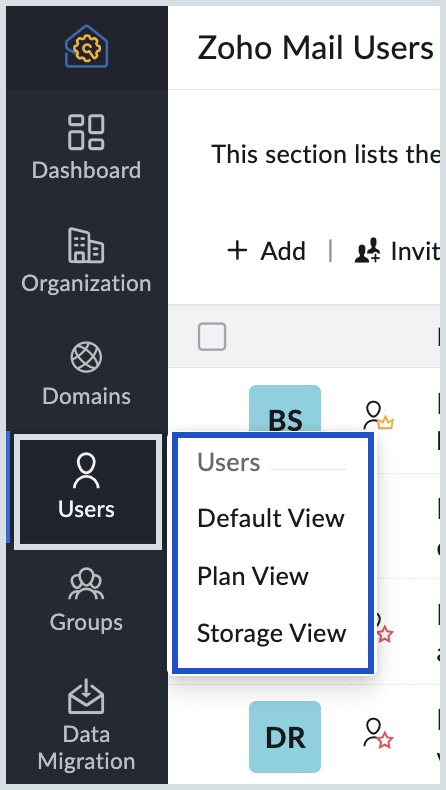
Each view focuses on a distinct aspect of user management and helps administrators manage users efficiently in organizations with mixed plans and shared storage.
Default View
Default View lists all the users who have been added to your organization's account. You can view individual user's informations like last sign in, contact number, location, and their active/inactive status. You can also perform various user related actions like add, invite, import, export, bulk delete, and filter users based on specific criteria. For more details on user actions and settings, click here.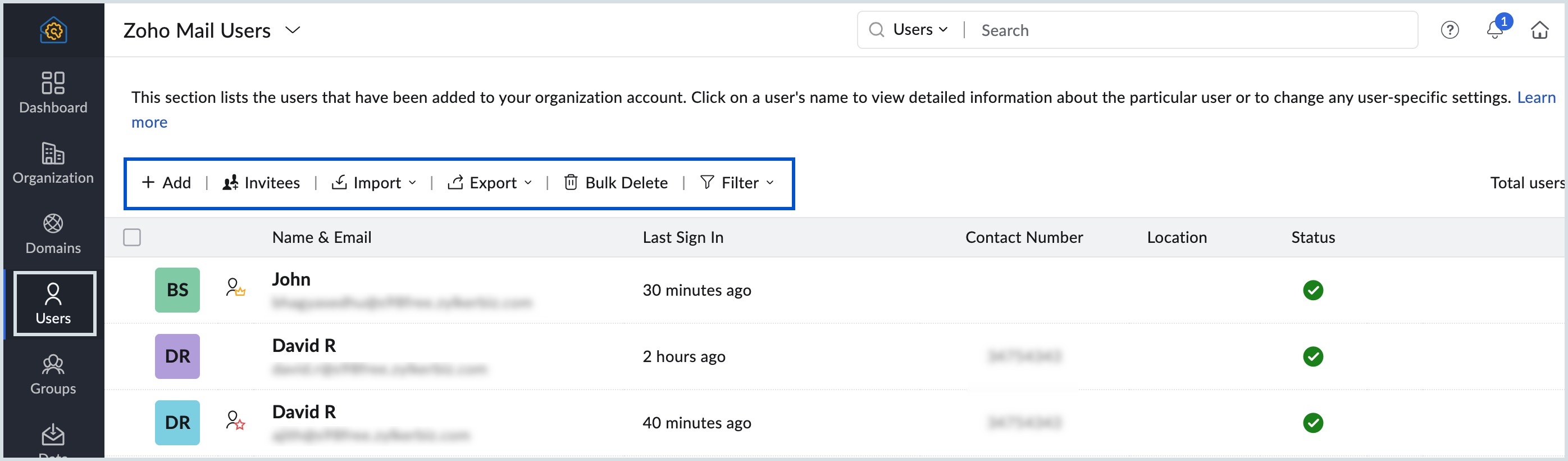
Plan View
The Plan View under Users displays all users in the organization along with the corresponding plan assigned to each of them when they are under Mail Flexible plan. You can modify the Mail plan for an individual user by selecting the desired option from the Assigned Plan drop-down.
Note:
Plan View is displayed only for the organizations which have subscribed for Zoho Mail Flexible plan.
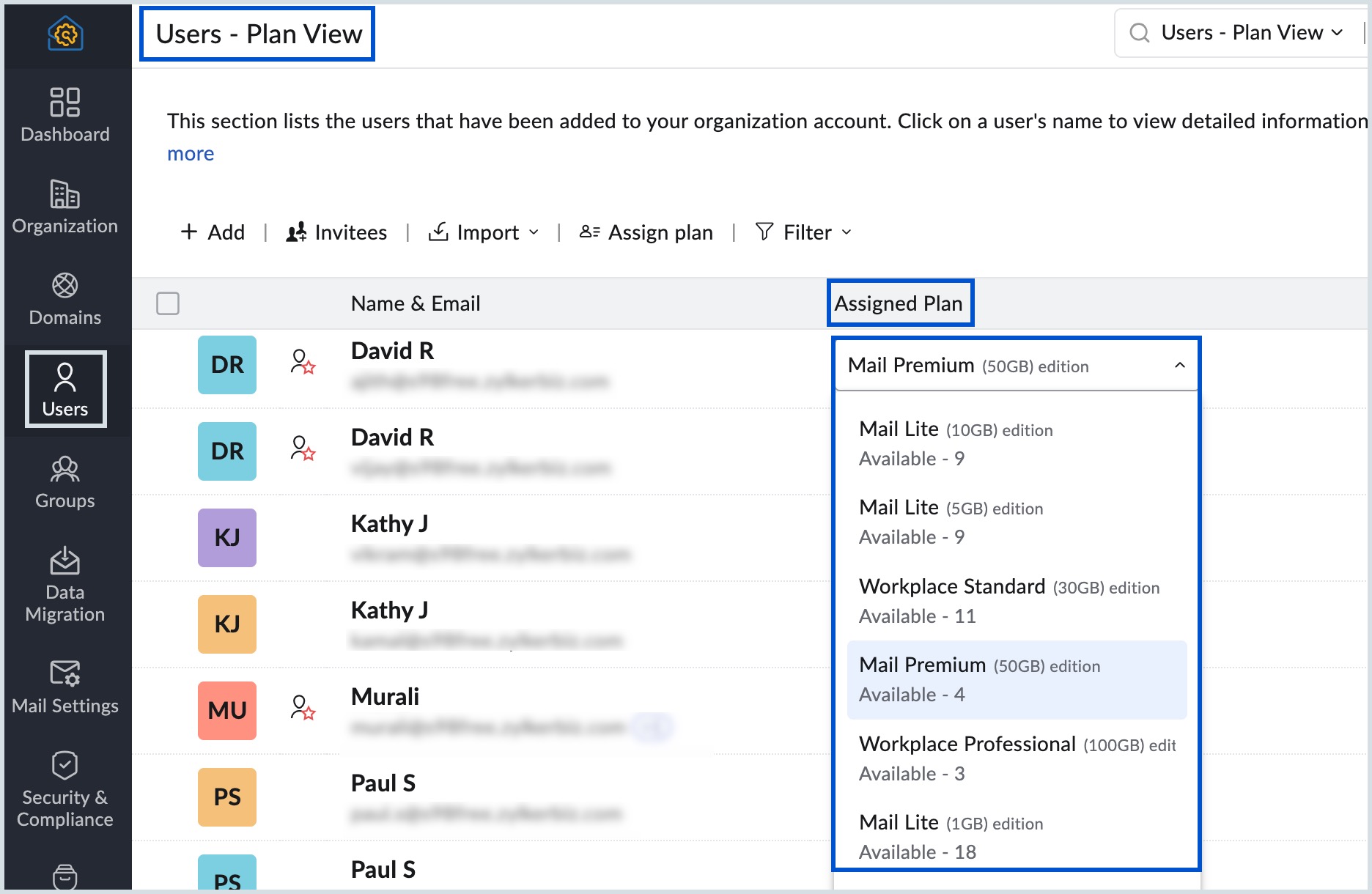
You can select multiple users using the checkbox next to their name and click the Change Plan button in the top menu to bulk change a group of users to a specific plan. 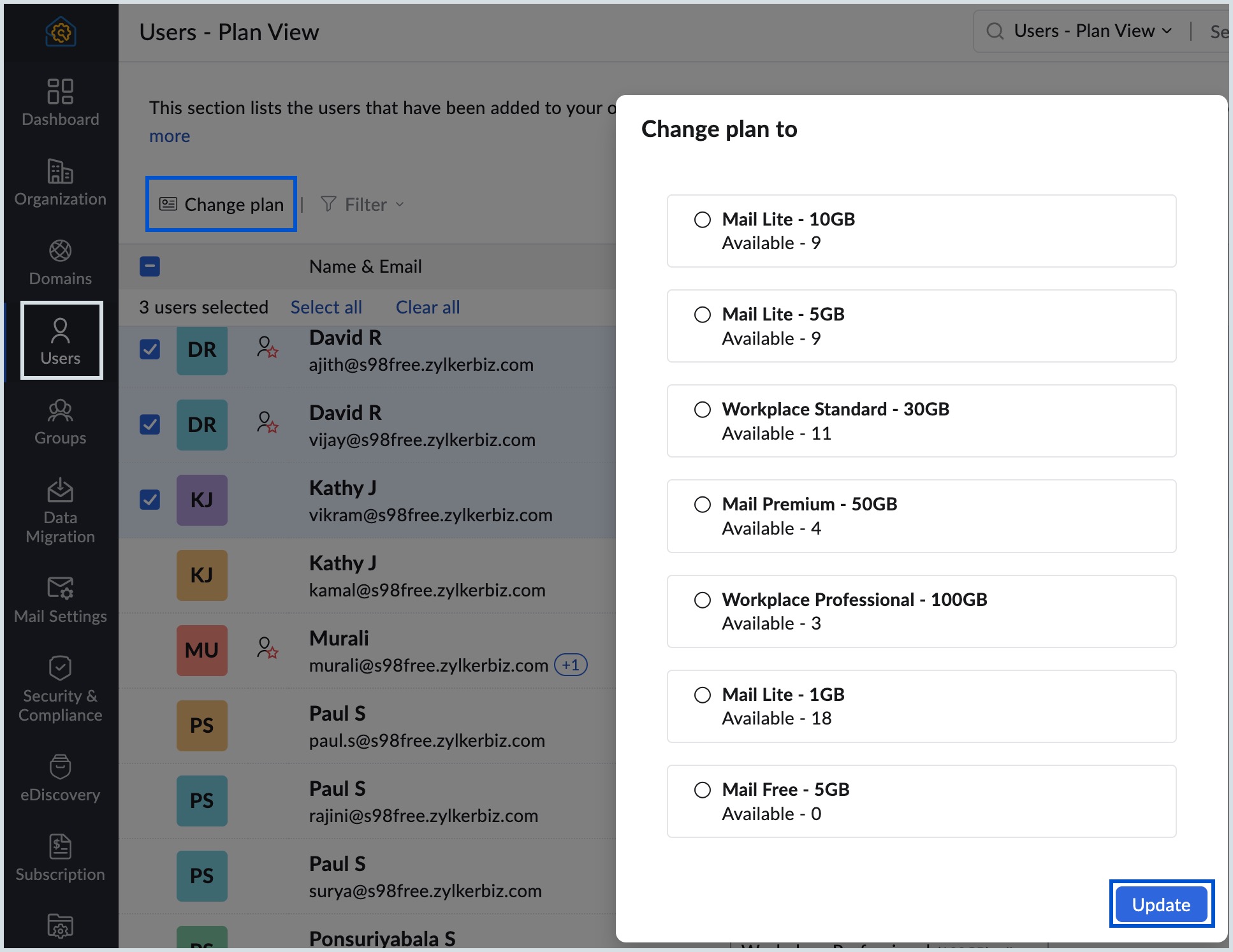
You can also use the Assign Plan button in the top menu to bulk assign licenses for multiple users via CSV file. 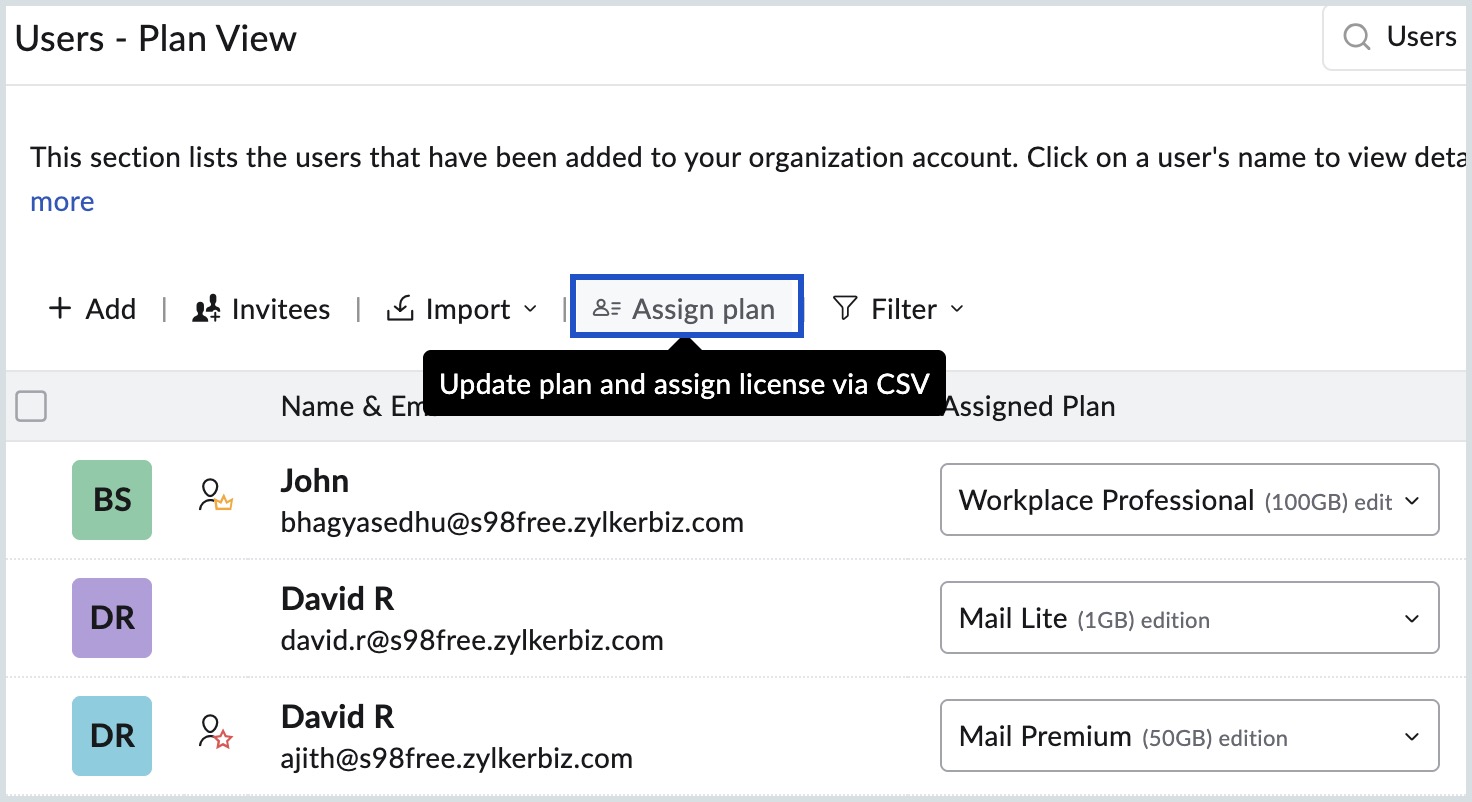
Storage View
The Storage View in Zoho Mail Admin Console provides administrators with a comprehensive overview of how pooled storage is utilized across the organization. This view allows you to monitor storage consumption, assign restrictions, and manage add-ons efficiently.
The options available under Storage View are:
Dashboard
The Dashboard provides a visual summary of storage usage based on the chosen plan. Total number of users and their storage details are displayed along with the widgets.
Key widgets include:
- Mail Storage Utilization - Displays the total mail storage used by all users in the organization against the total pooled mail storage available.
- eDiscovery Storage Utilization - Displays the total eDiscovery storage consumed by users versus the total available.
- Top 10 users' Mail usage - Lists top 10 users who have consumed more mail storage compared to others.
- Top 10 users' eDiscovery usage - Lists top 10 users who have consumed more eDiscovery storage compared to others.

Users List
The Users List in the Storage View provides a centralized overview of all users in the organization and their storage consumption under the pooled storage model. Admins can view each user’s Mail and eDiscovery storage usage, their assigned storage restriction, and plan details.
To assign a storage restriction or change the restriction applied to a user, click the Assigned Storage Restriction drop-down and select the desired restriction. Once selected, the storage restriction will be applied to the user. To create a new restriction or modify an existing one, refer to the Storage Restrictions section.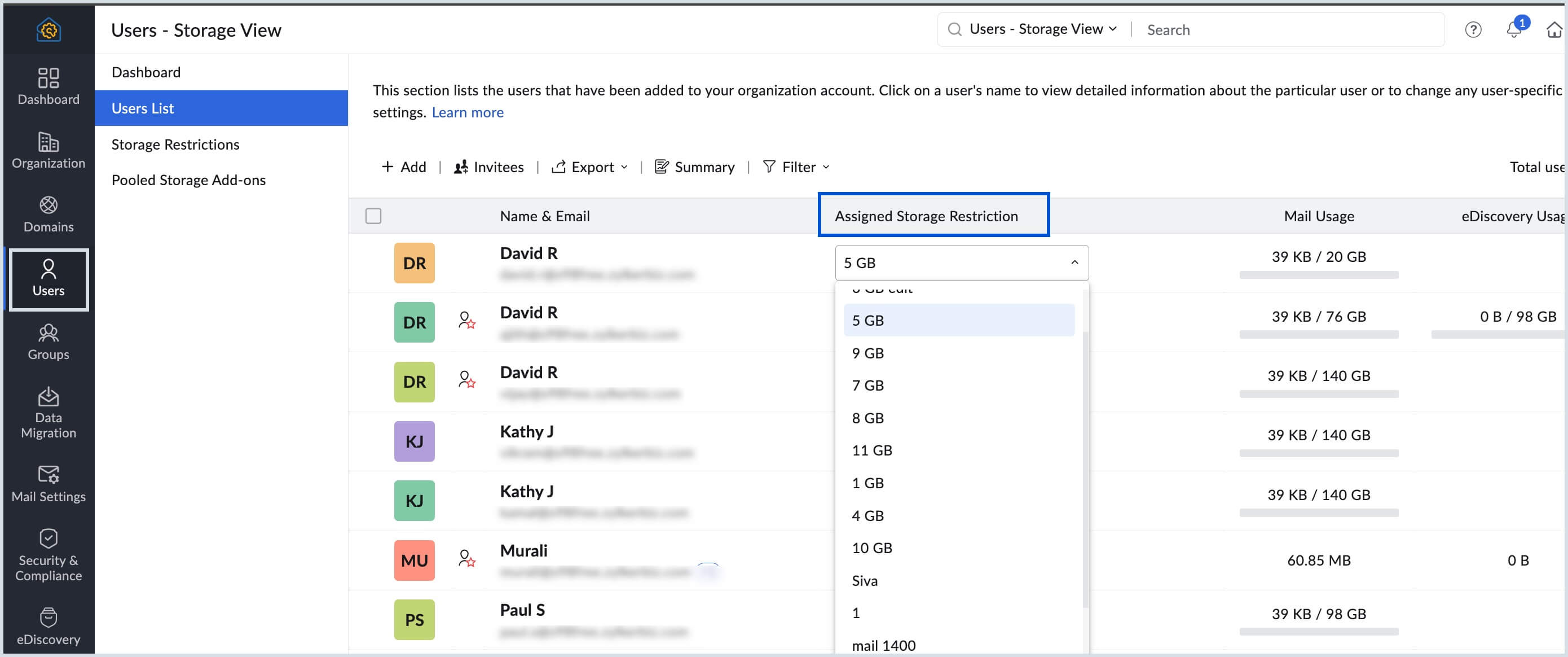
You can also perform the below actions from the Users List home page.
- Add, Invite, Export, and Filter users based on the selected criteria available in the Filter drop-down.
- Click Summary available in the top pane to view the Plan and Add-on details available for your organization.
Storage Restrictions
Storage Restrictions allow admins to define specific storage limits for Mail and eDiscovery storage, which can then be assigned to individual users.
- Create restrictions
- Add/associate users to a restriction
- Modify a restriction
- Delete a storage restriction
Create restrictions
Follow the below steps to create a Storage Restriction:
- Log in to Zoho Mail Admin Console.
- Navigate to Users > Storage View and select Storage Restrictions from the left pane.
- Select + Create Restriction to create a new storage restriction for your organization.
Enter the Restriction Name, Mailbox storage restriction in GB, and eDiscovery storage restriction in GB in the Create Restriction dialog box.
Note:
The minimum storage limit for Mailbox and eDiscovery storage restriction is 1GB.- Once done, click Create.
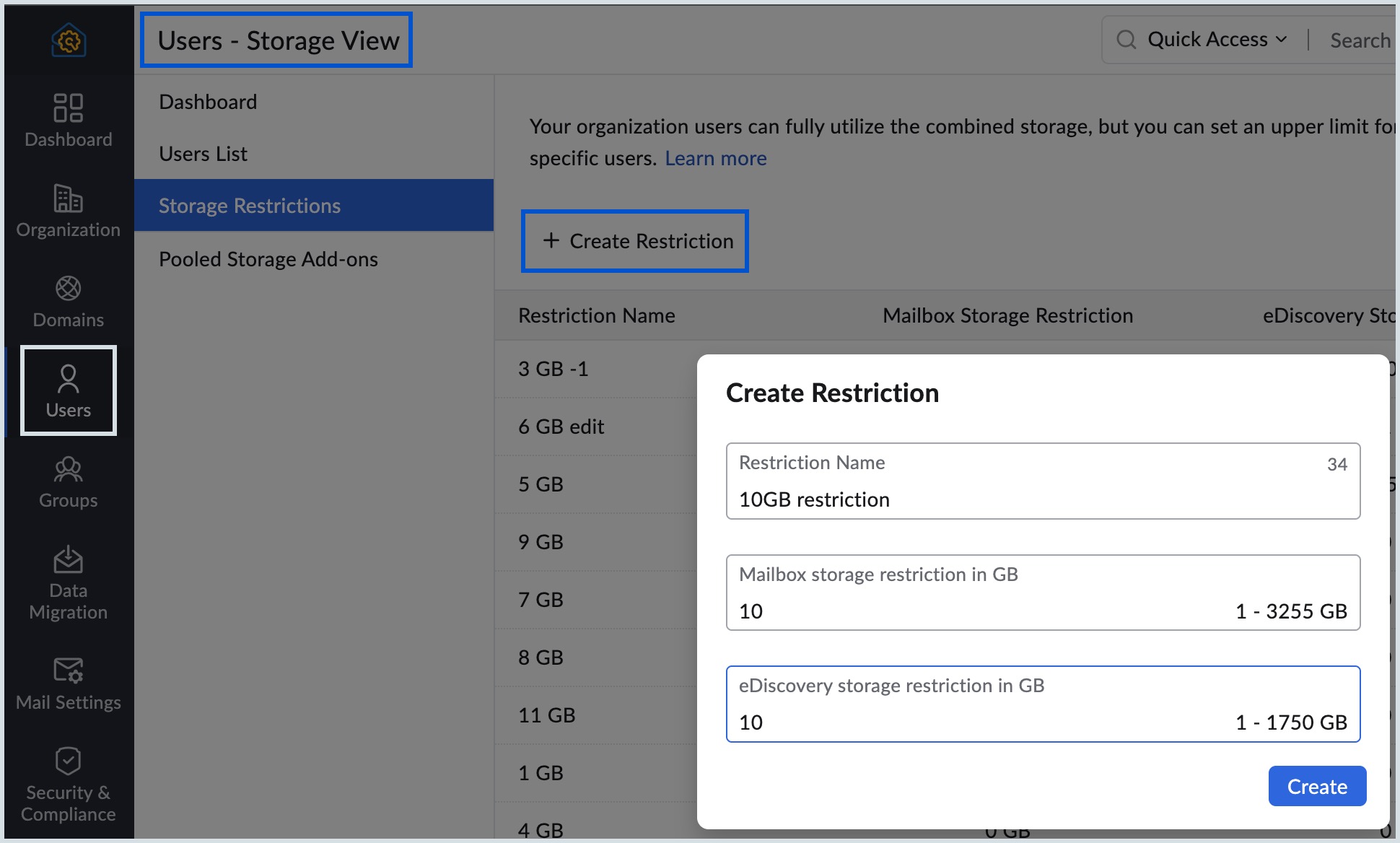
The newly created restriction is added to the list in the Storage Restrictions home page.
Add/associate users to a restriction
Once a restriction is created, you can assign specific users to it. Follow the below steps to associate one or more users to the restriction:
- Log in to Zoho Mail Admin Console.
- Navigate to Users > Storage View and select Storage Restrictions from the left pane.
- Select the restriction name to which you wish to add/associate users.
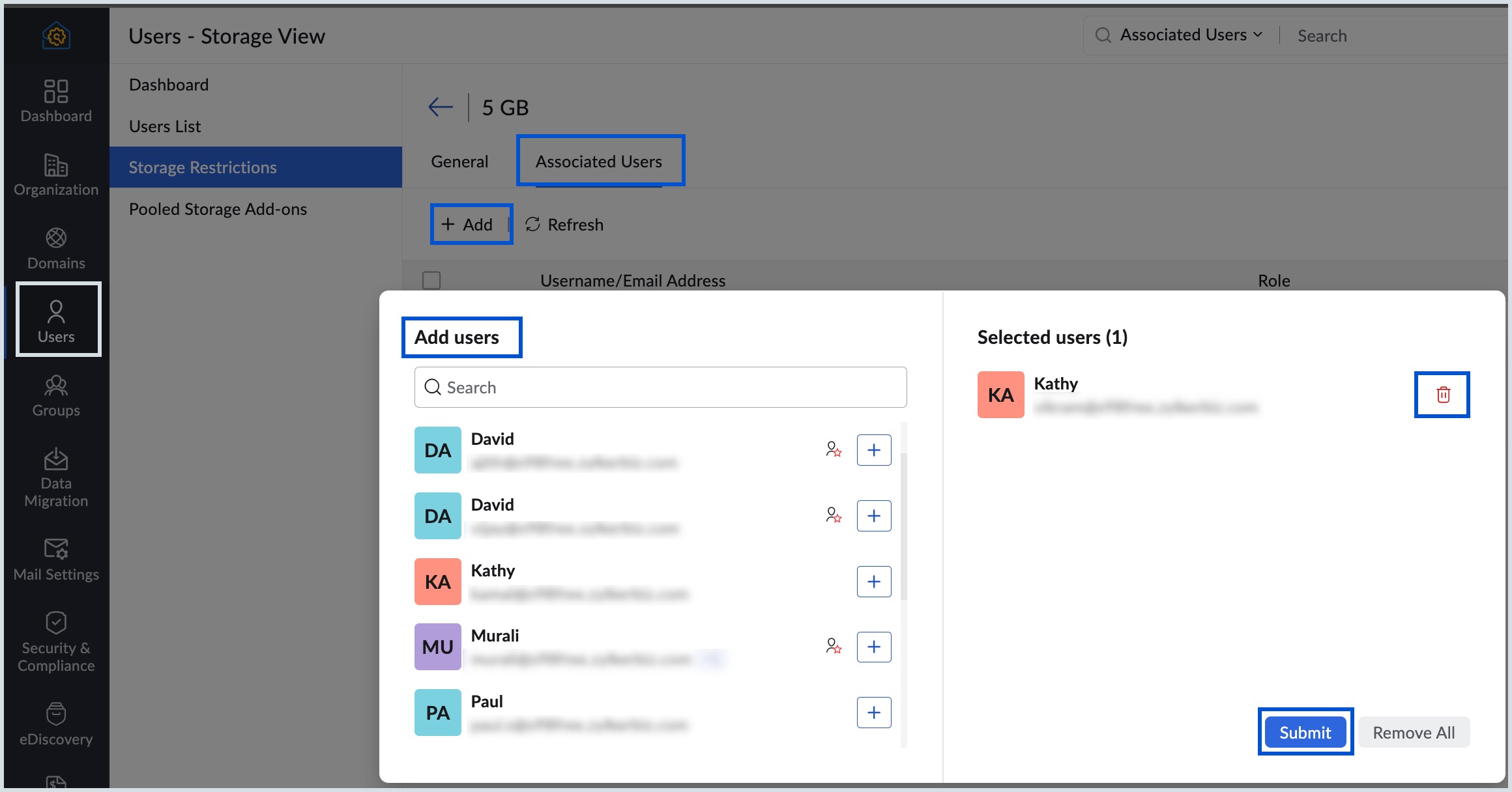
- Navigate to Associated Users on the top pane.
- Select + Add button to add respective users.
- Click Submit once the users are selected.
- Confirm the action in the Add users dialog box.
You can remove a user from a particular restriction by selecting the Remove icon.
Note:
- A user can be associated with only one restriction. You cannot add the same user for two different restrictions.
- Once the user is added, you can change their applied restriction by selecting the Change Restriction icon in the Associated Users tab. The user will then be moved to the respective restriction as per the selection made.
Modify a restriction
As an admin, you can modify the storage size of the restriction created. Below are the steps to modify a restriction:
- Log in to Zoho Mail Admin Console.
- Navigate to Users > Storage View and select Storage Restrictions from the left pane.
- Select the restriction name for which you need to modify the storage size.
- Navigate to Allowed Storage Size under the General tab.
- Enter the updated storage size in Mailbox and eDiscovery storage restriction field displayed based on your chosen plan.
- Click Update and confirm your action in the Confirm Action! dialog box.
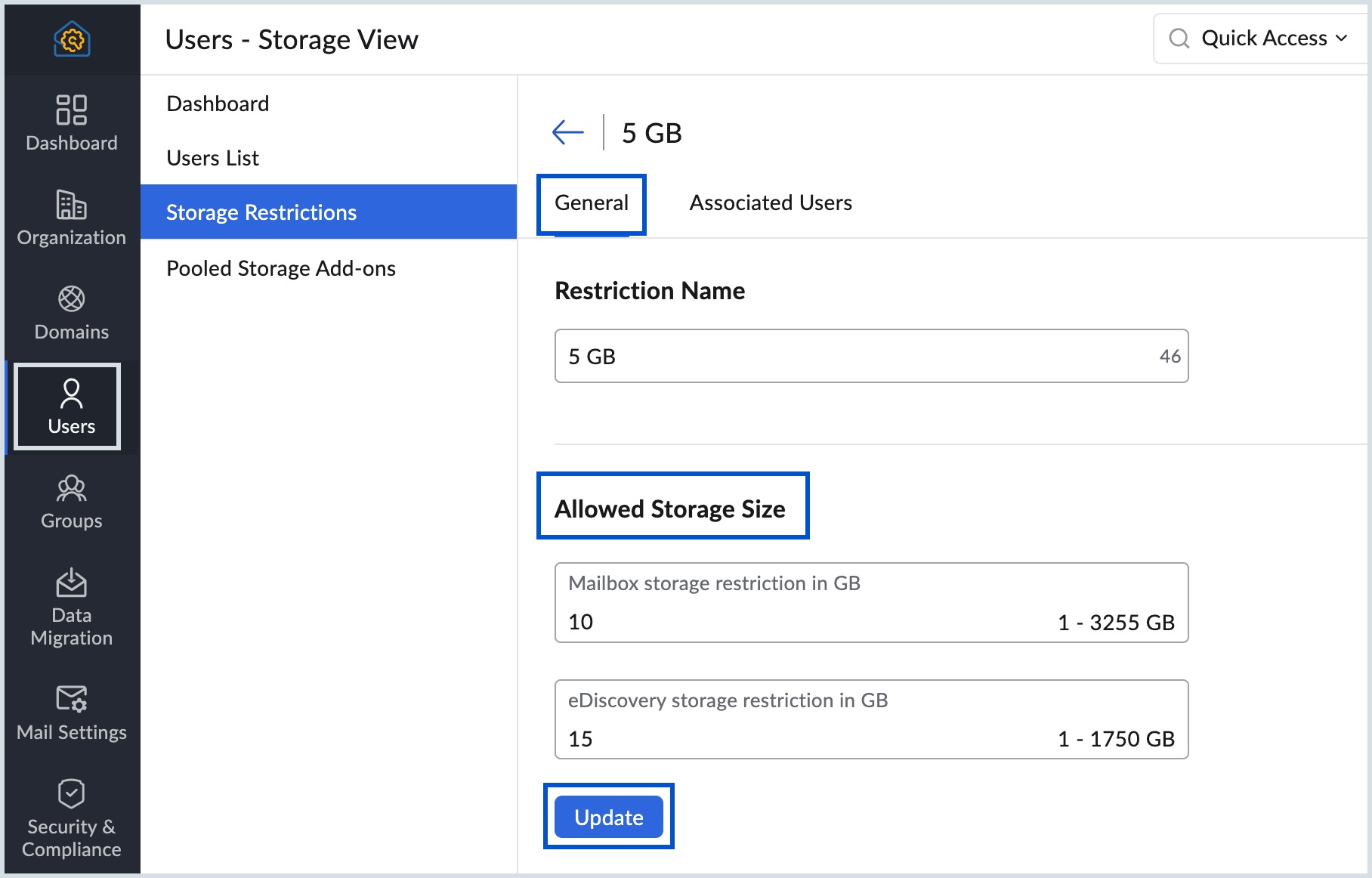
Note:
The minimum storage limit for Mailbox and eDiscovery storage restriction is 1GB.
Delete a storage restriction
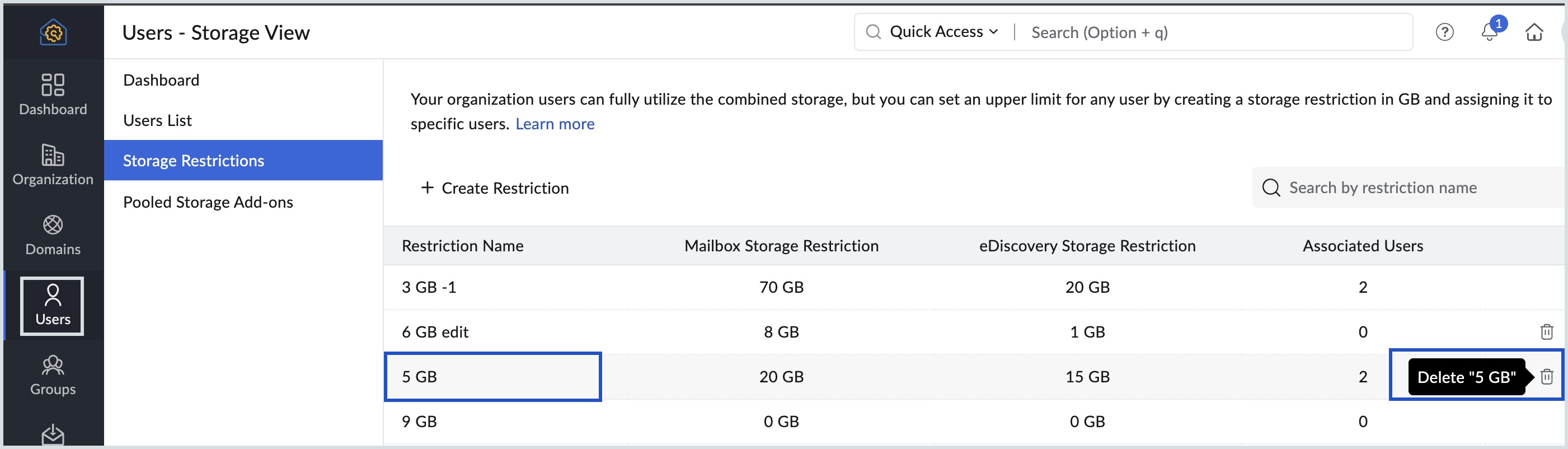
As an admin, you can delete a storage restriction which is no longer needed. Below are the steps involved:
- Log in to Zoho Mail Admin Console.
- Navigate to Users > Storage View and select Storage Restrictions from the left pane.
- Hover over the restriction name which has to be deleted.
- Select the Delete icon at the right corner and confirm your action in the Confirm Action! dialog box.
Pooled Storage Add-ons
A Pooled Storage Add-on is an additional volume of data storage purchased by an organization. Once purchased, the add-on is added to a centralized storage pool, increasing the total Mail or eDiscovery storage available for the organization.
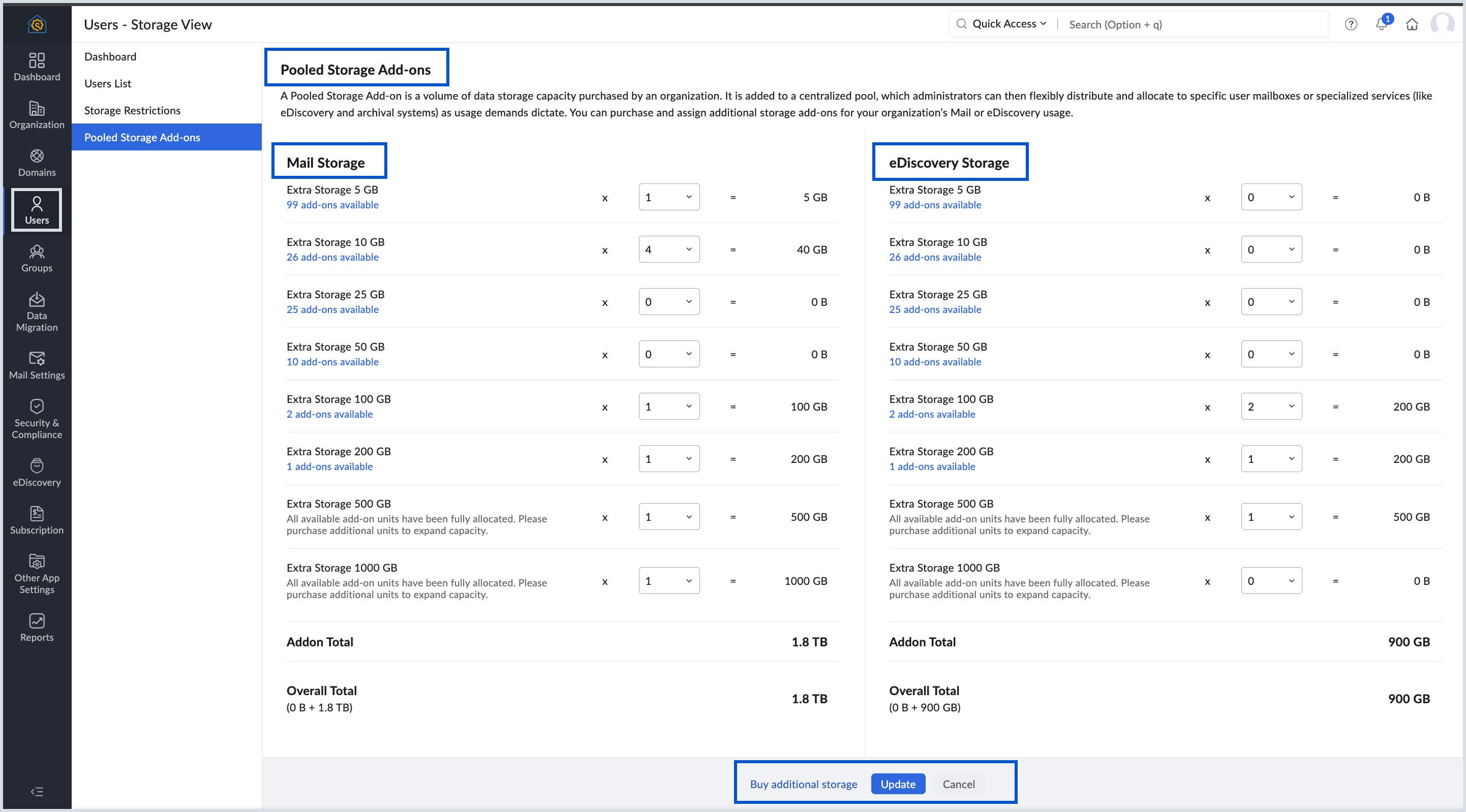
The Pooled Storage Add-ons section in the Zoho Mail Admin Console allows administrators to assign the purchased additional Mail and eDiscovery storage to the organization and subsequently allocate it to specific users. Follow the steps below to allocate purchased add-ons:
- Log in to Zoho Mail Admin Console.
- Navigate to Users > Storage View and select Pooled Storage Add-ons from the left pane.
- A list of all Mail and eDiscovery storage add-ons type will be displayed based on the organization's Mail plan. The drop-down next to each add-on type shows the number of units currently available.
- Click the drop-down next to the desired add-on type and select the number of units you want to allocate under Mail or eDiscovery Storage.
- Repeat the same steps to allocate additional units to other add-on types if needed.
- Once all selections are made, click Update and confirm your action in the Confirm Action! dialog box.
After allocation, the newly assigned storage will be added to your organization’s central pooled storage. You can now distribute this storage to specific users’ Mail or eDiscovery storages as needed.
To purchase more storage, click the Buy Additional Storage button at the bottom of the page and buy more units to your organization’s pooled storage.
If there are no Add-ons purchased before, you can Manage Subscription from Zoho Mail's Admin Console