Toolkit by Zoho Mail
Zoho Mail provides easy-to-use diagnostic tools to troubleshoot some services. There are options to check the domain and registry details. You can run some basic DNS configuration checks for a specific domain, analyze message headers, make use of encoding and decoding functions, perform reverse lookups, and check if certain port numbers are open for specific hosts.
In addition, the tools also include generators and analyzers to help users create and inspect email-related configurations, making it easier to diagnose and resolve email issues.
The various sections available in Toolkit are:
What is Domain Lookup and how does it help you analyze your domain?
The Domain Lookup section provides tools to retrieve and analyze domain-related information. You can look up DNS records, check domain registration details using WHOIS, and assess the overall email health of a domain.
DNS Lookup
In the DNS Lookup section of the Toolkit, you can view all the records that have been associated and configured for your domain name.
- Navigate to the DNS Lookup section under Domain Lookup.
- Enter the domain name for which you'd like to see the records and click Lookup.
- You can view each of the records associated with the domain under the relevant fields.
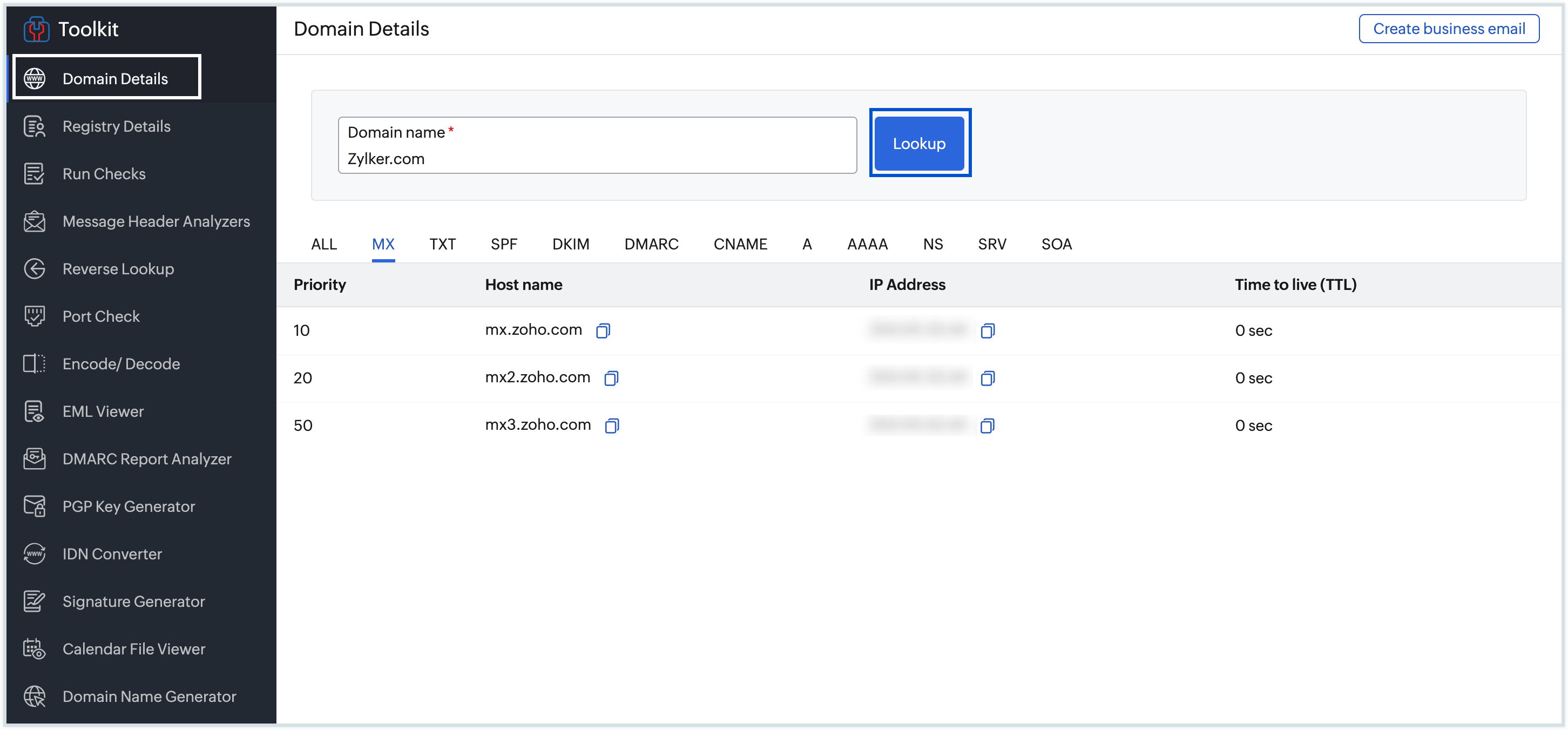
A brief explanation of each of the records has been given below:
MX Record
MX Records or Mail Exchanger Records define the server to which a respective domain's emails need to be routed. The MX Records for each domain have to be added as suggested by the server in which their email is hosted. A domain can have multiple MX Records each with varying levels of priority. For example, if you use Zoho Mail, you will be adding the 3 MX Records suggested by Zoho Mail, and if emails cannot be delivered to the record with the lowest priority, the record with the next priority is tried and so on. An MX lookup is usually performed to understand if your domain's email servers are responding correctly or not.
TXT Record
TXT Records contain any text information that might be required for external sources. It can be used for a number of purposes. Zoho Mail uses TXT Records in multiple instances such as configuring SPF, DKIM, DMARC or to verify domain ownership.
CNAME Record
CNAME or Canonical Name is a DNS record that is used to map an alias name to the canonical domain name. Zoho Mail uses the CNAME method for domain ownership verification and also in the process of customizing the login URLs. You can perform a CNAME lookup to understand if the alias names have been configured for your domain.
A Record
An A Record or Address Record maps a specific domain to the physical IP address of the computer on which the domain is hosted. The A Record maps the IPv4 of the respective computer.
AAAA Record
Like the A Record, the AAAA Record also maps the IP address associated with a domain name, but AAAA records map the IPv6 IP address (Version 6) of the computer that is hosting the domain.
NS Record
The NS Record or Name server record is used to delegate your domains or subdomain to a different name server. If you want the DNS for a domain to be resolved by a different name server, that can be mentioned here.
SRV Record
The SRV (Service) DNS record specifies the servers responsible for managing specific email services within a domain.
SOA Record
SOA or Start of Authority Record holds administrative information about zone transfers for any particular domain.
In case you want to view all the records that have been added for a domain in one view, Dig the records and go to the All tab. This will display all the DNS records that are associated with a particular domain.
WHOIS Lookup
WHOIS Lookup allows you to retrieve registration details associated with a domain name. This includes information such as the registrant details, registration date, and expiration date of the domain.
- Navigate to the WHOIS Lookup section under Domain Lookup.
- Enter the name of the domain and click Get details.
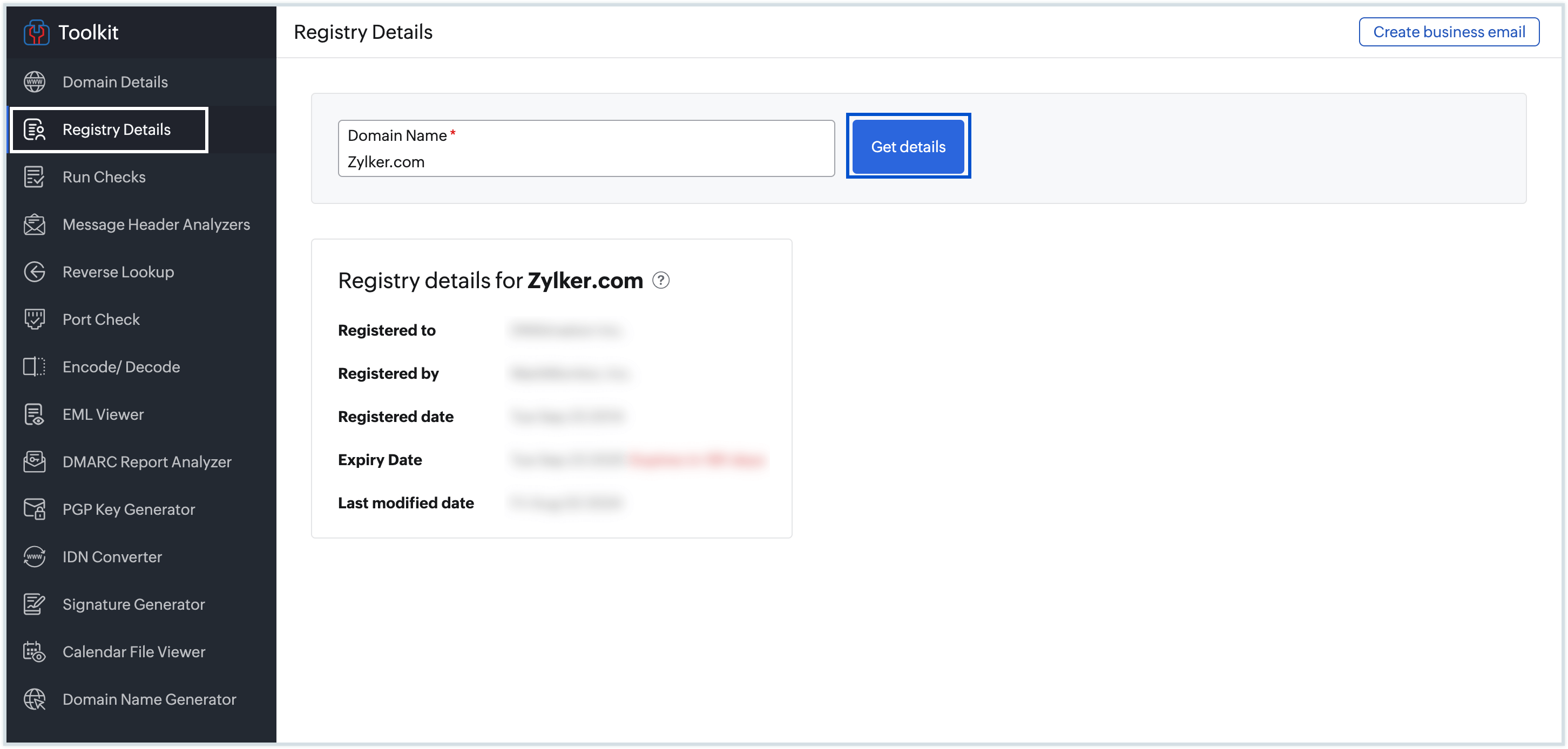
All the registration details for this domain will be displayed.
Registered to refers to the organization or the individual who has bought the domain. The Registered by parameter refers to the DNS provider with whom the domain has been registered. You can also find details about the date when the domain was registered, the date it expires and the Last modified time which refers to the last time any change was made to the domain's WHOIS information.
Email Health Checker
Email Health Checker allows you to run multiple diagnostic checks on a domain or server to quickly identify configuration issues, DNS problems, or connectivity errors. The Run Checks section provides a consolidated view of important email configurations for a domain, including MX records, SPF, and DKIM, helping you verify that all essential settings are correctly configured.
- Navigate to the Email Health Checker section under Domain Lookup.
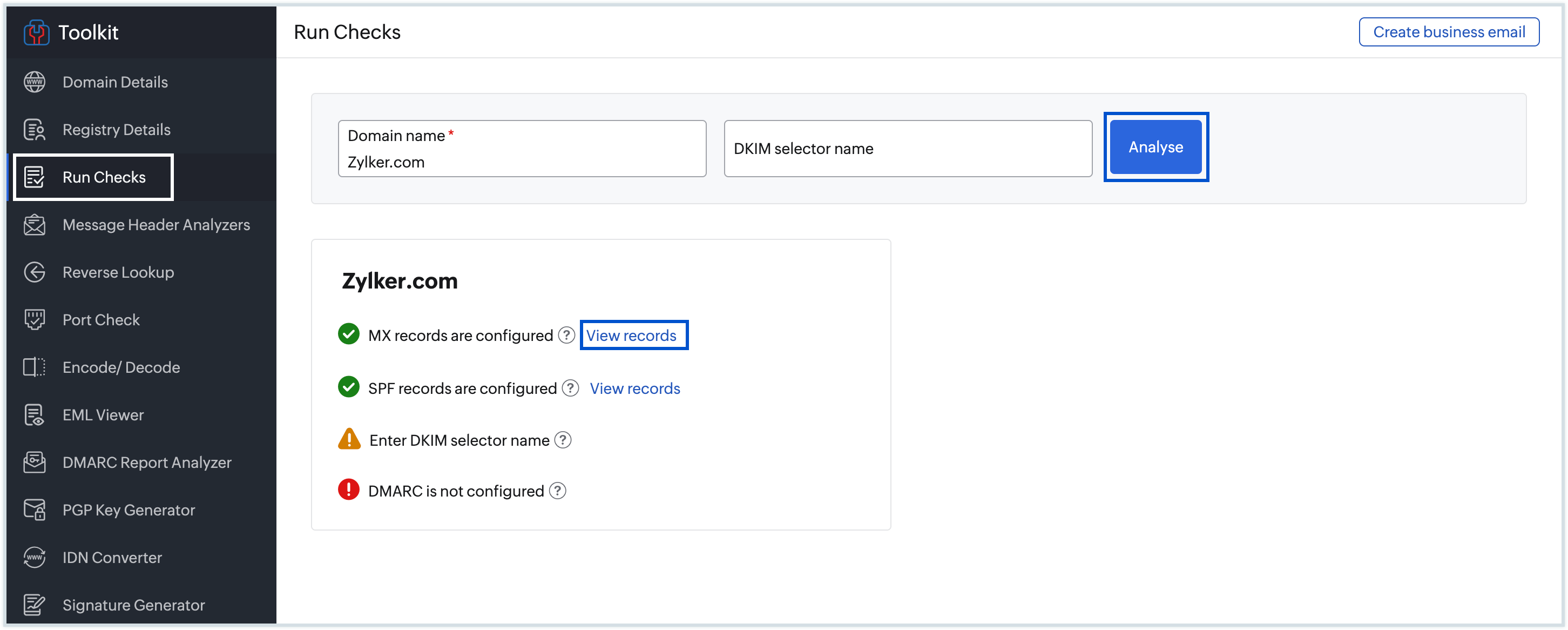
- Enter the domain name.
- Enter the DKIM selector value, if you want to view the DKIM details for the domain, and click, Analyse.
- Now you can view whether the MX, SPF, DKIM and DMARC records for the domain have been configured.
- If the records are configured correctly, you will find a tick against that particular record, and you can click View records across each field to take a look at the records.
- If the records are configured incorrectly, you will find an exclamation against that particular record. This means that you have to update the record to the correct value.
What is IP Lookup in Zoho Toolkit?
The IP Lookup section provides tools to retrieve and analyze IP address-related information. You can perform a reverse IP lookup to find domains hosted on a specific IP address, and use the Port Checker to verify open ports and diagnose connectivity errors.
Reverse Lookup
Reverse IP Lookup helps you find the domain name associated with a specific IP address. This is useful for identifying other domains sharing the same server or investigating suspicious IP addresses.
- Navigate to the Reverse Lookup section under IP Lookup.
- Enter the IP address whose associated domain you'd like to find, and click Lookup.
- If there is any domain that is hosted from this physical IP address, it will be displayed on the screen.

Port Check
Port Checker tool helps you verify whether specific ports on a host are open or closed. This is useful for diagnosing connectivity errors and ensuring that the required ports are accessible for email communication.
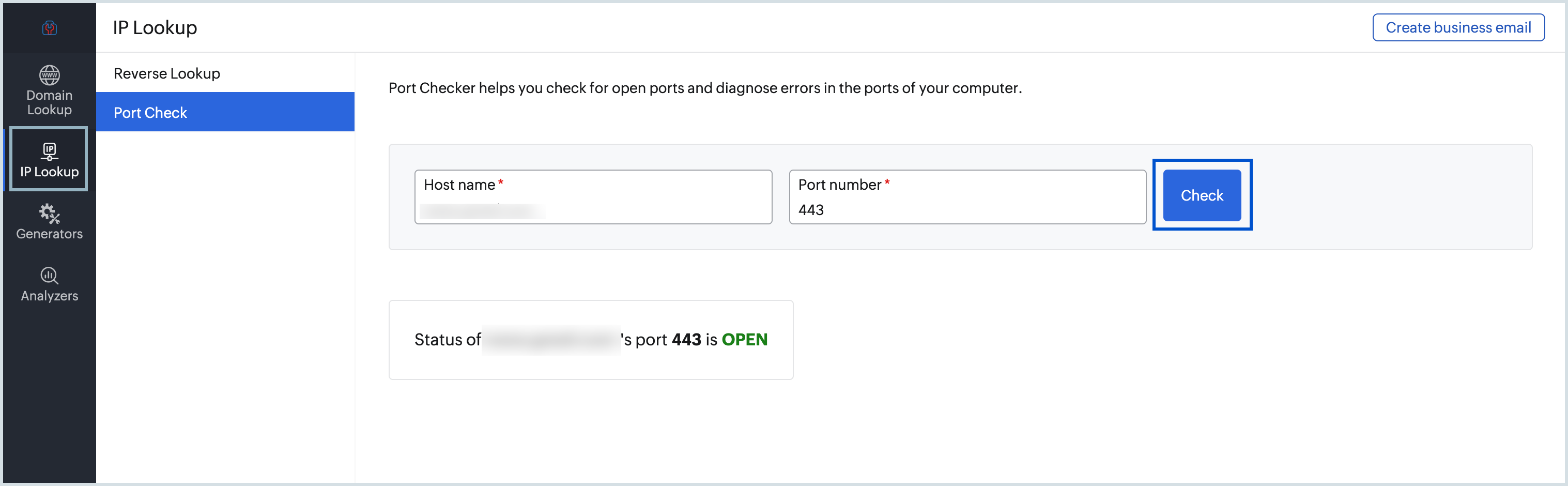
- Navigate to the Port Check section under IP Lookup.
- Enter the hostname and the port number that you want to perform a check for, and click Check.
- A message will be displayed on screen, with details about whether the port is open or closed.
What types of generators are available in Zoho Toolkit?
The Generators section offers a set of tools that allow users to create and configure key email and domain-related elements. These tools are designed to save time and ensure accuracy across common tasks such as generating encryption keys, creating email signatures, and managing domain configurations.
Email Signature Generator
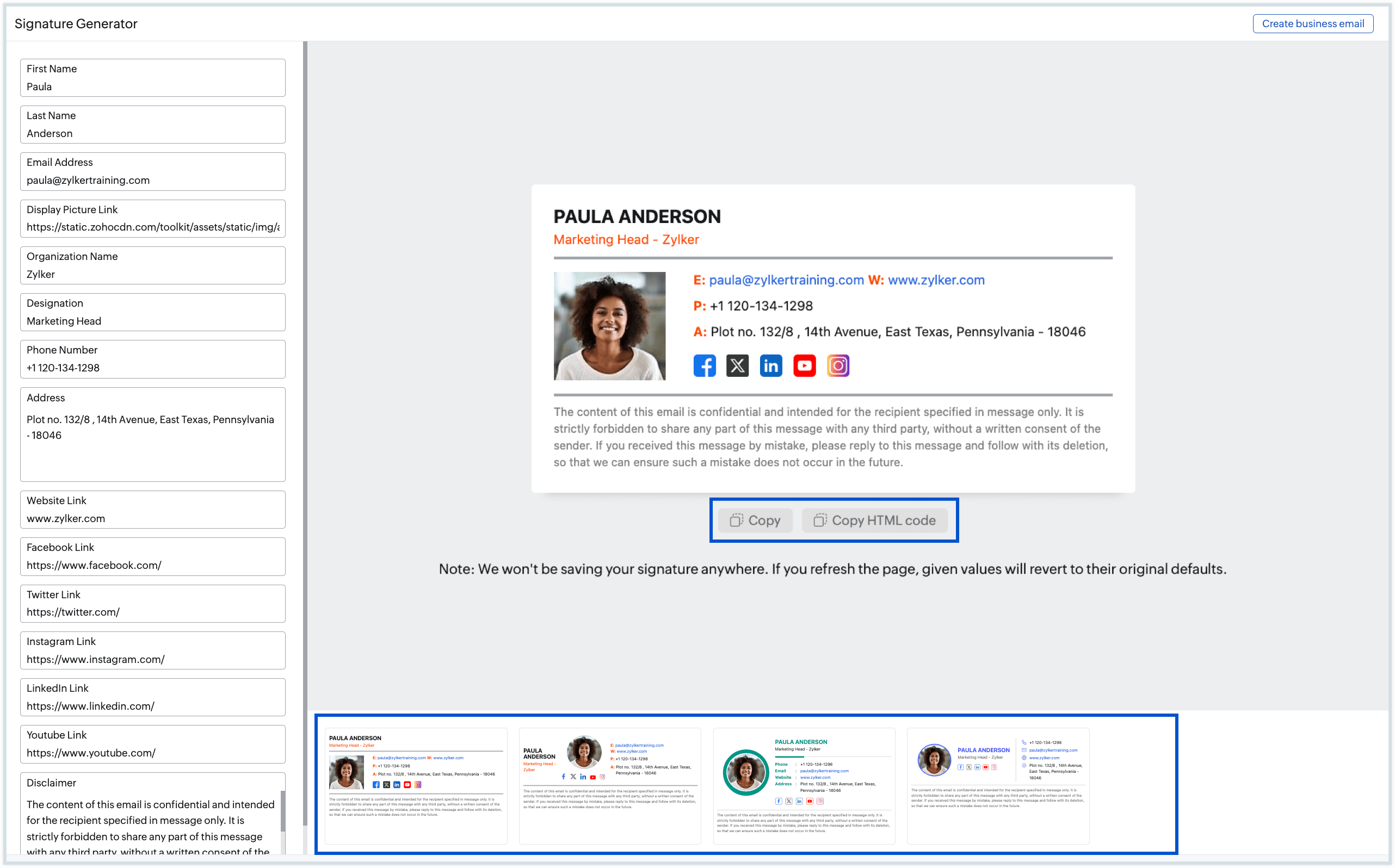
The Email Signature Generator in Toolkit allows you to generate visually appealing, professional email signatures that reflect your personal brand or company image. You can customize your signatures according to your needs by adding your name, designation, contact information, social contacts, your personal profile or company logo, or even a disclaimer to your signature.
- Navigate to the Email Signature Generatorsection.
- Fill in the details you would like to display in your signature in their respective fields.
- As you enter, all the changes will be reflected in the preview pane immediately.
- Choose the preferred layout for your signature from the list of templates displayed in the bottom pane.
- Once done, click Copy or Copy HTML code to copy your signature code.
PGP Key Generator
The PGP Key Generator section allows you to create a PGP (Pretty Good Privacy) key pair, which consists of a public key and a private key. These keys are used for encrypting and decrypting messages, as well as signing emails for the authenticity of messages. Once your key pair is generated, you can use it to encrypt messages that only you and the intended recipient can read and to sign messages to verify that they were sent by you. Follow the below instructions to generate a new key pair :
- Go to the PGP Key Generator section under Generators.
- Enter your Name and Email address for which you want to generate the PGP keys.
- Enter a Passphrase for the key pair. This Passphrase will be used to sign the email and decrypt it.
- Click Advanced Settings to choose the Algorithm (RSA or ECC ) and the Key Size (2048 Bits or 4096 Bits).
- Set an Expiry date for your key pair from the drop down.
- Give a Comment for the key pair for future reference.
- Once done, click Generate.
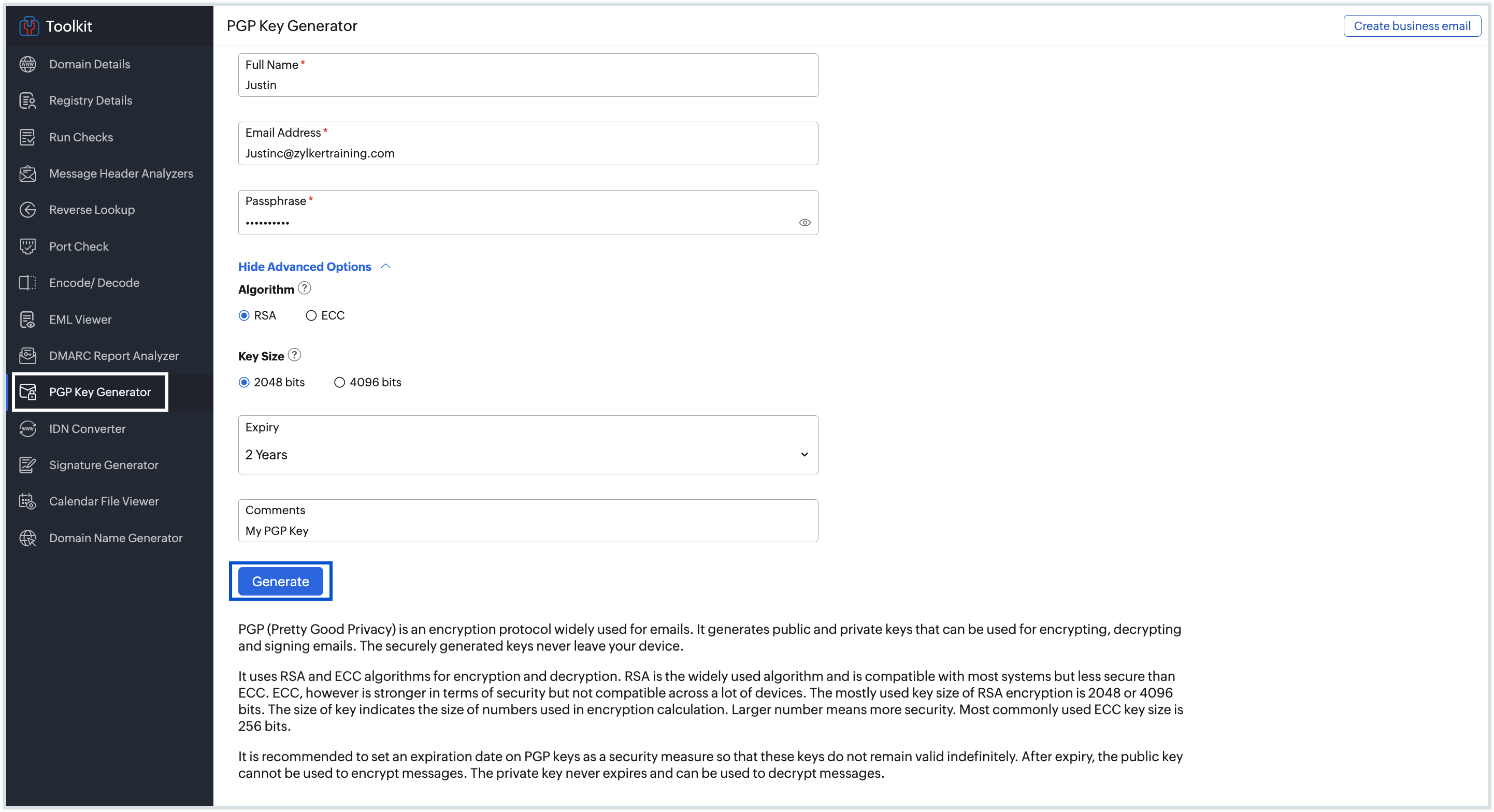
A pair of private and public keys will be generated and will be associated with the email address provided. Click the Download icon in the generated public/private key section to download them separately. Or click Download keys to download them both. 
Import Keys
The Import Keys option in Zoho Toolkit allows you to upload an existing PGP key file instead of generating a new one. It supports .asc files up to 10 MB. This feature helps users bring in keys generated elsewhere, making it easier to manage them within the Toolkit.
When you upload a key file, the Toolkit automatically extracts and displays clear, user-friendly details from the uploaded file, including:
1. Name
2. Email Address
3. Status (Valid or Revoked)
4. Creation Date
5. Expiry Date
6. Algorithm
7. Key Length
8. Key ID
9. Fingerprint
10. Public and Private Keys
To import a key file:
1. Navigate to PGP Key Generator > Import Keys.
2. Drag and drop your .asc key file or click Browse Files to upload.
3. If prompted, enter the key’s passphrase.
4. Review the displayed key details and confirm the information.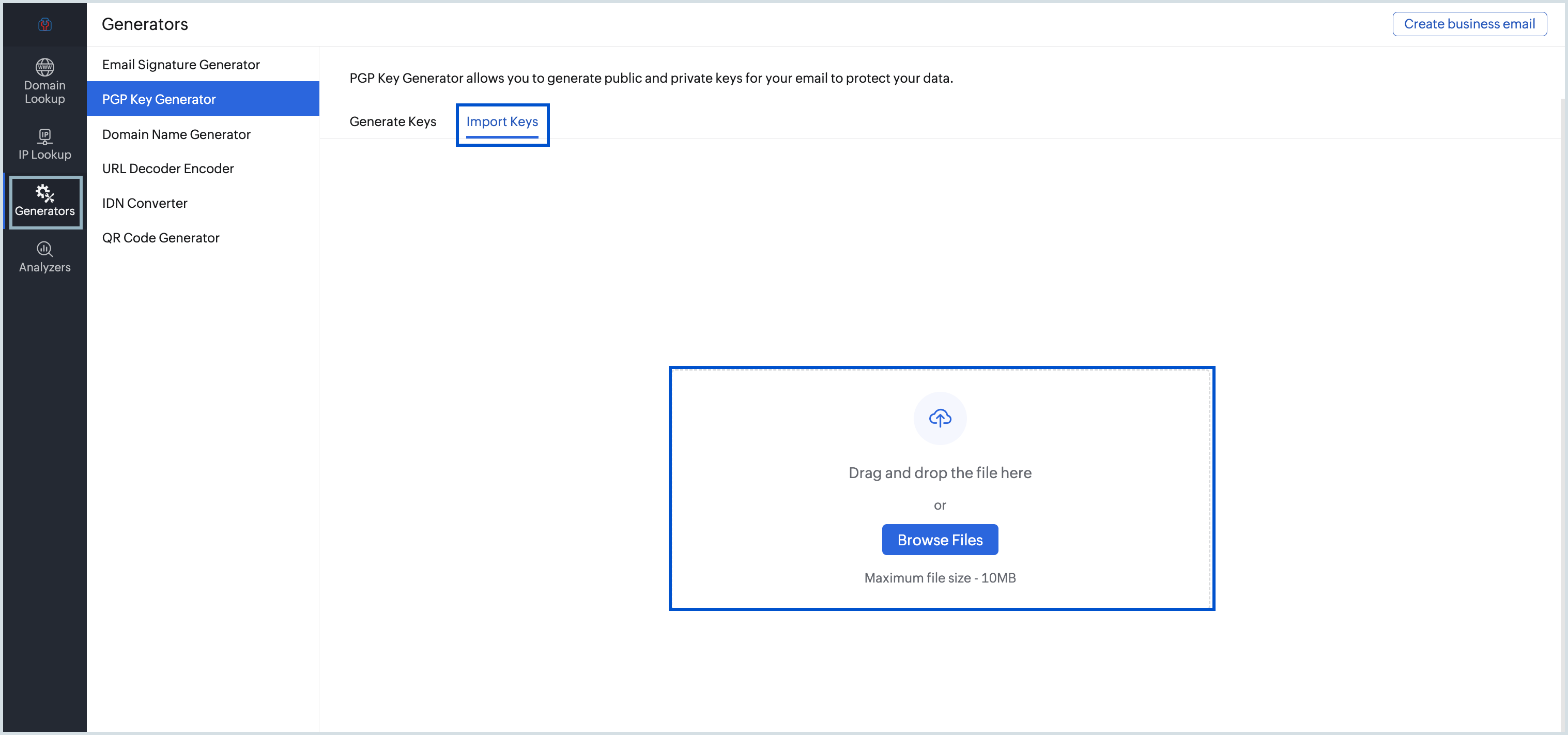
After importing, you can securely store your private key and proceed with encryption or signing as needed.
Domain Name Generator
The Domain Name Generator is a tool designed to help you find unique and available domain names for your website, business, or brand. By simply entering keywords, you can generate a list of domain name suggestions and check their availability in real time.
- Go to the Domain Name Generator section.
- Type in the keyword related to your business, brand, or website theme.
- Select the desired Top-Level Domain (TLD), such as .com, .net, .org, etc., from the dropdown menu.
- Click the Generate button to view a list of domain name suggestions based on your input.
- Hover over the suggested domain names and click Check Availability to see if the domain is still up for registration.
- Click the Copy icon next to a domain name to save it for later or use it for registration.
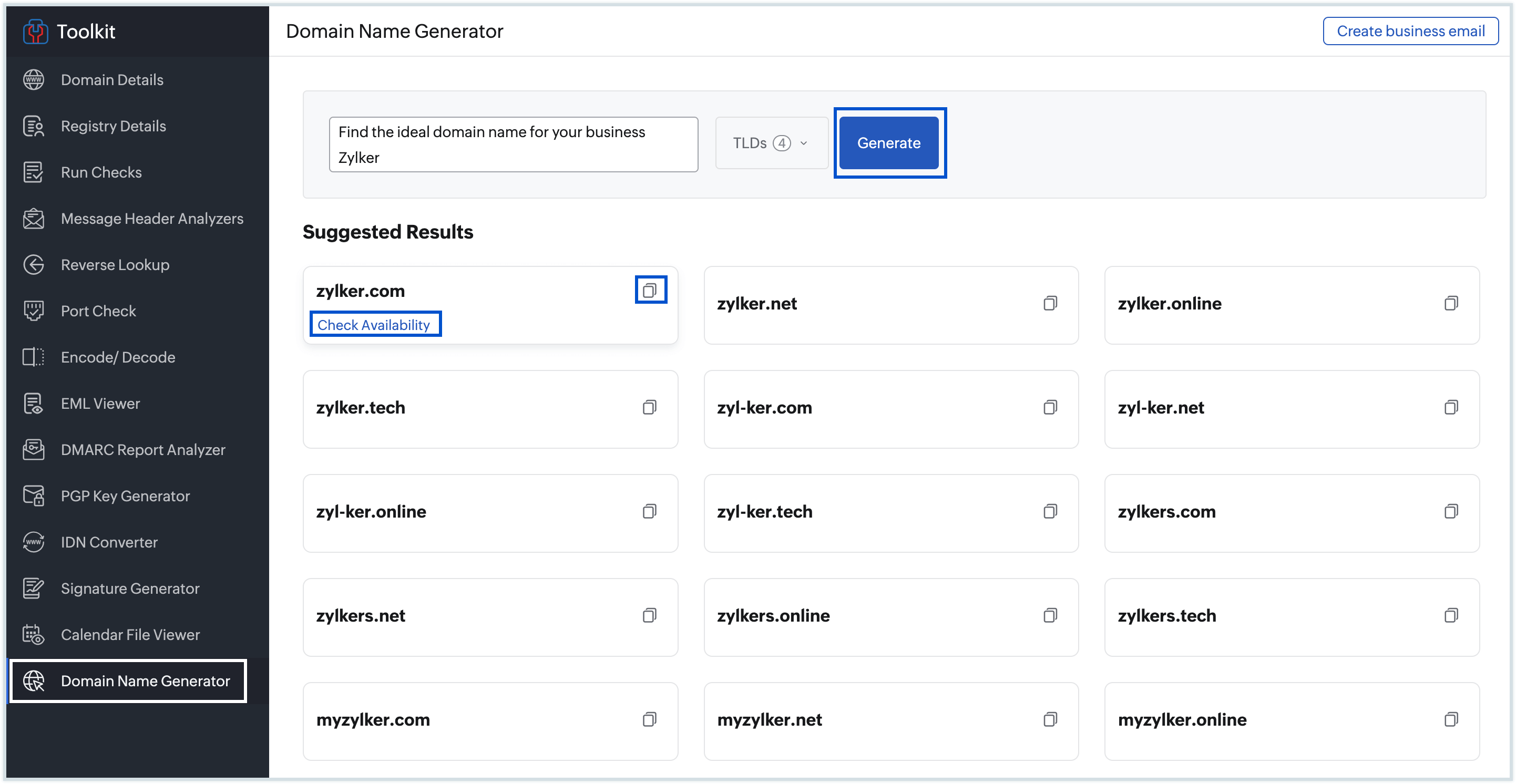
Use the generated domain name suggestions to search for and purchase an available domain from a domain registrar. You can also register the domain with Zoho directly.
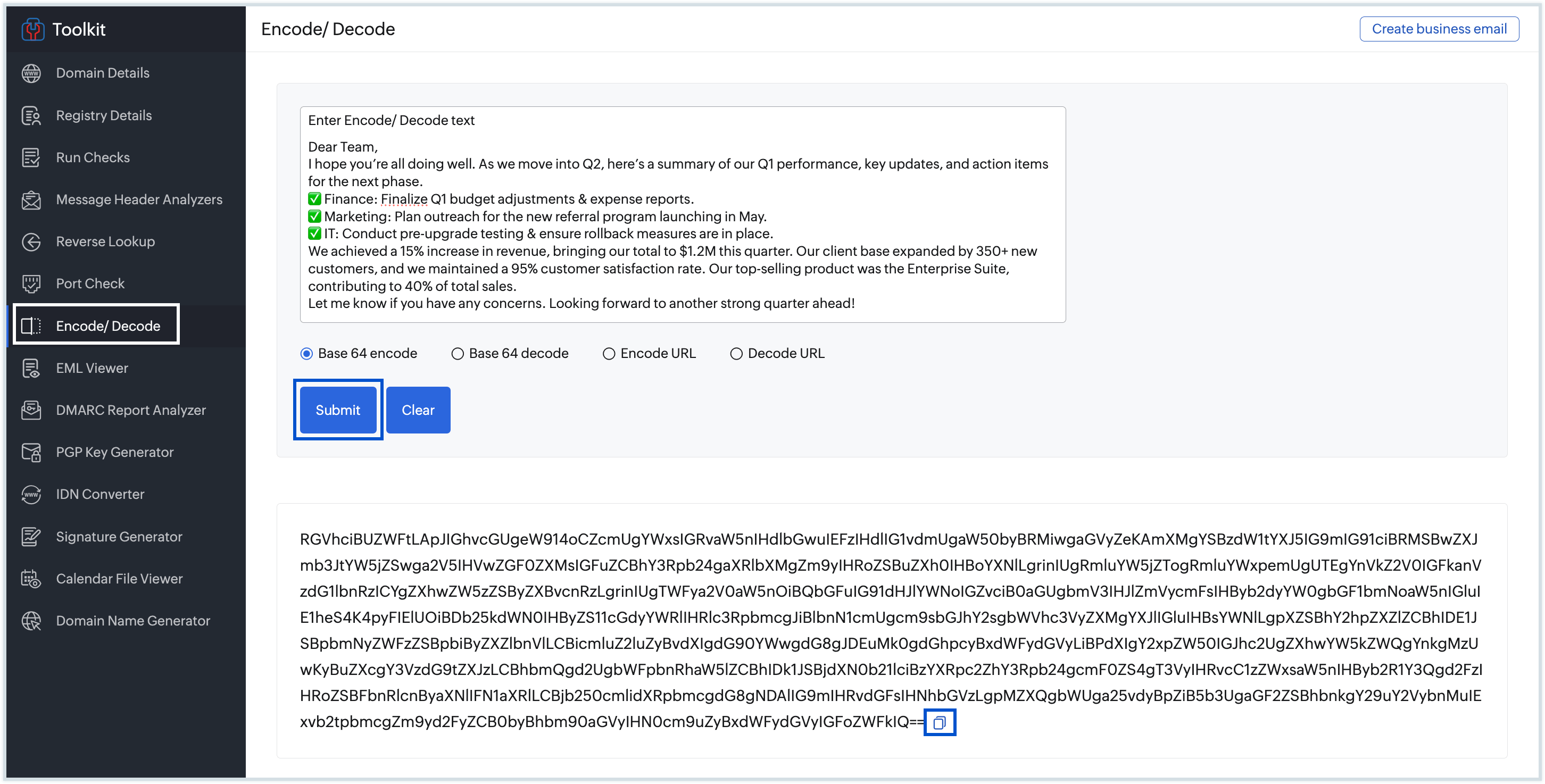
URL Decoder Encoder
URL Encoder and Decoder allows you to encode or decode text using common encoding formats. This ensures that data is safely transmitted or processed between systems without any formatting errors.
There are 4 options available:
- Base 64 encode
- Base 64 decode
- Encode URL
- Decode URL
To use any of these options, follow the instructions below:
- Go to the URL Decoder Encoder section under Generators.
- Enter the text or URL that you would like to encode or decode.
- Select the function that you would like to perform, and click Submit.
- The encoded or decoded value will appear on the screen.
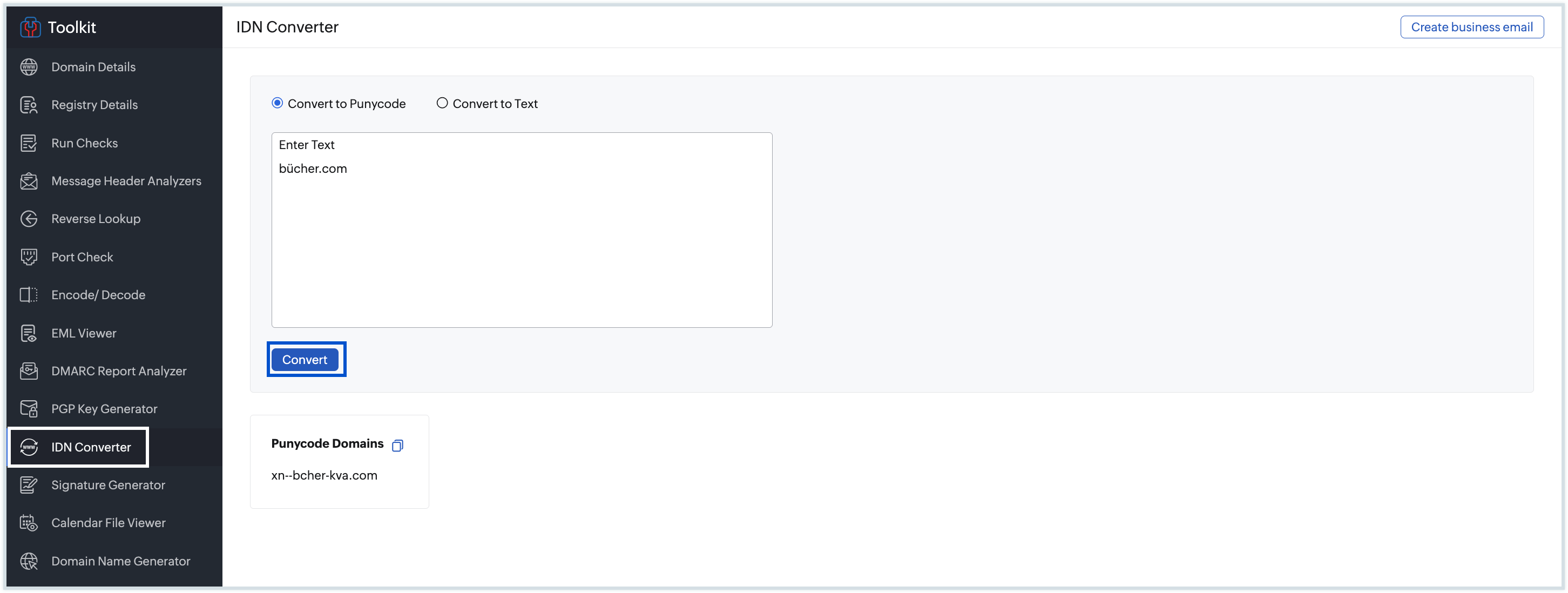
IDN Converter
You can use the IDN converter to convert Internationalized Domain Names (IDNs) that contain non-ASCII characters into their Punycode (ASCII- American Standard Code for Information Interchange) equivalents, or vice versa.
- Go to theIDN Convertersection under Generators.
- Select the radio button for either Convert to Punycode or Convert to Text.
- Enter the Text/Punycode domain based on your selection and click Convert.
- A message will be displayed on the screen, showing the value provided converted to the chosen format.
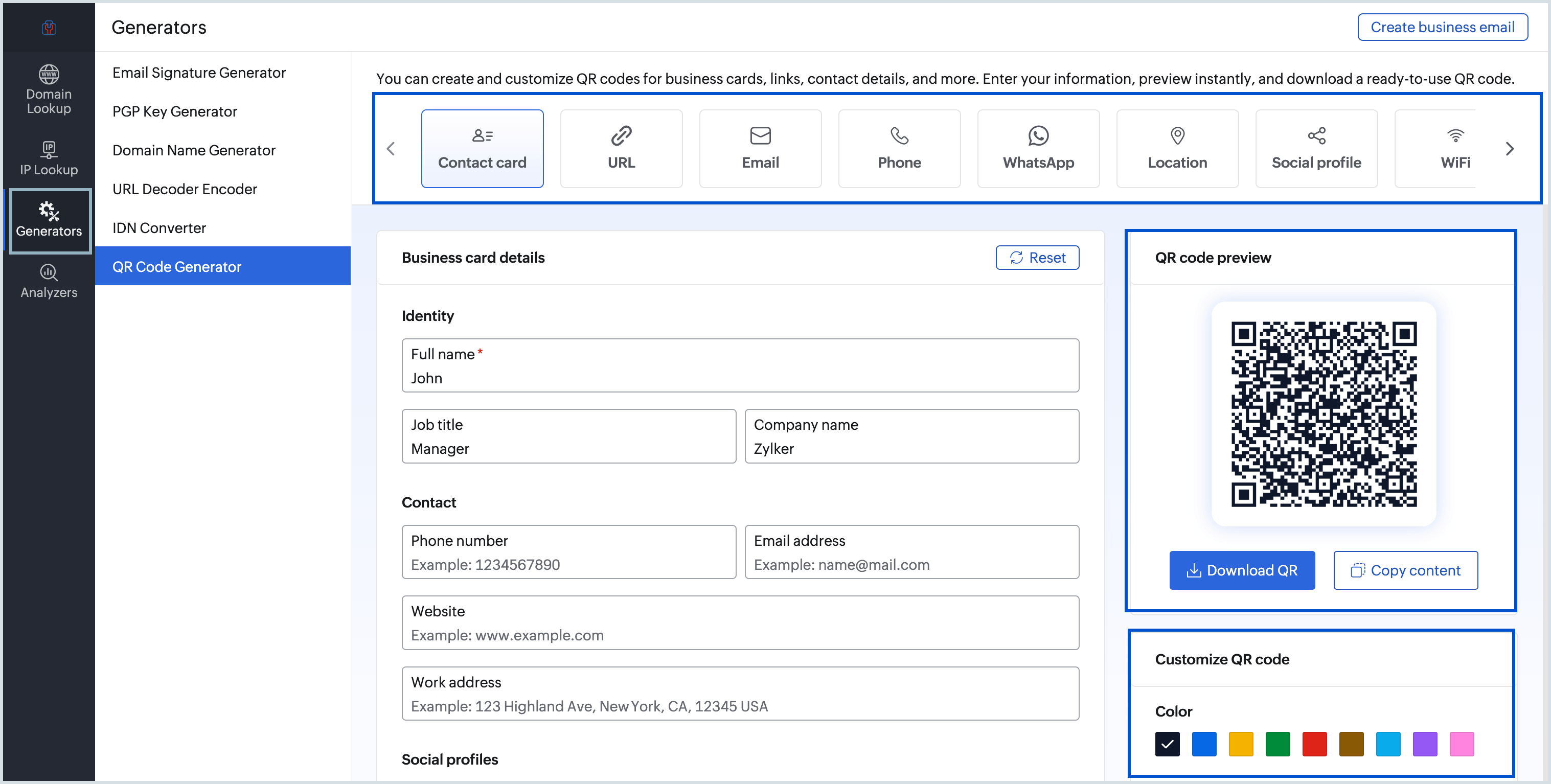
QR Code Generator
QR Code Generator allows you to generate customized QR codes for business cards, links, contact details, and more. You can enter the required details, preview the QR code, and download it in a format that is ready to use.
- Navigate to QR Code Generator section under Generators.
- Select the type of information you want to encode in the QR code from the top pane. Based on the type you select, enter the corresponding details:
- Contact card - Create a QR code containing your business or contact information. Enter details such as your name, job title, company name, phone number, email address, physical address, website, and social profile links.
- URL - Create a QR code that opens a website or webpage. Enter the complete website URL.
- Email - Create a QR code that opens an email draft with the specified details. Enter the recipient's email address, subject, and message body.
- Phone - Create a QR code that can be scanned to initiate a phone call. Enter the phone number.
- WhatsApp - Create a QR code that opens a WhatsApp conversation. Enter the phone number with the country code and, optionally, a pre-filled message.
- Location - Create a QR code that directs users to a specific location. Enter the location URL or the coordinates of the location.
- Social profile - Create a QR code that opens a social media profile. Enter the URL of the social profile.
- Wi-Fi - Create a QR code that allows users to connect to a Wi-Fi network. Enter the network name (SSID), password, and select the encryption type: WPA/WPA2, WEP, or None.
- UPI payment - Create a QR code for receiving a UPI payment. Enter the UPI ID and the payment amount.
- App store - Create a QR code that directs users to an application in an app store. Enter the Google Play Store or App Store URL of the application.
- Plain text - Create a QR code containing text. Enter the text you want to encode in the QR code.
- The QR code is updated simultaneously when the values are entered in the fields.
- You can preview, download, or copy QR content from the QR code preview section.
- Select your preferred color for the QR code in the Customize QR code section.
QR code error correction in the bottom right pane ensures that the QR code remains readable even if part of it is damaged, dirty, or covered. Zoho Mail's QR Code Generator supports four error correction levels, allowing you to choose the level of protection that best suits your use case.
| Level | Error recovery | Use |
| Low | ~7% | Suitable for clean and simple QR codes with minimal risk of damage. |
| Medium | ~15% | Suitable for general use and is the most commonly used error correction level. |
| Quartile | ~25% | Suitable for QR codes that require more protection against damage. |
| High | ~30% | Suitable for QR codes with logos or those that require the highest level of damage protection. |
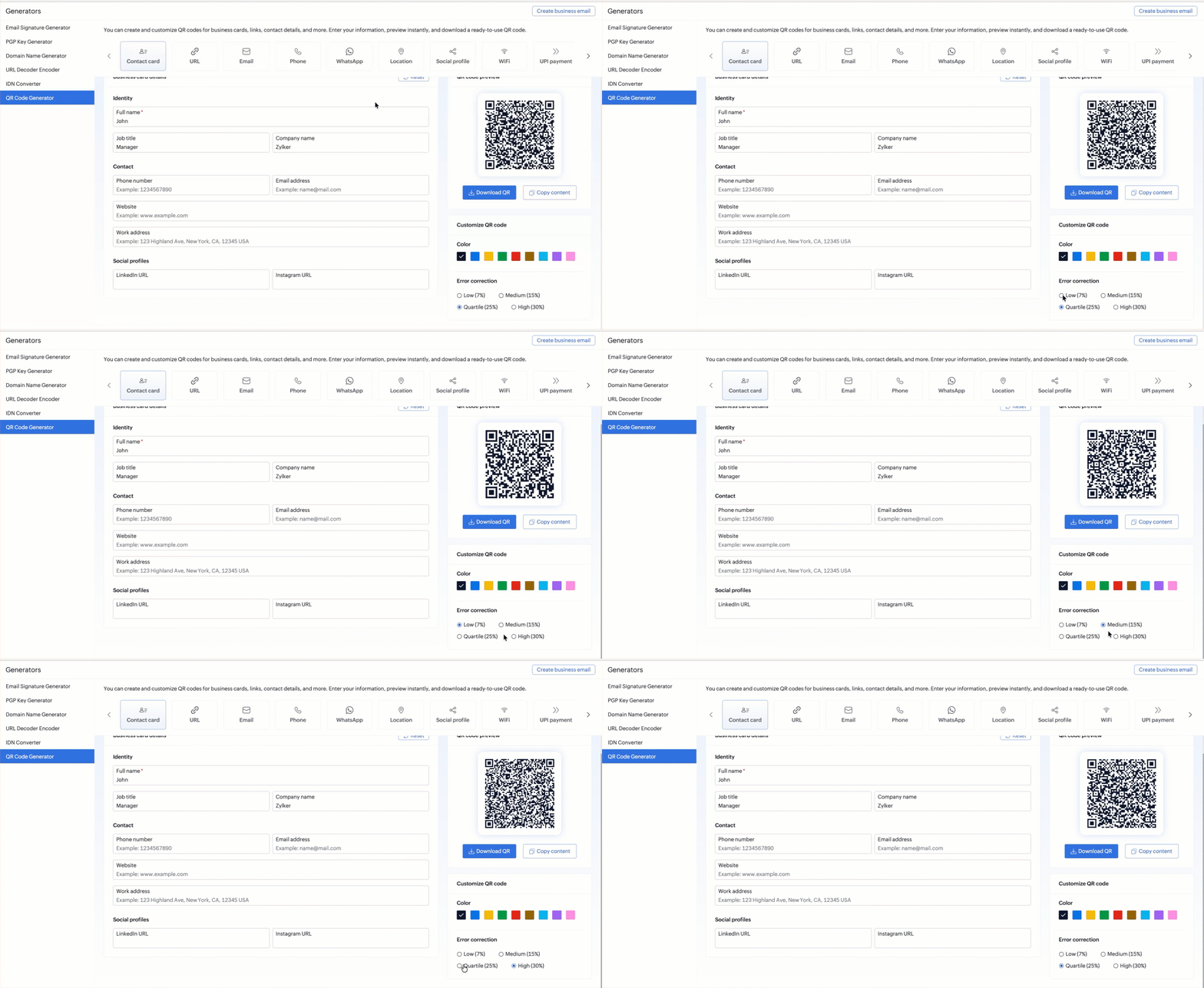
Select the error correction level based on the environment in which the QR code will be used. For QR codes that will be printed on physical materials or displayed in environments where damage is likely, a higher error correction level such as Q or H is recommended.
How can Analyzers be used in Zoho Toolkit?
The Analyzers section provides dedicated options that allow users to inspect and interpret email-related files and reports. These options help to simplify the process of diagnosing email issues, reviewing authentication results, and previewing email and calendar files.
Email Header Analyzer
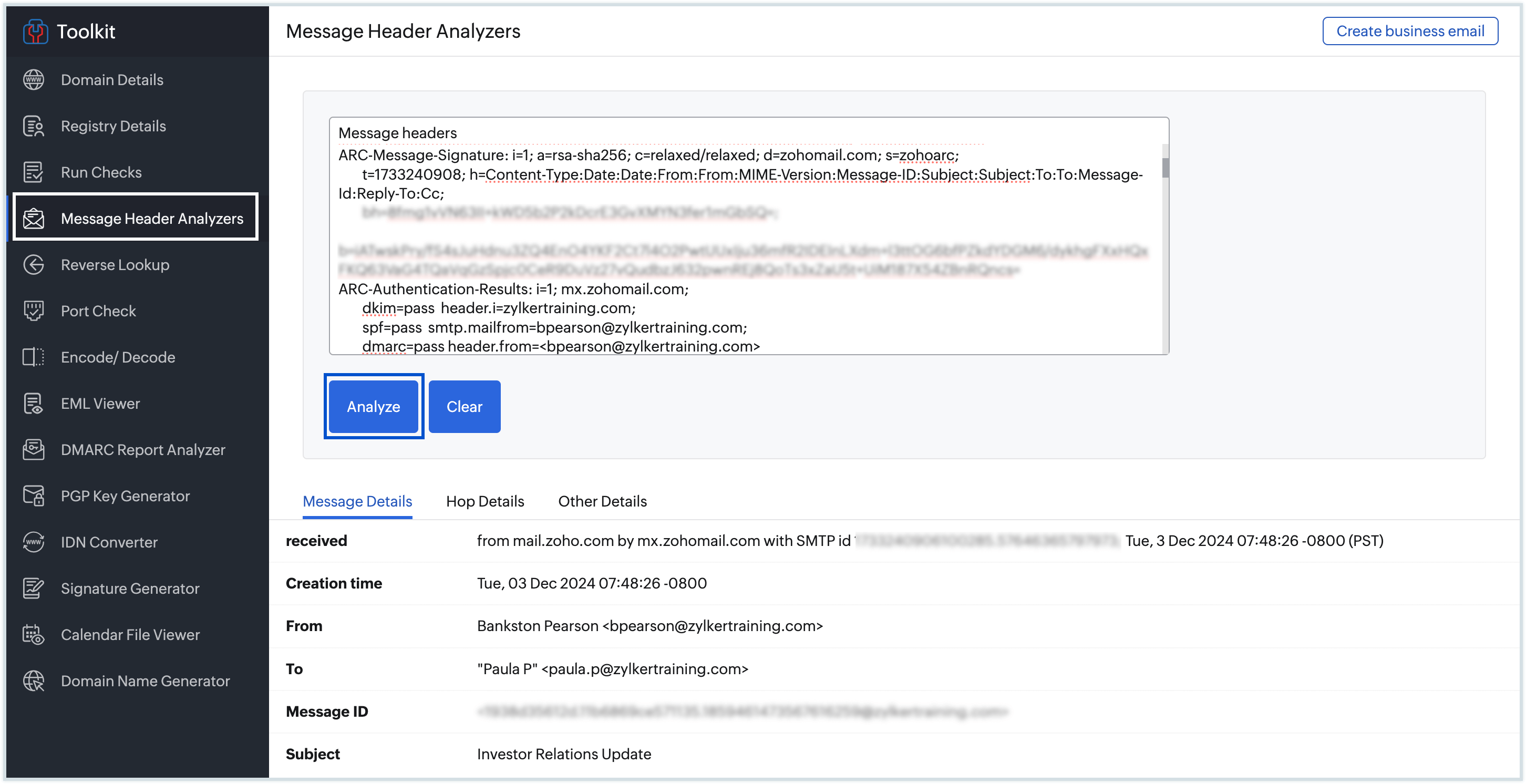
If you have the header of an email, you can view the related details in separate sections for easy understanding. Email headers usually contain a lot of information about the email. This email header analyzer parses the email content and presents it in an easy-to-read format. Follow the instructions on mail options help page to view the email headers for an email that you have in your Zoho Mail account.
- Go to the Email Header Analyzer section under Analyzers.
- Enter the email header in the relevant field and click Analyse.
- In the Message Details tab, you can view the basic details about the email such as the Message ID, From and To details, the Email Subject etc.
- In the Hop Details tab, the entire trail of the email, if has gone through a chain can be viewed, along with the Protocol, Delay etc.
- The Other Details tab will have all the detailed, technical information regarding the email such as the DKIM, DomainKey signatures, the MIME Version and other such details.
DMARC Report Analyzer
Once you have a DMARC record published for your domain in the Domain Name System (DNS), you'll start receiving DMARC reports at the specified email addresses. These reports typically come in an XML format and should be parsed to gain insights from your DMARC report. The DMARC Report Analyzer allows you to upload the DMARC Report file, which then parses the data and displays the report in a more visually understandable format.
- Navigate to the DMARC Report Analyzer section under Analyzers.
- Click Browse or drag and drop the XML file containing the DMARC report.
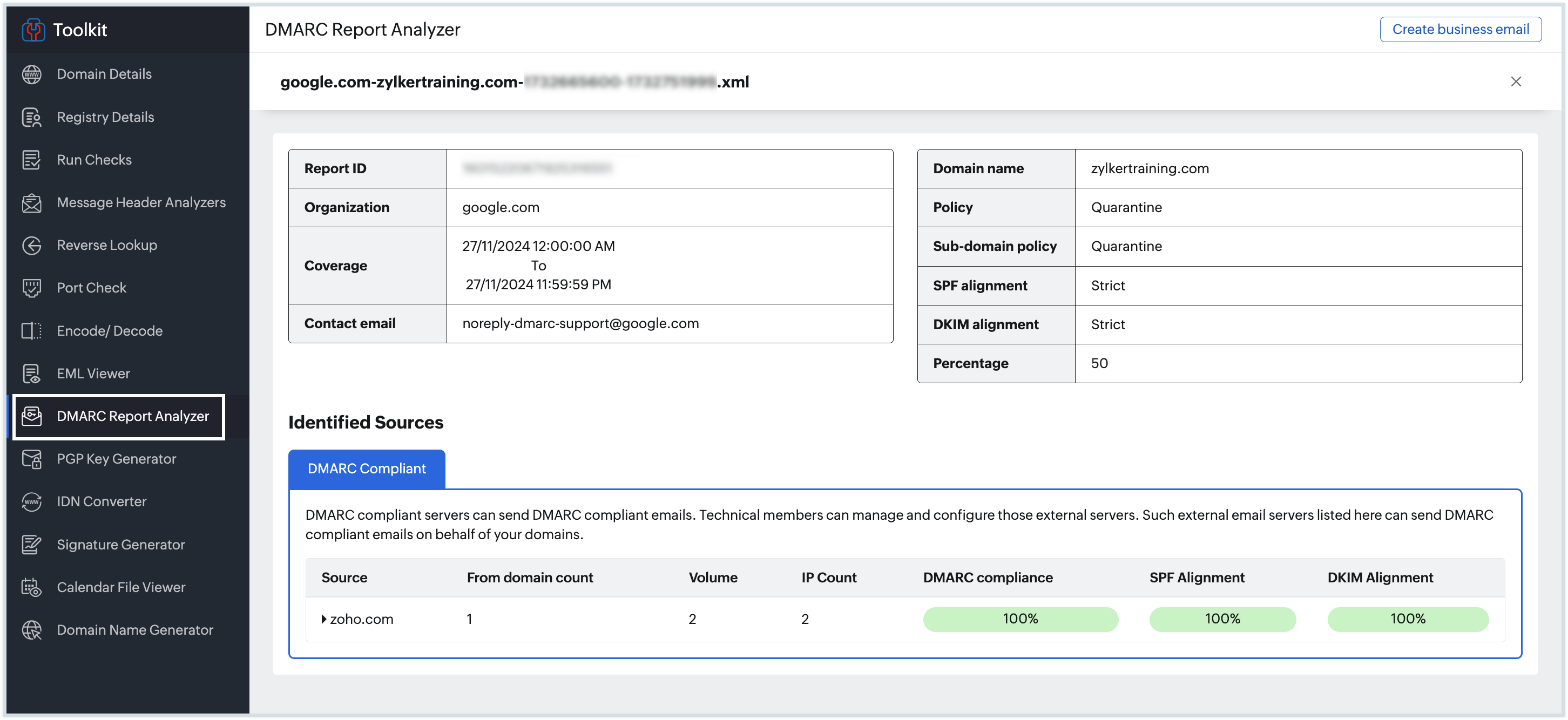
The DMARC Report Analyzer then displays a detailed report of the DMARC report data, including SPF, DKIM, DMARC checks, applied policies, detailed source details, number of emails passed, etc. The details about the non-compliant sources are displayed in a separate tab next to the DMARC compliant section.
This makes it easier to identify and improve email security, monitor deliverability, and ensure compliance with DMARC policies.
ICS File Viewer
Every calendar application or service offers the option to export your events. If you have events from various calendar services or platforms consolidated into a single file, viewing that file in an unformatted view can be difficult. Using the Calendar File Viewer, you can visually enhance the viewing experience of all the events listed in your calendar file (.ics). This file contains the event information, including event titles, dates, times, locations, and other details.
- Go to the ICS File Viewer section.
- Click Browse to select your ICS file. Or, drag and drop the file directly.
- Your ICS file will be displayed immediately.
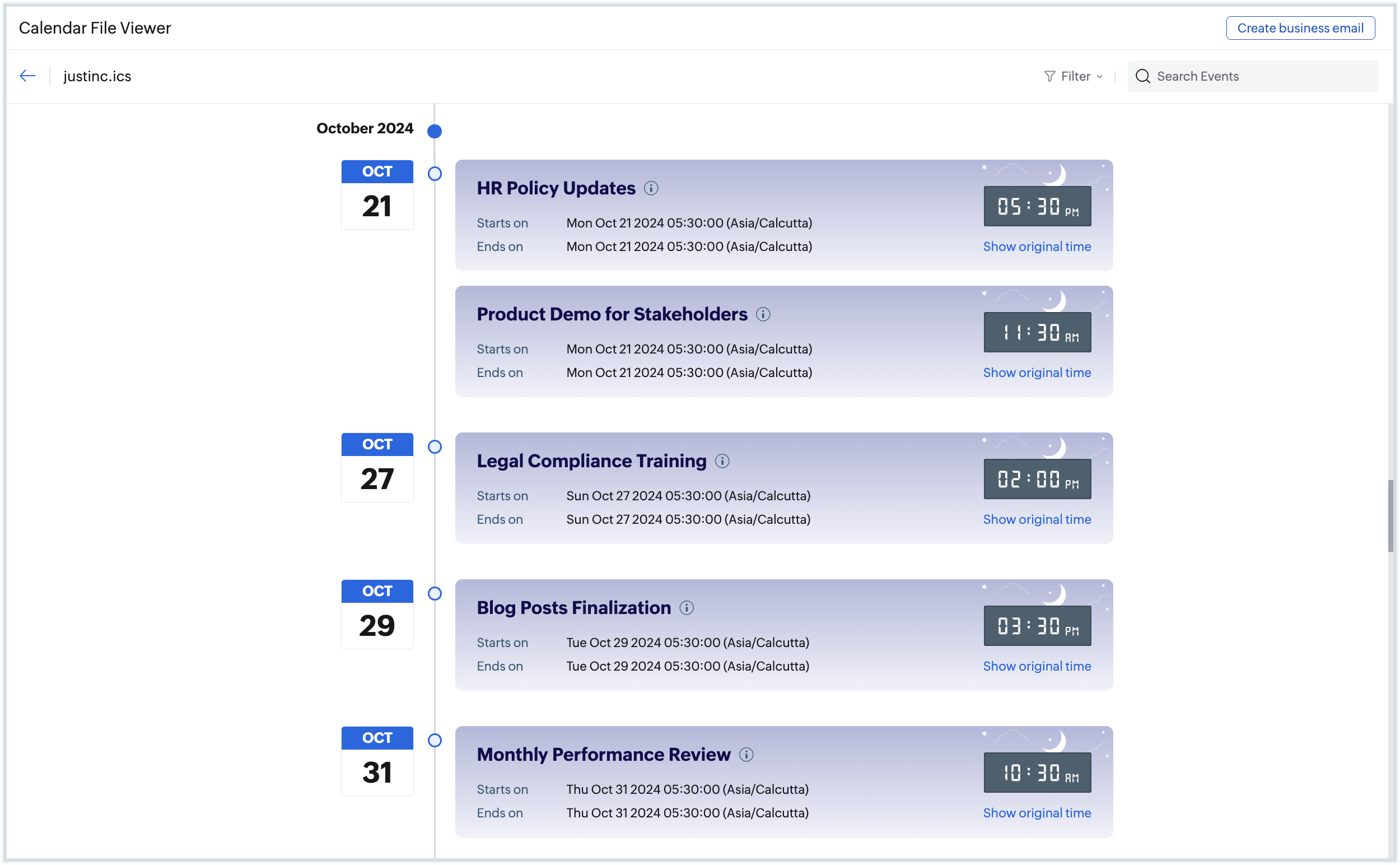
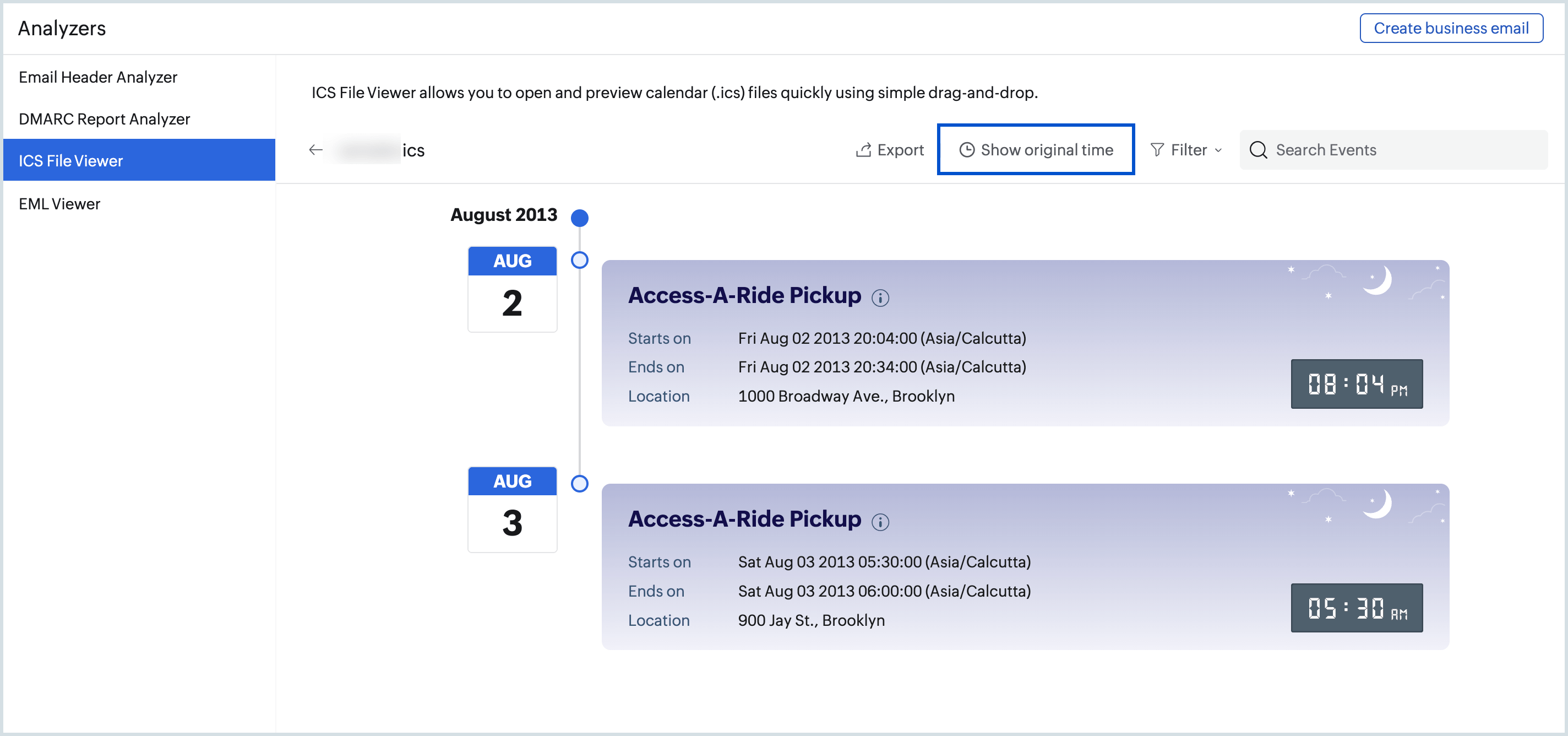
Hover over the info icon against the event name, to view detailed information about the event, such as the event description, event organizer, participants, and time, etc. You can also filter events scheduled only for day time, night time, or filter recurring events using the Filter icon in the top pane. Select the Export icon to export the events as a PDF file.
Click Show original time to view the event timing in the original time zone of the event's location.
EML Viewer
EML Viewer allows you to view EML files and their attachments instantly by dragging and dropping them into the viewer. This is useful for previewing email files without the need to open them in an email client.
- Navigate to the EML Viewer section.
- Click Browse or drag and drop the EML file containing the email content.
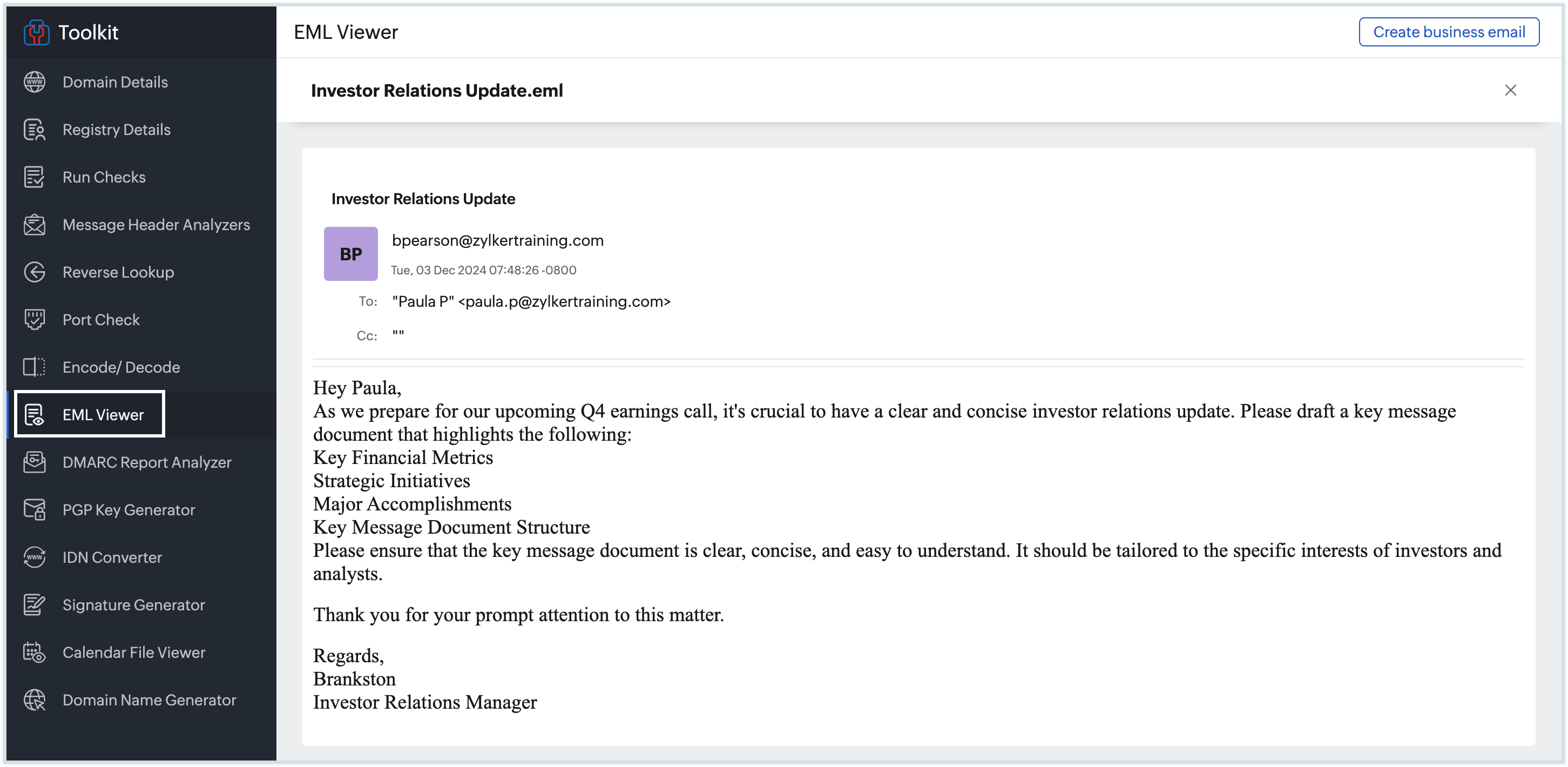
The EML viewer will display all details of the email, including the sender, recipient, subject, and date, as well as the email body, including attachments. You can read the email message in the EML Viewer, just as you would in an email client. If the email contains any attachments, you can download and view them by clicking the Download button.